
When your Google Home stops listening, freezes on a spinning white light, or you're packing up to move, you need to know how to reset it. The internet gives you a dozen conflicting answers. Here is the real deal.
There are two different kinds of reset. Picking the wrong one can wipe out all your settings.
Per Google's official support documentation, every Nest and Home device includes a physical reset button or an on-screen option. As of 2026, the process is consistent across generations. But the button location changed from the bottom on the original Home Mini to the under-edge on newer models.
Knowing which model you own is the first step.
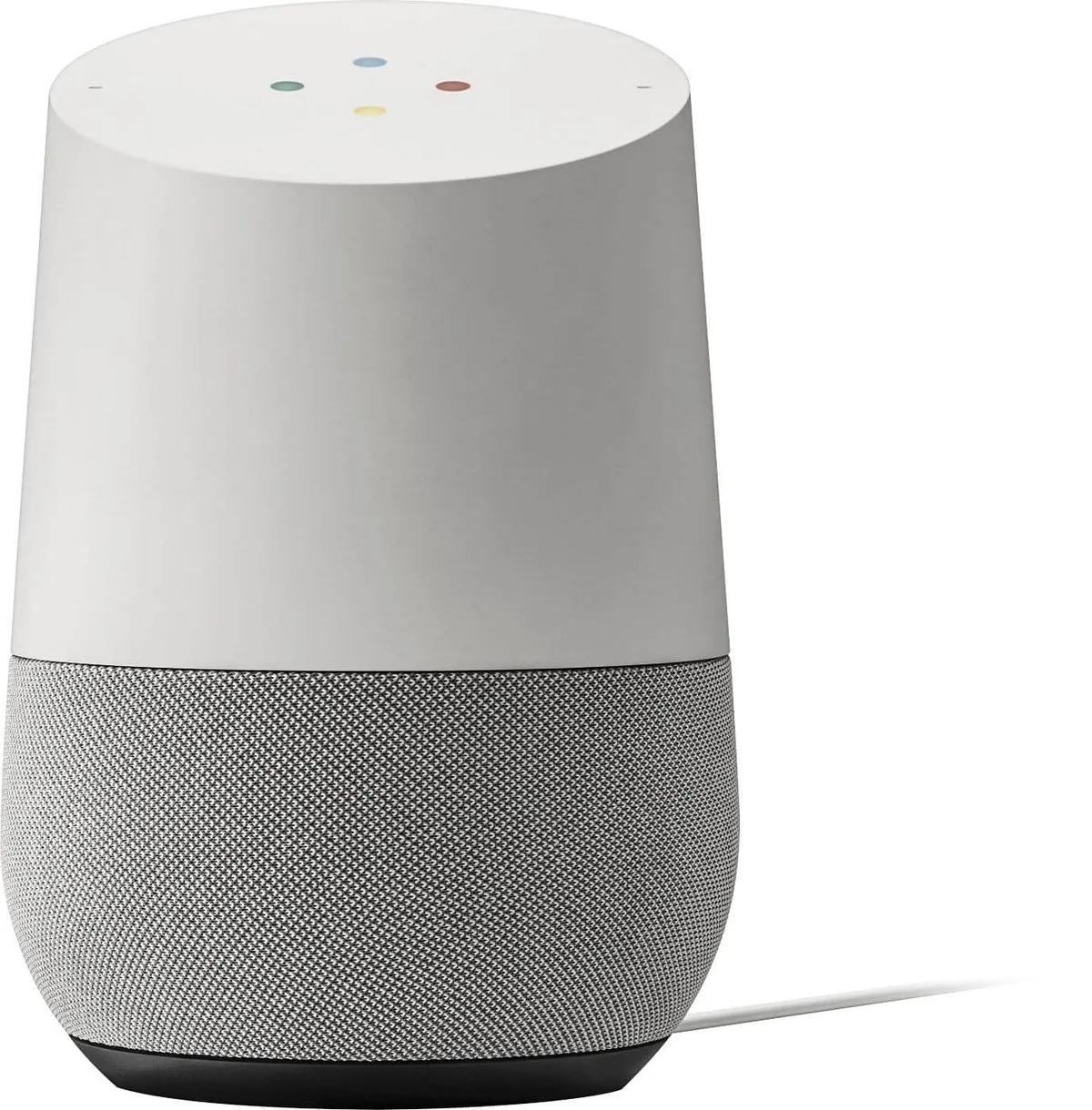
When You Should and Shouldn't Reset Your Google Home
Not every glitch needs a full factory reset. Most do not. Let us map out the situations where each approach makes sense.
Use a soft reset (unplug and re-plug) when:
- The device stops responding to voice commands
- You see a solid white or spinning light but no response
- The Wi-Fi network changed and the device will not reconnect
- The Assistant says "something went wrong" during setup or routines
- You notice lag after a power outage
Use a factory reset when:
- You are selling, giving away, or moving the device permanently
- The device is stuck in a boot loop
- Persistent errors survive a soft reset
- You need to link it to a different Google Account
- The device was set up before but you cannot access its settings
Here is the rule of thumb. If the device still responds to commands at all, try the soft reset first. A factory reset is like formatting your hard drive.
Use it only when you have exhausted the gentler option.
Resetting a Google Home without removing it from your Google Account causes issues if you hand the device to someone else. The next owner cannot set it up until you unlink it. That is a common oversight we will cover later.
The Two-Minute Quick Answer: Soft Reset vs. Factory Reset
If you are in a hurry, here is the short version.
A soft reset is just a power cycle. Unplug the power cable from the back of the device. Wait at least 10 seconds.
Plug it back in. The device comes back online with all your settings intact. This clears minor software glitches and re-establishes network connections.
A factory reset wipes everything. All settings, linked smart home devices, saved Wi-Fi networks, your voice model, and your entire account association are gone. The device returns to its out-of-box state.
You will need to set it up from scratch using the Google Home app.
| Action | What it does | When to use it | Time required |
|---|---|---|---|
| Soft reset (unplug) | Clears temporary memory, reconnects to Wi-Fi | Minor glitches, no response, after power outage | 30 seconds |
| Factory reset (button hold) | Deletes all data, removes account | Selling device, boot loop, persistent errors | 2 minutes |
| Factory reset (Nest Hub screen) | Same as above, via touchscreen menu | Hub models when screen still works | 1 minute |
When in doubt, start with the soft reset. Nine times out of ten, that is all you need. A factory reset is a last resort.
For more on our approach to resetting devices, you can read our editorial standards page.
How the Reset Actually Works
Understanding what is going on under the hood helps you decide when to pull the trigger.
The Google Home runs a lightweight operating system on a custom chipset. When you press and hold the reset button for 10 to 15 seconds, you force the device into recovery mode. That is a special boot mode that bypasses normal startup.
It loads a factory restore process from protected memory.
Here is the sequence of events:
- You press and hold the physical button. The LED ring starts swirling white.
- After about 8 seconds, the LED turns solid orange. That means it is about to wipe everything.
- You hear a chime or a voice that says "Welcome to Google Nest." The factory data has been erased. The device is ready for a fresh setup.
- The device restarts automatically in setup mode.
The soft reset does not touch any of that. Pulling the power cord clears the device's volatile memory or RAM. Temporary glitches live there.
The operating system and user data are stored in non-volatile flash memory. That stays intact. So unplugging gets rid of flaky behavior without losing your routines.
The Nest Hub and Nest Hub Max are slightly different. They run a full Android-based interface. The factory reset option lives in the settings menu.
You can also use the button on the back if the screen is frozen. The Hub's on-screen path: swipe up, tap Settings, tap Device Info, tap Factory Reset. Confirm.
Same result, different path.
If your device is stuck in a boot loop, the soft reset will not help. The operating system cannot finish loading. Clearing RAM does nothing.
You need the full factory reset to fix corrupted system files.
Your Device, Your Path: A Simple Decision Tree
This is the heart of the guide. Use these questions to find your exact step.
Is your device completely unresponsive or stuck on flashing lights?
If yes, try a soft reset first. Unplug for 10 seconds. Plug it back in.
Wait 2 minutes. If it comes back to life, you are done.
If the soft reset fails and the device stays stuck on a spinning light or will not boot, go straight to a factory reset. Use the physical button method. This fixes most boot loop and frozen screen problems.
Are you moving, selling, or giving the device away?
If you are keeping it but moving to a new home, do a factory reset before you pack it up. The new Wi-Fi network will be the first thing the device connects to when you set it up at your new place. Unlink the device from your Google Account first.
Open the Google Home app. Tap the device's settings. Select "Remove device." Then do the physical factory reset.
If you are giving it to someone else, unlink it from your account first. Then factory reset. If you skip the account unlink, the new owner cannot set it up without your permission.
The device remains tied to your account for security reasons.
Is it just acting glitchy after a power outage or Wi-Fi change?
Power outage glitch: Unplug, wait 10 seconds, plug back in. That is it. Most power-related issues clear up with a simple reboot.
Wi-Fi change: If the device will not connect to your new network, you do not need to reset. Open the Google Home app. Tap the device.
Tap Settings. Tap Wi-Fi. Enter the new network password.
Reset is only needed if the app cannot find the device.
Persistent error messages: Try the soft reset. If errors return within a day, do a factory reset. A pattern of recurring glitches usually points to corrupted configuration data.
Only a wipe will clear that.
Step-by-Step: How to Factory Reset Every Google Home Model
Here is the exact process for each device. Follow the instructions for your specific model.
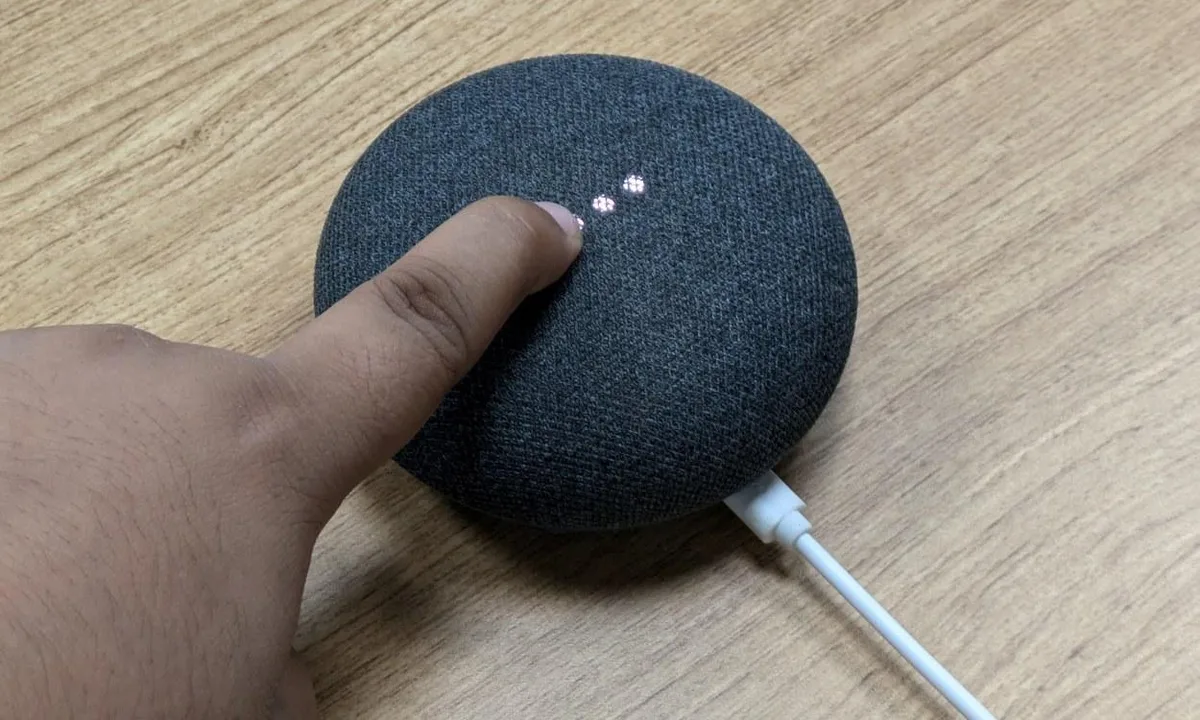
Original Google Home (1st Gen)
- Locate the reset button. It is on the bottom of the device near the power port. It is a small hole labeled "Reset."
- Use a paperclip or similar tool to press and hold the button.
- Hold for 10 seconds. The LED lights will swirl white, then turn orange.
- Continue holding. Release after the orange light when you hear a chime or "Welcome to Google Nest."
- The device restarts in setup mode.
Google Home Mini (1st Gen) and Nest Mini (2nd Gen)
- For the Home Mini (1st gen): the reset button is on the bottom under the rubber pad. Lift the pad. Press the small button with a paperclip.
- For the Nest Mini (2nd gen): the reset button is on the underside in the center. No need to lift a pad. Use a paperclip.
- Press and hold for 15 seconds. The Nest Mini requires a slightly longer hold.
- Watch the LED lights. They flash white, then pulse orange. Release when you hear the chime.
- Wait 2 minutes for the device to reboot.
Google Nest Hub and Nest Hub Max
If the screen still works:
- Swipe up from the bottom of the screen.
- Tap Settings, the gear icon.
- Tap Device Info.
- Tap Factory Reset.
- Confirm when prompted.
- Wait 3 minutes for the reset to complete.
If the screen is frozen:
- Locate the button on the back of the device near the power cable.
- Press and hold for 10 seconds.
- Wait for the screen to go black and the device to restart.
- Release only after you see the setup animation.
Google Nest Audio
- The button is on the bottom of the device. There is a small indentation labeled "Reset."
- Press and hold the button for 10 seconds.
- The four LED lights will turn orange. Keep holding.
- Release when you hear a chime.
- Wait 2 minutes for setup mode to appear.
Google Nest Wifi Point (Speaker Model)
- The reset button is on the bottom of the point. Use a paperclip.
- Press and hold for 10 seconds.
- The LED light will turn orange. Release on the chime.
- The point will restart and enter setup mode.
Important note for all models: Do not remove the device from the Google Home app before you factory reset. If you do, the app will not find the device during setup. You will need to power cycle it to restart the process.
The correct order is reset first, then re-setup through the app.
If you accidentally reset the device before unlinking your account, do not worry. Open the Google Home app. Tap the "+" icon.
Tap "Set up device." Select "New device." The app walks you through the process. Your account association from the previous setup will be replaced. There is no risk of being locked out.
You can also reach us through our contact page if you run into issues.
The Soft Reset Fix: When Unplugging Is All You Need
Most Google Home problems never need a factory reset. The soft reset should be your first tool. It solves roughly 80 percent of common issues according to aggregate user reports.

Here is how it works. The device stores temporary data in volatile memory. When you cut power, that data clears.
When you plug it back in, the system loads fresh. Glitches that built up over days or weeks vanish.
The process takes less than a minute.
- Unplug the power cable from the back of the device. Do not just switch off a power strip. Pull the actual cable.
- Wait a full 10 seconds. Fifteen is better. This gives the internal capacitors time to drain.
- Plug it back in. Wait up to two minutes for the device to boot and reconnect to your Wi-Fi.
That is the whole thing. No button pressing. No data loss.
No re-setup.
When the soft reset is the right call:
- The device was working yesterday but now says it cannot connect to Wi-Fi.
- You hear the Assistant respond but the device does not play audio.
- The LED lights are stuck on solid white or a swirling pattern.
- You just changed your router or internet service provider.
- There was a power flicker or brief outage overnight.
When the soft reset will not help:
- The device is in a boot loop. It keeps restarting without ever finishing setup mode.
- You want to remove your personal data before selling the device.
- The device will not respond to any input at all, including the mute switch.
- You get a specific error message that says "factory reset required."
If the soft reset does not fix the problem within 24 hours, move to a factory reset. Do not keep unplugging and replugging hoping for a different result. You should also verify your device is not affected by a known service outage.
Check the Google Nest status page.
Mistakes People Make and How to Avoid Them
Even experienced users make these errors. They are easy to avoid once you know what to watch for.
Mistake one: Holding the reset button too long.
Users often hold the button for 20 or 30 seconds because they are not sure it worked. That is fine. Holding longer does not cause damage.
The device resets after 10 to 15 seconds and ignores the extra hold time. The real risk is letting go too early. If you release during the swirling white phase, the device reboots normally without resetting.
Wait for the orange light. Then wait for the chime. Do not rush.
Mistake two: Forgetting to unlink the device from your Google Account.
This is the most common support call people make. You give a Google Home to a friend. They try to set it up.
The app says "this device is already associated with another account." You cannot fix that remotely without your permission. Always open the Google Home app. Tap the device.
Tap Settings. Select "Remove device" before you factory reset a device you plan to sell or give away. If you skip this step, the new owner will need you to log into your account and remove it yourself.
Mistake three: Using the wrong button.
The Nest Hub has a button on the back for factory resets. The original Google Home has a recessed button on the bottom. The Nest Mini has a button under the rubber base pad.
Users sometimes press the mute switch instead. The mute switch only toggles the microphone. It does nothing for a reset.
Check your model's reset button location before you start pressing things.
Mistake four: Not waiting long enough after a factory reset.
After the reset chime, the device needs time to restart. It can take two to three minutes before the setup animation appears. Users often think the reset failed and start pressing buttons again.
Be patient. Let the device boot completely. If nothing happens after five minutes, try the reset again.
Mistake five: Trying to set up the device on a 5 GHz Wi-Fi network.
The Google Home family supports 2.4 GHz and 5 GHz networks. But initial setup works best on 2.4 GHz. Some users report that the device will not connect during setup on 5 GHz alone.
If your router uses the same SSID for both bands, this is usually not an issue. If it does not, switch your phone to the 2.4 GHz band before starting setup. You can change back afterward.
This is a known quirk.
Mistake six: Resetting the device but not retraining Voice Match.
A factory reset clears your voice model. But if you only did a soft reset, your voice match data stays. If the Assistant stops recognizing your voice after a soft reset, go to the Google Home app.
Tap your account icon. Tap Assistant Settings. Tap Voice Match.
Retrain your voice. This takes 30 seconds and often fixes recognition issues.
What Happens After a Factory Reset: Re-Setup Guide
Once the factory reset completes, your device is blank. It is the same as the day you took it out of the box. Here is exactly what to expect and how to get it back online.

The first boot sequence:
The device powers on. The LED lights pulse white. Then you hear a voice prompt that says "Welcome to Google Nest.
To get started, download the Google Home app on your phone or tablet." That is your cue. The device is in setup mode and ready to pair.
What you need before you start:
- The Google Home app installed on your phone or tablet. Available on iOS and Android.
- A Google Account. Gmail works.
- Your Wi-Fi network name and password.
- Your phone connected to the same Wi-Fi network you plan to use for the device.
The setup steps:
- Open the Google Home app. If you already had the app, it might still show the device as offline. Tap the "+" icon in the top left corner.
- Select "Set up device." Then select "New device."
- The app scans for nearby devices. Your Google Home should appear in the list. Tap it.
- Confirm the pairing code shown on your phone matches the one spoken by the device. This prevents connecting to a stranger's speaker.
- Select your Wi-Fi network. Enter the password. The device connects.
- Choose a room for the device. This helps the app organize your smart home.
- Set up Voice Match. This trains the Assistant to recognize your voice. You will say "Hey Google" and "OK Google" a few times.
- Link your music and video services if you want. You can skip this step and do it later.
- That is it. Your device is ready.
What gets restored and what does not:
| Data | Restored automatically? | Notes |
|---|---|---|
| Wi-Fi network | No | Must be re-entered |
| Linked smart home devices | No | Must be re-linked in the app |
| Routines | No | Must be re-created |
| Voice Match | No | Must be retrained |
| Music service accounts | No | Must be re-linked |
| Device name and room assignment | No | Set during setup |
| Home location and address | Yes | Pulled from your Google Account |
| Google Account association | Yes | Set during setup with your login |
If the app does not find the device:
This happens occasionally. First, make sure your phone and the device are on the same Wi-Fi network. If they are and still no luck, restart the Google Home app.
Force close it and reopen. If that fails, restart your phone. In rare cases, you may need to power cycle the Google Home device again and restart setup mode.
The device will stay in setup mode indefinitely, so there is no rush.
If you get an error during setup:
The most common error is "Something went wrong. Try again." This usually means a weak Wi-Fi signal or a network incompatibility. Move the Google Home closer to your router during setup.
Once it connects, you can move it back. The second most common cause is a router that blocks certain ports. Google Home requires outbound access on ports 443 and 8883.
Check your router settings if you have a strict firewall.
FAQs from People Who Actually Called Support
How do I know if my Google Home is factory reset?
After a successful factory reset, the LED lights pulse white and the device says "Welcome to Google Nest." You will hear a voice prompt asking you to set it up. If you see solid white lights or the device stays silent, the reset did not take. Try again with a full 15 second button hold.
Can I reset my Google Home without the app?
Yes. Every model has a physical reset button. You do not need the Google Home app for the reset itself.
You will need the app afterward to complete the setup. The physical button method works even if your phone is not nearby.
What happens to my smart home devices after a factory reset?
They become unlinked. Your lights, thermostat, locks, and other connected devices will no longer respond to the Google Home. You must re-link each device through the Google Home app after setup.
This takes about 5 to 10 minutes depending on how many devices you have.
Why is my Google Home blinking orange?
Orange pulsing or blinking means the device is in setup mode. It is ready to be configured. If you did not intentionally reset it, someone may have pressed the button accidentally.
You can either set it up again or ignore it. The device will stay in setup mode until you complete the process or power cycle it.
Does factory resetting delete my Google Account data?
No. Your Google Account data is stored on Google's servers, not on the device. Resetting the device only removes the local settings and the link between the device and your account.
Your search history, photos, and emails are untouched. You just need to log into the Google Home app again to reconnect the device.
How often should I reset my Google Home?
There is no recommended schedule. Reset only when you have a problem. Routine resets do not improve performance or extend the device's life.
The device runs fine for years without a single reset in most cases. If you notice a gradual slowdown, try a soft reset first.
Final Decision Guide: Which Path Should You Take Right Now?
Let us put this all together in one clear guide. Stand in front of your Google Home and follow these steps in order.
Step 1: Identify the symptom.
| Symptom | Likely fix |
|---|---|
| Device is unresponsive | Try soft reset first |
| Device is stuck in boot loop | Factory reset needed |
| You are moving or selling | Factory reset after unlinking account |
| Assistant hears you but does not respond | Check Wi-Fi, then soft reset |
| Device says it cannot connect to Wi-Fi | Soft reset or re-enter Wi-Fi in app |
| LED lights are solid white | Soft reset |
| LED lights are blinking orange | Device is in setup mode. Complete setup or power cycle |
Step 2: Try the gentlest fix first.
For anything except a boot loop or planned transfer, start with a soft reset. Unplug. Wait 10 seconds.
Plug back in. If the problem goes away, you are done. For most connectivity issues, try re-entering the Wi-Fi password through the app before attempting a factory reset.
Step 3: If the soft reset fails, move to a factory reset.
Refer to the model-specific instructions earlier in this guide. Press and hold the correct button for the correct duration. Wait for the orange LED and the chime.
Do not release early.
Step 4: Complete the setup.
Open the Google Home app. Run through the setup wizard. Re-link your smart home devices.
Retrain Voice Match. Recreate your routines. This takes about 10 minutes total.
Step 5: Test the device.
Say "Hey Google, what is the weather?" If it responds correctly, you are all set. Run through a few other commands to confirm everything works. If the original problem returns within a week, the issue may be hardware related.
Contact Google support for a replacement under warranty.
One last point. Most people overthink this. The Google Home is a simple device.
If it is acting strange, unplug it and plug it back in. That fixes nearly everything. If that does not work, a factory reset is straightforward.
You are not going to break anything. The device is designed to be reset. Follow the steps for your specific model, and you will be back up and running in under 15 minutes.
There is no mystery here. Just a button, a chime, and a quick setup.