
You're staring at your iPhone, and something's wrong. Maybe you're selling it, maybe it's stuck in a boot loop, or maybe you forgot the passcode and now the screen says "iPhone Unavailable." Whatever the reason, knowing how to factory reset iPhone is the difference between solving your problem and making it worse. A factory reset wipes everything, every photo, every app, every setting, and returns the phone to exactly how it left the factory.
As of 2026, iOS 19 handles resets differently depending on whether your phone works, whether you have a computer, and whether Find My iPhone is on. Apple's official documentation confirms that a full restore through a computer takes about 20 minutes, while a settings‑based erase runs in under two minutes. But here's the catch: use the wrong method for your situation, and you could lock yourself out permanently.
Let's walk through exactly what's going on, which path fits your situation, and how to avoid the landmines.

Image source: Wikimedia Commons / Wikideas1
Problem: Why You Need to Factory Reset Your iPhone
People factory reset their iPhones for four main reasons. Each one changes which method you should use.
- You're selling or giving away the phone. You need a clean wipe that removes all personal data, iCloud accounts, and Activation Lock.
- The phone is glitching or stuck. Constant freezing, boot loops, or apps crashing, a reset often fixes software corruption.
- You forgot the passcode. The phone is disabled, and the only way back in is a full restore.
- You bought a used phone that's still tied to someone else's Apple ID. You can't reset it without their credentials, but you need to know the correct process to avoid bricking it.
In all cases, the core goal is the same: erase the device cleanly. But the approach shifts based on whether the phone is functional, whether you know the passcode, and whether you have a computer handy.
Quick Answer
To factory reset your iPhone, go to Settings > General > Transfer or Reset iPhone > Erase All Content and Settings. Sign out of iCloud first. Enter your Apple ID password when asked.
If the phone is disabled or stuck, connect it to a computer. Put it into Recovery Mode. Use Finder (macOS Catalina or later) or iTunes (Windows).
Click Restore.
If the phone is completely unresponsive, use DFU Mode. This is the deepest restore possible. It reinstalls the entire iOS system.
How a Factory Reset Actually Works (What Happens to Your Data)
When you tell your iPhone to erase all content and settings, it doesn't just delete files. iOS uses full‑disk encryption by default. A factory reset destroys the encryption key, making all data instantly inaccessible. The phone then downloads and reinstalls the latest version of iOS.
Here's what gets erased and what doesn't:
| Gets Erased | Stays Behind |
|---|---|
| Photos, videos, music, documents | iCloud data (unless you sign out first) |
| All apps and app data | Apple ID account (unless you sign out) |
| Passcode and face / touch ID | SIM card settings |
| Messages, call history, mail accounts | Carrier settings (re‑applied after restore) |
| All settings (Wi‑Fi, wallpaper, accessibility) | Activation Lock state (if Find My was on) |
That last line is crucial. Activation Lock remains active unless you turn off Find My iPhone before resetting. If you don't, the phone will ask for the previous owner's Apple ID after the reset, even if it's yours. This is the #1 mistake people make when selling phones.
The actual process varies slightly by iOS version, but the underlying mechanism hasn't changed since iOS 7. Apple uses a secure erase that meets NIST 800‑88 standards for data sanitization. In plain English: you don't need to worry about someone recovering your photos after a factory reset, as long as you use the correct method and don't skip the iCloud sign‑out.
Decision Tree: Which Reset Method Fits Your Situation?
The right method depends on three things: is the phone working?, do you know the passcode?, and do you have a computer? Here's a flowchart you can follow.
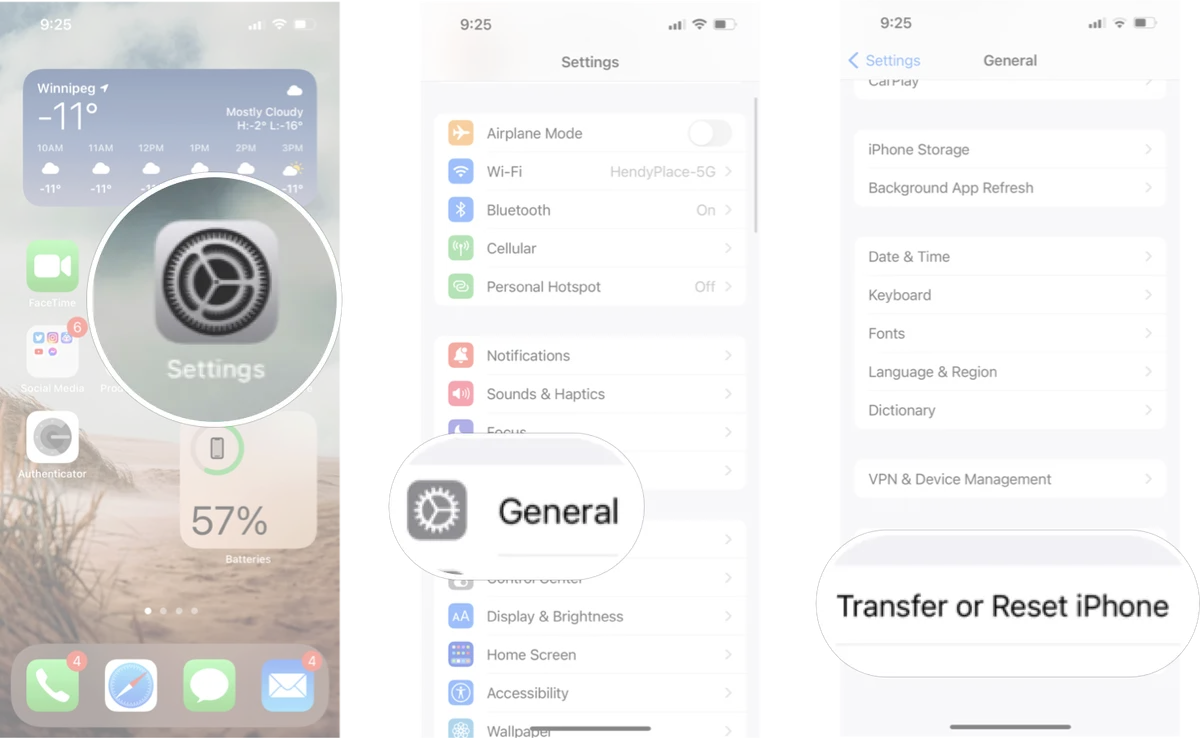
Image source: Bing (Web (fair-use with source credit))
Branch A: Your iPhone Works Fine – You Just Want to Wipe It
You can unlock the phone. You know your passcode. You can navigate Settings.
Use the Settings menu method. Fast, wireless, no computer needed. But you must turn off Find My iPhone first.
Branch B: Your iPhone Is Stuck, Frozen, or Glitching
You can't get past the Apple logo or the screen is unresponsive. You may or may not know the passcode.
Use Recovery Mode from a computer. This reinstalls iOS without wiping everything, but you'll still lose data unless you have a backup. If the phone is in a boot loop, Recovery Mode is often enough.
Branch C: You're Locked Out – Forgotten Passcode
The phone says "iPhone Unavailable" or you've entered the wrong passcode too many times. You cannot unlock it.
Use Recovery Mode or DFU Mode from a computer. You won't need the passcode. The phone will be erased, and you can set it up as new. You will lose all unbacked data.
Branch D: Your Screen Is Broken or Unresponsive
The display is black, cracked, or not responding, but the phone itself may still power on.
Use Recovery Mode or DFU Mode from a computer. You can navigate these modes using the hardware buttons, even with a dead screen. After the restore, the phone will work if the screen is repaired.
Each branch shares one critical prerequisite: turn off Find My iPhone if you possibly can. The exception is Branch C and D where you can't access Settings, in those cases, the phone will remain Activation Locked after the reset, and you'll need your Apple ID and password to proceed.
Step‑by‑Step: Reset from Settings (When the Phone Works)
This is the easiest method, but only use it if your iPhone is fully functional and you know the passcode.
Before You Start
- Back up your data. If you want to keep photos, contacts, or app data, back up to iCloud or a computer. Go to Settings > [your name] > iCloud > iCloud Backup > Back Up Now.
- Sign out of iCloud. This is the step everyone forgets. Go to Settings > [your name] > Sign Out. Enter your Apple ID password to turn off Find My iPhone. If you skip this, Activation Lock stays on and the next owner can't use the phone.
- Skip signing out if you're keeping the phone. If you're just troubleshooting a glitch, you can stay signed in. But if you're selling or giving it away, sign out.
The Reset Steps
- Open Settings.
- Tap General.
- Scroll down and tap Transfer or Reset iPhone.
- Tap Erase All Content and Settings.
- Enter your passcode when prompted.
- Enter your Apple ID password to confirm you want to turn off Find My iPhone and erase.
- Tap Erase iPhone.
The phone will restart, show a black screen with the Apple logo and a progress bar, then boot to the Hello screen. That's it. The whole process takes about 2 to 5 minutes.
What Happens After?
The iPhone is now at its factory state. You can either set it up as new (choose "Set Up Manually") or restore from a backup (choose "Restore from iCloud Backup" or "Restore from Computer"). If you're selling it, just leave it on the Hello screen and hand it over.
One More Note for Shared Devices
If your iPhone has a Screen Time passcode separate from the main passcode, you'll need to turn off Screen Time before erasing. Go to Settings > Screen Time > Turn Off Screen Time. Enter the Screen Time code.
Otherwise, the reset may stop halfway asking for that code.
Step‑by‑Step: Reset Using a Computer (Recovery Mode)
When your iPhone is stuck, disabled, or just not responding to touch, the Settings menu won't help you. Recovery Mode is your next best option. It works on every iPhone model from the original through the iPhone 16 Pro Max.
What Recovery Mode Does
Recovery Mode forces your iPhone into a special state where a connected computer can detect it and reinstall iOS. The phone's screen shows a cable pointing to a computer icon. That visual confirms you've entered Recovery Mode correctly.

Image source: Bing (Web (fair-use with source credit))
The process downloads the latest iOS version from Apple's servers, erases the device, and installs a fresh system. You do not need the passcode. You do not need to unlock the phone.
You do need a computer with Finder (macOS Catalina or later) or iTunes (Windows or older macOS).
What You'll Need
| Item | Notes |
|---|---|
| Computer | Mac or Windows PC |
| USB to Lightning cable | Original Apple cable preferred; third‑party cables may fail |
| iTunes (Windows) | Download from Apple's support site |
| Finder (macOS) | Built into macOS Catalina 10.15 and later |
| Internet connection | Required to download iOS (about 5–8 GB) |
The Recovery Mode Steps
The button sequence depends on which iPhone model you have. Apple has three different button layouts. Here is the correct combination for each.
For iPhone 8, iPhone SE (2nd gen and 3rd gen), iPhone X, iPhone XR, iPhone XS, iPhone 11, iPhone 12, iPhone 13, iPhone 14, iPhone 15, iPhone 16:
- Press and quickly release the Volume Up button.
- Press and quickly release the Volume Down button.
- Press and hold the Side button (the power button on the right edge).
- Keep holding the side button. After about 10 seconds, the screen goes black.
- Continue holding. After another 10 to 15 seconds, the recovery mode screen appears. It shows a cable pointing to a computer icon.
- Release the side button.
For iPhone 7, iPhone 7 Plus:
- Press and hold the Side button and the Volume Down button together.
- Keep holding both. After about 10 seconds, the screen goes black.
- Continue holding. After another 10 to 15 seconds, the recovery mode screen appears.
- Release both buttons.
For iPhone 6s and earlier, iPhone SE (1st gen):
- Press and hold the Home button and the Top button (or Side button) together.
- Keep holding both. After about 10 seconds, the screen goes black.
- Continue holding. After another 10 to 15 seconds, the recovery mode screen appears.
- Release both buttons.
After You See the Cable Icon
Connect your iPhone to your computer using the USB cable. Open Finder (on modern Macs) or iTunes (on Windows or older Macs). You should see a dialog box that says something like "There is a problem with the iPhone that requires it to be updated or restored."
Click Restore. This erases the phone and installs the latest iOS. The process takes about 15 to 30 minutes, depending on your internet speed.
Do not unplug the cable during the restore. Interrupting the process can leave the phone in a partial state that requires another restore attempt.
What If Recovery Mode Fails?
Sometimes the phone exits recovery mode before the computer can connect. This usually means the button timing was off. Try again with a firmer, longer hold on the final button.
If the phone keeps restarting in a loop, the battery may be critically low. Charge it for 15 minutes before trying again. If the battery won't charge at all, the phone may need a hardware repair before a restore is possible.
Step‑by‑Step: Reset Using DFU Mode (Last Resort)
DFU stands for Device Firmware Update. This is the deepest restore available on an iPhone. It bypasses the bootloader and reinstalls the entire firmware, not just the operating system.
Use DFU Mode only when Recovery Mode does not work.
DFU Mode vs Recovery Mode
| Feature | Recovery Mode | DFU Mode |
|---|---|---|
| Screen display | Shows cable icon | Screen stays black |
| Bootloader involvement | Loads iBoot | Does not load iBoot |
| Can restore corrupt firmware | Sometimes | Yes |
| Success rate for boot loops | High | Very high |
| Risk of bricking the device | Low | Low, but higher than Recovery Mode |
The key visual difference is simple. In Recovery Mode, you see a cable icon. In DFU Mode, the screen is completely black.
Nothing shows on the display. Your computer should still detect the phone as being in recovery.
How to Enter DFU Mode
For iPhone 8, iPhone SE (2nd gen and 3rd gen), iPhone X, iPhone XR, iPhone XS, iPhone 11, iPhone 12, iPhone 13, iPhone 14, iPhone 15, iPhone 16:
- Press and quickly release the Volume Up button.
- Press and quickly release the Volume Down button.
- Press and hold the Side button for 10 seconds exactly. Use a timer if needed.
- While still holding the Side button, press and hold the Volume Down button as well. Hold both for 5 seconds.
- After 5 seconds, release the Side button but keep holding the Volume Down button for another 10 seconds.
- If the screen stays black, you are in DFU Mode. If the Apple logo appears, you missed the timing. Start over.
For iPhone 7, iPhone 7 Plus:
- Press and hold the Side button and the Volume Down button together.
- Hold both for 8 seconds exactly.
- After 8 seconds, release the Side button but keep holding the Volume Down button for another 10 seconds.
- Screen stays black = DFU Mode. Apple logo shows = try again.
For iPhone 6s and earlier, iPhone SE (1st gen):
- Press and hold the Home button and the Top button (or Side button) together.
- Hold both for 8 seconds exactly.
- After 8 seconds, release the Top button but keep holding the Home button for another 10 seconds.
- Black screen = DFU Mode. Anything else = restart.
Restoring in DFU Mode
Connect the phone to your computer. Open Finder or iTunes. A dialog should appear saying a device has been detected in recovery mode.
Click Restore iPhone. The process takes 20 to 40 minutes. Do not touch the cable or the phone during this time.
When DFU Mode Fails
If the computer does not detect the phone after entering DFU Mode, try a different USB port. Use a port directly on the computer, not through a hub. If that does not work, try a different cable.
Some third‑party cables do not carry data reliably.
If the phone is still not detected after multiple attempts, the device may have a hardware issue. Contact Apple Support or visit an Apple Store for diagnostics.
The Critical Step Everyone Forgets – Turning Off Find My iPhone
This single step causes more problems than any other part of the reset process. If you skip it, the phone becomes Activation Locked. That means after the reset, it asks for the original Apple ID and password before letting anyone use it.
What Is Activation Lock?
Activation Lock is an anti‑theft feature introduced with iOS 7. When Find My iPhone is turned on, the phone ties itself to your Apple ID at the hardware level. Even after a full erase, the phone checks Apple's servers before activating.
If it finds a remaining Apple ID association, it blocks access until the correct credentials are entered. This is great for stopping thieves. It is terrible for reselling a phone if you forget to disable it.

Image source: Wikimedia Commons / [[User:Ilocos.com ` LocalGuidesConnect.com°]] (CC BY-SA)
How to Turn Off Find My iPhone
Do this before you start the reset. The steps are:
- Open Settings.
- Tap your name at the top (Apple ID banner).
- Tap Find My.
- Tap Find My iPhone.
- Toggle the switch to Off.
- Enter your Apple ID password when prompted.
The toggle turns gray. You are now safe to proceed with the reset.
What If You Already Reset Without Turning It Off?
You have a few options, but none of them are easy.
Option 1: Use the same Apple ID. If you still know the Apple ID email and password that were on the phone before the reset, enter them when the Activation Lock screen appears. The phone will activate normally.
Option 2: Use recovery mode with the original Apple ID. Connect the phone to a computer. Put it in Recovery Mode. Restore it again.
When the Activation Lock screen appears after setup, enter the original Apple ID and password.
Option 3: Contact Apple Support. If you cannot remember the Apple ID or password, your only recourse is Apple Support. You will need proof of purchase. A receipt with the serial number matching the phone.
Apple can remove Activation Lock if you prove ownership.
Option 4: Remove the device from iCloud.com. If you have access to a web browser, sign in to iCloud.com with the Apple ID. Go to Find My iPhone. Select the device from the list.
Click Remove from Account. This disables Activation Lock remotely.
What About Used iPhones?
If you bought a used iPhone and it is Activation Locked, the seller did not turn off Find My iPhone before selling it. Contact the seller and ask them to remove the device from their iCloud account. If they cannot or will not, the phone is effectively a paperweight.
Apple cannot and will not remove Activation Lock for a used phone without original proof of purchase showing the seller's name.
Mistakes That Can Lock You Out Permanently
Some mistakes during the reset process do more than waste time. They can permanently disable the phone or make it unusable.
Mistake 1: Using the Wrong Apple ID
When the reset finishes and the Activation Lock screen appears, you need the exact Apple ID that was on the phone before the reset. If you type a slightly different email address or guess a password incorrectly too many times, the phone locks for increasing intervals.
After 10 failed attempts, the phone disables Activation Lock entry entirely. You then need to contact Apple Support with proof of purchase.
Mistake 2: Buying a Used Phone Without Checking Activation Lock First
Before buying any used iPhone, ask the seller to show you the phone's Settings screen. Go to Settings > General > About. Scroll down to see if it says "No SIM Restrictions" or "Carrier Lock." Then go to Settings > [their name] > Find My and verify Find My iPhone is off.
If the seller refuses or seems hesitant, walk away. A phone that is still Activation Locked cannot be unlocked by anyone except the original owner.
Mistake 3: Interrupting a Restore Midway
A restore in progress is fragile. If the USB cable gets unplugged, the computer goes to sleep, or the phone loses power, the phone can be left in a state that requires another restore. In rare cases, the phone may not boot at all.
Always plug the computer into a power source. Disable sleep mode. Set the phone on a flat surface and do not move it.
Mistake 4: Skipping the Backup
A factory reset wipes everything. If you do not have a backup, your photos, contacts, messages, and app data are gone for good. Cloud backups are the easiest.
Local backups to a computer are more reliable.
Go to Settings > [your name] > iCloud > iCloud Backup > Back Up Now before starting. Or connect to a computer and back up through Finder or iTunes.
Mistake 5: Using a Third‑Party Tool to Bypass Activation Lock
Several websites and software tools claim they can bypass Activation Lock for a fee. None of them work reliably. Most are scams that steal your money and your Apple ID credentials.
Apple designed Activation Lock to be unbreakable without the correct credentials. Any tool claiming otherwise is lying. Do not enter your Apple ID into any third‑party website or software.
Mistake 6: Not Understanding Regional Differences
Carrier lock is different from Activation Lock. A factory reset does not remove a carrier lock. If your iPhone is locked to AT&T and you try to use a Verizon SIM after the reset, the phone will still say "SIM Not Supported."
Carrier lock can only be removed by the carrier that originally sold the phone. Contact them for an unlock request. Most carriers require the phone to be fully paid off and active on their network for a certain period.
What to Do If the Reset Fails Midway
Sometimes things go wrong. The progress bar stops moving. The computer says "iPhone could not be restored." The phone shows the Apple logo and nothing else for an hour.
Here is your troubleshooting checklist.
Check the Cable
A faulty cable is the #1 cause of failed restores. Use the original Apple cable if possible. If you must use a third‑party cable, make sure it is MFi certified.
That certification badge means it meets Apple's hardware standards.
Try a different USB port. Ports on the front of a desktop case can be unreliable. Use a port directly on the motherboard.
On laptops, try both sides.
Check the Computer
Make sure your computer has the latest version of iTunes (Windows) or is running a supported version of macOS. Outdated software can fail to communicate with the phone correctly.
Restart the computer. This clears temporary glitches that can interfere with device detection.
Check the Internet Connection
A restore downloads about 5 to 8 GB of data. If your internet connection drops during the download, the restore fails. Use a wired Ethernet connection if possible.
If you must use Wi‑Fi, stay close to the router.
Try a Different Method
If Recovery Mode fails, try DFU Mode. DFU Mode bypasses more of the phone's boot process and can often succeed where Recovery Mode cannot.
If DFU Mode fails, try a different computer. A friend's Mac or a library computer can work. Just make sure you have iTunes or Finder access.
When to Accept Hardware Failure
If the phone still refuses to restore after trying different cables, different USB ports, different computers, and both Recovery and DFU Modes, the hardware is likely damaged. Common issues include:
- Damaged charging port. The phone cannot maintain a stable connection to the computer.
- Failed NAND storage chip. The phone cannot write the new iOS data.
- Logic board damage. The phone cannot boot the restore process.
At this point, take the phone to Apple Support or a reputable repair shop. They can run diagnostics to identify the specific hardware failure.
FAQs – The Questions People Actually Ask
Will a factory reset remove my iCloud account?
No, not on its own. A factory reset erases the data on your iPhone, but it does not automatically sign you out of iCloud. If you skip the sign‑out step, the reset leaves your Apple ID tied to the device through Activation Lock.
You must go to Settings, tap your name, scroll down, and tap Sign Out before erasing. Enter your Apple ID password when prompted. After that, the phone is fully disconnected from your iCloud account and ready for a new owner.
Can I factory reset my iPhone without a computer?
Yes, if the phone is working normally. Use the Settings method. Open Settings, tap General, tap Transfer or Reset iPhone, and tap Erase All Content and Settings.
Enter your passcode and Apple ID password. The phone handles everything on its own. No computer or cable needed.
This only works if the phone is functional and you know the passcode. If the phone is disabled or stuck, you need a computer.
How do I factory reset my iPhone if I forgot the passcode?
You need a computer. Connect the iPhone to a Mac or Windows PC. Put the phone into Recovery Mode using the button sequence for your model.
Open Finder or iTunes. Click Restore. The computer erases the phone and installs a fresh copy of iOS.
You do not need the passcode for this process. You do need your Apple ID and password after the restore to get past Activation Lock.
Does a factory reset delete everything permanently?
Yes. A factory reset uses Apple's secure erase process. iOS encrypts all user data by default using hardware‑based encryption. When you trigger a factory reset, the phone destroys the encryption key.
The data becomes unreadable. The phone then downloads and installs a fresh copy of iOS. No traces of your photos, messages, or app data remain on the device.
How long does a factory reset take?
The Settings method takes about 2 to 5 minutes. The computer method through Recovery Mode takes 15 to 30 minutes. DFU Mode takes 20 to 40 minutes.
The actual time depends on your internet speed because the phone downloads the full iOS software during a computer restore. If your connection is slow, expect longer times. The Settings method does not need a download, so it is always faster.
Will a factory reset fix a frozen or glitching iPhone?
Sometimes yes, sometimes no. A factory reset erases all software and settings, which removes any corrupted files or bad configurations causing the problem. If the issue is software‑related, the reset fixes it.
If the issue is hardware‑related, the reset does nothing. After the reset, the phone sets up as new. If the same glitch appears on the Hello screen, the hardware is likely the problem.
Can I factory reset my iPhone remotely?
Yes, if you have access to iCloud.com. Sign in with your Apple ID. Open Find My iPhone.
Select the device from the list. Click Erase iPhone. This sends a command over the internet to wipe the phone.
The phone must be powered on and connected to Wi‑Fi or cellular data for the command to work. If the phone is offline, the erase command queues and executes the next time the phone connects.
What is the difference between a factory reset and a restore?
No meaningful difference. Both terms describe the same process. Apple uses "Erase All Content and Settings" in the Settings menu and "Restore" in Finder and iTunes.
Both actions wipe the phone and install a fresh copy of iOS. Some people say "factory reset" to describe a Settings erase and "restore" to describe a computer erase, but the end result is identical.
Final Checklist – What to Do Before and After the Reset
Use this checklist to make sure you do not miss anything important. Print it out or keep it open on another device while you work.
Before You Reset
- Back up your data. Go to Settings, tap your name, tap iCloud, tap iCloud Backup, and tap Back Up Now. Or connect to a computer and create a local backup through Finder or iTunes.
- Sign out of iCloud. Go to Settings, tap your name, scroll down, and tap Sign Out. Enter your Apple ID password to disable Find My iPhone and Activation Lock.
- Sign out of other services. Sign out of iMessage, FaceTime, and Game Center if you use them. Go to Settings, tap Messages, and toggle iMessage off. Go to Settings, tap FaceTime, and toggle FaceTime off.
- Check Screen Time restrictions. If you set a Screen Time passcode, turn it off. Go to Settings, tap Screen Time, and tap Turn Off Screen Time. Enter the Screen Time passcode.
- Remove your SIM card. This is optional, but it keeps your phone number safe if you are handing the phone to someone else.
- Unpair your Apple Watch. If you use an Apple Watch with the iPhone, open the Watch app on the phone, tap All Watches, tap the info icon next to your watch, and tap Unpair Apple Watch. This creates a backup of your watch data and disconnects it from the phone.
During the Reset
- Use the correct method. Settings erase if the phone works. Recovery Mode if the phone is stuck. DFU Mode if Recovery Mode fails.
- Do not unplug the cable. If you are using a computer, keep the iPhone connected until the restore finishes. The progress bar reaches 100 percent and the phone restarts.
- Stay near the phone. Do not walk away. A failed restore mid‑way can leave the phone in an unusable state.
After the Reset
- Set up as new or restore from backup. When the Hello screen appears, choose Set Up Manually if you want a clean start. Choose Restore from iCloud Backup or Restore from Computer if you want your data back.
- Verify Activation Lock is gone. If you are setting up as new, the phone asks for your Apple ID during activation. Enter it. If it accepts, Activation Lock is off. If it asks for someone else's Apple ID, the previous owner did not sign out.
- Re‑enable Find My iPhone. If you reset the phone to keep using it, go to Settings, tap your name, tap Find My, and toggle Find My iPhone back on. This protects your phone from theft.
- Reinstall your apps. Restoring from a backup pulls your apps back automatically. Setting up as new requires manual downloads from the App Store.
- Test the basics. Make a phone call. Send a text message. Connect to Wi‑Fi. Open Safari and load a website. Verify the camera works. If any of these fail after the reset, the phone may have a hardware issue.
Quick Reference Table
| Step | Settings Erase | Recovery Mode | DFU Mode |
|---|---|---|---|
| Phone must be functional | Yes | No | No |
| Passcode required | Yes | No | No |
| Computer required | No | Yes | Yes |
| Time required | 2–5 minutes | 15–30 minutes | 20–40 minutes |
| Risk of data recovery | Low | Low | Very low |
| Success rate | High | High | Very high |
When to Call Apple Support
Contact Apple Support if any of the following happen:
- The phone will not enter Recovery Mode or DFU Mode after multiple attempts.
- The computer does not detect the phone even with a known‑good cable.
- The phone shows the Apple logo for more than one hour without progress.
- The phone will not turn on at all after attempting a restore.
- You need Activation Lock removed but cannot remember your Apple ID or password.
Apple Support can be reached online at support.apple.com, through the Apple Support app on another Apple device, or by visiting an Apple Store or Apple Authorized Service Provider.
Bring proof of purchase if you need Activation Lock removal. A receipt, invoice, or bill of sale showing the device serial number and your name. Without it, Apple cannot unlock the phone.