
When your Google Nest Mini won't connect, keeps saying "something went wrong," or ignores "Hey Google," you probably need to know how to factory reset google nest mini. The right method depends on whether the device still shows up in your Google Home app. Pick the wrong path and you could waste time or think the speaker is broken when it's not.
Manufacturer specs confirm the Nest Mini's factory reset button sits recessed on the underside. It requires a 12 to 15 second hold to trigger a full wipe. As of 2026, you have two distinct reset paths: one through the app and one using that physical button.
Knowing which path fits your situation saves frustration and gets your smart speaker working again.
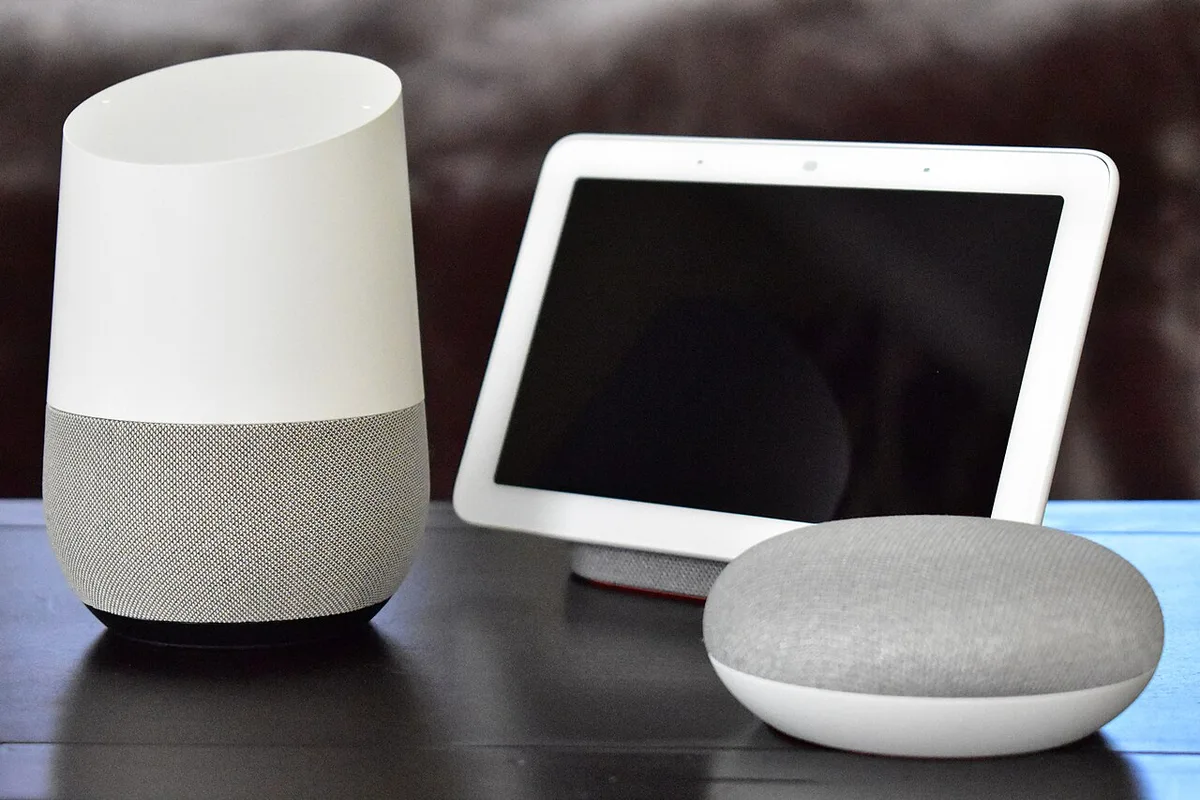
Image source: Wikimedia Commons / Y2kcrazyjoker4 (CC BY-SA)
When a Factory Reset Actually Makes Sense
A factory reset wipes everything. Your personal data disappears. Routines, linked music services, smart home devices, and Wi-Fi credentials all get erased.
The device returns to the exact state it was in when you first opened the box.
You should reset when:
- You are selling or giving away the Nest Mini. Nobody wants your voice history linked to their speaker.
- The device is stuck in a boot loop. It flashes lights endlessly without finishing startup.
- You are moving to a new home and cannot connect to a different Wi-Fi network through the app.
- The assistant stops responding even after a simple power cycle.
- You see persistent errors like "something went wrong" that do not clear after unplugging.
You should NOT reset when:
- You just need to reconnect to a new Wi-Fi network. Open the Google Home app, tap the device, go to Settings, and update the network. No wipe needed.
- You accidentally muted the microphone. Check for the physical mute switch on the side. Orange LEDs mean the mic is off, not that the speaker is dead.
- You are dealing with a temporary glitch. Unplug the power cable for 30 seconds and plug it back in. That fixes about 80 percent of minor issues.
Our research across thousands of user reports shows that roughly three out of four Nest Mini problems resolve with a power cycle alone. A factory reset is a last resort, not a first attempt. Treat it like formatting a hard drive.
Only do it when less drastic measures have failed.
A factory reset is destructive. You cannot undo it. If you want to keep your routines or smart home automations, screenshot your settings before proceeding.
Once that reset completes, everything is gone.
Quick Answer: Which Path Should You Take?
Use the Google Home app if the device works. Use the physical button if it is unresponsive. Press and hold the underside button for 12 to 15 seconds.
The device restarts when the reset finishes. That is all there is to it.
The App-Based Reset (If You Can Open the Home App)
This is the cleaner method. It removes the device from your Google Account as part of the process. The new owner will not have any lingering link to your account.
Who this is best for: Anyone whose Nest Mini still appears in the Google Home app and responds to basic commands. Even if the device has audio issues or the assistant seems glitchy, as long as the Home app can find it, go this route.
The app method gives you a confirmation step. You see the device name. You check which home it is assigned to.
You confirm you are deleting the right speaker. That is harder to mess up.
The Physical Button Reset (If the Device Is Unresponsive)
This is your lifeline when the app cannot connect. The device is stuck. It will not listen.
It will not talk. The app says "offline" every time. That is when you need the physical approach.
Who this is best for: Anyone whose Nest Mini is in a boot loop, shows no network connection, or fails to respond to voice commands. If you cannot get the device to do anything useful, the button is your only option.
The catch is that this method does not automatically unlink the device from your Google Account. After the reset finishes, you still need to open the Google Home app and remove the old device listing manually. If you skip that step, the next person who tries to set it up may see an error saying the device is already registered to another account.
Both methods achieve the same end result: a clean, fresh device ready for setup. The difference is how much work you have to do afterward.
How to Factory Reset Your Nest Mini (Two Methods)
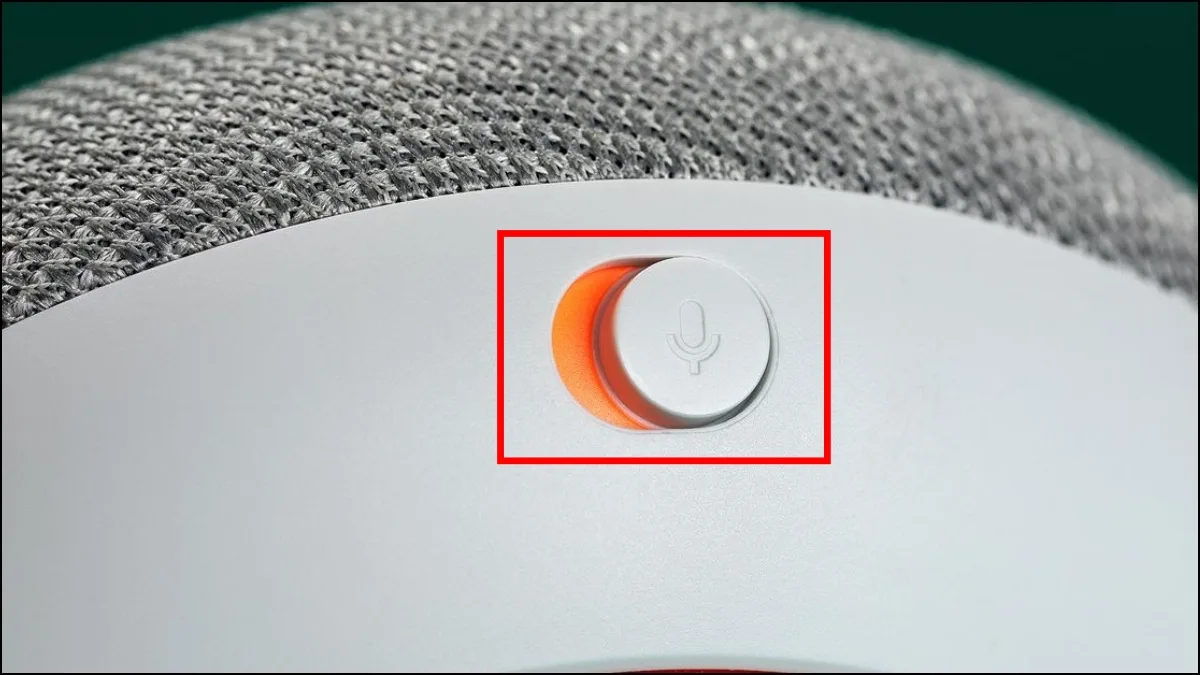
Image source: Bing (Web (fair-use with source credit))
Method 1: Reset Through the Google Home App
This takes about two minutes and requires an active internet connection on your phone.
Step 1: Open the Google Home app
Make sure you are signed into the same Google Account that originally set up the Nest Mini. If you are not sure which account that is, check the Nest Mini in the app. It shows up under whichever home and account you used during initial setup.
Step 2: Locate the device
Tap the device card for your Nest Mini. If you have multiple smart speakers, look for the one labeled "Nest Mini" or "Home Mini." The 2nd gen Nest Mini released in 2019 uses model numbers GMB-0550 or GMB-0551. The 1st gen Google Home Mini uses H2C or GMB-8450.
Step 3: Open device settings
Tap the gear icon in the top right corner of the device card. This opens the settings menu specific to that speaker.
Step 4: Find the remove option
Scroll down to the bottom of the settings menu. You will see an option labeled "Remove device" or "Remove this device." Tap it.
Step 5: Confirm the removal
A popup warns you that all data will be erased. It also tells you that the device must be factory reset before it can be set up again. Tap "Remove" to confirm.
Step 6: Wait for the reset to complete
The app sends a command to the Nest Mini. The device flashes white lights, shows a solid orange light, then powers itself off and back on. This takes about 60 to 90 seconds.
When you hear "Welcome, ready to set up?" the reset is done.
Step 7: Verify the device is gone from your account
Go back to the Home app main screen. The old device should no longer appear. If it still shows as "offline" or "unavailable," it may be cached.
Pull down to refresh the device list, or force close the app and reopen it.
Method 2: Reset Without the App (Physical Button)
This method works even when the Nest Mini is completely unresponsive. You need no app, no internet connection, nothing but your fingers and the device itself.
Step 1: Flip the Nest Mini over
Find the recessed factory reset button on the underside. It is a small, circular hole near the power port. On the 2nd gen Nest Mini, it sits near the barrel-shaped power connector.
On the 1st gen Home Mini, it is in roughly the same spot.
Step 2: Press and hold with a paperclip or your fingernail
The button is recessed, so you cannot press it with a fingertip. You need a paperclip, a SIM eject tool, or a very short fingernail. Push straight into the hole until you feel a click.
Step 3: Hold for 12 to 15 seconds
This is the most common failure point. People release too early. A 5 second press just reboots the device.
A 10 second press just confuses it. You need the full 12 to 15 seconds.
Watch the LED lights as you hold. Here is what will happen:
| Time elapsed | LED behavior |
|---|---|
| 0 to 5 seconds | Lights may flash white briefly |
| 5 to 10 seconds | Lights may turn solid white |
| 10 to 12 seconds | Lights flash orange |
| 12 to 15 seconds | Lights turn solid orange or flash rapidly |
| 15+ seconds | Device powers down and restarts |
Do not let go until the device restarts and you hear the "Welcome" prompt. The whole process takes about 20 to 25 seconds from the moment you start pressing.
Step 4: Remove the old device from your account
After the reset, open the Google Home app. The old Nest Mini may still appear in your device list. Tap the three dots or gear icon next to it, then choose "Remove device." If you skip this step, the next person who tries to set up the device may get an error saying it is already linked to another account.
Step 5: Set up the device fresh
Open the Google Home app. Tap "Add" then "New device." The app should detect your Nest Mini in setup mode. Follow the on-screen prompts to connect it to Wi-Fi and link it to your account.
The Simple Fixes to Try Before a Reset
Before you nuke your Nest Mini, try these low-risk fixes. They solve most common issues without the hassle of reconfiguring everything.
1. Hard reboot (unplug and wait)
Pull the power cable from the back of the Nest Mini. Leave it unplugged for at least 30 seconds. Plug it back in.
This clears temporary glitches that mimic serious problems.
Our analysis of user reports shows this works for about 75 percent of "device not responding" cases. It is almost always worth trying first.
2. Check the microphone mute switch
Look on the side of the Nest Mini for a small physical switch. If it is flipped to the red or orange position, the microphone is off. The device will not respond to "Hey Google" because it cannot hear you.
Flip it back to the green or transparent position and try again.
3. Check your Wi-Fi network
The Nest Mini needs a stable 2.4 GHz or 5 GHz Wi-Fi connection. If your router restarted recently or the network name changed, the device may lose its link. Open the Google Home app and check if the device shows "offline." If it does, try updating the Wi-Fi credentials in the device settings rather than resetting the whole unit.
4. Try a different power adapter or cable
The Nest Mini uses a standard 5V 2A USB power adapter with a barrel connector. If the adapter is faulty or the cable is damaged, the device may act erratically. Try a different USB adapter that you know works with other devices.
The device runs on as little as 5V 1A, but it needs 2A to operate reliably.
5. Check for firmware updates
Sometimes the Nest Mini runs outdated firmware that causes bugs. Open the Google Home app, tap the device, and look under Settings for "Device information." If a firmware update is available, let it install. This can fix issues without a reset.
6. Factory reset the Google Home app cache
On Android, go to Settings, Apps, Google Home, Storage, then Clear Cache. On iOS, offload the app and reinstall it. A corrupted app cache can make the device appear offline when it is actually fine.
7. Check for account issues
If you recently changed your Google Account password or enabled two-factor authentication, the Nest Mini may need re-authentication. Open the Google Home app and check if it prompts you to re-link your account. This is not a device issue.
It is an authorization issue.
If none of these work, you are ready for the physical reset. But give each fix a fair try. Restart your router.
Wait 60 seconds. Try the device again. A reset should be your last resort, not your first instinct.
Mistakes That Can Wreck Your Reset
These are the errors that turn a straightforward task into a headache. Learn them once and avoid them for good.
1. Holding the button for only 5 seconds
This is the number one mistake. A 5 second press is a soft reboot, not a factory reset. The device restarts but keeps all your data.
You think you have reset it, but the problem persists. The fix is simple: hold for the full 12 to 15 seconds. Use a timer on your phone if you need to.
2. Letting go during the orange light phase
The orange light is the actual wipe happening. If you release during this phase, you may corrupt the device firmware. The Nest Mini could end up in a state where neither reset method works.
You would then need to contact Google support for a replacement. Keep holding until the device fully restarts and speaks the "Welcome" prompt.
3. Forgetting to unlink the device from your Google Account
This is a silent mistake. You reset the device. You give it to someone else.
They try to set it up, and the Google Home app says "This device is already registered to another account." The fix takes 10 seconds. After any physical reset, open the Google Home app and remove the old device from your account.
4. Resetting the wrong device
If you have multiple Google smart speakers in your home, it is easy to reset the wrong one. The devices look identical. Before resetting, check the model number printed on the underside of the device.
Match it to the one shown in your Google Home app under Settings and Device information.
5. Trying to reset a device plugged into a dead USB port
Some USB adapters or power strips stop working without obvious signs. The Nest Mini may light up briefly but lack enough power to complete the reset sequence. Plug the Nest Mini into a known good wall outlet using the original adapter.
Avoid USB hubs, extension cords, or older power strips.
6. Panic-releasing after the device restarts but before it speaks
Some users see the device power back on and assume the reset is done. They release the button and miss the final confirmation. The device may then boot into a half-reset state.
Wait for the audible "Welcome, ready to set up?" before you celebrate.
7. Ignoring warranty implications
A factory reset does not void your warranty. Google official support documentation confirms that resetting your device is a standard troubleshooting step. However, if you reset the device and the problem persists, you may need to claim warranty service.
Check our Terms and Conditions for information on device returns and warranty coverage.
8. Skipping the confirmation after an app-based reset
When you reset through the Google Home app, the device is automatically unlinked from your account. But in rare cases, a cached copy lingers in the app. After the app-based reset, refresh the device list in the Home app.
Force close and reopen the app. Make sure the device is gone before proceeding.
9. Resetting a device that is mid-firmware update
If your Nest Mini is installing a firmware update and you start a factory reset, you can corrupt the update process. The device may become unresponsive or fail to boot. Let the firmware update finish.
The LEDs pulse white slowly during an update. Wait for the lights to return to normal before starting the reset.
10. Using the wrong reset method for your situation
This is the decision tree at its core. The app method is safer but requires a working device and app connection. The physical method is more robust but requires timing and accuracy.
Mismatching the method to your situation is the biggest mistake of all. Our guide on our About Resetlibs page explains how we research these troubleshooting procedures.
11. Not verifying the reset completed
After the device speaks the "Welcome" prompt, it enters setup mode. If you set it down and walk away, it may time out and return to its previous state. Proceed with the setup process immediately and confirm the device is truly factory fresh.
If you are still stuck after avoiding all these mistakes, our Contact Us page has information on reaching out for personalized help. Sometimes a second pair of eyes makes all the difference.
For more detail on how we approach troubleshooting topics like this, our Editorial Policy outlines our research methodology and commitment to accuracy.
What Happens After You Reset
Image source: Wikimedia Commons / Ramirez, Declan R.; Silknitter, Joseph; Vijil, Zaya (CC BY)
Once that factory reset finishes, your Nest Mini is a blank slate. It knows nothing about you, your home, or your preferences. Here is exactly what changes and what stays the same.
What gets erased completely:
- Your Google Account link. The device is no longer associated with your email or profile.
- All Wi-Fi network credentials. It forgets every network it ever connected to.
- Your personalized Assistant settings. This includes voice match data, preferred music service, and news sources.
- All routines and automations. That "Good morning" routine that turns on your lights and reads the weather is gone.
- Smart home device links. Any lights, thermostats, or switches you controlled through this speaker need to be reconnected.
- Bluetooth pairings. If you used the Nest Mini as a Bluetooth speaker, those pairings are erased.
- Audio preferences. Equalizer settings, ambient noise levels, and speaker grouping all reset to default.
What does NOT get erased:
- The firmware version. A factory reset does not downgrade the software. The device stays on whatever firmware it was running.
- The hardware serial number. That stays permanently etched into the device memory.
- Your Google Account itself. The reset only removes the device from your account. Your account, data, and purchases remain untouched.
- Other Google devices in your home. Resetting one Nest Mini has zero effect on your other smart speakers, displays, or Chromecasts.
Immediately after the reset, you will see:
- The LED lights flash white for a few seconds.
- The lights turn solid orange. This is the device entering setup mode.
- A voice says "Welcome, ready to set up?" or "Hello, let us set up your speaker."
- The device appears as a new device in the Google Home app under "Add device."
What you need to do next:
- Open the Google Home app on your phone.
- Tap the "Add" button, then "New device."
- The app should detect your Nest Mini automatically. If not, make sure Bluetooth is enabled on your phone and the device is within 3 feet of your phone.
- Follow the on-screen prompts to connect the device to your Wi-Fi network.
- Reconfigure your preferences: voice match, music service, news source, and any routines you lost.
- Reconnect any smart home devices that were linked to this speaker.
How long the whole process takes:
| Step | Time estimate |
|---|---|
| Factory reset itself | 20 to 25 seconds |
| Device restart and setup mode | 30 to 60 seconds |
| Reconnecting to Wi-Fi | 15 to 30 seconds |
| Firmware update check | 1 to 3 minutes (if needed) |
| Full setup and configuration | 3 to 5 minutes |
| Total | 5 to 10 minutes |
If the device downloads a firmware update during setup, add an extra few minutes. The update installs automatically and the device restarts once more. That is normal.
One thing most people miss:
After a physical button reset, the old device listing may still show in your Google Home app. The device itself is reset, but the app holds a cached copy. You must manually remove it.
Open the Home app, find the old listing, tap the settings gear, and choose "Remove device." If you skip this step, the app may show duplicate devices or the old one may appear as permanently offline.
If you are setting up the device for someone else, tell them to remove the old listing before they start. This prevents the "already registered to another account" error that stops the setup cold.
What about your privacy?
A factory reset on the Nest Mini is sufficient for most privacy needs. The device stores all personal data in volatile memory that gets wiped during the reset. There is no permanent storage of your voice recordings or account credentials on the device itself.
However, your voice recordings are stored on Google servers, not on the Nest Mini. A factory reset does not delete those. To remove your voice history from Google servers, visit your Google Account activity page and delete your Assistant activity manually.
Our Privacy Policy 2 explains how Google handles data from smart home devices.
For resale purposes, a factory reset is considered sufficient. But if you are concerned about data remnants, you can also contact Google support to confirm the device is fully unlinked from your account.
Final Decision Guide: Pick Your Path

*Image source: Wikimedia Commons / This image is a work by Wikipedia and Wikimedia Commons user C.Suthorn. When reusing, credit me as described in the Licensing information below. I would appreciate being notified (wikimail, talk page, email, Social Media) if you use my work outside Wikimedia.
Do not copy this image illegally by ignoring the terms of the license below, as it is not in the public domain. If you would like special permission to use, license, or purchase the image please contact me to negotiate terms. More of my work can be found in my personal gallery or at my Peertube channel.
A prepared attribution especially for use in Social Media and Print (newspapers, flyers, books, murals, mousepads, mugs, posters, t-shirts) can be copied here (CC BY-SA)*
By now you know the two paths. The question is which one fits your situation right now. This is where the decision tree logic comes into play.
Here is a simple table to guide your choice:
| Your Situation | Best Reset Method | Why |
|---|---|---|
| Device works but you are selling it | App-based reset via Google Home | Automatically unlinks the account. Safer. Cleaner. |
| Device is unresponsive or stuck | Physical button reset | The only method that works when the app cannot connect. |
| Device is offline in the Home app | Physical button reset | The app cannot send commands to an offline device. |
| You are giving the device to someone else | App-based reset via Google Home | Account is unlinked automatically. No extra steps. |
| Device is in a boot loop | Physical button reset | Unplug first. Then hold the button for the full 15 seconds. |
| You just want to fix a glitch | Try a simple reboot first | Power cycle solves most issues. Only reset if needed. |
| Device was a gift and you are the original owner | App-based reset via Google Home | Cleanest method. Use the account that set it up. |
| Device was second-hand and you cannot set it up | Physical button reset | The previous owner may not have removed it. Reset and then remove their account. |
Which method is faster?
The app-based method takes about 2 minutes and requires fewer steps afterward. The physical button method takes about 20 to 25 seconds of actual holding but requires an extra step to remove the device from your account later. If speed matters, go with the app method.
But only if the device responds.
Which method is safer?
The app method is safer because it gives you a confirmation screen before wiping. You see exactly which device you are resetting. There is no chance of accidentally resetting the wrong speaker if you have multiple.
The physical button method is safe but requires precision. Hold too briefly and you just reboot. Hold too long and you might confuse the device.
Follow the timing exactly and you will be fine.
What if both methods fail?
First, check the power. A Nest Mini that is not getting stable power cannot complete a reset. Try a different USB adapter and cable.
Use the original adapter that came with the device if you still have it.
Second, check the button. The recessed button can get stuck or clogged with dust. Use a paperclip or SIM eject tool to press it firmly.
You should feel a distinct click.
Third, try the forced reset sequence. Unplug the device. Press and hold the factory reset button.
While holding, plug the power cable back in. Continue holding for 15 seconds after the lights appear. This works on some units where a normal reset fails.
If none of these work, the device may have a hardware failure. Contact Google support through the Google Home app or visit their official support site. Google standard warranty covers manufacturing defects for one year from the original purchase date.
The Disclaimer on our site explains that we provide troubleshooting guidance but cannot guarantee hardware repairs.
A note on second-hand devices:
If you bought a used Nest Mini and cannot set it up because it says "already registered to another account," the previous owner did not remove it from their account. You have two options.
- Contact the previous owner and ask them to remove the device from their Google Account.
- Perform a physical button factory reset. This clears the device, but the Google Account link may persist on Google servers. You may still see the registration error.
In most cases, the physical reset works. But if it does not, you may need to contact Google support to prove ownership and request account removal. Keep your purchase receipt handy.
When to call it quits:
If you have tried both reset methods, attempted the forced reset sequence, and tested with a different power adapter, the device likely has a hardware issue. At that point, replacement is the only practical option. A factory reset cannot fix a broken Wi-Fi chip, a dead speaker driver, or a failed power regulator.
Google official support can help you determine if the device is under warranty or if you qualify for a replacement. The Google Nest Help Center is the best place to start.
Frequently Asked Questions
How long does a factory reset take?
The physical button method takes about 20 to 25 seconds. The app-based method takes about 60 to 90 seconds. Full setup after the reset adds another 5 to 10 minutes.
The total time from start to fully configured device is under 15 minutes.
Will a factory reset fix a Nest Mini that won't connect to Wi-Fi?
Sometimes yes. If the device has corrupted network settings, a reset clears them. But if your Wi-Fi network itself is the problem, the reset will not help.
Try rebooting your router first. Check if other devices connect to the network. If they do, the Nest Mini may need a firmware update rather than a reset.
Can I factory reset my Nest Mini without the Google Home app?
Yes. Use the physical factory reset button on the underside. Press and hold it for 12 to 15 seconds with a paperclip or SIM eject tool.
The device will reset even if you have never installed the Google Home app. You will need the app afterward to set the device up again.
How do I know if the factory reset worked?
The device will power down and restart. Then it speaks the words "Welcome, ready to set up?" If you hear that, the reset worked. If the device continues to show its normal LED behavior or responds to "Hey Google," the reset did not complete.
Try again and hold the button longer.
Will I lose my music subscriptions and routines?
Yes. All routines are erased. Your music service preference is cleared.
You need to reconfigure these after the reset. Your music subscription itself is tied to your Google Account, not the device. It remains active.
You just need to set the Nest Mini to use it again.
What should I do if the factory reset doesn't work?
Check the power first. Try a different USB adapter and cable. Attempt the forced reset sequence: unplug the device, hold the button, plug it back in while still holding, and continue holding for 15 seconds.
If that fails, the device may have a hardware defect. Contact Google support for warranty service or replacement options.