
So your Xbox Series X is acting up. Maybe it's crashing mid-game, refusing to update, or you're getting ready to hand it off to someone else. Either way, figuring out how to factory reset Xbox Series X is the right move.
The good news is that Microsoft gives you two clear paths: one that keeps your games and apps, and one that wipes the slate completely clean.
As of 2026, the Xbox Series X operating system runs a customized version of Windows Core OS. A factory reset essentially reinstalls that system from scratch, clearing out corrupted files and stubborn glitches. But which option you choose matters a lot, especially if you have saved game data you do not want to lose.
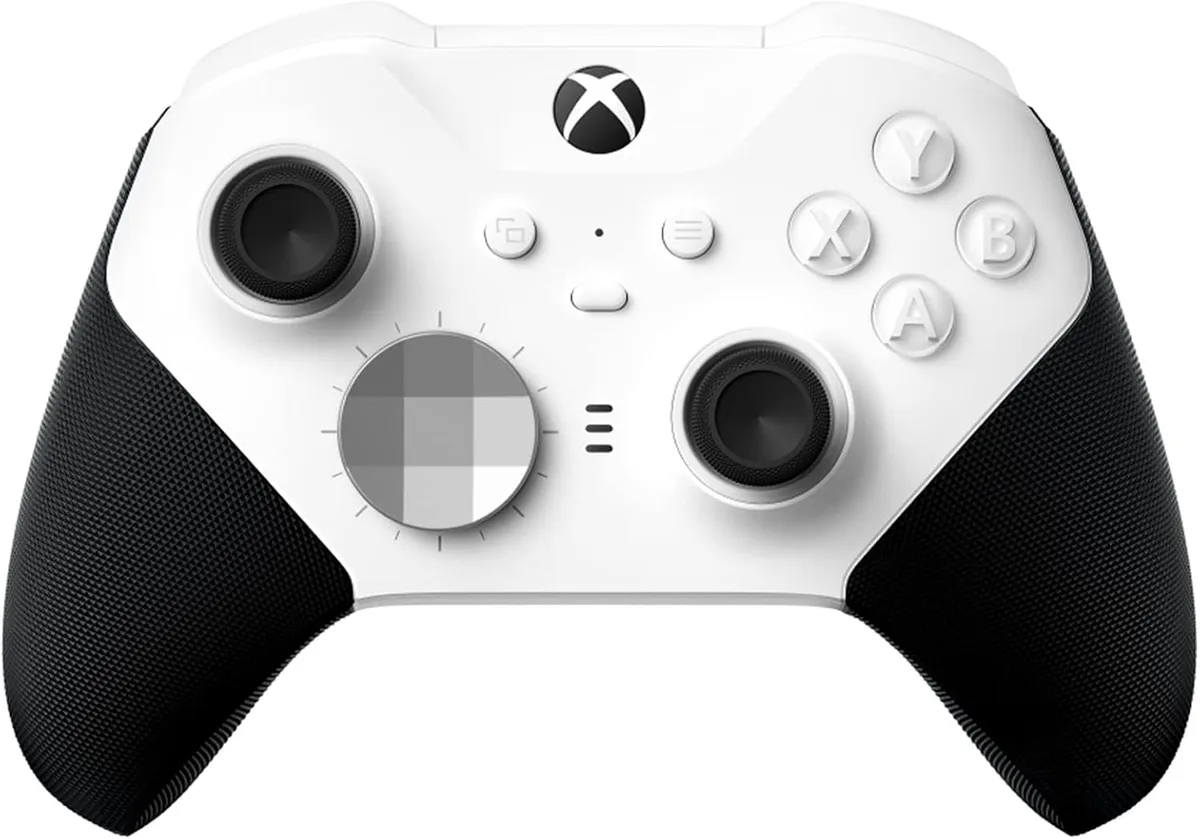
Image source: Bing (Web (fair-use with source credit))
Quick Answer
Go to Settings > System > Console Info > Reset Console. Then pick either "Reset and keep my games & apps" or "Reset and remove everything."
Keep games if you are troubleshooting a software issue. Remove everything if you are selling, trading in, or giving the console away. The full wipe takes about 15 to 30 minutes.
The soft reset takes under 10 minutes.
Before You Start: What Actually Happens During a Factory Reset?
A factory reset is not the same as a simple power cycle. When you hold the power button for ten seconds, that just clears the temporary cache. A factory reset goes much deeper.
Here is what actually happens inside the console:
- The operating system files are deleted and replaced with a fresh copy.
- All user profiles, saved passwords, and Wi-Fi network credentials are erased (on a full wipe).
- Installed games and apps are either kept (soft reset) or deleted (full wipe).
- Console settings are restored to factory values, including brightness, audio output, and network configurations.
- The internal SSD is reformatted during a full wipe, which securely removes your data.
Game saves are stored on Xbox's cloud servers as long as you have been online in the last 30 days. That gives you a safety net. If you have been offline for months, those local saves could be gone after a full wipe.
When should you do a soft reset? If you are seeing frequent crashes, games that will not launch, a black screen on startup, or corrupted update errors. Those are usually software-level problems.
When should you do a full wipe? If you are selling the console, giving it to a family member, or if the soft reset does not fix the issue. Also if you see specific error codes like E102, E105, or E106, which indicate deeper system corruption.
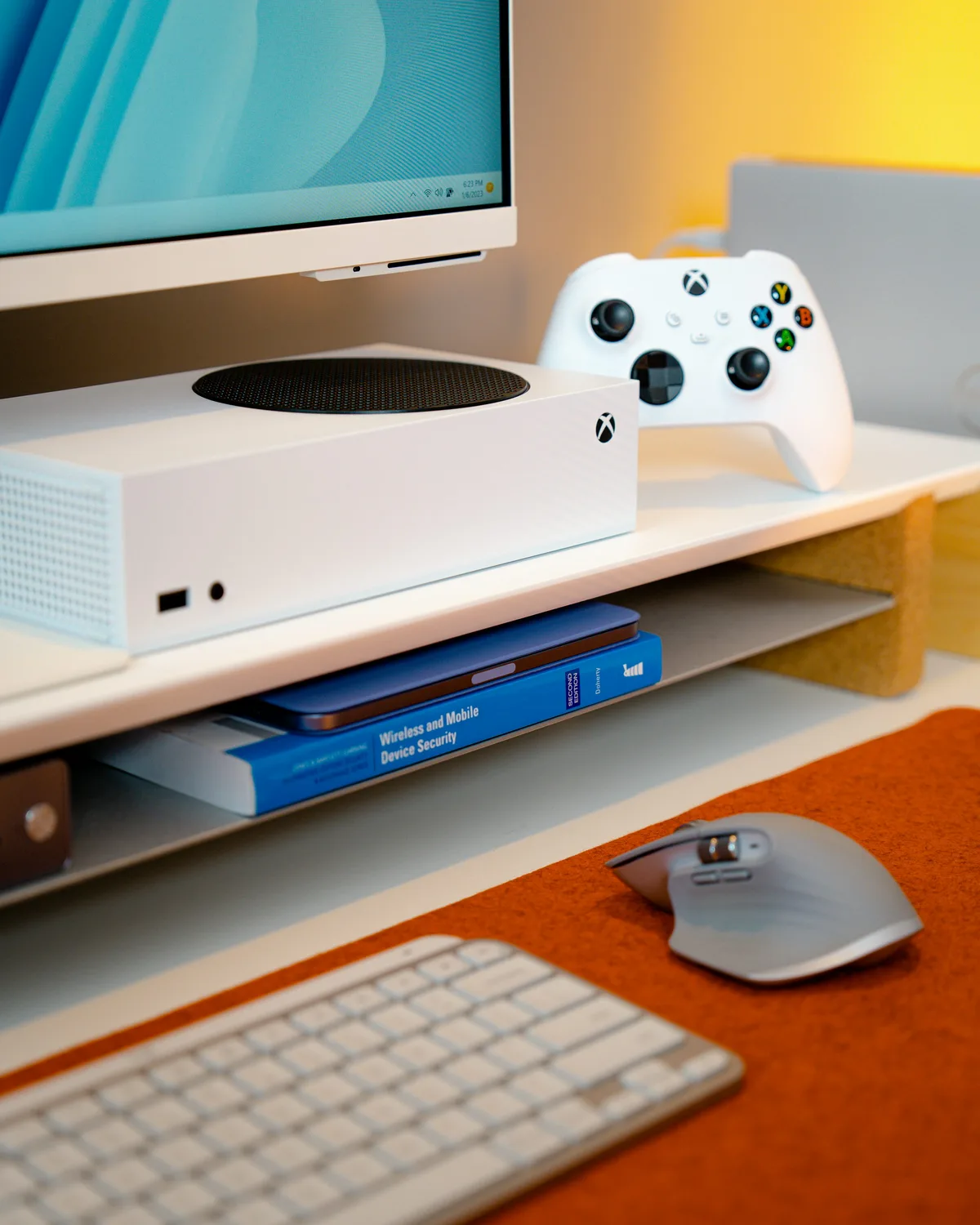
Image source: Bing (Web (fair-use with source credit))
Decision Point 1: Should You Keep Your Games or Wipe Everything?
This is where most people make the wrong choice. They assume a full wipe is always better. It is not.
The decision depends entirely on your situation.
| Scenario | Best Reset Type | Why |
|---|---|---|
| Console crashing or freezing | Keep games & apps | You likely have a corrupt cache, not a system-level failure. A soft reset fixes it faster and saves hours of re-downloading. |
| Can't install updates | Keep games & apps | Corrupt update data gets cleared. Your library stays intact. |
| Selling or trading in | Remove everything | Protects your personal data, account info, and payment details. |
| Giving to a child or family member | Remove everything | Gives them a clean start with their own Microsoft account. |
| Error codes E102, E105, E106 | Remove everything | These indicate corrupted system files that a soft reset cannot fix. |
| Console runs slow or Quick Resume glitches | Keep games & apps | A soft reset clears cached Quick Resume states and frees up SSD space. |
| Forgot parental control PIN | Remove everything | You cannot bypass the PIN without a full reset. |
Our recommendation: Start with the soft reset. If the issue persists for 48 hours, then go for the full wipe. Do not skip straight to a full wipe unless you are selling the console or seeing a system error code.
How to Factory Reset Xbox Series X (Keep Games & Apps)
This is the most common reset people need. It clears out corrupted files without making you wait overnight for game downloads.
Step-by-step instructions
- Press the Xbox button on your controller to open the guide.
- Go to Profile & system (the gear icon at the bottom).
- Select Settings.
- Navigate to System in the left sidebar.
- Select Console info.
- Select Reset console.
- Choose "Reset and keep my games & apps".
The console will restart. You will see a black screen for a few minutes while it does its work. When it comes back, you need to sign into your Microsoft account again, but your games and apps will still be there.
A few things to watch for:
- The console might restart twice. That is normal.
- You lose your custom settings: wallpaper, display settings, audio preferences, network passwords, and saved Wi-Fi networks.
- Your game saves are safe if you have been online recently. They are in the cloud.
- Some apps like Netflix or Disney+ may need fresh passwords.
Total time: 5 to 10 minutes for the reset. Re-signing into your account takes another 2 minutes.
How to Factory Reset Xbox Series X (Full Wipe)
Use this when you are letting go of the console or when the soft reset did not cut it.
Step-by-step instructions
- Press the Xbox button on your controller to open the guide.
- Go to Profile & system.
- Select Settings.
- Navigate to System.
- Select Console info.
- Select Reset console.
- Choose "Reset and remove everything".
You will see a confirmation screen warning that all data will be erased. Confirm, and the console starts the wipe.
What gets erased:
- All games and apps
- All user profiles and accounts
- All settings and preferences
- All locally saved game data
- All screenshots and captures stored locally
- All network credentials
- All payment information linked to the console
What is not erased:
- Your Microsoft account. That exists on Microsoft's servers, not on your console.
- Your Xbox Live subscription. That is tied to your account, not the hardware.
- Digital game licenses. You can re-download any game you own for free.
- Cloud saves. They stay on Microsoft's servers for 30 days after your last sync.
After the wipe
The console will restart and show the initial setup screen. You will need to:
- Select your language and region
- Connect to Wi-Fi
- Sign in with your Microsoft account
- Accept the terms of service
- Set your console name and privacy settings
Then re-download your games from your library. That part takes the longest. A game like Call of Duty at 200 GB could take hours on a 50 Mbps connection.
Important: If you are selling the console, do not sign into your account after the reset. Leave it at the setup screen. The new owner sets it up with their own account.
When Your Console Wont Boot: The Offline Reset Method
Sometimes your Xbox Series X refuses to start normally. You press the power button. The chime plays.
But the screen stays black, or you see an error code, or the console loops in a boot cycle. You cannot access Settings. Microsoft built an offline fallback for exactly this situation.
What you will need
- A USB flash drive: at least 8 GB, formatted as NTFS.
- A Windows PC or Mac to download the file.
- A stable internet connection.
The flash drive must be empty. Format it to NTFS because that is what the Xbox bootloader reads. A FAT32 drive will not work.
Where to get the offline system file
Microsoft hosts a recovery package called the "Offline System Update" (OSU) file. As of 2026, the file is typically between 3 and 6 GB. Do not use a file from any third-party site.
Only use the one hosted directly on Microsoft's servers.
Step-by-step offline reset
- Prepare the USB drive. Connect it to your computer. Format it to NTFS.
- Create a folder. Inside the USB drive, create a folder named
$SystemUpdate. The case and spelling matter. - Download the OSU file. Go to Microsoft's Xbox Support page and locate the offline update tool for Xbox Series X.
- Extract the file. The download comes as a
.ziparchive. Copy the.pkgfile into the$SystemUpdatefolder. - Turn off the console. Unplug the power cord. Wait 30 seconds.
- Plug in the USB drive. Use a port on the back of the console.
- Boot into recovery mode. Press and hold the Pair button and the Eject button simultaneously. While holding, press the Xbox button on the console itself. Continue holding Pair and Eject for about 10 to 15 seconds.
- Listen for the tones. You will hear two power-on chimes. The second one confirms you are in recovery mode. Release the buttons.
- Select the offline update. The console detects the USB drive and prompts you to run the offline system update.
- Wait. The process takes 10 to 20 minutes. Do not unplug the console.
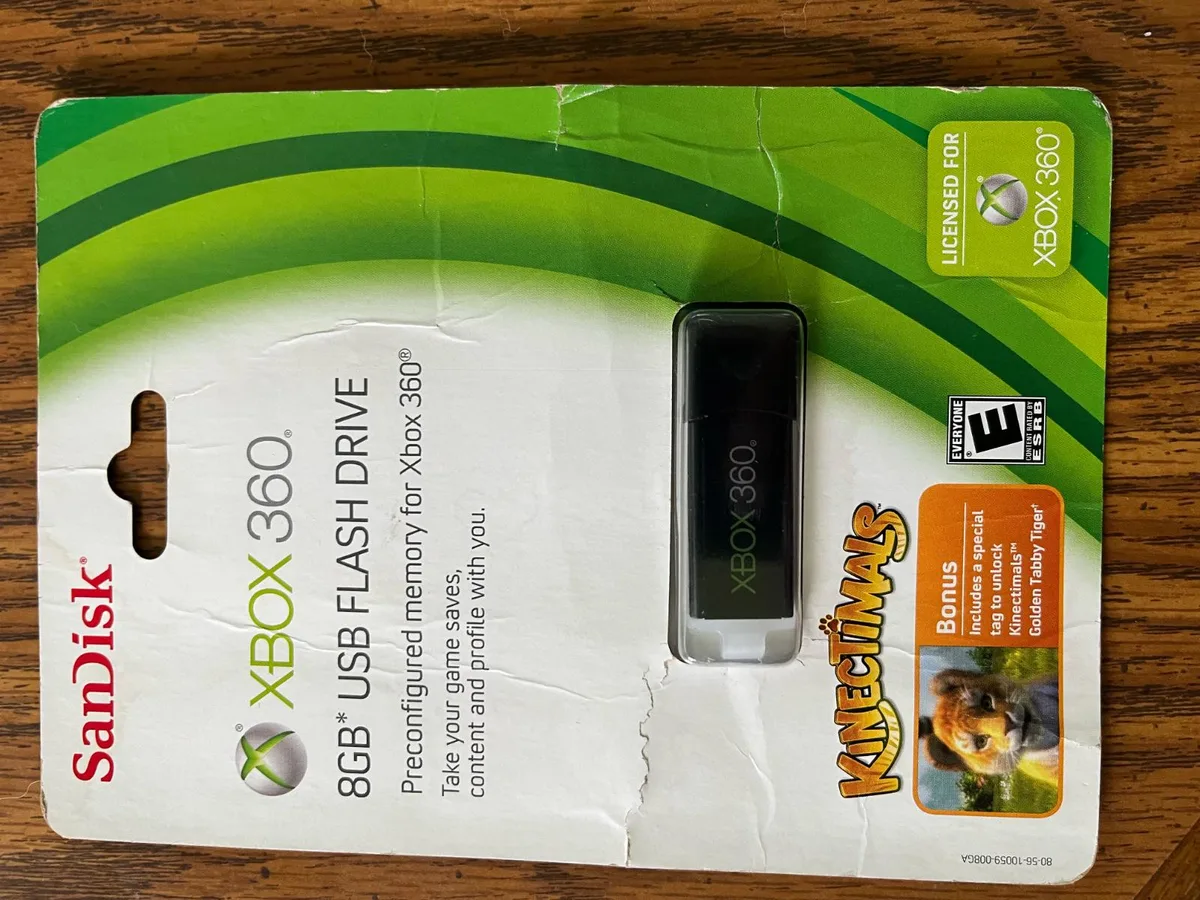
Image source: Bing (Web (fair-use with source credit))
When this method fails
If you get through the process and the console still will not boot, you are likely looking at a hardware problem. Contact Microsoft for a repair or replacement under warranty.
Common offline reset errors:
- E101 or E102: The OSU file is corrupted or the wrong version. Re-download it.
- E106 or E200: The USB drive is not formatted correctly. Reformat to NTFS.
- No recovery screen: The flash drive is not being read. Try a different USB port or a different drive.
What Happens to Your Saves, Profiles, and Purchases?
This is the question that worries people most. Here is the honest breakdown.
Saved games
Soft reset: Your saved games stay on the internal SSD. They are untouched.
Full wipe: Local saves are deleted. But if you have been online in the last 30 days, cloud backups are available. The first time you launch a game after the reset, Xbox checks the cloud and downloads your latest save.
If you have been offline for more than 30 days: Those saves are gone. Microsoft's cloud retention policy is 30 days from your last sync.
Our advice: Before any reset, force a manual sync. Play a game for a minute and let it auto-sync. That resets the 30-day clock.
Profiles and accounts
Both reset types delete your local profile. Your Microsoft account itself is unaffected. Friends, messages, achievements, and Gamerscore are stored on Microsoft's servers.
You sign back in after the reset.
Digital game licenses
Your library is tied to your Microsoft account, not the console. After a full wipe, go to My games & apps > Full library > Owned games and re-download everything. If you game-share with another console, you will need to set that up again.
Screenshots and captures
Soft reset keeps them. Full wipe deletes them. Upload important captures to Xbox Network or transfer them to a USB drive first.
Payment information
Full wipe erases saved payment details. You will need to re-enter them after the reset.
Subscriptions
Xbox Game Pass, Xbox Live Gold, and EA Play are tied to your account. A reset does not affect them.
Mistakes People Make When Resetting Their Xbox Series X
Mistake 1: Choosing the wrong reset type
Someone has a minor glitch and selects "Reset and remove everything." They lose all their games and spend two days re-downloading. A soft reset would have fixed the same issue in 10 minutes.
Fix it: Always try the soft reset first.
Mistake 2: Not unlinking your account before selling
If you sell the console with your profile still on it, the buyer has access to your account.
Fix it: Do a full wipe before any sale. Then boot the console to confirm it shows the initial setup screen.
Mistake 3: Interrupting the reset process
Unplugging mid-reset can corrupt the operating system.
Fix it: Plug the console into a surge protector. Do not touch the power button during the reset.
Mistake 4: Not checking cloud save status
People assume their saves are always in the cloud. They are not if you have been offline for a while.
Fix it: Before the reset, go to Settings > System > Storage > Clear local saved games. This forces a cloud sync check.
Mistake 5: Using the wrong USB format for offline reset
The offline reset requires NTFS. People use FAT32 by habit.
Fix it: On Windows, right-click the USB drive in File Explorer, select Format, and choose NTFS.
Mistake 6: Forgetting to re-pair the controller
After a full wipe, the console forgets every paired controller.
Fix it: Press the Pair button on the console and the Pair button on the controller simultaneously.
After the Reset: What You Need to Do Next
Step 1: Complete the initial setup
If you did a full wipe, go through the setup screens. Select your language and region. Connect to Wi-Fi.
Sign in with your Microsoft account. Set your console name and privacy preferences. If you did a soft reset, skip this and just sign in.
Step 2: Re-pair your controller
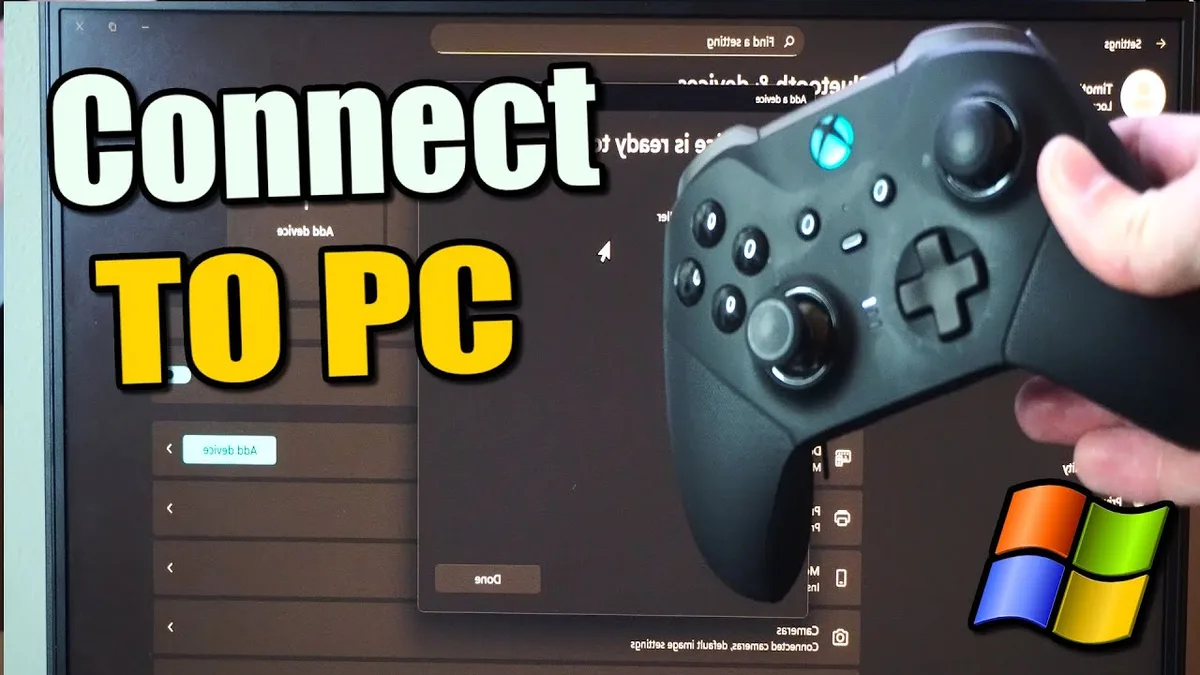
Image source: Bing (Web (fair-use with source credit))
- Turn on the controller by holding the Xbox button.
- Press the Pair button on the front of the console.
- Press the Pair button on top of the controller.
- Wait a few seconds.
If it does not connect, use a USB-C cable to pair it wired. Once connected, disconnect the cable.
Step 3: Check for system updates
Go to Settings > System > Updates. Install any available updates before downloading games.
Step 4: Restore your settings
Reconfigure display and sound settings, network preferences, privacy controls, and storage options. Take a screenshot of your settings before a reset to save time.
Step 5: Re-download your games
Go to My games & apps > Full library > Owned games. Select the ones you want and start the download.
Re-download time estimates:
| Internet Speed | 50 GB game | 100 GB game | 200 GB game |
|---|---|---|---|
| 50 Mbps | 2.2 hours | 4.5 hours | 9 hours |
| 100 Mbps | 1.1 hours | 2.2 hours | 4.5 hours |
| 200 Mbps | 35 minutes | 1.1 hours | 2.2 hours |
| 500 Mbps | 14 minutes | 28 minutes | 56 minutes |
These are rough estimates. Actual times vary based on network congestion and Xbox server load.
Step 6: Re-download your apps
Streaming apps and media players are not automatically restored. Go to the Microsoft Store and reinstall them.
Step 7: Re-set up game sharing
Go to Settings > Personalization > My home Xbox and designate your console as the home Xbox. This lets other profiles play your games without signing in as you.
Real Scenarios: When Each Reset Option Makes Sense
Scenario 1: Console crashes during every game
Problem: Frequent crashes to dashboard. Other games work fine.
Recommended action: Try the soft reset first. It clears the system cache without touching your games. If that does not fix it, uninstall and reinstall the specific game.
Scenario 2: Selling the console to a friend
Problem: You want to hand over a clean console with no personal data.
Recommended action: Full wipe. After the reset, confirm the console boots to the setup screen. Do not sign into your account.
Scenario 3: Error code E105 on startup
Problem: The console displays E105 during boot and will not start.
Recommended action: A soft reset will not fix this. Use a full wipe. If that fails, use the offline USB recovery method.
If that also fails, the internal SSD may need replacement.
Scenario 4: Quick Resume stopped working
Problem: Every game reloads from the title screen.
Recommended action: A soft reset clears the Quick Resume cache and restores functionality. No need to uninstall anything.
Scenario 5: Buying a used Xbox Series X
Problem: The previous owner's data is still on the console.
Recommended action: Full wipe. If the previous owner's account is still set as home Xbox, ask them to log into their Microsoft account online and designate a different console. If you cannot contact them, you get a clean system but cannot play their digital games.
Frequently Asked Questions
How long does a factory reset take on Xbox Series X?
A soft reset takes 5 to 10 minutes. A full wipe takes 15 to 30 minutes. The offline USB method takes 10 to 20 minutes.
Re-downloading games takes the longest.
Will I lose my game progress if I factory reset?
Not if you have been online recently. Xbox stores saves in the cloud for 30 days after your last sync. A soft reset keeps local saves.
A full wipe deletes them but pulls from the cloud.
What is the difference between a soft reset and a full wipe?
A soft reset clears the operating system and settings but leaves your games and saves in place. A full wipe deletes everything on the internal SSD. Both reinstall a fresh operating system.
How do I factory reset without the Settings menu?
Use the offline USB recovery method. Download the OSU file from Microsoft's support site. Place it in a $SystemUpdate folder on an NTFS USB drive.
Boot the console while holding Pair and Eject.
Does factory resetting remove my Microsoft account?
A full wipe removes all local account data. Your account itself stays intact on Microsoft's servers. After the reset, the console shows the initial setup screen.
What error codes mean I need a factory reset?
E102, E105, and E106 are the main indicators. These codes mean the operating system files are corrupted. A soft reset usually does not fix them.
Use a full wipe or the offline USB method.