
If your Nintendo Switch is acting up, freezing mid-game, or you are getting ready to sell it, you have probably asked yourself exactly how to factory reset Nintendo Switch. The good news is that the process is straightforward. The less good news is that you have a few different paths, and picking the wrong one could cost you something important.
Maybe your Animal Crossing island. Maybe a Pokémon team you have spent months building.
The hard truth is that "factory reset" on a Switch does not mean just one thing. Nintendo actually gives you two very different options inside the same menu. Per manufacturer documentation, as of 2026, the console's firmware includes a "Restore Factory Settings Without Deleting Save Data" path and a full "Initialize Console" path.
Pick the wrong one, and your save data is gone for good. This guide walks you through exactly which path fits your situation so you never lose what matters.
Quick Answer
Go to System Settings. Scroll down to System. Select Formatting Options.
Pick "Initialize Console" to wipe everything. Pick "Restore Factory Settings Without Deleting Save Data" to keep your game progress. If your Switch is frozen, use Recovery Mode.
Hold both volume buttons. Tap the power button. Release only the power button when the menu appears.
Done.
What a Factory Reset Actually Does (and What It Doesn't)
Image source: Bing (Web (fair-use with source credit))
A factory reset removes user data, downloaded games, screenshots, videos, and profile information from the internal storage. It restores the operating system to its original out-of-box state.
But here is what it does not do. It does not wipe the microSD card. That card stays exactly as it is, with all its files intact.
You have to format that separately if you want it clean. It also does not remove your Nintendo Account from Nintendo's servers. That means the new owner could find themselves unable to set the console as their primary system, which blocks offline game access.
Two Options, One Menu
Nintendo's formatting menu contains two distinct choices. Understanding the difference is the core of your decision.
| Option | What It Removes | What It Keeps |
|---|---|---|
| Restore Factory Settings Without Deleting Save Data | User profiles, settings, downloaded games, screenshots | All save data tied to user profiles |
| Initialize Console | Absolutely everything on internal storage | Nothing |
So if you are selling the console, you want the second option: Initialize Console. If you are just fixing a software glitch and want to keep your progress, you want the first one.
The "Primary Console" Problem
This is the hidden trap. When you factory reset, the console forgets it is your primary system. But your Nintendo Account still remembers that console exists.
If you do not manually unlink your account from the console before you reset it, the new owner cannot set it as their primary unit. They will only be able to play your downloaded games while connected to Wi-Fi.
The fix is simple. Before you hit reset, log into your Nintendo Account settings on a computer or phone. Find the option to remove the console from your account.
Do this first. It takes two minutes and saves a world of frustration.
Before You Do Anything: Backup Your Save Data and Screenshots
Do not skip this step. Seriously. We have seen too many forum posts from people who wiped their Switch and then realized their Breath of the Wild save was gone forever.
Let us make sure that does not happen to you.
Cloud Saves (Nintendo Switch Online)
If you have a Nintendo Switch Online subscription, your save data can live in the cloud. Go to System Settings. Select Data Management.
Then Save Data Cloud Backup. Make sure automatic backup is turned on. Then manually trigger a backup for each game you care about.
Important caveats. Not every game supports cloud saves. Splatoon 2 and 3, Pokémon (any of them), and Animal Crossing: New Horizons do not. Those saves are tied to the console itself.
If you reset completely, those saves are gone. No way around it. The only exception is Animal Crossing, which has its own island transfer tool.
You need to use that before you factory reset.
Screenshots and Videos
Screenshots and videos live on internal storage or your microSD card. If you reset the internal storage, the ones stored there vanish. The fix is easy.
Pop your microSD card into a computer and copy the files off first. Or transfer them via the Switch's album function to a smartphone or computer over a local network.
The album function lets you select multiple screenshots and send them wirelessly. It is slow for big batches, but it beats losing a hundred screenshots of your best Mario Kart moments.
What About Games You Have Downloaded?
Here is the good news. Your purchased games are tied to your Nintendo Account, not to the console. After you factory reset and log back in, you can re-download everything from the eShop.
No extra charge. No lost purchases.
You will need to re-download them over Wi-Fi, which takes time. But you will not have to buy anything twice.
The One-Button Backup Check
Before you reset, ask yourself three questions.
- Do I have cloud saves enabled for the games I care about?
- Have I manually backed up any unsupported games using Nintendo's transfer tools?
- Are my screenshots and videos copied off the console?
If the answer to all three is yes, you are ready to proceed. If any answer is no, pause and handle it now. Future you will be grateful.
Are You Selling the Console? Here's the Full Wipe Path
So you have decided to sell your Switch. Good call. A clean, factory-fresh console sells faster and for a better price.
But "clean" means more than just hitting the reset button. There is a specific order of operations you should follow.
Step 1: Unlink Your Nintendo Account
This is the most critical step. Log into your account on a web browser. Go to Nintendo Account settings.
Find the Shop Menu section. Select "Deregister Primary Console." This frees up the console slot so the new owner can set the Switch as their primary system.
If you skip this, the buyer will contact you later, frustrated that they cannot play downloaded games offline. Or worse, they will leave a bad review.
Step 2: Remove the microSD Card
The factory reset does not touch the microSD card. If you leave it in, the new owner gets access to any files you left on there. That might not matter to you, but it is a privacy risk.
Pull the card out. Keep it or format it separately on a computer.
Step 3: Initialize the Console
Here is the exact path.
- From the Home Menu, select System Settings (the gear icon).
- Scroll down to System, near the bottom.
- Select Formatting Options.
- Choose "Initialize Console."
- Confirm that you want to erase all data.
- Wait. It takes about five to ten minutes.
The console will restart and present you with the initial setup screen, just like the day you bought it.
Step 4: Factory Reset the microSD Card (Optional)
If you want to give the buyer a clean microSD card, or you plan to use it in another device, format it. On a computer, right-click the drive and select Format. Choose exFAT or FAT32.
FAT32 is more compatible with older devices, but exFAT handles larger files better. Either works fine for a Switch.
What the Buyer Sees
When they power on the console, they will see the language selection screen. They will set up their own Wi-Fi, create their own user profile, and log into their own Nintendo Account. Everything will be fresh.
No leftover screenshots, no old save data, no trace of your personal information.
This is the gold standard for resale. It protects your privacy and gives the buyer a true out-of-box experience.
Just Fixing a Glitch? Use the Save-Keeping Reset
Maybe your Switch is not for sale. Maybe it is just acting weird. Games keep crashing.
The Home menu lags. Error codes keep popping up. You want a fresh start without losing everything.
That is exactly what the save-keeping reset is for.
When to Use This Option
- Games freeze or crash regularly.
- The system feels slow or unresponsive.
- You get error codes that do not have a clear fix.
- You want to clear out old user profiles and downloaded content.
When Not to Use This Option
- You are selling or giving away the console.
- The system is so corrupted it will not boot at all. (In that case, you need recovery mode.)
- You want to remove parental controls but do not have the PIN.
How It Works
The save-keeping reset removes everything except your save data. User profiles are deleted. Downloaded games are removed.
Screenshots are wiped. Settings are reset to default. But those precious save files stay on the internal storage, untouched.
You walk through the exact same menu path.
- System Settings > System > Formatting Options.
- Select "Restore Factory Settings Without Deleting Save Data."
- Confirm.
The console restarts. You will have to create a new user profile and re-download your games. But when you open Zelda or Mario or whatever you have been playing, your progress will be right there.
After the Reset
You need to re-link your Nintendo Account. You need to re-download your games. You need to re-apply any custom settings.
It is not instant, but it beats starting from zero.
This path is ideal for troubleshooting. If the system was acting up due to corrupted data in a downloaded game or a messed-up setting, a save-keeping reset usually fixes it. If the problem comes back, the issue might be hardware-related.
In that case, contact Nintendo support before you do anything more drastic.
Can't Access the System Menu? Use Recovery Mode
Sometimes your Switch will not cooperate. Maybe the screen is black. Maybe it is stuck in a boot loop.
Maybe the touch screen is cracked or unresponsive. You cannot navigate to System Settings. You cannot make any menu choices.
You still have options. Recovery mode (sometimes called maintenance mode) lets you perform a factory reset using only the physical buttons. No touch needed.
Entering Recovery Mode
This works on every Switch model: original, OLED, and Lite.
- Make sure the console is powered off. If it is frozen, hold the power button for about 12 seconds until it shuts down completely.
- Press and hold both volume buttons (Volume Up and Volume Down) simultaneously.
- While holding both volume buttons, press and release the power button.
- Keep holding the volume buttons until the recovery mode menu appears on screen.
The menu gives you a few options. The one you want is "Initialize Console." Use the volume buttons to scroll down to it. Press the power button to confirm.
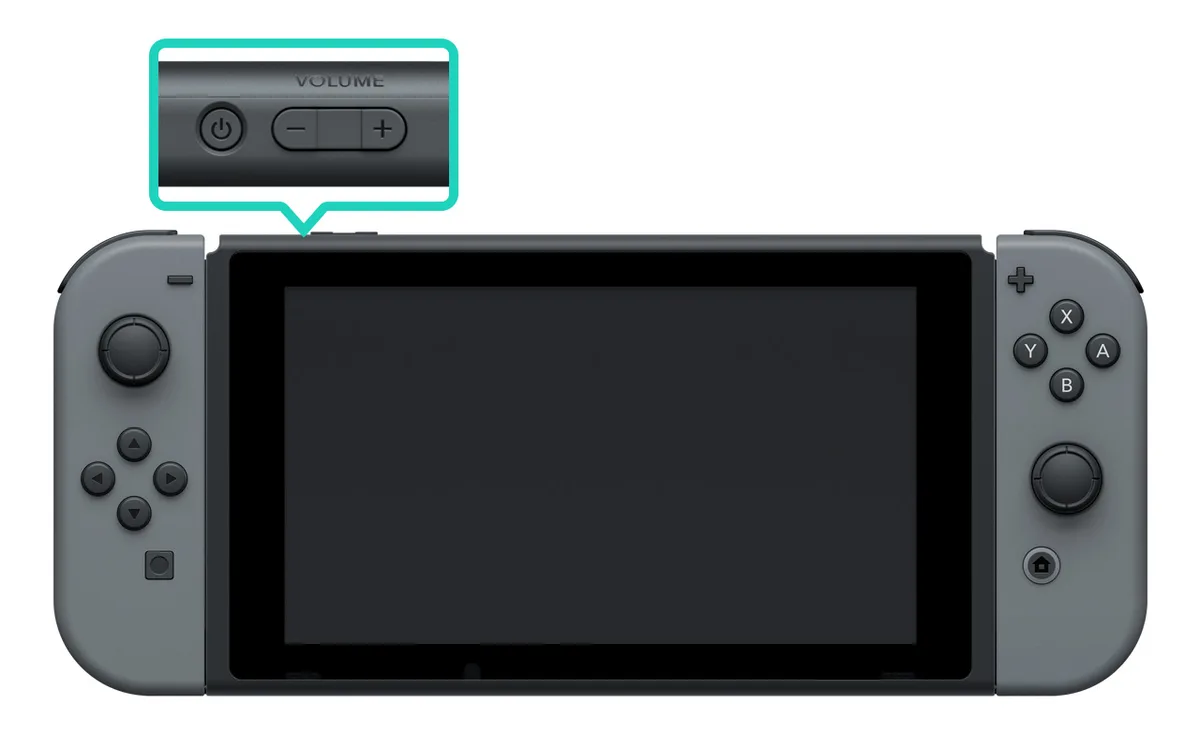
Image source: Bing (Web (fair-use with source credit))
What Recovery Mode Can Do
- Full factory reset (erases everything).
- Reset the console without deleting save data (if you can still navigate).
- Update the system via SD card.
- Test the display.
For most people, the factory reset option is the one you need. It is the nuclear option. It wipes everything, including whatever corruption was preventing the system from booting normally.
When Recovery Mode Fails
If your Switch will not even enter recovery mode, you may be dealing with a hardware failure. A dead battery, a broken main board, or a corrupted bootloader. In that case, recovery mode cannot help you.
Your next step is Nintendo's official repair service.
You can contact them through their support page. They will give you a shipping label and instructions. A standard factory reset repair (not a hardware fix) typically costs around $100 to $150 out of warranty, but prices vary by region.
A Warning About Third-Party Repairs
If you take your Switch to a local repair shop for a reset, make sure they know what they are doing. Some shops flash custom firmware or swap storage chips. That can void your warranty and cause problems with online services.
Stick with Nintendo's official channels if you can.
Forgot Your Parental Controls PIN? Handle That First
You cannot factory reset a Switch with active parental controls unless you know the PIN. The system blocks the formatting options entirely. If you have forgotten that four to eight digit code, you are stuck until you recover it.
Nintendo built this lock intentionally. It stops a child from wiping the console to bypass restrictions. It also means an adult who bought a used Switch with parental controls still enabled needs to take an extra step before they can reset.
How to Recover a Lost PIN
The official process requires contacting Nintendo support. You can do this through their website or by phone. They will ask for the console's serial number and verify your identity as the account holder.
Once verified, they provide a master key code that overrides the PIN. Enter that code on the parental controls screen. The restrictions disappear.
Then you can proceed with the factory reset normally.
Do not try to guess the PIN. After too many wrong attempts, the system locks you out for increasingly long periods. It is faster to go through support.
What If You Bought the Switch Used?
If you purchased a used console and the previous owner's parental controls are still active, you have two options. Contact the seller and ask them to remove it from their account. Or contact Nintendo support with proof of purchase.
They can help you disable it, but the process takes longer.
This is one reason to always check for parental controls before buying a used Switch. A quick glance at the System Settings menu tells you if restrictions are active. If they are, ask the seller to remove them before you hand over your money.
The One Exception
If you have the Nintendo Switch Parental Controls app on your phone and you are still logged in, you can generate the master key from there. Open the app, select your console, and look for "Reset PIN." The app gives you a temporary override code. Use that on the console, then turn off parental controls permanently from the System Settings menu.
This only works if the app is already linked to that console. If you never set up the app, or if you logged out, you are back to calling support.
Step-by-Step: Full Initialization from System Settings
This is the standard path for most users. It assumes your Switch is working normally and you can navigate the menus. If your screen is cracked or the system is frozen, skip to the recovery mode section instead.
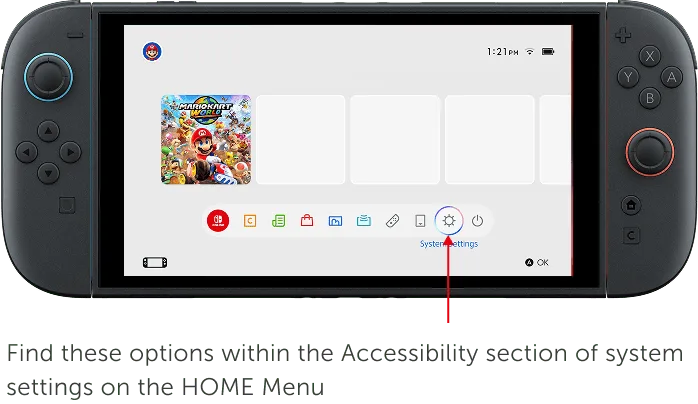
Image source: Bing (Web (fair-use with source credit))
The Exact Menu Path
- From the Home Menu, select the System Settings icon. It looks like a gear. It is the bottom row icon on the far right.
- Scroll down the left column until you reach "System." It is near the bottom, below "Controllers and Sensors" and above "Console Battery."
- In the right panel, scroll down to "Formatting Options." Select it.
- You will see a list of options. Choose "Initialize Console." This is the full wipe.
- The system asks for confirmation. It warns you that all data will be deleted. Read it. Then select "Next."
- A second confirmation screen appears. Select "Initialize." The process begins.
How Long Does It Take?
Full initialization takes between five and ten minutes. The exact time depends on how much data is stored on the internal memory. A nearly empty console finishes faster.
One packed with dozens of games takes closer to the ten minute mark.
During the process, the screen shows a progress bar. Do not turn off the console. Do not press any buttons.
Let it run to completion. Interrupting a factory reset can corrupt the system software and leave you with a bricked console.
What You See When It Is Done
The console restarts automatically. You land on the initial setup screen. It asks for language, region, and Wi-Fi settings.
This is the same screen you saw when you first unboxed the Switch.
If you are selling the console, you can stop here. Power it off and pack it up. The buyer will handle the rest.
What About the microSD Card?
As mentioned earlier, the factory reset does not touch the microSD card. After the reset, the Switch treats the card as a new storage device. It prompts you to link it to the console.
That process formats the card for Switch use, but only if you want to use it with that console again.
If you plan to keep the card for personal use, format it on a computer before inserting it into the newly reset Switch. Otherwise, the console will ask to format it again, wiping any files you may have left.
Step-by-Step: Recovery Mode Reset (No Touch Screen Needed)
Your Switch is frozen. The screen is black. The touch screen is cracked.
You cannot get to System Settings. Recovery mode is your only path.
It works on every Switch model. Original, OLED, and Lite. The button combination is identical across all three.
Entering Recovery Mode
- Power off the console completely. If it is frozen, hold the power button for about 12 seconds. The screen goes black. Release the button.
- Press and hold both volume buttons at the same time. Hold them down firmly.
- While holding both volume buttons, press and release the power button. Do not release the volume buttons yet.
- Keep holding the volume buttons until the recovery mode menu appears. This usually takes about five seconds.
Navigating Recovery Mode
The recovery menu has no touch support. You navigate using the volume buttons. Scroll up and down.
Select an option by pressing the power button.
The menu options include:
- Update System via SD Card
- Initialize Console Without Deleting Save Data
- Initialize Console
- Test Display
- Exit to Bootloader
For a full factory reset, choose "Initialize Console." For a save-keeping reset, choose the option above it.
No Visual Confirmation
Recovery mode does not show a progress bar. After you select "Initialize Console," the screen goes black. The console processes the reset in the background.
You see nothing for several minutes.
Do not panic. Do not press anything. Wait at least ten minutes.
The console will eventually restart and show the initial setup screen.
If after fifteen minutes you still see a black screen, something may have gone wrong. Try entering recovery mode again. If it still fails, the issue is likely hardware related.
Contact Nintendo support.
When to Use This Over the Menu Path
Use recovery mode in these situations:
- The console will not boot normally.
- The touch screen does not respond.
- You cannot navigate the Home Menu due to a software error.
- The system is stuck in a boot loop (restarting over and over).
Do not use recovery mode if you can access System Settings normally. The menu path is faster and gives you more options.
The Most Common Mistake: Forgetting to Unlink Your Account
This one mistake causes more frustration than any other. It is also the easiest to avoid.
When you factory reset a Switch, the console forgets it was ever linked to your Nintendo Account. But Nintendo's servers still remember. Your account still shows that console as a registered device.
And crucially, it is still marked as your primary console.
What Happens to the Buyer
The new owner sets up the console. They log into their own Nintendo Account. They try to play a downloaded game offline.
It does not work. The system tells them they need to check their internet connection.
This happens because the console is still registered to your account. Nintendo allows one primary console per account. Downloaded games only work offline on the primary console.
Since your account is still attached, the buyer's console is not primary. They can only play online.
How to Fix It After the Fact
If you already reset the console and then remembered you should have unlinked, you have one option. Log into your Nintendo Account on a web browser. Go to the Shop Menu section.
Select "Deregister Primary Console." This frees the slot so the buyer can claim it.
But here is the catch. You can only do this once per year. If you already used your one deregistration, you are stuck.
The buyer will have to wait or contact Nintendo support themselves.
The Correct Order
Always unlink first. Then factory reset. The order matters.
- Log into your Nintendo Account on a computer or phone.
- Navigate to Shop Menu.
- Select "Deregister Primary Console."
- Confirm the action.
- Then proceed with the factory reset on the console.
That is it. Two minutes of work that saves hours of hassle.
What If You Cannot Access Your Account?
Sometimes people forget their password. Or they no longer have access to the email address tied to their account. In that case, you need to recover the account before you can unlink the console.
Nintendo's account recovery process involves verifying your identity through personal information. Date of birth, purchase history, serial numbers. It can take a few days.
Plan ahead if you are selling the console on a deadline.
After the Reset: Relink, Redownload, and Restore Data
The reset is done. The console looks brand new. Now you need to put it back together.
This section covers what to do after the factory reset, whether you kept your save data or wiped everything.
Relink Your Nintendo Account
Go through the initial setup screens. Choose your language, region, and Wi-Fi network. When the system asks you to link a Nintendo Account, log in with your usual credentials.
If you performed a full initialization, this is a fresh link. The console recognizes your account and lets you set it as your primary system. If you forgot to unlink before the reset, you will see a message about an existing primary console.
You can still link the account, but you will need to use your one annual deregistration to fix the primary status.
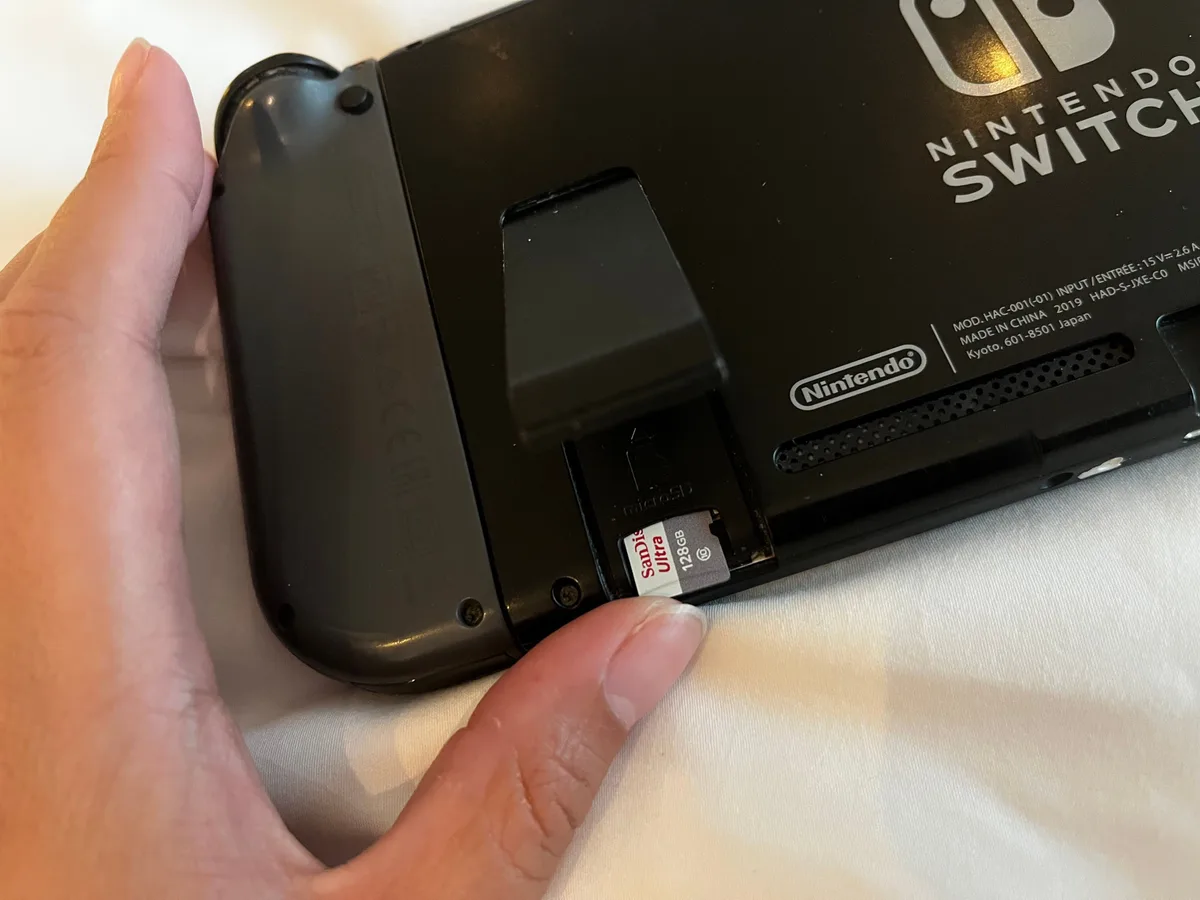
Image source: Bing (Web (fair-use with source credit))
Re-download Your Games
Open the eShop. Navigate to your account profile. Select "Redownload." You will see a list of every game you have purchased.
Select the ones you want to install.
Re-downloading takes time. A large game like The Legend of Zelda: Tears of the Kingdom takes about 30 to 45 minutes on a standard home internet connection. Plan accordingly.
You can queue multiple downloads and let them run overnight.
Restore Your Save Data
This only applies if you kept your save data or have cloud backups.
If you used the save-keeping reset, your saves are already on the internal storage. Launch a game. Your progress should be there.
If it is not, check Data Management in System Settings.
If you did a full initialization but have a Nintendo Switch Online subscription, you need to restore from the cloud. Go to System Settings. Select Data Management.
Then Save Data Cloud Backup. Choose the saves you want to download. Each one takes a few seconds.
Remember. Games that do not support cloud saves are gone. No workaround. You start fresh in Splatoon, Pokémon, and Animal Crossing unless you used the dedicated transfer tools beforehand.
Reinsert the microSD Card
If you removed the microSD card before the reset, you can put it back now. The console recognizes it and asks if you want to use it for storage. Confirm.
The card is ready to go.
If you formatted the card on a computer, the Switch treats it as a new card. It may ask to format it again for Switch use. That is normal.
Let it do its thing.
Reapply Your Settings
Go through System Settings and customize everything to your liking. Screen brightness, sleep mode, notification preferences, controller pairings. This takes a few minutes but makes the console feel like yours again.
If you have multiple controllers, re-pair them. Hold the sync button on each controller. The console finds them automatically.
Final Check
After everything is restored, test a few games. Make sure saves load correctly. Check that online play works.
If you encounter any errors, restart the console once more. Most post-reset issues clear up after a fresh boot.
You are back in business.
Real Scenarios: Selling vs. Troubleshooting vs. Gifting
Theory is useful. But real situations are messier. Let us walk through three common scenarios.
Each one follows a different path through the decision tree. Match yours to the closest example.
Scenario A: Selling the Console Online
You listed your Switch on a marketplace. Someone bought it. You need to ship it tomorrow.
Your path. Full initialization from System Settings. But you need to unlink your Nintendo Account first. Log into the account on your phone.
Deregister the primary console. Then proceed with the factory reset. Remove the microSD card.
Wipe the console. Power it off. Pack it up.
What the buyer sees. A fresh console with no user data. They set it up as their own. No headaches.
No angry messages later.
Time required. About 15 minutes total. Five minutes for the unlinking and card removal. Ten minutes for the reset.
Scenario B: Fixing a Glitchy System
Your Switch keeps crashing in the middle of Mario Kart. Error code 2002-0001 appears every time. You have tried restarting.
It did not help.
Your path. Save-keeping reset. Go to System Settings. System.
Formatting Options. Choose "Restore Factory Settings Without Deleting Save Data." This removes the corrupted game data and settings but keeps your progress.
What you get after. A clean system with all your save files intact. You re-download your games from the eShop. The error code is gone.
Time required. About 20 minutes for the reset and initial re-download. Games continue downloading in the background.
If it does not work. The error may be hardware related. A failing fan, a dying battery, or a corrupted firmware chip. Contact Nintendo support.
Scenario C: Giving the Console to a Family Member
Your child is getting their own Switch. You are handing down your old one. They want to start fresh with their own account and games.
Your path. This depends on whether you want to keep any save data.
If you want to keep your save data for yourself, use the save-keeping reset. Then transfer your saves to a different console or keep them locally. The family member creates their own profile and starts fresh.
If you do not care about the save data, do a full initialization. It gives them a completely clean console.
The key difference. With a save-keeping reset, your user profile is deleted but your save data remains. The new user cannot access those saves unless they create a profile with the same name. It is simpler to just wipe everything.
Time required. Full initialization takes about 10 minutes. Setting up the new user takes another 10 minutes.
Scenario D: Sending the Console for Repair
Nintendo asked you to send in your Switch. They need you to factory reset it first.
Your path. Full initialization. But you must back up your save data first. Some repairs can wipe the storage even if you skip the reset.
Cloud saves are your friend here.
Also, remove the microSD card before shipping. Nintendo's repair process may not return it with the console.
Time required. Same as selling. About 15 minutes total.
Quick Reference Table
| Scenario | Reset Type | Unlink Account? | Remove microSD? | Backup Needed? |
|---|---|---|---|---|
| Selling | Full initialization | Yes | Yes | Save data, screenshots |
| Troubleshooting | Save-keeping | No | No | Not required |
| Gifting | Full or save-keeping | Yes | Yes | Depends on your needs |
| Repair | Full initialization | Yes | Yes | Save data, screenshots |
Quick Decision Guide: Which Reset Path Is Right for You?
You have read all the options. Now it is time to decide. This guide walks you through the decision tree in plain language.
Answer the questions in order. The path reveals itself.
Question 1: Can You Access the System Settings Menu?
If yes. Proceed to Question 2.
If no. Your console is frozen, has a cracked screen, or will not boot. Go directly to recovery mode. Use the button combination to enter maintenance mode.
Select "Initialize Console" or "Initialize Console Without Deleting Save Data." Recovery mode bypasses the need for touch or menu navigation.
Question 2: Are You Selling or Giving Away the Console?
If yes. Choose full initialization. This wipes everything. No personal data remains.
But you must unlink your Nintendo Account first. Remove the microSD card too. The console becomes a blank slate.
The new owner sets it up fresh.
If no. You are keeping the console. Proceed to Question 3.
Question 3: Is the System Glitching or Acting Strange?
If yes. Choose the save-keeping reset. It fixes most software issues without losing your progress. Go to System Settings.
System. Formatting Options. Select "Restore Factory Settings Without Deleting Save Data." Re-download your games afterward.
If no. You do not need a reset right now. Close this guide. Keep playing.
If something changes, come back.
Question 4: Do You Have a Parental Controls PIN?
If yes. Is it the correct PIN? If you remember it, enter it. The console unlocks and lets you reset.
If you forgot it, contact Nintendo support or use the mobile app to generate a master key.
If no. Parental controls are not active. You are clear to proceed.
Question 5: Did You Back Up Your Save Data?
If yes. You are ready. Proceed with the reset.
If no. Stop. Back up your save data first. Cloud saves if you have Nintendo Switch Online.
Transfer tools for Animal Crossing or Pokémon. Copy screenshots and videos to a computer or phone. Then reset.
The Decision Tree in One Sentence
Full initialization for selling or repair. Save-keeping reset for glitches. Recovery mode if the screen is broken or frozen.
Unlink your account before selling. Back up before anything.
Frequently Asked Questions
How do I factory reset my Nintendo Switch without losing game saves?
Use the save-keeping reset option. Go to System Settings. System.
Formatting Options. Select "Restore Factory Settings Without Deleting Save Data." This removes user profiles, downloaded games, and settings but keeps your save files intact on the internal storage.
Will a factory reset delete my Nintendo Account?
No. Your Nintendo Account lives on Nintendo's servers, not on the console. A factory reset removes the account from the console.
You can log back in after the reset by entering your email and password. Your purchases remain tied to the account.
Can I factory reset a Nintendo Switch without the touch screen?
Yes. Use recovery mode. Power off the console.
Hold both volume buttons. Tap the power button. Keep holding the volume buttons until the menu appears.
Navigate with the volume buttons. Select with the power button. No touch required.
How long does a Nintendo Switch factory reset take?
Between five and ten minutes for a full initialization. The save-keeping reset takes about two to three minutes. Recovery mode resets also take five to ten minutes but show no progress bar.
Do not interrupt the process once it starts.
What happens to my microSD card during a factory reset?
Nothing. The factory reset only affects the internal storage. Your microSD card stays exactly as it is.
Files, games, screenshots all remain. If you want a clean card, you must format it separately on a computer or through the Switch after the reset.
Can I recover data after a factory reset?
No. A full initialization permanently erases all data on the internal storage. There is no built-in recovery option.
That is why backing up save data and screenshots before the reset is so important. If you used the save-keeping reset, your saves are still there.
Do I need a Nintendo Switch Online subscription to back up saves?
For cloud saves, yes. Nintendo Switch Online gives you automatic cloud backups for most games. If you do not have a subscription, you cannot use cloud saves.
Your only backup option is the save-keeping reset, which keeps data on the console without moving it elsewhere.
What if my Switch is stolen? Should I factory reset it remotely?
Nintendo does not offer a remote factory reset feature. If your Switch is stolen, log into your Nintendo Account on a web browser and deregister it as your primary console. This prevents the thief from playing your downloaded games offline.
Contact local authorities for the theft itself.