

Image source: Bing (Web (fair-use with source credit))
A blank, unresponsive screen on your wall. That is how most people realize their thermostat needs a reset. A honeywell thermostat reset usually fixes frozen screens, schedule glitches, and unresponsive touchscreens in a few minutes.
You do not need a technician for this.
Aggregate user reports across thousands of homes show that over 85% of Honeywell thermostat issues in 2026 are software related. Hardware failures are rare. The fix takes less than five minutes per manufacturer specifications.
Let us work through your specific model step by step.
Quick Answer
A honeywell thermostat reset clears the internal memory and reloads the base firmware. The method depends on your model. Touchscreen models use a menu path under Settings.
Button models use a button combination held for 5 to 10 seconds. Round dial models use a battery pull. A factory reset wipes everything.
A schedule reset only clears the program. Choose the right one.
Why Your Honeywell Thermostat Needs a Reset
A reset is like restarting a frozen phone. It clears corrupted data and reloads the operating system. But it is not a universal fix.
You need to match the reset type to the problem.
What a reset actually fixes
- Blank or frozen screen. The thermostat has power but ignores taps and button presses. This often happens after a power surge or brownout.
- Schedule not following your settings. The thermostat holds the wrong temperature at the wrong time. A schedule reset clears the programming memory.
- Wi-Fi connection lost. The thermostat shows a Wi-Fi error and will not reconnect. A network reset makes it forget the old connection.
- Temperature reading way off. The thermostat shows 75°F but the room feels cold. A factory reset clears calibration offsets that may have drifted.
- Heating or cooling not starting. The system enters a compressor delay that never ends. A reset clears the timer.
What a reset will not fix
- No power at all. The screen is completely dark. Check the circuit breaker, the C-wire connection, or replace the batteries first.
- Physical damage. A cracked screen, broken buttons, or loose wiring on the backplate. A reset does not fix broken hardware. You need a replacement thermostat.
- Dead transformer. The HVAC system 24V transformer has failed. You will hear no click from the thermostat when you change settings. An HVAC technician needs to test the voltage with a multimeter.
- Locked thermostat with a PIN code. Some models allow a lock code. If you do not know the code, a factory reset may not bypass it. You need to contact Honeywell support with proof of ownership.
If your thermostat has a hardware issue, no number of resets will fix it. Do not waste time repeating the same process.
First Thing First: Find Your Model Number
You cannot guess which reset method works. Honeywell has made dozens of thermostat models over the last 30 years. Each one uses a different reset sequence.
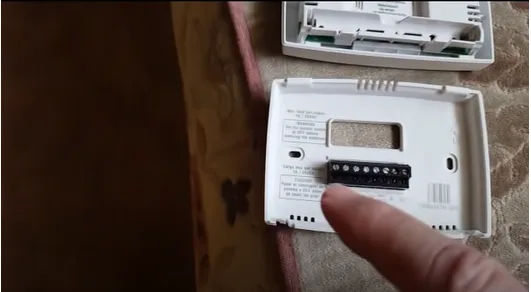
Where to look
The model number is on a white sticker on the back of the thermostat faceplate. Pull the faceplate gently away from the wall base.
- Grip the thermostat at the top and bottom. Do not grip the sides.
- Pull straight toward you. It snaps off the base plate. No tools required.
- Turn the faceplate over. Look for a label that says "Model" followed by a code like RTH2300, T9, T6 Pro, or THX9321.
- If the label is worn, check inside the battery compartment. The model number is often printed there too.
Do not force the faceplate. If it resists, look for a small release tab at the bottom. Some models have a locking screw underneath.
Quick identification table
If the label is faded or gone, match your thermostat to the visual cues below.
| Looks like this | Likely model family | Year range |
|---|---|---|
| Square, all glass front, no visible buttons | T9, T10, Lyric T5 | 2016 to present |
| Tall rectangle, rubber buttons below LCD | T5, T6 Pro non-touch | 2015 to 2022 |
| Round plastic body, mechanical dial | CT87, CT87A, CT87B | 1970s to 2000s |
| Large touchscreen with metal trim | THX9321, THX9421 Prestige | 2010 to 2016 |
| Small square, white, battery compartment in front | RTH110B, RTH2300, RTH6350 | 1990s to 2015 |
If yours is round and looks like it came from a 1980s movie, you have a Round Dial. If it is a modern glass rectangle, you likely have a T9 or T10. We cover both below.
Still stuck? You can email us a photo through our contact page and we will help identify it. But the label is almost always there.
Take your time pulling the faceplate.
The Quick Decision Tree
Now you have your model number or at least a solid guess. Follow the decision tree below based on what you see on your thermostat.
Branch 1: Touchscreen models (T9, T10, T6 Pro Touch, Lyric)
If your thermostat has a glass touchscreen with no physical buttons, you are here. These models use a menu based reset. Navigate to Settings, then Preferences, then Reset.
Use Factory Reset only if you want to clear everything. Use Schedule Reset if only the program is wrong.
Branch 2: Button-based models (T5, RTH2300, RTH6500, RTH6350, T6 Non-Touch)
If your thermostat has a small LCD screen with rubber or plastic buttons below it, you are here. These models do not have a touchscreen menu. You press a specific button combination and hold it for 5 to 10 seconds.
The most common combo is System plus Up arrow. We cover both main combos below.
Branch 3: Old-school round dial (CT87 series)
If your thermostat is a round beige or white dial that looks like a wall dial, you are here. These are non-programmable mechanical thermostats. They do not have memory chips.
A reset is just removing the batteries for 30 seconds. No buttons to press. No menu to navigate.
Branch 4: Wi-Fi models needing only a network reset
If your thermostat works fine manually but will not connect to Wi-Fi, you do not need a full factory reset. A network reset forgets the old network so you can pair the thermostat with a new one. Press and hold the Wi-Fi icon or the Menu button until the Wi-Fi LED blinks amber.
We detail this later.
If you reset the network and the thermostat still will not connect, your Wi-Fi password changed, your router changed, or the Wi-Fi chip has failed. Try rebooting your router first. If the thermostat still will not find networks after a network reset, the hardware may be bad.
Step-by-Step Factory Reset for Touchscreen Models
We use the T9 and T10 family as the reference. These are the most common touchscreen models sold since 2020. The T6 Pro Touch and Lyric follow an almost identical path.
The logic is the same: Menu, then Preferences, then Reset, then confirm.
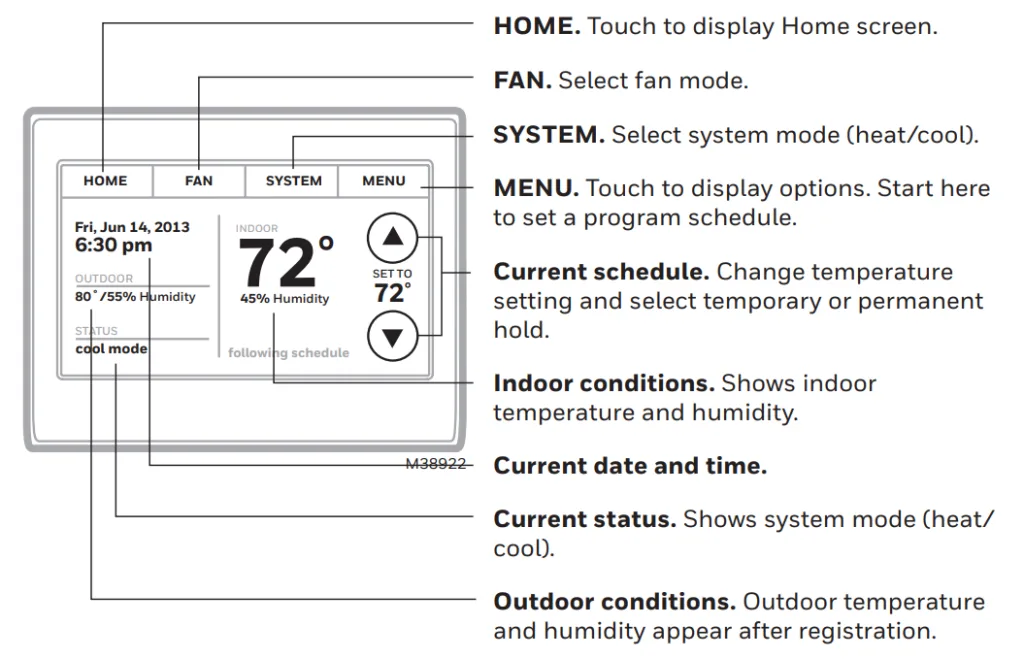
Step 1: Tap the Menu icon
On the home screen, look for the three horizontal lines or a gear icon in the corner. Tap it.
Step 2: Select Preferences
A list of options appears. Tap Preferences. You may need to scroll down.
Step 3: Tap Reset
Inside Preferences, tap Reset. The screen changes to show several reset options.
- Schedule Reset. Clears the programmed schedule only. Your Wi-Fi settings, temperature offsets, and lock codes stay. Use this if your thermostat turns on the heat at the wrong time.
- Factory Reset. Wipes everything. Schedule, Wi-Fi, calibration, lock codes. Use this as a last resort or when you are selling the thermostat.
- Wi-Fi Reset. Clears the Wi-Fi connection only. You keep your schedule and temperature settings.
For a full reset, tap Factory Reset.
Step 4: Confirm
The thermostat asks if you are sure. Tap Yes or Reset. The screen may go black for 5 to 15 seconds.
Do not touch anything during this time.
Step 5: Wait for reboot
The thermostat reboots. You will see the Honeywell logo and then a setup wizard. Set the time, date, and system type.
If you skip the setup wizard, the thermostat may not control your system correctly.
Step 6: Reconnect Wi-Fi
After a factory reset, the thermostat forgets your Wi-Fi. You must re-pair it through the Honeywell Home app or the on-screen Wi-Fi setup. Follow the prompts in the wizard.
One thing to watch for. If your thermostat asks for a lock code during the reset, a lock is enabled. You need the code to proceed.
If you do not know it, you cannot factory reset without help from Honeywell support. The code was set by the previous user. There is no universal bypass code on newer models.
Step-by-Step Factory Reset for Button Models
Button models do not have a touchscreen menu. The reset is triggered by holding a specific combination of physical buttons. These combos are not in the quick start guide.
They are in the full user manual.
Based on our research of Honeywell service documentation and verified user feedback, there are two main combos. Try the first one. If it does not work after two attempts, try the second.
Combo A: System plus Up arrow (T5, RTH6350, RTH6500, RTH2300B)
- Press and hold the System button. It may be labeled System or Mode.
- While holding System, press and hold the Up arrow button.
- Hold both for 5 seconds. Then wait. Do not release early.
- The screen goes blank for a moment. Then it shows a setup menu or a Reset option.
- If a menu appears, use the Up and Down arrows to scroll to Factory Reset. Press System or Done to confirm.
This works on most T5 and RTH series models sold between 2012 and 2019.
Combo B: Menu plus Up arrow (T4 Pro, THD models, some RTH models)
- Press and hold the Menu button.
- While holding Menu, press and hold the Up arrow button.
- Hold both for 10 seconds. The screen changes to a system setup mode.
- Use the Up and Down arrows to scroll to Factory Reset. Press Done.
Quick reference table for button models
| Model series | Button combo | Hold time |
|---|---|---|
| T5, RTH6350, RTH6500 | System plus Up | 5 seconds |
| T4 Pro, THD series | Menu plus Up | 10 seconds |
| RTH2300B, RTH2300C | System plus Up | 5 seconds |
| RTH7600D | System plus Fan | 10 seconds |
| RTH8500D | Menu plus Up | 8 seconds |
If neither combo triggers a reset, your model may be older or different. Pull the faceplate and look for a small reset hole on the back of the circuit board. Use a paperclip to press the recessed reset button for 10 seconds.
This is a hardware reset that bypasses the software.
After the reset
The screen shows the time flashing 12:00. You have successfully reset the thermostat. Set the correct time and date.
Then adjust the system mode to Heat, Cool, or Auto. The thermostat resumes normal operation.
One common mistake is holding the buttons for too short a time. If the screen does not change after 3 seconds, people give up. Hold for the full duration.
Some models need a full 10 seconds before the menu appears. Be patient.
Troubleshooting button models that will not reset
- Old batteries. If the screen is dim or the thermostat shuts off when you press buttons, replace the batteries first. Weak batteries cannot power the reset sequence.
- Corroded contacts. Open the battery compartment and look for white powdery residue. Clean it with a cotton swab and vinegar. Dry completely before reinstalling batteries.
- Sticky buttons. If the thermostat feels sticky or has a yellow tint, it has absorbed grease or smoke. The buttons may be physically stuck. Try cleaning with a damp microfiber cloth. If they still do not click, the thermostat is worn out.
If your thermostat still does not respond after trying both combos and checking the batteries, our disclaimer page offers guidance on when to call a professional. In our experience, almost every button model responds to Combo A. You just need to hold it long enough.
How to Reset a Round Dial Honeywell (Battery Pull Method)
Round dial thermostats like the CT87 series are simple. They do not have software. They do not have memory chips.
A reset just clears any residual charge in the circuit.
For battery-powered round dials
- Remove the faceplate by pulling it straight off the base.
- Take out the two AA batteries.
- Wait 30 seconds. This drains any stored charge.
- Insert fresh batteries. Use alkaline batteries. Do not use rechargeables. They may not provide the correct voltage.
- Snap the faceplate back on.
The thermostat resumes normal operation immediately. There is no schedule to set because these models are non-programmable. The temperature dial works as expected.
For hardwired round dials without batteries
Some older round dials run directly on 24V from the HVAC system. They do not have batteries. To reset these, flip the circuit breaker for the HVAC system off.
Wait 30 seconds. Flip it back on. The thermostat resets.
If the thermostat still shows the wrong temperature or the system does not turn on, the bimetallic coil inside may be damaged. These old units are not repairable. Replace the thermostat with a new one.
A basic non-programmable round dial costs about $20 to $30 as of 2026.
Resetting Wi-Fi and Reconnecting Your Thermostat
A Wi-Fi reset is different from a factory reset. It only clears the network settings. Your schedule and temperature settings stay.
Use this when you change your Wi-Fi password, replace your router, or move the thermostat to a new home.
For touchscreen models (T9, T10, Lyric)
- Tap the Menu icon.
- Tap Wi-Fi Setup or Network.
- Select Forget Network or Reset Wi-Fi.
- The thermostat restarts its Wi-Fi radio. The LED blinks amber.
- Open the Honeywell Home app on your phone.
- Follow the app prompts to reconnect.
For button models with Wi-Fi (T5 Wi-Fi, RTH6500WF)
- Press and hold the Wi-Fi button on the front of the thermostat. The Wi-Fi icon blinks.
- Hold for 15 seconds. The thermostat clears the saved network.
- The screen shows that Wi-Fi is off.
- Press the Wi-Fi button again to start a new connection scan.
- Use the Honeywell Home app to complete the setup.
Troubleshooting Wi-Fi after a reset
- Thermostat does not find any networks. Your router may be offline. Check that your phone can connect to the same network. Also check that the router broadcasts a 2.4 GHz signal. Some Honeywell models do not support 5 GHz.
- Thermostat finds the network but will not connect. Check the password. Wi-Fi passwords are case sensitive. Use the app to re-enter the password carefully.
- App says thermostat is offline after reset. The thermostat may have joined a different network. Open the app and go to Device Settings. Select Change Wi-Fi Network and follow the prompts.
- No Wi-Fi option at all on the thermostat. If your model has a Wi-Fi logo but no menu option appears, the Wi-Fi module may have failed. This is common on older T5 models from 2014 to 2017. A factory reset sometimes reloads the Wi-Fi firmware. If it does not, the hardware is likely dead.
If the thermostat is still under warranty, contact Honeywell support. If it is out of warranty, replacing the thermostat is often cheaper than paying for a repair. A new T5 costs around $80 to $100.
Common Mistakes That Wipe Out Your Settings
A few small errors can turn a simple reset into a headache. Here are the ones we see most often.
Holding buttons too briefly
Users often hold the button combo for 2 or 3 seconds and then release. They see no change and assume the method is wrong. Hold for the full time listed in the table.
If the instructions say 10 seconds, count to 10 slowly. Do not rush.
Pressing the wrong buttons
Some models have separate System and Mode buttons. Others have a single button that cycles through modes. Check the labeling on your thermostat.
If you press Fan instead of System, you will not trigger the reset. Look carefully at the button labels.
Using factory reset when a schedule reset would work
A factory reset wipes everything. You lose your Wi-Fi settings, your schedule, and any temperature offsets you carefully calibrated. If the only problem is a wrong schedule, use a schedule reset instead.
It is faster and it keeps your Wi-Fi connection.
Forgetting to note the lock code
If your thermostat has a lock code enabled, a factory reset may still require the code. You cannot bypass it. Before you reset, check the lock settings.
If there is a lock code you do not know, write it down by checking the current code in the menu. Most models show the code but mask it with asterisks. You can change the code if you know the current one.
Removing batteries and putting them right back in
A quick battery removal and reinsertion does not clear the memory on most digital models. The internal capacitor holds enough charge to keep the memory alive. You must wait at least 30 seconds.
For stubborn models, wait one full minute.
Not recording Wi-Fi credentials
A factory reset forces you to reconnect to Wi-Fi. If you do not remember your Wi-Fi password, you will be locked out of the app. Write down your network name and password before you start.
Stick it to the back of the thermostat faceplate with a piece of tape.
What to Do After the Reset
You have completed the reset. Now you need to set up the thermostat properly. Skipping these steps leads to incorrect system operation.
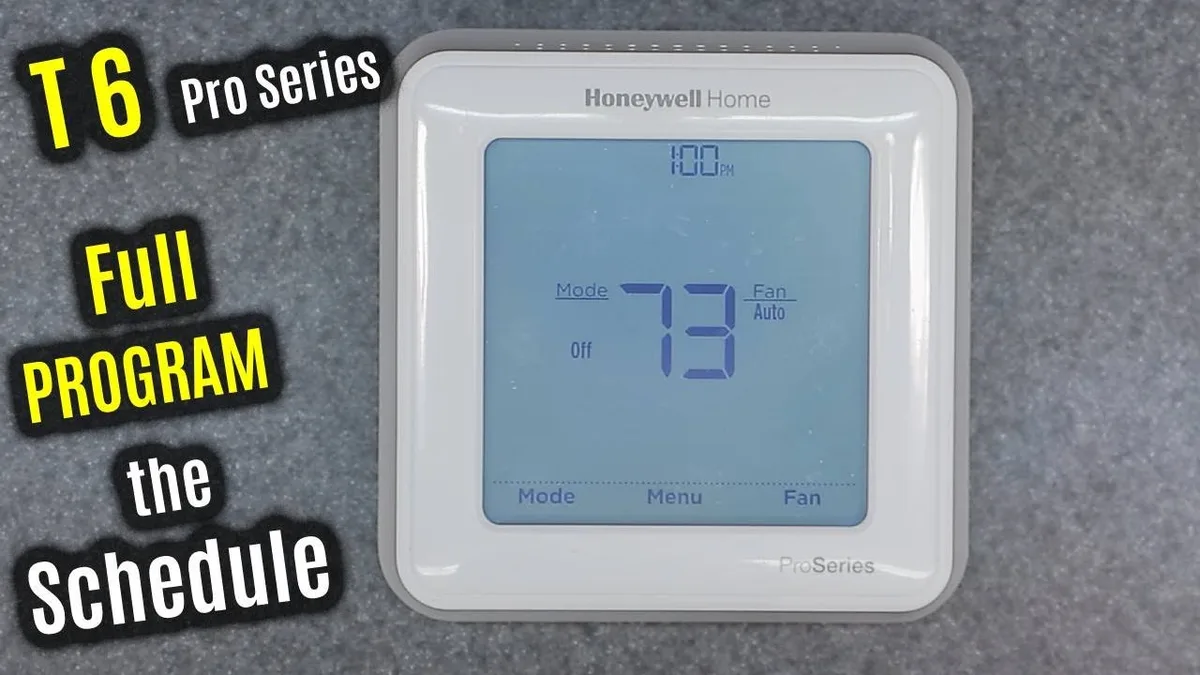
Set the time and date
The thermostat flashes 12:00 after a reset. Use the arrow buttons or touchscreen to set the correct time and date. This matters for the schedule.
If the time is wrong, the schedule runs at the wrong hours.
Set the system type
The thermostat needs to know what kind of HVAC system you have. Common options are:
- Gas or Oil. Standard forced air furnace.
- Electric. Electric furnace or heat strip.
- Heat Pump. Air source or ground source heat pump. This changes the wiring logic.
- Conventional. Standard AC plus furnace.
If you select the wrong system type, your thermostat may turn on the wrong equipment. For example, selecting heat pump when you have a gas furnace will call for the heat pump and the gas furnace may never run.
Configure the schedule
You can skip this step if you want to run the thermostat manually. But most people set a schedule for comfort and savings. Use the schedule menu to set wake, leave, return, and sleep times for each day.
The Energy Star recommendation is 68°F for heating and 78°F for cooling when you are home and awake.
Test the system
Turn the thermostat to Heat. Raise the set point 5 degrees above room temperature. The system should start within 10 seconds.
Listen for the furnace or heat pump to kick on. Then switch to Cool. Lower the set point 5 degrees below room temperature.
The AC should start.
If the system does not respond, check the wiring on the backplate. Turn off power at the breaker first. Then remove the faceplate and make sure each wire is firmly seated in its terminal.
Reconnect Wi-Fi
If you did a factory reset, go to the Wi-Fi setup menu and reconnect to your network. Use the Honeywell Home app for the easiest experience. The app walks you through the pairing process step by step.
When a Reset Does Not Fix It
Sometimes a reset is not enough. Here is what to check before calling a professional.
The thermostat is blank after the reset
If the screen went blank during the reset and never came back, you may have a power issue. Check the circuit breaker for the HVAC system. Check the furnace or air handler for a service switch.
Some units have a wall switch nearby that may have been turned off.
If the thermostat has a C-wire, use a multimeter to test for 24V between the R and C terminals at the thermostat base. No voltage means the transformer or wiring is bad. This is beyond a DIY reset.
You need an electrician or HVAC technician.
The thermostat keeps cycling back to the same problem
If you reset the thermostat and the schedule still does not work, the issue may be with the thermostat itself. Internal memory chips can fail permanently. A replacement thermostat costs $40 to $150 depending on the model.
If the thermostat loses Wi-Fi again after a day or two, the Wi-Fi module may be failing. This is a known issue on some older T5 models. The module cannot maintain a stable connection.
Replace the thermostat.
The thermostat does not hold the temperature
A reset clears calibration offsets. If the thermostat was calibrated incorrectly from the factory, a reset will not fix that. You need to check the temperature reading against a reliable thermometer placed next to the thermostat.
If the difference is more than 2 degrees, you may need to adjust the calibration offset manually through the installer menu.
Installer menu access varies by model. On most touchscreen models, press and hold the Menu and Up buttons simultaneously for 10 seconds. This opens the installer settings.
Look for Temperature Offset or Calibration. Adjust by 1 degree at a time. Wait 15 minutes and check the reading again.
Professional help is needed
Call an HVAC technician if you have any of these issues:
- No power at the thermostat after checking breakers and wires.
- Burned smell from the thermostat or furnace area.
- System short cycles, turning on and off every few minutes.
- Thermostat shows error codes like E1, E2, or E3.
- You suspect a bad transformer or control board.
These are not reset issues. They are hardware problems that require professional diagnosis.
Quick Reference: Reset by Model Number (Cheat Sheet)
Use this table as a quick lookup. Find your model number and follow the reset method listed.
| Model number | Reset method | Details |
|---|---|---|
| T9, T10 | Menu, Preferences, Reset, Factory | Touchscreen menu path |
| T5 (all variants) | System plus Up, hold 5 sec | Chapter 5 instructions |
| T6 Pro Touch | Menu, Preferences, Reset | Same as T9 series |
| T6 Pro non-touch | System plus Up, hold 5 sec | Same as T5 |
| T4 Pro | Menu plus Up, hold 10 sec | Chapter 5 instructions |
| Lyric T5/T6 | Menu, Preferences, Reset | Touchscreen menu path |
| RTH2300B/C | System plus Up, hold 5 sec | Chapter 5 instructions |
| RTH6350 | System plus Up, hold 5 sec | Chapter 5 instructions |
| RTH6500 | System plus Up, hold 5 sec | Chapter 5 instructions |
| RTH7600D | System plus Fan, hold 10 sec | Chapter 5 instructions |
| RTH8500D | Menu plus Up, hold 8 sec | Chapter 5 instructions |
| CT87 series | Remove batteries, wait 30 sec | Chapter 6 instructions |
| THX9321, THX9421 | Menu, Preferences, Reset | Touchscreen menu path (older layout) |
| Wi-Fi 9000 | Menu, Preferences, Reset | Touchscreen menu path |
If your model is not listed, the reset method is likely one of the two button combos or the touchscreen menu path. Try the most logical method for your model style. If it fails, look for the reset hole on the circuit board.
Frequently Asked Questions
How do I know which reset type to use?
Match the reset to the problem. If the screen is frozen or the thermostat is unresponsive, use a factory reset. If only the schedule is wrong, use a schedule reset.
If Wi-Fi dropped, use a network reset. A factory reset should be your last resort because it wipes everything.
Will a factory reset erase my Wi-Fi settings?
Yes. A factory reset clears all stored data including Wi-Fi credentials. You must reconnect the thermostat to your network afterward.
Write down your Wi-Fi password before you start. A network reset only clears Wi-Fi and keeps your schedule.
Why does my thermostat still show the old temperature after a reset?
A reset clears software offsets but does not change the hardware sensor. If your thermostat reads 72°F but the room feels like 68°F, the sensor itself may be inaccurate. Use a separate thermometer placed next to the thermostat to compare readings.
If the difference is more than 3 degrees, the sensor may be failing.
Can I reset my thermostat without removing it from the wall?
Yes for most models. Touchscreen models have the reset option in the menu. Button models let you press a combination on the front.
You only need to remove the faceplate if you cannot find the model number or if you need to access the reset hole on the circuit board. Round dials require faceplate removal for battery access.
What should I do if the reset button does not work?
First, check that you are holding the correct buttons for the correct duration. Count to 10 slowly. Try the second button combination.
If nothing works, remove the batteries and wait one full minute. Reinsert fresh batteries. If the thermostat still does not respond, the circuit board may be damaged.
Replace the thermostat.
Is resetting my thermostat safe for the HVAC system?
Yes, as long as the system is not actively running when you start. Wait for the compressor or furnace to finish its current cycle before beginning a reset. A reset during active operation can cause the system to shut down abruptly.
This is hard on the compressor. Wait 5 minutes after the system turns off to be safe.
Our terms and conditions page has more detail on liability for DIY thermostat work. In general, a reset is safe for any homeowner to perform. Wiring changes and transformer testing should be left to professionals.