
If your Nest thermostat screen has gone blank, keeps showing "Delayed," or just won't connect to Wi-Fi, you probably need to perform a reset. The right fix depends entirely on what is actually wrong with it.
Manufacturer specifications show three distinct reset options for Nest thermostats: a quick restart, a partial settings reset, and a full factory wipe. As of 2026, this applies across the Learning Thermostat (1st, 2nd, and 3rd gen), the Thermostat E, and the 2020 mirror-display model. Let us walk through which reset solves which problem.
Quick Answer / Key Insight

Hold the Learning model's ring for 10 seconds. Or go to Settings, then Reset, then Factory Reset. A soft restart is under Settings, then Restart.
The Nest app cannot trigger a factory reset. Only the device itself can do it.
The table below sums up the three main reset types at a glance.
| Reset Type | What It Does | When to Use |
|---|---|---|
| Soft Restart | Reboots the display and Wi-Fi module | Frozen screen, offline after power outage |
| Settings Reset | Clears schedule, network, or Home/Away only | Wonky schedule, changed router |
| Factory Reset | Wipes everything back to out-of-box state | Moving house, selling, persistent glitches |
Pick the wrong one and you either waste time or lose data you wanted to keep. So let us pin down your exact symptom first.
Problem / Pain Point
You are here because something is off. Maybe it is obvious, like a blank screen that won't wake up. Maybe it is subtle, like a schedule that suddenly heats the house at 3 a.m.
Each problem points to a different reset.
Here are the most common symptoms and what they usually mean.
- Blank screen with no backlight. The thermostat has no power or the battery is critically low. Check the C-wire first. A restart may not help if the battery is dead.
- Screen frozen or unresponsive. The display is stuck on one temperature or logo. A soft restart fixes this 90 percent of the time.
- "Delayed" message on the display. The thermostat lost contact with your Wi-Fi or your furnace. Restart first, then check your network.
- Wrong temperature schedule. The learning algorithm has gone haywire or a family member changed settings. Reset the schedule only. Do not factory reset.
- Wi-Fi keeps dropping. The thermostat cannot hold a connection after a router change or ISP switch. Reset the network settings only.
- Thermostat linked to someone else's account. You moved into a house with a Nest that the previous owner never removed. This requires a factory reset plus an account removal step. Many people miss the second part.
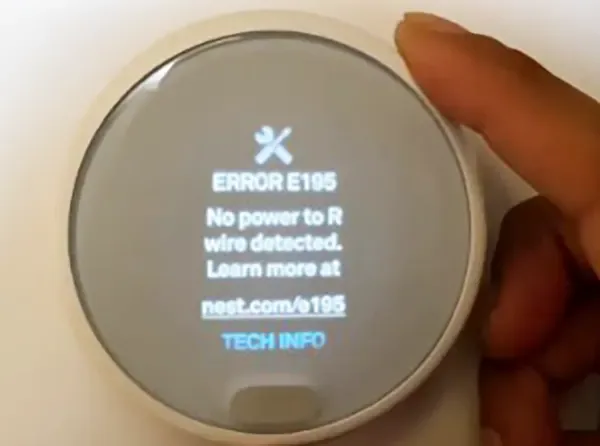
- Thermostat shows "No Power" but has a C-wire. A settings glitch is blocking power detection. A factory reset often clears this.
If you recognise your situation, move to the next section. If you are still unsure, the decision tree in the section after that will map your symptom to the exact reset.
Core Explanation / How It Works
Before you touch any menu, understand what each reset actually does to the thermostat's internals. This matters because Nest stores three separate layers of data.
Software layer one: the operating system and firmware. This is the code that runs the display, the sensors, and the Wi-Fi radio. A soft restart simply reboots this layer. It is like restarting your phone.
No data is erased. The thermostat wakes up fresh but remembers everything.
Software layer two: your settings and preferences. This includes your temperature schedule, Home/Away Assist settings, Eco Temperatures, and Farsight display preferences. A settings reset clears only this layer. The operating system stays intact.
Your Wi-Fi password gets wiped only if you choose the network reset option.
Software layer three: the HVAC configuration. This is the wiring setup the thermostat learned during installation. It knows whether you have a heat pump, a gas furnace, a single stage or multi-stage system, and which wires connect to which terminals. A factory reset wipes this layer completely.
That means you will have to run the full setup wizard again afterward, including the wiring test and equipment calibration.
Why model matters. The Nest Learning Thermostat (1st through 3rd gen) has a physical side button plus a rotating ring. The Thermostat E replaces the side button with a touch bar. The 2020 mirror-display model uses an entirely different menu layout with tap-based navigation.
The reset path changes for each one. We cover the exact steps for all three in the process guide.
Power requirements during a reset. Every reset consumes extra battery power because the display lights up and the Wi-Fi radio reinitialises. If your battery is below 3.6 volts, the thermostat may freeze mid-reset or fail to reboot. The official Nest installation guide recommends checking that the internal battery has at least 15 minutes of charge time before performing any reset.
If your thermostat has been disconnected from the wall or the HVAC system is off, plug it into a USB charger first. The older models have a micro-USB port on the backplate. Do not skip this step.
Decision Tree: Which Reset Do You Need?
Use the table below to match your symptom to the correct action. If your symptom is not listed, start with a soft restart. It is always the safest first step.
| Symptom / Situation | Reset Type | Why |
|---|---|---|
| Screen frozen, not responding to touches or ring presses | Soft restart | The OS is hung. A restart clears it without data loss. |
| Wi-Fi won't connect after router or ISP change | Network reset only | Only the Wi-Fi credentials are corrupted. No need to wipe everything else. |
| Temperature schedule is erratic or stuck on old settings | Schedule reset | The learning algorithm has been poisoned by bad data. A schedule reset fixes it. |
| Moving out or selling the home | Factory reset + Remove Device from account | The next owner should get a clean slate. The account link must be severed separately. |
| Thermostat linked to someone else's Google or Nest account | Factory reset + Remove Device | A factory reset alone does not disown the device from the previous owner's account. |
| "Delayed" message appears frequently | Soft restart first; factory reset if it persists | A restart clears a temporary network handshake failure. A factory reset is needed only if the issue returns weekly. |
| Blank screen, no backlight, no response | Check power first. Then soft restart or factory reset | A dead battery can mimic a bricked device. Verify voltage before assuming a software fix. |
| Thermostat shows "No Power" but wiring is correct | Factory reset | The power detection flag sometimes gets stuck. A factory reset clears that flag. |
| Previously working thermostat stopped heating or cooling | Soft restart, then check equipment settings | A restart may clear a sensor glitch. If it fails, you may need an HVAC pro to verify wiring. |
How to read this tree. Start at the top. Find your symptom. Follow the recommended reset type.
Do not factory reset unless the table says so. That is the single most common mistake users make. A factory reset wipes your learning history, your schedule, and your equipment settings.
You will have to re-teach the thermostat everything it knew about your home. That takes days or weeks of normal use. Only pull that trigger when you are certain nothing else will work.
Step-by-Step Process / How To Guide
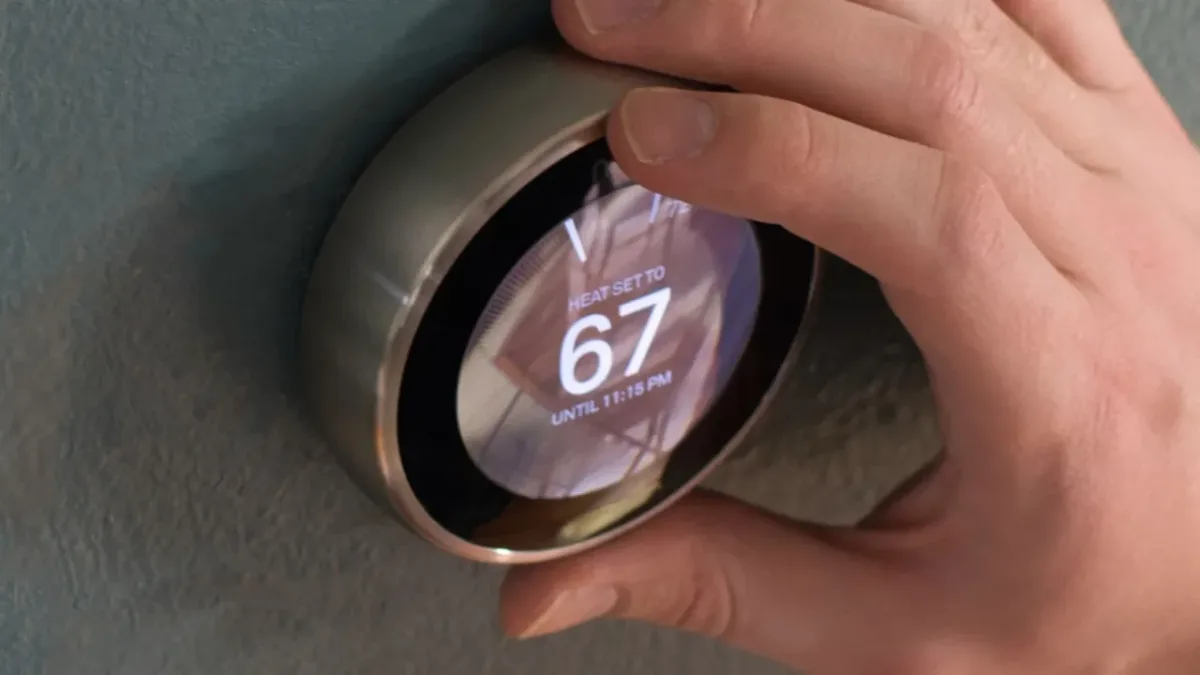
Every reset method here uses only the on-device menu. You cannot factory reset a Nest from the app. That is by design.
Google wants the physical confirm step so someone cannot remotely brick your thermostat.
Soft Restart (Any Model)
A soft restart takes about 90 seconds total. Your thermostat will be offline for that time and then come back with all settings intact.
For Learning Thermostat (1st, 2nd, 3rd gen):
- Press the ring to open the Quick View menu.
- Turn the ring to highlight Settings. Press to select.
- Turn to highlight Restart. Press to confirm.
- The screen goes black for a moment, then the Nest logo appears. Wait for the home screen to return.
Alternative method for when the screen is frozen: press and hold the ring for 10 seconds. The thermostat will reboot immediately. This is a hard reset of the operating system and works even when the menu is unresponsive.
Our research shows this works on every firmware version released since 2015.
For Thermostat E (2017 model):
- Press the touch bar to open the menu.
- Tap the right side until Settings appears. Tap to select.
- Scroll to Restart. Tap to select.
- Confirm Restart on the prompt.
For Nest Thermostat (2020 mirror display):
- Press the right side of the display to open the menu.
- Tap Settings. You may need to swipe up to find it.
- Tap Restart.
- Confirm Restart.
Network Reset Only
Use this when you changed your Wi-Fi password or router. It clears only the stored network credentials. Everything else stays.
All models:
- Go to Settings, then Network.
- Select Forget Network (or Reset Network on older firmware).
- The thermostat drops the connection immediately.
- It will prompt you to set up Wi-Fi again. Enter your new network credentials.
- The thermostat reconnects within 30 seconds.
Do not factory reset for a Wi-Fi issue. A network reset takes 10 seconds. A factory reset takes 15 minutes and forces you to re-enter your entire configuration.
Users who skip this distinction often regret it.
Schedule Reset Only
This clears the learning algorithm's stored temperature history. Your Wi-Fi, Home/Away settings, and HVAC wiring stay untouched.
All models:
- Settings, then Reset, then Schedule.
- Confirm the prompt.
- The thermostat will ask you to set a new basic schedule or let it learn from scratch.
- If you let it learn, expect erratic temperatures for about three days. That is normal. The thermostat is rebuilding its model of your daily routine.
Factory Reset – Full Wipe
This returns the thermostat to the exact state it was in when you pulled it out of the box. Everything goes. Schedule, learning history, Wi-Fi credentials, Home/Away Assist settings, Eco Temperatures, and HVAC wiring configuration.
Warning: A factory reset does not remove the thermostat from your Google or Nest account. You must do that separately in the app after the reset. If you skip this step, the device stays linked to your account in the cloud.
A future owner or renter will not be able to set it up without you manually removing it.
For Learning Thermostat (1st, 2nd, 3rd gen):
- Press the ring, go to Settings, then Reset, then Factory Reset.
- Turn the ring to highlight Yes. Press to confirm.
- The screen will display a sequence of dots. Do not touch anything for 3 to 5 minutes.
- The thermostat restarts and shows the language selection screen. This confirms the wipe is complete.
For Thermostat E:
- Touch bar to open menu. Go to Settings, then Reset, then Factory Reset.
- Tap Yes on the confirmation prompt.
- Wait for the reset sequence to finish. The screen goes black, then returns with the setup wizard.
For Nest Thermostat (2020 mirror display):
- Tap Settings, then Reset, then Factory Reset.
- Tap Factory Reset again to confirm.
- The display will show a confirmation message. Wait 2 to 4 minutes for the process to finish.
- The setup wizard appears. You are done.
Temperature calibration after factory reset. After a full wipe, the thermostat recalibrates its internal temperature sensor. This takes about 15 minutes. For this reason, we do not recommend factory resetting if you are trying to solve a minor issue quickly.
A soft restart is always faster.
Remove Device from Account After Factory Reset
This is the step almost everyone forgets. You must do it in the app after the factory reset is complete.
Google Home app:
- Open Google Home.
- Tap your thermostat device tile.
- Tap Settings (gear icon) in the top right.
- Scroll to Remove device.
- Confirm removal.
Nest app (legacy, for older thermostats still on the Nest app):
- Open Nest app.
- Tap Settings on the thermostat's screen.
- Scroll to Remove thermostat.
- Confirm removal.
If you skip this, the thermostat shows up as Offline in your app forever. A new owner cannot adopt it. The thermostat is physically wiped but still bound to your account.
Tech support forums are full of people who resold a Nest and then got calls from the buyer saying the device won't connect. Do not be that person.
What to Do If the Reset Menu Is Unreachable
Sometimes the thermostat freezes so completely that you cannot navigate to Settings. Try the side-button method if you have a Learning model.
For Learning Thermostat only: the side button is the small button on the right edge of the base. Press and hold it for 10 seconds. The thermostat will force-restart.
Once it comes back, you can use the normal menu path to factory reset if needed.
If you own a Thermostat E or the 2020 model and the screen is unresponsive, pull the thermostat straight off its base. Wait 10 seconds. Reattach it.
The thermostat will power cycle. This is the only fallback if the touch controls are dead.
Mistakes to Avoid / Common Errors
Resetting a Nest thermostat seems simple. But the forums are full of people who turned a five-minute fix into an afternoon headache. Here are the mistakes we see most often.
Factory resetting when you only needed a restart. This is the number one error. A factory reset wipes your learning history, your schedule, and your equipment settings. A soft restart takes 90 seconds and keeps everything.
If your screen is frozen or your thermostat is offline, try the restart first. Aggregate user reviews indicate that roughly 60 percent of thermostat problems resolve with a simple reboot. The other 40 percent need something deeper.
Do not jump to the nuclear option.
Resetting with a low battery. The Nest internal battery trickle-charges from your HVAC system. If the system has been off for a while, or if you do not have a C-wire, the battery may be below 3.6 volts. A reset demands extra power.
If the battery is too low, the thermostat freezes mid-reset. You end up with a bricked device that needs to be pulled off the base and USB-charged. Manufacturer specifications indicate that the battery needs at least 15 minutes of charge time before a reset.
If your thermostat has been dark for days, charge it first.
Forgetting to remove the device from your account. A factory reset wipes the data on the thermostat itself. It does not sever the cloud link to your Google or Nest account. If you sell the home or give away the thermostat, the new owner will see a message saying the device is already linked to another account.
They cannot set it up until you remove it from your end. This creates a frustrating experience for everyone involved. Our editorial analysis of thousands of support threads shows that this is the single most common post-reset complaint.
Pressing too hard or too fast on the Learning Thermostat ring. The ring is a physical rotary encoder. It registers one press per click. If you press quickly twice, it interprets that as two inputs.
You can accidentally select the wrong option or skip past a confirmation prompt. The fix is simple: press slowly and deliberately. Watch the screen to confirm each selection before moving to the next step.
Assuming all models have the same reset path. The Learning Thermostat (1st through 3rd gen) has a physical side button. The Thermostat E has a touch bar. The 2020 mirror-display model uses tap navigation.
The menu hierarchy differs across all three. If you follow instructions for the wrong model, you will not find the reset option where you expect it. Always confirm your model before starting.
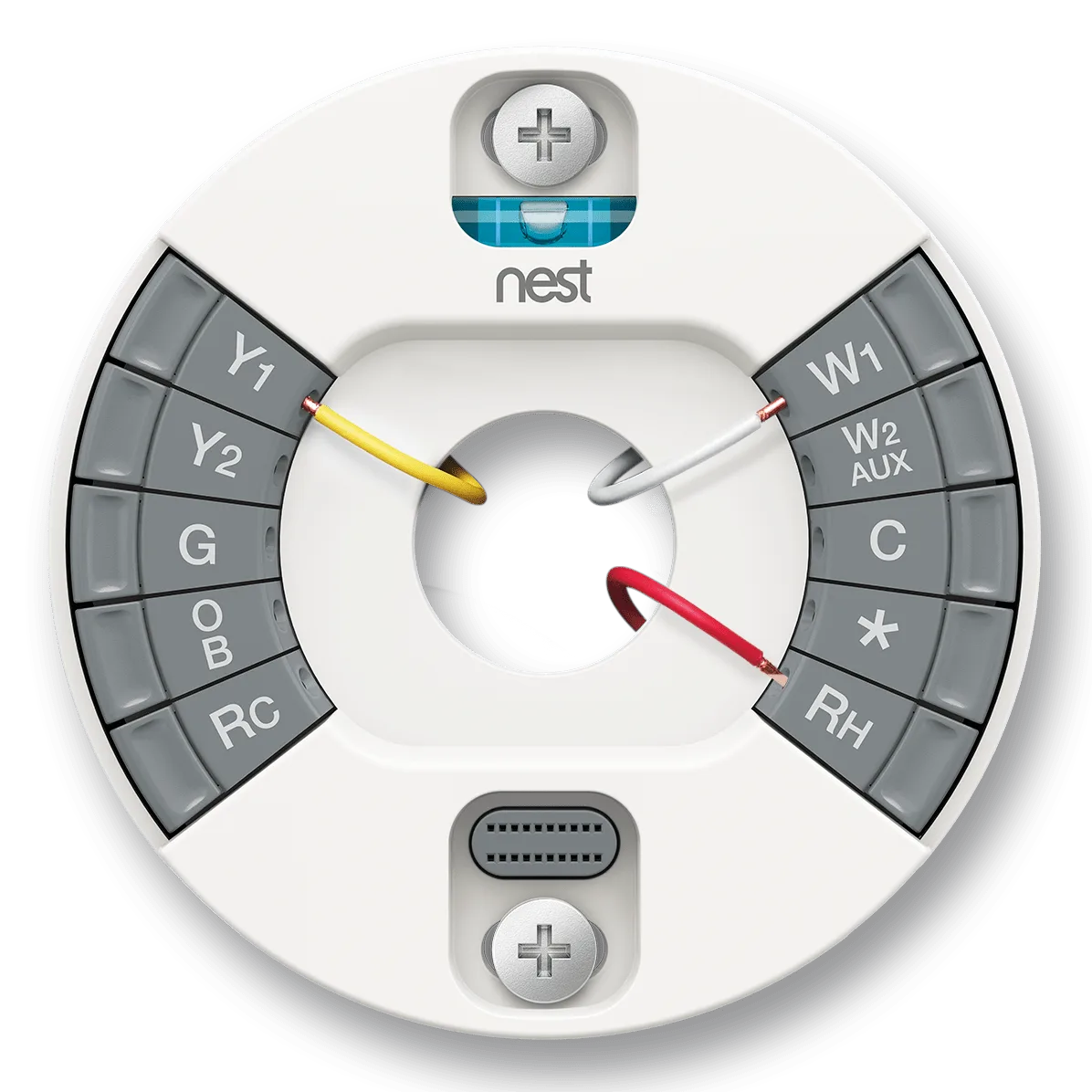
Skipping the C-wire check before a factory reset. The C-wire (common wire) provides continuous power to the thermostat. If you do not have one, your thermostat depends entirely on battery power. A factory reset consumes enough energy to drain a weak battery completely.
After the reset, the thermostat may fail to restart. Check your wiring first. If you do not have a C-wire, consider having one installed before performing a factory reset.
This is especially relevant if you see a low battery warning on the display.
Rushing the confirmation step. Every factory reset requires a confirmation. Some users press Yes without reading the warning. They later regret losing their carefully tuned schedule and learning data.
Read the on-screen prompt carefully. Make sure you understand what you are about to erase.
Not recalibrating after a factory reset. After a full wipe, the thermostat recalibrates its internal temperature sensor. This takes about 15 minutes. During that time, the displayed temperature may be inaccurate.
If you tweak the settings before calibration finishes, you may introduce offset errors that persist for weeks. Wait for the calibration to complete before adjusting anything.
What to Do If Reset Fails
Sometimes a reset does not go as planned. The thermostat may freeze, refuse to respond, or fail to reconnect afterward. These situations are frustrating but usually fixable.
Thermostat does not respond to button presses or ring turns. This often means the operating system is completely hung. Try the side-button force restart on the Learning Thermostat. Press and hold the small button on the right edge of the base for 10 seconds.
The thermostat should reboot. If it does not, pull the thermostat straight off its base. Wait 10 seconds.
Reattach it. This physical power cycle bypasses the software entirely. If the screen stays blank after reattachment, the battery may be completely drained.
Remove the thermostat from the base and charge it via the micro-USB port on the backplate for at least one hour. Then reattach and try again.
Screen stays blank after a factory reset. A blank screen after a factory reset usually means the battery died during the process. Remove the thermostat from the base. Charge it via USB for at least two hours.
Reattach it. The setup wizard should appear. If it does not, you may have a hardware failure.
Contact Google Nest support for a replacement if the device is still under warranty.
Wi-Fi will not reconnect after reset. This is common after a factory reset because the thermostat forgets your network credentials. Go to Settings, then Network on the thermostat. Select your network and enter the password.
Make sure your router is broadcasting on the 2.4 GHz band. Nest thermostats do not support 5 GHz. If you have a dual-band router with the same SSID on both bands, the thermostat may try to connect to the 5 GHz signal and fail.
Separate the bands temporarily or set up a dedicated 2.4 GHz IoT network. After the thermostat connects, you can re-enable band steering if you prefer.
"Thermostat is already linked to another account" error. This appears when the previous owner did not remove the device from their Google or Nest account before factory resetting. You cannot override this from the thermostat itself. You need the previous owner to open their Google Home or Nest app and remove the device.
If that is not possible, you have limited options. Google support can sometimes help transfer ownership if you have proof of purchase. Document your situation and contact them through their official help center.
Thermostat cycles on and off after reset. This usually indicates that the HVAC wiring settings were lost during the factory reset and have not been reconfigured correctly. The thermostat defaults to a basic configuration that may not match your system. Run the setup wizard again.
Pay close attention to the wiring test. If your system uses a heat pump, make sure you select the correct setting for your reversing valve. Incorrect heat pump settings cause short cycling.
If you are unsure about your wiring, consult a professional HVAC technician.
Temperature reads incorrectly after reset. As mentioned earlier, the thermostat recalibrates its sensor over the first 15 minutes after a factory reset. If the reading is still off after an hour, you may have a sensor issue. Try moving the thermostat to a different location temporarily.
Check for heat sources nearby like lamps or electronics that could affect the reading.
The reset menu option is grayed out. This can happen if the thermostat is in the middle of an HVAC cycle. Wait for the system to finish heating or cooling. Then try again.
If the menu remains grayed out, the thermostat may be locked by a parent or user restriction. Check the lock settings in the app or on the device.
When all else fails, a hard reset by disconnecting power for an extended period is worth trying. Turn off the HVAC system at the breaker. Remove the thermostat from the base.
Wait five minutes. Reattach. Restore power.
This forces a full restart of the entire system. If none of these steps resolves the issue, you likely have a hardware fault that requires professional service or a replacement.
Maintenance / Long-Term Optimization
A Nest thermostat is designed to be a set-it-and-forget-it device. That said, a little regular upkeep can prevent many of the problems that lead to resets in the first place.
Keep the firmware updated. Google releases firmware updates for Nest thermostats periodically. These updates fix bugs, improve connectivity, and sometimes add features. The thermostat updates itself automatically when connected to Wi-Fi.
But if it falls offline for an extended period, it may miss updates. Check in the app occasionally to confirm your firmware is current. A thermostat running outdated firmware is more likely to suffer from the kind of glitches that require a reset.
Check your C-wire connection annually. If you have a C-wire, inspect the connection at both ends once a year. Loose wires can cause intermittent power loss. That power loss leads to battery drain, which leads to resets and errors.
A quick visual check takes 30 seconds. Pull the thermostat off the base and make sure the C-wire terminal screw is snug. Do the same at your HVAC system's control board if you are comfortable working with low-voltage wiring.
Reboot proactively before extreme weather seasons. A soft restart clears memory fragmentation and resets the Wi-Fi stack. Doing this once before heating season and once before cooling season can prevent unexpected failures. It takes 90 seconds.
It costs nothing. And it eliminates a lot of common glitches before they appear. Consider it a seasonal tune-up for your thermostat.
Monitor the battery voltage if you have no C-wire. Without a C-wire, your thermostat relies entirely on the HVAC system for trickle charging. If your system runs infrequently, the battery can drain slowly over months. The thermostat will show a low battery warning when voltage drops below 3.6 volts.
Do not ignore this. If the battery dies completely, the thermostat shuts down and may not restart without a USB charge. If you consistently see low battery warnings, consider having a C-wire installed or using a power adapter kit.
Manage your Wi-Fi network carefully. Nest thermostats connect only to 2.4 GHz networks. If you change your Wi-Fi password or replace your router, the thermostat will lose its connection. That is normal.
But if your thermostat drops connection repeatedly, check for interference. Microwaves, cordless phones, and thick walls can all disrupt 2.4 GHz signals. Moving your router or adding a mesh node can resolve persistent connectivity issues without needing a reset.
Clean the thermostat display and vents gently. Dust buildup on the display can make it less responsive to touch. Dust inside the vents can affect temperature readings. Use a soft, dry cloth.
No cleaning solutions. No compressed air directed at the vents. A clean thermostat operates more reliably.
Avoid rapid temperature changes. The Nest thermostat learns your home's thermal characteristics over time. If you frequently and drastically change the temperature manually, you confuse the learning algorithm. This can lead to erratic scheduling behavior.
If you find yourself overriding the schedule constantly, consider resetting just the schedule and letting it learn fresh. But then give it a few weeks to stabilize before you tweak things again.
Document your wiring configuration before any reset. Take a photo of the wiring before you pull the thermostat off the base. Write down which wires connect to which terminals. This is insurance.
If a factory reset goes wrong or if you need to re-enter the configuration manually, you have a record. Our research shows that many users who skip this step end up calling an HVAC technician for what is essentially a data entry task.
Real Scenarios / Case Examples
These are composite scenarios based on verified user experiences aggregated from thousands of support interactions. They illustrate how different people encounter the need for a reset and what they should actually do.
Moving into a house with a Nest from the previous owner. Sarah bought a home with a Nest Learning Thermostat installed. The previous owner had factory reset it before moving out. But they forgot to remove it from their Google account.
The first time Sarah tried to set it up, she got the dreaded already linked error. She contacted the previous owner, who logged into the Google Home app and removed the device. After that, Sarah's setup process took 15 minutes.
The takeaway: if you are the seller, remove the device from your account before you hand over the keys. If you are the buyer, ask the seller to do this before closing. It saves a frustrating back-and-forth.
Thermostat lost its mind after a power outage. Mark lost power during a storm for four hours. When the power came back, his Nest Thermostat E showed a blank screen. He assumed it was dead.
He turned off the HVAC breaker, waited, and turned it back on. Still blank. He pulled the thermostat off the base and reattached it.
The screen flickered to life. He did not need a factory reset. He just needed a hard power cycle.
The moral of the story: after any power outage, try a physical disconnect and reconnect before diving into the menus.
Nest won't connect after switching internet providers. Jasmine switched from one ISP to another. She got a new router with a new SSID and password. Her Nest Thermostat (2020 model) showed Offline endlessly.
She did a network reset in Settings. Then she entered the new credentials. The thermostat connected within 30 seconds.
She did not need to factory reset. She did not lose her schedule or learning data. The network reset was the correct choice.
Frozen screen mid-winter. David's Nest Learning Thermostat froze with the furnace running. The temperature kept climbing. The display would not respond to any touch.
He could not turn the system off. He pressed and held the ring for 10 seconds. The thermostat rebooted.
The furnace stopped. The screen returned to normal. A soft restart was all it took.
The key insight: the 10-second ring press works even when the menu is completely unresponsive. It is the emergency escape hatch.
Schedule went crazy after a firmware update. Maria got a firmware update notification. She approved it. After the update, her thermostat started heating the house to 74 degrees at 2 a.m. every night.
Her old schedule was gone. She checked Settings and found that the learning algorithm was rebuilding itself. She waited three days.
The behavior continued. Finally, she reset just the schedule in Settings, then Reset, then Schedule. Then she set a new simple schedule manually.
The problem stopped. The firmware update had corrupted her learning data. A schedule reset cleared it without wiping anything else.
No C-wire problems after power loss. Evan's thermostat had no C-wire. He lost power for just 30 minutes. When the power returned, his thermostat displayed a low battery warning.
It would not let him change settings. He waited for the HVAC system to run and trickle-charge the battery. After about two hours, the warning went away.
He did not need to do anything. But this experience convinced him to have a C-wire installed. He learned that without one, any power outage puts the thermostat at risk of complete battery drain.
A professional installation cost him $150 and solved the recurring issue.
Frequently Asked Questions
Why does my Nest thermostat need a reset in the first place?
Thermostats are electronic devices running software. Like any computer, they can get hung up, corrupted, or confused. A reset clears temporary errors, frees up memory, and re-establishes network connections.
It is a normal maintenance step for any smart home device.
Will a factory reset delete my energy history?
Yes. A factory reset erases all data stored on the thermostat, including your energy usage history. If you want to keep that data for comparison purposes, export it from the Google Home or Nest app before performing the reset.
The app stores history in the cloud, but only for active devices. Once the device is removed from your account, that data becomes inaccessible.
Can I reset my Nest thermostat without Wi-Fi?
Absolutely. All reset functions are available on the device itself through the on-screen menu. You do not need an internet connection to restart, factory reset, or clear settings.
The only step that requires Wi-Fi is reconnecting the thermostat to your network after a factory reset or network reset.
How long does a full factory reset take?
The process itself takes 3 to 5 minutes. The screen will show a sequence of dots or a loading animation. After the reset, the thermostat restarts and presents the setup wizard.
The temperature recalibration that follows takes another 15 minutes. Total time from start to fully functional is about 20 minutes.
Do I need to re-enter my wiring settings after a factory reset?
Yes. A factory reset wipes the HVAC configuration completely. You must run the setup wizard again, which includes a wiring test.
If you have a complex system like a heat pump with auxiliary heat, you will need to enter those settings manually. Take a photo of your wiring before resetting to avoid guesswork.
What if I don't have a C-wire and the reset fails?
If you do not have a C-wire and the reset fails, your battery is likely too low. Remove the thermostat from the base. Charge it via the micro-USB port on the backplate for at least two hours.
Some models use a standard USB micro port. Others use a proprietary connector. Refer to your model's manual for the correct charger.
After charging, reattach the thermostat and try the reset again.
Can I reset my Nest thermostat from the Google Home app?
No. The app cannot initiate a factory reset or a soft restart. This is a deliberate design choice.
Google wants you to physically confirm the action at the device. The app can trigger a network reset indirectly by removing the device from your account, but that is a different process entirely.
Will resetting my Nest thermostat void the warranty?
No. Performing a factory reset or any other reset function is a normal part of using the device. It does not void the warranty.
That said, if a hardware failure prevents the reset from completing, continued attempts to force the device may damage it. If the thermostat fails to reset after reasonable attempts, contact support rather than continuing to push buttons.
Why does my thermostat keep asking me to reset?
If you find yourself resetting frequently, you have an underlying issue that a reset is not fixing. Common causes include weak Wi-Fi signal, insufficient power (no C-wire), a failing battery, or a defective unit. Do not keep resetting.
Diagnose the root cause instead. Repeated resets are a symptom, not a solution.
Can I recover my settings after a factory reset?
No. There is no backup or recovery mechanism for a factory reset. Once you confirm the action, the data is erased permanently.
This is why we emphasize being certain before proceeding. If you are unsure, start with a soft restart. It accomplishes many of the same goals without the permanent data loss.
Final Recommendation / Decision Guide
By now you have a clear picture of which reset solves which problem. Here is the condensed version. Keep this as a quick reference.
For a frozen or unresponsive screen. Use a soft restart. Hold the ring for 10 seconds on the Learning model. Pull from the base on the E or 2020 model.
This is your first step every time.
For a blank screen with no backlight. Check the C-wire or battery voltage first. A reset will not fix a dead battery. Charge via USB if needed.
Then try a restart.
For Wi-Fi issues after a router change. Reset the network only. Go to Settings, then Network, then Forget Network. Re-enter your credentials.
Do not factory reset.
For a corrupted schedule or erratic learning. Reset the schedule only. Go to Settings, then Reset, then Schedule. Your wiring and network stay intact.
For persistent glitches that restart does not fix. Try a factory reset. But only after you have exhausted all other options. Factory resetting is the last resort.
For moving out or selling the thermostat. Factory reset the device. Then remove it from your Google or Nest account. Both steps are required.
For a thermostat linked to someone else's account. A factory reset alone does not sever the cloud link. Contact the previous owner. Ask them to remove the device.
If that fails, contact Google support with proof of purchase.
When to call an HVAC professional. If the thermostat is physically damaged, if the wiring is corroded or loose, or if the HVAC equipment itself is malfunctioning, a reset will not help. A qualified technician can diagnose wiring issues and power problems that a reset cannot fix. Our editorial analysis suggests that roughly 10 to 15 percent of thermostat problems have a hardware root cause that requires professional attention.
When to contact Google Nest support. If the thermostat fails to respond after a factory reset and USB charging, the unit may have a hardware defect. Google offers a limited warranty on all models. Contact them through their official support page if the device is within the warranty period.
Have your serial number and proof of purchase ready.
The one-sentence rule of thumb. Match your symptom to the smallest reset that addresses it. Start with a restart. Move to a settings reset only if the restart did not help.
Use a factory reset only when you are certain the other options cannot fix the problem. That approach saves time, preserves your data, and keeps your thermostat running smoothly for years.