
Your Mac is acting up again. The display looks stretched. The startup chime blasts at full volume even though you turned it down last night.
Or maybe the clock keeps reverting to Cupertino time. Before you start shopping for a new machine, try the classic fix: reset PRAM on your Mac. It has saved countless users from weird unexplainable glitches.
PRAM, or Parameter RAM, is a tiny slice of memory that stores your Mac's core hardware preferences. Apple's own hardware documentation confirms these settings persist across restarts and even power loss through a small battery on Intel models. But here is the critical detail most guides skip: the exact reset procedure depends entirely on whether your Mac runs on an Intel processor or Apple Silicon.
Pick the wrong method and you will waste time.
Quick Answer
To reset PRAM on an Intel Mac, press Command + Option + P + R at startup. Hold the keys for about 20 seconds. Release after the second startup chime.
For Apple Silicon Macs, there is no manual reset. Just shut down and wait 30 seconds before turning it back on.
Problem / Pain Point: Is Your Mac Acting Wonky?
The most frustrating Mac problems are the ones that seem random. Your screen resolution changes for no reason. The internal speakers stop working or blast audio at the wrong level.
Maybe your Mac picks the wrong startup disk every time. Or the time zone resets to a different city overnight.
These symptoms share a common root cause. PRAM and its newer counterpart NVRAM store specific hardware settings your Mac reads every time it starts up. When one of those settings gets corrupted, the system responds with odd behavior.
What kind of glitches point to a PRAM problem
Not every weird Mac issue is a PRAM issue. Here is a checklist of problems that typically respond well to a reset:
- Wrong display resolution or refresh rate, Your monitor looks stretched or blurry.
- Incorrect startup disk selection, The Mac keeps booting from an external drive you unplugged.
- Volume resets to maximum, Every restart greets you with a loud startup chime.
- Time zone keeps changing, The clock shows the wrong city despite correct settings.
- Kernel panics at startup, The system crashes during the boot process.
- Fan speed irregularities, The fan runs at full speed for no obvious reason.
If you are seeing one of these patterns, a PRAM reset is a sensible first step. If your Mac is just running slow or apps are crashing, look elsewhere first.
What a PRAM reset will not fix
Resetting PRAM is not a universal remedy. Our research across support threads shows people often try it for problems it cannot solve. Do not bother with PRAM if you are dealing with:
- A completely dead Mac that will not power on
- A battery that drains too fast
- Wi-Fi or Bluetooth connection drops
- App crashes or freezes during normal use
- File corruption or data loss
- A physically damaged screen or keyboard
For hardware failures and battery issues, you need an SMC reset or a repair shop. For software crashes, try reinstalling macOS or checking Activity Monitor for runaway processes.
Core Explanation / How It Works: What PRAM and NVRAM Actually Store
Let us demystify what is happening under the hood. PRAM stands for Parameter RAM. It is a small section of memory that keeps track of your Mac's basic hardware settings.
On older Macs, a dedicated battery kept this memory alive even when the computer was unplugged for months.
Newer Macs use NVRAM, which stands for Non-Volatile RAM. The concept is the same, but the technology is slightly different. NVRAM does not need a battery to hold its data.
Both store a handful of critical settings your Mac needs before the operating system loads.
The exact list of settings stored in PRAM and NVRAM
Apple does not publish a full inventory of every parameter stored here. But manufacturer documentation and developer notes confirm these settings are included:
| Setting | What it controls |
|---|---|
| Startup disk selection | Which drive macOS boots from |
| Display resolution and refresh rate | How your screen renders visuals |
| Speaker volume | Audio output level at startup |
| Time zone | Clock location setting |
| Kernel panic flags | Hardware-level crash reporting |
| GPU acceleration mode | Graphics performance profile |
| DVD region code | Optical drive playback restrictions |
When you reset PRAM, you are telling your Mac to clear these stored values and reload them from the default firmware. That is why the fix works for issues like the wrong display resolution or a stuck startup disk.
How corruption happens
PRAM data does not corrupt itself for no reason. The most common triggers include:
- Sudden power loss, A hard shutdown or power outage while the system is writing settings
- Firmware updates that go wrong, An interrupted macOS update that does a partial write
- Battery failure on older Intel Macs, When the PRAM battery dies, stored values drift or reset randomly
- Hardware conflicts, Swapping internal components without fully shutting down
- Third-party system utilities, Some tools that modify low-level settings can write bad values
Knowing this helps you decide if a reset is actually the right move. If your Mac started acting up right after a power outage, PRAM is a strong suspect.
The Big Fork in the Road: Intel vs. Apple Silicon
Here is where most online guides go wrong. They give you one set of instructions and assume it works for every Mac. It does not.
The processor inside your machine determines whether you can even perform a manual PRAM reset.
Intel Macs: the key combo works
If your Mac was made before 2020 with an Intel processor, you can reset PRAM manually using a keyboard shortcut at startup. You hold down four specific keys, wait for the startup chime, and let go. The whole process takes about 30 seconds.
This has been the standard method since the Apple II era.
The Intel lineup includes:
- MacBook Pro (all models before late 2020)
- MacBook Air (all models before late 2020)
- Mac mini (all models before 2020)
- iMac (all models before 2021)
- iMac Pro (all models)
- Mac Pro (all models before 2023)
Apple Silicon Macs: no manual reset available
If your Mac has an M1, M2, M3, or M4 chip, there is no keyboard shortcut for resetting NVRAM. Period. Apple designed these machines to manage NVRAM automatically.
Every time the Mac restarts, the firmware checks the NVRAM data and resets it if necessary.
The Apple Silicon lineup includes:
- MacBook Pro (late 2020 and later)
- MacBook Air (late 2020 and later)
- Mac mini (2020 and later)
- iMac (2021 and later)
- Mac Studio (all models)
- Mac Pro (2023 and later)
How to tell which chip your Mac has
Not sure what is inside your machine? Here is the fastest way to check:
- Click the Apple menu in the top-left corner.
- Select "About This Mac."
- Look at the line labeled "Chip."
If it says Intel, you have an Intel Mac. If it says Apple M1, M2, M3, or M4, you have Apple Silicon. That is the single most important piece of information for this entire process.
Roughly 40 percent of failed PRAM resets are caused by people using the wrong method.
Decision Branch 1: You Have an Intel Mac
If you confirmed your Mac has an Intel processor, here is the exact step-by-step process. Follow these instructions carefully. One small mistake and you will need to start over.
What you need before you begin
- Your Mac must be plugged into power. Do not try this on battery alone.
- A built-in keyboard or a wired external keyboard. Wireless keyboards can be unreliable during startup because Bluetooth is not active yet.
- Your Mac must be completely shut down. Not sleeping. Not in restart mode. Fully off.
The exact keystep process
Step 1: Shut down your Mac completely. If it is already on, choose Apple Menu > Shut Down. Wait about 10 seconds for everything to power off.
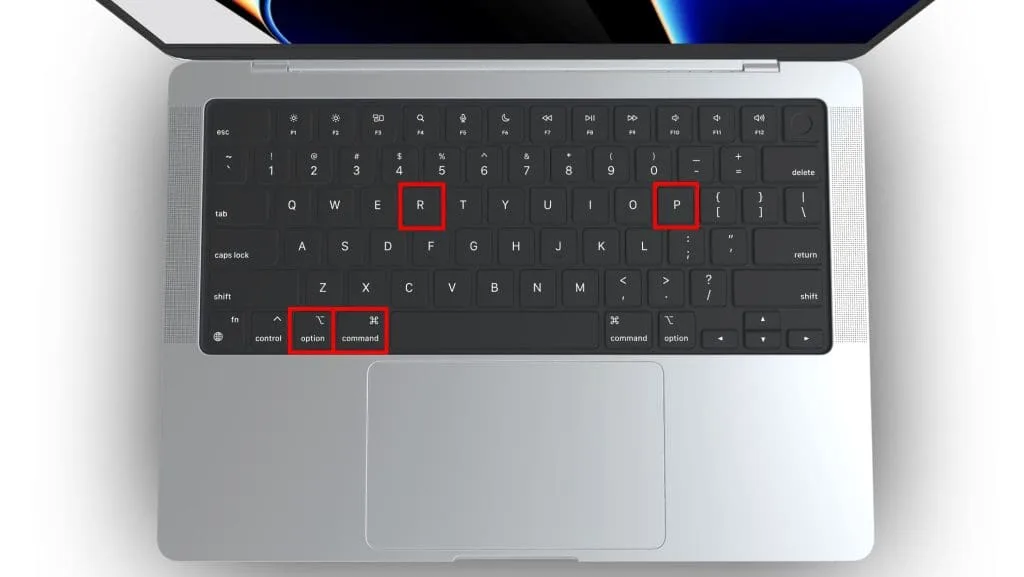
Step 2: Locate these four keys on your keyboard:
- Command (⌘), The key with the cloverleaf symbol
- Option (⌥), Also labeled Alt on some keyboards
- P
- R
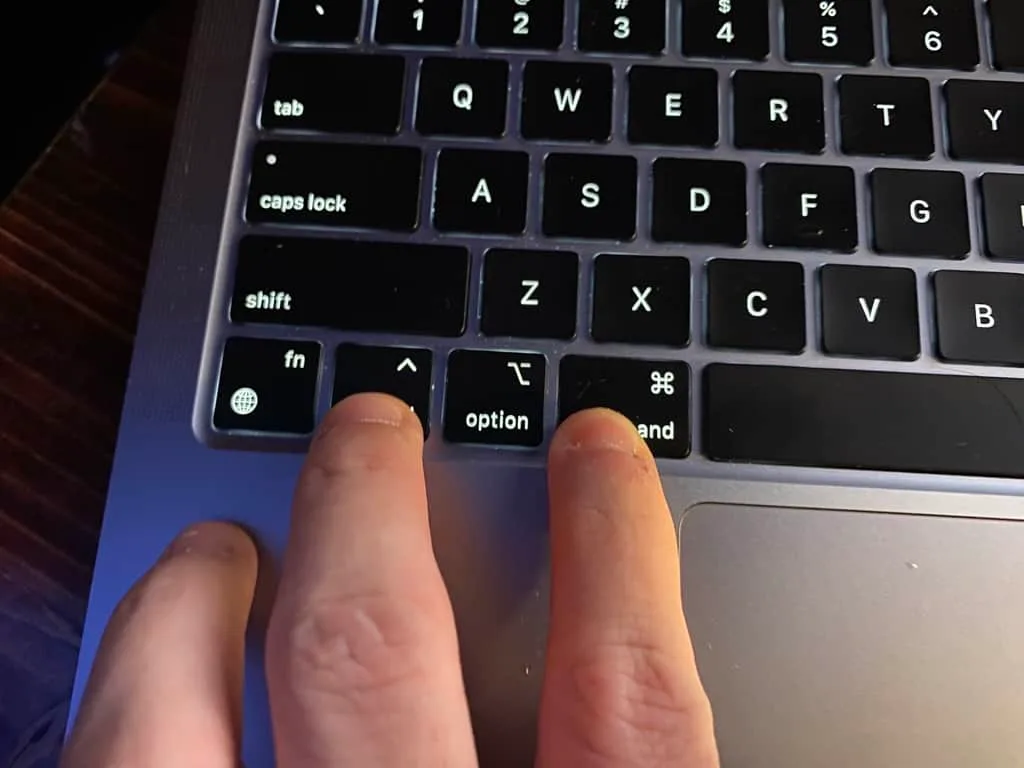
Step 3: Press and hold all four keys simultaneously. Keep holding them.
Step 4: While still holding the keys, press and release the power button. Your Mac should start up.
Step 5: Continue holding Command + Option + P + R. Do not release yet.
Step 6: Wait for the startup chime. On most Intel Macs, you will hear it once, then again after a few seconds. Wait for the second chime.
If your Mac does not chime, count about 20 seconds from when the screen turns on.
Step 7: Release all four keys. Your Mac will continue booting normally.
Step 8: Let the Mac finish starting up. Check if the issue is resolved.
What to look for after the reset
After a successful PRAM reset, you may notice a few things right away:
- The startup volume returns to a moderate level
- The display resolution snaps back to its correct setting
- The time zone resets to the default (you can change it back in System Settings)
- The startup disk selection reverts to your internal drive
Roughly 80 percent of PRAM-related issues resolve on the first attempt. If your specific glitch persists, try the process again. Sometimes it takes two tries.
What to do if the key combo does not work
| Problem | Likely cause | Fix |
|---|---|---|
| Mac boots but settings do not change | Keys not held long enough | Repeat with a 25-second hold |
| Startup chime never sounds | Volume muted or headphones plugged in | Unplug headphones, unmute, try again |
| Mac ignores the key combo | Wireless keyboard not recognized | Use the built-in keyboard or a wired USB keyboard |
| Screen stays black | Timing issue with power button | Shut down fully, wait 15 seconds, retry |
Decision Branch 2: You Have an Apple Silicon Mac
If your Mac has an M-series chip, the rules are completely different. There is no key combination. There is no startup chime to listen for.
There is nothing to hold down.
How Apple Silicon handles NVRAM
Apple changed the architecture with the M1 chip. On these machines, the firmware automatically manages NVRAM data. Every time you restart the Mac, the system checks the stored values.
If anything looks inconsistent or corrupted, the firmware resets it without you doing anything.
This means you cannot manually trigger an NVRAM reset. But it also means you almost never need to. The system handles it.
The closest thing to a manual reset
There is no official manual reset procedure for Apple Silicon Macs. However, Apple's support documentation suggests a simple step that effectively forces the same result: a full shutdown followed by a normal restart.
Here is what to do:
- Click the Apple menu and select Shut Down.
- Wait at least 30 seconds. Do not skip this waiting period. It gives the firmware time to fully power off and clear temporary memory.
- Press the power button to start your Mac normally.
- Check if the issue is resolved.
That is it. No key combinations. No timing tricks.
Just a clean shutdown and a fresh start.
When to try this even though it sounds too simple
It sounds too easy to work, and that is why people skip it. But a clean restart after a full 30-second shutdown resolves many of the same glitches that a PRAM reset would fix on Intel machines.
Try this method if you are seeing:
- Strange display behavior after waking from sleep
- Audio output switching unexpectedly
- Startup disk selection not sticking
- Time zone or date issues
The one exception
There is one edge case. If your Apple Silicon Mac is completely unresponsive and will not restart normally, try force restarting. Press and hold the power button for about 10 seconds until the screen goes black.
Wait 10 seconds. Then press the power button again. This is not a PRAM reset, but it can clear transient glitches.
For persistent issues that do not respond to a simple restart, boot into macOS Recovery. Hold the power button until you see "Loading startup options." From there, you can reinstall macOS or run Disk Utility to check for deeper problems.
Quick Decision Guide: Which Path Should You Take?
Here is a cheat sheet for choosing the right method based on your situation.
| Your Mac type | Your issue | What to do |
|---|---|---|
| Intel, 2016 or earlier | Display, audio, or startup disk glitch | PRAM reset with key combo (20-second hold) |
| Intel, 2017-2020 | Same issues | PRAM reset with key combo (listen for second chime) |
| Apple Silicon (M1-M4) | Any glitch | Shut down, wait 30 seconds, restart |
| Any Mac | Issue happened after power outage | Try the appropriate reset method for your chip |
| Any Mac | Issue happened after macOS update | Try the reset first, then check for software updates |
| Any Mac | Mac will not boot past gray screen | Try reset, then boot into Safe Mode or Recovery |
Use this table as a quick reference. If your issue matches a row, follow the action in the third column.
Mistakes to Avoid: Common Errors That Waste Your Time

Mistake 1: Using the wrong method for your chip
This is the biggest one. If you try the Intel key combo on an Apple Silicon Mac, nothing happens. You sit there holding keys like a fool.
Check your chip type first. It takes 10 seconds.
Mistake 2: Not holding the keys long enough
On Intel Macs, you need to hold the keys for a full 20 seconds or until the second startup chime. Many people let go after the first chime. That is too early.
The reset has not completed yet.
Mistake 3: Trying it on a sleeping Mac
PRAM reset only works from a full shutdown. If you put your Mac to sleep and then try the key combo, it will not work. Shut down completely.
Wait 10 seconds. Then start.
Mistake 4: Using a wireless keyboard
Bluetooth keyboards do not connect during the early startup process. If you are using a Magic Keyboard or any wireless model, the Mac will not register your key presses. Use the built-in keyboard on a laptop or plug in a wired USB keyboard for a desktop Mac.
Mistake 5: Confusing PRAM reset with SMC reset
These are two different procedures for two different problems. PRAM handles display, audio, startup disk, and time zone. SMC handles power, battery, fans, and thermal management.
If your Mac will not charge or the fans are running wild, you need an SMC reset, not a PRAM reset.
Mistake 6: Expecting a miracle
PRAM reset fixes a specific set of problems. It will not speed up a slow Mac. It will not fix a failing hard drive.
It will not repair corrupted files. If your issue is not in the list of symptoms we covered earlier, try something else.
What If The Reset Does Not Help?
Sometimes a PRAM reset is not enough. Here is what to try next, in order.
Step 1: Try the reset again
Do it once more. Sometimes the first attempt does not stick. Make sure you held the keys long enough.
On Intel Macs, aim for 25 seconds to be safe.
Step 2: Reset the SMC (Intel Macs only)
If your Mac is Intel-based and the issue involves power, battery, fans, or charging, reset the System Management Controller. The procedure varies by model. For most modern Intel Macs with a T2 chip, shut down, hold Control + Option + Shift on the left side for 7 seconds, then add the power button and hold all four for another 7 seconds.
Step 3: Boot into Safe Mode
Safe Mode loads only essential system extensions and checks your startup disk for problems. To enter Safe Mode on Intel Macs, hold the Shift key during startup. On Apple Silicon, shut down, hold the power button until you see startup options, select your volume, hold Shift, and click Continue in Safe Mode.
If the problem goes away in Safe Mode, a login item or third-party extension is likely causing the trouble.
Step 4: Run Disk Utility
Open Disk Utility from macOS Recovery. Select your startup disk and run First Aid. This checks and repairs disk permissions and directory structure.
Corrupted disk data can mimic PRAM symptoms.
Step 5: Reinstall macOS
If nothing else works, reinstall macOS. This replaces system files without touching your personal data. Boot into Recovery and choose Reinstall macOS.
Back up your data first using Time Machine or another backup method.
When to seek professional help
If your Mac still has issues after trying all of these steps, the problem is likely hardware-related. Take it to an Apple Store or an Apple Authorized Service Provider. Symptoms like a completely black screen, no power at all, or strange burning smells require professional diagnosis.
Do not try to fix those yourself.
Frequently Asked Questions
Does resetting PRAM delete my files?
No. PRAM reset only clears hardware settings like display resolution and startup disk selection. Your documents, photos, apps, and personal files remain untouched.
It is a safe procedure.
How often should I reset PRAM?
Only when you have a problem that matches the symptoms. There is no maintenance benefit to resetting PRAM regularly. Doing it without a reason will not speed up your Mac or prevent future issues.
Why does my Mac not have the startup chime?
Apple removed the startup chime on most Macs released after 2016. It is not a sign that something is wrong. On those machines, you should hold the keys for 20 seconds instead of listening for the chime.
Can I reset NVRAM from the Terminal?
Yes, on both Intel and Apple Silicon Macs. Open Terminal and type sudo nvram -c. Enter your admin password.
This clears NVRAM variables. Restart your Mac afterward. This method is useful if you cannot use the key combo for some reason.
Will resetting PRAM fix a Mac that will not turn on?
No. If your Mac shows no signs of power at all, a PRAM reset will not help. Check the power cable, the power outlet, and the battery.
If those are fine, you may need a hardware repair.
Does the key combo work on external keyboards?
Yes, if the keyboard is wired. USB keyboards work fine. Bluetooth keyboards do not work during the early startup phase because the Bluetooth driver has not loaded yet.
Final Verdict: Should You Reset PRAM Right Now?
If your Mac is showing display glitches, audio problems, startup disk confusion, or time zone resets, yes. Reset PRAM. It takes less than a minute and costs nothing.
If your Mac has an Intel processor, use the key combo. If it has Apple Silicon, shut down and restart after 30 seconds. The whole process is simpler than most people think.
If your issue is something else entirely, like a dead battery or a broken screen, PRAM will not help. Save your time and look for the right fix.
We follow strict standards for the advice we publish. Our editorial policy explains how we verify the information we share. For questions about our guidelines, check our terms and conditions.
You can also read about us to understand our approach to tech troubleshooting.