
If your Chromebook is suddenly crawling, crashing, or just not acting right, you might be wondering how to factory reset it. It's a common fix, and it usually works. But the method you use depends entirely on whether you can still get into the device, if it's owned by a school, or if you've simply forgotten your password.
As of 2026, the internal eMMC storage on most Chromebooks can be completely wiped in under ten minutes using the built-in Powerwash feature. A full recovery from a corrupted operating system takes longer, roughly fifteen to thirty minutes. Let's walk through the different paths so you can pick the right one for your situation.
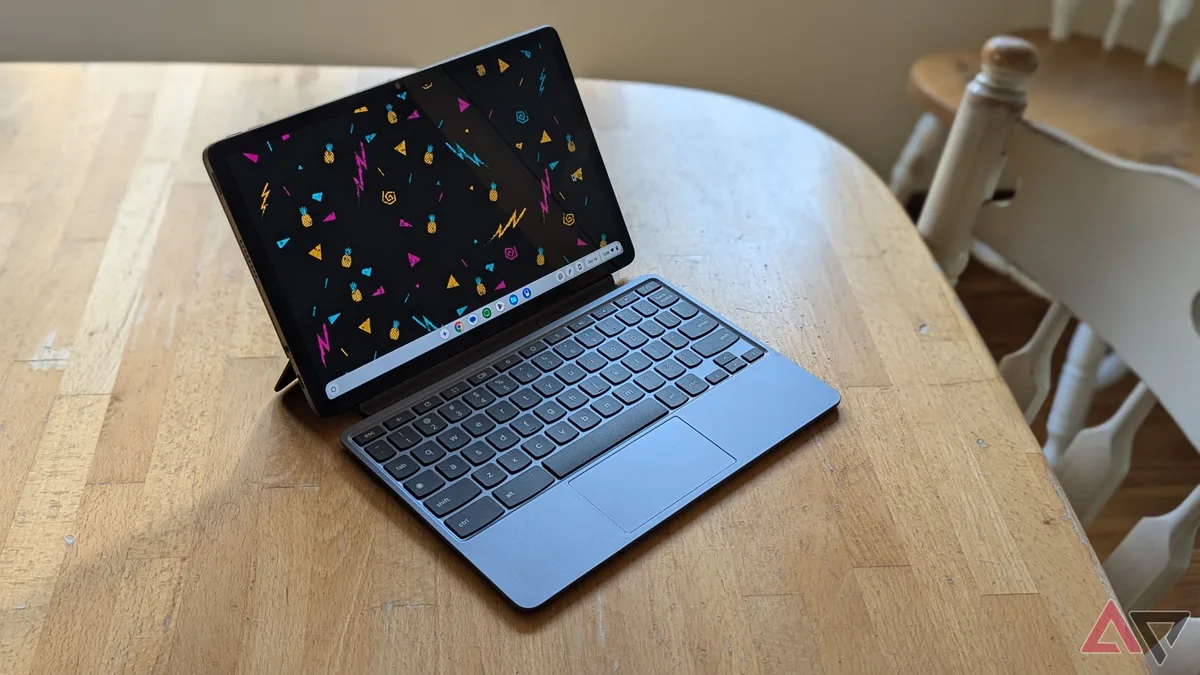
Image source: Bing (Web (fair-use with source credit))
The Problem: When You Need to Factory Reset Your Chromebook
A factory reset is rarely something you do for fun. Something pushed you here. Maybe it's one of these common situations:
- You're selling or giving away the device. You want every trace of your accounts, files, and history gone.
- The Chromebook is running slowly or glitching. Persistent freezes, random restarts, or apps that won't open often point to a software issue a reset can fix.
- You forgot your Google Account password. If you're locked out of the sign-in screen, you can't use the normal reset method from Settings. You will need a different approach.
- The device won't boot at all. A black screen or a spinning logo that never finishes means the operating system might be corrupted.
- You're returning a school or work Chromebook. Managed devices have special rules that a simple Powerwash may not override.
Each of these triggers leads to a slightly different process. The good news is that ChromeOS makes the reset straightforward once you know which branch of the decision tree you are standing on.
Quick Answer
You can factory reset a Chromebook using Powerwash if it boots and you can sign in. If it won't boot, use Recovery Mode with a USB drive. Managed devices require an admin to release them first.
A Powerwash takes about five minutes. Recovery takes up to thirty minutes.
Two Ways to Reset: Powerwash vs Recovery Mode
There are two distinct paths for resetting a Chromebook. They are not interchangeable. Choosing the wrong one for your situation can waste time or even confuse the issue.
| Method | When to Use | What It Does | Time Required |
|---|---|---|---|
| Powerwash | Device boots and you can sign in | Resets ChromeOS to factory state, removes all local accounts and data | 5 to 10 minutes |
| Recovery Mode | Device won't boot, or OS is corrupted | Reinstalls the entire ChromeOS image from a USB drive | 15 to 30 minutes |
Powerwash is the quick, built-in reset option. You access it from within the Settings menu. It wipes the local user data, removes all stored accounts, and clears cached files.
But it leaves the operating system itself intact. That is why it only works when the OS is healthy enough to boot.
Recovery Mode is more invasive. It rewrites the entire ChromeOS partition using a recovery image downloaded from Google. This is the fix when the system files are damaged or missing.
You cannot do a recovery from inside the settings. You have to boot into a special hardware mode and use an external drive.
If you are standing in front of a Chromebook that is working fine but you just want to wipe it clean for resale, Powerwash is your path. If you are staring at a black screen that won't respond, you are in Recovery territory.
Which Reset Option Is Right for You?
Let's make this really practical. Think of it as a simple set of questions. Your answer determines the path.
Question 1: Can you sign in to the Chromebook?
- Yes. Go to question 2.
- No. Skip to alternative paths below.
Question 2: Is the Chromebook managed by a school or employer?
- No. Use Powerwash.
- Yes. Contact the IT admin. They must release the device before you can reset it.
Question 3: Does the device turn on but freeze at the logo?
- Yes. Use Recovery Mode with a USB drive.
Question 4: Does the device refuse to power on at all?
- Check the charger and power button. If still dead, you may have a hardware issue. Recovery Mode will not help if the hardware is faulty.
Here is that same logic in a simple visual breakdown:
- Device works, you can sign in, and you want to wipe it. Powerwash from Settings.
- Device works, you can't sign in because you forgot your password. Recovery Mode.
- Device won't boot, stuck on spinning dots or black screen. Recovery Mode.
- Device is managed, either working or not. You cannot fully reset it without admin action.
That covers about 95 percent of the situations people run into. For the edge cases like a completely bricked Chromebook that won't even enter Recovery Mode, you may be looking at a hardware replacement.
Step by Step: Powerwash on a Working Chromebook
If you can sign into the device, this is the fastest route. Here is the exact process:
- Back up your local files. Powerwash deletes everything in the Downloads folder. Your Google Drive files stay in the cloud, but anything saved locally is gone. Copy important files to Drive or an external drive before proceeding.
- Sign out of your Google Account. Not strictly required, but it prevents any sync conflicts on the next step.
- Open ChromeOS Settings. Click the time in the bottom right corner, then select the gear icon.
- Navigate to Advanced. Scroll to the bottom of the left sidebar. Click once to expand.
- Select "Reset settings." This is near the very bottom of the menu.
- Click "Reset" (Powerwash). A confirmation screen will appear explaining what will be erased.
- Click "Restart." The device will reboot and begin the wiping process. It takes about five minutes.
- Set up the device as new. Once the reset completes, you will see the welcome screen. Sign in with a Google Account to proceed.
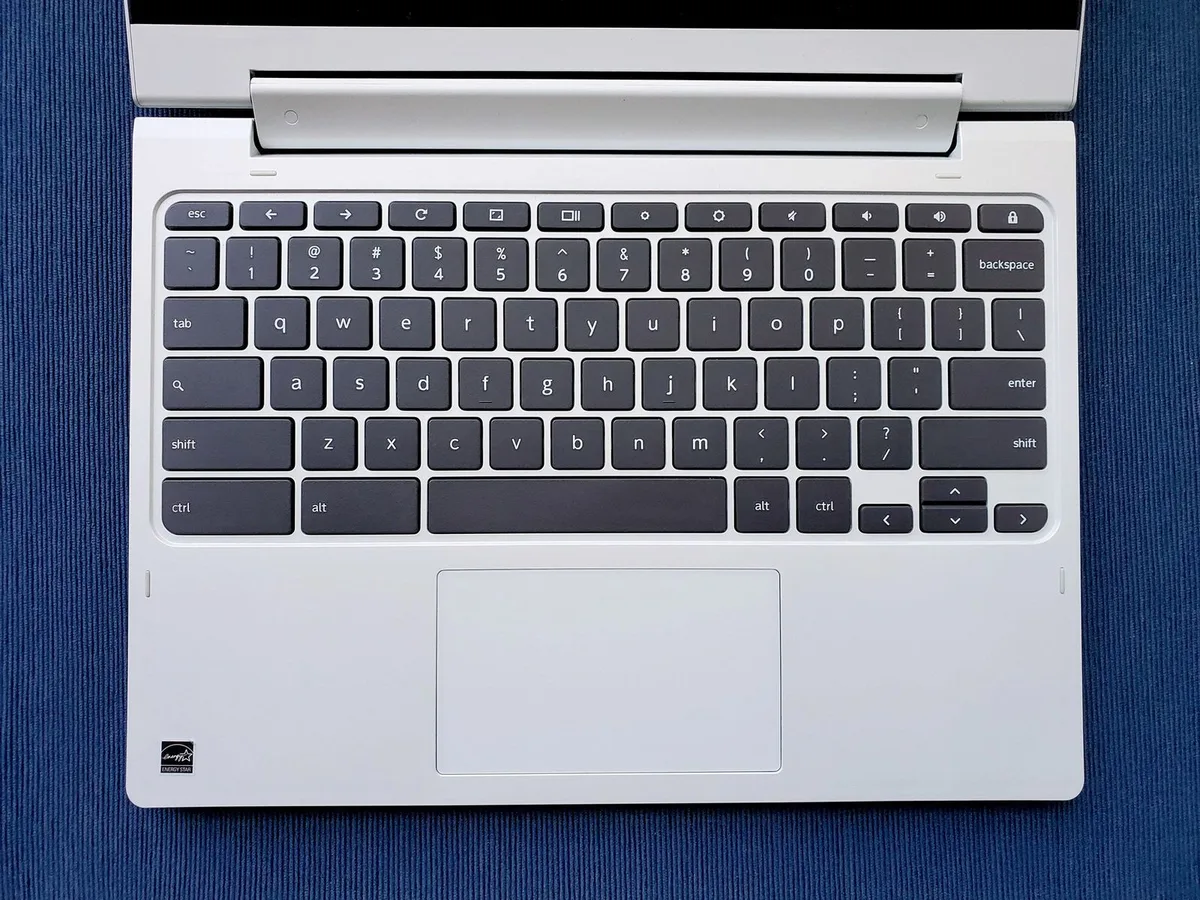
Image source: Bing (Web (fair-use with source credit))
That is it. The device is now restored to its factory condition. It is unlinked from any previous accounts.
It is ready for the next owner.
If you are resetting before selling, do not sign back in after the reboot. Leave it at the welcome screen. The buyer will set it up themselves.
Resetting does not remove hardware locks tied to your Google Account on some newer models. You may also want to visit your Google Account security page and remove the device from your trusted devices list. Our editorial policy covers more about data handling best practices.
There is one nuance worth mentioning. Powerwash does not revert firmware updates. The BIOS or firmware stays at its current version.
That is intentional. Firmware cannot be rolled back on ChromeOS. It is a security feature.
If you are troubleshooting a firmware related issue, recovery is the better option anyway.
Step by Step: Recovery Mode on a Broken Chromebook
If your Chromebook won't boot or gets stuck on the loading screen, you need Recovery Mode. This process reinstalls ChromeOS from scratch.
What you need:
- A USB drive with at least 8GB of space. Google recommends 16GB.
- A second computer to download the recovery image.
- A stable internet connection.
Step 1: Create the recovery drive.
Use a second computer to visit the official Chrome Recovery Utility. You can find it as a Chrome extension. Download it.
Insert the USB drive. Open the utility and follow the prompts. It will download the correct recovery image for your Chromebook model and write it to the drive.
Step 2: Enter Recovery Mode on the Chromebook.
Turn off the Chromebook completely. Press and hold the Esc key. Press and hold the Refresh key (it looks like a circular arrow).
Press the Power button while holding both keys. Release all three keys when a screen appears with a yellow exclamation mark.
Step 3: Insert the USB drive.
Plug the recovery USB drive into the Chromebook. The device should detect it automatically. If it does not, you may have the wrong image or a faulty USB drive.
Step 4: Follow the on-screen instructions.
The screen will prompt you to proceed. Click next. The recovery process will begin.
It takes fifteen to thirty minutes. The device will show a progress bar. Do not interrupt it.
Step 5: Remove the USB drive when done.
Once the process finishes, the Chromebook will restart. Remove the USB drive when prompted. The device will boot into the welcome screen as if it were brand new.

Image source: Bing (Web (fair-use with source credit))
Important warning. Do not unplug the USB drive during recovery. Do not power off the Chromebook. An interruption can corrupt the boot firmware and permanently brick the device.
That is a worst case scenario that often requires professional repair.
What About Managed Chromebooks?
If your Chromebook was issued by a school or employer, it is likely enrolled in the Google Admin Console. This changes the reset process significantly.
What happens when you reset a managed Chromebook:
- The device will re-enroll automatically after the reset.
- The same policies and restrictions will apply.
- You may not be able to sign in with a personal account.
- The device remains tied to the organization.
When can you reset a managed Chromebook?
- If the organization approved the reset and released the device.
- If you are the IT admin managing the policy.
- If the device was deprovisioned in the Admin Console.
When can you NOT reset a managed Chromebook?
- If it is still active in the organization's inventory.
- If the admin has not removed the enrollment record.
- If you are trying to bypass school restrictions.

Image source: Wikimedia Commons / Virginia Department of Education (CC BY)
The reality. A simple Powerwash will not free a managed Chromebook. The forced re-enrollment feature is designed to prevent exactly that. If the device is stolen or lost, Google's security measures keep it locked.
That is a good thing for organizations.
If you are a student trying to reset a school Chromebook, the best path is to talk to the IT department. They can release the device if they choose to. Trying to bypass the enrollment will not work.
The device will lock you out. It may also violate the terms and conditions of your school's device program.
If you are an IT admin, you can release devices remotely. Log into the Google Admin Console. Navigate to Devices.
Select the Chromebook. Choose to deprovision or disable it. After that, a Powerwash will work normally.
What If You Forgot Your Google Account Password?
This is a frustrating situation. You have a working Chromebook in front of you, but you cannot get past the sign-in screen. The Powerwash option is behind that screen.
What can you do?
Option 1: Recover your Google Account.
Go to Google's account recovery page on any device. Follow the prompts. Answer any security questions.
Reset your password. Then sign in to the Chromebook and use Powerwash.
Option 2: Use Recovery Mode.
If you cannot recover the account, you can still wipe the device. Use the Recovery Mode process described in the previous section. It does not require a password.
It will reinstall ChromeOS and allow you to set up the device with a new account.
What happens to the old account?
The old account is tied to the device until you sign out. Recovery Mode removes all accounts and user data. After the reset, the device is clean.
The old account has no connection to the machine.
What about data in that account?
Your Google Drive files are not on the device. They are in the cloud. If you regain access to the account later, your files will still be there.
Local files saved to the Downloads folder are gone. That is why regular backups are important. Our privacy policy outlines how data is handled across different services.
4 Common Mistakes That Wreck a Chromebook Reset
People make the same errors over and over. Avoid these four to save yourself a headache.
1. Not backing up local files.
The number one mistake. Users assume everything is in the cloud. It is not.
Files saved to the Downloads folder are only on that device. Powerwash erases them permanently. No recovery.
No recycle bin. Gone.
2. Interrupting the recovery process.
This is the most dangerous mistake. If the power dies or the USB drive is yanked out during a recovery, the firmware can be damaged. The device may never boot again.
If you start a recovery, commit to finishing it.
3. Trying to reset a managed device without admin release.
Some people think a hard reset or Recovery Mode will bypass school enrollment. It will not. The forced re-enrollment is baked into the firmware.
You will waste an hour and end up at the same screen.
4. Using the wrong recovery image.
Chromebook models have specific recovery images. An Acer Chromebook 314 image will not work on an HP Chromebook 14. The wrong image will fail.
The recovery tool downloads the correct image automatically. Let it do its job. Do not try to source images from third-party sites.
Those may contain malware.
Quick Decision Guide
Here is a one glance guide to pick your path.
| Your Situation | What to Do | Time Needed |
|---|---|---|
| Device works, you want to wipe it | Powerwash from Settings | 5 to 10 minutes |
| Device works, forgot password | Recover account or use Recovery Mode | 15 to 30 minutes |
| Device won't boot | Recovery Mode with USB | 15 to 30 minutes |
| Device is managed by school or work | Contact IT admin for release | Variable |
| Device is physically broken | Hardware repair needed | Variable |
Follow this guide. It covers nearly every scenario.
One More Thing: What Happens After the Reset
Once the Chromebook finishes the reset process, it behaves like a brand new device. You will see the welcome screen. You will need to:
- Connect to Wi-Fi.
- Sign in with a Google Account.
- Accept the terms of service.
- Choose your settings.
If you are the new owner, this is straightforward. Sign in with your own account. Your apps, bookmarks, and settings will sync from the cloud.
The device will feel exactly like your other ChromeOS devices.
If you are selling the device, stop at the welcome screen. Do not sign in. The buyer will set it up themselves.
This ensures their data stays theirs and yours stays gone.
What does NOT sync after a reset?
- Local files in Downloads.
- Installed Linux containers (if you used Crostini).
- Developer Mode settings.
- Any sideloaded Android apps.
These are all gone. You will need to set them up again if you need them.
What DOES sync after a reset?
- Bookmarks and browsing history (from Chrome sync).
- Extensions and apps from the Chrome Web Store.
- Google Drive files.
- Android app purchases tied to your account.
- Wi-Fi passwords stored in your Google Account.
The cloud sync is thorough. Your ChromeOS experience rebuilds quickly.
Frequently Asked Questions
Does a factory reset remove my Google Account from the Chromebook?
Yes. Powerwash and Recovery Mode both remove all accounts from the device. You will need to sign in again after the reset.
If you are selling or giving away the device, stop at the welcome screen and do not sign in.
Will I lose my files if I reset my Chromebook?
Local files saved to the Downloads folder are erased. Files stored in Google Drive are safe in the cloud. Always back up your Downloads folder before resetting.
There is no way to recover it after the wipe.
How long does a Chromebook factory reset take?
Powerwash takes five to ten minutes. Recovery Mode takes fifteen to thirty minutes. The recovery time depends on the speed of your USB drive and the size of the recovery image.
Faster USB 3.0 drives cut the time significantly.
Can I reset a Chromebook without the password?
Yes. If you cannot sign in, use Recovery Mode. It does not require a password.
You will need a USB drive and a second computer to create the recovery media. The process wipes everything and lets you start fresh.
What happens if I interrupt a Chromebook recovery?
Interrupting a recovery can permanently damage the device. The boot firmware may become corrupted. The Chromebook may refuse to turn on.
If this happens, the device often needs professional repair. Do not start a recovery unless you can finish it.
Can a school Chromebook be factory reset?
It can be reset, but it will re-enroll in the school's management system. The device remains tied to the school. Only an IT admin can permanently release it.
A standard reset will not bypass enrollment. If you need more help, our contact page can direct you to the right resources.