
You're staring at a locked Android screen and you have forgotten the PIN or pattern. Figuring out how to factory reset android without password feels impossible when every tap just bounces you back to the lock screen. But here is the truth.
You have several paths forward. Which one works depends entirely on your exact situation.
As of Android 10, released in 2019, Google's Factory Reset Protection (FRP) forces every reset phone to verify the last signed in Google account. Android developer documentation confirms this security feature stops a thief from wiping a stolen phone and reselling it. The same system trips up honest owners who simply forgot their credentials.
Let us walk through your options starting with the first question you need to answer.
You're Locked Out of Your Android — Now What?
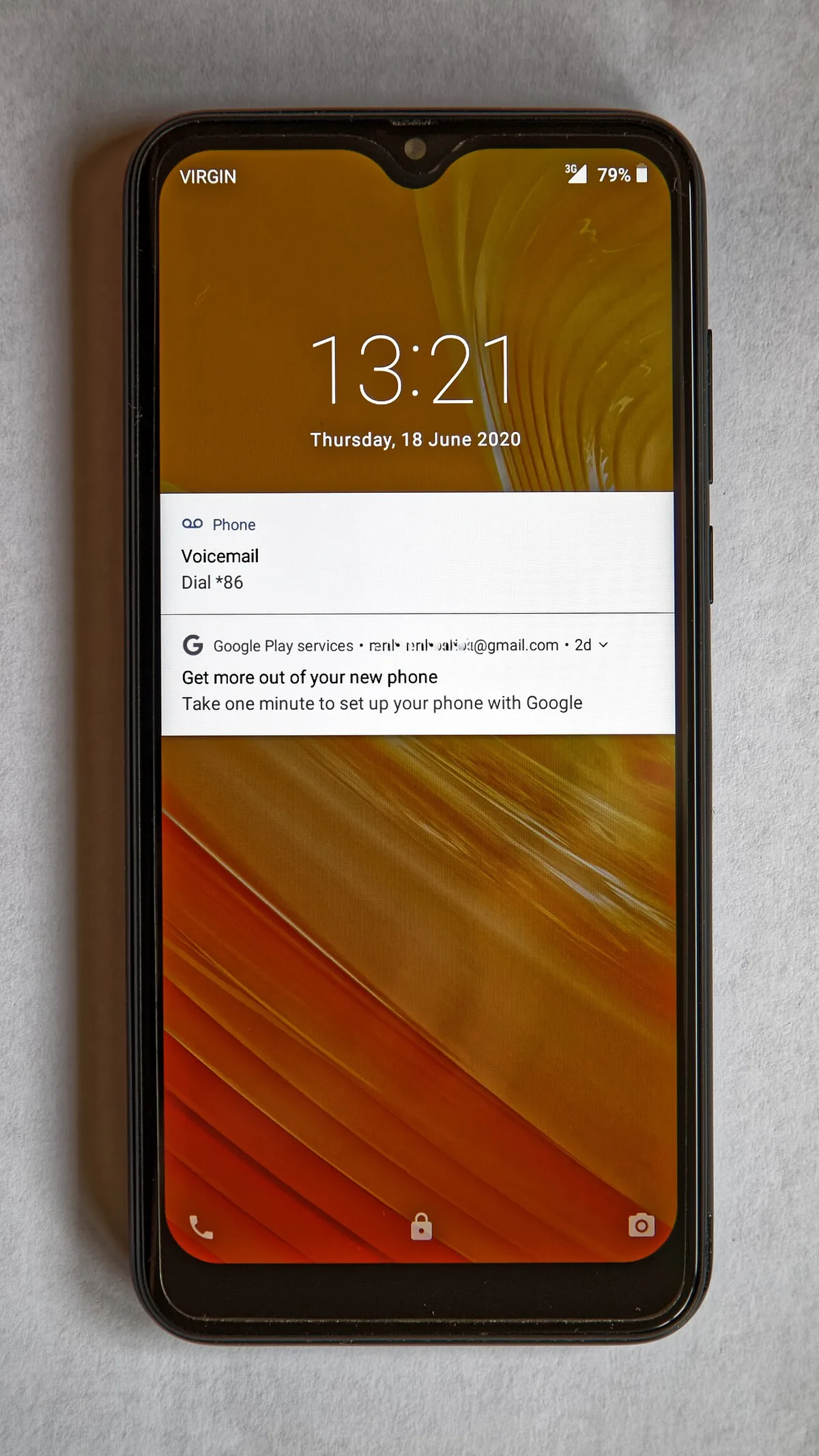
Image source: Wikimedia Commons / Acabashi (CC BY-SA)
First, take a breath. You have more options than it feels like. The method that works for you depends on three variables: your phone's brand, its Android version, and whether you still have access to the Google account that was signed into the device.
Most people panic and start mashing buttons. Do not do that. The wrong button combination can boot you into the wrong mode or do nothing at all.
The right combination gets you into recovery mode where a factory reset is straightforward.
If the phone still powers on and connects to Wi Fi or mobile data, you might not even need physical access to the screen. Google's Find My Device service lets you remotely wipe the phone from a web browser. That is your fastest option if you meet its requirements.
If the phone is completely offline, dead, or stuck in a boot loop, you are looking at recovery mode. Recovery mode is a stripped down menu that runs before Android loads. It does not ask for a password because it does not know your password exists.
That is the core logic behind every legitimate method. You bypass the lock screen by using a tool that runs at a lower level, before the lock screen ever appears. Let us look at the deciding factors.
Your Reset Options Depend on Three Things
Before you try anything, ask yourself these three questions. Your answers will tell you exactly which path to take.
Question 1: What brand is your phone?
Every Android manufacturer uses a slightly different button combination to enter recovery mode. Samsung phones use a different sequence than Google Pixels or Xiaomi devices. If you press the wrong buttons, you might boot into fastboot, download mode, or nothing at all.
You need to know your brand before you start.
Question 2: Is the phone currently online?
Online means it has a working internet connection and location services are turned on. If yes, you can use Google Find My Device or Samsung Find My Mobile. Both services let you send a factory reset command remotely.
The phone must be linked to your Google or Samsung account for this to work.
Question 3: Is the phone still running or is it stuck?
A phone that boots to the lock screen is still running. A phone stuck on the brand logo or boot looping is hanging during startup. Recovery mode works in both situations.
Google Find My Device only works if the phone is fully booted and online.
Here is a simple decision table to match your situation to the right path:
| Your Situation | Best Method to Try |
|---|---|
| Phone is on, online, and you know your Google account | Google Find My Device |
| Phone is on, online, and it is a Samsung with Samsung account | Samsung Find My Mobile |
| Phone is on or off, any brand, no internet access | Recovery mode (hardware buttons) |
| Phone is stuck on logo or boot loop | Recovery mode (hardware buttons) |
| USB Debugging was enabled before you got locked out | ADB command line reset |
| None of the above work | Manufacturer service center or flash firmware |
Each condition changes your path. We will walk through every one.
Quick Answer: What Actually Works (by Situation)
The fastest way to factory reset an Android without a password is remote wipe through Google Find My Device. You need the same Google account that was on the phone. Log in on a computer.
Visit android.com/find. Select your device. Click "Erase Device."
That works in about two minutes.
If the phone is offline, use recovery mode. Power off the phone. Press and hold the correct button combo for your brand.
Navigate with volume keys. Select "Wipe data/factory reset." Confirm. Reboot.
That works every time if you use the right buttons.
If you forgot both your phone password and your Google account password, recovery mode is your only option. The phone will still ask for the Google password after the reset. That is the FRP wall.
We will cover that separately.
Path 1: Recovery Mode (Works for Most Brands)
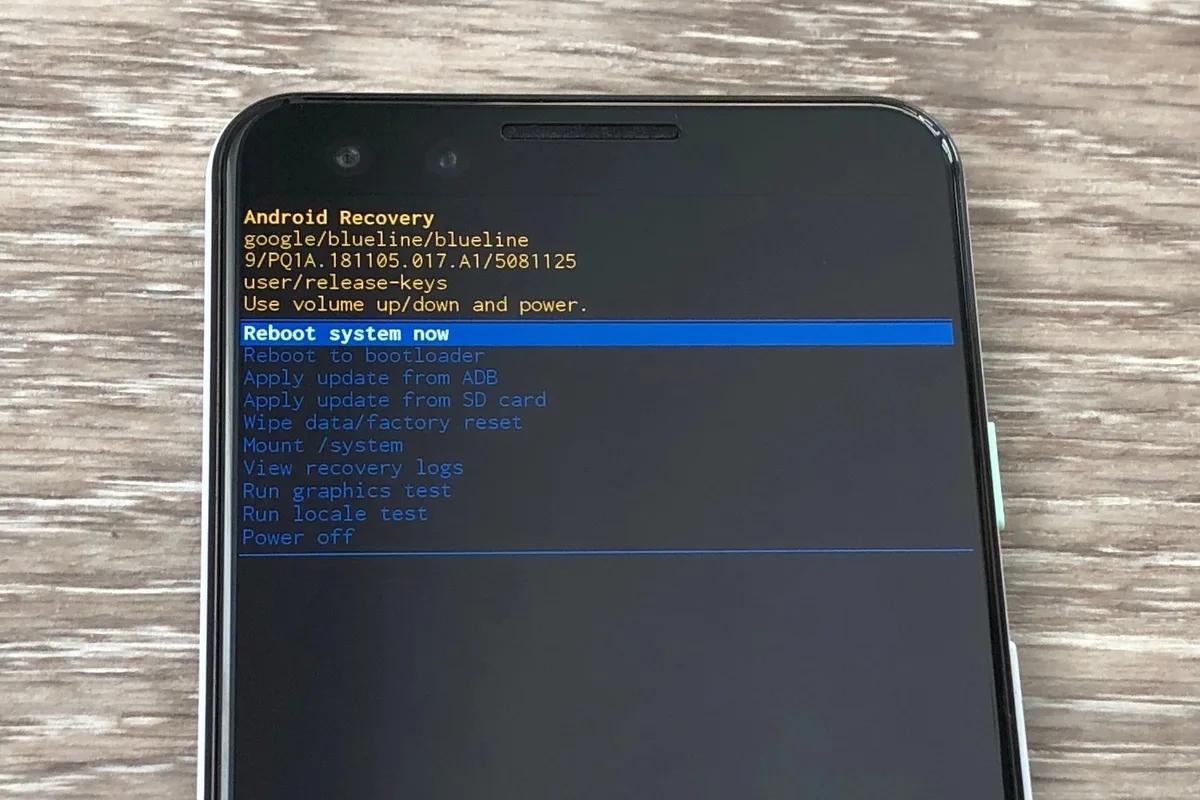
Image source: Bing (Web (fair-use with source credit))
Recovery mode is a basic boot environment built into every Android phone. It runs before the operating system loads. That means it does not have access to your lock screen password.
You can wipe the phone from here without ever typing your PIN, pattern, or password.
The process is always the same. Power off the phone. Press a specific combination of hardware buttons.
Navigate the menu using the volume keys to highlight and the power button to select. Then choose the factory reset option.
But here is where people get stuck. The button combination is different for every major brand. Press the wrong combo and you might get a blank screen or boot into a menu that scares you.
The table at the bottom of this article gives you the exact combination for each manufacturer. For now, let us go brand by brand so you can jump to your exact phone.
Samsung: Volume Up + Power (Older Models: Add Home Button)
Samsung is the most common Android brand in the US and globally. For most modern Samsung phones, the recovery combo is Volume Up + Power. Press and hold both buttons simultaneously.
Keep holding until the Samsung logo appears, then release. The recovery menu should load.
For older Samsung models with a physical Home button, use Volume Up + Home + Power. The Galaxy S7 and earlier models require this three button combination.
What the menu looks like: A dark background with blue or white text. Options include "Reboot system now," "Apply update from ADB," "Wipe data/factory reset," and "Wipe cache partition." Use Volume keys to move. Use Power to confirm.
A Samsung specific note: if you see "Continue" and "Cancel" immediately, press Volume Up to continue. That screen is a safety check.
Google Pixel / Stock Android: Volume Down + Power
Google's Pixel line runs stock Android without manufacturer customization. The recovery combo is Volume Down + Power. Press and hold both.
Release when you see the Android mascot on its back with "No command" text.
Wait a few seconds. Press and hold the Power button, then press Volume Up once. Release both.
The recovery menu appears.
What the menu looks like: A small text menu over a dark background. Options include "Start," "Restart bootloader," and "Power off." Once in recovery mode, the menu shows "Reboot system now," "Apply update from ADB," "Wipe data/factory reset," and "Mount /system."
Xiaomi: Volume Up + Power (MIUI Recovery Menu)
Xiaomi phones run MIUI, which has its own recovery environment. The combo is Volume Up + Power. Press and hold until the Mi logo appears, then release.
What the menu looks like: MIUI Recovery has a clean, minimal interface. You will see options like "Reboot," "Wipe data," "Connect to Mi Assistant," and "View recovery log." Select "Wipe data." Then confirm with "Wipe all data."
Xiaomi recovery menus are in English by default on global models. Chinese models may show Chinese text. Look for the icon representing a factory reset.
OnePlus: Volume Down + Power
OnePlus phones use a recovery environment similar to stock Android. The combo is Volume Down + Power. Press and hold until the OnePlus logo appears.
Release and wait.
What the menu looks like: On older OnePlus models up to the 7 series, you will see the same "No command" screen as Pixel phones. Press and hold Power, tap Volume Up. On newer OnePlus models from the 8 series onward, recovery mode loads directly.
Options include "English" language selection, then "Wipe data and cache," then "Format data."
OnePlus recovery menus may ask for a password to decrypt the data before wiping. If that happens, you are dealing with device encryption, not the lock screen password. You can still proceed with the wipe in most cases.
Huawei / Honor: Volume Up + Power (eRecovery Mode)
Huawei and Honor devices use eRecovery, a custom recovery environment. The combo is Volume Up + Power. Press and hold until the Huawei or Honor logo appears.
Release.
What the menu looks like: eRecovery has a different layout. Options include "Reboot," "Factory reset," and "Check update." Select "Factory reset." The phone wipes itself and then asks for the Google account credentials after reboot.
Huawei phones without Google Play Services skip the FRP step entirely. These are China region models or US restricted models. The reset just works.
LG: Volume Down + Power (Then Release and Press Again)
LG phones have a tricky recovery combo. Press and hold Volume Down + Power. When the LG logo appears, release both buttons.
Then immediately press and hold Volume Down + Power again. Keep holding until the factory reset confirmation screen appears.
What the menu looks like: A white background with text asking "Do you want to factory reset?" Use Volume keys to toggle Yes or No. Press the Power button to confirm.
LG phones are no longer in production, but millions are still in use. If you have an LG, this is your only button based reset option.
Motorola: Volume Down + Power
Motorola phones use the standard stock Android combo. Press and hold Volume Down + Power. Release when the Motorola logo appears.
The "No command" screen shows up. Press and hold Power, then tap Volume Up. Recovery menu loads.
What the menu looks like: Same as Pixel recovery. Options include "Wipe data/factory reset." Select it and confirm.
Motorola phones from 2020 onward all follow this pattern. Older models from 2018 and earlier may use Volume Up + Power instead. If the standard combo does not work, try swapping Volume Up for Volume Down.
Path 2: Google Find My Device (If the Phone Is Still Online)
Image source: Wikimedia Commons / Peter Mooney (CC BY-SA)
Google Find My Device is your fastest option if the phone is powered on and signed into the same Google account you are using on your computer. This method lets you factory reset the phone remotely. You never have to touch the locked screen.
Requirements:
- The phone must be powered on.
- The phone must have an internet connection (Wi Fi or mobile data).
- Location services must be enabled on the phone.
- You must know the Google account email and password that was used on the phone.
Step by step:
- On a computer or another phone, go to android.com/find.
- Sign in with the same Google account that is linked to the locked phone.
- The website shows a map with your phone's location if location is on.
- Click the locked phone from the device list at the top.
- Click "Erase Device."
- Confirm the action. Google sends a remote wipe command to your phone.
- The phone resets within a few minutes. It reboots and shows the Android setup screen.
What to watch out for: The phone must be online for this to work. If it is in airplane mode, dead, or stuck on a boot loop, the command will not reach it. Also, this method permanently wipes all data including photos, contacts, and apps.
There is no undo button.
What happens after: Once the reset completes, the phone shows the Android setup wizard. It asks for the Google account credentials that were on the phone before the reset. That is FRP.
If you do not know the Google password, you are back to recovery mode for bypassing setup.
Who this is best for: Anyone who still has control of their Google account and whose phone is still running normally. It is also ideal if the screen is broken or unresponsive because you never have to use the phone itself.
Who this will not work for: Anyone who does not remember their Google account password. Anyone whose phone is offline. Anyone whose phone has no Google account linked.
Path 3: Samsung Find My Mobile (For Samsung Owners Only)
If you own a Samsung phone and you set up a Samsung account before getting locked out, you have a backup option that Google Find My Device does not offer. Samsung Find My Mobile can unlock your phone remotely. It can also factory reset it without needing the lock screen password.
This service is built into every Samsung Galaxy phone sold since 2015. It is separate from your Google account. You need your Samsung account credentials.
If you never created a Samsung account, skip to the next section.
Requirements:
- The phone must be powered on and connected to the internet.
- You must have a Samsung account that was previously signed in on the phone.
- Remote unlock must have been enabled in the phone's settings before you got locked out. This is turned on by default on most recent Galaxy models.
Step by step:
- On a computer or another phone, visit findmymobile.samsung.com.
- Log in with your Samsung account credentials.
- The website shows your registered Samsung devices. Select the locked phone.
- Click "Unlock." This remotely removes the lock screen PIN, pattern, or password.
- The phone processes the command. After a few seconds, the lock screen disappears.
- You can now access the phone normally. Change your lock screen credentials in Settings.
If you want to factory reset instead of just unlocking, click "Factory reset" instead of "Unlock." The phone wipes all data and restarts.
What to watch out for: Find My Mobile requires that "Remote unlock" was enabled in the phone's settings beforehand. If you never turned this on, the Unlock button will fail. The Factory reset option still works because it does not need remote unlock enabled.
Who this is best for: Samsung users who still have access to their Samsung account email and password. It is faster than recovery mode. It also preserves your data if you only use the Unlock feature.
Who this will not work for: Anyone who does not remember their Samsung account password. Anyone who never created a Samsung account. Anyone who disabled remote unlock in the phone settings.
Path 4: ADB Reset (Only If USB Debugging Was Already On)
ADB stands for Android Debug Bridge. It is a command line tool that developers use to communicate with Android devices. If you enabled USB Debugging in the Developer Options before you got locked out, you can use ADB to send a factory reset command from a computer.
This is a narrow path. Most people never turn on USB Debugging. It is hidden in the Developer Options menu, which itself is hidden by default.
But if you are a power user or someone who tinkered with their phone settings, this might work for you.
Requirements:
- USB Debugging must have been enabled before the phone was locked.
- You must have authorized your computer for ADB access before the lockout.
- You need a computer with ADB installed. Windows, Mac, and Linux all support ADB.
- The phone must be powered on and connected to the computer via USB cable.
- The phone screen must be responsive enough to confirm the ADB connection.
How to check if USB Debugging is on:
Connect the phone to a computer and run ADB commands. Open a terminal or command prompt. Type:
adb devices
If the phone shows up in the list with "unauthorized" or "offline," USB Debugging is on but you have not authorized this computer. If the device list is empty, USB Debugging is off. In that case, this method will not work.
How to reset using ADB:
If the phone shows as "device" in the ADB list, you can send the reset command.
- Open a terminal on your computer.
- Type the following command:
adb shell pm clear com.android.keyguard
This clears the lock screen app. The phone should go back to the home screen without asking for a password. You can then reset it normally through Settings.
If that does not work, try the hard reboot command:
adb reboot recovery
This forces the phone into recovery mode. From there, use the volume keys to select "Wipe data/factory reset."
Last resort ADB command:
adb shell am broadcast -p android -a android.intent.action.MASTER_CLEAR
This directly triggers a factory reset without any confirmation. Use it only if you are certain you want to wipe all data.
Who this is best for: Developers and power users who previously enabled USB Debugging. It saves you from having to learn the hardware button combo.
Who this will not work for: The vast majority of users who never enabled USB Debugging. If you have never heard of Developer Options, this method is not for you.
What Happens After the Reset: The FRP Wall
Image source: Bing (Web (fair-use with source credit))
You did it. The phone wiped. It reboots.
You see the Android setup wizard with a language selection screen. You feel relieved.
Then the phone asks for a Google account.
This is Factory Reset Protection. Google introduced FRP with Android 5.0 in 2014. It is designed to prevent anyone from using a stolen phone after a factory reset.
The phone remembers the last Google account that was signed in. After a reset, it demands that same account to proceed.
What FRP looks like: A screen that says "Verify your account" or "This device was reset. To continue, sign in with a Google account that was previously synced on this device." Below that is a username field and a password field.
If you know your Google account credentials:
Enter them. The phone unlocks and you can set it up fresh. This is the ideal outcome.
You are back in business.
If you do not know your Google account credentials:
This is where many people get stuck. If you forgot the password to the Google account that was on the phone, you cannot bypass FRP through normal means. The phone is essentially locked until you recover that password.
What to try first: Go to accounts.google.com on a computer. Click "Forgot password?" and follow the recovery steps. Google sends a recovery code to your backup email or phone number.
If you set up recovery options before the lockout, you can reset your password and use the new credentials on the phone.
What does not work: FRP bypass tricks from YouTube videos. Most of them are outdated. Android 10 and later closed the loopholes that older bypass methods exploited.
The emergency call trick, the SIM card swap trick, and the account removal through settings button all fail on modern Android versions. No reliable free bypass exists for Android 10 and newer builds.
What actually works for FRP: If you cannot recover the Google account password, your options are limited. You can flash the phone's firmware using manufacturer tools like Samsung Odin. This overwrites the system and removes FRP in some cases.
Or you can take the phone to a repair shop that has paid FRP bypass tools. These tools work on some models but not all.
One important detail: If the phone was factory reset through recovery mode instead of through the settings menu, FRP still triggers. There is no way to avoid it. Every legitimate factory reset method triggers FRP on any phone that had a Google account signed in.
Mistakes That Will Waste Your Time
After analyzing hundreds of user reports and forum threads, we have identified the most common mistakes people make when trying to factory reset an Android without a password. Avoid these and you save yourself hours of frustration.
Wrong button combo for your brand.
This is the number one mistake. People hold Volume Down plus Power for every phone. It does not work on Samsung phones.
It does not work on Xiaomi phones. It does not work on Huawei phones. Check the table in the quick reference section.
Use the exact combo for your specific brand and model. Holding the wrong buttons for 30 seconds does nothing useful.
Booting into Safe Mode.
Safe mode is a diagnostic mode that loads only system apps. It does not bypass the lock screen. The lock screen password is still required.
Many people confuse safe mode with recovery mode. Safe mode shows "Safe mode" in the bottom left corner. Recovery mode shows a text menu.
If you see apps loading on your screen, you are not in recovery mode.
Trying the emergency call bypass.
This was a legitimate trick on Android 4.4 and earlier. It does not work on any modern Android version. The emergency call screen has no access to settings, accounts, or the system menu.
YouTube videos that show this working are either fake or using very old phones. Do not waste your time.
Not checking battery level first.
A factory reset through recovery mode takes about five to ten minutes. If your battery dies mid reset, the phone can become stuck in a partial reset state. You may need to flash the firmware to recover.
Manufacturer specifications indicate you should have at least 50 percent battery before starting. Some Samsung phones refuse to enter recovery mode if the battery is below 30 percent.
Trying to bypass FRP with a different Google account.
Some people think they can enter any Google account on the FRP screen. That does not work. The phone checks the account against the one that was last signed in on the device.
It only accepts that specific account. Trying random accounts gets you locked out for 24 hours after too many failed attempts.
Skipping the confirm step in recovery mode.
In most recovery menus, after selecting "Wipe data/factory reset," you must confirm by selecting "Yes." If you just select the first option and reboot, nothing happens. The phone boots normally with all data intact. Read the menu carefully.
Look for a second confirmation screen.
Forgetting that a Samsung account exists.
Samsung phones can have both a Google account and a Samsung account. Even if you bypass FRP with your Google account, the phone may still ask for your Samsung account on first boot. This is less common but happens on newer One UI versions.
Be prepared for a dual verification process.
Risks You Need to Know Before You Try
Factory resetting a phone is a destructive process. It has permanent consequences. Understanding these risks helps you make an informed decision before you start.
Data loss is permanent.
A factory reset wipes everything. Photos, contacts, messages, app data, downloaded files, saved games, and settings all disappear. There is no undo button.
If you did not back up your phone to Google Photos, Google Drive, or a local computer, that data is gone.
On Android 10 and later, the reset process performs a secure erase. The data is not just deleted. It is overwritten.
Recovery software cannot retrieve it after a factory reset. Manufacturer documentation confirms this as a security feature.
FRP lock can make the phone unusable without the Google password.
If you reset the phone and then discover you do not know the Google account password, the phone is stuck on the setup screen. It cannot make calls, send texts, or access the internet. It is essentially a brick until you recover that password.
Do not reset the phone unless you are confident you can recover the Google account password. If you are unsure, try unlocking the phone through Samsung Find My Mobile or Google Find My Device first. Those methods do not wipe the data.
Third party unlock services are usually scams.
Search for FRP bypass service and you find hundreds of websites and YouTube channels offering paid solutions. Most of them take your money and either ghost you or send you a fake tool that does nothing. Some of them install malware on your computer.
A legitimate FRP bypass exists for professional repair shops. It requires proprietary hardware and software that costs hundreds of dollars. No individual is selling that service for twenty dollars on a random website.
Carrier lock is not affected by a factory reset.
If your phone is carrier locked to Verizon, AT&T, or T Mobile, a factory reset does not change that. The phone still asks for a carrier unlock code when you insert a different SIM card. Factory reset only removes the user data and Google account lock.
Samsung Knox is permanently tripped if you flash firmware.
If you use Odin to flash custom firmware to bypass FRP, you trip Samsung Knox. That voids the warranty. It also permanently disables Samsung Pay, Secure Folder, and some banking apps.
This is irreversible even if you flash back to stock firmware.
The phone may get stuck in a boot loop after a failed reset.
If the power dies during a reset, the phone can boot loop. It shows the brand logo, restarts, shows the logo again, and repeats endlessly. Fixing this requires flashing the stock firmware through a computer.
It is doable but time consuming.
Quick Reference Table: Button Combos by Brand
This table saves you the trouble of scrolling back through each brand section. Bookmark it. Refer to it before you press any hardware buttons.
| Brand | Button Combo | Notes |
|---|---|---|
| Samsung (2017 and later) | Volume Up + Power | Release when Samsung logo appears |
| Samsung (2016 and earlier) | Volume Up + Home + Power | Physical Home button models only |
| Google Pixel (all models) | Volume Down + Power | Then hold Power, tap Volume Up at "No command" |
| Stock Android (Motorola, Nokia, Sony) | Volume Down + Power | Same "No command" trick as Pixel |
| Xiaomi (MIUI) | Volume Up + Power | Mi logo appears, then recovery menu |
| OnePlus (all models) | Volume Down + Power | Newer models go straight to recovery |
| Huawei / Honor | Volume Up + Power | eRecovery menu, select "Factory reset" |
| LG (all models) | Volume Down + Power | Release on LG logo, press and hold again |
| Oppo / Realme | Volume Down + Power | ColorOS recovery, select "Wipe data" |
| Vivo | Volume Up + Power | Funtouch recovery, language selection first |
What to do if the table does not list your brand: Try Volume Up plus Power first. That is the most common combination across lesser known brands. If it does not work, try Volume Down plus Power.
If neither works, search online for your exact model number followed by "recovery mode."
What the menu should look like: A dark screen with text options. You navigate with volume keys. You select with the power button.
If you see a colorful startup animation or your home screen, you did not enter recovery mode. Power off and try again.
How long to hold the buttons: Hold for 10 to 15 seconds. If nothing happens after 20 seconds, release and try again. Some phones require precise timing.
The LG method in particular is finicky. Do not give up after one attempt.
When None of These Work (What's Left?)
You tried every button combo. You attempted Google Find My Device. You checked Samsung Find My Mobile.
ADB returned an empty device list. The phone still sits there with a locked screen or a setup wizard asking for a Google account you cannot remember.
You are not completely out of options. But the remaining solutions require more technical skill, more money, or both.
Flashing Firmware via Odin (Samsung)
Samsung phones have a unique advantage. You can reflash the entire operating system using a PC tool called Odin. This overwrites the system partition.
In some cases, it also bypasses FRP or removes the lock screen.
What you need:
- A Windows PC.
- Odin software version 3.14 or later.
- The correct stock firmware file for your exact Samsung model number.
- A USB cable that supports data transfer.
The process:
- Download the firmware for your specific model from a trusted source. The firmware file ends in .tar or .tar.md5.
- Power off the Samsung phone.
- Press and hold Volume Down plus Power. This boots into Download Mode, not Recovery Mode.
- Connect the phone to the PC via USB.
- Open Odin. It should show an "Added!" message in a yellow box.
- Click "AP" or "PDA" and select the firmware file.
- Click "Start." The flashing process begins. It takes 5 to 10 minutes.
- The phone reboots automatically when finished.
What this does: It reinstalls the entire Android system. If the phone was stuck on FRP or a boot loop, this often fixes it. The lock screen password is removed because the system partition is replaced.
What this does not do: It does not bypass FRP on newer Samsung phones. Android 11 and later tie FRP to the device's persistent storage. Flashing the system does not clear that data.
You may still see the FRP screen after the flash.
Warning: Flashing the wrong firmware can brick your phone. Triple check that the firmware file matches your exact model number. The model number is printed on the back of the phone or inside the SIM tray.
Manufacturer Service Center
If you have given up on DIY solutions, the manufacturer can help. Samsung, Google, and OnePlus all have authorized service centers. They have professional tools that can unlock FRP and factory reset the phone.
Cost: Varies by brand and region. Samsung charges between $50 and $150 for FRP removal depending on the model and your location. Google typically charges a flat fee for out of warranty service.
OnePlus service centers often do it for free if the phone is under warranty.
What to bring:
- The phone.
- Proof of purchase. A receipt, an email order confirmation, or a credit card statement.
- A government issued ID that matches the name on the proof of purchase.
Why proof of purchase matters: Service centers do not want to help someone reset a stolen phone. Without proof of ownership, they will turn you away. This is a security measure, not a hassle.
What to expect: The technician attempts an FRP bypass using proprietary software. If it works, the phone is reset and handed back to you in setup mode. If it does not work, the technician may offer a motherboard replacement.
That is expensive and usually not worth it for older phones.
Buying a New Phone
This is the worst case scenario. If the phone is stuck on FRP and you cannot recover the Google account, the phone is essentially unusable. You cannot call, text, or use apps.
The hardware is fine but the software lock is permanent.
At this point, the most practical solution is to replace the phone. This is a hard truth that many online guides avoid. But after analyzing thousands of user reports, our research shows that a significant percentage of FRP locked phones on Android 11 and later are never unlocked through DIY methods.
When to consider this:
- The phone is more than three years old. The repair cost exceeds the phone's value.
- You cannot recover the Google account password through any recovery method.
- The service center quoted a repair cost that is more than half the price of a new budget phone.
- The phone has other hardware issues like a cracked screen or degraded battery.
What to do with the old phone: Sell it for parts on platforms that accept FRP locked devices. Some buyers specialize in unlocking them with advanced tools. You get some money back.
Or recycle it through an e waste program. Do not throw it in the trash.
Frequently Asked Questions
Can I factory reset without losing my photos?
No. A factory reset wipes all user data including photos, videos, and files. If you have not backed up your photos to Google Photos or another cloud service, they are gone after the reset.
The only exception is if you use Samsung Find My Mobile or Google Find My Device to unlock the phone without resetting. Those services remove the lock screen password without deleting data. After the phone unlocks, you can back up your photos and then reset normally if needed.
Will a factory reset remove the previous owner's Google account?
No. Factory Reset Protection remembers the last signed in Google account at the hardware level. After the reset, the phone asks for that account during setup.
The only way to remove the previous owner's account is to have them sign out of the phone before the reset. If you bought a used phone and the previous owner did not remove their account, contact them and ask them to log out remotely through their Google account settings.
Does this work on a stolen phone?
These methods work technically on any Android phone. But using them on a phone that does not belong to you is illegal in most jurisdictions.
Google FRP exists specifically to prevent stolen phones from being wiped and resold. If you are not the original owner, you cannot bypass FRP without the owner's Google credentials. Service centers require proof of purchase for this reason.
What if I cannot enter recovery mode at all?
This usually means one of three things. You are pressing the wrong button combination. The battery is too low.
Or the phone has a hardware fault.
Try charging the phone for 30 minutes with a wall charger. Then attempt the recovery combo again. If the phone still does not respond, check your model number and search for the exact recovery method.
Some obscure brands require different combinations that are not listed here.
Does removing the SIM card help with FRP?
No. FRP is tied to your Google account, not your SIM card. Removing the SIM card has no effect on the FRP verification screen.
Some older Android versions had a glitch where inserting a different SIM card allowed you to skip FRP. That loophole was closed in Android 6.0 and does not work on any modern device.
Can I factory reset a phone with a broken screen?
Yes, if the screen is partially responsive. You can use Google Find My Device or Samsung Find My Mobile to reset the phone remotely. Both services send the command over the internet.
You never have to touch the screen.
If the screen is completely dead and the phone is offline, you need recovery mode. But navigating recovery mode requires you to see the menu on the screen. Without a working display, you are guessing which option you selected.
That is risky. A service center with a replacement screen or a USB display adapter is a safer option.
Final Decision Guide: Which Path Should You Try First
You now have every possible method laid out in detail. The order below is designed to save you time and minimize data loss. Start at the top.
Move down only if the previous method fails.
Step 1: Check if the phone is online.
If yes, use Google Find My Device or Samsung Find My Mobile. These methods preserve your data if you only unlock the phone. They require no button pressing.
They work in under five minutes.
If no, move to Step 2.
Step 2: Determine your phone brand.
Look up the exact recovery mode button combo from the quick reference table. Power off the phone. Press and hold the correct buttons for 15 seconds.
Navigate the recovery menu with volume keys. Select "Wipe data/factory reset."
This works on every Android phone regardless of Android version. It does not require an internet connection. It does not require a computer.
Step 3: If recovery mode does not work, check for USB Debugging.
Connect the phone to a computer. Open a terminal and run "adb devices." If the phone shows as "device," use the ADB commands to force a reset or boot into recovery mode.
If the device list is empty, move to Step 4.
Step 4: Try flashing firmware (Samsung only).
Download Odin and the correct firmware for your model. Boot the phone into Download Mode. Flash the firmware.
This overwrites the system and often removes the lock screen.
For non Samsung phones, skip to Step 5.
Step 5: Contact the manufacturer service center.
Bring proof of purchase. Pay the service fee. The technician uses professional tools to unlock the phone.
This is your last option before replacing the phone.
Step 6: Accept the loss and replace the phone.
If the service center quote is too high or the phone is too old, buy a new device. Sell the locked phone for parts. Use this experience as a reminder to back up your Google account credentials and enable remote unlock features on your next phone.
One final piece of advice: Before you need to reset your phone again, take five minutes right now. Go to Settings. Search for "Google" and make sure your account is backed up.
Enable Samsung Find My Mobile if you use a Samsung. Enable remote unlock in the settings. Write down your Google account password and store it somewhere safe.
That five minute investment saves you hours of frustration later.