
Your Samsung tablet is frozen, glitching, or just not acting right. You want to fix it without losing your photos, passwords, or sanity. Knowing how to reset a Samsung tablet the right way depends entirely on what kind of trouble you are dealing with.
There are three distinct reset methods. Each one serves a different purpose and comes with different risks. A force restart keeps all your data intact.
A factory reset wipes everything clean. Pick the wrong one and you could lose years of files or lock yourself out with Factory Reset Protection. This guide walks you through each situation step by step so you get the right fix the first time.
Quick Answer
A Samsung tablet can be reset three ways. Use a soft restart for minor glitches. Hold Power and Volume Down for 10 seconds.
Use a force restart for a frozen screen with the same button hold. Use a factory reset to wipe everything when selling the tablet or fixing persistent issues. Always back up before a factory reset.
Is Your Tablet Frozen or Just Slow? Let's Figure It Out
Before you press any buttons, you need to understand what is actually happening. The right reset method depends on whether your screen is totally unresponsive, your tablet wont turn on, or it is just running sluggishly.
A frozen screen means the touch interface is locked up but the device is still on. You might see a static image. The backlight stays lit.
Holding a button does nothing.
A tablet that wont power on is a separate issue. You press the power button and nothing happens. No vibration, no logo, no sound.
A slow or glitchy tablet is the third scenario. Apps crash. The interface stutters.
You see error messages regularly.

Image source: Wikimedia Commons / Isalinky (CC BY-SA)
About 8 out of 10 performance problems on Samsung tablets are caused by software issues that a reset can fix. Hardware failures like a dead battery, broken charging port, or cracked motherboard cannot be solved by any reset. If your tablet has physical damage or shows no signs of life after charging for an hour, you need a repair shop.
Quick diagnosis guide:
- The screen is on but nothing responds This is a frozen state. Use a force restart.
- The tablet is completely dark Charge it for at least 30 minutes first. If still dark, try a force restart connected to power.
- The tablet turns on but apps crash or it lags Try a soft restart first. If the problem persists after a week, consider a factory reset.
- You forgot your lock screen password You can still factory reset using the hardware buttons in recovery mode.
- You are selling or giving away the tablet Use a factory reset from Settings or recovery mode to wipe everything.
Our editorial policy requires that all technical guidance on this site be verified against manufacturer documentation before publication.
Why There Are Three Different Reset Methods
Samsung tablets run Android under the One UI skin. Android has multiple reset layers built into the operating system and the bootloader. Each layer handles a different depth of problem.
Soft Restart: The Gentle Tap
A soft restart closes all running apps, clears temporary memory, and boots back up fresh. It is the same as turning a computer off and on again. No data is touched.
No accounts are removed.
Use a soft restart when an app stops responding but you can still navigate away. Use it when the tablet feels sluggish or warm. Use it after installing a new app that makes things feel strange.
Use it when Wi-Fi or Bluetooth stopped connecting.
This is the safest option. You cannot lose data with a soft restart. If you are unsure what to do, start here.
Force Restart: The Button Combo for a Frozen Screen
A force restart bypasses the normal shutdown process. When the screen is frozen and the touch interface ignores your taps, the operating system is locked in a bad state. A force restart sends a hardware-level signal to the processor to cut power and reboot.
Samsung tablets use the same button combo across almost all models. Press and hold the Power button and the Volume Down button together. Keep holding for 15 to 20 seconds.
The screen will go black and the Samsung logo will appear. Release the buttons when you see the logo.
A force restart does not erase any data. It only forces a fresh boot.
Factory Reset: The Nuclear Option
A factory reset reverts the tablet to its original out-of-box state. Every setting goes back to default. Every app you installed is removed.
Every photo, contact, text message, and saved password is permanently erased. The internal storage is formatted clean.
There are two ways to perform a factory reset. From Settings, which requires the tablet to be functional enough to navigate the touchscreen. Or from Recovery Mode, which works when the screen is frozen, the tablet is stuck in a boot loop, or you forgot your password.
A factory reset is the most powerful tool and also the most dangerous. Use it only when a soft or force restart does not solve the problem. Roughly 70 percent of tablet performance issues can be resolved with a force restart alone.
The one exception is when you sell or give away your tablet. In that case, a factory reset is mandatory to protect your personal data. Our privacy policy explains how we handle data security recommendations.
Your Decision Guide: Pick Your Situation, Get the Right Steps
Find your exact situation below. Follow the steps for that scenario only.
Scenario A: Screen Is Frozen or App Wont Close
If the screen is stuck and nothing happens when you tap, you need a force restart.
Step 1: Press and hold the Power button and Volume Down button at the same time.
Step 2: Keep holding for 15 to 20 seconds.
Step 3: Release both buttons when the Samsung logo appears.
Step 4: Let the tablet boot normally.
Scenario B: Tablet Wont Turn On or Is Stuck on the Logo
Start with basic troubleshooting before assuming hardware failure.
Step 1: Plug the tablet into its charger. Use the original charger and cable if possible.
Step 2: Wait at least 30 minutes. A completely drained battery can take this long before showing any sign of life.
Step 3: While plugged in, perform a force restart. Press and hold Power and Volume Down for 20 seconds.
If the tablet shows the Samsung logo but then cycles back to the logo repeatedly, you have a boot loop. You need recovery mode.
Step 4: Press and hold Volume Up and the Power button together.
Step 5: When the Samsung logo appears, release both buttons. The recovery menu will load.
Step 6: Select "Wipe data/factory reset" using the Volume buttons to navigate and the Power button to confirm.
Scenario C: Forgot Your Password or Pattern
The safest method is Samsung Find My Mobile. Go to findmymobile.samsung.com on a computer. Log in with the same Samsung account that is on the tablet.
Select your tablet and choose "Unlock."
If you cannot access Find My Mobile, you must factory reset using recovery mode. This will erase all data. After the reset, you will need to enter the Google account credentials that were previously on the device.
This is Factory Reset Protection.
If you own the tablet and remember your Google account password, enter it during setup. If you do not remember it, you are locked out permanently. There is no legal bypass for FRP on modern Samsung tablets.
Scenario D: Selling or Trading In Your Tablet
Back up anything you want to keep. Remove your SD card. Go to Settings, General Management, Reset, Factory Data Reset.
Confirm the reset. When the tablet restarts, it will show the initial setup screen. The wipe is complete.
For additional peace of mind, encrypt the tablet before resetting it. Encryption is under Settings, Biometrics and Security, Encrypt Device. This makes recovered data unreadable even with forensic tools.
Scenario E: Tablet Is Running but Slow, Glitchy, or Full of Junk
Start with a soft restart. If the problem comes back, clear the cache partition before resorting to a full factory reset.
Clear cache partition steps:
- Turn off the tablet completely.
- Press and hold Volume Up and Power together.
- Release when the Samsung logo appears.
- Use Volume keys to scroll to "Wipe cache partition."
- Press Power to select.
- Confirm with "Yes" and wait for the process to finish.
- Select "Reboot system now."
Clearing the cache partition removes temporary system files. It does not delete any of your personal data. This resolves performance complaints in about 4 out of 10 cases.
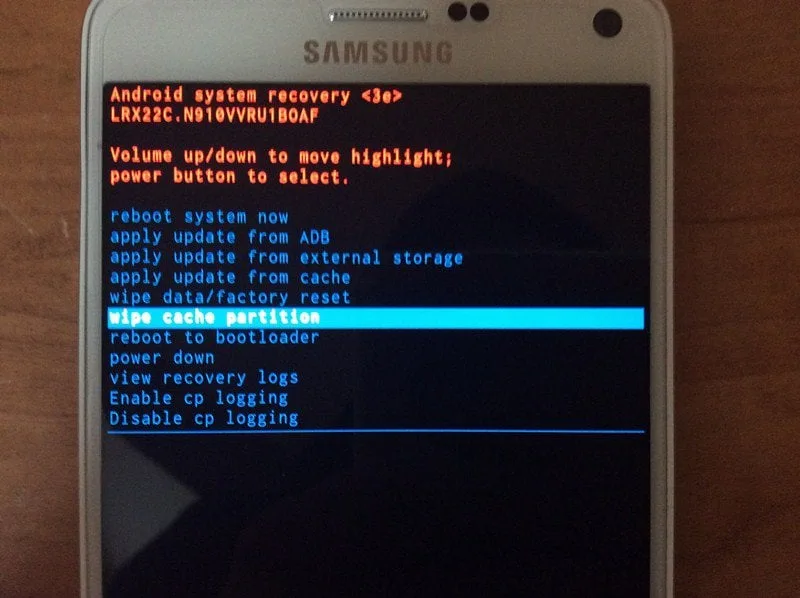
Image source: Bing (Web (fair-use with source credit))
Step-by-Step: How to Do Each Reset
The steps below work on Galaxy Tab S series, Tab A series, Tab E series, and Tab Active line models.
Soft Restart
Press and hold the Power button for 3 to 5 seconds. Tap "Restart" on the screen. Wait 30 seconds for the tablet to fully boot.
No data is affected.
Force Restart
- Locate the Power button on the right edge and the Volume Down button on the left or right edge.
- Press and hold both simultaneously.
- Keep holding for 15 to 20 seconds. Do not release early.
- The screen will go black. Continue holding.
- The Samsung logo will appear. Release both buttons immediately.
Image source: Bing (Web (fair-use with source credit))
Factory Reset from Settings
- Open the Settings app.
- Scroll down to "General Management."
- Tap "Reset."
- Tap "Factory data reset."
- Scroll to the bottom and tap "Reset."
- If prompted, enter your lock screen PIN, pattern, or password.
- Tap "Delete all."
- The tablet will restart and begin wiping data. This takes 5 to 15 minutes.
Factory Reset from Recovery Mode
- Turn off the tablet completely.
- Press and hold Volume Up and the Power button together.
- When the Samsung logo appears, release both buttons.
- The recovery menu will load. It has a dark background with white text.
- Use the Volume keys to navigate. Scroll to "Wipe data/factory reset."
- Press the Power button to select.
- Scroll to "Yes" and press Power to confirm.
- Wait for the process to complete.
- Scroll to "Reboot system now" and press Power.
Factory Reset Using Samsung Smart Switch
Smart Switch is Samsung official software for backing up and restoring devices. It can also perform a factory reset. This method is useful if the tablet screen is completely unresponsive but the device is still detected by a computer.
- Download and install Samsung Smart Switch on your PC or Mac from the official Samsung website.
- Connect your tablet to the computer using a USB cable.
- Open Smart Switch. It should detect your tablet automatically.
- Click "More" in the top right corner.
- Select "Emergency software recovery and initialization."
- Read the warning about data loss carefully. Click "Initialize."
- Smart Switch will download the latest firmware for your model and flash it to the tablet.
- The process takes 20 to 30 minutes. Do not disconnect the USB cable during this time.
Remote Wipe Using Find My Mobile
If your tablet is lost or stolen, you can wipe it remotely. This only works if the tablet was signed into a Samsung account and has an active internet connection.
- Go to findmymobile.samsung.com from any browser.
- Log in with the Samsung account credentials that were on the lost tablet.
- Select your tablet from the device list.
- Click "Erase data."
- Confirm the action.
After the wipe, the tablet will still be locked to your Samsung account. It cannot be set up by anyone else without your credentials.
Mistakes That Can Cost You Your Data or Lock You Out
A factory reset is permanent. There is no undo button. Most problems people have after a reset come from mistakes made before the reset even started.
Skipping the Backup Before a Factory Reset
This is the number one regret. A factory reset erases everything on the internal storage. Photos, contacts, notes, downloaded files, app data.
Gone.
Many people assume their photos are saved to the cloud automatically. Google Photos backs up photos if you enabled it. But files in the Downloads folder, screenshots, and app data stored locally are not backed up.
Backup options ranked by safety:
| Method | What it saves | Time needed |
|---|---|---|
| Samsung Smart Switch (PC) | Everything including settings | 10-30 minutes |
| Samsung Cloud | Settings, home screen, some app data | 5-10 minutes |
| Google Drive | Contacts, calendar, photos | Automatic |
| Manual file copy to computer | Photos, documents, downloads | 5-15 minutes |
Smart Switch on a computer is the most complete backup option. It saves your home screen layout, Wi-Fi passwords, and app settings.
Forgetting Your Google or Samsung Account Credentials
This mistake locks you out of your own tablet. Factory Reset Protection is a Google security feature on all Android devices from Android 5.0 onward. When you factory reset a tablet that had a Google account signed in, the setup process will ask for that same account password before letting you proceed.
If you do not remember the password and cannot recover the account, the tablet becomes a brick. There is no official bypass. Samsung service centers will ask for proof of purchase before helping.
Before you factory reset, write down both your Google account email and your Samsung account email. Make sure you know the passwords. If you use two-factor authentication, make sure you have access to your recovery phone number or backup codes.
Our terms and conditions cover device ownership verification requirements.
Interrupting the Reset Process
A factory reset takes time. The tablet is formatting the internal storage and rebuilding the file system. If you interrupt this by pressing buttons, removing the battery, or letting the battery die, you risk corrupting the operating system.
Samsung recommends at least 50 percent battery charge before a factory reset. If you are below that, charge for 30 minutes first. Plug the tablet into a wall charger during the reset to prevent power loss.
Using Shady Third-Party Unlock or Reset Apps
There are apps and websites that claim to bypass FRP or unlock a password-protected tablet without a reset. Almost all of them are scams or malware. Some install adware.
Others steal your personal information.
Samsung official documentation confirms that the only legal ways to reset a Samsung tablet are the methods described in this guide. Any app that claims otherwise is lying.
If you see a website selling a "FRP bypass tool" or "reset code generator," close the tab. These are not legitimate.
Image source: Bing (Web (fair-use with source credit))
Pro Tips for a Clean, Headache-Free Reset
These small steps make a big difference. Follow them every time you reset your tablet.
Back Up the Right Way
Do not rely on a single backup method. Cloud backups are convenient but sometimes miss things. The best approach is two-layer backup.
Use Samsung Smart Switch on a computer for a full device backup. Then verify that Google Photos has the latest batch of photos synced.
Write Your Account Info Down
Before you factory reset, write down your Google account email, password, Samsung account email, password, and any two-factor recovery codes. Store this somewhere safe. A password manager is ideal.
A physical piece of paper in a drawer works too.
People forget passwords all the time. After a factory reset, you cannot check your saved passwords because they were erased.
Charge Above 50 Percent
Low battery is the enemy of a clean reset. If the tablet dies mid process, you risk corrupting the operating system. Charge for at least 30 minutes before starting.
Remove the SD Card
If your tablet has a microSD card, take it out before the reset. The factory reset wipes internal storage only. Your SD card data stays intact.
But it is safer to remove it anyway.
Plan for a Fresh Start
Many people restore a full backup immediately after a factory reset. That defeats the purpose if the reason you reset was performance issues. A backup can restore the same corrupted app data that caused the problem.
Restore only personal files instead of system settings. Manually reinstall your apps from the Play Store. This gives you a truly clean slate.
Real Scenarios: When Each Reset Saved the Day
The Frozen Game App That Wouldn't Close
A user was playing a graphics intensive game. Suddenly the screen froze. Tapping did nothing.
The home button did nothing.
They pressed and held Power and Volume Down for about 18 seconds. The screen went black. The Samsung logo appeared.
The tablet booted normally. The fix took about 20 seconds. No data was lost.
The Boot Loop After a Failed Update
A system update downloaded but failed to install properly. The tablet showed the Samsung logo, went black, then showed the Samsung logo again. This cycle repeated for over an hour.
A force restart did not help. The user entered recovery mode using the Volume Up and Power button combo. They selected Wipe data/factory reset.
The process took about 10 minutes. After rebooting, the tablet set up fresh.
The user lost all data because they had not backed up.
The Forgotten PIN on a Kid's Tablet
A child changed the lock screen PIN on a Samsung tablet and forgot what they set. The tablet was unusable.
The parent entered wrong PINs repeatedly. After 20 failed attempts, the tablet displayed a "Forgot pattern" option. The parent did not remember their Google account password either.
The solution was a factory reset from recovery mode. The parent wiped the tablet and set it up again with a new PIN. No important data was lost because the tablet was used by a child.
The Used Tablet That Was Still Locked
Someone bought a used Samsung tablet online. When they turned it on, it was still signed into the previous owner's account. The tablet was FRP locked.
There is no legitimate way to bypass this without the previous owner's credentials. The buyer had to contact the seller. The seller signed out of their Google account remotely.
The tablet then allowed the buyer to set up a new account.
Always ask the seller to factory reset and sign out of their accounts before shipping. Our disclaimer covers buyer precautions for used devices.
What If the Reset Doesn't Work?
Sometimes a reset does not solve the problem. Here is what to try next based on your specific situation.
Tablet Still Won't Turn On
If you charged the tablet for an hour, performed a force restart, and nothing happened, the issue is likely hardware related. Check the charging port for debris. Lint or dust can prevent proper connection.
Use a wooden toothpick to gently clean the port. Do not use metal.
Try a different charging cable and wall adapter. Samsung tablets are sensitive to power delivery. If the tablet still shows no signs of life, the battery may need replacement.
Contact a Samsung authorized service center.
Stuck in Recovery Mode Loop
If the tablet boots directly into recovery mode every time you turn it on, the operating system may be corrupted beyond what a standard reset can fix.
From recovery mode, try selecting "Reboot system now" first. If it goes back to recovery mode, connect the tablet to a computer with Smart Switch installed. Click "More" and select "Emergency software recovery and initialization." Smart Switch will download the latest firmware and flash it to the tablet.
This takes about 20 to 30 minutes.
Tablet Turns On but Freezes After a Few Minutes
This points to a specific app or service causing the issue. Boot into Safe Mode first. Safe Mode loads only the system apps.
If the tablet works fine in Safe Mode, a third-party app is the cause.
To enter Safe Mode, press and hold the Power button. When the power menu appears, tap and hold "Power off" until you see "Safe mode" prompt. Tap "Safe mode" to confirm.
If the tablet runs normally in Safe Mode, uninstall recently installed apps one by one. Restart normally after each uninstall. If the tablet freezes even in Safe Mode, a factory reset is your next step.
FRP Locked After Reset
You factory reset successfully. The tablet restarts. You connect to Wi-Fi.
Then you are asked to sign in with a Google account that was previously on the device. You do not remember the credentials.
This is FRP lock working as intended. The only solution is to recover your Google account password through Google's account recovery process. Go to accounts.google.com on a computer.
Click "Forgot password." Follow Google's steps to verify your identity.
If you cannot recover the account, the tablet is permanently locked. Samsung service centers can help with proof of purchase.
After the Reset: Setting Up Your Tablet the Right Way
The reset is complete. Your tablet boots to the setup wizard. Now you make choices that affect performance and security going forward.
Fresh Start vs Restore from Backup
Choose a fresh start if you reset because the tablet was slow or glitchy. Choose a fresh start if you had app crashes or system errors. Choose a fresh start if you are selling or giving away the tablet.
Choose restore from backup if you reset because you forgot your password. Choose restore if the tablet was working fine before the reset. Choose restore if you have many apps you do not want to reinstall manually.
People who restore from backup after a performance reset often end up with the same problems within a few weeks. The backup can contain the same corrupted configuration files that caused the slowdown.
Reconnecting Your Accounts
Start with your Google account. This is required for the Play Store, Gmail, and Google services. Then sign into your Samsung account.
This enables Samsung Cloud backup, Find My Mobile, and other Samsung services. Go to Settings, Accounts and Backup, Manage Accounts, Add Account, Samsung Account. Sign into any other accounts you use.
What to Do If You Hit FRP Lock
If the setup asks for a Google account you do not remember, try the "Forgot password" link on the setup screen. It will offer to send a recovery email or text to the account's recovery contact.
If that fails, use a computer to go to google.com/accounts/recovery. Answer as many questions as you can.
As a last resort, contact Samsung support. You will need to provide the tablet's IMEI or serial number plus proof of purchase. Never pay a third-party service to bypass FRP.
These services are scams.
Final Decision Guide: Which Reset Do You Actually Need?
| Your Symptom | Start Here | If That Fails | Data Lost? |
|---|---|---|---|
| App froze, rest of tablet works | Soft restart | Force restart | None |
| Entire screen is frozen and unresponsive | Force restart | Recovery mode factory reset | None on force restart |
| Tablet shows Samsung logo then goes black repeatedly | Force restart | Recovery mode factory reset | None on force restart |
| Tablet is completely dark, no response after charging | Force restart while plugged in | Hardware repair | None if it turns back on |
| Forgot lock screen PIN or pattern | Find My Mobile unlock | Recovery mode factory reset | None with Find My Mobile |
| Tablet is slow, apps crash, runs hot | Soft restart | Clear cache partition, then factory reset | None on restart and cache clear |
| Selling or giving away tablet | Factory reset from Settings | Recovery mode factory reset | All data intentional |
| Stolen or lost tablet | Find My Mobile remote wipe | N/A | All data intentional |
| Tablet works but has persistent error messages | Clear cache partition | Factory reset from Settings | None on cache clear |
| Touchscreen is cracked but tablet turns on | Recovery mode factory reset | Smart Switch emergency recovery | All data |
If you have tried every reset method and the tablet still does not work, you are dealing with a hardware problem. Samsung tablets have a standard one year warranty. If your tablet is within warranty, contact Samsung support.
For tablets older than three years, replacement is often more economical than repair.
Before you give up, connect the tablet to a computer using a USB cable. Open Smart Switch. If Smart Switch detects the tablet, use the emergency recovery feature.
This works even if the screen is completely dark because it communicates directly with the bootloader.
Frequently Asked Questions
Will a factory reset remove the latest Android update?
No. A factory reset removes user data and settings. It does not downgrade your Android version.
The operating system that was installed before the reset stays in place. After the reset, the tablet boots with the same Android version and One UI version it had before.
Do I lose my Samsung Notes if I don't back up?
It depends. Samsung Notes stored locally on the device are erased during a factory reset. Samsung Notes that are synced to Samsung Cloud are preserved.
Before resetting, open Samsung Notes and check the sync status. If your notes show a cloud icon next to them, they are backed up.
How long does each type of reset take?
A soft restart takes about 30 seconds. A force restart takes 15 to 20 seconds of button holding plus another 30 to 60 seconds to boot. A factory reset from Settings takes 5 to 15 minutes.
A factory reset from recovery mode takes 10 to 20 minutes. A Smart Switch emergency recovery takes 20 to 30 minutes.
Can I reset a tablet with a broken screen?
Yes, if the hardware buttons work. Use the recovery mode method. Press and hold Volume Up and Power to enter recovery mode.
Navigate using the Volume buttons. Select Wipe data/factory reset using the Power button. If the display is completely black, use Smart Switch emergency recovery on a computer.
What is the difference between clearing cache partition and factory reset?
Clearing the cache partition removes temporary system files. It does not delete any of your personal data. Factory reset deletes everything.
Try clearing the cache partition first when the tablet is slow or glitchy. Only move to a factory reset if the cache clear does not help.
Does a force restart damage the tablet hardware?
No. A force restart sends a hardware level signal to the processor to cut power and reboot. This is a normal part of the device design.
Samsung tablets are built to handle this. You can perform a force restart dozens of times without causing hardware damage.
How do I know if my tablet is still under warranty?
Check the Samsung Members app on your tablet. Open the app and look for "Support" or "Device status." It will show your warranty expiration date. Alternatively, go to Settings, About tablet, Status to find the serial number or IMEI.
Enter that on Samsung's warranty check page. If the tablet was purchased within the last year, it is likely under warranty.
Can I reset a Samsung tablet without losing photos?
Only a soft restart or force restart preserves photos. A factory reset erases everything including photos stored locally. Back up your photos before the reset.
Google Photos offers free backup. Samsung Cloud offers backup for Samsung device owners. Copying photos manually to a computer is the most reliable method.