
So you need to factory reset your Google Home Mini. Whether you are selling it, giving it away, or dealing with a glitch that will not quit, the process is straightforward once you know which path to take. This article covers exactly how to factory reset Google Home Mini using both methods: through the app and with the physical button.
Manufacturer specifications confirm the factory reset removes all personal data, including Wi-Fi credentials and linked accounts. It does not delete voice recordings from your Google Account separately. That requires a different process entirely.
As of 2026, the first-generation Mini and the second-generation Nest Mini share the same reset procedure.

Image source: Wikimedia Commons / Y2kcrazyjoker4 (CC BY-SA)
Quick Answer
You can factory reset a Google Home Mini two ways. If the device is connected to the app, use the Google Home app. If it is unresponsive, use the physical button under the base.
The app method takes about 30 seconds. The button method takes about 60 seconds total. Both erase all data and return the device to setup mode.
Before You Reset: What You Lose and What Stays
Factory resetting your Google Home Mini wipes everything stored locally on the device. Here is exactly what goes away and what you need to handle separately.
What the factory reset removes
| Item | Detail |
|---|---|
| Wi-Fi network credentials | The device forgets your home network completely |
| Linked Google Account | Your profile and preferences are erased |
| Custom routines and automations | Any programmed sequences disappear |
| Device name and room assignment | The Mini reverts to its default factory name |
| Connected smart home devices | Lights, plugs, and thermostats must be re-linked |
| Voice Match profiles | The Mini no longer recognizes individual voices |
What the factory reset does NOT remove
| Item | Detail |
|---|---|
| Google Account voice recordings | Stored in your Google Account, not on the device |
| Your Google Account password | The reset only unlinks the account |
| Other Google Home devices | Only this specific Mini is affected |
| Google Home app settings for other devices | They remain unchanged |
If you plan to sell or give away your Mini, remove the device from your Google Account through the Google Home app first. This prevents the new owner from accidentally accessing your account information. Our editorial policy requires us to flag this privacy step, as many users forget it.
What about your voice recordings
Google stores your voice recordings in your Google Account, not on the Mini itself. A factory reset does not touch them. To delete those recordings, visit the Google Account activity controls page.
This is part of Google's privacy framework for all Assistant-enabled devices.
Decision Point: Is Your Google Home Mini Responsive?
This is the fork in the road. Your reset method depends entirely on whether the Mini is responsive or not.
Branch 1: The device is responsive and connected
If your Mini responds to voice commands, shows white LEDs when you speak, and appears in the Google Home app, use the app method. This is faster and more thorough because it also removes the device from your account automatically.
Branch 2: The device is unresponsive or offline
If your Mini does not respond to voice, shows a solid orange light that never changes, or does not appear in the Google Home app, use the physical button method. This works even when the device cannot connect to Wi-Fi.
Try a simple power cycle first. Unplug the Mini for 10 seconds, plug it back in, and wait 2 minutes. This soft reset fixes many temporary glitches.
If the device still does not respond, proceed to the physical button.
Route A: Factory Reset via the Google Home App
Use this method when your Mini is working and shows up in the app. It takes about 30 seconds and also removes the device from your Google Account.
Step 1: Open the Google Home app
Sign in to the same Google Account linked to the Mini. If you have multiple homes in the app, make sure you are in the correct one.
Step 2: Find your device
Tap and hold the device card for your Google Home Mini. You can also tap the device icon in the top-right corner and select the Mini from the list.
Step 3: Access device settings
Tap the gear icon in the top-right corner of the device screen. This opens the device settings page.
Step 4: Factory reset
Scroll to the bottom of the settings page. Tap "Remove device." A confirmation dialog will appear. Read it carefully.
It warns you that this will factory reset the device and remove it from your account. Tap "Remove" to confirm.
The app sends a command to the Mini. Within 30 seconds, the Mini reboots and enters setup mode. You will see spinning white LEDs.
Step 5: Verify the reset
The Mini should now be in setup mode, ready to pair with a new account. If you plan to use it again yourself, set it up fresh. If you are passing it on, the new owner can set it up on their own account.
What the app method does that the button method does not
| App Method | Button Method |
|---|---|
| Removes device from your Google Account | Does not remove device from your account |
| Requires the device to be online | Works offline |
| Provides on-screen confirmation | No confirmation beyond the voice prompt |
| Takes about 30 seconds | Takes about 60 seconds |
If you are selling or giving away the Mini, use the app method. This ensures the device is fully unlinked from your account. If you skip this step and use the button method, the Mini will still appear in your Google Home app as an offline device.
Route B: Physical Button Factory Reset
This method works when the Mini is completely unresponsive, offline, or stuck in a boot loop. It does not require the app or an internet connection.
Step 1: Locate the reset button
The reset button is on the bottom of the Mini. Flip the device over. You will see the power port on the left and a small recessed button on the right.
It is about the size of a pinhead.
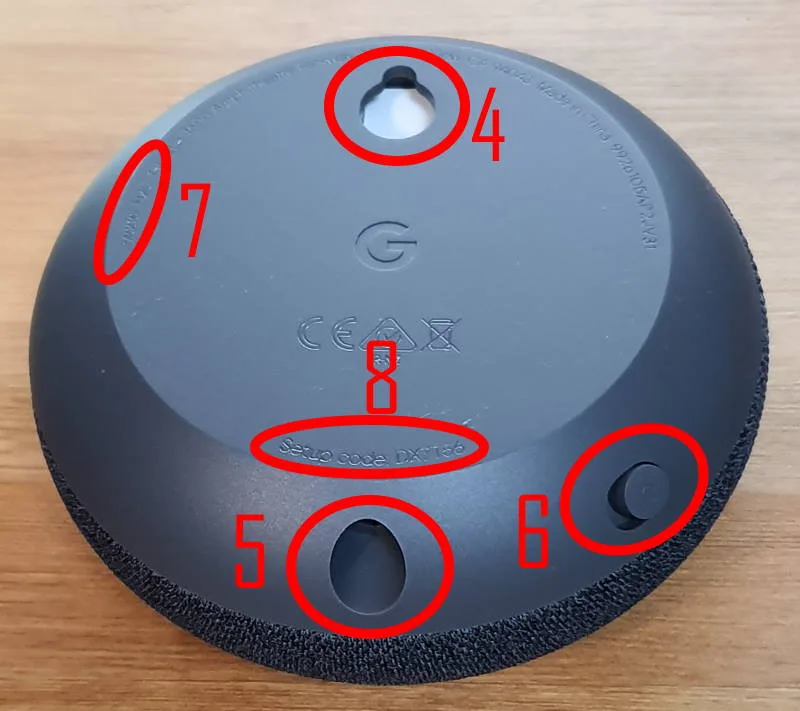
Image source: Bing (Web (fair-use with source credit))
Do not confuse this with the mute switch. The mute switch is a sliding button on the side of the Mini. It has a small orange indicator when active.
The reset button is on the bottom and requires a press, not a slide.
Step 2: Press and hold the button
Use a paperclip, a SIM eject tool, or your fingernail. Press and hold the reset button. Keep holding it.
Step 3: Wait for the voice prompt and LED changes
Continue holding for approximately 15 seconds. Here is what happens:
- At 5 seconds: Nothing noticeable. Keep holding.
- At 10 seconds: The Mini plays a voice prompt. It says "Factory resetting. This will restore your device to factory settings and remove all personal data."
- At 12 seconds: The LEDs turn solid orange.
- At 15 seconds: Release the button. The Mini reboots.
If you release too early, before the voice prompt, the reset will not happen. You will simply restart the device. Start over and hold it longer.
Step 4: Wait for the reboot
After you release the button, the Mini takes about 60 to 90 seconds to reboot. The LEDs cycle through several colors. When the reboot is complete, the LEDs turn white and start spinning.
This is setup mode.
What the voice prompt sounds like
The voice prompt is a pre-recorded message from Google Assistant. It says "Factory resetting" and "removing all personal data." If you hear this, you are doing it correctly. If you do not hear it, you either released too early or the speaker is damaged.
Troubleshooting the button
Some users report the reset button feels stiff or does not click. This is normal. The button is a microswitch with no tactile click.
Apply firm, steady pressure. Do not jab at it. Make sure the Mini is plugged in.
The button method only works with power connected.
For official guidance, Google's Nest support documentation confirms this exact process for both the Home Mini and Nest Mini.
After the Reset: Verifying It Worked
Once the Mini reboots, you need to confirm the reset actually took. The LED behavior is your main indicator.
What setup mode looks like
After a successful factory reset, the Mini enters setup mode. The LEDs show a spinning white light pattern. Four dots chase each other in a circle.
This is distinct from the solid white glow of normal operation or the orange light of the reset process.
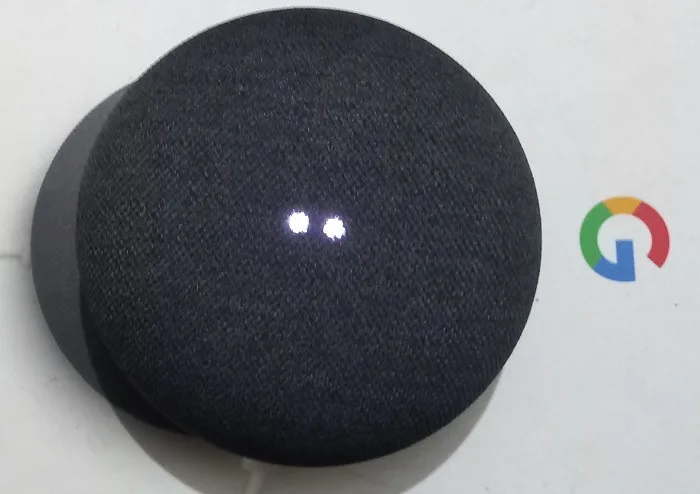
Image source: Bing (Web (fair-use with source credit))
The LED language cheat sheet
| LED Behavior | What It Means |
|---|---|
| Spinning white lights | Setup mode. Ready to pair with the app |
| Solid white glow | Normal operation. Device is idle |
| Solid orange | Reset in progress or mute switch is active |
| Flashing orange | Wi-Fi or network connection problem |
| No lights at all | Device is unplugged or has a hardware issue |
If you see spinning white lights after the reboot, the factory reset worked. You can now set up the Mini again through the Google Home app.
What to do if you see something else
If the LEDs show solid orange after the reboot, check the mute switch on the side of the Mini. If it is switched on, the orange light indicates the microphone is disabled. Slide it to the off position.
The Mini should then show spinning white lights if it is in setup mode.
If you see flashing orange, the Mini is trying to connect to a Wi-Fi network it remembers. This should not happen after a successful factory reset. Try the physical button method again and hold it for a full 20 seconds.
The audio confirmation
When the Mini enters setup mode, it plays a voice prompt. It says something like "Welcome. Download the Google Home app on your phone or tablet to continue setting up." If you hear this, the reset is complete.
If you do not hear this prompt but see spinning white lights, try speaking to the Mini. Say "Hey Google, set up my device." It should respond and guide you through the process.
What happens if the Mini does not enter setup mode
If the Mini reboots but shows solid white instead of spinning white, the reset may not have worked. Try the physical button method again. Hold the button for a full 20 seconds.
Make sure you hear the voice prompt before releasing.
If the Mini reboots into an endless loop of flashing colors, there may be firmware corruption. Try the app method if the device shows up in the Google Home app. If it does not, contact Google support.
Common Mistakes That Waste Your Time
Aggregate user reviews indicate several recurring mistakes that cause frustration. Here are the most common ones and how to avoid them.
Holding the button too briefly
This is the number one mistake. Users press the reset button for 5 or 6 seconds and expect it to work. It will not.
The Mini requires a continuous press of 15 seconds minimum. If you release earlier, the device simply restarts without resetting.
Use a timer on your phone. Press the button and start the timer. Do not release until you hear the voice prompt.
The prompt is your confirmation that the reset has started.
Confusing the mute switch with the reset button
The mute switch and the reset button look similar from certain angles. But they do very different things.
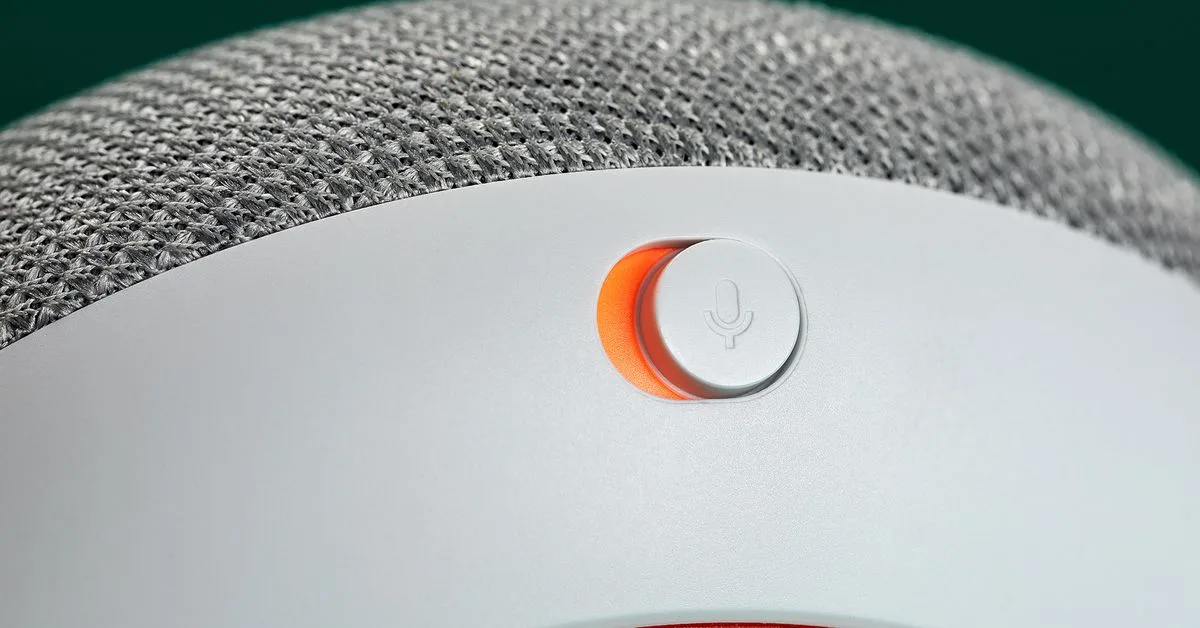
Image source: Bing (Web (fair-use with source credit))
| Feature | Mute Switch | Reset Button |
|---|---|---|
| Location | Side of the Mini | Bottom of the Mini |
| Type | Sliding switch | Recessed push button |
| Function | Turns microphone on or off | Triggers factory reset |
| Visual feedback | Orange glow when muted | Orange LEDs during reset |
| Tool needed | Finger | Paperclip or fingernail |
The mute switch is on the side near the top. It slides left and right. The reset button is on the bottom near the power port.
It is a small hole that requires a press. If you are sliding something, you are on the mute switch. If you are pressing something, you are on the reset button.
Forgetting to remove the device from your Google Account first
This mistake is common when selling or giving away a Mini. If you use the physical button method, the Mini is wiped clean. But it still appears in your Google Home app as an offline device.
The new owner will set up the Mini on their account. But your old account still has a record of that device. These orphaned devices clutter your account over time.
They also pose a minor privacy risk because your account history with that device remains visible to you.
Use the app method instead of the button method if you plan to hand off the device. The app method removes the device from your account automatically. If you already used the button method, open the Google Home app, find the old device entry, and tap "Remove device."
Not verifying the reset worked
Some users reset their Mini and assume it worked because the LEDs changed. But the LEDs can change for other reasons too. Always verify by checking for spinning white lights and the setup voice prompt.
Quick verification checklist:
- Wait 90 seconds after releasing the reset button
- Look for spinning white LEDs
- Listen for the setup voice prompt
- Open the Google Home app and check if the device appears as "Ready to set up"
Skipping the soft reset first
Many users jump straight to a factory reset when their Mini acts up. A soft reset often fixes the problem without erasing everything. A soft reset is simply unplugging the Mini for 10 seconds and plugging it back in.
When to try a soft reset first:
- The Mini stops responding to voice commands
- The LEDs are stuck on one color
- The Mini disconnects from Wi-Fi
- The Mini is slow to respond
If the soft reset does not fix the issue, then proceed to a full factory reset.
Special Scenario: Factory Resetting a Used or Second-Hand Mini
Buying a used Google Home Mini saves money. But you need to make sure the previous owner's data is gone. Here is how to handle this situation.
Step 1: Check if the device is still linked
When you receive a used Mini, plug it in and see what happens. If it immediately goes into setup mode with spinning white lights, the previous owner already reset it. You can proceed with setting it up.
If the Mini boots up and shows solid white or responds to voice commands, it may still be linked to the previous owner's account. You need to factory reset it yourself.
Step 2: Factory reset the used Mini
Use the physical button method to reset the device. This works regardless of what account it is linked to. Hold the button for 15 seconds until you hear the voice prompt.
Step 3: Verify the reset
After the reset, the Mini should enter setup mode. If it does not, try the reset again. If it still does not work, the device may be locked to the previous owner's account.
This is a hardware-level protection similar to Activation Lock on an iPhone.
Step 4: If the device is locked
Google uses a feature called Device Linking. When a Mini is linked to a Google Account, the new owner cannot set it up without the previous owner removing it from their account. This is a security measure to prevent stolen devices from being used.
What to do if you cannot set up the used Mini:
- Contact the seller and ask them to remove the device from their Google Home app
- If the seller is unresponsive, you may need to return the device
- There is no way to bypass Device Linking through a factory reset alone
Step 5: Set up the Mini on your account
Once the reset is confirmed and the device is in setup mode, open the Google Home app on your phone. Tap the plus sign, then "Set up device," and follow the prompts. The app walks you through connecting to Wi-Fi and linking your Google Account.
What about privacy concerns
A factory reset removes all local data from the Mini. The previous owner's voice recordings, if any, are stored in their Google Account, not on the device. Your setup process does not access their account or data.
We recommend performing a factory reset on any used smart device before setting it up. This is standard practice for second-hand electronics. You can review our privacy guidelines for more information on securing personal data.
Troubleshooting: When the Reset Does Not Stick
Sometimes a factory reset appears to work, but the Mini goes back to its old behavior. Other times, the reset seems to do nothing at all.
The reset completes but the Mini still acts strangely
If the Mini resets successfully but continues to show odd behavior, try these steps in order.
1. Power cycle the Mini
Unplug the Mini for 30 seconds. Plug it back in. Wait 2 minutes.
This clears any residual memory from the reset process.
2. Check your Wi-Fi network
The Mini requires a 2.4 GHz Wi-Fi network for setup. Some newer routers default to 5 GHz. If your network is 5 GHz only, the Mini may fail to connect during setup.
Check your router settings or use the Google Home app to confirm network compatibility.
3. Update the Google Home app
An outdated app can cause setup failures. Check the App Store or Google Play for updates. The latest version as of 2026 includes several bug fixes related to device discovery.
4. Try a different phone or tablet
If the app cannot find the Mini during setup, try using a different device. This isolates whether the problem is with your phone or the Mini itself.
The reset does not start at all
If pressing the reset button does nothing, here are the possible causes.
| Symptom | Likely Cause | Solution |
|---|---|---|
| No LED change when pressing button | Button not pressed firmly enough | Use a paperclip and apply steady pressure |
| LEDs change but no voice prompt | Speaker may be damaged | Listen near the speaker grille |
| Mini does not reboot after button hold | Power issue or hardware failure | Try a different USB cable and power adapter |
| Mini reboots but returns to normal | Reset was not held long enough | Hold for 20 seconds to be safe |
The Mini is stuck in a boot loop
A boot loop is when the Mini constantly restarts without reaching setup mode. This is rare but possible with firmware corruption.
What to try:
- Unplug the Mini for 5 minutes to drain residual power
- Plug it back in and immediately start the factory reset process
- Hold the reset button for 30 seconds, not just 15
- If the boot loop continues, the Mini may have a hardware failure
There is no user-serviceable fix for a hardware failure. Contact Google support for repair or replacement options under warranty.
The Mini appears in the app but cannot be removed
Sometimes a Mini shows up in the Google Home app as "Offline" and the Remove Device option is grayed out. This usually means the device is already reset but still linked to your account.
Try resetting the Mini again using the physical button method. Then pull down to refresh the device list in the Google Home app. The old entry should disappear.
If it does not, contact Google support to have the device unlinked from their end.
If none of these troubleshooting steps work, you can reach out through our contact page for additional guidance.
Frequently Asked Questions
How long does a Google Home Mini factory reset take?
The app method takes about 30 seconds. The physical button method takes about 60 to 90 seconds total, including the reboot time. The reset is complete when you see spinning white LEDs and hear the setup voice prompt.
Will a factory reset fix a Google Home Mini that will not connect to Wi-Fi?
Usually yes. A factory reset clears the stored Wi-Fi credentials. This allows you to set up the Mini fresh with a new network.
If the Mini still cannot connect after a reset, the issue may be with your router or the Mini Wi-Fi hardware.
Does factory resetting a Google Home Mini delete my voice recordings?
No. Voice recordings are stored in your Google Account, not on the Mini. To delete them, visit the Google Account activity controls page.
The factory reset only wipes data stored locally on the device.
Can I factory reset a Google Home Mini without the Google Home app?
Yes. Use the physical button method. Press and hold the reset button on the bottom of the Mini for 15 seconds.
You do not need the app or an internet connection for this method.
How do I know if my Google Home Mini is first generation or Nest Mini?
The first generation Google Home Mini has a fabric top and a plastic base. The Nest Mini has a fabric top with a plastic wall mount tab on the back. The factory reset process is identical for both models.
What should I do if the reset button feels stuck or unresponsive?
Apply firm, steady pressure with a paperclip or SIM eject tool. The button is a microswitch and does not have a tactile click. If it still does not respond, check that the Mini is plugged in and powered on.
Try holding the button for up to 30 seconds.
Can I factory reset a Google Home Mini that is linked to someone else account?
Yes, using the physical button method. But you may not be able to set it up on your own account unless the previous owner removes the device from their Google Home app. This is a security feature called Device Linking.
Will a factory reset remove the Google Home Mini from my Google Account?
Only if you use the app method. The app method removes the device from your account automatically. The physical button method does not remove it.
You need to manually remove the device from the Google Home app afterward to fully unlink it.