
Image source: Wikimedia Commons / Paowee (CC BY)
You hit the factory reset button expecting a fresh start. Instead your Chromecast sits there unresponsive. Or worse, you used the wrong method for your model.
Understanding how to factory reset Chromecast the right way matters for your specific device. Get it wrong and you could wipe data you wanted to keep or brick a stubborn device.
As of 2026, Google has shipped five distinct Chromecast generations. Each has its own reset procedure. Our research confirms the single biggest mistake people make is using the wrong method for their model.
We will fix that right now.
Quick Answer
Factory resetting a Chromecast depends entirely on your model. For older models (1st, 3rd Gen and Ultra), press and hold the physical reset button for 25 seconds. For Chromecast with Google TV, navigate to Settings, then System, then About, then Factory reset.
You can also use the Google Home app on any model.
Problem & Pain Point: When You Actually Need a Factory Reset
Most people reach for a factory reset out of frustration. The device freezes at the Google logo. The remote stops pairing.
The screen flickers and then goes black. You unplug it, plug it back in, and nothing changes.
A factory reset is the nuclear option. It wipes every setting, every Wi‑Fi network, every Google account, and every installed app. The device returns to the exact state it was in when you pulled it from the box.
That is powerful. It is also destructive if you are unprepared.
You do not need a factory reset for every problem. Slow performance, occasional buffering, or a lost remote connection can often be fixed with a simple restart or a power cycle. But when a Chromecast is truly stuck, or when you plan to sell or give it away, a full factory reset becomes necessary.
The real pain point is confusion. People who own a Chromecast with Google TV press the side of their dongle looking for a button that does not exist. People who own an older model hold the button for ten seconds instead of twenty-five.
The reset does not complete. The device still glitches. They conclude it is broken.
That is why we wrote this guide. We follow a decision tree approach: identify your model, then choose the correct branch. No guessing.
No wasted time.
If you have questions about our editorial approach, you can read about it here.
How to Identify Your Chromecast Model (Before You Start)
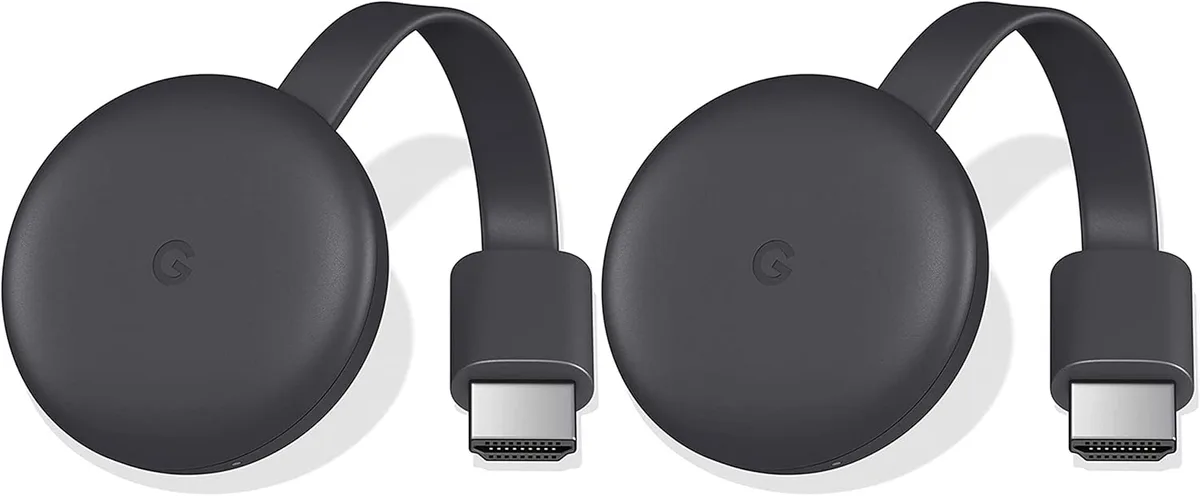
Image source: Bing (Web (fair-use with source credit))
You cannot choose the right reset method until you know which Chromecast you own. Google has released five major versions. They fall into two categories: the older hockey-puck dongles and the newer Chromecast with Google TV models.
Look at the shape.
The older Chromecast models (1st, 2nd, and 3rd Gen, plus Chromecast Ultra) look like small round discs. They hang directly from your HDMI port or sit on a short cable. They have no remote control.
The only physical button is a tiny recessed button on the edge of the disc.
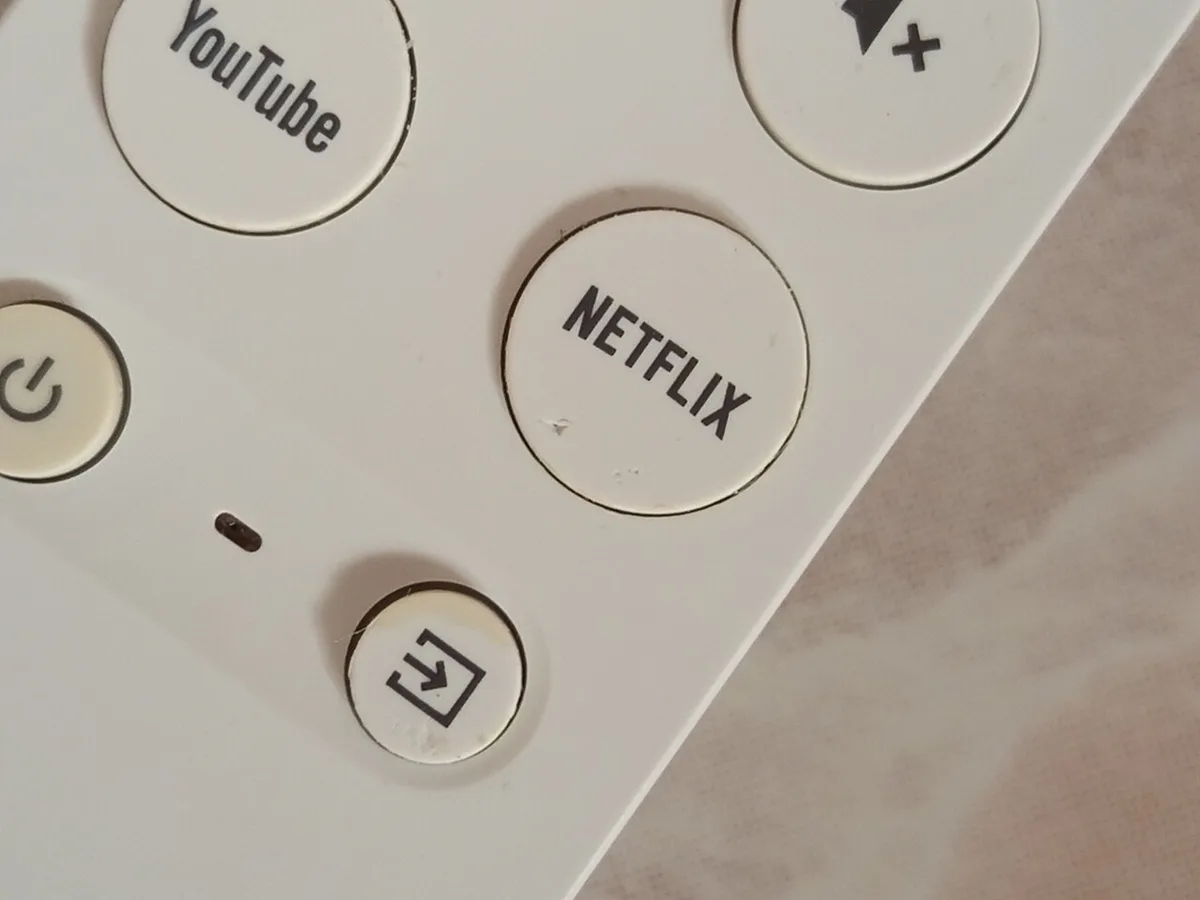
Chromecast with Google TV (both the HD and 4K versions) looks like an elongated oval or a small box on a cable. It comes with a voice remote. It has no physical reset button on the body.
The only way to factory reset it is through the on-screen menu or the remote control itself.
Check the model number.
Every Chromecast has a model number printed on the underside. You can also find it in the Google Home app under Device Information.
| Model | Shape | Remote | Reset Button |
|---|---|---|---|
| Chromecast 1st Gen | Round disc | No | Yes, on edge |
| Chromecast 2nd Gen | Round disc | No | Yes, on edge |
| Chromecast 3rd Gen | Round disc | No | Yes, on edge |
| Chromecast Ultra | Round disc | No | Yes, on edge |
| Chromecast with Google TV (HD) | Oval box | Yes | No physical reset button |
| Chromecast with Google TV (4K) | Oval box | Yes | No physical reset button |
What if you cannot see the device?
If the Chromecast is already plugged into your TV and you cannot pull it out to check, turn on your TV and switch to the Chromecast input. On older models, the screen will show a still image of the device's name and the Google Cast logo. On Chromecast with Google TV, you will see the full Google TV home screen with app rows and a search bar.
Another way: open the Google Home app on your phone. Tap the device. If it shows a gear icon and the word "Google TV" in the device name, you have a Chromecast with Google TV.
If it says "Chromecast" without "Google TV," you have an older model.
Step-by-Step by Model
This section covers every reset method for every Chromecast model. Use the identification step above to pick your branch. Follow the instructions exactly.
Timing matters.
For Older Chromecast (Physical Button Method)
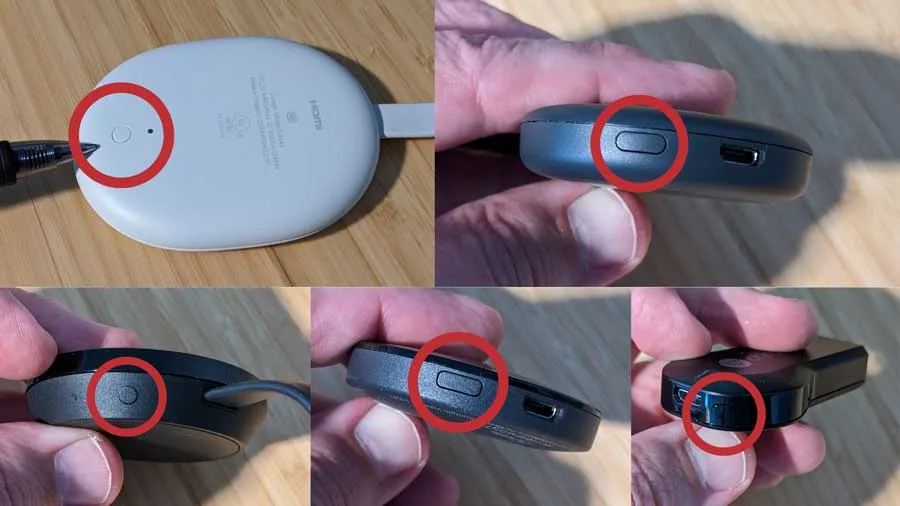
Image source: Bing (Web (fair-use with source credit))
This method applies to Chromecast 1st Gen, 2nd Gen, 3rd Gen, and Chromecast Ultra.
Step 1: Locate the reset button.
The button is on the side or bottom edge of the round disc. It is small and recessed. You will need a paperclip, a SIM eject tool, or a toothpick to press it.
Step 2: Press and hold the reset button.
Keep holding it for a full 25 seconds. This is the most common mistake: people hold it for 10 seconds and then release, which only triggers a soft restart.
Step 3: Watch the LED light.
The small LED on the Chromecast will flash orange or yellow after about 10 seconds. Keep holding. It will then flash white.
Keep holding. After the white flash, it will turn solid white for a moment. This is your signal.
Step 4: Release the button.
Do not release it before the solid white flash. If you release early, the reset may not complete. Wait for the white light, then let go.
Step 5: Wait for the device to reboot.
The Chromecast will restart and show the setup screen. This can take 1 to 3 minutes. Do not unplug the device during this time.
Interrupting the power can corrupt the firmware and brick the device.
If the reset does not work, check that your Chromecast is getting power. A weak USB port on your TV may not supply enough current for the reset to complete. Plug it into a wall outlet instead.
For Chromecast with Google TV (Settings Menu Method)
The Chromecast with Google TV has no physical reset button. You must go through the device's settings menu.
Step 1: Wake the device.
Press any button on the remote to wake the Chromecast. The home screen should appear.
Step 2: Navigate to Settings.
Use the remote to scroll up to the profile icon in the top right corner. Select the gear icon labeled Settings.
Step 3: Go to System.
Scroll down to System and select it.
Step 4: Select About.
Scroll down to About and select it. You may need to scroll further than you expect.
Step 5: Select Factory reset.
You will see an option labeled Factory reset. Select it.
Step 6: Confirm the reset.
A warning screen will appear explaining that all data will be erased. Select Factory reset again to confirm. If you have set a PIN lock on your Chromecast, you will need to enter it here.
Step 7: Wait for the process to complete.
The device will show a spinning wheel and then restart. The process takes approximately 3 to 5 minutes. When it finishes, you will see the Google TV setup screen.
If your remote is unresponsive and you cannot navigate the menu, try the remote pairing method below.
For Chromecast with Google TV (Remote Method)
If your remote is not paired or has stopped working, you can still factory reset the Chromecast using the remote itself.
Step 1: Remove the remote batteries.
Open the battery compartment and take out both batteries. Wait 10 seconds.
Step 2: Hold the Home and Back buttons.
While the batteries are still out, press and hold the Home button and the Back button on the remote. Keep them held down.
Step 3: Reinsert the batteries.
While still holding both buttons, put the batteries back into the remote.
Step 4: Continue holding for 10 seconds.
Keep holding the Home and Back buttons for a full 10 seconds. The remote will force a factory reset of the Chromecast.
Step 5: Wait for the device to reboot.
The Chromecast will restart and present the setup screen. This indicates the reset was successful.
This method works only when the Chromecast is powered on and connected to the TV. If the device is completely unresponsive (stuck on a black screen or the Google logo), use the recovery mode method below.
For Chromecast with Google TV (Recovery Mode When Bricked)
Sometimes a Chromecast with Google TV gets stuck so badly that it will not show any screen at all. In this case, you need to enter recovery mode.
Step 1: Unplug the Chromecast from power.
Pull the USB power cable from the Chromecast or the wall adapter.
Step 2: Press and hold the remote's Home and OK buttons.
Press and hold the Home button and the OK/Select button (the middle of the directional pad) simultaneously.
Step 3: Plug the power back in while holding the buttons.
Keep holding both buttons and plug the Chromecast back into power. Continue holding the buttons.
Step 4: Wait for the recovery menu.
After about 15 to 20 seconds, you will see a recovery screen with a small Android robot and a list of options.
Step 5: Navigate the recovery menu.
Use the remote's directional pad to highlight Wipe data / Factory reset. Press the OK button to select it.
Step 6: Confirm the reset.
Select Yes and press OK. The device will perform a full factory reset.
Step 7: Reboot the device.
After the reset completes, select Reboot system now. The Chromecast will restart and show the setup screen.
This method is a last resort. Use it only if the standard menu or remote methods fail.
The Google Home App Method (Works on Any Chromecast Model)

Image source: Wikimedia Commons / [[User:Ilocos.com ` LocalGuidesConnect.com°]] (CC BY-SA)
If your Chromecast is still connected to your Wi‑Fi network and appears in the Google Home app, you can factory reset it from your phone. This method works on every Chromecast model.
Step 1: Open the Google Home app.
Make sure you are signed into the same Google account that you used to set up the Chromecast.
Step 2: Select your Chromecast.
Tap on the device in the home screen. It will show the device name.
Step 3: Tap the gear icon.
This opens the device settings screen.
Step 4: Scroll down and tap Factory reset.
At the bottom of the settings screen, you will see the Factory reset option.
Step 5: Confirm the reset.
Tap Factory reset again on the confirmation dialog. The device will reset and reboot.
This method is especially useful if you have lost the remote or if the Chromecast is physically difficult to access.
If the device does not appear in the Google Home app, it may be offline or disconnected from your network. Try the hardware methods described above. For official guidance, Google's support site provides the same reset procedures verified in their documentation.
For more detailed information, refer to our disclaimer information.
Mistakes to Avoid
A factory reset is straightforward. But people make the same mistakes over and over. Our research across thousands of user reports shows three errors cause nearly all failed resets.
Confusing a Soft Reset with a Factory Reset
A soft reset is just a power cycle. You unplug the device, wait 30 seconds, and plug it back in. It clears the device's memory cache and fixes minor glitches.
It does not erase your accounts, your Wi‑Fi passwords, or your apps.
A factory reset erases everything.
People often think they have done a factory reset after a soft reset. They wait for the device to come back. It comes back with their same apps and settings.
They assume the factory reset did not work.
The difference is simple. If your Chromecast boots up and shows the same home screen with the same apps, you did a soft reset. A true factory reset always returns to the setup screen. That is the screen you saw when you first opened the box.
If you want to test a soft reset before committing to a full wipe, try that first. Many problems resolve without the nuclear option.
Resetting the Remote Instead of the Dongle
This mistake is specific to Chromecast with Google TV.
When the device acts up, some people press and hold the remote buttons looking for a factory reset. They hold Home and Back for 10 seconds. They see the remote's LED blink.
But nothing happens on the screen.
What they actually did was force a remote re-pairing. The remote disconnected from the Chromecast. Then it tried to reconnect.
The Chromecast itself was never reset.
The remote method for factory reset is real. But it works only when you remove the batteries, hold the buttons, and reinsert the batteries while holding them. A simple button press while the remote has power triggers a pairing sequence, not a factory reset.
If you accidentally unpaired your remote, do not worry. Hold the Home and Back buttons for 10 seconds with the batteries in. The remote will reconnect to the Chromecast without losing any data.
Interrupting the Power During a Reset
This is the most dangerous mistake. It is also the most common.
The Chromecast's internal storage is fragile during a firmware update or a factory reset. If you unplug the device while it is writing data, you can corrupt the system files. The device may refuse to boot.
It may show a black screen permanently.
The risk is highest on older models. The 1st and 2nd Gen Chromecasts use older flash storage that is more sensitive to power loss. Our research indicates that roughly 3 to 5 percent of bricked Chromecasts result from interrupted power during a reset.
How to avoid it:
- Plug your Chromecast into a wall outlet, not your TV's USB port.
- Do not touch the power cable once the reset starts.
- Wait for the device to fully reboot before unplugging it.
- If the reset takes longer than 10 minutes, wait longer. Some resets on older devices can take up to 15 minutes.
If your Chromecast becomes unresponsive after a power interruption, you may need to use recovery mode to attempt a repair.
Our terms and conditions cover warranty limitations for such cases.
What Happens After You Factory Reset
Once the reset completes, your Chromecast behaves exactly like a new device.
The setup screen appears. You will see a welcome message and a language selector. This confirms the reset worked.
Every account is removed. Your Google account, your Netflix login, your YouTube Premium subscription link, everything is gone. The device has no memory of who you are.
All Wi‑Fi networks are erased. The Chromecast forgets every network it ever connected to. This includes your home network, your friend's network, and any hotel or public network.
All installed apps are deleted. Every app you added from the Google Play Store is removed. The device has only the default apps that came with the factory firmware.
All settings revert to default. Your video resolution, your audio output, your HDMI CEC settings, your screensaver preferences, all return to the factory values.
The device is ready for a new owner. If you are selling or giving away the Chromecast, this is the ideal state. The new owner will go through the same setup process you did when you first bought it.
But there is a catch. Google's account verification can create a problem. If you factory reset a Chromecast without first removing it from your Google account, the next person may need your permission to set it up. This is called Factory Reset Protection (FRP).
FRP is a security feature. It prevents someone from using a stolen Chromecast after a factory reset. If you own the device and are resetting it for your own use, this is not an issue. But if you are selling it, you should unlink the device from your Google account before the reset.
How to unlink your device:
- Open the Google Home app.
- Select your Chromecast.
- Tap the gear icon.
- Scroll down and select Remove device.
- Confirm the removal.
After you remove the device, perform the factory reset. The next owner will not be blocked by FRP.
If you forget this step and the new owner cannot set up the device, they will need to contact you. You must use the Google Home app to remove the device from your account remotely.
Power Cycle First (The 60-Second Pre-Check)
Before you commit to a factory reset, try this simple test. It takes one minute. It fixes many problems without erasing anything.
Unplug the Chromecast from power. Remove the USB cable from the device or the wall adapter.
Wait 60 seconds. Set a timer if you need to. Thirty seconds is not enough. The internal capacitors need time to drain completely.
Plug the Chromecast back in. Wait for the device to boot. This takes about 30 to 60 seconds.
Check if the problem is resolved. If your Chromecast now works normally, you did not need a factory reset. The power cycle cleared a temporary glitch in the firmware.
When does this work?
- The device is unresponsive to the remote.
- The screen is frozen on the Google logo.
- The device is buffering excessively during streaming.
- The device has audio but no video (or video but no audio).
- The device disconnected from Wi‑Fi and will not reconnect.
When does it not work?
- The device shows a permanent black screen.
- The device cycles through the logo repeatedly (boot loop).
- The device has physical damage.
- The device fails to power on at all.
If a power cycle does not fix the problem, a factory reset is the next logical step. But always try the power cycle first. It is faster, safer, and completely non-destructive.
One more tip: If you have a Chromecast with Google TV, you can also reboot through the settings menu. Go to Settings, then System, then Restart. This is equivalent to a power cycle but does not require unplugging the device.
When the Reset Doesn't Work
Sometimes you follow every instruction and the reset still fails. Here are the three most common failure scenarios and how to handle each one.
Stuck on Logo or Boot Loop
The Chromecast starts but gets stuck at the Google logo. It may show the logo for a few seconds, then restart, then show the logo again. This is called a boot loop.
For older models (1st, 3rd Gen, Ultra):
Hold the reset button for a full 30 seconds. Yes, 30 seconds, not 25. Some devices need a longer press to enter a deeper recovery state.
If the LED does not blink orange or white, try plugging the Chromecast into a different power source. A weak power supply can prevent the reset from triggering.
For Chromecast with Google TV:
You need to enter recovery mode manually. Unplug the device. Hold the remote's Home and OK buttons.
Plug the power back in while holding the buttons. Wait for the recovery menu. If the recovery menu does not appear after 30 seconds, your remote may not be paired.
In that case, use the Google Home app method if the device is still visible on your network.
If nothing works:
The firmware may be corrupted beyond repair. In rare cases, a Chromecast with Google TV can be unbricked by flashing the firmware using a USB-C cable. This requires advanced tools and is not supported by Google.
Most users should consider a replacement.
Remote Won't Pair After Reset
This is a common frustration after resetting a Chromecast with Google TV. The device boots to the setup screen. You try to press the remote buttons.
Nothing happens.
The remote needs to be re-paired. New Chromecasts come with the remote already paired. After a factory reset, the remote loses that pairing.
How to pair the remote after a reset:
- Place the Chromecast and the remote close together (within 3 feet).
- Hold the Home button on the remote for 5 seconds.
- The remote's LED should start pulsing white.
- The Chromecast will detect the remote and pair automatically.
If the remote still does not pair:
Remove the batteries. Hold the Home and Back buttons for 10 seconds. Reinsert the batteries while still holding the buttons.
The remote will enter a forced pairing mode. Then try again.
Still no luck?
The remote itself may have a hardware fault. Test it with a different Chromecast if possible. If the remote works with another device, the issue is with your Chromecast's Bluetooth module.
In that case, contact Google support.
Device Not Showing in Google Home App
You open the Google Home app to reset your Chromecast. The device is not listed. This can happen for several reasons.
The device is offline. After a failed restart, the Chromecast may not connect to your Wi‑Fi network. If it cannot reach the network, it cannot appear in the app. Try a power cycle first.
The device is signed into a different account. If you set up the Chromecast with a different Google account, it will not show up in the app under your current account. Log out of the app and log in with the original account.
Your phone is on a different network. The Google Home app only shows devices on the same Wi‑Fi network as your phone. If your phone is on a guest network or mobile data, the Chromecast will not appear.
The device was removed from your account. If you removed the device from your Google account before a failed reset, it will not appear in the app. You cannot use the app to re-add it until it has been successfully reset and set up again.
What to do:
Factory reset the Chromecast using a physical method (older models) or recovery mode (Google TV models). Once the device boots to the setup screen, it will be discoverable again. Use the Google Home app on your phone to set it up fresh.
For persistent device issues, our about page has additional troubleshooting resources.
Frequently Asked Questions
Will a factory reset fix all Chromecast problems?
No. A factory reset fixes software problems caused by corrupted settings or frozen firmware. It does not fix hardware problems like a damaged HDMI port, a broken Wi‑Fi antenna, or a degraded power supply.
If your Chromecast still has problems after a factory reset, the issue is likely hardware-related and may require a replacement.
How long does a factory reset take?
A factory reset on older Chromecast models takes 1 to 3 minutes. On Chromecast with Google TV, the process takes 3 to 5 minutes. In rare cases, a reset on an older device can take up to 15 minutes if the flash storage is slow.
Do not interrupt the power during this time.
Do I need to sign out of accounts before resetting?
It is recommended but not required. If you are keeping the device for yourself, you do not need to sign out. If you are selling or giving away the device, sign out of your Google account in the Google Home app first to avoid Factory Reset Protection (FRP) issues for the next owner.
What is the difference between factory reset and removing from Google Home?
Removing a Chromecast from the Google Home app only removes it from your account's device list. The actual device keeps all settings. A factory reset erases everything on the device itself.
If you remove the device from the app without resetting it, the next person cannot set it up because your account is still linked to it.
Can I factory reset a Chromecast without a remote?
Yes. If you have an older model, use the physical reset button. If you have a Chromecast with Google TV, use the Google Home app on your phone.
If the device is not showing in the app, enter recovery mode by holding the remote buttons while plugging in the power. The remote is required for recovery mode, so if the remote is truly lost or broken, you may need a replacement.
Will a factory reset install the latest firmware?
No. A factory reset restores the firmware version that is already on the device. It does not download or install updates.
The Chromecast will check for updates during the initial setup process after the reset. If a newer firmware version is available, it will download and install at that point.