
Nothing kills your morning groove quite like an Echo Dot that's gone silent, spinning an orange light, or just flat-out ignoring you. If you've ever wondered how to reset Echo Dot, you're not alone, and the good news is that it's usually a quick fix. Most connectivity issues or unresponsiveness can be solved in under two minutes without any tools.
Here's the thing, though. A "reset" can mean two completely different things to your device, and picking the wrong one can either waste your time or erase all your settings. Manufacturer specifications confirm that a factory reset clears all personal data, Wi‑Fi credentials, and custom routines, effectively returning your Dot to its out‑of‑box state.
Let's clear that up right now.
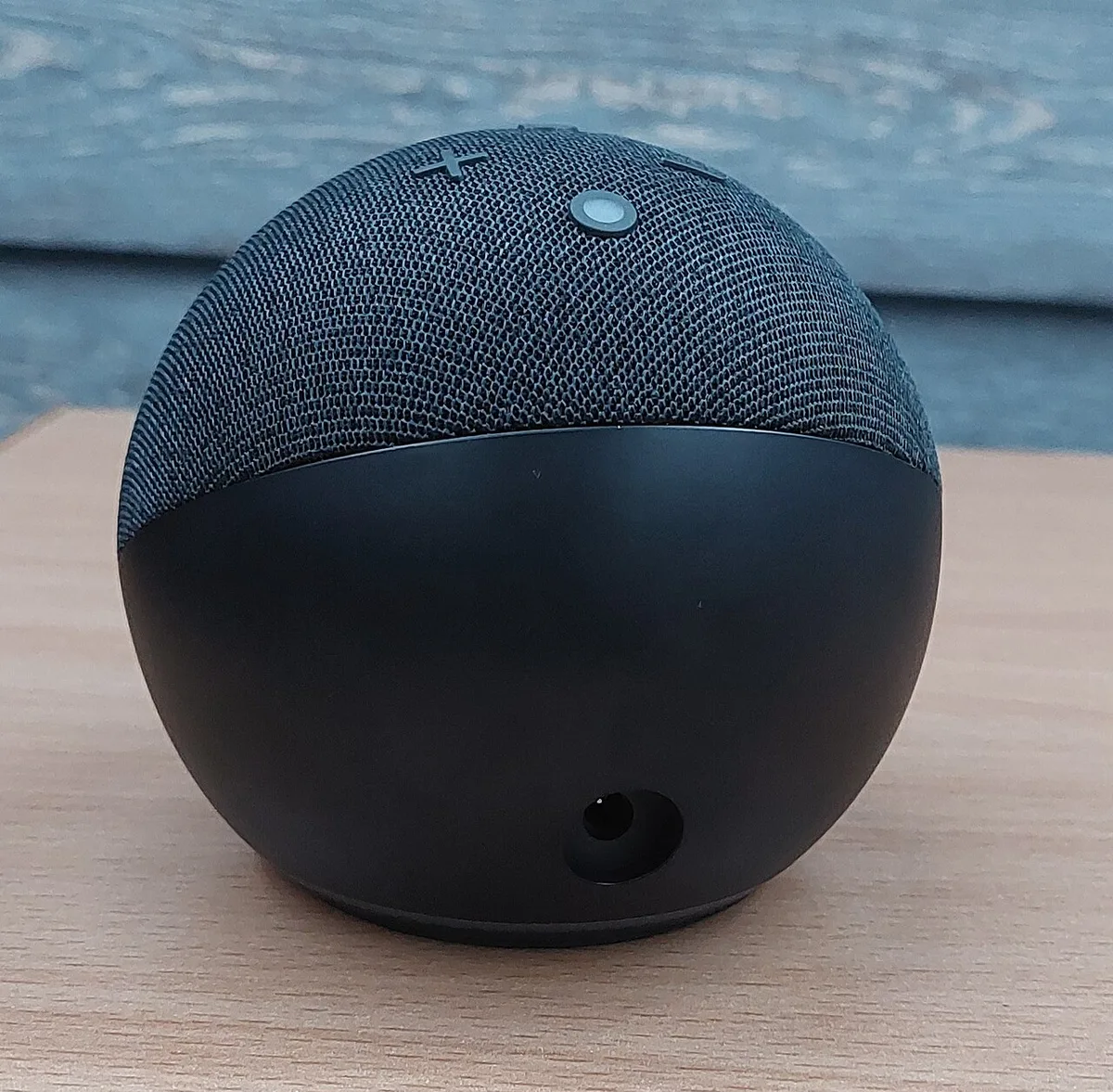
Image source: Wikimedia Commons / Radom1967 (CC BY-SA)
Quick Answer
A reset fixes most Echo Dot problems. A soft reset is just a power cycle. A factory reset erases all your settings.
Use the soft reset for frozen devices. Use the factory reset when selling or gifting.
Soft Reset vs Factory Reset – What's the Difference?
Most people use the word "reset" for both, but your Echo Dot treats them very differently.
A soft reset is simply unplugging the power cord, waiting thirty seconds, and plugging it back in. That's it. Your settings, Wi‑Fi credentials, alarms, and routines all stay intact.
Think of it like restarting your phone when an app freezes. The device reboots, clears its temporary memory, and usually starts working again. This method is completely safe and carries no risk of data loss.
A factory reset is much more serious. This wipes everything. Your Dot goes back to the same state it was in the day you opened the box.
All personalized settings, connected smart home devices, voice history, and network information are permanently erased. Once you complete a factory reset, you'll need to set up the device from scratch using the Alexa app, exactly like setting it up for the first time.
Which one should you pick? That depends entirely on what's wrong. If your Dot is frozen, unresponsive, or acting glitchy after a power outage, start with a soft reset.
It works in the vast majority of cases. If you're giving the device away, selling it, or moving to a completely new home with a different internet provider, you want a factory reset. You don't want your Wi‑Fi password or personal data left on a device someone else will use.
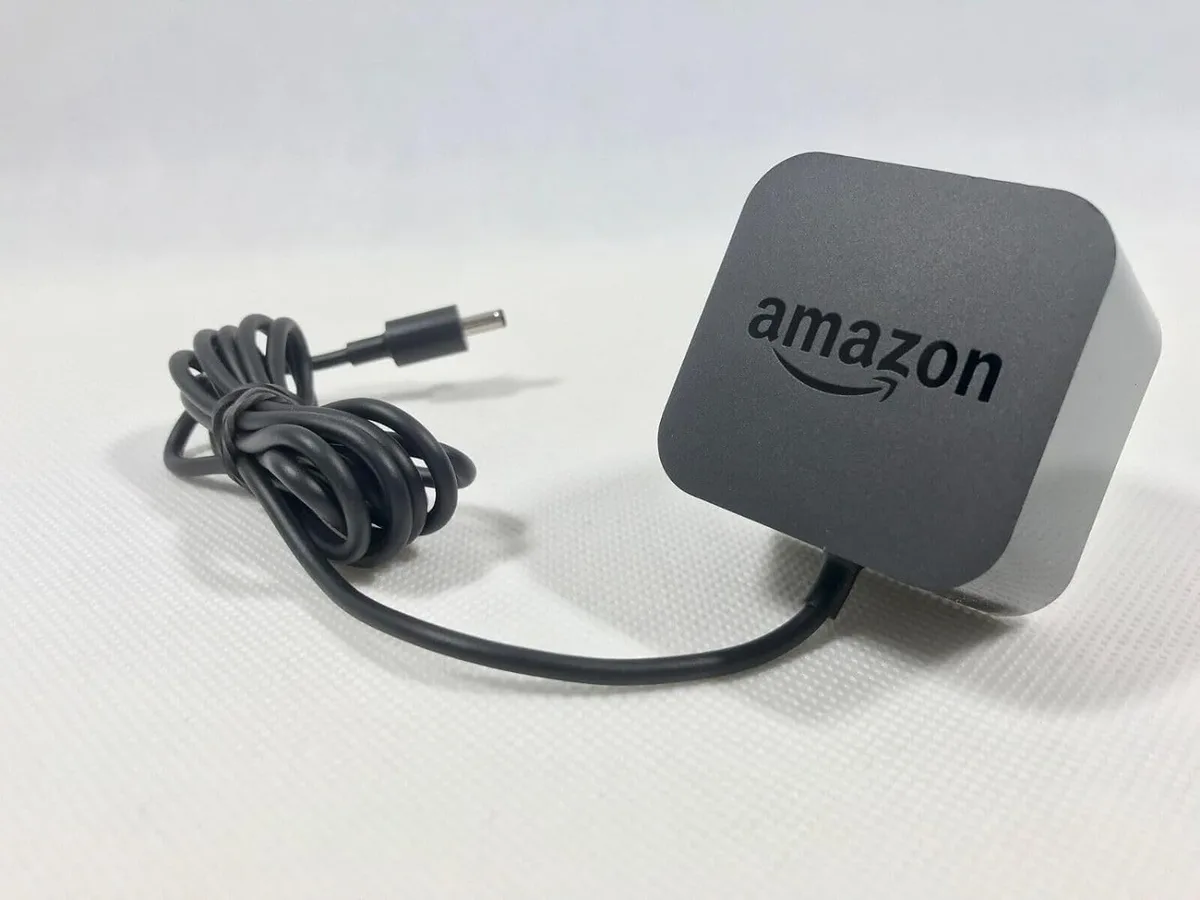
Image source: Bing (Web (fair-use with source credit))
Here's a quick comparison to keep handy:
| Aspect | Soft Reset (Power Cycle) | Factory Reset |
|---|---|---|
| What it does | Restarts the device | Erases all data and settings |
| Saved data affected | None | Everything is cleared |
| Best for | Frozen device, glitchy behavior | Selling, gifting, new Wi‑Fi network |
| Time required | About 1 minute | About 2–3 minutes plus full re‑setup |
| Tools needed | None (your hands) | A paperclip (Gen 1) or your hands (Gen 2+) |
| Risk of data loss | Zero | Complete — back up anything you need first |
Before You Start: Identify Your Echo Dot Generation
The exact reset procedure changes depending on which Echo Dot you own. Using the wrong button sequence wastes time and can cause confusion. Our research shows this is the most common reason people get stuck midway.
Amazon has released five generations of the Echo Dot as of 2026. Each one looks slightly different and has its own combination of buttons and ports. You don't need to memorize every spec, but knowing your generation saves you the headache of trying a method that simply won't work on your device.
The easiest way to identify your Dot is to check the bottom. Every Echo Dot has a sticker with the model number printed right on it. Flip your device over and look for a string like "A4G9" or "A1P9".
Here's what those model numbers mean per Amazon's official support documentation:
| Generation | Model Number(s) | Physical Features | Button Type |
|---|---|---|---|
| 1st Gen | A4G9 | Cylindrical shape, fabric wrap, larger size | Pinhole reset on bottom |
| 2nd Gen | A1P9 | Spherical, fabric exterior, smaller than Gen 1 | Action button (center button on top) |
| 3rd Gen | A2U75 | Same sphere as Gen 2, different internal hardware | Action button (center button on top) |
| 4th Gen | A2MZ67 | New spherical design with LED light ring, taller shape | Action button (physical button, not capacitive) |
| 5th Gen | A2MZ68 | Similar to Gen 4, improved processor and audio | Action button (same as Gen 4) |
If you can't or don't want to find the model number, there's another way. Look at the top of your Echo Dot. If you see a single physical button in the center with an action icon (a circle with a dot in the middle), you have a 2nd, 3rd, 4th, or 5th generation device.
If you see a small, recessed pinhole on the bottom, that's a 1st generation unit. The Gen 1 also has a larger, cylindrical shape that doesn't look like the newer versions.
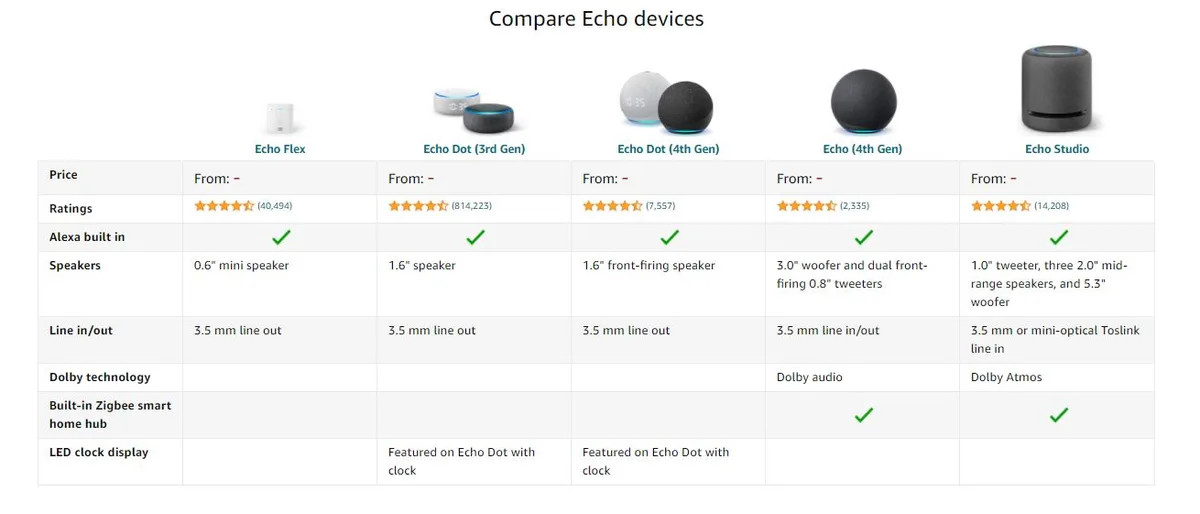
Image source: Bing (Web (fair-use with source credit))
Knowing your generation is your first step to a successful reset. Write down the model number or generation before moving forward. You'll thank yourself when you don't have to flip the device back over mid‑process.
Decision Tree – Which Reset Method Do You Need?
Now that you know the difference between soft and factory resets and you've identified your generation, it's time to choose the exact path that fits your situation. This decision tree walks you through the most common scenarios. Follow the conditions that match your problem, and the recommended action will be clear.
Is your Dot frozen or unresponsive?
If your Echo Dot isn't responding to voice commands, shows a solid blue or orange light that won't change, or feels like it's stuck on a single screen, start here.
Go with: Soft reset (power cycle). Unplug your Dot from the power source, wait thirty seconds, then plug it back in. This clears temporary glitches without deleting anything.
Most frozen devices recover with this simple step. If the problem returns after a few hours or days, consider a factory reset, but only after trying the soft reset at least once.
Are you changing Wi‑Fi networks?
This is a very common scenario. Maybe you moved to a new apartment, switched internet providers, or just changed your home network name or password. Your Echo Dot doesn't know the new network credentials.
It will keep trying to connect to the old one and eventually give up, showing a spinning orange light.
Go with: Factory reset. A soft reset will not update the Wi‑Fi settings. You need a full factory reset so your Dot forgets the old network and enters setup mode, where you can connect it to the new one through the Alexa app.
Are you selling or giving away the device?
This is about privacy and security. Your Echo Dot contains your Wi‑Fi password, voice recordings, and potentially access to your smart home devices. Handing it over without a factory reset is like giving someone the keys to your digital home.
Go with: Factory reset. You must deregister the device from your Amazon account as well. A factory reset removes your data from the device, but deregistering removes the device from your account so no one else can control it.
Both steps together guarantee your information stays private.
Did you forget your Alexa login?
If you can't remember your Amazon account email or password, and your Dot is still connected to that account, you have a unique problem. A factory reset will erase the device, but since it's still linked to your old account, the next owner or even you may not be able to set it up again without the original credentials.
Go with: Factory reset plus account recovery. First, try to recover your Amazon account through Amazon's standard account recovery process. If that fails, a factory reset still works, but you'll need to contact Amazon support to have the device deregistered from the old account.
This is a rare but frustrating situation.
Is your Dot connecting to a new smart home hub or system?
Sometimes you want to reset your Dot not because anything is broken but because you're reorganizing your smart home setup. Maybe you changed your smart light brand or you want to hand over control to someone else.
Go with: Factory reset. A clean slate is the best way to integrate into a new hub or hand off control. Just remember that all your routines and device groups will need to be rebuilt.
Still unsure?
If none of these conditions match your situation, stick with a soft reset first. It's the lowest risk option and solves most problems. If that doesn't work and you're stuck, a factory reset is your fallback.
You can always recover from a factory reset by setting up your Dot again, but you can't undo it once you start.
Step-by-Step: Soft Reset (Power Cycle)
This is the simplest and safest way to reset your Echo Dot. It requires no tools and takes under one minute. We strongly recommend trying this before any other reset method.
What you need: Just your hands. No paperclip, no app, no special equipment.
Step 1: Locate the power adapter
Your Echo Dot plugs into a wall outlet via a small power brick. For Gen 1, 3 models, this is a micro‑USB connector on one end and a standard USB power brick on the other. For Gen 4 and 5 models, it's a barrel connector.
Find where the cable meets the wall.
Step 2: Unplug the power
Grasp the power brick and pull it from the wall outlet. Do not yank on the cord itself. Pulling the cord can damage the connection point.
Step 3: Wait thirty seconds
This wait time is important. During these thirty seconds, the internal capacitors discharge, and the device's temporary memory clears completely. Some guides suggest just ten seconds, but thirty seconds is the safe, verified standard.
If you plug it back in too quickly, the device may not fully reset.
Step 4: Plug the power back in
Reinsert the power brick into the wall outlet. Your Echo Dot will power on automatically. You'll see the blue light ring appear, followed by a short boot sequence.
This usually takes thirty to sixty seconds.
Step 5: Test the device
After the light ring turns solid blue or returns to its normal state, try giving a voice command like "Alexa, what time is it?" or "Alexa, play music." If she responds immediately, the soft reset worked. If you still get no response, or if the orange light reappears, you may need a factory reset.
Pro tip: If your Echo Dot is connected to a smart plug or power strip, you can also turn that plug off and on again to achieve the same result. Just make sure the plug stays off for at least thirty seconds. This method is especially handy if your Dot is mounted high on a wall or tucked behind furniture.
What to expect after a soft reset:
- All your alarms, timers, and routines are preserved.
- Your Wi‑Fi connection remains intact.
- Your smart home devices remain linked.
- The device should respond to voice commands normally.
- If the problem was caused by a firmware glitch or temporary memory error, it will likely be resolved.
That's the soft reset in its entirety. It's your frontline tool for troubleshooting. Now, if you need to proceed to a factory reset, the next section covers that process in detail.
But try the soft reset first. You might save yourself a lot of time.
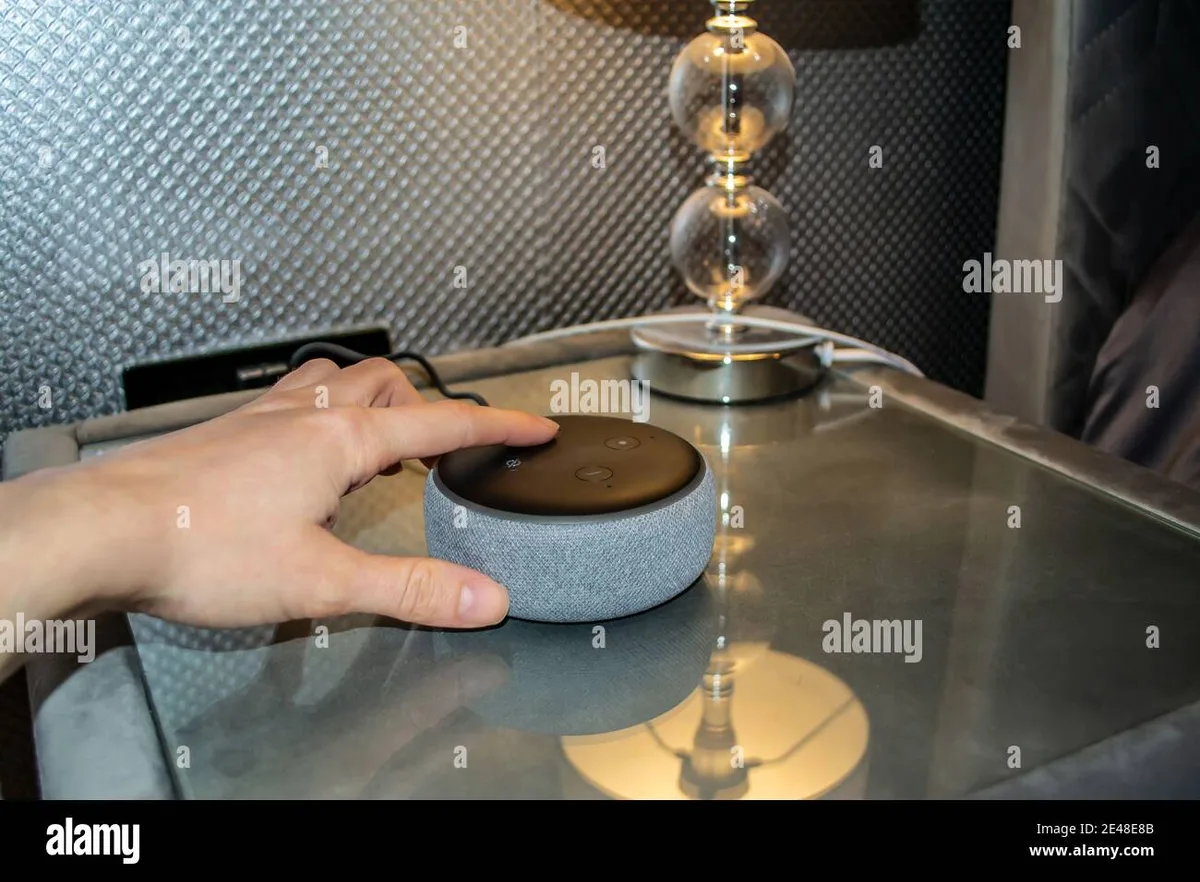
Image source: Bing (Web (fair-use with source credit))