
If you need to know how to reset nintendo switch, you have come to the right place. Your console might be frozen on a black screen. It could be stuck in a boot loop.
Or you may just be prepping it for a new owner.
As of 2026, all three Nintendo Switch models (the original, the OLED, and the Lite) share the same core reset process. But the method you choose depends entirely on what is wrong. One wrong step could erase your save data permanently.
Let us walk through the right approach based on your specific situation.
Quick Answer
Hold the power button for 15 seconds to force a shutdown. This fixes most freezes. For a full wipe before selling, use System Settings.
Choose Initialize Console and follow the prompts. Always back up your saves first.
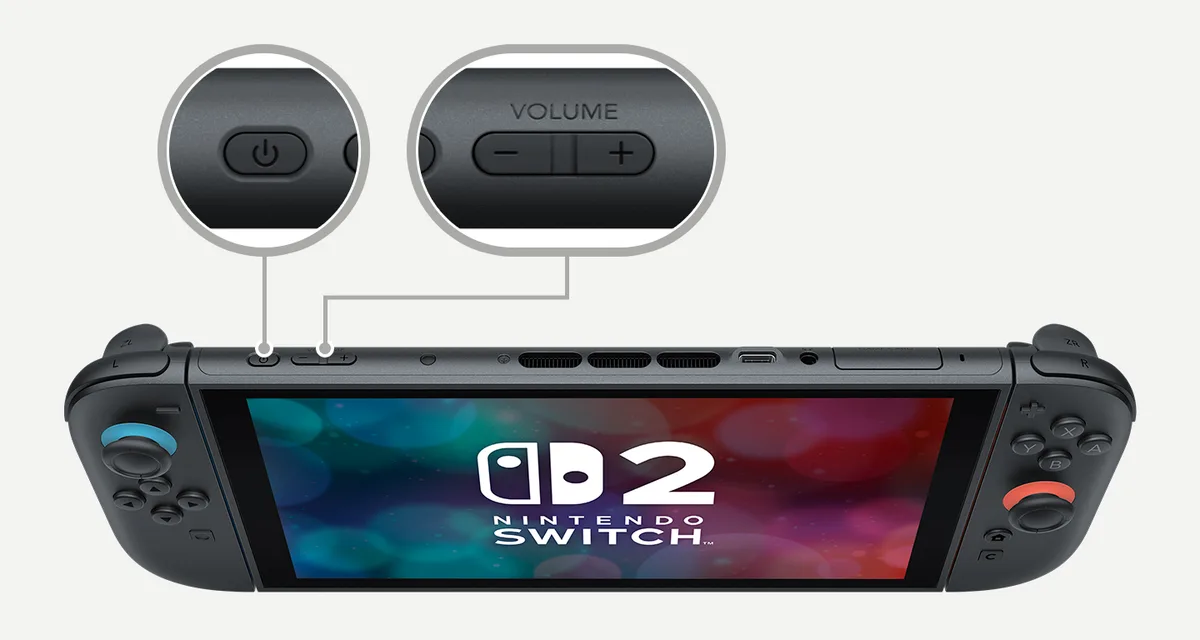
Image source: Bing (Web (fair-use with source credit))
The One Question That Decides Everything: What Is Wrong With Your Switch?
There is no single reset that works for every problem. That is why you need a decision tree approach. If you pick the wrong method, you could lose progress in games like Zelda or Animal Crossing.
Here are the three most common scenarios people face:
- Frozen screen or unresponsive system: The game is stuck, but the console turns on.
- Boot loop or logo freeze: The Switch keeps restarting or stays on the Nintendo logo.
- Selling or giving away the console: You need to erase all personal data permanently.
| Scenario | Best Reset Method | Risk Level |
|---|---|---|
| Frozen screen | Hard reset (hold power 15 seconds) | Low |
| Boot loop or logo freeze | Maintenance Mode reset | Medium |
| Selling or trading | Full factory reset (Initialize Console) | High (data loss) |
Nintendo's official support page breaks down each option in detail. Our editorial policy ensures every step here matches manufacturer guidance.
Condition Variable 1: Is the Switch Frozen or Just Running Slow?
A frozen screen is the most common issue. Your game stops responding. The buttons do nothing.
You might see a single static image.
This calls for a soft reset or a hard reset.
Soft Reset (Restart)
Go to the HOME menu. Press and hold the power button for a few seconds. Select Power Options, then Restart.
This is the safest first step.
Hard Reset (Force Shutdown)
If the system is completely unresponsive, hold the power button for 15 seconds. The screen will go black. Release it, then press the power button once normally to turn the console back on.
This is the same method Nintendo recommends for any freeze. It does not delete your save data. It just cuts power to the system and reboots it.
| Reset Type | Steps | Data Loss |
|---|---|---|
| Soft reset (Restart) | Press power, Power Options, Restart | None |
| Hard reset (15-second hold) | Hold power 15 seconds until black, then press power once to reboot | None |
If the console still freezes after a hard reset, the problem is deeper. Move to the next condition.
Condition Variable 2: Is It Stuck on the Logo Screen or a Boot Loop?
This is scarier than a simple freeze. Your Switch powers on but never leaves the Nintendo logo. It may cycle through the logo, go black, and come back again.
This usually means corrupted system data or a failed update.
You need Maintenance Mode.
How to Enter Maintenance Mode
Turn the console off completely. Hold down both Volume Up and Volume Down buttons. While holding them, also press the Power button.
Keep holding the volume buttons until the Maintenance Mode menu appears.
From this menu, you can try the safest option first:
- Initialize Console Without Deleting Save Data: This clears corrupted system files but leaves your game saves intact. It is the best choice for a boot loop.
If that does not work, you may need a full Initialize (which erases everything). But try the safe option first.
Nintendo recommends trying the safe initialize before any full wipe. Our disclaimer covers the risks if you lose data.
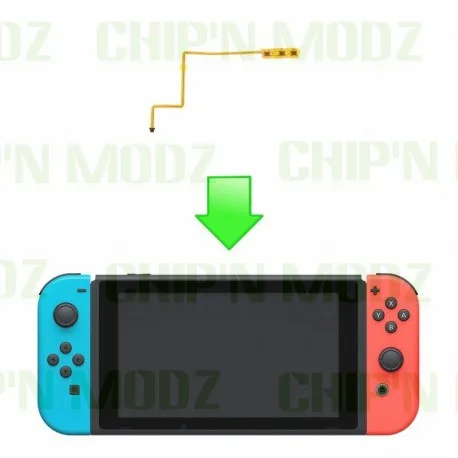
Image source: Bing (Web (fair-use with source credit))
Condition Variable 3: Are You Selling or Giving Away the Console?
If the console works fine and you just want to clear your data, you need a full factory reset. This is also called Initialize Console.
But do not rush into it.
Steps Before You Reset
- Unlink your Nintendo Account. Go to System Settings, User, select your profile, then Unlink Nintendo Account. This ensures the new owner can set up their own account.
- Back up your save data. You need a Nintendo Switch Online subscription for cloud saves. Go to System Settings, Data Management, then Save Data Cloud. Make sure all your games are uploaded.
- Remove your microSD card. The factory reset does not format the card. Take it out so the new owner can use their own.
- Write down your Parental Controls PIN. If you have one, you will need it to complete the reset.
The Full Factory Reset
Go to System Settings, System, Formatting Options, then Initialize Console. Follow the on-screen prompts. The process takes about one to two minutes.
Once it is done, the console will restart as if it were brand new.
This erases everything: game saves, screenshots, downloaded games, and account info. There is no going back after this.
If you are selling, this is the only way to protect your personal data. It also prevents the new owner from accessing your Nintendo Account.
Condition Variable 4: Did You Forget the Parental Controls PIN?
This happens more often than you might think. You set a PIN months ago, then someone handed you the console and now you are stuck.
Without the PIN, you cannot complete a factory reset through the normal menu. But there is a workaround.
Getting the Master Key from Nintendo Support
Nintendo provides a master key system for this exact scenario. Go to the Nintendo Parental Controls support page. You will need the console serial number and the inquiry number shown on the Parental Controls lock screen.
Enter those details, and Nintendo generates a master key that bypasses the PIN.
Enter that master key on the lock screen. The controls are removed, and you can proceed with the reset.
Reset Without the PIN (Maintenance Mode Method)
If you cannot access the support page, use Maintenance Mode. Boot into it using the volume button method described earlier. From the Maintenance Mode menu, select Initialize Console Without Deleting Save Data.
This bypasses the Parental Controls PIN entirely.
Note that this option keeps your save data. If you need a full wipe, you must still complete the factory reset afterward through System Settings.
Step-by-Step: How to Factory Reset a Nintendo Switch (Full Wipe)
Here is the exact sequence for a complete factory reset. Follow each step in order.
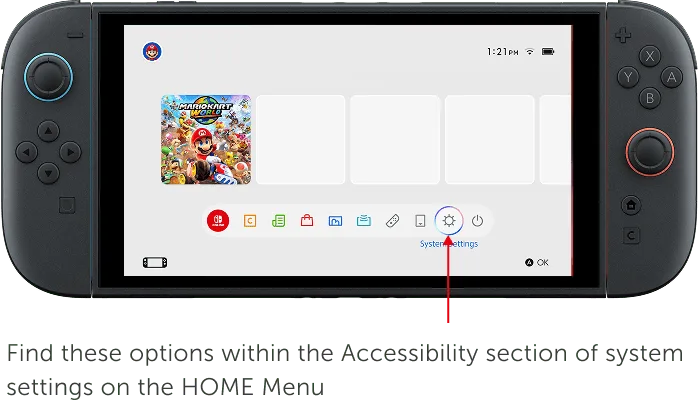
Image source: Bing (Web (fair-use with source credit))
Step 1: Backup Everything
Before you touch any menu, back up your save data to the cloud. Open System Settings, go to Data Management, then Save Data Cloud. Select all your user profiles and upload their saves.
This step requires a Nintendo Switch Online subscription.
Take your microSD card out of the console. Keep it safe.
Step 2: Unlink Your Nintendo Account
Go to System Settings, then Users. Select your profile icon. Scroll down and choose Unlink Nintendo Account.
Confirm the prompt.
This step is critical. If you skip it, the new owner cannot link their own account without your login credentials.
Step 3: Navigate to Formatting Options
Go to System Settings, then System, then Formatting Options. You will see several choices here.
- Initialize Console: This full wipe erases all personal data including saves, screenshots, and downloaded software.
- Initialize Console Without Deleting Save Data: Use this for boot loops or minor corruption.
Choose the full Initialize option only if you are selling or giving away the console.
Step 4: Confirm the Reset
The system will ask you to confirm twice. Read each warning carefully. Once you confirm the second time, the process begins.
It takes about one to two minutes. The console restarts automatically when it is done.
Step 5: Set Up as New
The Switch will boot into the initial setup screen. It looks exactly like the first time you turned it on. Select your language, connect to Wi-Fi, and either link a Nintendo Account or set up a new one.
The Biggest Mistakes People Make When Resetting
Mistakes happen. Here are the most common ones and how to avoid them.
Forgetting to Unlink the Nintendo Account
This is the number one mistake. If you do not unlink your account, the next owner sees your profile at startup. They cannot remove it without your password.
You then get emails about someone trying to log into your account.
Always unlink before you reset.
Not Backing Up Save Data
Some games do not support cloud saves. Animal Crossing: New Horizons and Splatoon 3 are two notable examples. For those games, the save data lives only on the console.
Once you factory reset, that data is gone forever.
Check each game in the Save Data Cloud menu. If it says Not Supported, your only option is a full system transfer to another console.
Keeping the microSD Card Inside
The factory reset does not touch the microSD card. That means screenshots, downloaded software, and any data on the card remain readable. If you are selling the console, the new owner can see your screenshots.
Remove the card. Format it on a computer if you want to be thorough.
Assuming a Soft Reset Fixes Everything
A soft reset only restarts the system. It does not clear corrupted data. If you have a boot loop or persistent freeze, you need Maintenance Mode or a factory reset.
Do not assume a simple restart will solve deeper problems.
Before You Reset: What to Back Up and How (Cloud Saves, Screenshots, Account)
You already know the big items. Here is a complete checklist so nothing slips through the cracks.
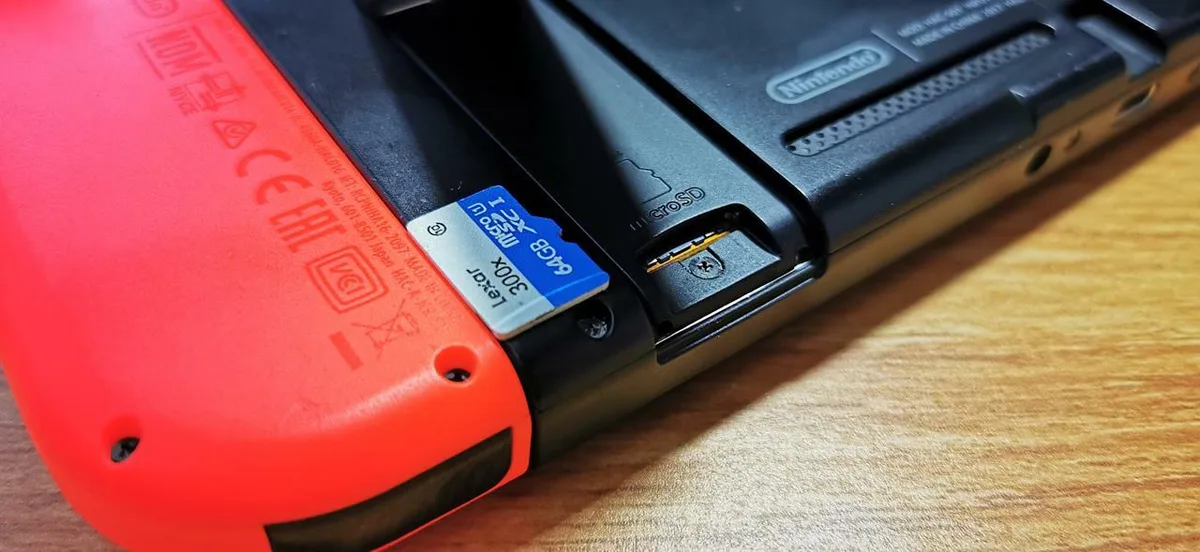
Image source: Bing (Web (fair-use with source credit))
Cloud Saves
Open System Settings, go to Data Management, then Save Data Cloud. You will see a list of every user profile and the games they have played. Select each profile and upload all saves.
Games that do not support cloud saves show Not Supported. For those, you must transfer saves to another console using the system transfer feature.
Screenshots and Videos
Screenshots and video clips are stored on the microSD card or internal memory. If you use a microSD card, remove it and copy the files to a computer. If they are on internal memory, you must transfer them one by one to the microSD card first.
Go to Album, select a screenshot or video, press A, then choose Copy to microSD card.
Screenshots and Videos
| Data Type | Storage Location | Backup Method |
|---|---|---|
| Save data | Internal memory | Cloud (requires Nintendo Online) |
| Screenshots | microSD or internal | Copy to microSD, then computer |
| Downloaded games | microSD or internal | Redownload after reset |
| Nintendo Account | Online | Unlink before reset |
Downloaded Games
You do not need to back up downloaded games. They are tied to your Nintendo Account. After the reset, log into the eShop and redownload them for free.
Make sure you unlink your account before the reset. Otherwise, the games stay associated with the old console and you cannot download them on a new one.
After the Reset: Setting Up Your Switch Fresh
Your Switch restarts and greets you with the initial setup screen. Here is what to do next.
Step 1: Select Language and Region
This is straightforward. Pick your language and region. These settings affect the eShop you connect to.
Step 2: Connect to Wi-Fi
Select your network and enter the password. The console needs internet to verify your Nintendo Account.
Step 3: Link or Create a Nintendo Account
You have two options. Link an existing account or create a new one. If you are selling the console, leave this step for the new owner.
If you are keeping the Switch, link your account. All previously purchased games become available for download.
Step 4: Redownload Your Games
Open the eShop. Select your profile icon in the top right corner. Scroll down to Redownload Software.
You will see every game you ever purchased. Select each one to download.
This can take hours depending on your internet speed. Let it run overnight.
Step 5: Set Up Parental Controls (Optional)
If you want restrictions, set up Parental Controls now. You can do this through the system settings or using the Nintendo Switch Parental Controls app on your phone.
Frequently Asked Questions
How do I reset my Nintendo Switch without losing game saves?
Use the Initialize Console Without Deleting Save Data option in Maintenance Mode. This clears corrupted system files but leaves your save data intact. You can also back up saves to the cloud before a full reset.
What does a hard reset do on a Nintendo Switch?
A hard reset forces the system to shut down by holding the power button for 15 seconds. It does not delete any data. It simply cuts power and reboots the console.
This fixes most freezes and unresponsive screens.
Can I reset my Nintendo Switch if it is stuck on the logo screen?
Yes. Enter Maintenance Mode by holding both volume buttons and the power button. From there, choose Initialize Console Without Deleting Save Data.
If that fails, you may need a full factory reset.
Do I need Nintendo Switch Online to back up saves?
Yes. Cloud save backup requires an active Nintendo Switch Online subscription. Without it, the only way to back up saves is through a system transfer to another console.
Some games like Animal Crossing do not support cloud saves at all.
How long does a factory reset take?
The full factory reset process takes about one to two minutes. The console restarts automatically when it is done. Setting up the console again takes another five to ten minutes depending on Wi-Fi setup.
Will a factory reset remove my Nintendo Account?
A factory reset removes the account from the console. But the account itself still exists online. You must unlink the account before resetting to prevent issues for the next owner.
After the reset, you can log into your account on a different console.
Final Decision Guide: Pick Your Reset Method by Symptom
| Symptom | Reset Method | Time Required |
|---|---|---|
| Game froze once | Soft restart (Restart option) | 30 seconds |
| System unresponsive | Hard reset (15-second hold) | 15 seconds plus reboot |
| Stuck on Nintendo logo | Maintenance Mode, safe initialize | 2 minutes |
| Selling or giving away | Full factory reset (Initialize Console) | 2 minutes plus setup |
| Forgot Parental Controls PIN | Maintenance Mode or master key | 5 minutes |
Choose the method that matches your symptom. If you are unsure, start with the lowest risk option. A hard reset never deletes data.
A factory reset always does.
Our site policies cover your rights and responsibilities when resetting a used console. If you have questions about account recovery, the contact page is a good place to start.
Keep this guide handy. The next time your Switch freezes or you hand it off to someone else, you will know exactly which reset to use and which steps to follow.