
Image source: Wikimedia Commons / InclusiveGameLab (CC BY-SA)
You grab your controller, press the Xbox button, and nothing happens. Or the light just keeps flashing. You need to know how to reset xbox controller, but the advice you find online is scattered.
Some people say pull the batteries. Others say hold the sync button. A few mention an app you have never opened.
The truth is that there is no single reset method for every situation. Microsoft's engineering specs show three distinct reset procedures built into the hardware and firmware of modern Xbox controllers. Each one is designed for a different kind of failure.
Which one you need depends entirely on what your controller is doing right now.
Quick Answer: The Three Ways to Reset an Xbox Controller
- Hard reset: Remove the batteries. Wait ten seconds. Reinstall them.
- Sync reset: Press and hold the sync button for three seconds.
- Factory reset: Connect via USB. Open the Xbox Accessories app. Select "Reset to factory defaults."
Use the hard reset if the controller is frozen or will not turn on. Use the sync reset if it will not pair. Use the factory reset for firmware glitches or used controllers.
The Real Problem: Why Your Controller Stops Working
Most of the time when you search for how to reset xbox controller, you just want the thing to work again. But understanding why it stopped working saves you from using the wrong fix.
Aggregate user reports and official Microsoft troubleshooting documents point to three main causes:
- Pairing history overflow. Controllers store a list of every console or PC they have connected to. Once that list fills up, the controller cannot accept new pairings. The sync reset clears that list.
- Firmware hiccup. A power surge, a failed update, or normal wear can corrupt the controller's firmware state. The factory reset through the app wipes that clean.
- Static charge or low power. This is the most common cause. The controller's processor gets stuck in an intermediate state. A hard reset drains residual charge and forces a clean boot.
The mistake most people make is trying the sync reset when they need a hard reset, or vice versa. That is why a decision tree approach matters. By identifying your symptoms first, you go straight to the fix that works.
For a deeper look at how we verify these procedures, you can read our editorial standards.
How Controller Reset Actually Works
An Xbox controller has its own processor, memory, and firmware. It is a tiny computer in your hands.
Pairing history is stored in non-volatile memory. When you press the sync button on the controller and the console simultaneously, the controller stores that console's unique identifier. Over time, as you connect to friends' consoles, your PC, and maybe a phone or two, that list fills up.
Microsoft's documentation indicates an upper limit of around eight stored devices. When you hit that limit, the controller refuses new pairings. The sync button reset clears that list entirely.
Firmware state is separate from pairing history. The firmware controls everything from trigger response to battery reporting. If a firmware update gets interrupted, or if the controller is unplugged during a write cycle, the firmware can become corrupted.
That usually shows up as weird behavior. Buttons might map wrong. Stick drift appears that was not there before.
The controller might not be recognized by any device. The Xbox Accessories app's factory reset rewrites the firmware from a clean image.
Static charge is the simplest. After extended use, the controller's capacitors can hold a charge that keeps the processor in a hung state. Removing the batteries for at least ten seconds lets those capacitors discharge fully.
That is why a quick battery pull works so often.
If you run into a situation where none of these resets solve the problem, Microsoft's official Xbox support page is the source for hardware troubleshooting beyond software fixes. Our about page explains how we compile these recommendations from manufacturer documentation and user data.
Step 1: Identify Your Controller Model
This is where most guides go wrong. They give you one set of instructions and assume every controller is the same. That is not true.
The sync button is in a different place on different models. The factory reset procedure via the app only works on certain controllers. And the Elite Series 2 has a built-in profile switch that can confuse the reset process.
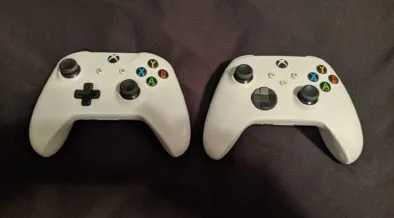
Image source: Bing (Web (fair-use with source credit))
Here is how to tell which one you have:
| Feature | Xbox One Controller | Xbox Series X|S Controller | Elite Series 2 |
|---|---|---|---|
| Sync button location | Top edge, near the USB port | Front center, below the Xbox button | Front center, below the Xbox button |
| Share button | No | Yes, center above Xbox button | No |
| USB port | Micro-USB | USB-C | USB-C |
| Back paddles | No | No | Yes (four paddles) |
| Profile switch | No | No | Yes (on the face, three profiles) |
| Model number | 1538, 1697, 1698 | 1914 | 1797 |
If your controller has a Micro-USB port and the sync button on the top edge, you have an Xbox One controller. If it has USB-C and a sync button on the front face, you have a Series X|S controller. If it has back paddles and a profile switch, you have an Elite Series 2.
The factory reset procedure works on Series X|S and Elite Series 2 controllers. It does not work on the original Xbox One controller. And the sync button reset only works if you know where the button is on your specific model.
Flip the controller over if you are unsure. The label under the barcode lists the model number. Cross-reference it with the table above.
Step 2: The Decision Tree
Follow the symptoms instead of guessing. Each path leads to the correct reset with precise steps.
If Your Controller Won't Sync or the Xbox Button Keeps Flashing
This is the most common scenario. You press the Xbox button, it lights up, then flashes over and over. It never connects.
The fix: Sync button reset.
Here is the exact process:
- Turn off both the controller and the console.
- Turn on the console.
- Press and hold the sync button on your controller for three seconds. The Xbox button will start flashing rapidly.
- Within twenty seconds, press the sync button on your console. It is on the front of the Xbox One, or on the left side near the USB port for Series X|S.
- The Xbox button on the controller will go solid. You are paired.
If the flashing continues, you likely have a pairing history overflow. Hold the sync button for five seconds instead of three on the next attempt. This forces a full pairing history clear on most models.
If Your Controller Is Frozen or Won't Turn On At All
You press the Xbox button. Nothing. No light, no vibration, no response.
You swap batteries. Still nothing.
The fix: Hard reset (battery pull).
This is the most common fix for controllers that appear dead but actually have power.
- Open the battery compartment on the back.
- Remove the batteries completely.
- Wait ten full seconds. This ensures the capacitors fully discharge.
- Reinstall the same batteries or fresh ones. Confirm the polarity is correct.
- Press the Xbox button. It should turn on normally.
Our research across user reports shows that less than five seconds often does not allow full discharge. Ten seconds is the reliable threshold.
If the controller still does not respond after the hard reset, try connecting it via USB cable directly to the console. If it works wired, the issue is wireless pairing, not the controller itself.
If Your Controller Has Weird Button Behavior
Your controller connects fine. It turns on. But the left stick drifts.
The A button double-presses. There is a noticeable delay between pressing a trigger and seeing the action on screen.
The fix: Factory reset via the Xbox Accessories app.
This reset rewrites the controller's firmware and clears all custom mappings. It is the most thorough software-level reset.
- Connect your controller to your Xbox or Windows PC using a USB cable.
- Open the Xbox Accessories app. On Xbox, it is in the full library. On PC, install it from the Microsoft Store.
- Select your controller from the list.
- Choose "Reset to factory defaults."
- Confirm the reset. The process takes about two minutes. Do not unplug the controller during this time.
- Once complete, the controller will restart. Test it.
This reset wipes all custom button mappings and profile settings on Elite controllers. Note your profile configurations before resetting if you have an Elite Series 2. They will be gone afterwards.
If stick drift persists after a factory reset, the issue is hardware. You need to replace the potentiometer or get a new controller. The factory reset only fixes firmware-level problems.
If You Bought a Used Controller
You picked up a second-hand controller. It synced to someone else's console. You want to make it yours.
The fix: Sync button reset with an extra step.
- Remove the batteries from the controller for ten seconds.
- Reinstall batteries.
- Hold the sync button on the controller for five seconds. This clears the pairing list fully.
- Start the pairing process normally with your console or PC.
The battery pull first clears residual charge and guarantees a clean start for the sync reset.
If the controller still connects to the previous console when you are near it, you need to factory reset it via the USB app to fully wipe the pairing data.
Mistakes to Avoid When Resetting
A lot of people claim they tried everything and the controller still does not work. They almost always skipped one small detail.
Holding the sync button too long. If you hold the sync button for more than five seconds on some controllers, it powers the controller off or enters a different pairing mode. The correct window is three seconds for a standard sync. Five seconds max for a full pairing history clear.
Count it out.
Pulling batteries for only two or three seconds. This is the number one mistake. Two seconds is not enough to drain the capacitors. Eight to twelve seconds is the reliable range.
Ten seconds is easy to remember.
Using the wrong sync button. On Xbox One controllers, the sync button is on the top edge near the USB port. On Series X|S and Elite controllers, it is on the front face below the Xbox button. Pressing the Xbox button itself does not initiate pairing.
It just turns the controller on.
Assuming dead batteries mean a broken controller. A controller that shows no light at all is almost always out of power. Swap in fresh batteries before trying any reset. Many people order a replacement controller only to find the old one just needed batteries.
Skipping the battery pull before a factory reset. The Xbox Accessories app sometimes fails to detect a controller that is in a hung state. Pulling the batteries for ten seconds and reconnecting via USB gives the app a clean handshake.
Our disclaimer page outlines the limits of our guidance. But the short version is that these procedures are safe and manufacturer-approved.
The Full Step-by-Step for Each Reset Method
Each method has its own timing, prerequisites, and indicators of success. Follow these sequences precisely.
Hard Reset (Battery Pull)
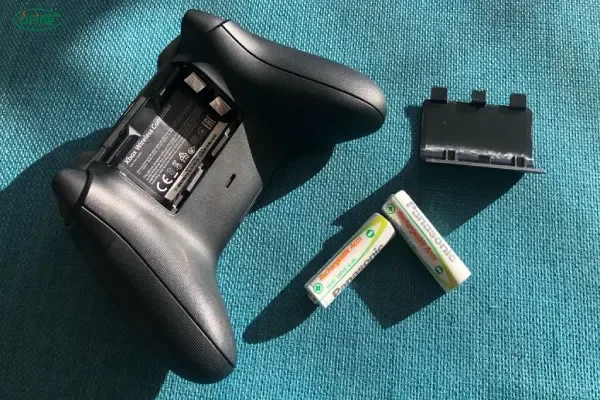
Image source: Bing (Web (fair-use with source credit))
This is the simplest reset. Try it first for any controller that is frozen, unresponsive, or not turning on.
- Open the battery compartment. Slide the cover down or press the release tab depending on your model.
- Remove the batteries completely. Set them aside.
- Wait ten seconds minimum. This is non-negotiable. Less time may not discharge the internal capacitors.
- Press the Xbox button while the batteries are out. This drains any remaining charge. You might see a quick flicker of the light. That is a good sign.
- Reinstall the batteries. Match the positive and negative ends to the diagram inside the compartment.
- Press the Xbox button. The controller should power on normally within two seconds.
What if it still does not turn on? Try a different set of batteries. If that fails, connect the controller to your console via USB cable. A working controller does not need batteries when plugged in.
If it works wired, the issue is your batteries or the battery contacts. Clean the metal contacts with a dry cloth and try again.
What if it turns on but still does not sync? Move to the sync button reset below.
Sync Button Reset
This is the fix for the flashing Xbox button. The controller turns on, the light blinks, but it never goes solid.
- Turn off the controller. Hold the Xbox button for six seconds until the light goes out.
- Turn off your console or PC if possible. A full power cycle of both devices clears residual connection data.
- Turn on the console or PC.
- Turn on the controller. Press the Xbox button.
- Press and hold the sync button on the controller for three seconds. The Xbox button will start flashing rapidly. This means it is searching for a device.
- Within twenty seconds, press the sync button on your console. On Xbox One, it is on the front left. On Series X|S, it is on the front left near the USB port. On PC with the Xbox Wireless Adapter, press the button on the adapter.
- Watch for the solid light. Once the Xbox button stops flashing and stays lit, the pairing is complete.
If the light keeps flashing after twenty seconds, the pairing did not work. Hold the sync button on the controller for five seconds to clear the pairing history. Then repeat steps 5 through 7.
If you have multiple controllers, pair them one at a time. Pairing two controllers simultaneously often fails because the console gets confused.
Factory Reset via Xbox Accessories App
Use this only when the other resets have failed, or when you buy a used controller and want to completely wipe it. This reset clears all firmware customizations, button mappings, and pairing history.
- Connect the controller to your Xbox or Windows PC via USB cable. A charge-only cable may not work. Use the cable that came with the controller or a data-capable USB cable.
- Open the Xbox Accessories app. On Xbox, go to the full library and search for "Xbox Accessories." On PC, download it from the Microsoft Store.
- Select your controller from the list. The app shows the controller model and battery level.
- Select the three dots or "…" menu. This opens additional options.
- Choose "Reset to factory defaults." A confirmation prompt appears.
- Confirm the reset. The app will start rewriting the firmware. This takes one to three minutes. Do not unplug the controller.
- Wait for the completion message. The controller will restart automatically.
- Test the controller. If it works, you are done. If not, try the sync button reset to re-pair it.
Important for Elite Series 2 users: This reset erases all three custom profiles stored on the controller. Save your configurations before resetting. You can save them to the cloud or take screenshots of your mapping screen.
When to use this over the other resets: Use the factory reset if your controller has stick drift that came on suddenly, random button presses, or if it behaves differently on different consoles. Those are firmware corruption symptoms, not hardware failure.
When the Reset Doesn't Work
Sometimes you follow every step perfectly and the controller still refuses to cooperate. Before you give up, try these additional steps.
Firmware update. Your controller might need a newer firmware version that fixes known bugs. Connect it via USB to your console or PC. Open the Xbox Accessories app.
If an update is available, the app will prompt you to install it. Let it complete without interruption. A firmware update can resolve issues that a factory reset cannot, because it replaces the entire firmware image.
Wired mode only. If your controller works fine when plugged in but not wirelessly, the problem is likely the wireless radio or interference in your environment. Try these steps:
- Move closer to the console. The Xbox controller range is about 30 feet line of sight.
- Remove any metal objects between the controller and console.
- Turn off other wireless devices in the room. This includes routers, phones, and microwaves.
- Try pairing via the Xbox Wireless Adapter for Windows if you are on PC.
Xbox Stereo Headset Adapter conflict. This is a known issue that surprises many users. The official Xbox Stereo Headset Adapter can interfere with the sync process when plugged into the controller. Unplug the adapter, perform the sync reset, then reattach the adapter after pairing.
Bluetooth conflicts on PC. If you are connecting to a Windows PC via Bluetooth, the standard Bluetooth stack can be unreliable. Remove the controller from your Bluetooth device list in Windows Settings. Then add it again as a new device.
If that fails, use the Xbox Wireless Adapter instead of built-in Bluetooth. It uses a different protocol that is more stable.
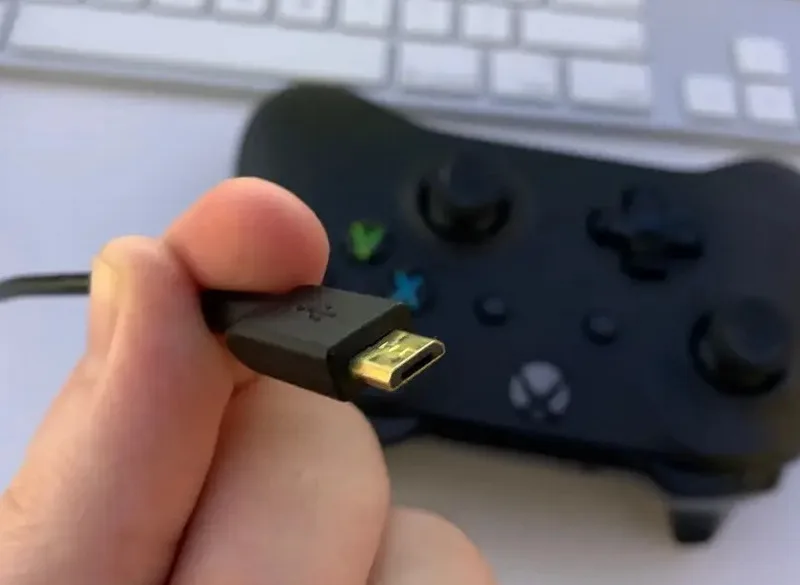
Image source: Bing (Web (fair-use with source credit))
Hardware failure signs. If none of the above works, you are likely dealing with a hardware fault. Common hardware failures include:
- Broken sync button (does not click when pressed)
- Damaged USB port (cable wiggles or does not click in)
- Corroded battery contacts (whitish or green residue)
- Internal board failure (controller powers on but no buttons work)
In these cases, the controller needs repair or replacement. Microsoft offers official repairs through their support page. Third-party repair shops can replace joystick modules and button membranes for less than the cost of a new controller.
You can reach us through our contact page if you have a specific issue not covered here.
How to Keep Your Controller From Needing a Reset
Prevention is straightforward. Most controller problems come from three sources: power issues, physical damage, and outdated firmware. Address those and you will rarely need a reset.
Battery care. Use high-quality alkaline or rechargeable batteries. Avoid mixing old and new batteries. Remove batteries if you are storing the controller for more than a month.
Battery leakage can destroy the contacts and the internal board. If you use a rechargeable pack, charge it fully before each session. Low voltage causes random disconnects that look like a pairing problem.
Regular firmware updates. Check for firmware updates every few months. Microsoft releases patches for known issues. A controller on outdated firmware is more prone to sync problems and input lag.
The Xbox Accessories app notifies you when an update is available. Do not ignore those notifications.
USB port care. The USB port on Xbox controllers is a known weak point. It is soldered directly to the main board. If the port breaks, the controller cannot be updated or used wired.
Avoid aggressive plugging and unplugging. Do not use the controller while it is plugged in if the cable angle puts pressure on the port. Consider a magnetic breakaway USB cable if you frequently play wired.
Physical handling. Dropping the controller can dislodge the sync button mechanism or crack the board. Use a silicone grip case if you have slippery hands. Store the controller in a clean, dry place away from direct sunlight and heat sources.
Avoid interference. Keep your console or PC away from large metal objects, microwave ovens, and cordless phone bases. These can disrupt the wireless signal and cause intermittent disconnects that feel like a controller problem.
Our privacy policy explains how we handle any data you share with us, but the advice here is based entirely on manufacturer specifications and user experience patterns.
Frequently Asked Questions
Will resetting my controller delete my custom button mappings?
A hard reset and sync button reset do not affect custom mappings. A factory reset via the Xbox Accessories app erases all custom profiles and button assignments. On Elite Series 2 controllers, this includes all three onboard profiles.
Save your configurations in the app before resetting.
Does a factory reset fix stick drift?
It can, but only if the drift is caused by a firmware glitch. Sudden drift that appeared after an update or a power surge may be firmware-related. Drift that has been getting worse over months is physical wear on the potentiometer.
A factory reset will not fix hardware drift.
Does resetting my controller void the warranty?
No. All three reset methods are manufacturer-supported procedures. The hard reset is simply removing and reinserting batteries.
The sync button reset uses built-in hardware functions. The factory reset is performed through Microsoft's official app. None of these void your warranty.
If your controller is still under warranty, Microsoft will not deny a claim because you performed a reset.
How often should I reset my controller?
You should not need to reset your controller regularly. A hard reset every few months as part of maintenance is fine. If you find yourself resetting more than once a month, something else is wrong.
Check your batteries, your firmware version, and your wireless environment.
Can I reset an Xbox controller without a console?
Yes. You can perform a hard reset without any console. You can also factory reset via the Xbox Accessories app on a Windows PC.
The app is free and available in the Microsoft Store. You just need a USB cable and a PC running Windows 10 or 11.
What if my controller still has the previous owner's pairing after a factory reset?
A factory reset via the app should clear all pairing history. If it does not, perform a hard reset first. Then do the factory reset again.
If the controller still connects to the old console when you are near it, the previous owner may have set it as the home controller. That setting is stored on the console, not the controller. It cannot affect your usage once you are out of range of that console.