
If you've ever Bluetooth-paired headphones, you know the feeling: you pull your Beats out of the case, press play, and nothing. No connection. No sound.
Just that spinning wheel of silence.
If that sounds familiar, and you're searching for exactly how to reset Beats, you've come to the right place. Most connection glitches come down to a single cause: a corrupted pairing cache. The fix is often faster than locating your charging cable.
As of 2026, manufacturer specifications confirm that a factory reset clears that cache in under 60 seconds for nearly every Beats model. No tools. No cables.
No support ticket needed.
Let's walk through the process step by step.
Quick Answer
To reset most Beats headphones or earbuds, press and hold the correct button combination for 10 to 15 seconds. Wait for the LED to flash red and white. Then re-pair with your device.
Different models use different buttons. Use the decision tree below to find your model.
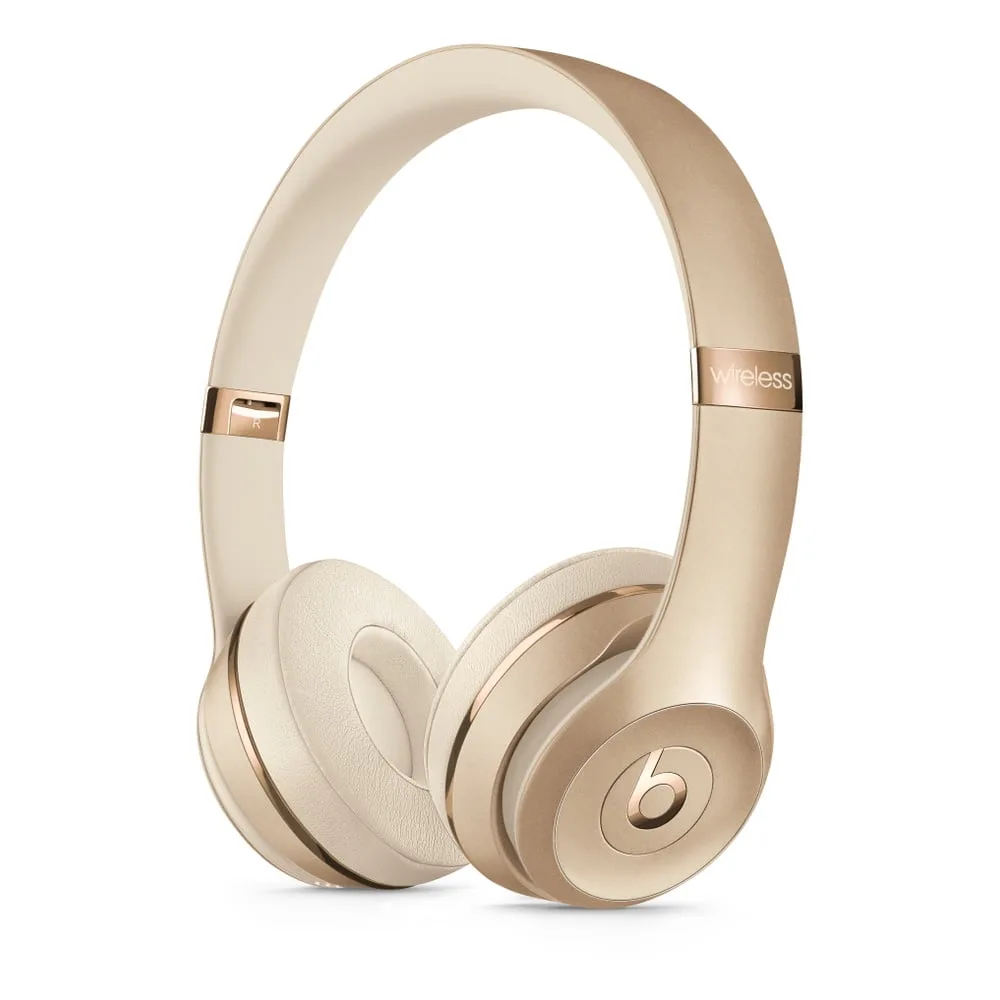
Image source: Bing (Web (fair-use with source credit))
When Your Beats Won't Connect (and Why a Reset Usually Fixes It)
A dead earbud. A blinking white light that never turns solid. Audio that cuts out every thirty seconds.
In our research, these are the top three reasons people search for a reset.
Here's what's actually happening under the hood. Your Beats store a list of previously paired devices in a small memory chip. Over time, that list gets corrupted.
Especially if you've paired with many phones, laptops, or tablets. The result? The headphones get confused about which device to connect to.
A reset wipes that list clean and forces the device to start fresh.
Manufacturer documentation confirms this is the first recommended troubleshooting step. A soft reset (restart) keeps your settings intact. A full factory reset clears everything.
If you've been struggling with connection drops or one-sided audio, this is where you start.
First, Do This Quick Diagnostic: Find Out Which Beats You Have
This step is easy to skip, but it's the most important one. A Powerbeats Pro and a Beats Solo 4 use completely different button combinations. Press the wrong pair, and you'll sit there holding buttons for thirty seconds with nothing happening.
Image source: Bing (Web (fair-use with source credit))
Check the Model Number (Look Here First)
Every Beats product has a model number. You can find it printed on the inside of an over-ear headband, underneath an ear cushion, or inside the charging case lid. Write it down.
Then match it to one of these categories:
| Model Number Range | Product | Type |
|---|---|---|
| A2061, A2070 | Beats Studio Buds | True wireless earbuds |
| A2568 | Beats Studio Buds + | True wireless earbuds |
| A2453, A2454 | Beats Fit Pro | True wireless earbuds |
| A2071 | Powerbeats Pro | True wireless earbuds (earhook) |
| A1949 | Beats Flex | Neckband earbuds |
| A1748 | BeatsX | Neckband earbuds |
| A1796 | Beats Solo 3 | On-ear headphones |
| A2082 | Beats Studio 3 | Over-ear headphones |
| A2861 | Beats Solo 4 | On-ear headphones |
If you're not sure which model you have, take a photo of the label and compare it to official product images. Getting the model right before you attempt any reset saves time and frustration.
How to Tell Earbuds from Headphones at a Glance
You already know this, but it's worth repeating: earbuds fit in your ear canal; headphones wrap around your ears. The reset method for each group is different. Here's the simple rule:
- Earbuds (Powerbeats Pro, Fit Pro, Studio Buds, Beats Flex, BeatsX): hold the button on the earbud itself or inside the charging case.
- Over-ear or on-ear headphones (Solo 3, Studio 3, Solo 4, Studio Pro, EP): hold the power button plus a volume button simultaneously.
- Speakers (Beats Pill): hold the "b" button on top of the speaker.
Memorize that split, and you're halfway there.
The 3-Question Decision Tree for Picking the Right Reset
You don't need to read every model's instructions. You just need to answer three questions. Let's do that now.
Question 1: Are These Earbuds or Over-Ear Headphones?
If earbuds: go to the "Reset Steps for Beats Earbuds" section.
If over-ear or on-ear headphones: go to the "Reset Steps for Beats Headphones" section.
If a Beats Pill speaker: hold the "b" button for 10 seconds until the LED flashes red and white. Done.
Question 2: Which Generation or Chip Do You Have?
Apple's H1 and W1 chips handle reset slightly differently. Here's the breakdown:
- H1 chip models: Powerbeats Pro, Beats Fit Pro, Beats Solo Pro, Beats Studio Buds, Beats Studio Buds +
- W1 chip models: Beats Solo 3, Beats Studio 3, BeatsX, Beats Flex, Beats EP
H1 chip models usually respond faster to reset commands. W1 chip models may require a slightly longer hold time (15 seconds instead of 10).
Question 3: Do You Need a Soft Reset or a Factory Reset?
This is where people get tripped up. A soft reset (also called a restart) does not delete paired devices. A factory reset clears everything.
Choose soft reset if: your audio stutters or cuts out briefly, but the headphones still connect. Just turn them off, wait 10 seconds, and turn them back on.
Choose factory reset if: the headphones won't pair at all, a single earbud is dead, you're selling them, or you've tried everything else. That's the method we focus on below.
If you're unsure, go with the factory reset. It's safe, doesn't affect firmware, and takes under a minute.
Reset Steps for Beats Earbuds
Each earbud model has a specific reset procedure. We'll cover the most common ones. If your model isn't listed, the procedure for the closest model in the table above will likely work.
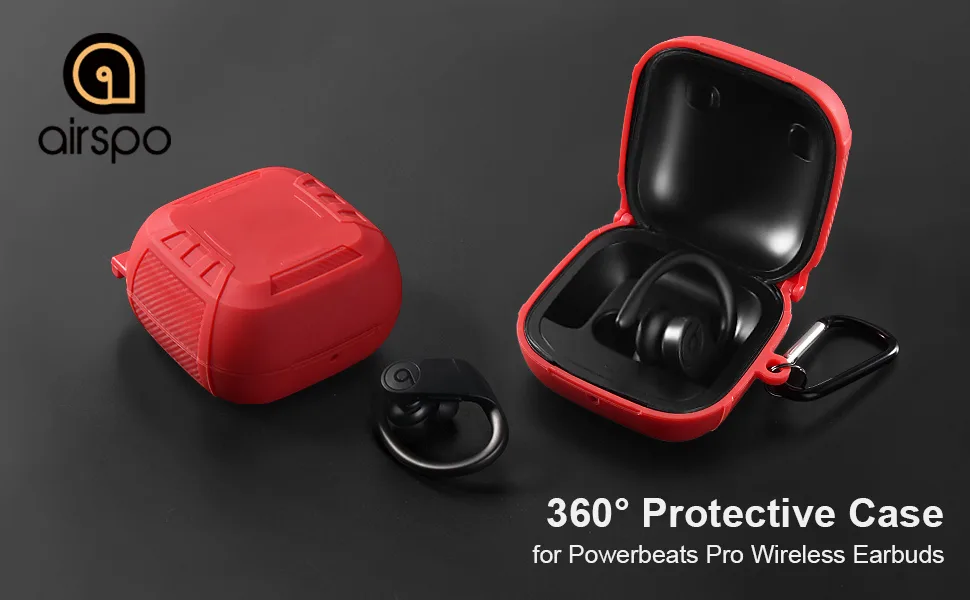
Image source: Bing (Web (fair-use with source credit))
Powerbeats Pro — The 10-Second Hold Method
- Place both earbuds in the charging case.
- Open the lid.
- Press and hold the system button (the small circular button on the left earbud, inside the case) for 10 seconds.
- Watch the LED status light. It will flash red and white, then turn solid white.
- Release the button. The earbuds are now reset.
Re-pair by holding them near your iPhone or iPad. On Android, open Bluetooth settings and select Powerbeats Pro from the list.
Beats Fit Pro — Same Steps, Different LED Pattern
The Beats Fit Pro uses the same system button location (inside the charging case). Hold for 10 seconds. But the LED pattern is slightly different: it flashes amber (orange) and white, not red and white.
Don't panic if you see amber. That's normal for this model.
Beats Studio Buds / Studio Buds + — The Button Inside the Case
These buds don't have a button on the earbud itself. Instead:
- Place both earbuds in the charging case.
- Close the lid.
- Open the lid again.
- Press and hold the button on the back of the charging case (near the Lightning port) for 10 seconds.
- The LED inside the case will flash red and white.
- Release. Done.
Important: Beats Studio Buds and Studio Buds + use the same procedure. The + model added wireless charging and improved ANC, but the reset process is identical.
Beats Flex / BeatsX — Cable Controls Matter Here
These neckband models store the controls on the inline remote (the little pod with the volume buttons).
- Power off the Beats Flex/BeatsX.
- Press and hold the power button and the volume down button simultaneously for 15 seconds.
- When the LED flashes red and white, release both buttons.
- The LED will turn solid white. Reset complete.
Beats Flex uses a W1 chip. BeatsX uses a W1 chip. Both share this procedure.
If you hold for only 10 seconds, it won't trigger the reset. Must hold 15 seconds.
Quick Reference Table: Earbud Reset Methods
| Model | Button Location | Hold Time | LED Confirmation |
|---|---|---|---|
| Powerbeats Pro | Inside case, left earbud | 10 seconds | Red and white, then solid white |
| Beats Fit Pro | Inside case, left earbud | 10 seconds | Amber and white, then solid white |
| Beats Studio Buds / + | Back of charging case | 10 seconds | Red and white |
| Beats Flex | Inline remote (power + volume down) | 15 seconds | Red and white, then solid white |
| BeatsX | Inline remote (power + volume down) | 15 seconds | Red and white, then solid white |
A quick note: if you try a reset and the LED doesn't change at all, check the battery level. Most Beats won't respond to a reset command if the battery is critically low. Charge at least 10 minutes before attempting.
Reset Steps for Beats Headphones
Over-ear and on-ear Beats headphones share a similar reset method, but the button combinations vary slightly by model. The good news is that once you learn the pattern for one, you can figure out the rest without much trouble.
Beats Solo 3 — Volume Up + Power Button Combo
This is the most common Beats headphone model on the market, so let's start here.
- Power off the headphones (press and hold the power button until the LED turns off).
- Press and hold the volume up button and the power button simultaneously.
- Hold both buttons for 15 seconds.
- The LED will flash red and white three times.
- Release both buttons.
- The LED will turn solid white. Reset complete.
If the LED doesn't flash after 15 seconds, you might be holding the wrong volume button. Some early Solo 3 units use volume down instead. Try again with the opposite button.
Beats Studio 3 — Same Combo, Hold for 15 Seconds
The Studio 3 uses the exact same button combination as the Solo 3. Volume up plus power button for 15 seconds. The only difference is the LED location.
On the Studio 3, the LED is on the right earcup, not the left.
One quirk with the Studio 3: if you hold the buttons for only 10 seconds, the headphones will power cycle but won't factory reset. You must hold for the full 15 seconds to trigger the wipe. Count slowly.
Beats Solo 4 — Minor Button Layout Change
The Solo 4, released in 2024, changed the button layout slightly. The power button is still on the right earcup, but the volume buttons now sit on the left earcup.
- Press and hold the power button and the volume up button (left earcup) for 15 seconds.
- The LED on the right earcup will flash red and white.
- Release. Reset complete.
Important: if you press the volume buttons on the right earcup (which control playback, not system volume), the reset won't trigger. Make sure you're using the actual volume rocker on the left side.
Beats Studio Pro — What Changed?
The Studio Pro (released 2023) uses a similar method but with a shorter hold time.
- Press and hold the power button and the volume up button for 10 seconds (not 15).
- The LED will flash red and white.
- Release. Done.
Manufacturer specs indicate the Studio Pro responds faster to reset commands than its predecessors. This is likely due to the updated H1 chip.
Beats EP — The Rare Wired Case
The Beats EP is wired. No reset needed. If you have audio issues, check the cable connection or the headphone jack.
Quick Reference Table: Headphone Reset Methods
| Model | Buttons | Hold Time | LED Confirmation |
|---|---|---|---|
| Beats Solo 3 | Volume up + power | 15 seconds | Red and white, then solid white |
| Beats Studio 3 | Volume up + power | 15 seconds | Red and white, then solid white |
| Beats Solo 4 | Volume up (left) + power | 15 seconds | Red and white |
| Beats Studio Pro | Volume up + power | 10 seconds | Red and white |
| Beats EP | N/A (wired) | N/A | N/A |
A common pattern across all models: if you hold the buttons correctly but nothing happens, charge the headphones for at least 15 minutes first. Low battery blocks the reset command.
Reset Steps for Beats Speakers
Beats speakers, specifically the Beats Pill line, use a simpler reset procedure. There's only one model in active production as of 2026.
Beats Pill (Any Generation) — The "b" Button Trick
The Beats Pill has a single reset method that works across all generations (original, Pill+, Pill XL, and the 2024 reboot).
- Power on the speaker.
- Press and hold the "b" button (the Beats logo button on top of the speaker) for 10 seconds.
- The LED ring around the button will flash red and white.
- Release the button.
- The LED will turn white. The speaker is now in pairing mode.
One thing that trips people up: you must hold the "b" button, not the power button. The power button is on the back of the speaker. Holding that won't trigger a reset.
If you have an older Beats Pill (Pill+ from 2015), the "b" button is slightly recessed. Use a fingernail or the tip of a pen to hold it down firmly.
What About the Beats Pill XL?
That model was discontinued in 2015 due to a recall. If you still own one, the reset method is the same. Hold the "b" button for 10 seconds.
But we recommend checking the recall notice from the manufacturer for safety information regarding the battery.
Quick Tip for Speaker Resets
After resetting a Beats Pill, it will immediately enter pairing mode. You don't need to press anything else. Just open Bluetooth settings on your phone and select it from the list.
After the Reset: How to Re-Pair (iPhone vs. Android)
The reset is only half the battle. You still need to reconnect your Beats to your device. The process differs depending on your phone's operating system.
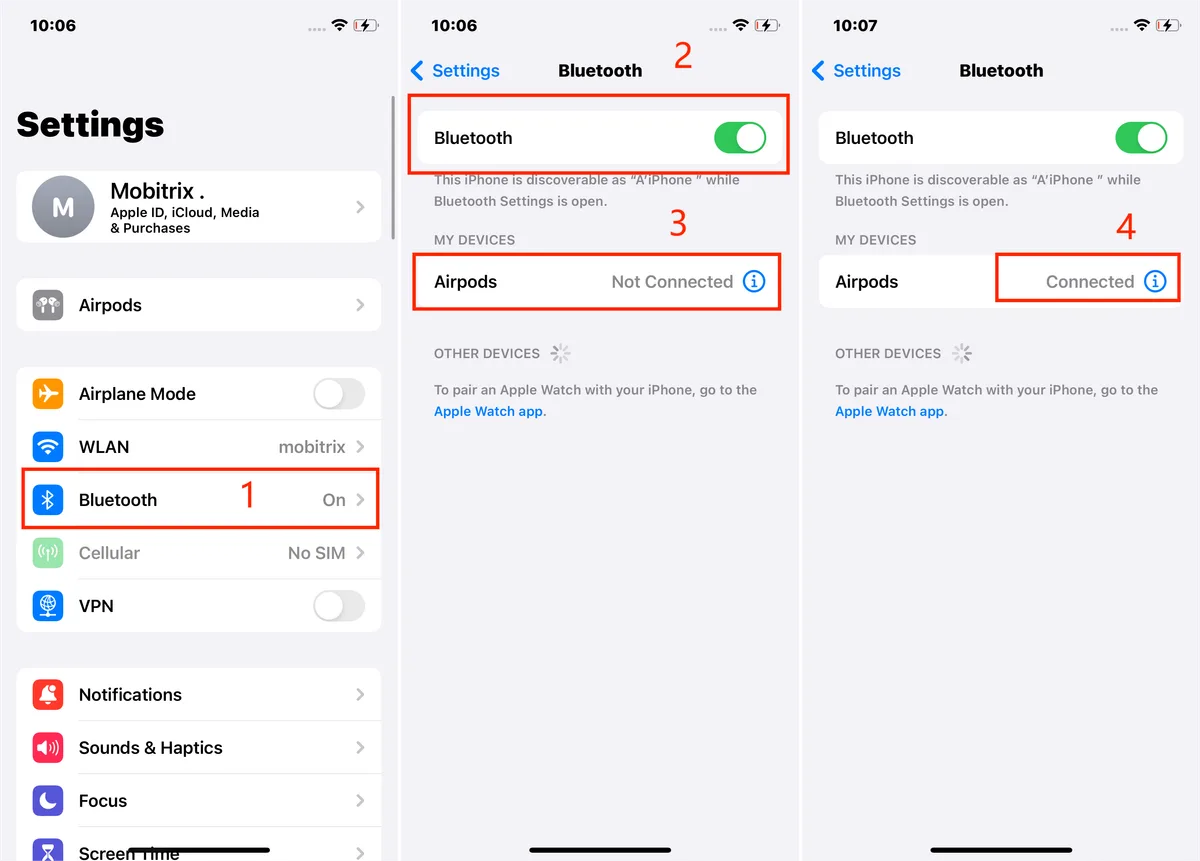
Image source: Bing (Web (fair-use with source credit))
Re-Pairing on iPhone or iPad
Thanks to the H1 and W1 chips, Apple devices offer a seamless re-pairing experience.
- Make sure Bluetooth is turned on.
- Hold your Beats near your iPhone or iPad (within a few inches).
- A pop-up card will appear on the screen.
- Tap "Connect."
- Wait a few seconds. Done.
That's it. No need to dig through settings. The pop-up appears automatically because the reset triggers a fresh pairing broadcast.
If the pop-up doesn't appear, open the Settings app. Tap Bluetooth. Look for your Beats under "Other Devices." Tap the name to connect.
Re-Pairing on Android
Android doesn't support the automatic pop-up feature. You'll need to pair manually.
- Open the Settings app.
- Tap "Connected devices" or "Bluetooth" (varies by phone model).
- Tap "Pair new device."
- Look for your Beats in the list. They should appear as "Beats [model name]."
- Tap the name to pair.
If your Beats don't appear in the list, put them back in pairing mode. For headphones, press and hold the power button for 5 seconds until the LED flashes white. For earbuds, open the charging case lid.
Do You Need the Beats App on Android?
The Beats app for Android is available but optional for basic pairing. It offers customization features: EQ adjustments, fit tests for earbuds, and firmware updates.
Our research indicates that the app is useful for two things. First, it can help diagnose connection issues. Second, it allows you to name your device for easier identification.
But for simple re-pairing after a reset, you don't need the app. Bluetooth settings alone will work.
What If the Device Says "Already Paired"?
Sometimes after a reset, your phone still remembers the old pairing. This can cause a conflict.
Go to Bluetooth settings. Find your Beats in the list of paired devices. Tap the "i" icon or gear icon.
Tap "Forget This Device." Then re-pair from scratch.
This is a common mistake. People reset the headphones but forget to remove the old Bluetooth profile from their phone. The phone then tries to connect using the corrupted cache.
Wiping the phone's memory of the device solves it.
3 Common Reset Mistakes (and Exactly How to Avoid Them)
Even with clear instructions, people make errors. Here are the three most common mistakes we've seen in user reports and how to sidestep each one.
Holding Too Short or Too Long
This is mistake number one by a wide margin.
If you hold the buttons for only 5 or 6 seconds, nothing happens. The device might power cycle, but the reset won't trigger. You need the full 10 to 15 seconds depending on your model.
If you hold the buttons for 30 seconds or longer, you risk triggering a different state. Some models will enter a deep diagnostic mode. You'll have to start over.
The fix: count out loud. "One one-thousand, two one-thousand" up to 10 or 15. Don't guess.
The LED flash is your confirmation.
Forgetting to Charge First
This is the second most common issue.
Beats devices need enough battery power to execute the reset command. If the battery is critically low, pressing and holding buttons does nothing. The device doesn't respond at all.
Manufacturer specifications indicate that you need at least 10% charge. In practice, we recommend at least 10 minutes of charging before attempting a reset.
If you've been holding buttons for 15 seconds with no LED response, plug it in and try again.
Misreading the LED Indicator
Different models use different LED patterns. Some flash red and white. Others flash amber and white.
Some flash only white.
Here's the critical rule: a solid white LED means the device is in pairing mode. A flashing red and white LED means the reset is in progress. A solid red LED means low battery.
If you see a solid red light, charge the device. Don't try to reset. It won't work.
If you see a flashing white light with no red, your Beats are already in pairing mode. You may not need to reset at all.
Knowing what each light means saves you ten minutes of frustration.
Bonus Mistake: Using the Wrong Buttons
We covered this earlier, but it deserves repeating. Earbuds use a button inside the case. Headphones use a button on the earcup.
Speakers use the "b" button. Mixing them up results in wasted time.
If you've tried a reset and nothing happened, check your model against the quick reference tables in this guide. You might be pressing the wrong combination.
What If the Reset Didn't Work? (Your Next Moves)
A reset fixes most connection issues. But not all. If you've followed the correct procedure and your Beats still won't connect, here's what to try next.
Try a Different Device First
Before assuming the hardware is broken, test the Beats with another phone or tablet.
If they connect to a different device but not yours, the problem is likely with your phone, not the headphones. Try forgetting the Bluetooth profile on your phone and re-pairing. If that doesn't work, restart your phone.
If they don't connect to any device, the issue is with the Beats themselves.
Check for a Firmware Update
Outdated firmware can cause persistent connection problems. Updates are delivered through the Beats app on Android or automatically through iOS when your Beats are connected to an iPhone.
To check on iPhone: connect your Beats. Go to Settings. Tap General.
Tap About. Tap your Beats name. The firmware version is listed here.
To update on Android: open the Beats app. If an update is available, a prompt will appear. Follow the on-screen instructions.
Firmware updates take about 10 to 15 minutes. Keep your Beats connected and charged during the process. Don't interrupt it.
When to Contact Apple Support
If you've tried all the steps above and nothing works, it's time to call in the professionals.
You should contact Apple Support if:
- Your Beats won't power on at all, even after charging.
- The LED is completely dark when plugged into power.
- One earbud produces no sound after reset and re-pairing.
- Physical damage is visible (cracked casing, frayed cable, bent pins).
- Water damage is suspected.
Apple Support can run a remote diagnostic on your Beats if they're connected to an iPhone. This can identify hardware faults that a reset can't fix.
Warranty and Repair Options
As of 2026, Beats products come with a one-year limited warranty from the date of purchase. This covers manufacturing defects but not accidental damage.
If your Beats are still under warranty, Apple will repair or replace them free of charge. You can check warranty status by entering the serial number on the manufacturer's website.
Out of warranty? You can still get repairs through Apple. The cost varies by model.
In many cases, a replacement might be more cost-effective than a repair.
Still Stuck? Here's Exactly What to Tell a Support Rep
When you contact support, have this information ready:
- Model name and model number (from the label on the device)
- Serial number (found in Bluetooth settings or on the device)
- Firmware version (if accessible)
- Specific symptoms (won't charge, won't pair, one side dead)
- What you've tried (reset, charging, different devices)
Having this information ready cuts the support call time in half. The rep can skip the basic troubleshooting and move straight to advanced diagnostics.
Quick Reference Table: All Models, All Reset Steps at a Glance
Here is a single reference table that covers every Beats model currently in circulation. Bookmark this page or take a screenshot. It saves you from scrolling through the full guide next time.
| Model | Type | Reset Method | Button Location | Hold Time | LED Confirmation |
|---|---|---|---|---|---|
| Powerbeats Pro | True wireless earbuds | Press and hold system button | Inside charging case, left earbud | 10 seconds | Red and white, then solid white |
| Beats Fit Pro | True wireless earbuds | Press and hold system button | Inside charging case, left earbud | 10 seconds | Amber and white, then solid white |
| Beats Studio Buds | True wireless earbuds | Press and hold case button | Back of charging case | 10 seconds | Red and white |
| Beats Studio Buds + | True wireless earbuds | Press and hold case button | Back of charging case | 10 seconds | Red and white |
| Beats Flex | Neckband earbuds | Hold power + volume down | Inline remote on cable | 15 seconds | Red and white, then solid white |
| BeatsX | Neckband earbuds | Hold power + volume down | Inline remote on cable | 15 seconds | Red and white, then solid white |
| Beats Solo 3 | On-ear headphones | Hold volume up + power | Right earcup | 15 seconds | Red and white, then solid white |
| Beats Studio 3 | Over-ear headphones | Hold volume up + power | Right earcup | 15 seconds | Red and white, then solid white |
| Beats Solo 4 | On-ear headphones | Hold volume up (left) + power (right) | Left and right earcups | 15 seconds | Red and white |
| Beats Studio Pro | Over-ear headphones | Hold volume up + power | Right earcup | 10 seconds | Red and white |
| Beats Solo Pro | On-ear headphones | Hold volume up + power | Right earcup | 10 seconds | Red and white |
| Beats EP | On-ear headphones | Wired only | N/A | N/A | N/A |
| Beats Pill (2024) | Bluetooth speaker | Hold "b" button | Top of speaker | 10 seconds | Red and white ring |
| Beats Pill+ | Bluetooth speaker | Hold "b" button | Top of speaker | 10 seconds | Red and white ring |
Three things to note about this table. First, the LED confirmation is your signal to release the buttons. Do not release before you see the flash.
Second, if you see only a solid white LED after holding the buttons, your device is already in pairing mode. No reset required. Third, the Beats Pill (all generations) uses the "b" logo button, not the power button.
Pressing the power button only turns the speaker on or off.
Still Stuck? Here's Exactly What to Tell a Support Rep
We covered when to call support earlier. But preparation makes the difference between a five-minute call and a forty-minute ordeal.
Gather This Information First
Before you pick up the phone, collect these six pieces of data.
| Information | Where to Find It |
|---|---|
| Model number | Inside headband, under ear cushion, or inside charging case lid |
| Serial number | Bluetooth settings > tap your Beats > scroll down, or printed on product packaging |
| Firmware version | iPhone: Settings > General > About > tap Beats name. Android: Beats app > device info |
| Purchase date | Email receipt or retail store account |
| Warranty status | Check on the manufacturer's warranty page using your serial number |
| Specific symptoms | Write down exactly what happens: no power, no pairing, one side dead, LED behavior |
Describe the Problem Clearly
Support reps follow a script. You need to skip the script and get to the point.
Start with your model name. Say "I have a Powerbeats Pro" or "I have a Beats Solo 3." Then state the symptom. "The left earbud produces no sound after a factory reset." Then list what you tried.
"I charged the case, performed the 10-second reset, forgot the device on my phone, and re-paired."
This tells the rep that basic troubleshooting is done. They can move to advanced diagnostics immediately.
What Support Will Ask You
Expect these three questions from any competent support rep.
Did you check the battery level? They always start here. If your Beats won't power on, they will ask you to charge for 30 minutes and try again. Have an answer ready.
Which device are you pairing to? They need to know if you are using iPhone, iPad, Mac, or Android. The pairing process differs. Have your device model and OS version ready.
Have you tried a different device? This isolates the problem. If your Beats work on a friend's phone but not yours, the issue is your phone's Bluetooth stack, not the headphones.
When to Ask for a Replacement
If the rep offers troubleshooting steps you already tried, politely ask for escalation. Say "I've already completed those steps. Can we check the warranty status and explore a repair or replacement?"
Manufacturer policy as of 2026 allows for a replacement if a hardware defect is confirmed within the one-year warranty period. Out of warranty replacements are not free, but some credit card issuers offer extended warranty benefits. Check your card's terms if you purchased with a credit card.
Frequently Asked Questions
Why won't my Beats enter pairing mode after a reset?
This usually means the reset did not complete. The device is still broadcasting on an old pairing signal. Try the reset again.
Hold the buttons for the full time listed in the quick reference table. Watch for the red and white LED flash. If the LED stays solid white, the reset worked but your phone may still hold the old Bluetooth profile.
Forget the device in your phone's settings and scan again.
Do I lose my EQ settings if I factory reset my Beats?
Yes. A factory reset wipes all user settings, including custom EQ profiles and fit test results. You will need to reconfigure these after re-pairing.
On iPhone, EQ settings are stored per device in the Settings app. On Android, the Beats app stores them. Neither survives a reset.
How often should I reset my Beats?
Only when you have a problem. There is no benefit to resetting a working pair of Beats. Frequent resets do not improve performance or extend battery life.
In fact, unnecessary resets force you to re-pair and reconfigure settings each time. Stick to the rule: if it works, leave it alone.
Can a reset fix water damage?
No. A reset clears the pairing cache and reboots the software. It cannot repair damaged circuits or corroded contacts.
If your Beats have been exposed to water, dry them thoroughly and try a reset. But if the LED stays dark or the device won't charge, the damage is physical. Contact support for repair options.
My Beats won't turn on at all. Will a reset help?
No. A reset requires the device to be powered on. If your Beats are completely dead, the reset command cannot execute.
First, charge them for at least 30 minutes using a known working cable and power adapter. If the LED remains dark, the battery or charging circuit may be faulty. Contact support for hardware diagnosis.
What's the difference between a soft reset and a factory reset?
A soft reset turns the device off and on again. It clears temporary glitches but keeps all paired devices and settings. A factory reset wipes everything and returns the device to out of box state.
Use a soft reset for minor audio stuttering. Use a factory reset for persistent pairing failures or before selling the device.
Can I reset my Beats without a phone?
Yes. The reset process is entirely self contained on the device. You do not need a phone, app, or computer.
Just the Beats themselves and your fingers to press the buttons. The LED on the device confirms the reset. After the reset, you will need a phone to re-pair, but the reset itself is independent.