
So you're staring at a locked Fire tablet. Maybe the screen is frozen. Maybe you forgot your PIN.
You're wondering what to do next.
The right reset method depends entirely on what your tablet is doing right now. A fully responsive screen needs a different approach than a black screen or a boot loop. We will walk through each scenario step by step so you pick the correct fix and avoid wiping your data when a simpler solution works.
Manufacturer specifications indicate that Amazon Fire tablets running Fire OS 7 or later include multiple recovery paths. Each one is designed for a different failure mode. The most common mistake we see across user reports is jumping straight to a factory reset when a simple button hold would fix the issue.
Let us start by figuring out exactly what state your tablet is in.
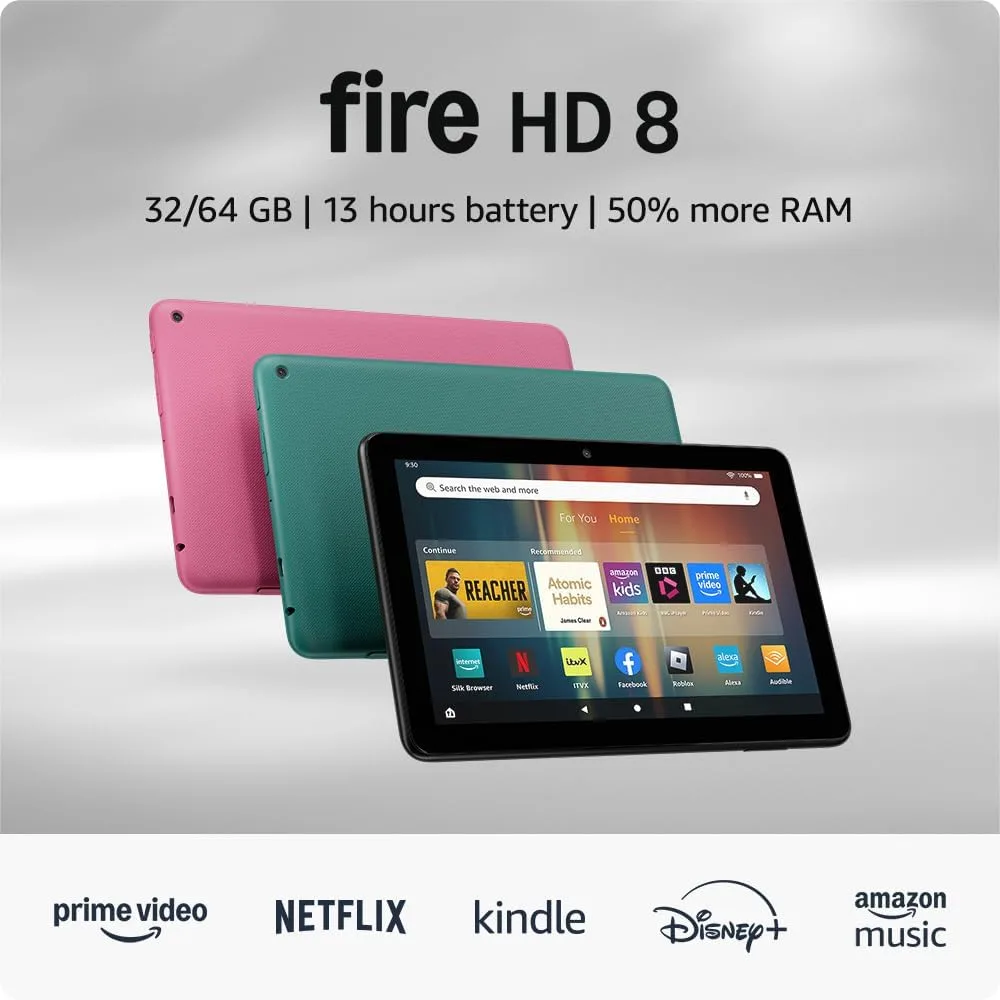
Image source: Bing (Web (fair-use with source credit))
Quick Answer
Press and hold the power button for ten seconds to force restart most frozen Fire tablets. For a full factory reset, go to Settings, then Device Options, then Reset to Factory Defaults. If the screen is unresponsive, boot into recovery mode by holding Power plus Volume Up.
Select "Wipe data/factory reset" using the volume buttons and press Power to confirm.
The Real Problem: You Can't Get Into Your Fire Tablet
That is the core issue. You either cannot unlock the screen, or the screen itself is not responding. Those two scenarios look similar but require completely different solutions.
Here are the four most common situations:
- Forgotten PIN or password: The screen works, but you have entered the wrong code too many times. The tablet shows a "Device is disabled" message. This needs a factory reset through recovery mode.
- Frozen or black screen: You tap, swipe, and press buttons. Nothing happens. The screen might be black or stuck on an app. A force restart usually fixes this.
- Stuck on the Amazon logo (boot loop): The tablet powers on, shows the logo, then restarts and shows it again. Something went wrong with the software. Recovery mode is your fix.
- Kids Edition PIN is lost: You need a separate Kids PIN to access settings. That adds an extra layer. We will cover that in detail later.
Your first job is to figure out which situation matches yours. Once you know that, you can skip straight to the right fix. This saves time and prevents unnecessary data loss.
For more on how we verify the accuracy of our guides, see our editorial policy.
Decision Branch 1: The Touchscreen Still Works
This is the best-case scenario. Your screen is responsive. You just cannot remember your password.
If you can still navigate the tablet, you have options before resorting to a full wipe.
First, try the "Forgot Password" button on the lock screen. Amazon builds a password recovery flow into Fire OS. It lets you reset your PIN using your Amazon account credentials.
You will need Wi-Fi and your account password. If that works, you are done in under two minutes.
If the password recovery button does not appear, or if your Amazon account password is also lost, you are heading for a factory reset. But because your screen works, you can do it through the Settings menu instead of hardware buttons. That is covered in the step-by-step section below.
A settings-based reset is safer than the hardware button method. It gives you on-screen prompts and confirmation steps. You can also back up data before pulling the trigger.
Decision Branch 2: The Screen Is Frozen or Black
This is the most frustrating situation because you cannot see anything. The tablet might have crashed hard. Or the battery might be completely drained.
Try this first: plug the tablet into a charger and wait 15 minutes. A fully drained battery can look exactly like a frozen black screen. If the charging icon appears, your problem was a dead battery, not a crash.
If no charging icon appears, attempt a force restart. Press and hold the power button for 20 to 30 seconds. Do not let go early.
Many users release too soon and think it is not working. Keep holding until you see the Amazon logo.
If the logo appears and the tablet boots normally, you are done. A force restart cleared whatever temporary glitch caused the freeze.
If holding the power button does nothing, or if the tablet turns on but immediately freezes again, move to the hardware button recovery method covered below.
Decision Branch 3: It's Stuck in a Boot Loop
A boot loop means the tablet powers on, shows the Amazon logo, then restarts and shows it again repeatedly. This is often caused by a failed system update or a corrupted app.
The force restart will not fix a boot loop. You need to boot into recovery mode.
Here is the key: you have to time it right. Watch for the Amazon logo to appear. Then immediately press and hold Power plus Volume Up.
On some older Fire models (2015 to 2017), the combo is Volume Up plus Power. Hold both buttons until you see a black screen with text options. That is recovery mode.
From recovery mode, your first option should be "Wipe cache partition." This clears temporary system files without deleting your personal data. It fixes boot loops caused by update glitches in many cases.
If that does not work, select "Wipe data/factory reset." This will erase everything. There is no way around it for a persistent boot loop.
Decision Branch 4: You Entered the Wrong PIN Too Many Times
Fire OS locks you out after a certain number of failed attempts. You will see a message that says "Device is disabled" or "Too many PIN attempts." The only option at that point is a factory reset.
You cannot bypass this without wiping the tablet. There is no secret code or workaround. Amazon designed the lockout to prevent brute-force attacks.
If you have signed into your Amazon account on the tablet before, you should be fine after a factory reset. After the wipe, you will need to enter that Amazon account credentials to get past Factory Reset Protection (FRP). That is covered in the FRP section below.
If you do not know the Amazon account password either, you are in a tougher spot. You will need to go through Amazon's account recovery process on a separate device before you can use the tablet again.
Decision Branch 5: You're Resetting a Kids Edition Tablet
Kids Edition tablets have a separate PIN system for the Kids profile. The parent sets this PIN. It is different from the regular tablet lock screen.
If your child has locked themselves out of the Kids profile, you can reset the Kids PIN from the parent controls area. You will need the parent PIN to access that area.
If you have forgotten the parent PIN, the only way to reset is a full factory reset. But it works differently than on a standard Fire tablet.
On a Kids Edition, you must first exit the Kids profile. If you cannot do that because you do not know the parent PIN, you can still boot into recovery mode using the hardware button method. But after the factory reset, the tablet will still ask for the parent PIN during setup if you restore from a backup.
The safest approach: skip the backup restore. Set up the tablet as new. That clears the parent PIN and lets you create a fresh Kids profile.
For full terms on device ownership and resale, see our terms and conditions.
Before We Dive In: One Quick Thing You Should Know
Before you do anything, you need to know which Fire tablet generation you own. The button combos for recovery mode changed between models. Using the wrong combination can make things worse.
Here is a quick reference table based on manufacturer specifications:
| Fire Tablet Model | Recovery Button Combo | Notes |
|---|---|---|
| Fire 7 (9th gen and later, 2019+) | Hold Power + Volume Up while device is off | Hold both until menu appears |
| Fire HD 8 (10th gen and later, 2020+) | Hold Power + Volume Up while device is off | Same combo as above |
| Fire HD 10 (11th gen and later, 2021+) | Hold Power + Volume Up while device is off | Works for all current HD 10 models |
| Fire Max 11 (2023) | Hold Power + Volume Up while device is off | Newest model, same combo |
| Fire 7 (7th gen, 2017-2019) | Hold Volume Up + Power from off state | Different order |
| Fire HD 8 (8th gen, 2018) | Hold Volume Up + Power from off state | Older generation |
| Fire HD 10 (9th gen, 2019) | Hold Volume Up + Power from off state | Check your model number |
| Fire Kids Edition (any gen) | Same as corresponding regular model | Kids profile does not affect recovery mode |
Find your model number by looking at the back of the tablet or checking the original box. It starts with "K" or "B" followed by numbers. For example, "KFTT" or "B0B1V".
Once you know your model, you can follow the correct button sequence without guessing.
Is Your Screen Responding? Here's How to Check
This is the single most important diagnostic step. Touch the screen in multiple spots. Swipe up.
Press the physical buttons. Watch for any reaction.
Here is what to look for:
- Screen turns on but does not respond to touch: The display shows the lock screen or an app, but tapping does nothing. A force restart usually fixes this.
- Screen is completely black: No logo, no backlight, nothing. Try charging first. If the charging icon appears, the battery was dead. If nothing after 30 minutes of charging, the hardware might be faulty.
- Screen shows the Amazon logo and stays there: The tablet is booting but getting stuck. Recovery mode is your next step.
- Screen shows the Amazon logo and restarts repeatedly: Boot loop. Go straight to recovery mode.
- Screen works but shows "Device is disabled": The lock screen is functional, but the system will not let you proceed. Factory reset is required.
Once you have identified your situation, pick the matching solution from this table:
| Your Situation | First Try | If That Fails |
|---|---|---|
| Screen responsive, forgot PIN | Use "Forgot Password" on lock screen | Factory reset via Settings menu |
| Screen responsive, but device disabled | Factory reset via recovery mode | N/A (no other option) |
| Screen frozen or black | Force restart (hold Power 20-30 sec) | Charge 30 min, then recovery mode |
| Boot loop (logo restarts) | Recovery mode, wipe cache partition | Recovery mode, factory reset |
| Kids Edition, forgot parent PIN | Try parent PIN recovery from Amazon account | Factory reset via recovery mode |
A practical tip: when you attempt a force restart, hold the power button for a full 30 seconds. Time it. Most people give up after 10 seconds, which is not enough.
Press and hold firmly. Do not release until you see the logo. If you get to 45 seconds with no response, move to recovery mode.
For more on how we conduct our research, see our about page.
The Step-by-Step: Settings Reset (When You Can Actually Tap the Screen)
This method is only for tablets that are fully operational. If you can unlock the screen and navigate the menus, use this process. It is the safest option because you can see exactly what you are doing.
Step 1: Back up anything you want to keep. A factory reset erases all local data. That includes downloaded books, photos, saved notes, and app data. Anything synced to your Amazon account (like Kindle purchases) will re-download after setup.
Anything saved only locally will be gone. Copy photos to a computer or cloud service first.
Step 2: Sign out of your Amazon account. This step is often missed, but it is important. Go to Settings, then "My Account," then "Deregister." This removes the device from your Amazon account and makes the post-reset setup smoother. If you skip this, the tablet will still work, but you will have to enter your Amazon password during initial setup.
Step 3: Open Settings. Go to the home screen and tap the gear icon. If you are in Kids Mode, you need to exit that first. Swipe down from the top, tap the gear icon, and enter the parent PIN to access full settings.
Step 4: Navigate to Device Options. Scroll down until you see "Device Options." Tap it. This menu contains information about your tablet, system updates, and the reset option.
Step 5: Select "Reset to Factory Defaults." Scroll to the bottom of Device Options. You will see "Reset to Factory Defaults." Tap it. The tablet will show a warning screen listing what will be erased.
Step 6: Confirm the reset. Tap "Reset" or "Erase Everything." The tablet will begin the process. Do not touch the power button during this time. Let it run.
It usually takes 3 to 5 minutes.
Step 7: Wait for the restart. After the reset completes, the tablet will reboot. You will see the initial setup screen where you choose language, connect to Wi-Fi, and sign into your Amazon account.
One important note: if you deregistered your Amazon account before the reset, the setup process will ask you to log in. If you did not deregister, the tablet may automatically restore some cloud-synced settings but will still require your Amazon password.
This settings path is also the best way to reset a Fire tablet before selling it. The deregistration step ensures the next owner can fully set up the device without FRP issues. For more on data privacy when selling devices, refer to our privacy policy.
The Step-by-Step: Hardware Button Recovery (When Everything Else Fails)
This is the method you use when the screen is frozen, you are stuck in a boot loop, or you have forgotten your PIN and cannot get past the lock screen. It does not require the screen to be responsive. You control everything with the physical buttons.
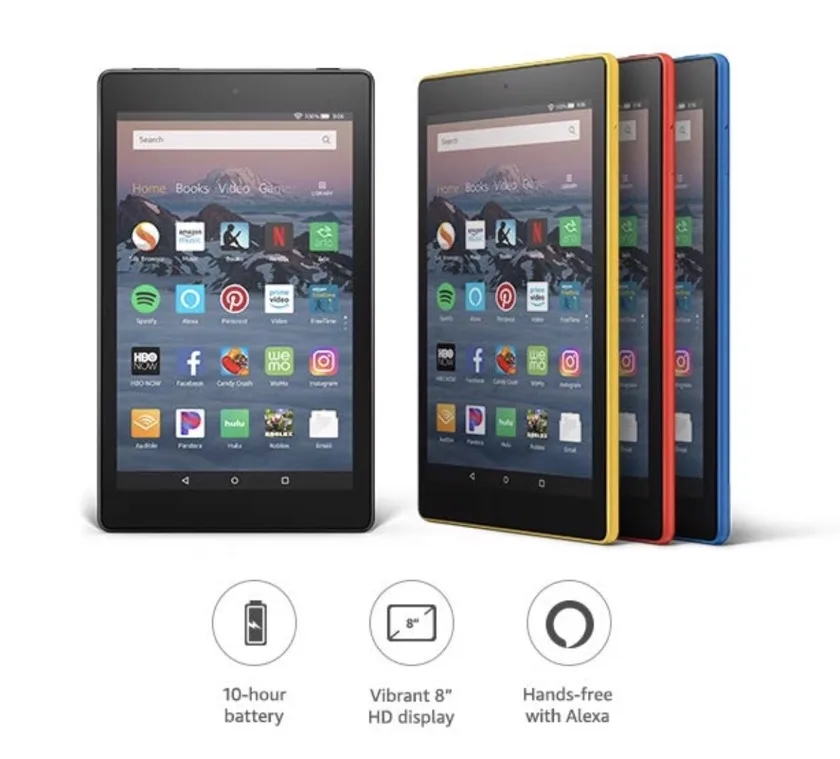
Image source: Bing (Web (fair-use with source credit))
Step 1: Power off the tablet completely. If the tablet is stuck, hold the power button for 30 to 40 seconds until the screen goes black. If it is already off, skip this step. You need to start from a fully powered-off state.
Step 2: Press and hold the correct button combo. For most current models (Fire 7 9th gen, Fire HD 8 10th gen, Fire HD 10 11th gen, Fire Max 11), hold Power plus Volume Up simultaneously. For older models (2017 to 2019), hold Volume Up and then press Power while keeping Volume Up held. Check the table in the "Before We Dive In" section if you are unsure.
Step 3: Wait for recovery mode. Keep holding both buttons until you see a black screen with white text. This screen is the Android stock recovery menu. It may take 10 to 20 seconds.
Do not release the buttons early. If you see the Amazon logo, you missed the timing. Start over from Step 1.
Step 4: Navigate the menu. Use the Volume Up and Volume Down buttons to move between options. Use the Power button to confirm a selection. The menu options include "Reboot system now," "Apply update from ADB," "Wipe data/factory reset," and "Wipe cache partition."
Step 5: Select "Wipe data/factory reset." Scroll down to this option using the volume buttons. Press Power to select it. A confirmation screen will appear.
Step 6: Confirm the reset. On the confirmation screen, use the volume buttons to highlight "Yes, delete all user data." Press Power to confirm. The tablet will begin wiping. This takes 30 seconds to 2 minutes depending on your storage size.
Step 7: Select "Reboot system now." After the wipe completes, you will return to the main recovery menu. Scroll to "Reboot system now" and press Power. The tablet will restart.
Step 8: Wait for the first boot. The initial boot after a factory reset takes longer than usual. Up to 10 minutes on older models. Be patient.
If the tablet stays on the Amazon logo for more than 15 minutes, try the recovery process again from the beginning.
Warning: Do not remove the tablet from power during this process. A reset interrupted by a dead battery can corrupt the system software. Make sure your tablet has at least 30 percent battery before starting.
If you are not sure, plug it in.
When this method fails: If you reach recovery mode but "Wipe data/factory reset" does not work, or if the tablet refuses to enter recovery mode at all, you may need to use ADB (Android Debug Bridge) from a computer. That is an advanced method requiring a USB cable and developer tools. For guidance on that approach, our disclaimer explains the limits of what we cover.
The Step-by-Step: Force Restart vs. Full Factory Reset. Know the Difference
People often use these two terms as if they mean the same thing. They do not. Mixing them up can cost you all your data when a simple reboot would have fixed the issue.
A force restart is a hard reboot. It cuts power to the device and starts it fresh. No data is erased.
No settings are changed. It only fixes temporary glitches where the operating system froze or crashed.
A full factory reset wipes everything. It deletes all user data, downloaded apps, saved files, and account settings. The tablet returns to the exact state it was in when you unboxed it.
This is what you need for forgotten PINs or major software corruption.
Here is how to decide which one you need:
| Your Symptom | Try This First | Why |
|---|---|---|
| Screen frozen, will not respond to touch | Force restart | Temporary crash; reboot clears memory |
| App stuck, but you can still pull down notifications | Force restart | App-level problem; reboot resets app state |
| Forgotten lock screen PIN | Factory reset (recovery mode) | System requires wipe to clear PIN |
| "Device is disabled" message | Factory reset (recovery mode) | Security lockout, no other way out |
| Slow performance or random crashes | Force restart first | Clears cached junk; if it persists, then factory reset |
| Stuck on Amazon logo (boot loop) | Factory reset (recovery mode) | System files corrupted; cache wipe sometimes helps first |
| Tablet running normally, you want a fresh start | Factory reset (Settings menu) | Clean slate without recovery mode hassle |
The force restart has no downsides. You can try it as many times as you want. It takes ten seconds.
If it does not fix the issue, you have not lost anything.
The factory reset is permanent. Once you confirm, there is no undo. That is why we recommend always trying a force restart first.
User reports indicate that most "frozen" tablets recover from a force restart alone. Only a fraction actually need the full wipe.
How to force restart a Fire tablet: Press and hold the power button for 20 to 30 seconds. Wait for the Amazon logo to appear, then release. The tablet will boot normally.
That is it.
How to factory reset: You already have the two methods: through the Settings menu if the screen works, or through recovery mode using hardware buttons if it does not. Both produce the same result. The recovery mode method is the universal fallback.
One more thing to watch for: if you force restart a tablet that is in the middle of a system update, you risk corrupting the update files. Let updates complete. If the tablet says "Installing system update," let it finish before doing anything.
A force restart during an update can cause a boot loop that then requires a factory reset.
The Kids Edition Trap: Why the Normal Methods Won't Work
Amazon's Kids Edition tablets look identical to the regular models on the outside. Inside, they run the same Fire OS with an added layer called Kids Mode (previously known as FreeTime). That layer changes everything about how resets work.
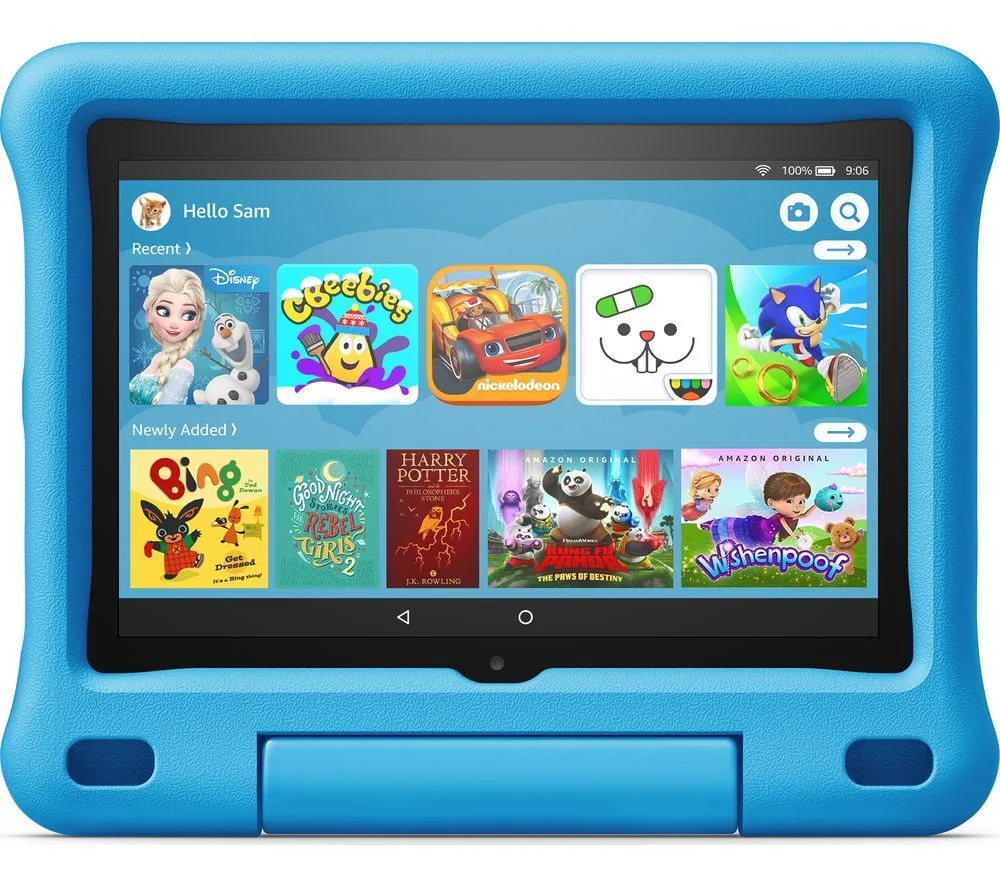
Image source: Bing (Web (fair-use with source credit))
Here is the trap. If your child enters the wrong Kids PIN too many times, the Kids profile locks. You cannot access the parent settings from a locked Kids profile.
And you cannot do a normal Settings menu reset because you cannot get past the lock screen.
The parent PIN is separate from the Kids PIN. The parent creates the Kids PIN during initial setup. If you forget the parent PIN, you are locked out of the administrative controls entirely.
Most parents assume they can just do a factory reset through recovery mode and be done. That works, but there is a catch. After the factory reset, when you set up the tablet again, restoring from an Amazon cloud backup will bring back the old Kids profile with the same parent and child PINs.
You will be locked out again.
To avoid that loop, you must set up the tablet as a new device instead of restoring from backup. Here is the process:
Step 1: Boot into recovery mode. Use the same hardware button combo as the regular version of the tablet. Parents often do not try this because they think Kids Edition is different. It is not.
The recovery mode is identical.
Step 2: Wipe data/factory reset. Same process. Volume buttons to navigate, Power to confirm. Wipe everything.
Step 3: During setup, choose "Set up as new device." When Amazon asks if you want to restore from a backup, say no. Select the option to set the tablet up from scratch.
Step 4: Create a fresh Kids profile. You will be prompted to create a new parent PIN and a new Kids PIN. Write these down somewhere safe. Many parents keep them in a password manager or a note on their phone.
Step 5: Skip the old backup permanently. The backup exists on Amazon's servers. It will not go away on its own. You can delete it from your Amazon account settings on a computer or phone if you want to keep from accidentally restoring it later.
There is one alternative if you still have access to the parent controls but just cannot remember the Kids PIN. Open the parent settings, tap on the child's profile, and select "Change Kids PIN." The parent PIN gets you in. You can set a new Kids PIN without a factory reset.
This only works if you have the parent PIN. If you have lost that too, factory reset is your only path.
Also worth noting: the Kids Edition comes with a two-year worry-free guarantee. If the tablet breaks, Amazon replaces it. But a forgotten PIN is not covered under that guarantee.
It is considered a software issue you handle yourself.
What Happens After the Reset: FRP, Account Locks, and Setup
You have completed the factory reset. The tablet reboots. Now what?
After a factory reset, every Fire tablet goes through a mandatory setup process. It looks like the same setup you did when you first bought the tablet. But there are post-reset requirements you need to understand before you get stuck again.
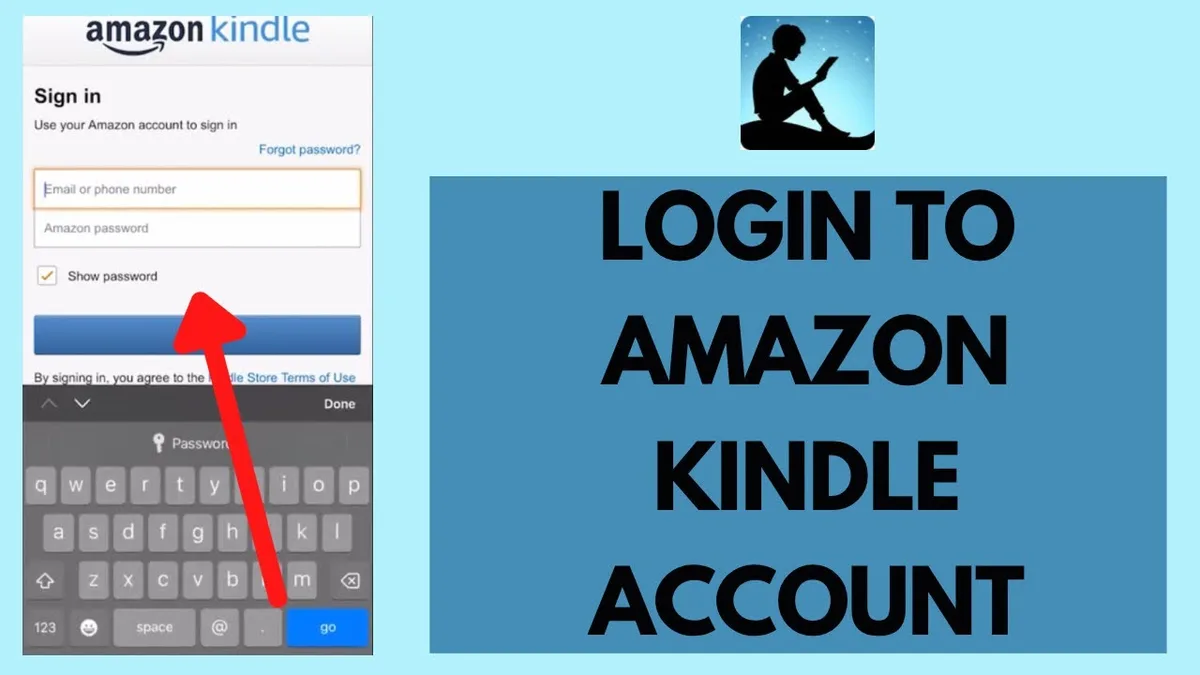
Image source: Bing (Web (fair-use with source credit))
The first screen asks you to choose a language. Then comes the Wi-Fi connection step. You need an active internet connection for the next part.
The tablet will not proceed past this point without Wi-Fi or cellular data.
After connecting to Wi-Fi, the tablet checks for an Amazon account. This is where Factory Reset Protection kicks in. FRP is a security feature that prevents anyone from using your tablet after a factory reset without your Amazon login credentials.
If a thief steals your tablet and resets it, they cannot get past this screen without your email and password.
Here is what you need to know about FRP:
- If you deregistered the tablet before resetting: The setup will ask you to sign in to any Amazon account. You can use the same one or a different one. No restrictions.
- If you did not deregister before resetting: The tablet will ask you to sign in to the last registered Amazon account. You cannot skip this. You cannot create a new account on this device until you verify the old one.
- If you are the original owner but forgot your Amazon password: Use a computer or phone to go through Amazon's password recovery process. You cannot reset an Amazon password from the tablet itself during setup.
- If you bought a used tablet and the previous owner did not deregister: You are stuck. The tablet will ask for the previous owner's credentials. You need to contact that person and ask them to remove the device from their Amazon account. They can do this from their account settings under "Manage Your Content and Devices."
FRP is not a bug. It is intentional. Amazon uses it to prevent stolen devices from being reactivated.
It stops a significant percentage of tablet thefts, since the hardware becomes unusable without the original account.
After you pass the FRP check, the setup continues with options to restore from backup, set up Kids Mode, and configure settings. If you want the fastest setup, choose "Set up as new device" and skip the backup restore.
One more thing about the post-reset state: your tablet will likely update its software after the first boot. Amazon pushes the latest Fire OS version to recently reset devices. This update can take 5 to 15 minutes depending on your internet speed.
Let it finish. Do not restart during the update.
For official guidance on device setup and account management, see Amazon's support documentation at their help center.
The Mistakes That Brick Resets (and How to Avoid Every Single One)
A "bricked" tablet is one that no longer boots or responds to any input. It is as useful as a brick. While rare, mistakes during a reset process can cause this.
Here are the most common errors we see from user reports.
Mistake 1: Interrupting the reset process. This is the number one cause of bricked Fire tablets. You start a factory reset, get impatient, and press the power button to see if it is working. Or the battery dies mid-wipe.
Either way, the operating system gets corrupted.
The fix: always ensure your battery is above 30 percent before starting. If you are under that, plug the tablet in and wait. Let the reset process run without touching anything.
It takes 2 to 5 minutes. Go make a coffee.
Mistake 2: Using the wrong button combo for recovery mode. Each Fire tablet generation has a slightly different sequence. Holding the wrong buttons will not damage the hardware, but it will prevent you from entering recovery mode. You might think the tablet is bricked when it is actually fine.
The fix: identify your model number before attempting recovery mode. The model number is printed on the back of the tablet. Use the table from the "Before We Dive In" section to match the combo to the model.
If the combo does not work after three attempts, double-check your model number.
Mistake 3: Not removing the SD card before resetting. A factory reset wipes internal storage only. It does not touch the SD card. But if you have apps installed on the SD card, those apps get orphaned after the reset.
They leave behind corrupt files that can cause errors when you try to set up the tablet again.
The fix: remove the SD card before starting the factory reset. You can reinsert it after the setup is complete. Then format the SD card from the tablet's settings, or at least delete the old app folders.
Mistake 4: Attempting a reset on a tablet with a failing battery. If the tablet is old and the battery drains quickly, starting a reset is risky. A battery that goes from 30 percent to zero in two minutes will not survive a full wipe. The tablet can brick mid-process.
The fix: keep the tablet plugged into the charger during the entire reset process. If the battery is very old, leave it plugged in for an hour before starting to ensure a stable charge.
Mistake 5: Resetting a tablet that is still in the middle of an OTA update. Fire tablets download system updates in the background. If you factory reset while an update is being installed, you can corrupt the system partition.
The fix: check for pending updates before resetting. Go to Settings, Device Options, System Updates. If an update is downloading or pending installation, let it complete.
Restart the tablet. Then proceed with the reset.
Mistake 6: Thinking a factory reset fixes hardware problems. It will not. A factory reset is a software fix. If your tablet has a broken screen, a dead battery, or a faulty charging port, no amount of resetting will help.
You need a repair or replacement.
The fix: test the hardware first. Can you hear sounds through the speaker? Does the charging light come on?
Can you feel haptic feedback? If the hardware is dead, skip the reset and seek a repair.
Mistake 7: Forgetting to deregister before selling. This is the most common mistake for people selling or giving away their Fire tablet. Without deregistration, the new owner will run into FRP and cannot set up the device. They will contact you months later asking for your Amazon password.
The fix: before resetting for sale, go to Settings, My Account, and tap "Deregister." Then proceed with the factory reset. This removes the FRP lock and makes the tablet ready for a new owner.
The Forgotten-PIN Workaround vs. Factory Reset: Which Should You Pick?
This is the fork in the road where many people waste time trying workarounds that do not exist. Let us be clear about what actually works.
There is no official Amazon PIN recovery tool. You cannot reset your Fire tablet's lock screen PIN from a computer or from your Amazon account dashboard. The PIN is stored locally on the device, not in the cloud.
If you forget it, the device itself cannot help you get back in.
So your options are limited to two paths:
Path 1: The "Forgot Password" button on the lock screen. This appears after a few incorrect PIN attempts. Tapping it takes you to a screen where you enter your Amazon account password. If you enter the correct Amazon password, the tablet unlocks and clears the PIN.
You can then set a new PIN.
This path only works if you remember your Amazon account password. If you forgot that too, this path is blocked.
Path 2: Factory reset through recovery mode. This always works. It wipes the PIN along with everything else. You lose your data but regain access to the tablet.
Which path should you choose? Here is a decision guide:
| If you… | Choose this path | Why |
|---|---|---|
| Remember your Amazon password | "Forgot Password" button | Quick, no data loss, takes 2 minutes |
| Do not remember your Amazon password | Factory reset via recovery | "Forgot Password" requires Amazon credentials |
| Have important data not backed up | "Forgot Password" button first | You keep your data after unlocking |
| Want to sell or give away the tablet | Factory reset via Settings menu | Wipes data and deregisters properly |
| Are locked out after too many attempts | Factory reset via recovery | Device is disabled; no other option |
One common myth we see online: some users suggest that entering a specific Google account PIN or using ADB commands can bypass the lock screen without a reset. On Fire tablets, this does not work. Fire OS does not support Google services in the same way as standard Android.
ADB debugging is usually disabled by default on lock screens.
We recommend the "Forgot Password" path first if you have any hope of remembering your Amazon credentials. It takes almost no time and preserves all your data. Only move to the factory reset if the first path fails.
If you are resetting because you bought a used tablet and the previous owner's PIN is still active, you have no choice. You need a factory reset. But you also need that previous owner to deregister the device from their account, or you will hit FRP after the reset.
See the FRP section above for handling that situation.
Real Scenarios: When Each Reset Method Actually Saved the Day
Theory is useful. Real examples are better. Here are three common situations that show how different reset methods solve different problems.
Scenario 1: The boot loop after a failed update.
A user owned a Fire HD 8 (10th gen, 2020). They let an OTA update install overnight. The next morning, the tablet showed the Amazon logo, then restarted, then showed the logo again.
It cycled like this for hours.
A force restart did nothing. The tablet just returned to the boot loop.
The user booted into recovery mode using Power plus Volume Up. From the recovery menu, they selected "Wipe cache partition" first. The wipe took about 45 seconds.
Then they selected "Reboot system now."
The tablet booted normally. No data was lost. The cache wipe had cleared the corrupted update files without touching personal data.
This is the ideal outcome. A cache wipe resolves many boot loops from failed updates. It is always worth trying before the full factory reset.
Scenario 2: The forgotten PIN on a used tablet.
A buyer purchased a used Fire 7 (9th gen) from a secondhand marketplace. The seller had not deregistered the device. The lock screen still showed the seller's PIN.
The buyer could not unlock it.
The buyer booted into recovery mode and performed a factory reset. The reset completed successfully. The tablet rebooted to the setup screen.
Then came the FRP block. The setup asked for the previous owner's Amazon account credentials. The buyer could not proceed.
They contacted the seller, who had to go into their Amazon account settings and remove the device from their registered devices list.
After the seller did that, the buyer reset the tablet again through recovery mode. This time, the setup accepted a new Amazon account.
The lesson: if you buy a used Fire tablet, ask the seller to deregister it before you take possession. If they cannot or will not, do not buy the tablet. It is unusable without that step.
Scenario 3: The Kids Edition double lockout.
A parent set up a Fire HD 10 Kids Edition for their child. The child entered the wrong Kids PIN too many times and locked the profile. The parent tried to access the parent settings but had forgotten the parent PIN.
They were locked out twice. Once from the child's profile and once from the administrative controls.
The parent booted into recovery mode using the standard button combo. They performed a factory reset. After the reset, they set the tablet up as a new device, skipping the backup restore.
This created a fresh Kids profile with a new parent PIN. The parent wrote it down this time and also saved it in their Amazon account notes.
The parent lost about 30 minutes of the child's saved game progress. But the tablet was usable again in under 10 minutes.
These three scenarios cover the majority of real-world reset situations. The common thread in all of them: knowing which method to use and when saved time and prevented unnecessary data loss.
Still Stuck? Here's What to Try Before Giving Up
You have tried everything in this guide. The tablet still will not respond. Do not throw it in a drawer yet.
There are a few more things to attempt.
Try a different charger and cable. Fire tablets are picky about power. A worn-out cable can deliver enough power to show a charging icon but not enough to boot the system. Use the original Amazon charger if you still have it.
If not, use a charger rated at 5V and at least 1.5 amps. Lower-rated chargers from phones may not work.
Leave the tablet plugged in for 24 hours. A deeply discharged battery can appear completely dead. The tablet may not show any sign of life for hours. Leaving it on a charger overnight sometimes revives a tablet that seemed bricked.
This is especially true for older models with aging batteries.
Try the button combo while plugged in. Some Fire tablets will not enter recovery mode on battery power alone if the battery is extremely low. Plug the tablet in, then attempt the Power plus Volume Up combo. The external power can provide enough stable voltage for the boot process.
Check for physical damage. Look at the charging port. Is it clogged with dust or lint? Use a wooden toothpick to gently clean it out.
Look at the screen for cracks that might have damaged the digitizer. Press the power button and feel for a click. If the button feels mushy or stuck, the hardware may be failing.
Use ADB if you enabled developer options before the problem started. If you had USB debugging turned on before the tablet became unresponsive, you can connect the tablet to a computer and use ADB commands. The command "adb reboot recovery" will force the tablet into recovery mode. This only works if ADB was already enabled.
It is not available on locked or fresh-out-of-box tablets.
Contact Amazon's customer support. Amazon has a team that handles boot loop and bricked device cases. They may offer a replacement if the tablet is still under warranty. The standard warranty is one year.
The Kids Edition comes with a two-year guarantee. If you are out of warranty, they may still offer a discount on a replacement.
Check model-specific forums. Some Fire tablet generations have known issues with specific recovery methods. For example, early Fire HD 10 models (2017) sometimes require a different button timing. Searching for your exact model number plus "recovery mode" can reveal quirks specific to that generation.
When to give up. If the tablet has been on a charger for 24 hours, shows no signs of life, and does not respond to any button combo, the hardware is likely dead. Common failure points include the battery, the charging port, and the motherboard. Professional repair is possible but often costs more than the tablet is worth.
A Fire 7 starts at around 60 dollars. Repairing it can cost more than that.
Final Decision Flowchart: Which Reset Method Fits Your Exact Problem
This flowchart summarizes everything from the guide into a single decision path. Start at the top and follow the branch that matches your situation.
Start here: Is the screen responsive?
Yes, the screen works and I can tap buttons. , Can I unlock the screen?
 , Yes. Go to Settings, Device Options, Reset to Factory Defaults. Or try "Forgot Password" if the PIN is the issue.

 , No, I forgot the PIN.

     , Tap "Forgot Password" on the lock screen. Enter your Amazon account password. If that works, you are done.

     , If you do not know your Amazon password, boot into recovery mode and factory reset.
, Can I access Settings?
 , Yes. Go to Device Options, Reset to Factory Defaults. This is the safest reset path.

 , No, the tablet is locked or frozen. Go to the hardware button method below.
No, the screen is black, frozen, or stuck on a logo. , Try a force restart. Hold the power button for 30 seconds.
 , Tablet boots normally. Done. You had a temporary crash.

 , Tablet stays black. Charge for 30 minutes and try again.

 , Tablet shows logo but restarts (boot loop). Go to recovery mode.
Recovery mode: Can you enter it?
Hold Power + Volume Up (or Volume Up + Power for older models) starting from a powered-off state. , Recovery menu appears. Good.
 , Try "Wipe cache partition" first. Reboot. If the tablet works, you are done with no data loss.

 , If the boot loop continues or the tablet is still frozen, go back to recovery and select "Wipe data/factory reset."
, Recovery menu does not appear.
 , Double-check your model's button combo using the table in "Before We Dive In."

 , Try the combo while the tablet is plugged into a charger.

 , Try holding the buttons for a full 20 to 30 seconds. Do not release early.

 , If it still fails, the tablet may have a hardware issue.
After the factory reset:
The tablet reboots to the setup screen. , Connect to Wi-Fi.
, Sign in to your Amazon account.
 , If the tablet asks for a previous owner's account, you need that person's credentials or deregistration.

 , If you are the original owner and forgot your password, recover it from a computer first.
, Choose "Set up as new device" to avoid restoring old problems.
, Done.
For Kids Edition tablets specifically:
- If you cannot exit Kids Mode because you forgot the parent PIN, go directly to recovery mode. Do not try to reset through Settings.
- After the factory reset, set up as a new device. Do not restore from backup.
- Create a new parent PIN and a new Kids PIN. Save them somewhere safe.
One last check:
- If you are selling the tablet, deregister your Amazon account before resetting. This prevents FRP issues for the buyer.
- If you are keeping the tablet, deregistration is optional. The tablet will work either way.
That is the complete decision tree. If you followed the branches correctly, you should have either a working tablet or a clear diagnosis of a hardware failure.
Frequently Asked Questions
Will a factory reset remove the Amazon account from my Fire tablet?
No. A factory reset wipes local data but does not remove the device from your Amazon account. You must manually deregister the device before resetting.
Go to Settings, My Account, and tap Deregister. If you skip this step, the tablet will still ask for your Amazon credentials after the reset due to FRP.
Can I reset a Fire tablet without losing my photos and files?
Yes, if you back them up first. Photos and files stored locally on the tablet are erased during a factory reset. Copy them to a computer or cloud service before starting.
Content purchased from Amazon, like Kindle books and Prime Video downloads, can be re-downloaded after the reset.
How do I reset a Fire tablet that is stuck on the Amazon logo?
Hold the power button for 30 seconds to force a shutdown. Then boot into recovery mode by holding Power plus Volume Up (or Volume Up plus Power on older models). From the recovery menu, try "Wipe cache partition" first.
If that does not fix it, select "Wipe data/factory reset." The tablet will reboot and run through initial setup.
What is Factory Reset Protection on a Fire tablet?
Factory Reset Protection is a security feature that prevents anyone from using a reset Fire tablet without the original Amazon account credentials. After a factory reset, the setup screen requires the previous owner's email and password. This stops thieves from wiping and reselling stolen tablets.
You can avoid FRP issues by deregistering the device before resetting.
Can I reset a Fire tablet if I forgot both the screen PIN and the Amazon password?
Yes. Boot into recovery mode using the hardware button combo. Perform a factory reset from the recovery menu.
After the reset, the tablet will ask for the Amazon account password. If you do not know that password either, you must recover it through Amazon's website on a separate device before you can complete the setup.
How long does a factory reset take on a Fire tablet?
The reset process itself takes 2 to 5 minutes depending on the model and storage size. After the reset, the first boot takes 5 to 15 minutes. If you are setting up the tablet as a new device, the total time from starting the reset to a fully usable tablet is about 15 to 25 minutes.
This includes connecting to Wi-Fi and signing into your Amazon account.
For official specifications and warranty information, consult Amazon's support documentation.