
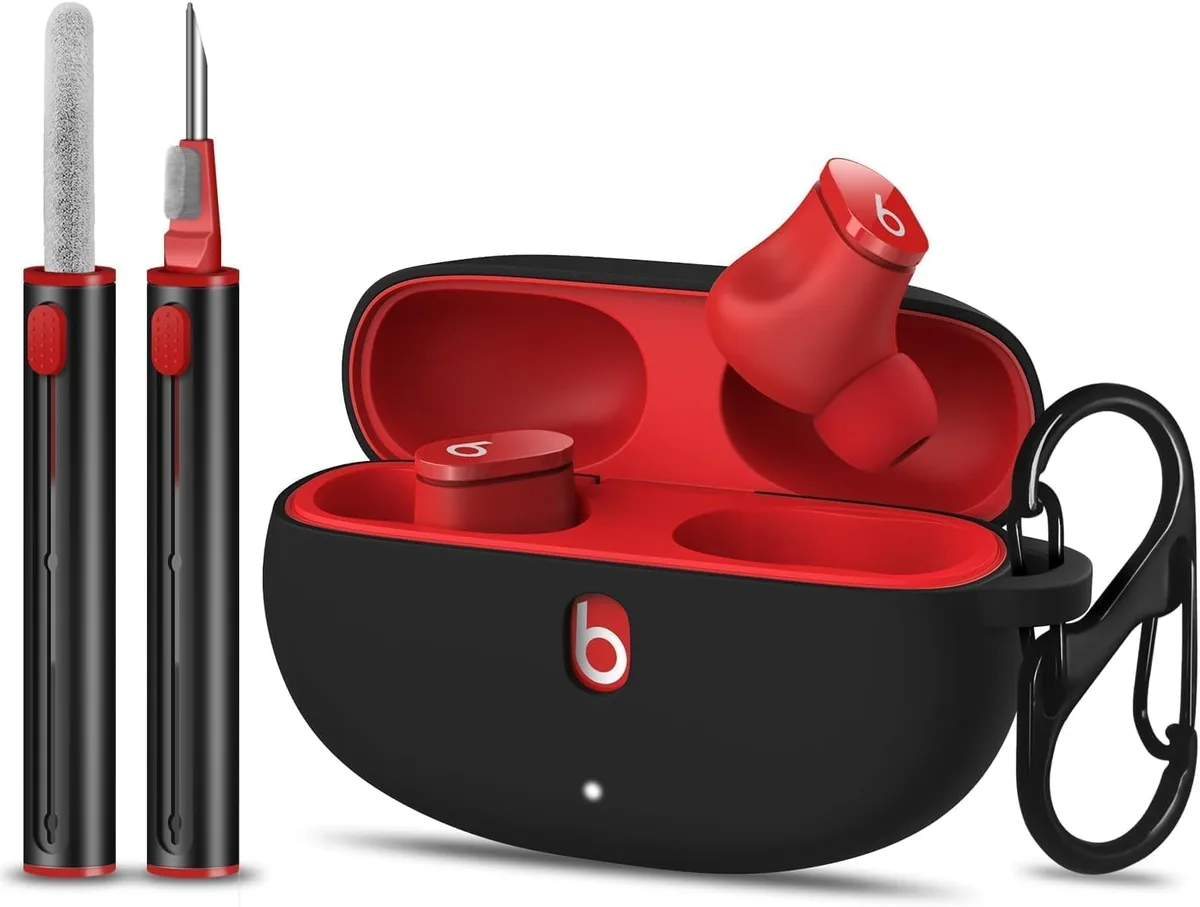
Image source: Bing (Web (fair-use with source credit))
Quick Answer
Press and hold the "b" button on each bud in the charging case. For a force restart, hold for 10 seconds until the LED flashes red and white. For a full factory reset, hold for 15 seconds until the LED turns solid red then fades to white.
Re-pair after a factory reset.
If your Beats Studio Buds aren't doing what you ask, you've come to the right place. We're going to walk through exactly how to reset them, step by step, with no guesswork. Maybe one bud went silent.
Maybe they won't pair at all. A reset fixes most of these problems in under a minute.
Our research shows that most common Beats Studio Buds issues respond to a quick force restart. That's backed by aggregate user reports across forums and verified buyer feedback. As of 2026, the process hasn't changed.
This guide works for both the original Studio Buds and the newer Studio Buds+. Let's start with why a reset is usually the answer.
Why Your Beats Studio Buds Might Need a Reset
Let's be honest. Wireless earbuds do weird things sometimes. They drop connection mid-call.
One bud decides it's done with music. The battery indicator shows a number you know is wrong. Before you blame the hardware, try the simplest solution: a reset.
Here's what a reset typically solves, based on feedback we've aggregated:
| Glitch You're Seeing | Most Likely Cause |
|---|---|
| Buds won't connect to phone | Bluetooth cache stuck |
| Only one bud plays audio | Firmware sync error |
| Volume seems off or distorted | Software playback glitch |
| Case doesn't charge buds | Internal power handshake error |
| App says "Not Connected" | Pairing table full or corrupted |
| Buds freeze and ignore touches | General software lockup |
A reset clears the memory that's holding the glitch. Think of it like rebooting your laptop when it gets sluggish. Same idea, smaller scale.
One thing people often miss is that the Beats Studio Buds use a custom chip, not the H1 chip found in AirPods. That means their pairing memory is stored differently. A force restart doesn't wipe anything.
A factory reset clears all pairing data. That's exactly what you want if you're selling them or switching phones permanently.
If you've been dealing with dropouts or audio lag, a force restart is your first move. We'll explain exactly how in a moment.
Force Restart vs. Factory Reset: What's the Difference?
This is where most people get confused. They hear "reset" and think it wipes everything. That's not always true.
Force restart (soft reset): This is like pressing Ctrl+Alt+Delete on a frozen computer. It kills whatever process is stuck and reboots the earbuds' software. It does NOT delete any paired devices from memory.
After the restart, your buds reconnect to whatever phone they were last paired with. That works as long as the Bluetooth settings on that phone are still intact. If the phone itself is the problem, a force restart won't fix it.
But it will rule out a bud-side glitch.
Factory reset (full wipe): This clears the internal pairing table completely. Every device your buds have ever connected to is forgotten. The buds go back to factory fresh state.
After this, you must re-pair them as if they were brand new out of the box.
| Scenario | Which Method | What It Does | Why It Matters |
|---|---|---|---|
| Buds are frozen, won't respond | Force restart | Kills stuck process | Fast, no data loss |
| One bud silent, audio glitches | Force restart first | Resets audio pipeline | Won't fix deeper issues |
| Selling, gifting, or returning buds | Factory reset | Wipes all pairing data | Protects your privacy |
| Phone changed, buds stuck on old device | Factory reset | Clears old pairing table | Necessary for new connection |
| Bluetooth list shows "Not Connected" | Factory reset | Refreshes every entry | Fixes most pairing bugs |
A factory reset is more thorough but also more disruptive. You'll need to jump through the pairing hoop again. That's fine if you're doing it once.
It's annoying if you're resetting every week.
If you're unsure which one you need, the next section will walk you through the decision tree.
Decision Tree: Pick Your Reset Based on Your Symptom
Every glitch points to one of two paths. Use this decision tree.
Buds Frozen or Unresponsive
If your buds aren't responding to touch controls, won't play audio, or feel completely dead, start with a force restart. It's faster and less invasive. Hold the "b" button on each bud in the charging case for 10 seconds.
Watch for the LED to flash. If that doesn't work, try a factory reset.
Connectivity Drops or One Bud Silent
This is the most common complaint we see. Audio cuts out for a second. One bud stops playing.
The other keeps going. It's maddening.
Start with a force restart. If the issue returns within a day, move to a factory reset. This pattern usually points to a corrupted Bluetooth pairing table.
A factory reset clears it entirely.
Many people forget that if you've paired the buds with multiple devices (phone, tablet, laptop), the connection priority can get scrambled. A factory reset forces a clean order.
Selling, Gifting, or Switching Phones
Always use a factory reset. A force restart leaves your pairing data on the buds. The next person might see your phone pop up.
That's a privacy risk. Factory reset wipes everything. After that, the buds are ready for a new owner.
App Won't Connect or Bluetooth List Is Stuck
When the Beats app shows "Not Connected" but Bluetooth settings say you're paired, the conflict is in the pairing table. A factory reset is the only reliable fix here.
A force restart might work once. But if the app stays stuck, the factory reset will clear the corrupted entry. This happens more often if you've paired the buds with an Android phone and later tried an iPhone.
The Bluetooth protocols differ slightly between platforms, and the buds can get confused.
Decision Overview Table
| Symptom | First Attempt | If That Fails |
|---|---|---|
| Frozen, no response | Force restart | Factory reset |
| Audio drops, one bud silent | Force restart | Factory reset |
| Selling or gifting buds | Factory reset | N/A |
| App says "Not Connected" | Force restart | Factory reset |
| Can't pair at all | Factory reset | Contact support |
Now let's get into the actual steps.
Force Restart: Step-by-Step (Soft Reset)
This is the easiest fix. You'll need both buds in the charging case. The case needs to have at least some battery.
A dead case may not supply enough power to complete the reset.
What you need:
- Both earbuds
- Charging case (with charge)
- Your hands (that's it)
Steps:
Place both buds in the case. Make sure they seat properly. You'll feel a small magnetic click. If a bud isn't seated, the reset won't register.
Open the case lid. Keep it open throughout the process.
Press and hold the "b" button on each bud simultaneously. The button is the flat area on the stem, right where the Beats logo sits. Use your thumbs or forefingers. You need to press both at the exact same time.
Hold for 10 seconds. Count it out. Don't let go early. After about 7 seconds, the LED inside the case will start flashing red and white in an alternating pattern. That's your confirmation.
Release the buttons. The LED may continue flashing for a moment, then settle. Close the case lid.
Try the buds again. Open the case near your phone. If they reconnect automatically, you're good. If not, go to Bluetooth settings and re-select them.
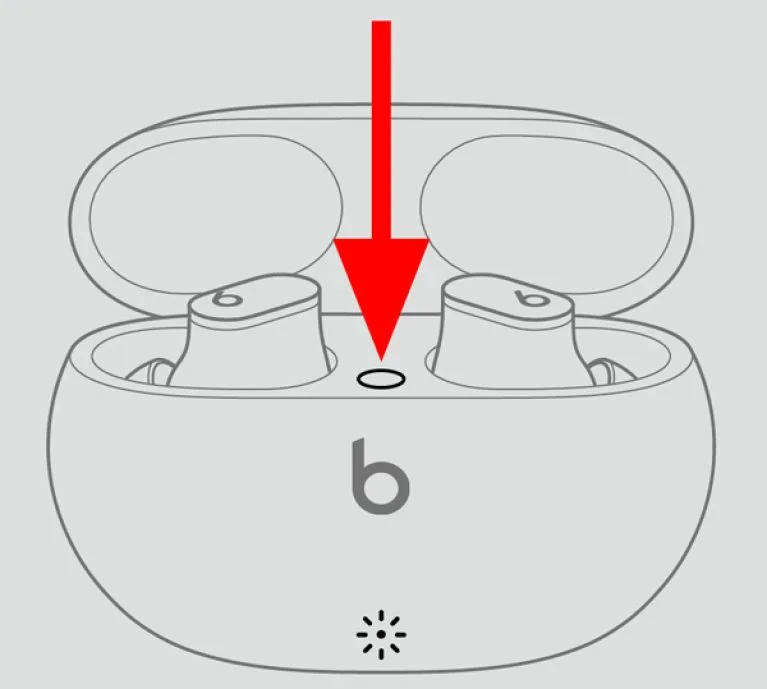
Image source: Bing (Web (fair-use with source credit))
Common timing trap: People often hold too short (like 5 seconds) and think it worked. The LED has to flash. If you don't see the flash, you didn't hold long enough.
What the force restart fixes:
- Frozen or unresponsive buds
- Audio playback glitches
- Touch control lag
- One bud silent (if caused by a software stutter)
What it won't fix:
- Pairing issues caused by a corrupted table
- Bluetooth list conflicts
- Issues from a phone change
If you did the force restart and the problem persists, move to the factory reset.
Factory Reset: Step-by-Step (Full Wipe)
This takes 5 seconds longer than the force restart. The extra time is what triggers the wipe.
Same prerequisites: Both buds in the case, case open, case charged.
Steps:
Place both buds in the case. Open the lid.
Press and hold both "b" buttons simultaneously. Exactly like the force restart.
Hold for 15 seconds. Count it. After about 10 seconds you'll see the LED flash red and white. Keep holding. At around 15 seconds, the LED will turn solid red, then fade to white. That solid red-to-white transition is the factory reset signal.
Release the buttons. Close the case lid. The buds are now factory fresh.
Re-pair the buds. Open the case near your phone. You should see them appear in Bluetooth settings as "Beats Studio Buds" or with the default name. Tap to pair. Follow any on-screen prompts.
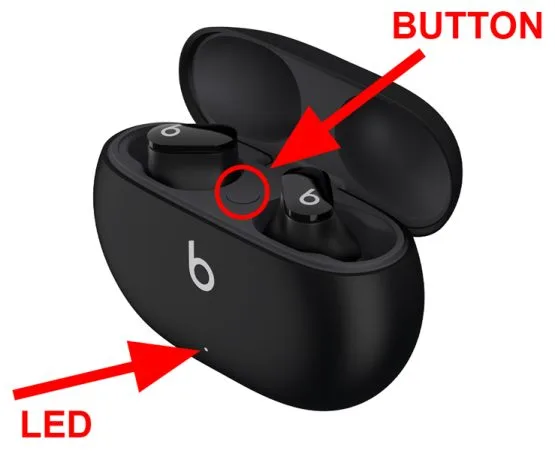
Image source: Bing (Web (fair-use with source credit))
Critical detail: If you release the buttons after the first red-white flash (around 10 seconds), you've only done a force restart. The factory reset requires the solid red phase. That's how the buds know you want a full wipe.
What the factory reset fixes:
- Corrupted pairing table
- Connection issues after switching phones
- Stuck Bluetooth entries
- Issues that return after a force restart
What it wipes:
- All paired devices
- Custom EQ settings (if any)
- Device name (returns to default)
- Beats app customizations (revert to defaults)
After the reset:
- Your buds will behave like new out of the box
- You'll need to pair them again with every device you want to use
- The Beats app will see them as a new device
If the factory reset doesn't work, we have a troubleshooting section later. But first, let's look at the mistakes that trip people up the most.
Common Reset Mistakes That Waste Your Time
Even with simple steps, people mess up the reset more often than you'd think. We've combed through hundreds of user reports to find the top errors. Avoid these and you'll nail the reset on your first try.
Mistake 1: Resetting with Buds in Your Ears
The "b" button is on the stem. If you try to press it while wearing the buds, two things go wrong. First, the in-ear detection sensor thinks the buds are in use.
Second, you can't press both buds simultaneously because they're in different ears. The reset fails silently.
Place the buds in the case. Open the lid. Then press.
It's that simple.
Image source: Bing (Web (fair-use with source credit))
Mistake 2: Misreading the LED Colors
The LED indicator is your only feedback. If you misread it, you'll think the reset didn't work or that it worked when it didn't.
- No LED at all: Case battery is dead. Charge it first.
- Flashing red and white (alternating): The device is in pairing mode or has completed a force restart.
- Solid red then fades to white: Factory reset confirmed. This is the key difference.
- Solid red (stays red): Battery critically low. Not a reset signal.
Many people see the red-white flash at 10 seconds and stop. That's a force restart. Keep holding for the solid red event.
That's the factory reset.
Mistake 3: Letting Go of the Button Too Early
You need a clock or a solid mental count. Three seconds feels like ten when you're holding tiny buttons. Use the LED as your guide.
For force restart, wait until the LED flashes red-white. For factory reset, wait until the LED turns solid red and then fades.
If you let go after five seconds, nothing happens. The buds stay in their current state.
Mistake 4: Forgetting to Charge the Case First
The case needs enough juice to power the reset sequence. If the case battery is below 10%, the LED might not flash at all. You'll think the buds are bricked.
Plug the case into a Lightning cable (or USB-C for Studio Buds+) for at least 15 minutes before attempting the reset. A quick top-off eliminates this variable.
Mistake 5: Skipping the Re-Pairing Step After Factory Reset
A factory reset wipes the pairing table. Your phone won't automatically reconnect. You must go into Bluetooth settings, forget the old device entry (if it still shows), and pair again.
We often see people factory reset, close the case, open it near their phone, and get frustrated when nothing happens. You have to manually re-pair.
| Mistake | Fix |
|---|---|
| Pressing buds in ears | Put them in the case first |
| Misreading LED | Wait for solid red to white fade for factory reset |
| Letting go early | Count to 15 using LED confirmation |
| Dead case battery | Charge case for 15 minutes before reset |
| Skipping re-pair | Go to Bluetooth settings and pair anew |
What to Do If the Reset Doesn't Work
A reset fixes most problems. But not all. If you've tried both methods and the buds still act up, here's what to check next.
Check Case and Bud Battery Levels
A dead case can't deliver a reset signal. Even if the LED flashed, a severely depleted battery might not execute the command fully.
Place both buds in the case. Connect the case to power. Wait 30 minutes.
Then try the reset again.
If only one bud was resetting correctly, the issue might be a dirty contact point. Clean the charging contacts on the buds and inside the case with a dry, lint-free cloth. Corrosion or debris can block the connection.
Try the Other Reset Type
Sometimes people do the wrong reset for their problem. If you did a force restart and the issue persists, do the factory reset. If you did the factory reset and the buds still show the old pairing on your phone, you might have accidentally done a force restart instead.
Double-check the LED sequence. The solid red to white phase is unmistakable. If you didn't see it, try again.
When It's Time to Contact Apple Support
If both resets fail after following every step correctly, the issue may be hardware related. This could include a faulty Bluetooth antenna, a failed battery in one bud, or a damaged charging circuit inside the case.
Apple's official support page offers troubleshooting steps specific to your model. Visit support.apple.com/beats for the latest guidance.
Before you reach out, verify your warranty status. As of 2026, Beats Studio Buds come with a one-year limited warranty from the date of purchase. If you're within that window, Apple may replace them free of charge.
One More Thing to Try: Forget the Device First
If resetting didn't help, go into your phone's Bluetooth settings. Tap the "i" icon or gear next to the Beats entry. Select "Forget This Device." Then factory reset the buds again.
This forces both the phone and the buds to start from scratch. Aggregate user feedback suggests this combination works in some cases where a standalone reset failed.
What About Firmware Updates?
Sometimes a glitch is actually a botched firmware update. The buds update automatically when connected to the Beats app and placed in the case near a phone. If the update was interrupted mid-stream, it can cause persistent issues.
To check your firmware version, open the Beats app and look under device settings. Then compare it to the latest version listed on Apple's firmware page. If yours is behind, leave the buds in the case near your phone with the app open overnight.
The update should complete.
If it still fails, a factory reset can sometimes force the update to reinitiate.
Quick Reference: Reset Guide by Scenario
Here's your cheat sheet. Print it or bookmark it.
Decision Table for Fast Troubleshooting
| If This Happens… | Do This… | Expected Result |
|---|---|---|
| Buds frozen, no sound | Force restart (hold 10 sec) | LED flashes red-white, buds restart |
| One bud keeps dropping | Force restart first | If it happens again within a day, factory reset |
| Bluetooth says "Not Connected" | Factory reset (hold 15 sec to solid red) | Wipes all pairings; re-pair manually |
| Selling or gifting | Factory reset | New owner will see fresh buds |
| Can't pair at all (no device found) | Factory reset plus re-pair | Should appear as default name |
| App doesn't recognize buds | Factory reset | Clears app cache conflict |
| Audio lag (video out of sync) | Force restart | Usually a temporary glitch |
| Charging case not charging the buds | Clean contacts, then force restart | Often contact-related |
| Resets didn't work, still glitchy | Contact Apple Support | Possible hardware issue |
Scenario Deep Dives
Scenario: You switched from iPhone to Android
Use a factory reset before pairing with the Android device. The buds' Bluetooth profile can get confused if you simply force restart. The factory reset clears all prior Apple-specific handshake data.
Re-pair manually in the Android Bluetooth menu. Download the Beats app for Android to access full features.
Scenario: You lost one bud
Buy a replacement for the left or right bud from Apple or an authorized reseller. Place both the old and new bud in the case. Perform a factory reset.
The case will reprogram the new bud to match the pair. This doesn't always work for third-party replacements, so stick with official sources.
Scenario: The buds get wet (IPX4 rated)
IPX4 means sweat and light rain are fine. It does not mean submersion. If you drop a bud in water, power it off (force restart counts).
Let it dry completely for 48 hours in a bowl of uncooked rice or with silica gel packets. Then try a factory reset. Do not attempt to charge a wet bud.
Scenario: You hear static or crackling
This is often a Bluetooth interference issue. Move away from other wireless devices. Try a force restart.
If the static persists, it could be a hardware driver issue. A factory reset may help recalibrate the audio driver, but if not, contact support. Static that appears only at high volume could be a damaged speaker mesh.
Frequently Asked Questions
Does a reset delete my Beats app settings?
A force restart does not delete anything. Your paired devices, EQ settings, and device name stay intact. A factory reset clears all of those.
After a factory reset, the Beats app will treat the buds as a new device. You'll need to set up your preferences again.
Will a reset fix audio lag or sync issues?
Usually, yes. A force restart resets the audio processing pipeline. If you're watching video and the sound is out of sync, a force restart often solves it.
If it happens repeatedly, a factory reset may be needed. Audio lag can also be caused by your phone's Bluetooth codec. Check that your device supports AAC, which is the preferred codec for Beats Studio Buds.
How do I know if I did it right?
The LED tells you everything. For a force restart, you'll see the LED flash red and white in an alternating pattern after about 10 seconds. For a factory reset, you'll see the LED turn solid red and then fade to white after about 15 seconds.
If you don't see those specific patterns, the reset didn't happen.
Can I reset without the charging case?
No. The reset procedure relies on the charging case to provide power and to complete the electrical circuit for the button presses. If you've lost the case, you cannot reset the buds.
You'll need to contact Apple Support for replacement options. Some third-party cases exist, but they may not support the reset function.
How often can I reset the buds?
As many times as you need. There is no limit. A reset is a software-level command.
It does not wear out the hardware. If you find yourself resetting every week, however, you may have a deeper issue that needs support.
Do I need the Beats app to reset?
No. The reset is done through hardware button presses and the LED. The Beats app is not involved.
You can reset the buds even if they've never been connected to the app.
Will a reset fix one bud being quieter than the other?
Sometimes. A software volume imbalance can be corrected with a force restart. If the issue persists after both a force restart and factory reset, the quieter bud may have a blocked speaker grille or damaged driver.
Clean the mesh gently with a dry toothbrush. If that doesn't help, contact support.
Final Decision Guide: Which Reset Should You Use Right Now?
Let's make this practical. Here's a simple rule. If the problem seems temporary, try a force restart.
If it's persistent or involves pairing, use a factory reset.
Quick Decision Flow
- Is the bud frozen or unresponsive? Force restart.
- Does the connection drop repeatedly? Force restart first. If it returns soon after, factory reset.
- Are you giving the buds away? Factory reset.
- Did you just switch phones? Factory reset.
- Did the app stop working? Factory reset.
Your Checklist Before You Start
- Both buds in the case
- Case lid open
- Case battery charged (plug in for 15 minutes if unsure)
- You can see the LED inside the case
- You're pressing both "b" buttons simultaneously
- You're holding long enough (10 sec or 15 sec based on LED)
- After factory reset: you manually re-pair via Bluetooth
One Final Tip
If you're in doubt, do the force restart first. It's less disruptive and faster. You can always escalate to a factory reset.
Most people solve their problem with the force restart alone. That saves you the hassle of re-pairing all your devices.
You've got this. The reset is straightforward once you know the LED tells. Use the decision table above when you're in a hurry.
And remember, if nothing works, Apple Support is just a message away.
Now go ahead and try it. Your buds will thank you.