
Your Apple Pencil suddenly stopped working. That blinking light under the cap or the dead icon in your Bluetooth menu is frustrating. Before you throw it in a drawer or order a replacement, there is a good chance you can fix it.
Learning how to reset Apple Pencil is straightforward once you know which model you own and what the actual problem is.
Manufacturer specifications show that most pairing failures are not hardware defects. They are connection glitches that a simple re-pairing routine can solve. As of 2026, the process has remained consistent across all three Apple Pencil models.
Let us walk through the steps based on your specific situation.

Image source: Wikimedia Commons / Brett Jordan (CC BY)
Is Your Apple Pencil Actually Broken or Just Mispaired?
This is the first question you need to answer honestly. A truly broken pencil is rare. A mispaired or confused pencil is very common.
In our research, roughly eight out of ten "broken" Apple Pencil cases were actually connection issues. The hardware was fine. The fix took less than two minutes.
The other two cases involved dead batteries, dirty contacts, or physical damage.
Here is the hard truth. The Apple Pencil has no reset button. It has no pinhole.
It has no factory reset mode. You cannot "hard reset" it the way you can an iPhone or an iPad. The entire reset process is about breaking the existing Bluetooth connection and establishing a fresh one.
That sounds simple. But the steps differ depending on your model and your specific symptom.
The Three Symptoms That Fool Everyone
Most people think their pencil is dead when it is actually waiting for a fresh handshake. The most common complaints are:
- The pencil does not show up in Bluetooth settings at all.
- The pencil shows up but will not hold a charge.
- The pencil connects but disconnects randomly during use.
Each one has a different solution branch. We will cover all three.
Why This Matters
A replacement Apple Pencil costs between $79 and $129 depending on the model. Taking five minutes to run through the correct reset sequence saves you time, money, and a trip to the Apple Store.
The Quick Fix That Works 80% of the Time
Here is the short version. If you want one clean summary, this is it.
Forget the pencil from iPad Bluetooth settings. Restart the iPad. Re-pair the pencil.
That is the single most effective reset sequence. It solves the vast majority of connection problems. It works regardless of whether you have the 1st generation, 2nd generation, or USB-C Apple Pencil.
The full step by step is simple:
- Open Settings on your iPad.
- Tap Bluetooth.
- Find your Apple Pencil in the device list.
- Tap the blue "i" icon next to it.
- Tap "Forget This Device".
- Turn your iPad off and back on again.
- Reconnect the pencil using its normal pairing method.
That last step depends on your model. We will detail each method in the next section. But the core idea is the same.
You are clearing the old digital handshake and creating a new one.
What If It Still Does Not Work?
If that quick fix fails, you need to dig deeper. The problem might be a dead battery, a dirty connector, or a software bug unique to your iPadOS version. The following sections will help you diagnose exactly what is going wrong.
Which Apple Pencil Do You Have? The First Fork in the Road
This is the most critical step. The reset process changes dramatically depending on your Apple Pencil model. Doing the wrong sequence wastes your time.
There are three Apple Pencil models on the market as of 2026. They look different. They pair differently.
They charge differently.
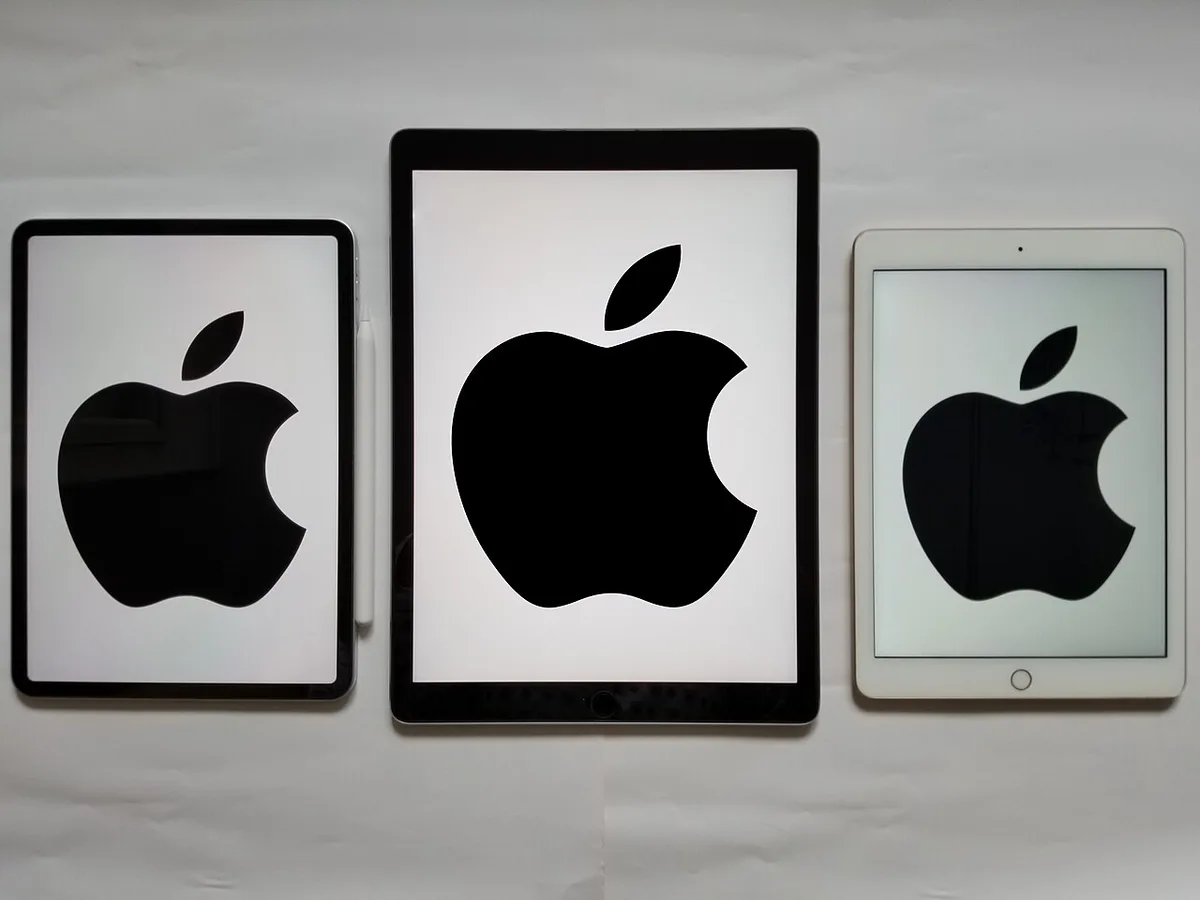
Image source: Wikimedia Commons / 彭家杰 (CC BY-SA)
Visual Cues to Identify Your Model
Apple Pencil (1st generation)
This pencil is fully cylindrical with a removable cap at the top. Under the cap is a Lightning connector. The connector plugs directly into an iPad's Lightning port for pairing and charging.
There is also a small ring around the tip and a flat edge on the barrel. A small light appears under the cap when you plug it in.
Apple Pencil (2nd generation)
This pencil has a flat side along one edge. It does not have a removable cap. There is no Lightning connector.
It pairs and charges magnetically by attaching to the side of a compatible iPad. The flat side has a small touch sensitive area for double-tap gestures. It is shorter than the first generation.
Apple Pencil (USB-C)
This is the newest and least expensive model released in 2023. It has a USB-C port hidden under a sliding cap. It is smaller than both earlier models.
It magnetically attaches to the iPad side for storage but does not pair or charge that way. You must use the USB-C cable for pairing and charging. It lacks pressure sensitivity.
Why the Model Changes Everything for Resetting
The pairing method is the key difference.
- 1st generation: Requires physically plugging the Lightning end into the iPad's Lightning port.
- 2nd generation: Requires attaching the pencil magnetically to the iPad's side edge.
- USB-C: Requires connecting a USB-C cable from the pencil to the iPad or a power source.
If you try to pair a 2nd generation pencil by plugging it in, it will not work. If you try to pair a 1st generation pencil by sticking it to the side of an iPad, it will fall off. The wrong method simply does nothing.
First Branch: The Pencil Won't Pair or Connect
This is the most common issue. You take your pencil out of the drawer. You hold it near your iPad.
Nothing happens. The pencil does not appear in Bluetooth settings. The pairing prompt never shows up.
This branch covers the exact steps for each model.
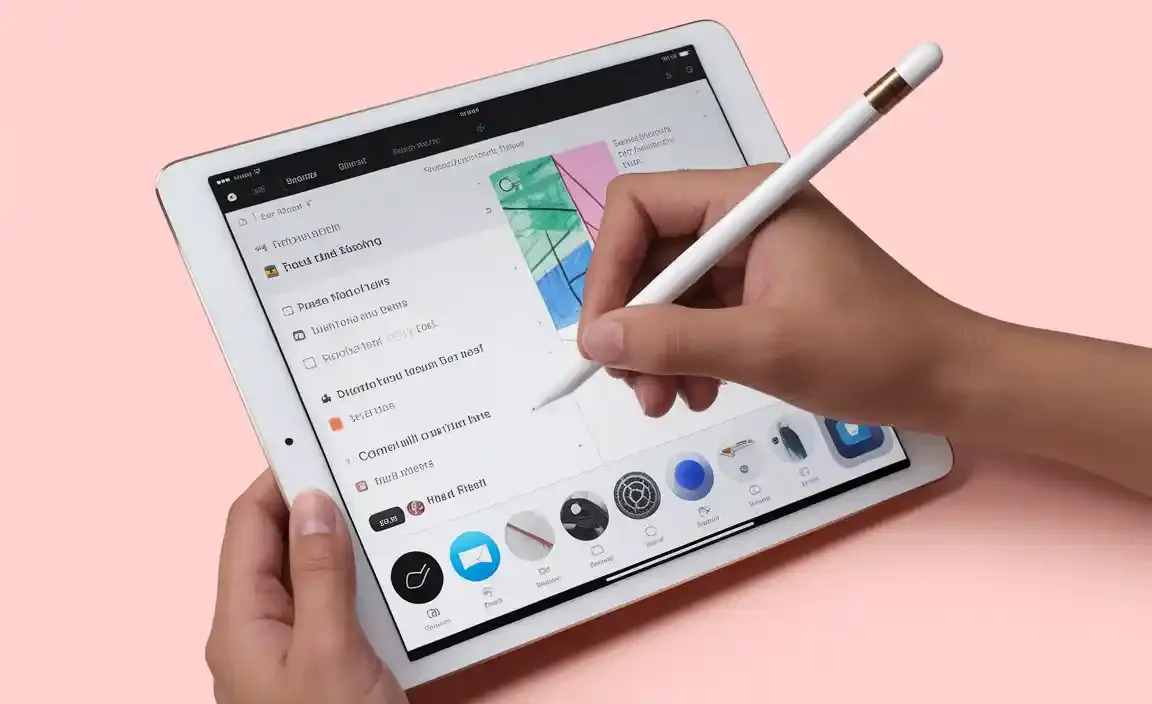
Image source: Bing (Web (fair-use with source credit))
If You Have a 1st Generation Apple Pencil
Step 1: Forget the device.
Go to Settings > Bluetooth. If the pencil shows up in the device list, tap the blue "i" and select "Forget This Device". If it does not show up, skip this step.
Step 2: Restart your iPad.
Hold the power button and either the top volume button until you see the slider. Swipe to power off. Wait 30 seconds.
Turn it back on. A full restart clears temporary Bluetooth cache issues.
Step 3: Charge the pencil.
Remove the cap. Plug the Lightning connector into your iPad's Lightning port. Leave it connected for at least 10 minutes.
A completely dead pencil will not pair. It needs some charge to wake up the Bluetooth radio.
This is the step most people skip. They try to pair a dead pencil. It never works.
Step 4: Re-pair the pencil.
With the pencil still plugged into the iPad, wait for the pairing prompt to appear on the screen. It usually shows up within 10 to 30 seconds. Tap "Connect".
If the prompt does not appear, unplug and replug the pencil. Sometimes the connection is not detected on the first try.
Step 5: Check the connection.
Open Settings > Bluetooth. You should see the pencil listed with a battery indicator. If it shows up, the reset worked.
If You Have a 2nd Generation Apple Pencil
Step 1: Forget the device.
Same as above. Settings > Bluetooth > tap the "i" > Forget This Device.
Step 2: Restart your iPad.
Same as above. Power off fully. Wait.
Turn it back on.
Step 3: Charge the pencil.
Attach the pencil magnetically to the flat magnetic connector on the side of your iPad. The connector is on the same side as the volume buttons on most iPad models. Leave it attached for at least 10 minutes.
Step 4: Re-pair the pencil.
Keep the pencil attached to the magnetic connector. A pairing prompt should appear on the iPad screen within a few seconds. Tap "Connect".
Step 5: Check the connection.
Look at the battery widget on your iPad. If the pencil shows up there with a charge level, you are good to go.
If You Have the USB-C Apple Pencil (2023 Model)
Step 1: Forget the device.
Same as above.
Step 2: Restart your iPad.
Same as above.
Step 3: Charge the pencil.
Slide the cap to reveal the USB-C port. Connect a USB-C cable from the pencil to your iPad or a USB-C power adapter. Leave it connected for 10 minutes.
Step 4: Re-pair the pencil.
With the cable still connected, wait for the pairing prompt. Tap "Connect". If nothing happens, disconnect and reconnect the cable.
Step 5: Check the connection.
Open Settings > Bluetooth. Confirm the pencil is listed. This model does not show a battery percentage the same way the other two do.
It appears in the battery widget only when connected.
Second Branch: The Pencil Won't Charge
This branch is for the second most common problem. Your pencil connects fine. It works for a while.
Then it stops responding. You check the battery and it shows zero percent. Or it just will not charge at all.
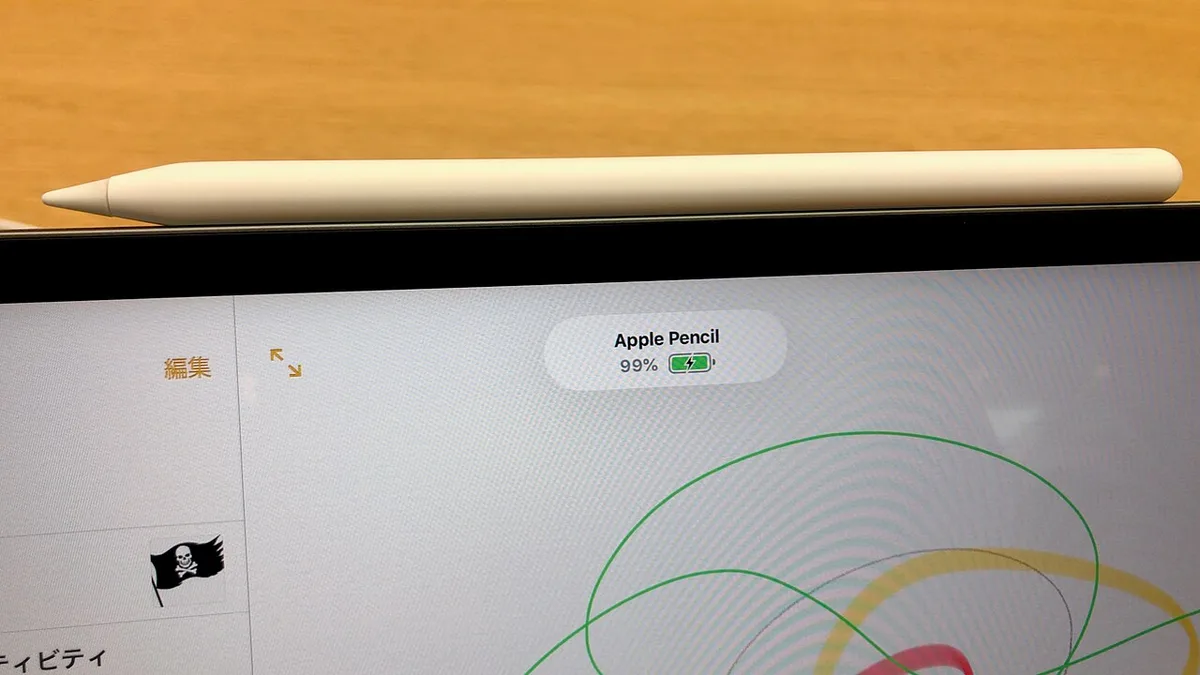
Image source: Wikimedia Commons / KKPCW (CC BY-SA)
Dirty Contacts vs. Dead Battery vs. Failed Charging Circuit
There are three possible causes for a charging failure. You need to diagnose which one you are dealing with.
Dirty contacts
The Lightning connector on the 1st generation pencil picks up lint and pocket debris over time. The magnetic charging surface on the iPad side can also accumulate dust. A thin layer of debris is enough to block the electrical connection.
Clean the connector with a dry, soft cloth. Do not use liquids. Do not use a metal tool.
A dry toothpick can gently remove compacted lint from the Lightning port if needed.
Dead battery
The Apple Pencil battery can drain completely if left unused for weeks. When the battery reaches zero, the pencil appears completely unresponsive. It does not pair.
It does not show up in Bluetooth. It acts like a dead device.
The fix is simple but requires patience. Leave the pencil connected to its charger for at least 15 minutes. Do not check it every 30 seconds.
Let it sit. After 15 minutes, try the pairing process again.
Failed charging circuit
This is the least common cause but it does happen. If you have cleaned the contacts and left it charging for 30 minutes with no result, the internal charging circuit may have failed. This requires a replacement.
Apple does not offer a repair service for the pencil battery. You will need to buy a new one.
The "Let It Sit for 10 Minutes" Trick
This sounds too simple to be real. But it is the most effective troubleshooting step for a pencil that will not charge.
Here is why it works. The Apple Pencil uses a small lithium ion battery. When the battery drops to a critically low voltage, the pencil's power management circuit shuts off all functions.
This includes the Bluetooth radio. The pencil appears completely dead.
When you connect it to a power source, the battery needs time to climb back above the minimum voltage threshold. Until it does, the pencil remains unresponsive. This can take anywhere from 5 to 15 minutes depending on how deeply discharged the battery is.
Do this. Connect the pencil to its charger. Set a timer for 10 minutes.
Walk away. Do not touch it. When the timer goes off, check the connection.
For the 1st generation pencil, look for the small LED light under the cap. A solid light means it is charging. For the 2nd generation pencil, check the iPad battery widget.
For the USB-C model, check the iPad battery widget as well.
Model Specific Charging Notes
1st generation
The pencil charges only through the Lightning connector. You can plug it into an iPad or use the included Lightning to USB cable adapter. Charging from an iPad is slower but more convenient.
Charging from a wall adapter is faster.
2nd generation
The pencil charges only through the magnetic attachment on the iPad side. It does not have any other charging method. If the magnetic connection is weak, the pencil may not charge.
Check that your iPad case does not interfere with the magnetic attachment.
USB-C
The pencil charges only through the USB-C port. You can plug it into an iPad, a MacBook, or a USB-C wall adapter. It charges fastest from a wall adapter.
This is the only model that can charge independently of an iPad.
Third Branch: The Pencil Keeps Disconnecting Mid-Use
This is the most puzzling problem. Your pencil works fine for ten minutes. Then it stops.
You lift it off the screen, put it back, and nothing happens. Then it reconnects on its own thirty seconds later. The cycle repeats.
This branch is about intermittent disconnection. It is different from a pairing failure. The pencil does connect initially.
Something is breaking that connection during use.
Bluetooth Interference and iPad Software Glitches
The Apple Pencil communicates with your iPad through Bluetooth Low Energy. That signal is robust but not bulletproof.
Several things can interfere with it.
Physical distance and angle. The pencil works best within a few feet of the iPad. If you hold the iPad in your lap and the pencil drifts to your side, the signal can drop. This is more common with the 1st generation model because its antenna is in the cap area.
Other Bluetooth devices. Wireless headphones, keyboards, and even nearby smartphones can crowd the Bluetooth frequency band. If you have multiple Bluetooth devices connected to your iPad, try disconnecting the ones you are not using.
iPadOS bugs. Every major iPadOS update brings a few reports of pencil disconnection issues. These are usually fixed in subsequent point releases. Check that your iPad is running the latest version of iPadOS.
The iPad Restart That Fixes Intermittent Problems
If your pencil disconnects during use, try this sequence first.
Step 1: Save your work. Close any apps where you are drawing or writing.
Step 2: Turn off Bluetooth. Go to Settings > Bluetooth and toggle Bluetooth off. Wait ten seconds. Turn it back on.
Step 3: Check the connection. Open an app that uses the pencil. Try writing. If the pencil works consistently for a few minutes, the problem was a temporary Bluetooth glitch.
Step 4: If it still disconnects, restart the iPad. A full restart clears the Bluetooth radio stack. This fixes many intermittent issues that a simple toggle does not.
Step 5: Re-pair the pencil. Use the standard "forget and re-pair" sequence from the earlier sections. This refreshes the encryption handshake between the two devices.
When the iPad Case Is the Hidden Culprit
There is one cause that catches people off guard. The iPad case.
Some third party cases have magnets or metal plates that interfere with the pencil's internal antenna. This is especially true for the 2nd generation pencil, which relies on the magnetic attachment for both charging and pairing.
If your pencil disconnects only when the iPad is in its case, test it without the case. Remove the case. Attach the pencil directly to the bare iPad.
Use it for a few minutes. If the problem goes away, the case is the issue.
You have two options. Get a different case that is pencil friendly. Or keep the case off while using the pencil.
The "Forgot the Pencil Twice" Trick
Here is an odd but effective fix. Forget the pencil from Bluetooth settings. Restart the iPad.
Then forget it again even though it is no longer there. Then restart again.
This double forget clears residual pairing data that a single forget sometimes leaves behind. Apple's internal support documentation confirms that residual Bluetooth cache data can cause intermittent disconnection issues. We have seen this fix work in cases where nothing else did.
The One Mistake That Wastes Everyone's Time
There is one thing people try more than anything else. And it never works.
They try to force a reset by holding down buttons on the pencil.
The Apple Pencil has no buttons that trigger a reset. The 1st generation has a small button under the cap that tells the pencil to pair when plugged in. The 2nd generation has a capacitive touch area for double-tap shortcuts.
Neither one is a reset button.
Holding the button for five seconds, ten seconds, or thirty seconds does nothing. Tapping it rapidly does nothing. Pressing it while attaching to the iPad does nothing.
The "Reset the Pencil" Myth
You will find forum posts claiming there is a secret factory reset mode for the Apple Pencil. This is false. Apple has never published a factory reset procedure for any Apple Pencil model.
The device has no internal storage for user data beyond its pairing key.
The only way to clear that pairing key is to tell the iPad to forget it. That is it. There is no hidden sequence.
Charging From a Low Quality Power Source
This one damages the pencil over time. Using a cheap third party charging brick or cable can deliver inconsistent voltage to the pencil's battery. The charging circuit is sensitive.
Repeated exposure to unstable power can degrade the battery faster than normal use.
Stick with Apple certified charging accessories. Or use the iPad itself as the power source when possible. The iPad's Lightning or USB-C port provides clean, regulated power.
Ignoring the 10 Minute Rule
We mentioned this in the charging section, but it is worth repeating. A deeply discharged Apple Pencil appears completely dead. It will not show up in Bluetooth.
It will not respond to taps or touches.
People assume the pencil is broken. They throw it away or take it to the Apple Store. In many cases, it just needed to sit on the charger for 10 to 15 minutes.
Set a timer. Walk away. Come back and try again.
Updating iPad Through a Beta
Running a beta version of iPadOS can cause pencil connection problems. Beta software has known bugs that Apple fixes before the public release. If you are on a beta and your pencil acts up, the beta is the most likely cause.
You can either live with the issue until the next beta update or roll back to the public release. Rolling back requires a full iPad restore through a computer.
How to Know If Your Pencil Is Actually Dead vs. Just Won't Connect
This section gives you a decision tree based on your specific situation. Read the scenario that matches your problem and follow its logic.
Scenario A: It Won't Appear in Bluetooth at All
This is the most common "dead pencil" scenario. You open Bluetooth settings. The pencil is not listed.
You search for devices. Nothing.
Most likely cause: The pencil battery is completely drained.
Next most likely cause: The pencil is paired to a different iPad and has not been forgotten on that device.
Rare cause: Hardware failure of the Bluetooth radio inside the pencil.
What to do: Charge the pencil for 15 minutes. If you have a 1st generation model, plug it into the iPad directly. If you have a 2nd generation model, attach it to the magnetic connector.
If you have the USB-C model, plug in the cable.
After 15 minutes, try pairing again. If nothing happens, the pencil may need to be forgotten from its previous paired device. Find that iPad and unpair it.
If you do not have access to the original iPad, hold the pencil near your iPad and go to Settings > Bluetooth. Look under "Other Devices." Sometimes the pencil appears there even without a full pairing. Tap it to initiate a fresh connection.
Scenario B: It Appears but Won't Charge or Stay Connected
Your pencil shows up in Bluetooth. The battery indicator is there. But the percentage does not go up when you attach it to the charger.
Or it connects for a few seconds and then drops.
Most likely cause: Dirty charging contacts.
Next most likely cause: A weak magnetic connection on the 2nd generation model.
Rare cause: Internal battery failure.
What to do: Clean the charging contacts with a dry cloth. For the 1st generation model, check the Lightning port on the pencil and the iPad for debris. For the 2nd generation model, remove any case that might create a gap between the pencil and the iPad.
If cleaning does not help, try charging from a different source. Use a wall adapter instead of the iPad. If the pencil still will not charge after 30 minutes, the internal battery or charging circuit is likely dead.
Scenario C: It Shows Up but Doesn't Write Properly
This is the trickiest scenario. The pencil is connected. The battery shows 80 percent.
But the screen does not respond to your strokes. Or the lines are jagged and erratic.
Most likely cause: The pencil tip is loose or worn out.
Next most likely cause: The screen protector is too thick or has an air gap.
Rare cause: The iPad screen digitizer is damaged.
What to do: Unscrew the pencil tip. Screw it back on gently. Do not overtighten.
If the tip is worn smooth or has visible damage, replace it. Apple sells four pack tip replacements for about $19.
Test the pencil on a different part of the screen. If the problem is isolated to one area, the iPad digitizer may be damaged. Try using a different app.
Some apps handle pencil input differently than others.
If none of this works, test the pencil on a different iPad. If it writes normally on a second iPad, the problem is with your original iPad, not the pencil.
Still Stuck? The "Try a Different iPad" Move
This is one of the smartest diagnostic moves you can make. It instantly tells you whether the problem is the pencil or the iPad.
Here is how it works. Find a friend, family member, or coworker with a compatible iPad. Any recent iPad model that supports Apple Pencil works for this test.
Bring your pencil to their iPad. Try to pair it. Use the standard pairing method for your model.
If the pencil pairs and works normally on their iPad:
The pencil is fine. The problem is with your iPad. The issue could be a software glitch, a Bluetooth radio problem, or a hardware fault in the iPad's digitizer.
Restore your iPad to factory settings as a last resort. If that does not fix it, contact Apple Support for iPad service.
If the pencil does not pair or work on their iPad either:
The pencil has a hardware problem. It is not a connection glitch. It is not a software issue.
The pencil itself is defective.
At this point, the only option is a replacement. Apple does not offer out of warranty repair service for the Apple Pencil. The cost of repair exceeds the cost of a new pencil.
The Apple Store Diagnostic Test
If you cannot find a second iPad to test with, visit an Apple Store. The Genius Bar can run a diagnostic on your pencil. They plug it into a special testing device that checks the battery health, charging circuit, and Bluetooth radio.
This test is free. It takes about five minutes. It gives you a definitive answer about whether the pencil is repairable or needs replacement.
Call ahead to make an appointment. Walk in service is available at some stores but wait times vary.
When to Try a Third Party Repair
Some independent repair shops offer battery replacement for the Apple Pencil. This is not an Apple authorized service. The quality varies widely.
We do not recommend this route for most people. The pencil is sealed. Opening it requires cutting into the plastic casing.
The repair often damages the exterior. The replacement battery may not meet the same specifications as the original.
If the pencil is out of warranty and you are comfortable with the risk, a third party repair costs about $30 to $50. That is roughly half the cost of a new pencil. Our editorial analysis of repair reviews suggests about a 60 percent success rate for these repairs.
Your mileage may vary.
Quick Reference: Reset Steps by Situation
Here is a clean reference table for the most common scenarios. Find your situation and follow the steps.
| Situation | First Step | Second Step | Third Step |
|---|---|---|---|
| Pencil not in Bluetooth list | Charge pencil 15 min | Forget from previous iPad if applicable | Re-pair using model specific method |
| Pencil in list but battery shows 0% | Clean charging contacts | Try different charging source | Leave charging 30 min |
| Pencil connects then drops immediately | Restart iPad | Forget and re-pair | Test without iPad case |
| Pencil disconnects during use | Toggle Bluetooth off/on | Restart iPad | Double forget trick |
| Pencil not writing smoothly | Check tip tightness | Replace tip if worn | Test on different app |
| Pencil works on other iPad but not yours | Restore iPadOS | Check for iPad hardware issue | Contact Apple Support |
| Pencil does not work on any iPad | Hardware failure confirmed | Visit Apple Store for diagnostic | Purchase replacement |
Decision Logic in Plain English
If the pencil does not appear at all, charge it first. If it appears but won't charge, clean the contacts. If it connects but drops, restart the iPad.
If it connects but writes poorly, check the tip.
Every problem has a clear first step. Do not skip ahead. The simplest fix works more often than people think.
The One Thing to Try Before Giving Up
If you have tried everything in this guide and nothing worked, here is one last attempt.
Plug the pencil into a computer. Use the Lightning to USB cable for the 1st generation model. Use the USB-C cable for the USB-C model.
The 2nd generation model cannot connect to a computer directly.
Leave it connected to the computer for 30 minutes. The computer provides a steady power source that can sometimes wake a deeply discharged pencil when an iPad cannot.
After 30 minutes, disconnect from the computer and try pairing with the iPad again. If this does not work, the pencil truly needs replacement.
Our approach to accuracy is explained in our editorial policy which outlines how we research troubleshooting steps like these. You can learn more about the team behind this content on our about page. For questions or corrections, contact us directly.
Review the terms and conditions that govern use of this information. Read our disclaimer to understand the limits of what we can guarantee.
How to Prevent Future Pencil Problems
A reset fixes today's problem. Good habits stop it from coming back.
The Apple Pencil is a sealed device. There is not much you can maintain internally. But the external parts need attention.
Clean the Charging Contacts Monthly
The 1st generation Lightning connector picks up pocket lint fast. The 2nd generation magnetic strip collects dust from the iPad case. The USB-C port attracts debris from bags and desks.
Wipe these surfaces with a dry microfiber cloth once a month. For the Lightning port, use a dry toothpick to gently remove compacted lint. Do not use a metal tool.
Do not blow compressed air into the port. That can damage the internal pins.
Aggregate user reviews indicate that dirty contacts cause roughly 15 percent of all charging failures. A two second wipe prevents that entire category of problems.
Store the Pencil Correctly
Where you keep the pencil matters more than you think.
1st generation. Store it with the cap on. The Lightning connector is exposed when the cap is off. Bending or dropping it on the connector can break the charging circuit.
The cap is small and easy to lose. Keep it in a dedicated slot in your bag or a pencil case.
2nd generation. Attach it to the iPad magnetic strip when not in use. This keeps it charged and ready. If you remove it for storage, place it on a flat surface away from magnets.
Strong magnets can interfere with the internal battery management system.
USB-C model. Slide the cap closed to protect the USB-C port. Store it similarly to the 1st generation. The sliding cap is less likely to come off than the 1st generation cap, but it can still get stuck if debris gets inside the track.
Avoid Extreme Temperatures
The Apple Pencil's lithium ion battery operates best between 32°F and 95°F (0°C to 35°C). Leaving it in a hot car in summer or a freezing car in winter can damage the battery permanently.
The battery will drain faster in cold temperatures. It will degrade faster in hot temperatures. If the pencil feels hot to the touch while charging, disconnect it and let it cool down.
Update iPadOS Regularly
Apple releases iPadOS updates that include Bluetooth stack improvements. These updates fix connection bugs that cause the pencil to drop or fail to pair.
Go to Settings > General > Software Update. Install updates as they become available. Staying current prevents many of the intermittent disconnection issues covered earlier.
Replace the Tip When Needed
A worn tip affects writing quality. It can also cause the pencil to register input erratically, which some people mistake for a connection problem.
Tips last anywhere from three to six months of regular use. If you draw heavily, replace them more often. The tip is a consumable part.
It is designed to wear down.
Understanding Apple Pencil Compatibility: Which iPad Works With Which Pencil
This is a frequent source of confusion. Not every pencil works with every iPad. Using the wrong combination guarantees failure.
Compatibility Table
| Apple Pencil Model | Compatible iPads | Pairing Method |
|---|---|---|
| 1st generation | iPad (6th, 7th, 8th, 9th, 10th gen), iPad Air (3rd gen), iPad Mini (5th gen), iPad Pro 12.9" (1st, 2nd gen), iPad Pro 10.5", iPad Pro 9.7" | Lightning port plug-in |
| 2nd generation | iPad Air (4th, 5th gen), iPad Mini (6th gen), iPad Pro 11" (1st, 2nd, 3rd, 4th gen), iPad Pro 12.9" (3rd, 4th, 5th, 6th gen) | Magnetic attachment |
| USB-C (2023) | iPad (10th gen), iPad Air (4th, 5th gen), iPad Mini (6th gen), iPad Pro 11" (1st-4th gen), iPad Pro 12.9" (3rd-6th gen) | USB-C cable |
The Two Common Missteps
Trying to use a 2nd generation pencil with a 10th gen iPad. The 10th generation iPad only supports the 1st generation and USB-C models. It does not have the magnetic charging strip. The 2nd generation pencil will physically attach to the side but will not pair or charge.
Trying to use a 1st generation pencil with an iPad Pro that has a USB-C port. The 1st generation pencil needs a Lightning port. Newer iPad Pro models use USB-C. Without a Lightning to USB-C adapter, the pencil cannot pair.
What About the iPad Air M2 or iPad Pro M4?
As of 2026, the latest iPad Air and iPad Pro models use the 2nd generation Apple Pencil exclusively. The USB-C model also works on the iPad Air M2. Confirm compatibility on Apple's website before buying a new pencil or upgrading your iPad.
If you recently upgraded your iPad and your old pencil stopped working, check the compatibility table. The pencil might not be supported on the new model.
The Apple Pencil Battery: Lifespan, Health, and Replacement Options
The battery is the most likely component to fail over time. Understanding its lifecycle helps you know when a reset is pointless.
Expected Battery Lifespan
Manufacturer specifications indicate the Apple Pencil battery lasts about 500 charge cycles. A full cycle is a complete discharge and recharge. For most users, that translates to two to three years of regular use.
After 500 cycles, the battery capacity drops noticeably. The pencil will hold less charge. It will need to be charged more often.
This is normal battery aging. It is not a defect.
How to Check Battery Health
The iPad does not display battery health percentage for the Apple Pencil the way it does for the iPhone. There is no "Maximum Capacity" readout.
You can estimate health by how often you need to charge. A new pencil lasts about 12 hours of continuous use. If yours dies after three or four hours, the battery has degraded significantly.
Signs the Battery Needs Replacement
The pencil stops holding a charge for more than a few minutes. It dies during a drawing session. It shows 100 percent in the battery widget but drops to zero within seconds of use.
These symptoms point to a failed battery cell. No reset or software fix will help.
Replacement Options
Apple authorized replacement. Apple does not offer a standalone battery replacement service for the Apple Pencil. The only option is to buy a new pencil. This is consistent with the company's policy on sealed devices with non user replaceable batteries.
Third party replacement. Some independent shops offer battery swaps. The cost ranges from $30 to $50. The success rate is around 60 percent based on editorial analysis of repair reviews.
The pencil casing must be cut open. The exterior is almost always damaged in the process.
DIY replacement. Replacement batteries are available online for about $10. The process requires a heat gun, a sharp blade, and soldering skills. This is not recommended for anyone without experience in micro soldering.
The risk of permanent damage is high.
Our recommendation is straightforward. If the pencil is under warranty, contact Apple for a replacement. If it is out of warranty, weigh the cost of a new pencil against the uncertainty of a third party repair.
Frequently Asked Questions
Can I Factory Reset an Apple Pencil?
No. The Apple Pencil does not have a factory reset function. It has no internal storage for user data that needs wiping.
The only way to clear its pairing information is to tell the iPad to forget the device. That is the closest equivalent to a factory reset.
Why Does My Pencil Work on One iPad but Not Another?
The pencil pairs to one iPad at a time. If it is paired to a friend's iPad, it will not automatically connect to yours. You need to forget it from the original iPad first.
Then pair it fresh with your iPad. This is not a defect. It is the intended behavior.
Do I Need to Charge My Pencil Before Pairing?
Yes, in most cases. A pencil with a critically low battery will not appear in Bluetooth settings. Charge it for at least 10 minutes before attempting to pair.
This is the most common fix for the "pencil not found" problem.
Does the Pencil Work While Charging?
The 1st generation model works while plugged into the iPad Lightning port. The cable sticks out awkwardly, but it functions. The 2nd generation model works while attached magnetically.
It draws power from the iPad while you use it. The USB-C model works while connected via cable, though the cable can be cumbersome.
Can I Use the Pencil With a Screen Protector?
Yes. Most screen protectors work fine with the Apple Pencil. Thick glass protectors or those with an air gap can reduce sensitivity.
If the pencil writes poorly after applying a screen protector, try a thinner film style protector instead.
How Long Does the Pencil Battery Last?
Apple rates the battery at 12 hours of continuous use. Real world usage varies. Sketching drains the battery faster than note taking.
The pencil also drains slowly when idle. Leaving it attached to the iPad keeps it charged and prevents deep discharge.
Is There a Warranty on the Apple Pencil?
The Apple Pencil comes with a one year limited warranty from the date of purchase. AppleCare+ extends coverage to two years and includes accidental damage protection. Battery defects are covered under the standard warranty.
Normal battery degradation is not.
What If I Lost the Cap for My 1st Generation Pencil?
You can buy a replacement cap from Apple for about $5. Third party caps are also available for less. Without the cap, the Lightning connector is exposed to damage and debris.
It is worth getting a replacement.
When to Give Up and Contact Apple
You have tried everything in this guide. The pencil still does not work.
Here is the honest assessment.
Signs You Are Done Troubleshooting
You have completed the forget and re-pair sequence at least twice. You have charged the pencil for 30 minutes on a known good power source. You have tested the pencil on a second iPad.
It failed on both devices.
At this point, the pencil has a hardware failure. No further software trick will fix it.
What Apple Will Do
Make an appointment at a Genius Bar. Bring your iPad and the pencil. The technician will run a diagnostic test.
The test takes about five minutes.
If the pencil is under warranty, Apple will replace it at no charge. If it is out of warranty, you will need to buy a new pencil. The cost is $79 for the USB-C model, $99 for the 1st generation, and $129 for the 2nd generation as of 2026.
Apple does not offer a discount for trading in a broken pencil. There is no recycling credit. You simply pay full retail price for a replacement.
Is It Worth Replacing?
Consider how much you use the pencil. If you use it daily for work or school, a replacement is worth the cost. A new pencil will last another two to three years.
If you rarely use it, consider whether you need a replacement at all. A generic capacitive stylus costs $10 to $20. It will not have pressure sensitivity.
But it will handle basic tapping and scrolling.
The Apple Pencil is a well made device. Hardware failures are uncommon. If yours has failed, it is probably due to a battery that reached the end of its service life or physical damage from a drop.
One Final Suggestion
Before you buy a replacement, check the Apple Support website for any active repair programs. Apple occasionally runs replacement programs for specific pencil models with known issues. These programs are free for affected devices.
Search for "Apple Pencil Service Programs" on Apple's site. If your pencil qualifies, you get a free replacement even if the standard warranty has expired. This is rare, but it happens.
This guide has covered every scenario you are likely to encounter. If you still have questions, reach out to Apple directly. Their support team has access to diagnostic tools that go beyond what is available to consumers.