
Image source: Bing (Web (fair-use with source credit))
You're trying to check your voicemail, and the system keeps rejecting your password. After a few wrong guesses, you're locked out entirely. If you need to know how to reset voicemail password on Android, this guide covers every carrier, every situation, and every method.
The good news? Most voicemail password resets take under five minutes. You don't need to call customer support in most cases.
You just need the right method for your specific phone and carrier.
Quick Answer
Dial *86 from your Phone app. Enter your current password. Follow the prompts to change it.
If you forgot your password, open your carrier's app or website. Look for voicemail settings. Reset it there.
Why Your Android Voicemail Password Won't Reset
The biggest reason people get stuck is simple. They're using the wrong method for their situation. Android doesn't have one universal reset button.
The correct path depends on three things: your carrier, whether you know your current PIN, and whether you use visual voicemail or traditional voicemail.
Here's what usually goes wrong:
- Generic instructions that don't match your carrier. Verizon works differently from T-Mobile. AT&T is different again. A tutorial from two years ago might show a menu that no longer exists.
- Confusing visual voicemail with traditional voicemail. These are two separate systems with two separate passwords. Resetting one doesn't touch the other. We'll cover this in detail.
- Getting locked out after too many wrong guesses. Most carriers lock you out after 3 to 5 failed attempts. Once that happens, self-service options disappear until you call support.
- Looking for a setting that isn't there. Many Android phones, especially Samsung Galaxy devices, hide voicemail settings deep in the Phone app. Some carriers remove the option entirely.
The takeaway is simple. Stop guessing. The right reset method depends on your exact situation.
First Thing: Identify Your Carrier and Phone Setup
Before you do anything else, take thirty seconds to confirm what you're working with. This step saves you from trying methods that won't work.
Check your carrier
Your carrier is the company that provides your phone service. It's not your phone manufacturer. If you're on Verizon, AT&T, or T-Mobile, you have one of the "big three." Your reset path is straightforward.
If you're on a prepaid carrier like Cricket, Visible, Metro, or Google Fi, your options are slightly different.
How to check: Go to Settings > About Phone > SIM Status. Your carrier appears under "Network." Or look at the top-left corner of your screen.
Check your voicemail type
Open your Phone app. Look for a voicemail tab or icon at the bottom right.
- If you see a list of messages with play buttons and transcriptions, you're using visual voicemail.
- If you see only a phone number to dial, you're on traditional voicemail.
This matters because the reset methods are different for each system.
Check if you're locked out
If you've already tried entering your password three or more times and the system hung up or played an error message, you're locked out. Most carriers lock your voicemail box after repeated failed attempts. When this happens, normal reset methods won't work until you unlock it through your carrier.
Once you know these three details, move to the decision tree below.
Decision Tree: Find Your Correct Reset Method
Read each branch carefully. Follow only the one that matches your situation.
Branch 1: You Know Your Current Voicemail Password
This is the easiest scenario. You don't need to reset. You just want to change it.
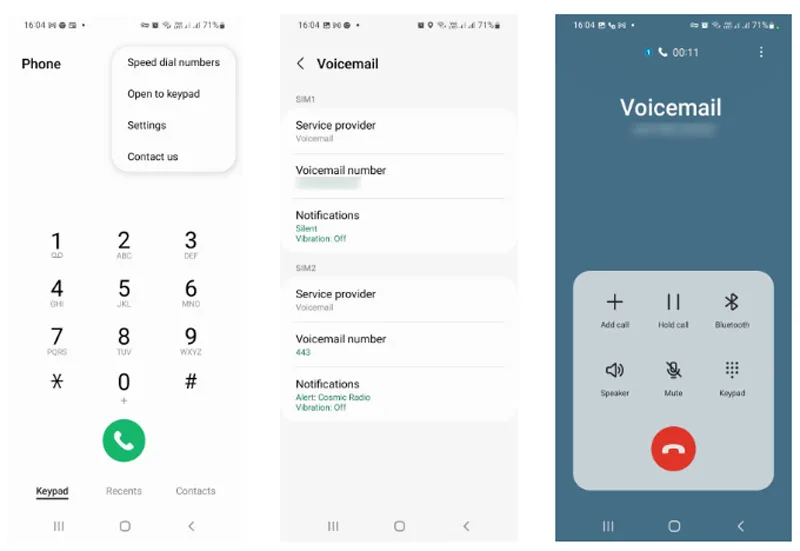
Open your Phone app. Tap the three dots in the corner. Go to Settings > Voicemail.
Look for "Change PIN" or "Voicemail password." If you see it, tap it. Enter your current password, then your new one. Done.
If you don't see that option, dial *86. You'll hear your voicemail greeting followed by a prompt. Press * to skip the greeting.
Enter your current password. Then follow the prompts to change it.
Branch 2: You Forgot Your Voicemail Password
Your options depend on your carrier:
- Major carrier (Verizon, AT&T, T-Mobile): Open your carrier's app or website. Log in with your account credentials. Look for "Voicemail settings" or "Reset voicemail PIN." Most carriers let you set a new PIN without needing the old one.
- Prepaid carrier (Cricket, Visible, Metro, Google Fi): Try the carrier app first. If that doesn't work, call customer service. Prepaid carriers often require phone verification before resetting your voicemail PIN.
- Uncertain: Dial *86. The system asks for your password. On some older systems, pressing # after the beep bypasses the prompt. It's worth a quick try.
Branch 3: You're Locked Out After Too Many Failed Attempts
You cannot self-service reset a locked voicemail box on most carriers. The lockout is a security feature. To unlock it, you must verify your identity.
Call your carrier's customer service number. From your phone, dial *611. Be ready with:
- Your account PIN or password
- Your full name and billing address
- The last four digits of your Social Security number (for postpaid accounts)
- Your phone number
Tell them you're locked out of voicemail. They'll verify your identity, unlock the box, and give you a temporary password or walk you through setting a new one.
Once unlocked, change the password immediately to something you'll remember.
Step-by-Step Reset Methods by Carrier
These are the exact steps for each major carrier and the most common prepaid providers. Find yours and follow it.
Verizon (Postpaid and Prepaid)
Via the My Verizon app (recommended):
- Open the My Verizon app.
- Log in with your Verizon account username and password.
- Tap the menu and select "Account."
- Go to "Manage My Account" then "Voicemail settings."
- Tap "Reset voicemail PIN."
- Enter a new 4- to 10-digit PIN. Confirm it.
Via the phone dialer (if you know your current PIN):
- Dial *86.
- Press * to skip the greeting.
- Enter your current voicemail password.
- Press 3 for "Personal Options."
- Press 2 for "Administrative Options."
- Press 1 to change your password.
Verizon prepaid customers should use the My Verizon app. The dialer method may not work for prepaid accounts.
T-Mobile (Postpaid and Prepaid)
Via the T-Mobile app:
- Open the T-Mobile app.
- Log in with your T-Mobile ID.
- Tap "Account" at the bottom.
- Select "Profile settings."
- Scroll to "Voicemail password."
- Enter a new 4- to 10-digit PIN. Confirm it.
Via the dialer (if you know your current PIN):
- Dial *86.
- Enter your current password.
- Press 4 for "Personal Options."
- Press 2 to change your password.
If locked out, dial *86 and follow the prompts to reach a representative. Have your account details ready.
AT&T (Postpaid and Prepaid)
Via myAT&T app:
- Open the myAT&T app.
- Log in with your AT&T user ID and password.
- Tap "Account overview."
- Scroll to "My digital phone" or "Voicemail."
- Select "Reset voicemail password."
- Follow the prompts to set a new 4- to 10-digit PIN.
Via the dialer (if you know your current PIN):
- Dial *86.
- Enter your current password.
- Press 3 for "Personal Options."
- Press 2 for "Administrative Options."
- Press 1 to change your PIN.
AT&T prepaid customers should use the myAT&T app. If you don't have it, dial 611 and follow the prompts for prepaid support.
MVNOs (Cricket, Visible, Metro, Google Fi, and Others)
MVNOs ride on the big three networks but manage their own voicemail systems. Reset options vary.
| Carrier | Best Reset Method | Notes |
|---|---|---|
| Cricket Wireless | Use the myCricket app or dial *86 | Dial *86, press * to skip greeting. Enter password if known. Use the app if forgotten. |
| Visible | Use the Visible app | Go to Account > Voicemail. Reset option is available when logged in. |
| Metro by T-Mobile | Use the Metro app or call 611 | App method mirrors T-Mobile. Call 611 if locked out. |
| Google Fi | Open Google Voice app or settings | Google Fi uses Google Voice. Open the app, go to Settings > Voicemail > Change PIN. |
| Mint Mobile | Use the Mint Mobile app or call support | Dial *86 first. If that fails, use the app or call 611. |
| Boost Mobile | Use the Boost One app or call 611 | App reset under Account > Voicemail settings. Phone support for lockouts. |
General rule for MVNOs: If the app doesn't work or you're locked out, call customer support directly. Most MVNOs have limited self-service options. Have your account number and PIN ready.
Visual Voicemail vs. Traditional Voicemail: Two Different Passwords
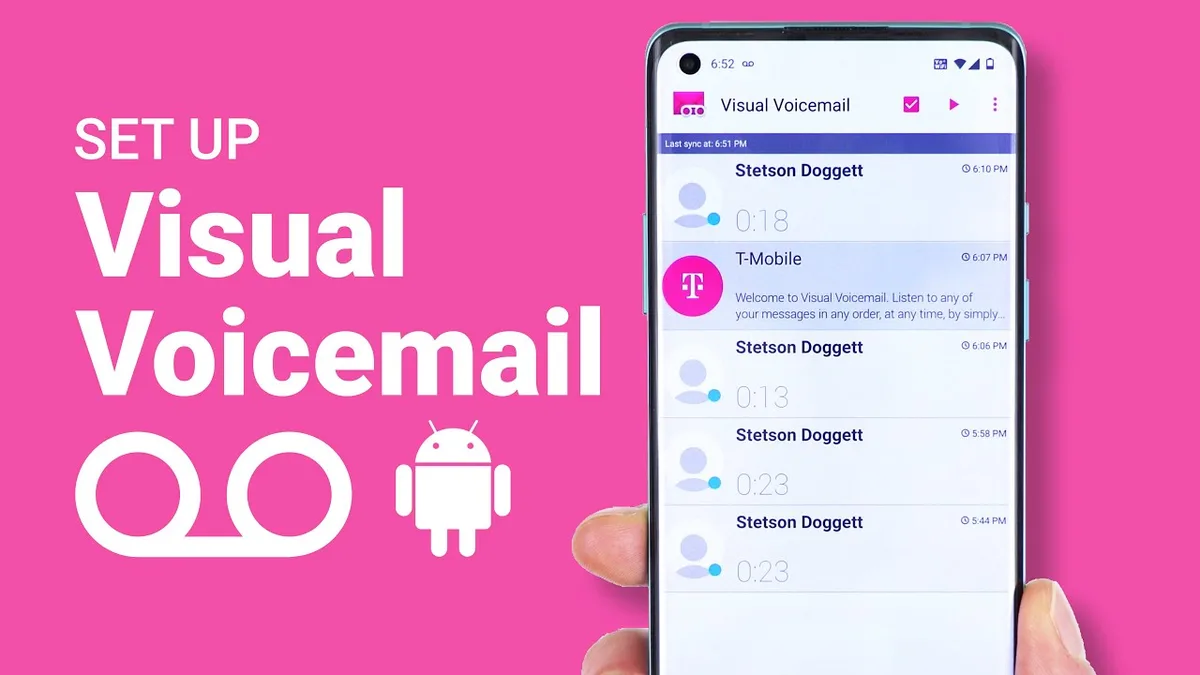
Image source: Bing (Web (fair-use with source credit))
This is the most confusing part of voicemail passwords on Android. Many people don't realize their phone has two separate password systems running at the same time.
Traditional voicemail is the older system. You dial a number, enter a password, and listen to messages through your phone's earpiece. Your password lives on your carrier's servers.
It never touches your phone's settings.
Visual voicemail is the newer system. It downloads messages as audio files that appear in a list inside your Phone app. You tap to play, delete, or save them.
On some phones, the password is managed inside the Phone app. On others, it's tied to your carrier account.
Here's where people get stuck: resetting your traditional voicemail password does NOT reset your visual voicemail password. If you changed your PIN via *86 but your Phone app still says "Activation failed" or "Invalid password," this is the problem.
How to tell which one you use:
- Open your Phone app. Look for a voicemail tab at the bottom.
- If you see a list of messages with play buttons, you're on visual voicemail.
- If you see only a phone number or "Call voicemail" button, you're on traditional voicemail.
How to reset each one:
- Traditional voicemail password: Use the dialer code method or carrier app.
- Visual voicemail password: Open your Phone app. Tap the three dots > Settings > Voicemail. Look for "Reset PIN" or "Voicemail password." On Samsung Galaxy phones, go to the Samsung Phone app > three dots > Settings > Voicemail > Change PIN.
If neither method works, your visual voicemail password is managed entirely by your carrier. Use their website or app to reset it.
The Dialer Code Method: Which Codes Actually Work
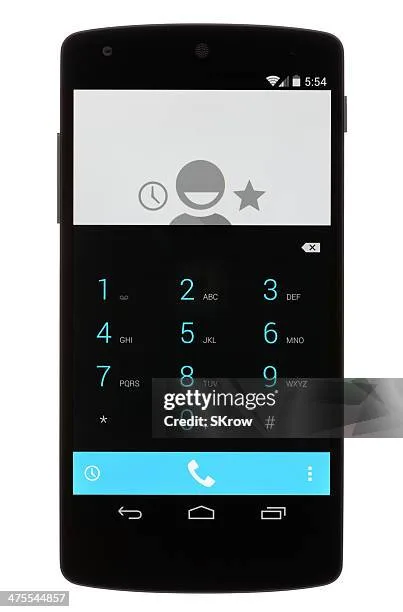
Image source: Bing (Web (fair-use with source credit))
Dialer codes are short numbers you punch into your phone to access carrier settings. Some work. Some don't.
Some can break things if used incorrectly.
The codes that work:
- *86, Dial your voicemail. This is universal on every US carrier.
- *611, Call customer service. Works on all major carriers.
- ##002#, Clear all call forwarding and redirection settings. Use with caution. This erases your voicemail forwarding on some carriers, which can break visual voicemail.
- *#*#4636#*#*, Phone information menu. Not a voicemail code, but it shows your phone number and network info if you need to confirm your carrier.
The codes that don't help:
- *73, Used to turn off call forwarding on old landline systems. Does nothing on modern phones.
- *88, Not a standard voicemail code.
- #793#, Sometimes mentioned online for voicemail reset. It does not work on most major carriers.
The safest approach: Start with *86. If you can't reset from there, use your carrier's app before trying random codes. Dialing the wrong code can alter your network settings and cause more problems.
When to Use the Carrier App or Website Instead
The carrier app or website is your best option in three situations:
- You forgot your voicemail password. The app lets you reset without entering the old one.
- You're locked out. Most carrier apps have a "Forgot PIN" or "Reset voicemail" option that bypasses the lockout.
- You use visual voicemail. The app path resets the visual voicemail password directly.
Here's when to skip the app and use the dialer instead:
- You know your current password and just want to change it.
- You don't have your carrier account login handy.
- You're on a prepaid carrier that doesn't support app-based reset.
Quick method for app users: Open your carrier's app. Tap the profile icon. Look for "Voicemail" or "Phone features." The reset option is almost always under one of those headings.
Calling Support: What They'll Ask and How to Speed It Up
Sometimes you have to call. When that happens, being prepared saves you ten to twenty minutes on hold.
What they'll ask:
- Your phone number
- Your account PIN or password
- Your full name and billing address
- The last four digits of your Social Security number (postpaid accounts)
- The make and model of your phone
- Whether you're using visual voicemail or traditional voicemail
How to speed it up:
- Have your account number ready. It's on your bill or in your carrier app.
- Know your device model. Check in Settings > About Phone.
- Use the automated system first. Many carriers let you reset via automated prompts without speaking to a human.
- Call during off-peak hours. Early morning (7-9 AM) and late evening (after 8 PM) tend to have shorter wait times.
What to say: "I'm locked out of my voicemail. I need the password reset." That's it. They'll take it from there.
Mistakes That Waste Your Time
These are the most common errors people make. Avoid them and you'll finish in five minutes instead of forty.
- Using the wrong reset method for your carrier. Verizon's app is different from T-Mobile's. AT&T is different from both. Check your carrier first.
- Resetting traditional voicemail when you need visual voicemail reset. They are separate. Do the right one.
- Entering too many wrong passwords. Stop after two tries. The third or fourth attempt triggers a lockout.
- Looking in the wrong settings menu. Voicemail settings are in the Phone app, not in the general Settings app on most phones. Samsung phones hide them under Phone > three dots > Settings > Voicemail.
- Dialing random codes from old forum posts. Many codes posted online are outdated or incorrect. Stick to *86 and your carrier's official app.
- Waiting on hold without trying the app first. Most carrier apps let you reset in under two minutes. Try that before calling.
Default Voicemail Passwords by Carrier
Before you reset, try the default password for your carrier. Many carriers never change it from the factory setting.
| Carrier | Default Voicemail Password |
|---|---|
| Verizon | Last 4 digits of your phone number |
| AT&T | Last 4 digits of your phone number |
| T-Mobile | Last 4 digits of your phone number |
| Cricket | Last 4 digits of your phone number |
| Metro | Last 4 digits of your phone number |
| Visible | Last 4 digits of your phone number |
| Google Fi | Set during initial setup (no universal default) |
| Mint Mobile | Last 4 digits of your phone number |
| Boost Mobile | Last 4 digits of your phone number |
If the default doesn't work, you or someone else changed it at some point. Proceed with one of the reset methods above.
Security Tip: Setting a Strong PIN You Won't Forget
Image source: Bing (Web (fair-use with source credit))
Once you reset your voicemail password, pick something secure but memorable. Avoid these common mistakes:
- Don't use "0000" or "1234." These are the first guesses any attacker tries.
- Don't use your birthday or anniversary. These are easy to find online.
- Don't use the same PIN as your phone unlock code. If someone gets your phone unlock PIN, they also get your voicemail.
- Don't write it on a sticky note attached to your phone. This happens more often than you'd think.
Good options:
- A four-digit number from a place you remember. Your childhood house number. The last four digits of an old friend's phone number.
- A number based on a pattern on the keypad. For example, 2580 goes straight down the middle column.
- A number you use for one specific purpose. Your voicemail PIN should be different from your ATM PIN, email password, and phone unlock code.
What to do if you forget it again: Save it in your password manager. If you don't use one, store it somewhere safe but not with your phone. A note in your wallet or a text file on your computer works.
Still Stuck? Decision Guide for the Hard Cases
If you've tried everything and nothing works, run through this checklist one more time.
Situation 1: The app says "Reset successful" but the dialer still asks for the old password.
You reset your visual voicemail password but not your traditional one. Use the *86 dialer method to change the traditional password separately.
Situation 2: You can't log into your carrier app.
You forgot your account password. Reset that first. Most carriers have a "Forgot password" option on the login screen.
Once you're in, reset the voicemail PIN.
Situation 3: You're on a prepaid carrier and the app doesn't have a voicemail reset option.
Call *611. Prepaid carriers often restrict self-service voicemail changes. A representative can reset it after verifying your identity.
Situation 4: You see "Voicemail not available" or "Activation failed."
This isn't a password problem. Your voicemail may not be set up at all. Call your carrier and ask them to provision voicemail on your line.
This usually takes five minutes.
Situation 5: Nothing works and you've called support twice.
Ask for a supervisor. Occasionally, the first-level support rep misses something. A supervisor can reset the voicemail system on their end or escalate to the technical team.
Frequently Asked Questions
How do I reset my voicemail password if I forgot it?
Open your carrier's app or website. Log in with your account credentials. Look for voicemail settings and select "Reset voicemail PIN." You don't need to know the old password.
The app lets you set a new one.
What is the default voicemail password for Android?
On most US carriers, the default voicemail password is the last four digits of your phone number. Try that first before resetting. If it doesn't work, someone changed it at some point.
Why does my Android say voicemail password incorrect?
You may be entering the wrong password. Try the last four digits of your phone number. If that fails, you may be trying to access visual voicemail with a traditional voicemail password.
Reset the visual voicemail password through your Phone app settings.
How many times can I try my voicemail password before getting locked out?
Most carriers lock you out after 3 to 5 failed attempts. Once locked out, you cannot reset the password yourself. You must call customer service to unlock it.
Can I reset my voicemail password without calling my carrier?
Yes, in most cases. Use your carrier's app or website. If you remember your current password, dial *86 and follow the prompts.
Only call if you're locked out or if your pre paid carrier doesn't support app-based reset.
Does resetting voicemail delete my messages?
No. Resetting your voicemail password does not delete your saved messages. Your messages remain on your carrier's servers.
You'll still have access to them once you set a new password.