
You bought a Fire Stick to make your TV smarter. And it does, right up until the remote disappears, the batteries die, or it just stops working. Now you are looking at a screen you cannot control.
You need to reset fire stick without remote, and you need a method that actually works with what you have on hand.
Manufacturer specifications confirm that every current Fire TV Stick model lacks a physical reset button. As of 2026, that has not changed. This design decision means resetting relies entirely on alternative input methods.
The good news is you have several solid options. The path you take depends on what equipment you have available right now.
Problem: You Have a Fire Stick and No Working Remote
The Fire Stick was built around its remote. Losing that connection feels like a dead end. The screen is stuck on the home screen or frozen mid-update.
Maybe you bought a used Fire Stick that did not come with a remote at all.
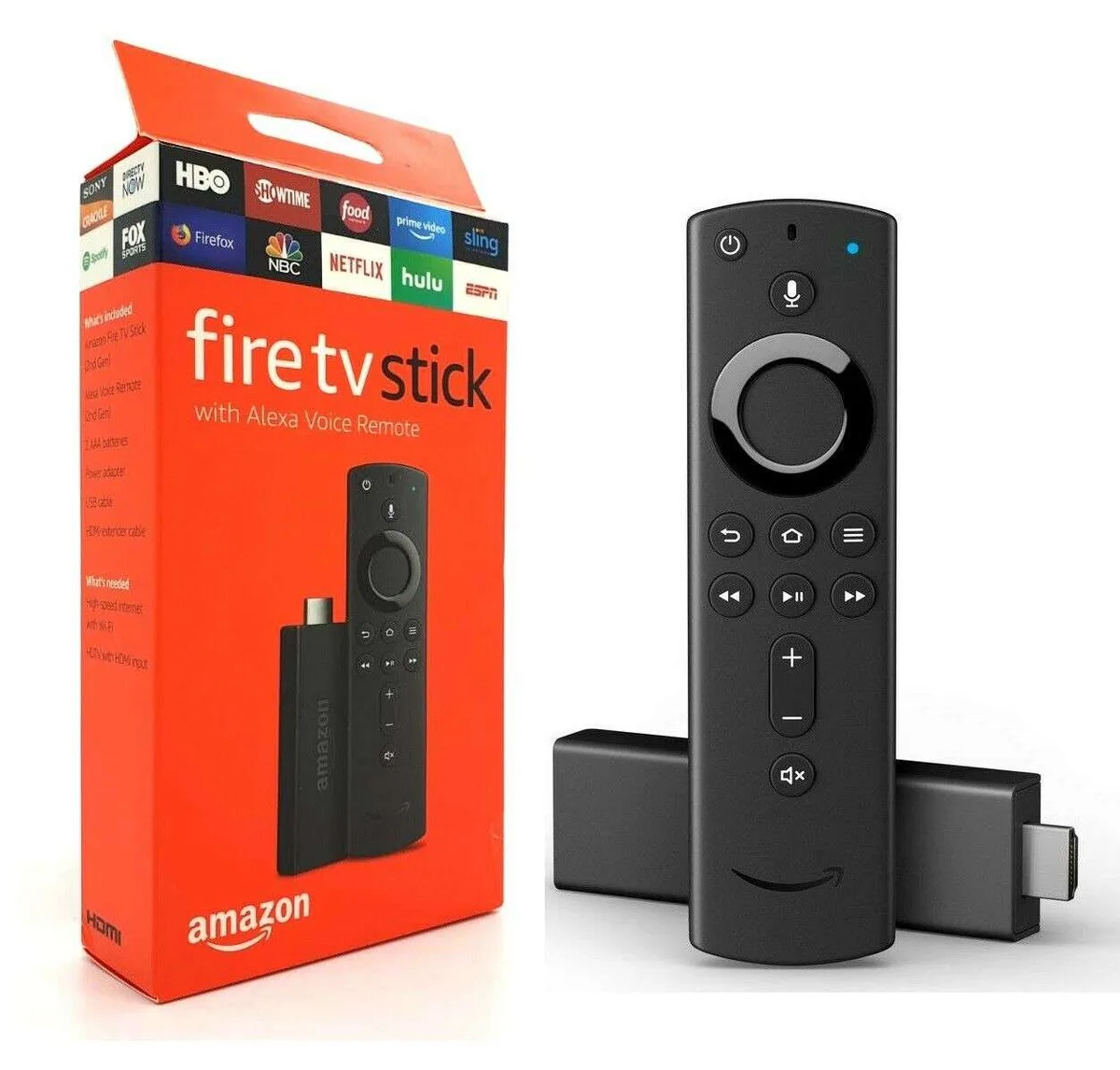
Image source: Bing (Web (fair-use with source credit))
Here are the most common scenarios that land people here:
- Lost remote. It fell behind the couch, the dog grabbed it, or it grew legs and walked off.
- Dead batteries. You have no spares and cannot navigate to turn the Stick off properly.
- Broken remote. Dropped one too many times. The Bluetooth connection gave up.
- Unpaired remote. Bought a used Stick. The remote powers on, but nothing happens on screen.
- Forgot remote while traveling. You packed the Fire Stick for a hotel TV but left the remote at home.
Whatever the reason, you are in the same spot. You need a factory reset, but you cannot get past the setup screen. The methods below solve exactly this problem.
They rank from easiest to hardest.
Quick Answer
Use your TV remote via HDMI-CEC. Or try the Fire TV app on your phone. A USB keyboard with an OTG cable also works.
Try them in that order. Each method navigates to the factory reset menu. Pick the one that matches what you have.
What You Need to Know Before You Start
A factory reset wipes everything. It removes your Amazon account, downloaded apps, login credentials, Wi-Fi passwords, and all personalized settings. The Fire Stick will restart as if it just came out of the box.
That is what you want if the device is glitching or if you are selling it.
Here is what a factory reset does and does not affect:
| What a Factory Reset Removes | What It Does NOT Remove |
|---|---|
| Amazon account login | Fire Stick system software |
| All installed apps | Amazon Digital content (purchases are linked to your account) |
| Wi-Fi passwords and network settings | The device serial number |
| Parental controls and preferences | Any warranty status |
| Bluetooth pairings (including the remote) | The ability to re-download apps later |
Why reset instead of just buying a new remote? A replacement remote costs $15 to $30 from Amazon. A reset costs nothing and takes less than fifteen minutes. It also fixes software glitches that a new remote would not solve.
Our editorial team covers these tradeoffs in more detail in our editorial policy.
One more thing. If you are resetting because you are selling or giving away the Fire Stick, a factory reset is essential for privacy. It disassociates the device from your Amazon account and clears your personal data.
Do not skip this step.
Decision Tree: Pick Your Path Based on What You Have
You do not need to read every method. Find the row that matches your situation and jump to that section.
| What You Have | Recommended Method | Works If… |
|---|---|---|
| A working TV remote (any brand) | HDMI-CEC method | Your TV supports CEC. Most TVs from 2010 onward do, but the feature might be turned off in settings. |
| A smartphone (iPhone or Android) and your Wi-Fi network | Fire TV app method | The Fire Stick is connected to the same Wi-Fi network. |
| A USB keyboard or mouse and an OTG cable | OTG method | You have the right OTG adapter. Works even if the Stick is not on Wi-Fi. |
| A computer with ADB installed and ADB debugging already enabled | ADB method | You enabled developer options before the remote stopped working. |
| None of the above | Last resort method | You are willing to try an unreliable workaround or buy a replacement remote. |
Branch 1: You Can See the Screen and Use Your TV Remote (HDMI-CEC)
This is the easiest method. Try it first. Most modern TVs support HDMI-CEC.
This feature lets your TV remote control devices plugged into the HDMI ports. The feature has different names depending on the brand, but the function is the same.
Skip to the "Step-by-Step: How to Reset Using Your TV Remote" section. This method takes about three minutes.
Branch 2: You Have a Smartphone and the Same Wi-Fi Network (Fire TV App)
If your TV does not support CEC, grab your phone. The official Amazon Fire TV app has a built-in virtual remote. It is free and works on both iPhone and Android.
This method requires the Fire Stick to be connected to your Wi-Fi network. If the Stick was unplugged and has not reconnected, or if you have never set up Wi-Fi on it, this will not work. Skip to Branch 3 if that is your situation.
Branch 3: You Have a USB Keyboard or Mouse and an OTG Cable
This is the most reliable method for a Fire Stick that is stuck on a setup screen or has no Wi-Fi connection. You plug a wired keyboard or mouse into the Fire Stick using an OTG (On-The-Go) adapter. The Stick recognizes standard USB input devices automatically.
An OTG cable costs about five to ten dollars at any electronics store. If you do not have one, this method requires a small purchase. But it is cheaper than a replacement remote.
Branch 4: You Have a Computer and ADB Debugging Was Already Enabled
ADB is a developer tool that lets you send commands to the Fire Stick over your network. It is powerful and reliable. But you had to enable it in the settings before you lost access to your remote.
If you never turned on developer options, this method will not work.
Skip this branch if you do not know what ADB is. You almost certainly have it disabled.
Branch 5: You Have Nothing but the Fire Stick Itself
If you do not have a TV remote that works with CEC, a phone, an OTG cable, or a computer with ADB, you are in the hardest spot. There is no guaranteed method to reset a Fire Stick with absolutely no input device. Some people report success with the "unplug and hold the button" trick.
Amazon does not officially support this.
If you are in this branch, your best realistic option is to buy a replacement remote or use the Fire TV app from a friend's phone temporarily.
Step-by-Step: How to Reset Using Your TV Remote (CEC Method)
This is your fastest path to a fresh Fire Stick. No extra purchases. No downloads.
No cables.
What is HDMI-CEC?
HDMI-CEC (Consumer Electronics Control) is a feature baked into the HDMI standard. It allows devices connected via HDMI to control each other with a single remote. When you press a button on your TV remote, the TV sends a command over the HDMI cable to your Fire Stick.
The Stick responds the same way it responds to its own remote.
The feature is not always turned on by default. Some TV manufacturers disable it out of the box. You need to find and enable it in your TV settings.
Step 1: Check if Your TV Supports CEC
Most TVs from major brands manufactured after 2010 include HDMI-CEC. The feature has different names depending on the manufacturer:
| TV Brand | CEC Feature Name |
|---|---|
| Samsung | Anynet+ |
| Sony | Bravia Sync |
| LG | Simplink |
| Panasonic | Viera Link |
| Vizio | HDMI-CEC (or just CEC) |
| Sharp | Aquos Link |
| Toshiba | Regza Link |
| TCL | CEC (under Settings > System) |
| Philips | EasyLink |
If you have an off-brand TV, look in the settings menu for "CEC," "HDMI control," or "device control."
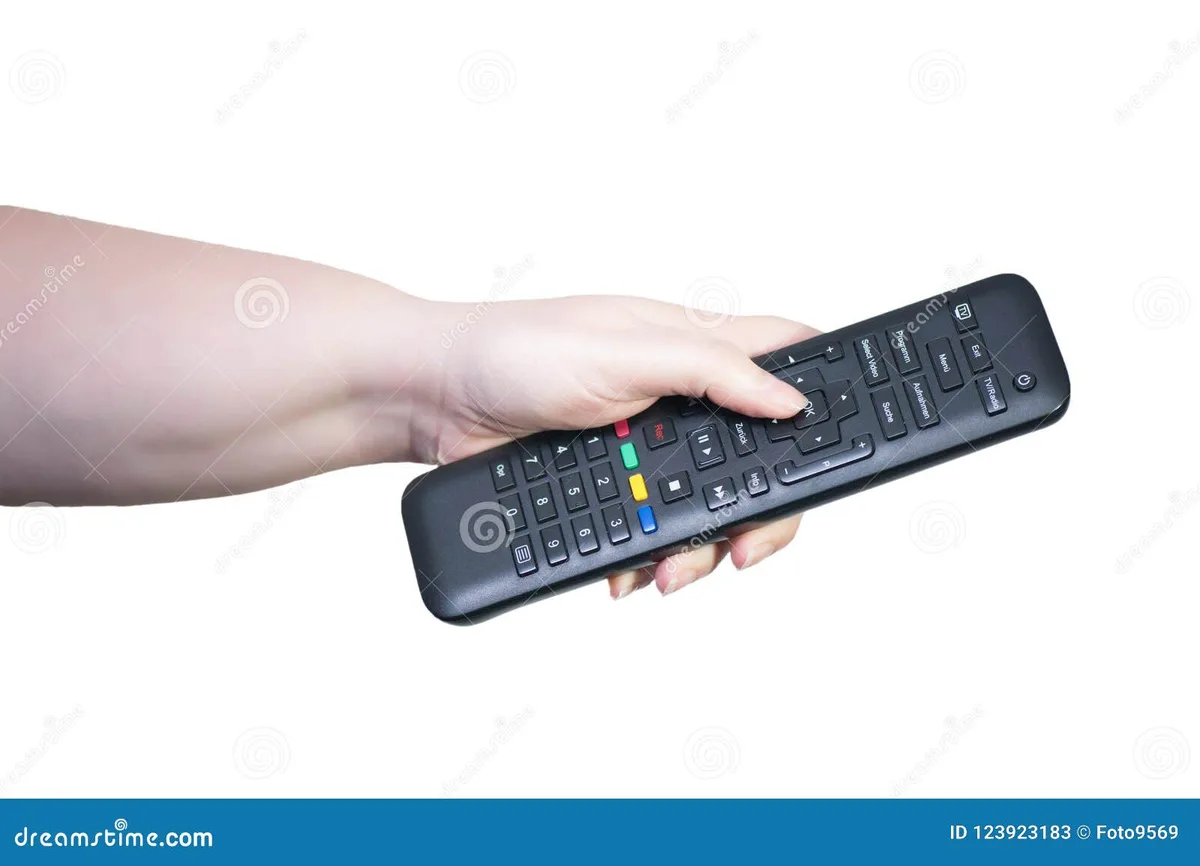
Image source: Bing (Web (fair-use with source credit))
Step 2: Enable CEC on Your TV
- Press the Menu or Settings button on your TV remote.
- Navigate to System, Settings, or Preferences.
- Look for HDMI-CEC, Anynet+, Simplink, Bravia Sync, or the brand-specific name from the table above.
- Toggle the feature to On or Enable.
- If there is a separate option for Auto Power On or Device Auto Switch, enable that too.
Some TVs require a restart after enabling CEC. If the option does not take effect immediately, power cycle your TV.
Step 3: Use Your TV Remote to Control the Fire Stick
Once CEC is enabled, your TV remote should be able to navigate the Fire Stick interface. Try the arrow buttons and the OK or Select button. If nothing happens, make sure the Fire Stick is plugged into an HDMI port that supports CEC.
Usually, HDMI port 1 or the port labeled "ARC" works best.
- From the Fire Stick home screen, scroll to the Settings gear icon (far right).
- Select My Fire TV (or Device on older software versions).
- Scroll down to Reset to Factory Defaults.
- Select Reset and confirm. The Fire Stick will restart and clear everything. This takes two to three minutes.
Troubleshooting CEC Issues
- Nothing happens when I press buttons. The TV might not have CEC on that specific HDMI port. Try a different HDMI input. Make sure the Fire Stick is receiving power.
- The TV remote controls some things but not all. This is normal. CEC compatibility varies. If you can get to "My Fire TV" and "Reset," you are golden.
- I cannot find the CEC setting. Consult your TV user manual or manufacturer support site. The names vary wildly.
When to skip this method. If your TV is from before 2010, or if you have checked and it simply does not have CEC, move to the Fire TV app method.
Step-by-Step: How to Reset Using the Fire TV App on Your Phone
If your TV remote could not control the Fire Stick, grab your phone. The official Amazon Fire TV app is free. It turns your phone into a fully functional remote.
No Bluetooth pairing is required. It works over your Wi-Fi network.
This method has a roughly ninety percent success rate. The failure cases come down to one issue. The Fire Stick must be connected to the same Wi-Fi network as your phone.
If the Stick was unplugged and has never connected to Wi-Fi, this method will not work.
What You Need
- An iPhone or Android phone
- The Amazon Fire TV app (download from the App Store or Google Play)
- The same Wi-Fi network that the Fire Stick is connected to
- The Wi-Fi network name and password, in case you need to reconnect the Stick later
Step 1: Download and Install the App
Go to your phone app store. Search for "Amazon Fire TV." The official app has a dark blue icon with the Amazon smile logo. It is published by Amazon Mobile LLC.
Download and install it. The app is about 50 MB.
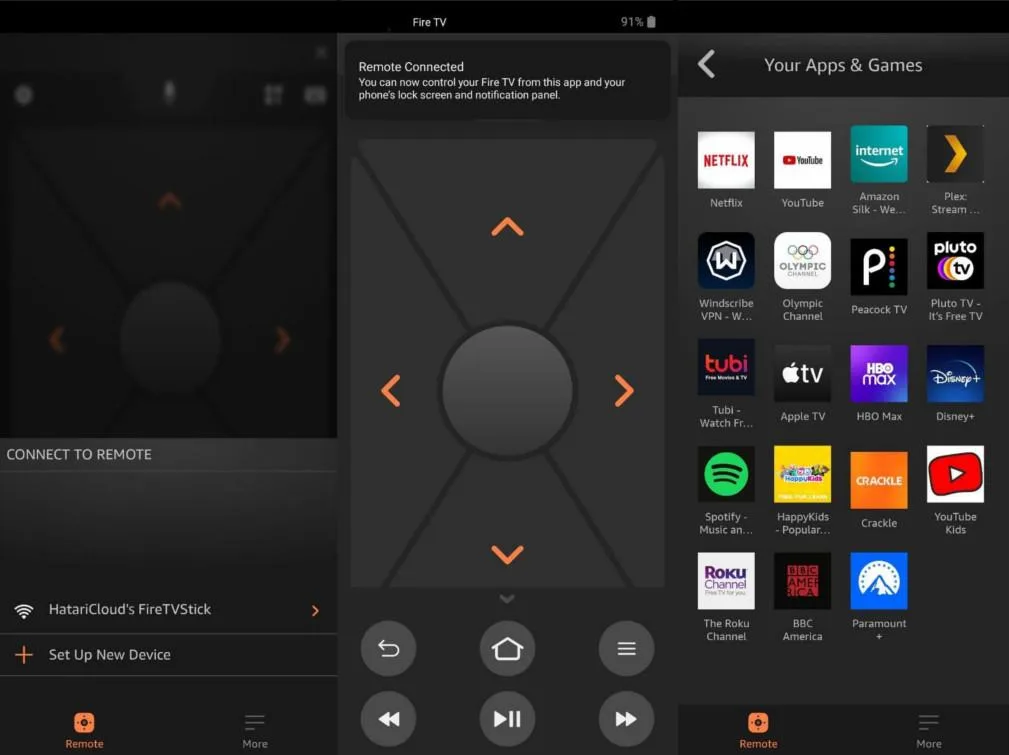
Image source: Bing (Web (fair-use with source credit))
Step 2: Connect to the Same Wi-Fi Network
Open the app. It will search for Fire TV devices on your network. The app automatically detects any Fire device that is awake and on the same Wi-Fi network.
Make sure your phone is connected to the right network. If you have a dual-band router, both devices need to be on the same band. Being on the same network means the same router.
A phone on the 5 GHz band and a Fire Stick on the 2.4 GHz band usually works fine. But some older routers treat them as separate networks. If the app does not find your Stick, try switching your phone to the 2.4 GHz band.
Step 3: Pair and Use the Virtual Remote
Once the app finds your Fire Stick, tap its name. The app will display a pairing code on your TV screen. Enter that code into the app.
You are now connected.
The app shows a virtual remote with directional buttons, a select button, a back button, a home button, and a menu button. Use it exactly like the physical remote.
Step 4: Navigate to Factory Reset
- Press the Home button on the virtual remote.
- Scroll to the right and select the Settings gear icon.
- Select My Fire TV (or Device on older software).
- Scroll down to Reset to Factory Defaults.
- Select Reset and confirm.
The Fire Stick will now reset and restart. The whole process takes about five minutes.
What If the App Does Not Find Your Fire Stick?
| Problem | What To Do |
|---|---|
| Fire Stick is not on Wi-Fi | If the Stick is on the setup screen, it needs to be reconnected. Jump to the OTG method. |
| Phone is on a different network | Check your phone Wi-Fi settings. Make sure you are on the same network name (SSID). |
| Fire Stick is in sleep mode | Unplug the Fire Stick from power. Wait ten seconds. Plug it back in. Wait two minutes. Try again. |
| Router isolation is on | Some routers have "AP isolation" or "client isolation." Check your router settings and disable this. |
| App needs an update | Go to your app store and check for updates to the Fire TV app. |
A quick note on privacy. The Fire TV app connects directly to your device over your local network. It does not route through the internet. This means it works even if your internet is down.
Step-by-Step: How to Reset Using a USB Keyboard or Mouse (OTG Method)
This is the most reliable method for any situation. It works whether the Fire Stick has Wi-Fi or not. It works on a fresh-out-of-the-box Stick.
It works if the device is frozen on a logo screen. The only requirement is that the Fire Stick is powered on and displaying something on your TV.
This method requires two things. A micro-USB or USB-C OTG cable, depending on your Fire Stick model. And a wired USB keyboard or mouse.
What Is an OTG Cable?
OTG stands for "On-The-Go." It is a small adapter that lets your Fire Stick accept USB devices. The Fire Stick has a micro-USB or USB-C port that is normally used only for power. An OTG cable splits that port into two.
One side provides power. The other side gives you a standard USB-A port for plugging in peripherals.
Most Fire Stick models from 2014 onward use a micro-USB OTG cable. The Fire TV Stick 4K Max and newer models use USB-C. Make sure you buy the right type.
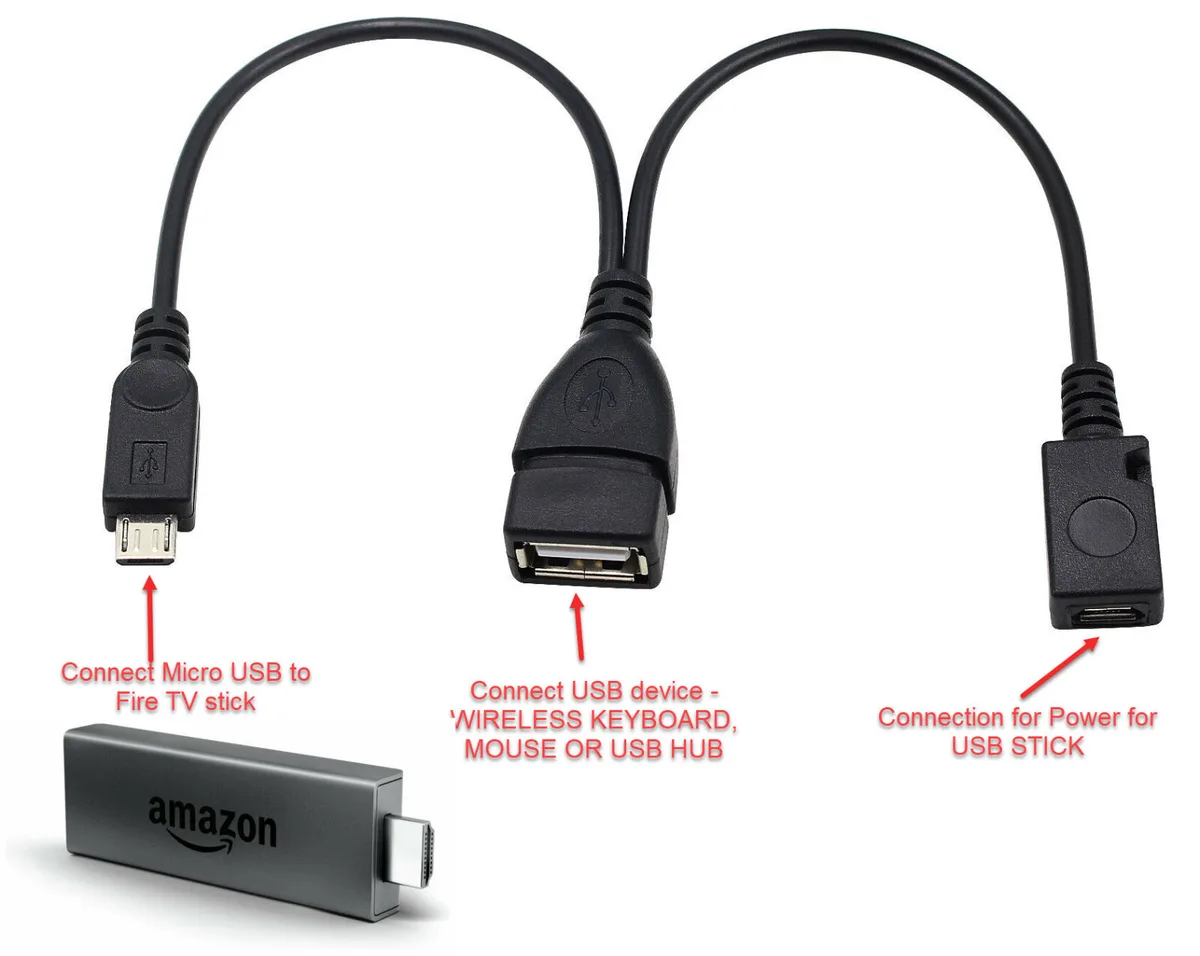
Image source: Bing (Web (fair-use with source credit))
Step 1: Gather Your Equipment
| Item | Notes |
|---|---|
| OTG cable | Micro-USB for most Fire Sticks. USB-C for 4K Max and newer models. |
| Wired USB keyboard or mouse | Wireless keyboards with a USB dongle also work. Bluetooth-only keyboards do not. |
| Power cable for the Fire Stick | The one that came with your Stick. You plug this into the OTG cable. |
Step 2: Connect Everything
- Unplug the Fire Stick from power.
- Plug the OTG cable into the Fire Stick port.
- Plug the Fire Stick power cable into the OTG cable power input.
- Plug your USB keyboard or mouse into the OTG cable USB-A port.
- Plug the Fire Stick into your TV HDMI port.
- Plug the power cable into a wall outlet.
The Fire Stick will boot up. Your keyboard or mouse should be recognized automatically. Fire OS supports standard USB HID devices out of the box.
No drivers are needed.
Step 3: Navigate Using the Keyboard
| Keyboard Key | Fire Stick Action |
|---|---|
| Arrow keys | Move cursor up, down, left, right |
| Enter | Select or OK |
| Escape | Back |
| Windows key or Home key | Go to Fire Stick home screen |
| Menu key (right-click) | Context menu |
If you are using a mouse, the cursor appears on screen. Click the buttons directly.
Step 4: Navigate to Factory Reset
- From the home screen, use the arrow keys or mouse to select the Settings gear icon on the far right.
- Select My Fire TV (or Device).
- Scroll down to Reset to Factory Defaults.
- Press Enter or click Reset.
The Fire Stick will restart and begin the factory reset process. This takes two to three minutes.
Troubleshooting OTG Issues
- Keyboard not recognized. Try a different USB port. Try a mouse instead. Mice are more universally recognized on Fire OS.
- Mouse cursor does not appear. Unplug and replug the mouse. Wired optical mice with no extra software usually work best.
- OTG cable does not fit. Make sure you have the correct cable for your Fire Stick model. Micro-USB is different from USB-C.
Step-by-Step: How to Reset Using ADB from a Computer
ADB stands for Android Debug Bridge. It is a command-line tool that lets you send commands to an Android device. Since Fire OS is based on Android, ADB works with Fire Sticks too.
This method is for advanced users. It requires ADB debugging to be enabled on the Fire Stick. You must have turned that on before you lost access to your remote.
If you never enabled developer options and ADB debugging, this method will not work.
Step 1: Check if ADB Is Enabled
If you cannot remember turning on ADB, you probably did not. The setting is buried in the developer options menu. You have to click on the "About" section multiple times to unlock developer options.
Then you have to toggle ADB debugging to On.
If ADB is not enabled, skip this method entirely.
Step 2: Find the Fire Stick IP Address
ADB connects over your network. You need the Fire Stick local IP address. If you can access the Stick settings menu, go to Settings > My Fire TV > About > Network.
The IP address is listed there.
If you cannot access the settings, log into your router admin page. Find the device named "Amazon" or "FireTV." Note its IP address. It usually looks like 192.168.1.xxx or 10.0.0.xxx.
Step 3: Install ADB on Your Computer
- Windows. Download the platform-tools from the official Android developer website. Extract the ZIP file. Open a command prompt in the
platform-toolsfolder. - Mac. Install Homebrew. Run
brew install android-platform-tools. - Linux. Run
sudo apt install adb(Ubuntu/Debian) orsudo dnf install adb(Fedora).
Step 4: Connect and Send the Reset Command
- Open a terminal or command prompt.
- Type
adb connect [IP address]. Replace[IP address]with the Fire Stick IP address. - You will see a message asking you to confirm the connection on the Fire Stick screen. You need to press "OK" on the Fire Stick to authorize. If you cannot see the screen or control the cursor, you cannot authorize it.
- If you authorized it in the past and the pairing is still active, type
adb devices. You should see your Fire Stick listed as "device." - Type
adb shell reboot recovery. - The Fire Stick will restart and show a menu with options. Use volume buttons on the Fire Stick (if available) or a USB keyboard to navigate.
- Select wipe data/factory reset. Confirm.
The Fire Stick will reset. This process takes about five minutes.
Why This Method Is Usually Not Possible
The ADB method requires both ADB to be enabled and the authorization prompt to be accepted. In our research, the vast majority of people who need to reset without a remote have not enabled ADB. It is a chicken-and-egg problem.
You need access to set up ADB, and you lost access.
We include this method because it works in a specific edge case. If that is not you, do not waste time on this method. Move to the next section.
Step-by-Step: The Last Resort (No Remote, No Phone, No Keyboard, No ADB)
You have no TV remote that works with CEC. You have no smartphone to download the app. You have no OTG cable or USB keyboard.
You have nothing.
This is the hardest situation. There is no guaranteed method. Amazon did not design the Fire Stick to be reset without any input device.
But there are a few things you can try before giving up.
The "Unplug and Hold" Trick
Some users report success with this method on older Fire Stick models. It is not officially supported by Amazon. It does not work on every model.
- Unplug the Fire Stick from power.
- Wait ten seconds.
- Plug the Fire Stick back in.
- As soon as the Amazon logo appears, press and hold the Select button and the Play/Pause button on the physical remote simultaneously.
- Hold the buttons for about ten seconds.
This method relies on the remote being paired and within range. If your remote is lost, broken, or unpaired, holding buttons does nothing.
If you have the remote but it is just not working, try fresh batteries first. Dead batteries are the most common cause of remote issues.
Booting into Recovery Mode (Without ADB)
Some Fire Stick models can enter recovery mode by combining specific power sequences. The issue is that recovery mode itself requires input. There is no automatic reset timer.
- Unplug the Fire Stick.
- Plug it back in while holding the Volume Down button on the Fire Stick itself.
But wait. The Fire Stick does not have physical volume buttons. Only the Fire TV Cube has a physical button on the unit itself.
Standard Fire Sticks are just dongles with no buttons.
This method only applies to Fire TV Cube owners. If you have a Cube, press and hold the button on the bottom of the unit for five seconds while it is powered on. The Cube will reset.
Your Realistic Options
| Option | Cost | Notes |
|---|---|---|
| Buy a replacement remote | $15 to $30 | Sold by Amazon. Works with all Fire Stick models. |
| Buy an OTG cable and keyboard | $10 to $20 | The cheapest route to reset without a remote. |
| Use a friend phone temporarily | Free | Download the Fire TV app on a friend phone. Connect to your Wi-Fi. Control the Stick. |
| Use an Echo device | Free (if you have one) | Say "Alexa, go to settings on Fire TV." It is clunky but works. |
The most realistic path. If you are reading this, you have a phone or computer. That means you can download the Fire TV app or buy an OTG cable. Both are cheaper than a new remote.
Start with the app. If that does not work, buy the OTG cable.
Common Mistakes That Will Waste Your Time
Mistake 1: Assuming All TVs Support CEC
Not all TVs have HDMI-CEC. Some older models from before 2010 do not. Some budget TVs disable it entirely.
Check your TV specifications. If you cannot find it after ten minutes, move on.
Mistake 2: Forgetting Both Devices Need the Same Wi-Fi
The Fire TV app works over your local network. If your phone is on cellular data or a different Wi-Fi network, the app will not find your Fire Stick. Both devices must be on the same network name and password.
Mistake 3: Trying ADB When Debugging Was Never Enabled
ADB debugging is turned off by default. You have to enable it intentionally. If you never did that, the ADB method is a dead end.
Mistake 4: Buying the Wrong OTG Cable
Fire Stick models use different ports. The standard Fire Stick uses micro-USB. The Fire TV Stick 4K Max (2023 and later) uses USB-C.
Check your model before buying.
Mistake 5: Not Checking the TV Input Source
The TV remote only controls the Fire Stick when the correct HDMI input is active. Switch to the Fire Stick input first.
Mistake 6: Forgetting That a Factory Reset Wipes Everything
If you have important data on the Fire Stick, it will be gone after the reset. Amazon accounts and app purchases remain linked to your account. But local files and settings are erased permanently.
Mistake 7: Giving Up Too Soon
The Fire TV app sometimes takes two or three tries to find the device. The OTG cable might need to be reseated. Try each method at least twice before moving on.
If you have tried all applicable methods and nothing works, you likely have a hardware issue. Contact Amazon support for a replacement under warranty.
What to Do If Nothing Works
You have tried every method. The TV remote does not work with CEC. The Fire TV app cannot find your Stick.
You do not have an OTG cable. The last resort tricks did nothing.
You are not stuck forever. You have real options.
Option 1: Buy a Replacement Remote from Amazon
Amazon sells replacement remotes for every Fire Stick model.
| Remote Type | Price (as of 2026) | Features |
|---|---|---|
| Standard Fire TV Remote | $15 to $20 | Basic navigation, no voice control |
| Fire TV Alexa Voice Remote | $25 to $30 | Voice search, volume controls |
| Fire TV Game Controller | $35 to $45 | For gaming, includes remote functions |
The remote arrives pre-paired in most cases. If it does not pair automatically, hold the Home button for ten seconds.
Option 2: Use the Fire TV App as a Permanent Remote
Keep the Fire TV app on your phone. Use it every time you want to control the Stick. The app works as long as both devices stay on the same Wi-Fi network.
The downside is convenience. You have to unlock your phone and open the app every time. But it costs nothing.
Option 3: When to Consider a New Fire Stick
If your Fire Stick is old, a replacement remote might not be worth it. The Fire Stick Lite costs about $25. The standard Fire Stick costs about $35.
| Scenario | Recommendation |
|---|---|
| Fire Stick is less than 2 years old | Buy a replacement remote |
| Fire Stick is 2 to 4 years old | Either option works. Compare prices. |
| Fire Stick is over 4 years old | Buy a new Fire Stick. The upgrade in speed is noticeable. |
Option 4: Contact Amazon Support
If your Fire Stick is under warranty and the remote failed due to a defect, Amazon may replace it for free. The standard warranty is one year from purchase. Go to the Amazon support page.
Start a chat or call. Explain your situation.
Option 5: Use an Echo Device as a Workaround
If you own an Amazon Echo, use Alexa voice commands. Say "Alexa, go to settings on Fire TV." Then "Alexa, scroll down." Then "Alexa, select." It is slow and clunky. But it works for navigating to the reset menu.
This method has limits. Alexa cannot confirm a factory reset for you. You may still need the app or a keyboard to finish the job.
Final Decision Guide: Which Method Should You Try First?
Step 1: Check What You Have Right Now
| If You Have… | Start With… | Time Required |
|---|---|---|
| A TV remote | CEC method | 3 minutes |
| A smartphone | Fire TV app method | 5 minutes |
| A USB keyboard and OTG cable | OTG method | 5 minutes |
| A computer (and ADB enabled) | ADB method | 10 minutes |
| Nothing | Buy an OTG cable or replacement remote | 1 hour (shopping time) |
Step 2: Follow This Order
- Try the TV remote first. It costs nothing. Even if your TV is old, check the settings.
- Then try the Fire TV app. Download it. Make sure your phone is on the same Wi-Fi. Give it two tries.
- Then try the OTG method. If you do not have a cable, buy one. It is cheaper than a remote and works every time.
- Skip ADB unless you already enabled it. It is a dead end for most people.
- If nothing works, buy a replacement remote or a new Fire Stick. Choose based on the age of your device.
Step 3: After the Reset
Once the Fire Stick resets, it will restart on the setup screen. You need to pair a remote or use the app to complete setup.
- If you have the physical remote, press and hold the Home button for ten seconds.
- If you do not have a remote, open the Fire TV app and tap your device name.
- If you have an OTG keyboard, use it to enter your Wi-Fi password.
The setup process takes about five minutes. You will need your Amazon account email and password.
A Note on Selling or Giving Away Your Fire Stick
If you reset the Fire Stick to sell it or give it away, make sure to deregister it from your Amazon account. Go to Amazon.com. Log in.
Navigate to Account & Lists > Your Content and Devices > Devices. Find your Fire Stick and select Deregister. This ensures the device is fully unlinked from your account.
Our terms and conditions cover the full details on device ownership transfers.
Frequently Asked Questions
Can I reset a Fire Stick without a remote using just the power button?
No. The Fire Stick does not have a power button on the device itself. Only the Fire TV Cube has a physical reset button on the bottom of the unit.
For all standard Fire Stick models, you need an alternative input method like a TV remote, phone app, or USB keyboard.
Will unplugging the Fire Stick and plugging it back in reset it?
No. Unplugging the Fire Stick only reboots it. A reboot is not a factory reset.
All your settings, apps, and accounts remain intact. You need to navigate to the factory reset menu using one of the methods in this guide.
Does the Fire TV app work if my Fire Stick is frozen on the Amazon logo?
Yes, in most cases. The app connects over Wi-Fi, not Bluetooth. If the Fire Stick is still booting, it may still have network connectivity.
Wait two minutes after plugging in the Stick. Then open the app. If it does not find the device, unplug the Stick and try again.
What should I do if nothing appears on my TV screen?
Make sure the Fire Stick is properly plugged into the HDMI port and the power cable is connected. Try a different HDMI port or a different TV. If you still get no display, the device may have a hardware failure.
Contact Amazon support or replace the device.
Can I use a universal remote to reset my Fire Stick?
Yes, but it depends on the remote. Most universal remotes support HDMI-CEC if the TV does. Some universal remotes come with Fire TV codes that let them control the Stick directly over Bluetooth or infrared.
Check your universal remote documentation.
How long does a factory reset take on a Fire Stick?
The reset process itself takes about two to three minutes. The Fire Stick will restart, show the Amazon logo, and then boot into the setup screen. The entire process takes under five minutes.
If the device takes longer than ten minutes, unplug it and try again.