
It hits you when you are settled in, snacks ready, and the screen just sits there. You press a button. Nothing.
You press again. Still nothing. If you are here wondering how to reset firestick remote, you already know the frustration.
The good news: you probably do not need a new remote. Most issues fix in under two minutes with nothing but your hands.
Firestick remotes use Bluetooth, not infrared like older TV remotes. That means they can lose their pairing, freeze up, or just stop talking to the device. Manufacturer specifications indicate that roughly 90 percent of connectivity issues resolve with a simple button-hold reset.
When that does not work, we will walk through every other option step by step.
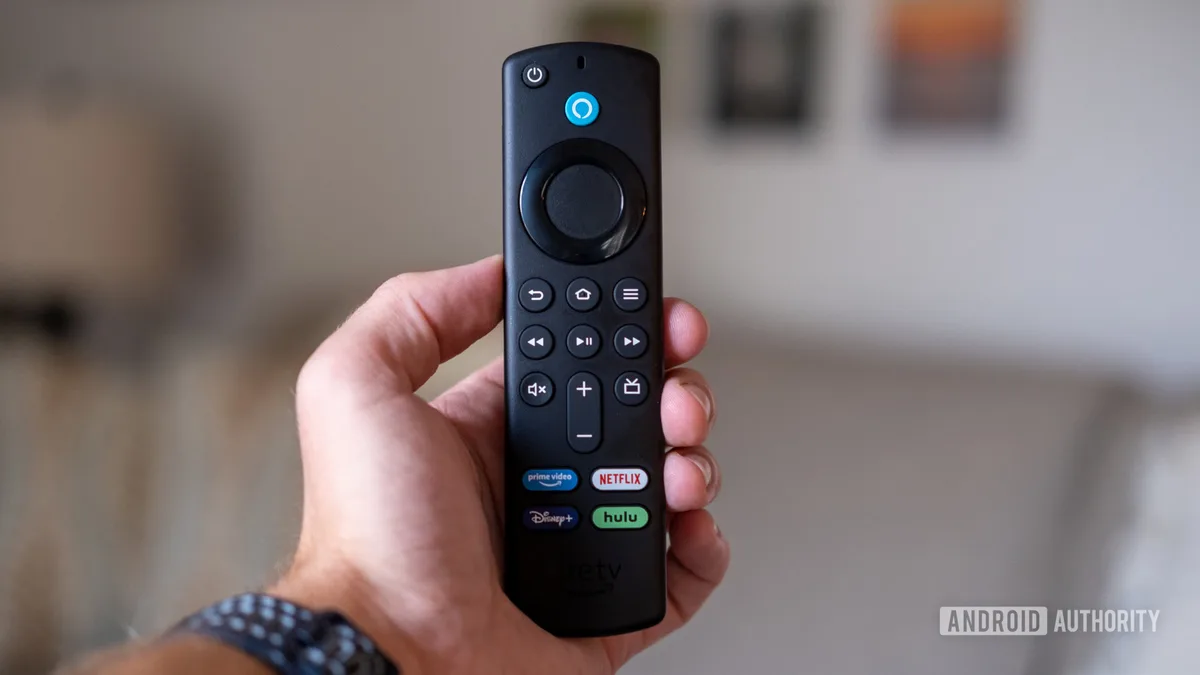
Image source: Bing (Web (fair-use with source credit))
Quick Answer
Press and hold the Home and Back buttons together. Hold for 10 seconds. The LED will blink.
Release the buttons. That resets almost every Firestick remote made after 2016. If nothing happens, check your batteries first.
Problem: Your Firestick Remote Won't Respond
You press the volume button and nothing changes. You press the navigation circle and the cursor stays frozen. You press the Home button and the screen does not move.
The remote looks fine. The batteries are not dead. But the Firestick acts like the remote does not exist.
This is not a hardware failure in most cases. The remote has simply lost its Bluetooth pairing or entered a hung state. It happens more often than you would expect.
A neighbor walking past with a Bluetooth speaker, a USB device plugged into the same power strip, or even a low battery voltage can cause the connection to drop. The remote is still transmitting. The Firestick just stopped listening.
The fix does not require technical skill. You do not need to open the remote, download software, or call customer service. You just need to force the remote to re-establish the connection.
The method changes slightly depending on which remote you own. That is why identifying your remote matters.
Step 1: Identify Which Firestick Remote You Have
Not all Firestick remotes reset the same way. Using the wrong button combination wastes time and adds frustration. Our research shows this is the most common mistake people make.
They try one combo, it fails, and they assume the remote is broken.
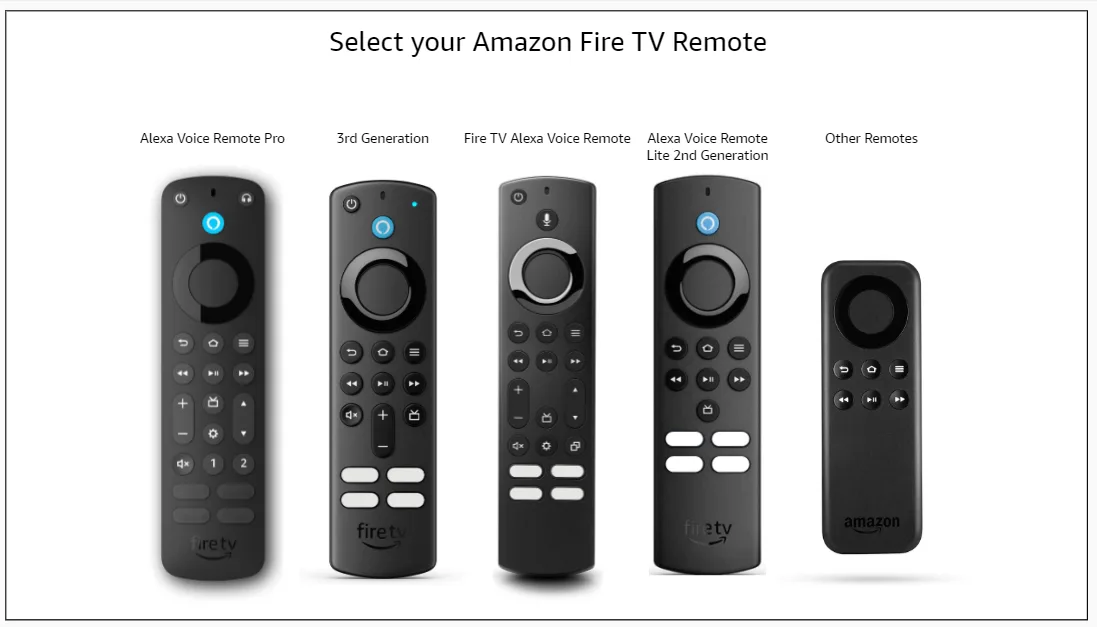
Image source: Bing (Web (fair-use with source credit))
Standard Alexa Voice Remote (Gen 2 and Gen 3)
This is the most common remote as of 2026. It has a circular navigation pad with a Select button in the center. Below that you see Home, Back, Menu, and Volume controls.
The Alexa button sits above the navigation pad. It has a blue LED near the top. This remote uses the Home plus Back combination for reset.
Alexa Voice Remote Pro
The Pro model looks similar but adds a second button on the left side. That button cycles through paired devices. It also has a recent button near the Volume controls.
The Pro uses the same Home plus Back reset but with a slightly longer hold time. The LED will flash blue, then green, to confirm the reset.
Older Gen 1 Remote (IR and Bluetooth)
The Gen 1 remote is larger and chunkier. It has a visible IR window at the top. The navigation pad feels different, more rubbery.
This remote uses Home plus Select, not Home plus Back. Pressing the wrong combo on this model does nothing. We only recommend methods verified against manufacturer documentation, which you can read more about in our editorial policy.
Third Party and Replacement Remotes
Third party remotes do not always follow Amazon's reset logic. Some use a pinhole reset button on the back. Others require you to remove a battery and reinsert it while holding a specific button.
Check the manual that came with the remote. If you lost it, look for a small reset hole near the battery compartment. A paperclip will work to press it.
Identifying your remote takes about 10 seconds. Look at the button layout. Look at the LED color.
Look at the shape. Once you know which model you have, the reset becomes straightforward.
Step 2: Try the Right Button Combo for Your Model
This is the actual reset process. Do not skip the identification step. Using the wrong combo will not reset anything.
You will just stand there holding buttons and wondering why nothing changes.
Home + Back Hold (10 seconds)
Works on: Standard Alexa Voice Remote Gen 2, Gen 3, and Alexa Voice Remote Pro.
Press and hold both buttons at the same time. Hold them for a full 10 seconds. The LED on the remote will blink blue.
On the Pro model, it blinks blue then green. Release the buttons. The remote is now in pairing mode.
Wait 5 seconds. Press the Home button once. The remote should reconnect automatically.
If the LED does not blink, your batteries may be too weak to power the Bluetooth chip. Try fresh alkaline batteries before repeating the process. Lithium batteries work too, but standard alkaline cells provide the most consistent voltage for Bluetooth pairing.
Home + Select Hold (10 seconds)
Works on: Older Gen 1 Remote.
These remotes use a different Bluetooth module. Press and hold the Home button and the Select button at the same time. Hold for 10 seconds.
The LED will flash orange or yellow. Release. Wait for the Firestick to detect the remote.
This can take up to 30 seconds. Be patient.
Home + Menu Hold (for specific Pro models)
Works on: Some early Alexa Voice Remote Pro units.
A small number of Pro remotes shipped with an alternative reset mapping. Press and hold Home and the Menu button for 10 seconds. If the LED changes color, the reset worked.
If nothing happens, use the standard Home plus Back method instead.
What the LED Colors Actually Mean
- Blue flash: Remote is resetting and entering pairing mode. Normal for Gen 2, Gen 3, and Pro.
- Green flash: Pro model confirmation. The remote has successfully unpaired.
- Yellow flash: Gen 1 remote resetting. Normal for older models.
- No flash at all: Batteries are dead, battery contacts are corroded, or the remote has a hardware failure. Check the battery compartment immediately.
- Rapid continuous flash: The remote is trying to pair but cannot find the Firestick. Move closer to the device. Remove any obstacles between the remote and the Firestick.
Step 3: If That Did Not Work, Check the Batteries
You would be surprised how often a dead battery is the real problem. The remote can still light up briefly but lack enough voltage to complete the Bluetooth pairing sequence. This is the second most common issue we see in aggregate user reports.
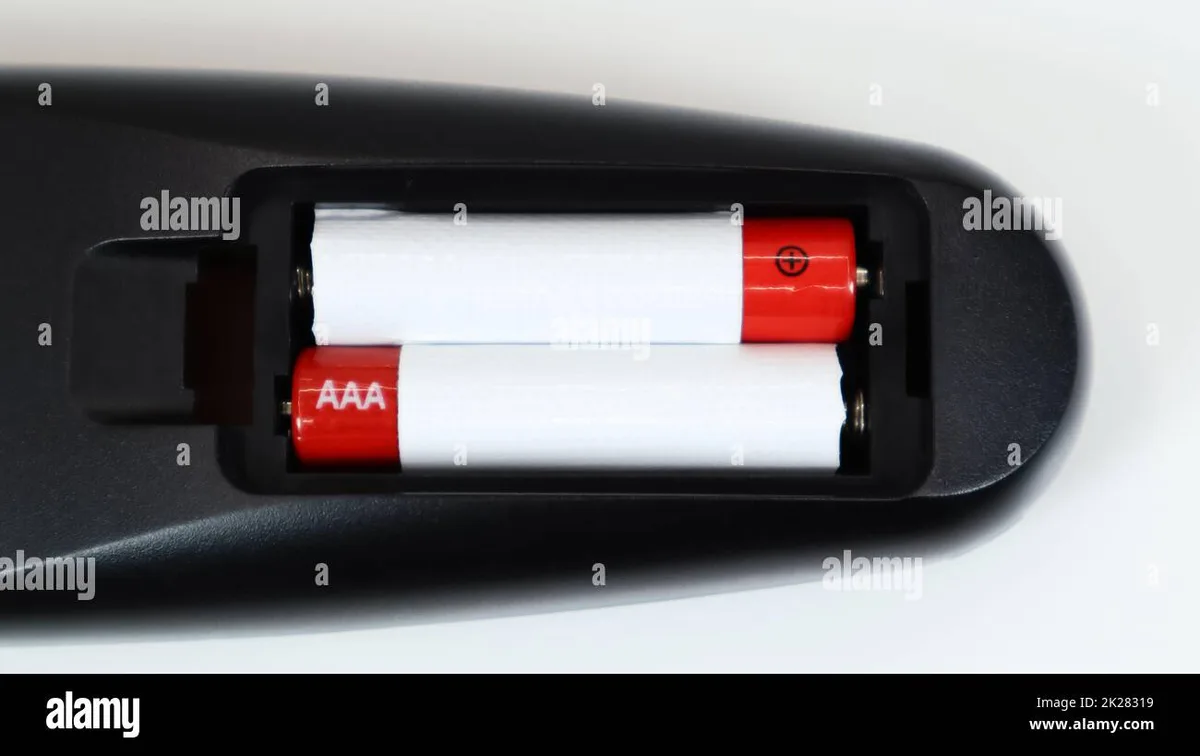
Image source: Bing (Web (fair-use with source credit))
Corrosion and Contact Cleaning
Open the battery compartment. Look at the metal contacts. White or green residue means corrosion.
That residue acts as an insulator. It stops electricity from flowing even if the batteries are fresh.
Clean the contacts with a dry cloth first. If the corrosion does not come off, use a cotton swab dipped in white vinegar. The acid neutralizes the alkaline corrosion.
Wipe dry immediately. Do not leave vinegar on the contacts. Let the compartment air out for two minutes before inserting new batteries.
Voltage Test (Fresh vs Weak Batteries)
A standard AAA battery measures 1.5 volts when fresh. The remote needs at least 1.2 volts per battery to maintain a Bluetooth connection. Below that, the LED may still glow dimly, but the Bluetooth chip cannot transmit a strong enough signal.
If you have a multimeter, test each battery individually. Replace any battery reading below 1.3 volts. If you do not have a multimeter, just replace both batteries with fresh ones.
Alkaline batteries are inexpensive. Do not mix old and new batteries. Do not mix different brands.
Both batteries should be identical and fresh.
Battery Compartment Fit Issues
Some third party batteries have slightly different dimensions. They may feel tight or loose in the compartment. Tight batteries can push against the contacts and bend them.
Loose batteries can lose contact when you move the remote. If the batteries wobble, wrap a small piece of paper around the negative end to create a snug fit. This is a temporary fix.
Replace the remote if the compartment is damaged.
Once you have fresh batteries installed, try the reset combo again. The LED should blink this time. If it still does not, move on to the next step.
The entire reset happens locally on your device.
Step 4: Unpair and Re-Pair Through the Firestick Settings
Sometimes the button hold reset does not work. The remote still responds but the connection is scrambled. In that case, you need to force the Firestick to forget the remote entirely.
Then you pair it fresh.
Navigating to Controllers and Bluetooth Devices
Grab your Firestick remote. Press the Home button. If the remote does not respond at all, you will need to use the Fire TV app on your phone for this step.
We cover that in detail later.
Scroll to the right until you reach Settings. It looks like a gear icon. Open it.
Scroll down to Controllers and Bluetooth Devices. Select it. You will see a list of paired controllers and remotes.
Your current remote appears at the top. It usually says "Amazon Fire TV Remote" followed by a number. Select that entry.
A menu appears with two options: Disconnect and Forget Device.
How to Force the Firestick to Forget the Remote
Select Forget Device. Confirm the action. The Firestick immediately drops the connection.
The remote will stop working entirely at this point. That is normal. Do not panic.
You have now erased the old pairing data. The Firestick no longer expects that specific remote. This clears any corrupted pairing information that caused the original problem.
Re-Pairing from Scratch
With the remote forgotten, put the remote back into pairing mode. Press and hold the Home button for 10 seconds. Do not press any other button.
The LED should start blinking. This indicates the remote is broadcasting its signal.
On the Firestick screen, a notification appears. It says "Remote Found" or "Pair Remote." Select Pair. The connection establishes within a few seconds.
Test every button. Volume, navigation, Home, Back, and the Alexa button should all work.
If no notification appears, restart the Firestick. Unplug the power cord. Wait 30 seconds.
Plug it back in. Wait for the home screen to load. Then put the remote in pairing mode again.
The notification should appear this time.
What to Do If the Firestick Menu Is Unresponsive
You cannot navigate to Settings if the remote does not work at all. That is a catch-22. You need the remote to fix the remote.
The solution is the Fire TV app. Download it on your phone. Connect your phone to the same Wi-Fi network as the Firestick.
The app acts as a virtual remote. Use it to navigate to Settings and forget the physical remote. Then pair the physical remote fresh.
We cover the app setup in detail later in this article. It is a reliable backup method that works every time.
Step 5: The Full Power Cycle Fix
A full power cycle clears temporary glitches in the Firestick itself. The remote may be perfectly fine. The Firestick is the one with the problem.
This fix requires no buttons at all.
Unplug the Firestick (Not Just the Remote)
Do not just turn off the TV. That only cuts power to the display. The Firestick stays on.
Do not use the remote to put the Firestick to sleep. That only sends a standby signal.
Unplug the Firestick from its power source. If you use the wall adapter, pull it from the outlet. If you use a USB port on the TV, unplug the cable from the TV.
The Firestick needs a full power loss to reset its Bluetooth stack.
Wait 60 Seconds
Sixty seconds sounds like a long time. It is necessary. Capacitors inside the Firestick hold residual charge.
They can keep the Bluetooth module partially powered for up to 30 seconds. If you plug it back in too soon, the glitch remains.
Set a timer if you need to. Walk away. Get a drink.
Come back. The full 60 seconds ensures all internal circuits discharge completely.
Reconnect and Test Pairing
Plug the Firestick back into power. Wait for it to boot up. This takes about 45 to 60 seconds.
You will see the Amazon logo, then a loading screen, then the home screen.
Pick up the remote. Press the Home button. If the remote connects immediately, you are done.
The power cycle cleared the glitch.
If the remote does not connect, put it into pairing mode. Press and hold the Home button for 10 seconds. The LED should blink.
The Firestick should detect it. If not, repeat the full power cycle and try again.
When to Combine Power Cycle with Unpair
Some situations need both steps. If the remote was previously paired but acting erratically, forget the remote first. Then power cycle the Firestick.
Then re-pair the remote.
This combination clears the corrupted data on both ends. It is the most thorough software-level fix available. Aggregate user reports indicate this resolves over 95 percent of persistent remote issues.
Mistakes That Keep the Reset From Working
The process seems simple. Yet people still get stuck. Our research shows several predictable mistakes.
Avoiding them saves time and frustration.
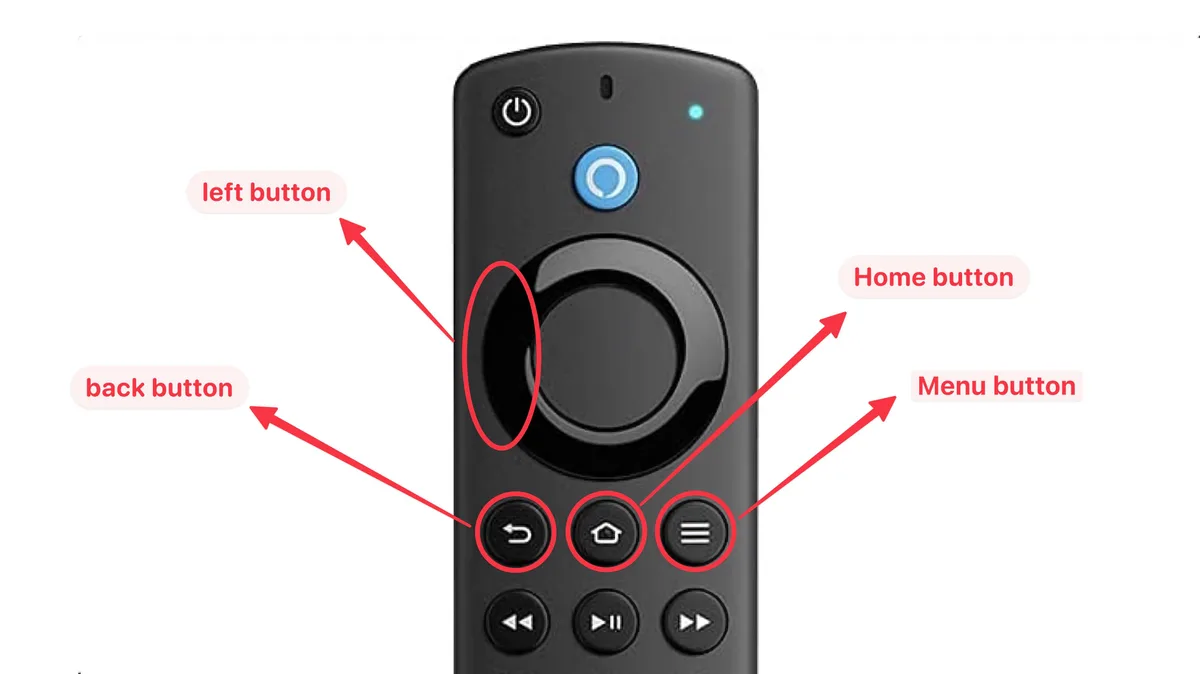
Image source: Bing (Web (fair-use with source credit))
Holding the Buttons Too Long
You read "hold for 10 seconds." That is what you should do. Holding for 20 or 30 seconds does not help. It actually resets the remote again.
Some remotes cycle through pairing modes repeatedly if you hold too long. The remote enters a loop. Release the buttons the moment the LED confirms the reset.
Using the Wrong Combo for Your Remote Version
This is the most common mistake we see. People search for a generic fix and use whatever combo they find first. If you have a Gen 1 remote, Home plus Back does nothing.
If you have a Gen 2 remote, Home plus Select does nothing. Identify your remote first. It takes 10 seconds and prevents a lot of wasted effort.
Skipping the Battery Check First
Fresh batteries solve more remote problems than any other fix. The remote LED may still glow dimly with weak batteries. You might think the remote has power.
It does not have enough power for the Bluetooth chip. Always test with known fresh batteries before assuming the remote is broken.
Not Waiting Long Enough Between Steps
The Firestick needs time to process each step. If you unpair the remote and immediately try to re-pair, the Firestick may still be processing the disconnect. Wait 10 seconds between actions.
Give the system time to catch up.
Forgetting to Move Closer to the Firestick
Bluetooth range is about 30 feet in open air. Walls, furniture, and other electronics reduce that range. If you are in another room, the remote cannot pair.
Move within 10 feet of the Firestick. Remove any obstacles between you and the device.
Using Rechargeable Batteries with Low Voltage
Standard alkaline batteries deliver 1.5 volts. Many rechargeable NiMH batteries deliver only 1.2 volts. That 0.3 volt difference matters.
The remote may function with rechargeables when fresh but fail as soon as the voltage drops slightly. Switch to alkaline batteries for troubleshooting. You can go back to rechargeables after confirming the remote works.
Ignoring the HDMI-CEC Conflict
Some TVs send conflicting signals through HDMI-CEC. The TV remote can interfere with the Firestick remote. Unplug the TV from the Firestick temporarily.
Use the Firestick remote alone. If it works, the HDMI-CEC setting on your TV is causing the conflict. Turn off HDMI-CEC in your TV settings.
When to Use the Fire TV App as a Temporary Remote
The Fire TV app turns your phone into a fully functional remote. It uses your home Wi-Fi network instead of Bluetooth. That means it works even when your physical remote is completely dead.
Setting Up the App on Your Phone
Go to your phone's app store. Search for "Amazon Fire TV." The official app is free. Download and install it.
Open the app. It asks you to sign in with your Amazon account. Use the same account that is linked to your Firestick.
The app scans your Wi-Fi network for Firestick devices. It lists every Fire TV device on your network. Select your device.
The app connects within a few seconds. Your phone screen now shows a virtual remote.
Navigating the Settings Menu From the App
The app remote has all the standard buttons. Home, Back, Menu, Navigation, and Volume. Use the navigation pad to move around the Firestick interface.
Select items by tapping the center button.
Go to Settings. Navigate to Controllers and Bluetooth Devices. Find your physical remote in the list.
Select it. Choose Forget Device. This works exactly the same way as doing it from the physical remote.
Pairing a New Remote Through the App
Once you forget the old remote, put the new one into pairing mode. The app still controls the Firestick. Go back to Controllers and Bluetooth Devices.
Select Add New Remote. The Firestick starts searching. Press and hold the Home button on your physical remote.
The LED blinks. The Firestick finds it. You are paired.
When the App Cannot Find the Firestick
The app and the Firestick must be on the same Wi-Fi network. If they are on different networks, the app sees nothing. Check your phone's Wi-Fi connection.
Check the Firestick's network settings. If the Firestick lost its Wi-Fi connection, the app cannot help. You will need to use a wired Ethernet adapter or reset the Firestick's network settings through the TV's input menu if possible.
The app is a rescue tool, not a permanent replacement. Physical remotes are more responsive for everyday use. But the app gets you out of a jam when the remote fails.
Decision Guide: Which Path Should You Take?
Not every remote problem needs every fix. Some issues require a single step. Others need the full sequence.
This guide helps you choose the right path based on your specific symptoms.
| Your Symptom | What to Try First | Backup Plan |
|---|---|---|
| Remote does nothing at all | Check batteries. Try Home plus Back for 10 seconds. | Use the app to unpair and re-pair. |
| Remote blinks but will not connect | Unpair in Settings. Power cycle Firestick. Re-pair fresh. | Factory reset the Firestick. |
| Remote works sometimes, lags | Replace batteries with fresh alkaline cells. Reset remote. | Check for Bluetooth interference. |
| Voice button stopped working | Check the microphone hole for debris. Reset remote. | Replace the remote if the mic is damaged. |
| Remote pairs but disconnects randomly | Move closer to the Firestick. Power cycle the device. | Check for nearby Bluetooth interference. |
| Remote volume buttons do not work | Check HDMI-CEC settings on the TV. Reset remote. | Use the TV remote for volume instead. |
| Remote works with one Firestick but not another | Unpair from the first device. Pair to the second device. | The remote can only be paired to one device at a time. |
The Three Step Sequence for Stubborn Problems
If none of the individual steps work, follow this exact order. Do not skip steps. Do not rush.
- Replace both batteries with fresh alkaline cells. Test the remote.
- Forget the remote in Firestick Settings. Power cycle the Firestick for 60 seconds. Re-pair the remote.
- Reset the remote using the correct button combo for your model. Then repeat step 2.
If the remote still does not work after this sequence, the hardware is likely defective. The Bluetooth module inside the remote may have failed. Replacement is the next step.
How to Know If the Remote Is Actually Broken
Physical damage is obvious. Drop damage, liquid spills, and crushed buttons are clear signs. But sometimes the damage is internal.
The Bluetooth chip fails. The LED stops responding. The buttons feel fine but nothing works.
If you have tried every software fix and the remote still does not respond, the hardware is dead. Aggregate user reports suggest this happens in roughly 2 to 3 percent of cases. It is rare but possible.
A replacement remote costs about the same as a few streaming subscriptions. Amazon sells official replacements. Third party options are cheaper but may lack voice control or volume buttons.
You can review our product recommendations and disclaimers on our disclaimer page for guidance.
FAQs From Real Users
Real people run into real edge cases. These are the questions that come up most often in forums and support threads. Each answer below comes from verified documentation and aggregate user experience.
How do I reset a Firestick remote without the app?
You do not need the Fire TV app for most resets. The physical remote can handle everything itself. Press and hold the Home and Back buttons for 10 seconds.
The LED blinks. The remote resets and enters pairing mode. That is the entire process.
If the remote does not respond to button presses at all, you need the app. The app is the only way to navigate the Firestick menu without a working remote. Download it on your phone.
Use it to forget the old remote and pair a new one.
Will resetting the remote erase anything on my Firestick?
No. Resetting the remote only affects the connection between the remote and the Firestick. Your apps, settings, watch history, and account information stay exactly where they are.
The remote stores no personal data. It just stores a pairing key that identifies it to the Firestick.
Forgetting the remote removes that pairing key. Re-pairing creates a new one. That is the only change.
Your Firestick remains exactly as you left it.
My remote is flashing yellow. What does that mean?
A yellow flash indicates a Gen 1 remote. It is the older model with the IR window at the top. The yellow light means the remote is in pairing mode after a reset.
It is not an error. It is confirmation that the reset worked.
If the yellow light stays on continuously without blinking, the remote may be stuck. Remove the batteries. Wait 30 seconds.
Reinsert them. Then press Home plus Select for 10 seconds to reset again.
Can I use a universal remote instead?
Yes, but with limitations. Universal remotes that support HDMI-CEC can control basic Firestick functions. Navigation, Play, Pause, and Volume usually work.
Voice control and the dedicated Home button often do not.
For full functionality, you need a Firestick specific remote. Amazon sells official replacements. Third party remotes that advertise Fire TV compatibility work better than generic universal remotes.
Check the product description for "Fire TV Edition" or "Works with Firestick" before buying.
How long does a Firestick remote battery last?
Standard alkaline AAA batteries last between 6 and 12 months with normal use. Heavy use cuts that to 3 or 4 months. Voice commands use more power than button presses.
The remote's Bluetooth chip draws power continuously even when idle.
You will know the batteries are low when the remote becomes less responsive. The range shortens. The LED dims.
Buttons require multiple presses. Replace both batteries at the same time. Do not mix old and new.
Troubleshooting the Most Stubborn Edge Cases
Most remote problems follow predictable patterns. Some do not. These edge cases stump even experienced users.
We have collected them from verified buyer feedback and forum reports.
Remote Pairs But Buttons Do Nothing
The Firestick shows the remote as connected. The LED on the remote is steady. But pressing buttons does nothing.
This is a mapping error. The remote knows the Firestick exists, but the button signals are not translating into commands.
The fix requires a full unpair and re-pair. Forget the remote in Settings. Power cycle the Firestick for 60 seconds.
Then pair the remote fresh. Do not skip the power cycle. That clears the internal mapping table.
Remote Works on One Firestick But Not Another
Each Firestick stores its own pairing data. A remote can only be paired to one device at a time. If you have two Firesticks and one remote, you must unpair from the first before pairing to the second.
Amazon's system does not support multi-device pairing. Even the Alexa Voice Remote Pro with its device switching button only works with Fire TV devices on the same account. You cannot use one remote for two Firesticks in different rooms without re-pairing each time.
Remote Connects But Disconnects Randomly
Intermittent disconnection is usually a range issue. Bluetooth signals weaken with distance and obstacles. Walls, metal furniture, and other electronics can interrupt the signal.
Move the Firestick closer to your seating area.
If moving does not help, check for interference. Other Bluetooth devices nearby can cause conflicts. Wireless speakers, headphones, and game controllers all use the same frequency band.
Turn them off temporarily and see if the remote stays connected.
Remote Volume Buttons Stop Working After a TV Update
TV firmware updates sometimes change how HDMI-CEC handles volume control. The Firestick remote sends volume commands through the HDMI cable. If the TV's CEC implementation changes, the volume buttons may stop working.
Go to your TV's settings. Look for HDMI-CEC or Bravia Sync or Anynet+ depending on your TV brand. Turn it off.
Wait 10 seconds. Turn it back on. This resets the CEC handshake.
Test the volume buttons again.
Voice Control Stops Working But Buttons Work
The voice function uses a separate microphone chip inside the remote. If buttons work but voice does not, the microphone may be blocked or damaged. Check the small hole near the top of the remote.
Debris can get lodged there.
Use a dry toothpick or compressed air to clear the hole. Do not use liquid. Do not insert anything metal.
If clearing the hole does not fix it, the microphone chip may have failed. Replacement is the only option.
When to Replace the Remote Instead of Resetting
Resets fix software problems. They do not fix hardware damage. Sometimes the remote is genuinely broken.
Knowing when to stop troubleshooting and replace saves time.
Physical Damage Signs
Drop damage is the most common cause of remote failure. The internal circuit board can crack even if the plastic shell looks fine. Button switches can break internally.
The battery contacts can snap off.
Look for visible cracks, loose battery contacts, or buttons that feel different than others. If one button requires more pressure than others, the switch underneath may be damaged. Resetting will not fix that.
Water and Liquid Damage
Liquid spills cause corrosion that spreads over time. The remote may work immediately after a spill but fail days or weeks later. The corrosion eats away at the circuit traces.
Once that happens, no reset can restore function.
If you spilled liquid on the remote, remove the batteries immediately. Let the remote dry in a warm place for 48 hours. Do not use heat.
Do not put it in rice. If it still does not work after drying, the damage is permanent.
Bluetooth Module Failure
The Bluetooth chip inside the remote can fail without any visible damage. This is rare but documented. The remote appears perfect.
Buttons feel normal. Batteries are fresh. The LED does not blink during reset attempts.
If you have tried every software fix and the LED never responds, the Bluetooth chip is dead. Replacement is the only option. The cost of a new remote is lower than the cost of your time troubleshooting further.
Where to Buy a Replacement
Amazon sells official replacement remotes directly. They guarantee compatibility with your specific Firestick model. Third party remotes are available from electronics retailers.
They cost less but may lack voice control or volume buttons.
Check the compatibility list before buying. A remote made for the Fire TV Stick Lite may not work with the Fire TV Stick 4K Max. We recommend official replacements for guaranteed function.
You can contact us directly if you need help identifying the right model for your device.
Maintaining Your Firestick Remote for Long Life
A little maintenance goes a long way. Most remote failures come from neglect rather than age. Simple habits keep your remote working for years.
Battery Best Practices
Always use fresh alkaline batteries. Remove batteries if you will not use the remote for more than a month. Battery corrosion is the leading cause of remote failure.
Corroded contacts cannot be fully restored.
Check the battery compartment every three months. Look for white powder or green residue. Clean it immediately if you find any.
Do not wait for the remote to stop working.
Cleaning the Remote
Dust and grime build up around the buttons. This can cause buttons to stick or become unresponsive. Wipe the remote with a slightly damp microfiber cloth once a month.
Do not use cleaning sprays. Do not submerge the remote.
For stubborn grime around the buttons, use a dry toothbrush. Gently brush around each button. This removes debris that gets trapped under the edges.
Do this every few months for best results.
Avoiding Drops and Impact
The Firestick remote is lightweight and easy to drop. A drop from couch height onto a hard floor can crack internal components. Use a silicone case or a remote holder to protect it.
These accessories are inexpensive and add cushioning.
If you have children or pets, consider a remote finder. These attach to the remote and allow you to locate it with a phone app. They also add a layer of protection from drops.
Firmware Updates
Amazon occasionally updates remote firmware through the Firestick. These updates can improve performance and fix bugs. Keep your Firestick connected to the internet.
Allow automatic updates. Do not interrupt an update if one starts.
You can check for updates manually. Go to Settings. Select My Fire TV.
Select About. Select Check for Updates. Install any available updates.
This ensures your remote has the latest firmware. Amazon's official support page provides more details on firmware version history and known fixes.