
When your Firestick starts acting up, freezing mid-show, refusing to respond to the remote, or stuck on that dreaded Amazon logo, you need to know exactly how to reset firestick without wasting time or losing more than you have to. The good news is that nearly every issue can be fixed with one of three reset methods, and you probably don't need to buy a new device.
Amazon's Fire TV Stick runs a modified version of Android called Fire OS. As of 2026, the device ships with about 8GB of internal storage, of which roughly 5.5GB is usable after the operating system takes its share. That limited space is why many performance issues creep up over time.
Let's walk through what's actually happening inside that little HDMI dongle and figure out which reset path makes sense for your situation. Our approach to device troubleshooting prioritizes simple fixes first, which is why we start with the least destructive options.
Quick Answer
To reset a Firestick, use one of three methods. If the device is slow or glitchy, unplug the USB power cable for 30 seconds. If it's frozen, press and hold the Back and Right navigation buttons for 10 seconds.
For a complete wipe, go to Settings > My Fire TV > Reset to Factory Defaults. Each method serves a different purpose.
When Should You Reset Your Firestick? (And When Should You Not)
Not every hiccup needs a full reset. That's the first thing to understand. If your Firestick is acting sluggish, a soft reset (unplugging it) is often enough.
If you're seeing app crashes or buffering issues, you might just need to clear some cache data.
Here's a quick way to decide based on your symptoms:
- The device is slow to navigate menus → Try a soft reset first.
- An app keeps crashing or freezing → Clear that app's cache in Settings.
- The remote isn't responding at all → Try the button combo reset.
- You're stuck on the Amazon logo screen → Factory reset is likely needed.
- You're selling or giving away the device → Factory reset required.
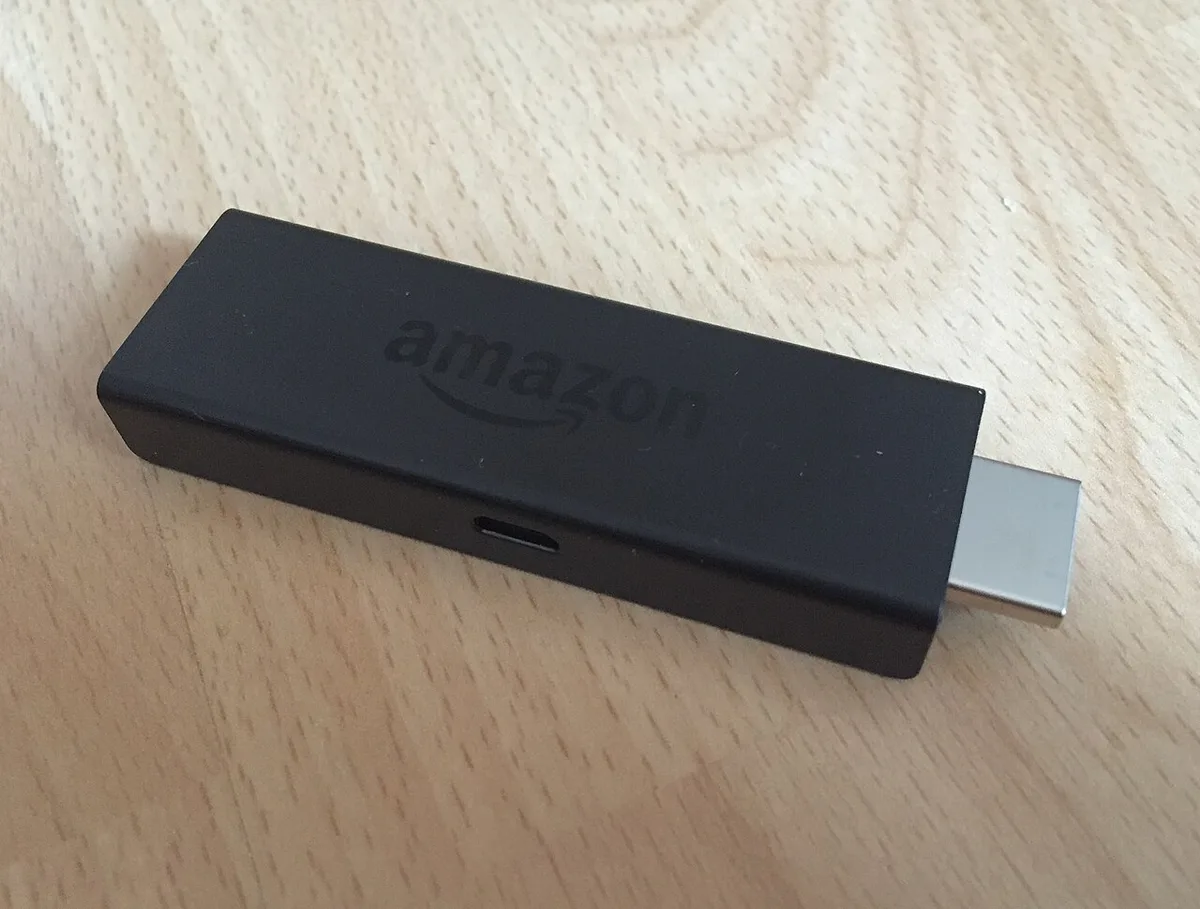
Image source: Wikimedia Commons / ubahnverleih
The mistake most people make is jumping straight to a factory reset when a simpler fix would work. Factory resets erase everything, your apps, your settings, your login information. You'll have to set it up all over again.
So before you go nuclear, understand what you're dealing with.
When should you not reset? If your Wi-Fi is slow or your internet connection is dropping, a Firestick reset won't fix that. Same goes for issues with your streaming service.
If Netflix is buffering but other apps work fine, the problem isn't your Firestick. And if your TV's HDMI port is failing, no amount of resetting will help.
The Quick Answer: Soft Reset vs. Factory Reset – What's the Difference?
This is where most people get confused. Let's make it crystal clear.
A soft reset is simply unplugging the device from power and plugging it back in. That's it. It clears the temporary memory, closes all running apps, and gives the operating system a fresh start.
Nothing is deleted. Your apps, your settings, your login details, all still there. Think of it like restarting your phone when an app gets stuck.
A factory reset wipes everything. Your Firestick goes back to the state it was in when you first pulled it out of the box. All downloaded apps are gone.
All settings are erased. You'll need to sign into your Amazon account again, reconnect to Wi-Fi, and reinstall everything.
Here's a simple comparison:
| Reset Type | What It Does | What You Lose | When To Use |
|---|---|---|---|
| Soft reset (unplug) | Clears RAM, restarts OS | Nothing | Slow performance, minor glitches |
| Button combo reset | Force restarts frozen device | Unsaved app data | Frozen screen, unresponsive remote |
| Factory reset | Erases all data, restores defaults | Everything | Major software issues, selling device |
The button combo is a middle ground. It forces a restart when the device is frozen and you can't navigate menus. It doesn't wipe your data, but it might lose unsaved progress in whatever you were watching.
How Firestick Resets Actually Work (The Two Types Explained)
Understanding what's happening under the hood makes these resets feel less like guesswork.
Soft resets work by cutting power completely. When you unplug the Firestick, the RAM (random access memory) loses its charge. That's where all your currently running processes live, open apps, the operating system state, cached data from your last session.
When you plug it back in, the device boots up fresh, loading only what it needs from the internal storage.
This is why a soft reset fixes so many problems. Over time, background processes build up. Apps don't fully close when you exit them.
Memory fragments. The operating system gets sluggish. A soft reset is like taking out the trash.
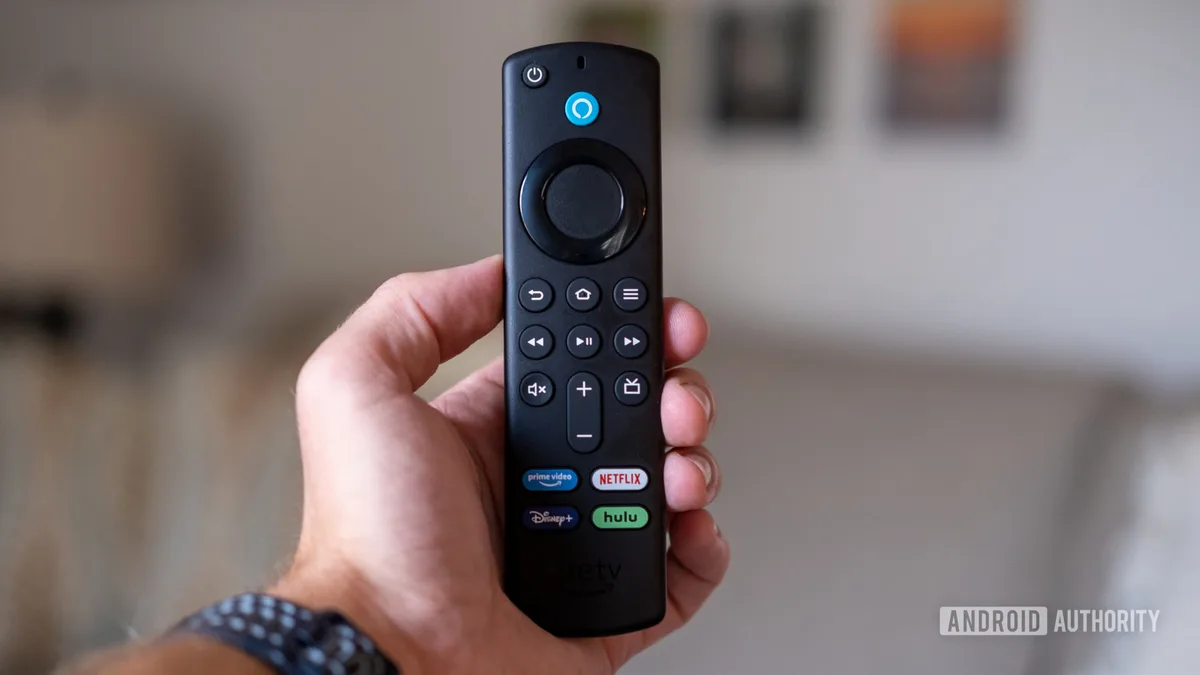
Image source: Bing (Web (fair-use with source credit))
Factory resets work at the storage level. When you select "Reset to Factory Defaults" from the Settings menu, Fire OS wipes the partition that holds user data, apps, settings, cached files, everything you've added since the initial setup. It then rebuilds the system partition from a recovery image stored on the device.
This process takes a few minutes because the operating system has to verify data integrity and set up fresh configuration files.
The remote button combo (Back + Right navigation, held for 10 seconds) is actually a hardware-level interrupt. It sends a signal directly to the processor that overrides whatever the device is doing. It doesn't gracefully shut down apps or save anything.
It's the digital equivalent of pulling the plug. Use it only when you have to.
Knowing how these processes work helps you choose the right one. Our terms and conditions regarding device use recommend a factory reset as the most thorough way to restore normal operation when software corruption is suspected.
Step-by-Step: How to Reset Your Firestick (3 Paths Based on Your Situation)
Your specific situation determines which path to take. Here's how to figure it out.
Path 1: Your Firestick Is Slow or Glitchy (Soft Reset / Power Cycle)
This is the safest option and should be your first attempt for nearly any problem.
- Unplug the USB power cable from the back of the Firestick or from the power adapter. Don't just turn off the TV. The Firestick gets power through the USB connection.
- Wait at least 30 seconds. Count it out. Thirty seconds gives the capacitors enough time to fully discharge. Ten seconds isn't enough.
- Plug it back in. The Firestick will boot up, showing the Amazon logo. This takes about 30 to 60 seconds.
- Test the device. Navigate around. Open an app. See if the issue is resolved.
If you're still having problems after the soft reset, move on to the next path.
Path 2: Your Firestick Is Frozen or Unresponsive (Remote Button Combo)
When the screen is completely frozen and nothing responds, this is your best bet.
- Press and hold the Back button (the one with the left arrow).
- While holding Back, press and hold the Right navigation button (the ring button on the right side).
- Hold both for 10 seconds. Don't let go early.
- The Firestick should restart. You'll see a "Powering off" message (on newer models) or the screen will go black, then the Amazon logo appears.
If your remote uses a different layout, some older models have a Menu button instead of a Right navigation button. Try holding Back and Menu together instead. The exact button varies slightly by generation, but it's the same concept, two buttons held for 10 seconds.
Path 3: You're Selling It or Have a Major Software Issue (Factory Reset via Settings)
Use this only when you need a complete wipe. A factory reset is the most thorough way to ensure your personal data is removed and the device runs like new.
- Make sure your remote is working. You'll need to navigate menus. If your remote isn't working, use the Fire TV app method described in the next section first.
- Go to Settings (the gear icon at the far right of the home screen).
- Select My Fire TV (or Device & Software on older models).
- Scroll down and select Reset to Factory Defaults.
- Confirm the reset. Enter your PIN if you have parental controls enabled.
- Wait. The device will reboot and show a progress screen. This takes 3 to 5 minutes.
Image source: Wikimedia Commons / Kihopczmaluoch (CC BY-SA)
After the reset, you'll go through the initial setup again, choose language, connect to Wi-Fi, sign into your Amazon account. Have your Amazon account email and password ready. If you've forgotten them, visit Amazon's account recovery tools before you reset.
What If Your Remote Is Lost or Broken? (How to Reset Without It)
This is one of the most common questions we hear. You can still reset your Firestick even if the remote is dead, lost, or unresponsive.
The Amazon Fire TV app (for iOS and Android) is your solution. It turns your phone into a virtual remote. Here's how:
- Download the Amazon Fire TV app from your phone's app store.
- Connect your phone to the same Wi-Fi network as your Firestick.
- Open the app. It should automatically detect your Firestick on the network.
- Select your device from the list. The app will show a four-digit code.
- Enter the code on your TV screen (if the Firestick is still functional enough to show it). If your TV shows no picture, skip this step, the app may still connect.
- Use the app's navigation controls to go to Settings > My Fire TV > Reset to Factory Defaults.
If your Firestick isn't connecting to Wi-Fi at all (maybe you moved or changed routers), you have a tougher situation. The app won't find the device. In that case, you have two options:
- Use a wired Ethernet adapter (if you have one) to get the Firestick online temporarily so the app can connect.
- Try a different remote if you have a spare, or borrow one from a friend's Firestick. They pair automatically in most cases.
As of 2026, the Fire TV app works with Fire OS 5 and later, covering all Firestick models released since 2016. The app is free and doesn't require an active Amazon subscription.
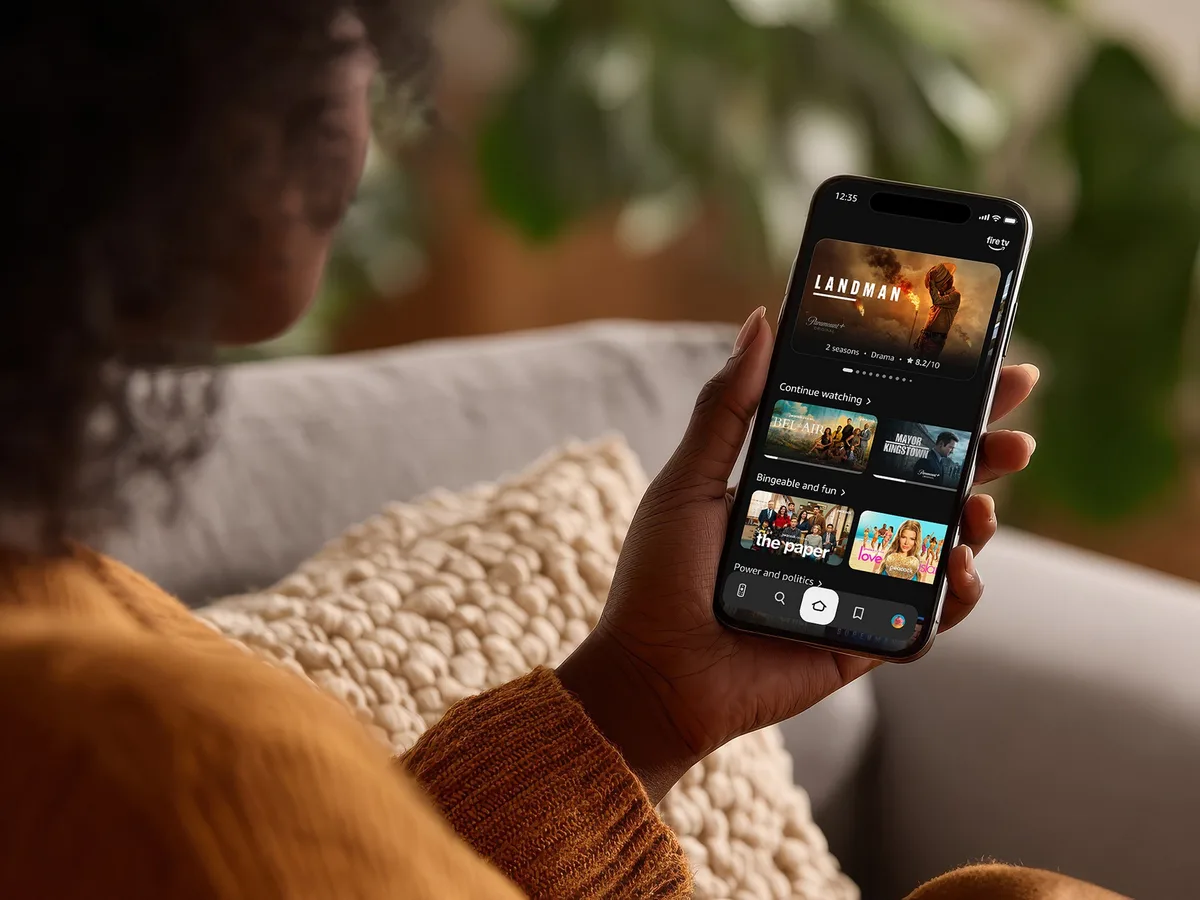
Image source: Bing (Web (fair-use with source credit))
One thing to note: if you're resetting because you forgot your parental controls PIN, the factory reset will clear that too. But you'll still need your Amazon account password to set up the device again. Amazon's account recovery process typically takes a few hours to 48 hours depending on your security settings.
If you've lost access to that account, contact Amazon support before resetting. Otherwise, you'll end up with a Firestick you can't use at all. Our privacy policy explains how we handle data safety recommendations for situations like this.
The Alternatives: Before You Factory Reset, Try These First
A factory reset is a big step. It wipes everything. Before you go that route, there are three less aggressive fixes that solve the majority of Firestick problems.
Try them in order.
Clear App Cache and Data
Every app on your Firestick stores temporary files. These files help the app load faster. But over time, they build up.
A bloated cache can cause crashes, slow loading, and even make the entire system feel sluggish.
Here's how to clear it:
- Go to Settings from the home screen.
- Select Applications (or Apps on older models).
- Choose Manage Installed Applications.
- Pick the app that's giving you trouble.
- Select Clear cache. This removes temporary files but keeps your login info and settings.
- If the problem persists, select Clear data. This resets the app to its factory state. You'll need to sign in again.
Focus on the apps you use most. Netflix, Hulu, Disney+, and YouTube are common culprits. Their caches grow quickly because they store thumbnails, previews, and partial video buffers.
Clearing cache is safe. It never deletes your personal data. Think of it as tidying up a messy room instead of moving out of the house.
Force Stop Problematic Apps
Sometimes an app gets stuck in a bad state. It won't close properly. It keeps running in the background.
Clearing the cache won't help because the app itself is hung.
Force stopping is the solution.
- Go to Settings > Applications > Manage Installed Applications.
- Select the problematic app.
- Choose Force stop.
This kills the app's process immediately. It's like closing a program that won't respond on your computer. The app will restart fresh the next time you open it.
Force stopping is especially useful for apps that freeze during playback. If you're watching a show and it locks up, force stopping the streaming app is faster than resetting the entire device. It also saves you from losing your place in other apps.
Uninstall Unused Apps
Remember that news app you installed once and never opened? Or the game your kid downloaded and abandoned? They're still taking up space.
The Firestick has roughly 5.5GB of usable storage. That's not much. Every app you install eats into that budget.
When storage gets tight, the operating system slows down. Apps crash more often. The device struggles to cache data.
Here's a quick check you can do:
- Go to Settings > My Fire TV > About.
- Look at Storage (or Available Storage on newer models).
- If you have less than 1GB free, you need to uninstall apps.
To uninstall an app:
- Go to Settings > Applications > Manage Installed Applications.
- Select the app you want to remove.
- Choose Uninstall.
Prioritize apps you haven't used in the last month. Streaming services you subscribe to but rarely watch. Games that take up 500MB or more.
Free apps you downloaded for a single use.
Regular maintenance prevents the need for a factory reset. Set a reminder every few months to check your storage.
Common Mistakes to Avoid When Resetting Your Firestick
Even a simple reset can go wrong. Here are the most frequent errors people make, and how to avoid them.
Unplugging the HDMI cable instead of the USB power cable. The Firestick gets power through its USB connection. Unplugging the HDMI cable from the TV does nothing. The device might stay powered through the TV's USB port, or it might lose power only if the TV is off.
Always unplug the USB cable from the Firestick or the wall adapter.
Not waiting long enough during a soft reset. Ten seconds is not enough. The capacitors inside the device hold a charge. If you plug it back in too quickly, the residual power keeps the RAM alive.
Wait a full 30 seconds. Count it out. This ensures a complete power drain.
Forgetting the Amazon account password. After a factory reset, you must sign in to your Amazon account again. If you've forgotten your password, recover it before resetting. Otherwise, you'll have a bricked device.
Amazon's account recovery tools can help, but the process can take a few hours to 48 hours depending on your security settings.
Hitting factory reset when the device is frozen. If your Firestick is completely unresponsive, you can't navigate to Settings. Trying to do so will just frustrate you. Use the button combo reset instead.
It's designed for exactly this situation.
Not checking for parental controls PIN. If you have parental controls enabled, the factory reset will ask for your PIN. If you've forgotten it, you're stuck. Amazon's support can help, but it's easier to disable parental controls before resetting.
Assuming a factory reset fixes hardware problems. A reset only addresses software issues. If your Firestick has a damaged HDMI port, a failing power supply, or physical damage, no amount of software resetting will help. The device will continue to have the same problems after the reset.
Our full disclaimer covers the limitations of software troubleshooting.
Using a powered USB hub for power. Some people plug their Firestick into a USB hub or a TV's USB port for power. These sources often supply less than the required 5V/1A. This can cause random reboots, freezes, or failure to boot.
Always use the included power adapter plugged directly into a wall outlet.
When a Reset Isn't the Answer (Real Scenarios Where It Won't Help)
Resetting is powerful, but it's not a cure-all. Here are situations where you should look elsewhere for a solution.
Your Wi-Fi network is slow or dropping. The Firestick is a streaming device. It needs a stable internet connection. If your Wi-Fi is weak, no amount of resetting will fix buffering.
Check your router first. Move it closer to the Firestick. Consider a Wi-Fi extender or a mesh network.
The Firestick 4K Max supports Wi-Fi 6, which helps with crowded networks.
Your TV's HDMI port is failing. If the screen goes black intermittently, or you get a "no signal" message, the problem might be the TV. Try plugging the Firestick into a different HDMI port. If it works there, the original port is damaged.
A reset won't help.
Your streaming service is down. Netflix, Hulu, Disney+, and other services have outages. Check the service's status page before resetting your device. If the service is down, no amount of troubleshooting on your end will fix it.
Your Amazon account is suspended or locked. If you can't log in after a reset, the issue is with your account, not the device. Contact Amazon customer support. They can help you regain access.
Your Firestick is physically damaged. Dropped it? Got it wet? The power adapter is making a buzzing sound?
These are hardware issues. A reset won't repair physical damage. You may need a replacement device.
The Firestick is relatively inexpensive to replace, especially compared to the frustration of troubleshooting a broken unit.
You're using a VPN that's causing issues. Some VPNs interfere with streaming services. They can cause buffering, error messages, or complete blocks. Disable the VPN before resetting.
If the problem goes away, the VPN is the culprit. Configure it correctly or switch to a different provider.
Your Decision Guide: Which Reset Path Fits Your Situation Right Now?
Let's make this simple. Here's a decision table based on your specific symptoms.
| Your Situation | What to Do First | What to Do Second | What to Avoid |
|---|---|---|---|
| Firestick is slow, menus lag | Soft reset (unplug USB) | Clear app cache for heavy apps | Factory reset |
| An app keeps crashing | Force stop the app, then clear cache | Uninstall and reinstall the app | Button combo reset |
| Screen is frozen, remote won't respond | Button combo reset (Back + Right) | Unplug USB if combo doesn't work | Factory reset from Settings |
| Stuck on Amazon logo during boot | Unplug USB, wait 60 seconds, try again | Button combo reset | Nothing else to try if it persists |
| Forgot parental controls PIN | Recover PIN via Amazon account | Factory reset (will erase PIN) | Attempting random PINs |
| Selling or giving away the device | Factory reset from Settings | Sign out of Amazon account first | Soft reset or button combo |
| Remote is lost or broken | Use Fire TV app on your phone | Try a different Firestick remote | Factory reset without remote access |
| Device won't connect to Wi-Fi | Check router, restart router | Use Ethernet adapter if available | Factory reset (won't fix Wi-Fi) |
If you're still unsure, start with the least destructive option. That's always the soft reset. It takes 30 seconds and costs you nothing.
If that doesn't work, move to clearing app cache for your most-used apps. Only then should you consider a factory reset.
Here's a simple rule of thumb: if the problem is minor (slow menus, occasional crashes), use a soft reset. If the problem is major (boot loop, persistent errors), use a factory reset. If the device is unresponsive, use the button combo.
One last thing. After any reset, give the Firestick a few minutes to settle. It needs to reconnect to Wi-Fi, check for updates, and sync your apps.
Don't judge the result immediately. If you're still having issues after a full factory reset, the problem is likely hardware-related. Contact Amazon support or consider a replacement.
Frequently Asked Questions
Will a factory reset remove my Amazon account from the Firestick?
Yes. A factory reset removes all account information. You'll need to sign in again with your Amazon email and password.
The device is no longer linked to your account after the reset completes.
Can I reset my Firestick without the remote?
Yes. Use the Amazon Fire TV app on your phone. It acts as a virtual remote.
Connect your phone to the same Wi-Fi network as your Firestick. The app should detect the device automatically.
How long does a Firestick factory reset take?
The process takes about 3 to 5 minutes. The device will show a progress screen during the reset. After it finishes, the initial setup wizard appears.
Total time including setup is roughly 10 minutes.
Will resetting my Firestick delete my apps and settings?
A soft reset (unplugging the power) preserves everything. A factory reset deletes all apps, settings, and personal data. The device returns to its out-of-box state.
What should I do if my Firestick is stuck on the Amazon logo after a reset?
Unplug the USB power cable. Wait 60 seconds. Plug it back in.
If the logo persists, try the button combo reset (Back + Right for 10 seconds). If neither works, contact Amazon support for a replacement.
Does resetting fix buffering issues?
Only if the buffering is caused by software problems on the Firestick. If your internet connection is slow or your Wi-Fi signal is weak, a reset won't help. Check your network speed first.