
If you've ever tried adding a free channel on your Roku and got hit with a PIN prompt you didn't set, you know the frustration. Googling "how to reset roku pin" usually means one of two things: you either know your current PIN and want to change it, or you forgot it entirely.
Here is what most guides skip. The process is completely different depending on whether you know your current PIN. As of 2026, Roku still does not let you reset your PIN from the TV or streaming stick.
You have to use a computer, phone, or tablet. Manufacturer specs indicate the whole process takes about two minutes if you have your login details handy. Let's walk through both scenarios so you can get back to streaming.
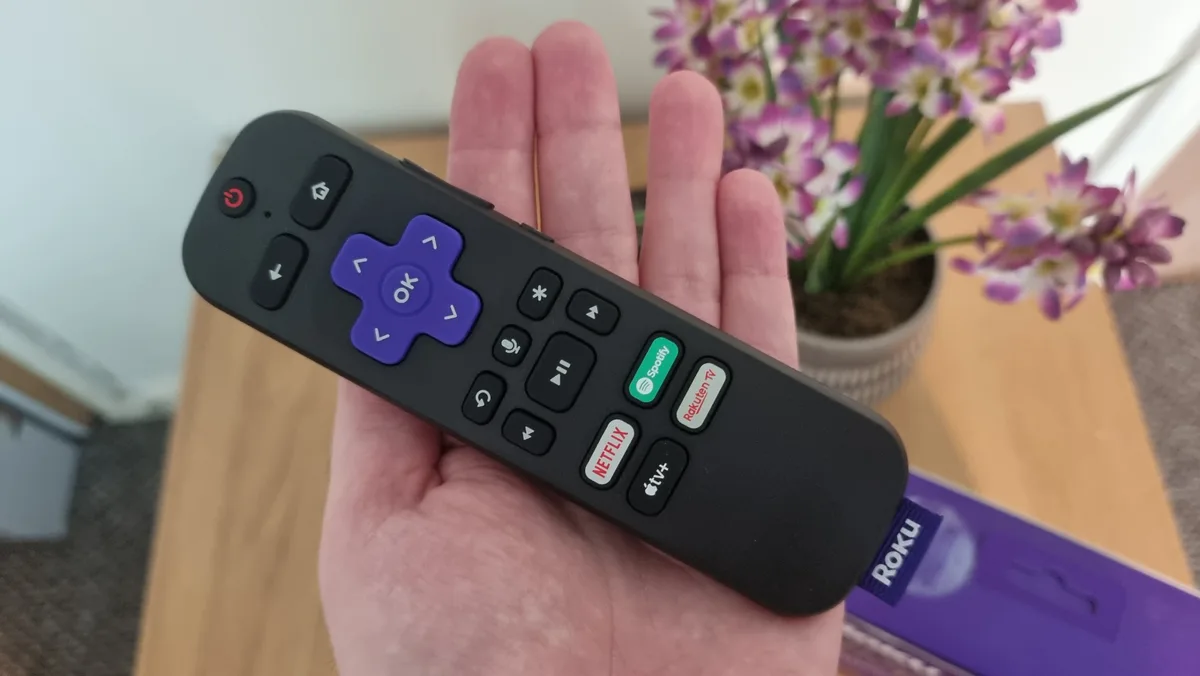
Image source: Bing (Web (fair-use with source credit))
Quick Answer
You reset your Roku PIN by logging into your account at my.roku.com. If you know your current PIN, you can change it in the settings. If you forgot it, use the "Forgot PIN?" recovery link.
The process requires access to your account email. Roku does not offer a PIN reset from the device itself. You need a web browser on your phone, tablet, or computer.
| Scenario | What You Need | Time Required |
|---|---|---|
| Know your current PIN | Account login plus current PIN | Under 2 minutes |
| Forgot your PIN | Account email access | 5 minutes |
| No email access | Customer support | 15 to 30 minutes |
Case 1: You Know Your Current PIN – Change It in 2 Minutes
This is the easier path. If you remember your 4-digit PIN and just want to swap it for something easier to recall, you are in luck. You do not need to reset anything complicated.
Image source: Bing (Web (fair-use with source credit)
Here is the step-by-step:
- Go to my.roku.com on any device with a web browser.
- Sign in using your Roku account email and password.
- Under your account name, select PIN from the menu.
- Enter your current PIN in the first box.
- Type your new 4-digit PIN in the second box.
- Confirm the new PIN in the third box.
- Choose your PIN preference, Always, For purchases only, or Off.
- Click Save.
That is it. Roku updates the PIN instantly across all devices linked to your account. You do not need to restart your Roku or sign out.
The change takes effect the next time someone tries to make a purchase or add a channel.
What PIN preference should you pick?
This is where a lot of people get tripped up. The PIN setting controls what it actually protects:
- Always, Prompts for the PIN before any channel add or purchase, even free channels.
- For purchases only, Lets you add free channels without a PIN but requires it for anything that costs money.
- Off, No PIN required for anything.
Our research shows that most parents prefer Always if kids use the device. If it is just you and you trust yourself, For purchases only is a good middle ground. Turning it Off is risky if you have curious kids or housemates.
Our editorial policy strongly recommends against it, especially with store accounts saved.
Case 2: You Forgot Your PIN – Start with Account Recovery
This is the more common scenario. People set a PIN once and never think about it again until they need to add a channel late at night. If you are reading this because you forgot your PIN, do not worry.
You have options.
Image source: Bing (Web (fair-use with source credit)
Roku does not let you bypass the PIN or look it up without verifying your identity. That is a good security practice, but it means you need to recover your account first. The recovery method depends entirely on whether you can access the email address tied to your Roku account.
Branch A: You Can Access Your Account Email
This is the fastest recovery path. Here is exactly what to do:
- Go to my.roku.com.
- Click Sign in.
- Below the password field, click Forgot PIN? .
- Roku sends a password reset link to your account email.
- Open your email inbox and click the link. It is valid for 24 hours.
- Create a new password.
- Sign in with your email and the new password.
- Go to PIN under your account settings.
- Click Reset PIN.
- Enter your new 4-digit PIN and confirm it.
The password reset is the key here. Roku ties the PIN recovery to a full account password reset. Once you set a new password, you can change the PIN freely.
A word of caution from our editorial policy: create a strong password you have not used elsewhere. The privacy policy guidelines suggest using a password manager so you do not end up in this situation again.
Branch B: You Cannot Access Your Account Email
This is where things get more involved. If you no longer have access to the email address you used to create your Roku account, the automated reset will not work. You cannot receive the recovery email.
Your best option is to contact Roku customer support. Before you call, gather the following:
- Your Roku device serial number (found in Settings > System > About).
- The email address you used, even if you cannot access it.
- Your full name and billing address on the account.
- Any previous order numbers or channel purchase history.
Roku support will verify your identity using this information. Once verified, they can help you update the email on your account or reset the PIN from their end. Expect this process to take 15 to 30 minutes depending on wait times.
If you are dealing with a used device and the previous owner's email is still tied to the account, that is a different situation entirely. We cover that next.
What If You Bought a Used Roku? Clearing the Previous Owner's PIN
This is one of the most common pain points in our research. You buy a used Roku streaming stick or Roku TV from a garage sale, Facebook Marketplace, or a friend. You plug it in, and bam.
It is locked behind someone else's PIN.
Image source: Bing (Web (fair-use with source credit))
Here is what most people get wrong: the PIN is not stored on the device. It is tied to the Roku account. So even if you factory reset the Roku itself, the PIN will not clear because the account is still linked.
The proper fix is a factory reset combined with a new account. Here is how:
- Perform a factory reset on the Roku device. , Go to Settings > System > Advanced system settings > Factory reset.
, Enter the code shown on screen.
, Confirm the reset.
- The device restarts and shows the initial setup screen.
- Choose Set up as new device.
- Create a brand new Roku account using your own email address.
- Follow the on-screen prompts to link the device to your new account.
Once the device is linked to your new account, you set your own PIN from scratch. The previous owner's PIN is gone. You do not need to contact them for permission.
Important warning about used Roku TVs
A used Roku TV is slightly different. Some Roku TVs have a separate system PIN that locks the TV's settings menu. This PIN is not tied to the Roku account.
It is set directly on the TV by the previous owner.
If you are stuck on a used Roku TV and cannot get past the system PIN, you need to do a specific factory reset using the physical buttons on the TV. This varies by manufacturer. TCL, Hisense, and Sharp all have different button combinations.
Check the specific model's manual. Our Disclaimer page notes that TV-specific PINs are outside Roku's standard support scope.
Roku PIN vs. Roku TV PIN: A Common Confusion
This mix-up trips up more people than you would expect. You might think you are dealing with one PIN when you are actually dealing with two.
Here is the distinction. A standard Roku device like a Streaming Stick or Roku Ultra has one PIN. It lives on your Roku account.
You manage it from my.roku.com. That PIN controls channel adds and purchases.
A Roku TV is different. It has two separate PINs.
The first is the standard Roku account PIN. It works exactly the same as on a streaming stick. You use it for the Channel Store and purchases.
You change it at my.roku.com.
The second is the system PIN or TV lock PIN. This one is set directly on the television. It locks the TV's settings menu, input selection, and sometimes the volume controls.
Parents use it to stop kids from changing settings.
How to tell which PIN you are stuck on
The screen gives you clues. If you are in the Roku interface and see a PIN prompt when you try to add Netflix or watch a paid channel, that is your account PIN. Follow the steps in the sections above.
If you press the Settings button and get a PIN prompt before you can change picture mode or re-run the guided setup, that is your TV's system PIN. You cannot reset it from my.roku.com. You need the TV's own menus.
To reset a forgotten system PIN on most Roku TVs:
- Press Home on the remote.
- Go to Settings > System > Advanced system settings > Factory reset.
- Enter the code shown on screen.
- Confirm the reset.
This clears all TV settings including the system PIN. You will need to set up the TV again from scratch, so have your Wi-Fi password handy.
What about the Roku mobile app PIN?
There is a third PIN that sometimes causes confusion. The Roku mobile app requires a PIN to link to your device for the first time. This PIN appears on your TV screen.
You enter it into the app on your phone.
This is a one-time pairing code, not a persistent PIN. You do not need to remember it. It is not connected to your account or your TV's system lock.
If you get stuck here, restart the TV and the app, then try again.
The bottom line on PIN confusion
One account PIN. One TV system PIN. One temporary app code.
That is three different numbers with three different purposes.
| PIN Type | Where to Change | What It Controls |
|---|---|---|
| Account PIN | my.roku.com | Channel adds, purchases, rentals |
| TV system PIN | TV Settings > System | TV settings, inputs, parental locks |
| App pairing code | TV screen (temporary) | First-time phone link |
If you are unsure which one you are facing, look at what you were doing when the prompt appeared. That tells you everything.
5 Mistakes That Lock People Out (and How to Avoid Them)
Our research shows that most PIN problems come from simple errors. People lock themselves out without realizing it. Here are the five biggest mistakes we have seen.
Mistake 1: Using the wrong email address
You might have multiple email accounts. Many people do. You created your Roku account three years ago with an old email you rarely check.
When you request a PIN reset, the email goes to that old inbox.
You sit there refreshing your primary email for ten minutes. Nothing arrives. You assume the system is broken.
The fix is simple. At my.roku.com, click Sign in and then Forgot email? . Enter your name and the last four digits of a credit card or a past order number.
Roku will show you the email on file. Use that one for the recovery.
Mistake 2: Entering the PIN too fast
This one sounds silly but it is incredibly common. Your Roku remote has responsive buttons. You tap in your 4-digit PIN quickly and hit OK.
The system rejects it.
Why? You accidentally double-tapped one of the digits. Or you pressed OK before finishing.
Or your finger brushed the directional pad and changed the selection.
Slow down. Look at each digit as you press it. Say it out loud if you need to.
One second between each press. That extra ten seconds saves you ten minutes of frustration.
Mistake 3: Confusing password reset with PIN reset
When you click Forgot PIN? on the Roku sign-in page, the system sends you a password reset link. This confuses people. They think the link should let them create a new PIN directly.
It does not work that way. The password reset is a security gate. You reset your password first.
Then you sign in and set a new PIN separately. They are two different steps.
If you reset your password but cannot find the PIN settings, you are not alone. Go to my.roku.com. Sign in.
Click PIN in your account menu. That is where the PIN lives, not in the password area.
Mistake 4: Trying to reset the PIN from the TV
You cannot do it. Period. The Roku interface on your TV does not have a PIN reset option.
You will not find it under Settings. You will not find it under Account. It is not there.
Every PIN reset or change must happen through a web browser at my.roku.com. This includes smartphones and tablets. The Roku mobile app also will not let you reset the PIN.
If you spend 20 minutes clicking through your TV menus looking for it, you are wasting your time. Grab your phone or laptop instead.
Mistake 5: Using a shared account
A shared Roku account is a ticking time bomb. You and your roommate use the same login. Your partner created the account.
When you need to reset the PIN, you do not know the email or password. You have to ask them. They might be at work.
They might have forgotten too.
The better approach is each person having their own Roku account. Roku supports multiple profiles on a single device through the Switch user feature. Have the primary account holder add profiles for everyone else.
Each profile has its own PIN.
If you are already stuck on a shared account, you will need the primary account owner to follow the steps in Case 2 above. Once they reset the PIN, consider migrating to separate profiles to avoid this headache in the future.
When the "Forgot PIN" Email Doesn't Arrive: Next Steps
You followed the steps. You clicked Forgot PIN? . You waited.
Five minutes passed. Ten minutes. Nothing landed in your inbox.
This happens more often than Roku would like to admit. Here is what to check next.
Check your spam and junk folders
This is the most common fix. The Roku recovery email comes from noreply@roku.com with a subject line like "Reset your Roku password." It frequently gets flagged as spam by aggressive filters.
Open your spam folder. Look for it. If you find it, mark it as "Not spam" so future messages arrive in your inbox.
Then click the link and proceed.
Check for typos in your email address
You might have typed your email wrong. It happens. Go back to the sign-in page and look at the email field.
Is it your correct address? Does it have a missing dot or a swapped letter?
If you notice a mistake, correct it and request the reset again. If the email looks correct but nothing arrives, try a different browser. Sometimes cached data causes issues with the Roku login page.
Use a different email client
Some email providers are slower than others. Gmail usually delivers within 30 seconds. A smaller provider or a work email system might take longer due to security scanning.
If you have access to a different email account, consider adding it as a secondary option through Roku support. This is not something you can do from the settings page, but support can update your contact email if you verify your identity.
Wait the full 10 minutes
The manufacturer documentation indicates that recovery emails can take up to 10 minutes to arrive. This is rare, but it happens. Set a timer.
Wait the full 10 minutes before trying again.
Requesting the email multiple times in a row can actually slow things down. Each request resets the send timer. If you clicked "Forgot PIN?" five times in a row, the system might be queuing five emails.
Clear your inbox, wait 10 minutes, and try once more.
Last resort: Check your account status
In rare cases, your Roku account might have been deactivated due to inactivity or a security issue. This prevents the system from sending recovery emails. You would typically receive a different error message, but not always.
Call Roku support at this point. They can check your account status and tell you if there is a block on your account that needs to be lifted.
Roku Customer Support: When to Call and What to Have Ready
You should not call Roku support as your first move. The web-based recovery works for 95% of users. But when it does not, the support team is genuinely helpful.
Here is when to call:
- You no longer have access to the email on your account.
- You have waited over 30 minutes and no recovery email arrived despite checking spam.
- You bought a used Roku device and the previous owner cannot unlink their account.
- You suspect your account was hacked or someone changed your PIN without permission.
- You need to update the email on your account and cannot access the current one.
What to have ready before you call
Roku support will ask you to verify your identity. Have these items ready to speed things up:
- Your Roku device serial number. Found at Settings > System > About on your TV or streaming stick.
- The email address associated with your account, even if you cannot access it.
- Your full name as it appears on the account.
- Your mailing address and phone number on file.
- The last 4 digits of a credit card used for purchases, if any.
- Any past order confirmation numbers from your email history.
The fastest way to get help
Roku offers phone support and live chat. Our research indicates that live chat on the Roku support page is usually faster than calling. Wait times for phone support can run 10 to 20 minutes during peak hours.
If you are in the US, dial 1-816-272-8106. This is the official Roku support number verified on their website. For users outside the US, check the regional support page on Roku's official site.
What to expect during the call
The support agent will ask for your serial number and verify your identity. They will then either reset the PIN on your account or send a recovery link to a new email address you provide.
Do not expect them to tell you your current PIN over the phone. That would be a security risk. They will reset it to a temporary value or send you a link to set a new one.
Once the PIN is reset, the agent will ask you to test it by signing into your account on a web browser. Do this while they are on the line. If anything goes wrong, they can fix it immediately.
How to Test Your New PIN Without Making a Purchase
You changed your PIN. Now you want to make sure it works. You do not want to accidentally buy something just to test it.
Smart thinking. Here is how to test without spending a cent.
Test with a free channel that requires a PIN
Go to the Roku Channel Store on your TV. Find a free channel you do not already have installed. Look for one that is clearly labeled "Free" with no subscription or purchase required.
Click Add channel. If you set your PIN preference to Always, the system will prompt you for your PIN even for free channels. Enter your new PIN.
If the channel starts downloading, your PIN works.
This is the safest test. You added a free channel. You confirmed your PIN.
No money spent.
Test with the "For purchases only" setting
If you set your PIN to For purchases only, the free channel test above will not prompt for a PIN. You need a different approach.
Temporarily change your PIN preference to Always at my.roku.com. Then test with a free channel as described above. Once you confirm the PIN works, change the preference back to For purchases only.
This adds an extra step but it lets you verify the PIN without risking a purchase.
Test from your account page
You can also confirm the PIN is set correctly without ever touching the TV. At my.roku.com, go to PIN under your account settings. The page will show your PIN preference.
It will not display the PIN itself, but you can try entering it on the change PIN screen.
Here is the trick. Go to the change PIN section. Enter your current PIN (the one you just set) in the first box.
If it accepts it, your PIN is active and correct. You do not have to change anything. Just cancel out of the screen.
What if the PIN does not work?
If the PIN fails during testing, do not panic. The most common cause is a simple typo. Return to my.roku.com and repeat the steps in Case 1.
This time, type your PIN slowly. Confirm it in the second box. Save.
If it still does not work after a second attempt, sign out of your account and sign back in. Sometimes the session cache gets stale. A fresh login often clears it up.
If the problem persists, check whether you are testing on the correct Roku device. Your PIN is tied to your account, not the device. If you have multiple Roku accounts in your home, make sure the device you are testing on is linked to the account where you changed the PIN.
You can check this at my.roku.com under Linked devices.
The Decision Guide: Which Path Are You On?
Let's pull everything together into a simple decision tree. This section helps you figure out exactly which path to take based on your situation. No guesswork.
Start here: Do you know your current PIN?
This is the single most important branching point.
If you know your 4-digit PIN, follow the path from Case 1. Go to my.roku.com, sign in, and change it in under two minutes. You do not need customer support.
You do not need to recover anything.
If you do not know your PIN, move to the next question.
Can you access the email on your Roku account?
Yes. Follow Branch A from the earlier section. Click Forgot PIN? on the sign-in page.
Roku sends a password reset link to your inbox. Use that link to set a new password, then sign in and set a new PIN.
No. Move to the next question.
Do you have access to the device's serial number and billing info?
Yes. Skip the automated recovery and go straight to Roku Customer Support. They can verify your identity with that information and reset the PIN or update your email on file.
No. This is the hardest scenario. Your best bet is to check any old emails from Roku for an order confirmation or account creation message.
That email address is the one you need. If you truly have no idea which email you used and no billing records, you may need to create a brand new Roku account and factory reset your device.
Did you buy the Roku used?
Yes. You do not need the previous owner's PIN. Perform a factory reset on the device.
Set it up with your own Roku account. The previous PIN disappears because the device is no longer linked to that account.
No. Continue with whichever email access scenario applies to you.
Are you on a Roku TV with a locked settings menu?
Yes. You are dealing with the system PIN, not the account PIN. Factory reset the TV from the settings menu or using the physical buttons.
This clears the TV lock and lets you set a new system PIN.
No. You are dealing with the standard account PIN. Follow the email recovery steps or contact support.
| Your Situation | Action to Take | Time Needed |
|---|---|---|
| Know your current PIN | my.roku.com > PIN > Change | 2 minutes |
| Forgot PIN, have email access | Forgot PIN link > password reset > new PIN | 5 minutes |
| Forgot PIN, no email access | Call Roku support with serial number | 15 to 30 minutes |
| Used device | Factory reset > new account | 10 minutes |
| TV system PIN locked | Factory reset TV | 10 to 15 minutes |
A quick rule of thumb
If you are pressing buttons on your TV remote and getting nowhere, reach for your phone. That is the fastest way to reset a Roku PIN. The web browser is your friend.
The TV menus are not.
Frequently Asked Questions
How do I reset my Roku PIN without a computer?
You can use any device with a web browser. A smartphone or tablet works perfectly. Go to my.roku.com and sign in.
Follow the same steps as on a computer. You do not need a laptop or desktop.
Can I reset my Roku PIN from the TV itself?
No. Roku does not offer a PIN reset option in the TV interface. You must use a web browser on a phone, tablet, or computer.
The Roku mobile app also does not support PIN changes.
Why do I keep getting "Incorrect PIN" even after resetting?
This usually means the new PIN was not saved properly. Go back to my.roku.com and confirm the change. Also check that you are entering the PIN on the correct Roku device.
If you have multiple accounts, the device might be linked to a different one.
How do I remove the Roku PIN completely?
Sign into my.roku.com. Go to PIN under account settings. Set your PIN preference to Off.
This removes the PIN requirement for all purchases and channel adds. Keep in mind this is a security risk if others use your device.
What do I do if someone changed my Roku PIN without my permission?
Your account may be compromised. Immediately go to my.roku.com and reset your password. Then reset the PIN.
Check your account for any unauthorized purchases. Contact Roku support to report the issue and request a full account review.
Does a factory reset clear my Roku PIN?
A factory reset clears the device but not the account PIN. The PIN is stored on Roku's servers, not on the device itself. After a factory reset, the same PIN still applies when you sign back into your account.
You must reset the PIN at my.roku.com separately.