
Your Roku TV is frozen on the logo screen. Or maybe it's acting slow, apps are crashing, and you just want a fresh start. Knowing the right reset method saves you time and frustration.
Per manufacturer specifications, a full factory reset takes between two and five minutes. As of 2026, Roku OS 14 handles certain reset paths differently on older hardware. The method you need depends entirely on your TV's current condition.
Let's work through it step by step.
Image source: Openverse / Ceasar Jamandre
Quick Answer: Which Reset Fits Your Situation?
Three reset types exist. Each one solves a different problem. Pick the row that matches your situation.
| Your Situation | Reset Type | What Happens | Time Needed |
|---|---|---|---|
| TV is slow, glitchy, or apps crash often | System Restart (soft reset) | Clears temporary cache, reboots the OS. All apps and settings stay. | About 30 seconds |
| TV works but you want to wipe everything (selling, giving away, fixing deep software issue) | Factory Reset via Settings | Removes all accounts, apps, and personal data. TV returns to out-of-box state. | 2 to 5 minutes |
| TV is frozen, unresponsive, or you forgot your PIN | Physical button reset (hardware bypass) | Same as factory reset but without needing the screen or remote to work. | 2 to 5 minutes |
Not sure which applies? Keep reading. We'll walk through each condition in detail.
What a Reset Actually Does (Soft vs. Factory)
Let's clear up the confusion. A "reset" does not always mean wiping everything. Most of the time when people say "my TV is being weird, I reset it," they mean a system restart.
That is the easy, safe option.
System Restart (Soft Reset)
A system restart powers down the TV and boots it back up. The operating system reloads. Any cached junk from streaming apps gets cleared.
That is it.
What stays:
- Your Roku account and login
- All installed channels and apps
- Your Wi-Fi network and password
- Picture and audio settings
- Any paired remotes
What goes:
- Temporary glitches in the OS
- Frozen apps or menus
- Slow performance from memory buildup
This fixes roughly 70% of minor issues. You can do it through the Settings menu or just unplug the TV for 30 seconds and plug it back in.
Factory Reset (Hard Reset)
A factory reset is a full wipe. It erases everything and returns the TV to the exact state it was in when you first pulled it out of the box. All user data, all accounts, all settings, all paired devices.
Gone.
What stays:
- The Roku OS itself (the firmware on the TV)
- Any future software updates
What goes:
- Your Roku account (the TV will be unlinked)
- Every channel and app you installed
- Wi-Fi network and passwords
- Picture and audio customizations
- Parental control PIN
- Any paired remotes or Bluetooth devices
A factory reset is the nuclear option. Use it when your TV has a deeper issue that a normal restart cannot fix. Or when you are handing the TV off to someone else.
Where a Power Cycle Fits
A power cycle is unplugging the TV, waiting, and plugging it back in. It clears the same temporary data as a system restart. It is useful when the TV is completely frozen and you cannot navigate any menus.
Before You Reset: Check If You Really Need To
Not every problem needs a reset. Some common complaints have much simpler fixes. Here are signs that a reset will help, and signs it won't.
Signs a Reset Will Fix It
- TV is stuck on the Roku logo screen and won't boot past it
- Apps crash immediately or refuse to open
- The screen freezes during normal use and does not respond to the remote
- The TV is painfully slow, with menus lagging seconds behind clicks
- You get persistent "No network" errors when your Wi-Fi is working
- Audio is out of sync constantly and power cycling did not help
Signs a Reset Won't Help
- The TV won't turn on at all (no light, no sound). This is likely a power supply or hardware issue.
- You have a black screen but can hear audio. This could be a backlight failure.
- You see vertical lines, bands, or weird color artifacts. Those are panel problems.
- The remote works fine, but the TV was dropped or physically damaged.
Quick Fixes to Try First
Before you go nuclear, try these three things. They are fast, free, and solve a surprising number of issues.
| Quick Fix | What to Do | When It Works |
|---|---|---|
| Check remote batteries | Replace with fresh ones. Use your phone camera in selfie mode to see if the remote's IR light blinks when you press a button. | Remote appears dead or unresponsive |
| HDMI handshake reset | Unplug all HDMI cables, unplug TV power for 30 seconds, plug power back in, then reconnect HDMI cables one at a time. | "No signal" messages, flickering, or no picture from a connected device |
| Clear app cache (per channel) | From Home screen, highlight the problem channel, press the star (*) button, choose "Check for updates" or "Remove channel" and reinstall. | One specific app keeps crashing but the rest work fine |
If none of those work, you are in the right place. Let's move into the actual reset methods.
Step-by-Step: Factory Reset When Your TV Works (Via Settings)
This is the standard method. Use it when your TV is responsive, you can see the screen clearly, and your remote is working.
- Press the Home button on your Roku remote.
- Navigate to Settings on the left side of the screen.
- Scroll down to System.
- Select Advanced System Settings.
- Choose Factory Reset.
The TV will display a reset code on the screen. On older Roku models running OS 12 or earlier, it is a long string of 42 digits. On newer models with Roku OS 13 or 14 (as of 2026), it is usually eight digits.
You must enter that code using the remote to confirm.
The code prevents accidental wipes. It changes each time you visit that menu. You cannot memorize it.
Once you enter the code, select OK. The TV gives you one last warning. Confirm.
The screen goes black. The Roku logo appears. A progress bar moves across the screen.
This takes roughly two to five minutes depending on the TV model and flash storage size.
When it is done, the TV reboots to the initial setup screen. You will need to select a language, connect to Wi-Fi, and either link your Roku account or skip that step.
If you are selling or giving away the TV, do not link your account. Leave it at the setup screen. The new owner can create their own account.
How to Factory Reset a Frozen or Unresponsive TV
This is the situation that frustrates people the most. Your TV is completely locked up. The screen is frozen.
The remote does nothing. You cannot navigate to the Settings menu.
You have two options. Both bypass the need for a working screen or a functioning remote.
Option A: Use the Physical Reset Button
Most Roku TVs have a physical reset button on the TV body. It is small, often recessed, and labeled "Reset" if you look closely. On some models, it is a pinhole that requires a paper clip or SIM tool.
Where to look by brand:
- TCL Roku TVs: the button is on the back panel, usually on the lower left side (as you face the back). Look for a small button or a pinhole near the power cord input.
- Hisense Roku TVs: on the right side of the back panel, about halfway down. Often a pinhole.
- Sharp Roku TVs: on the bottom edge of the TV, near the center. Sometimes hidden behind a small flap.
- Philips and JVC models: check the bottom edge near the input ports. Usually a pinhole.
Image source: Wikimedia Commons / Mister rf (CC BY-SA)
Once you find it, press and hold the button for 10 to 20 seconds. You do not need to see a confirmation on the screen. The TV will power down and reboot into the factory reset process.
The Roku logo appears, then the setup screen.
If your TV does not have a physical button (some extremely slim models have removed it), or you cannot reach it because the TV is wall mounted, move to Option B.
Option B: Use the Remote Button Sequence
This works on most Roku TVs even when the screen is frozen. It is a special key combination that triggers a factory reset directly from the remote's IR signal.
The sequence is:
- Press Home five times.
- Press Up one time.
- Press Rewind two times.
- Press Fast Forward two times.
Press these quickly, one after the other. The TV detects the pattern and initiates a factory reset. The screen goes black.
The Roku logo appears. The reset process begins.
This method works with the standard IR remote that came with your TV. It also works with the Roku voice remote if it is in IR mode. If your remote uses Wi-Fi Direct instead of IR, this sequence may not work unless the remote is already paired and the TV is at least partially functional.
In that case, use the physical button.
What If Neither Method Works?
If your TV is frozen and neither the physical button nor the remote sequence triggers a reset, you may be dealing with a hardware failure. Common culprits include a failed power supply board, a damaged motherboard, or a corrupted flash memory chip. Contact the TV manufacturer's support.
Our contact us page has guidance for model-specific questions.
One more note: if the TV is only partially frozen (you can see the picture but nothing responds), try unplugging it first. Leave it unplugged for a full two minutes. Sometimes a long power cycle resets the internal power regulation circuit, and the TV comes back without needing a full factory wipe.
Reset Without a Remote (Lost or Dead Remote)
Losing your remote is frustrating. Dead batteries at the worst possible moment are just as bad. You do not need the physical remote to reset your Roku TV.
Two solid workarounds exist.
Use the Roku Mobile App
The free Roku app for iOS and Android acts as a full replacement remote. It works over your home Wi-Fi network. Your phone does not need IR.
It sends commands through the network to your TV.
Here is what you do:
- Download the Roku app from the App Store or Google Play Store.
- Make sure your phone is connected to the same Wi-Fi network as your TV.
- Open the app and tap Devices.
- Select your Roku TV from the list.
- Tap Remote at the bottom of the screen.
You now have a virtual remote with all the same buttons. Navigate to Settings > System > Advanced System Settings > Factory Reset. Enter the code on screen using the app's keypad.
The app works even if your TV was previously unresponsive to the physical remote due to interference or a dead IR sensor. As long as the TV is on and connected to Wi-Fi, the app can reach it.
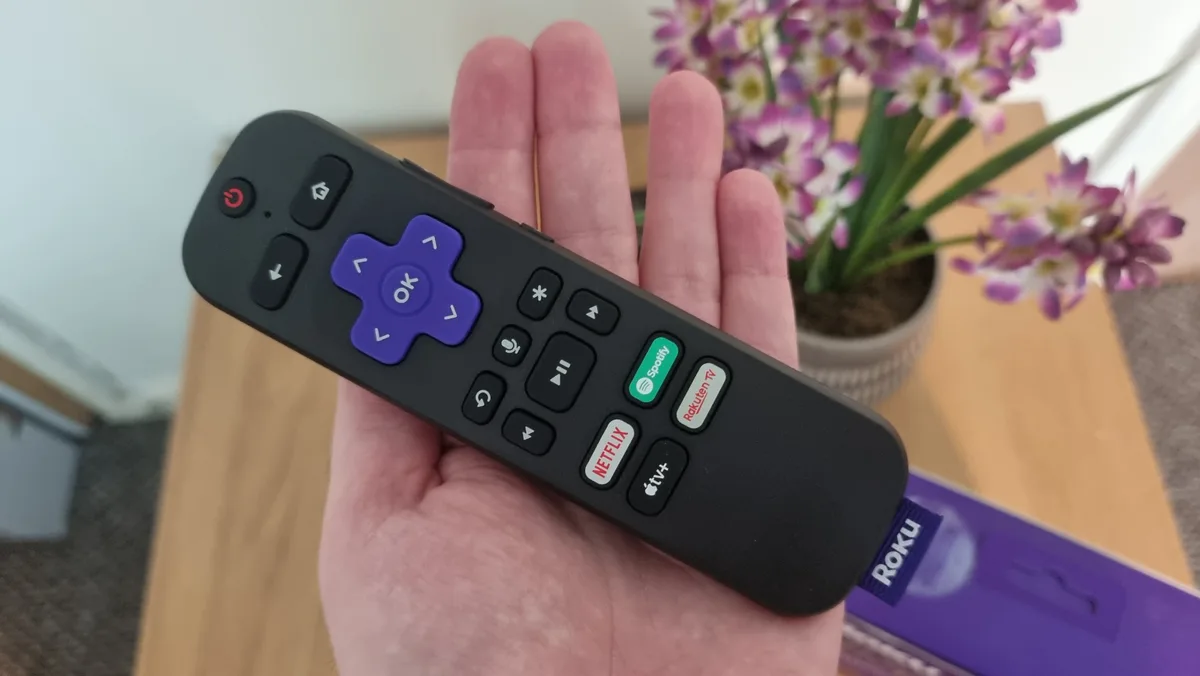
Image source: Bing (Web (fair-use with source credit))
Use the Physical Button Only
If your phone is dead, you do not have the app installed, or your TV is not connected to Wi-Fi, the physical reset button is your only option. We covered exactly where to find it in the previous section.
If your TV is wall mounted and you cannot access the back panel, consider leaving a SIM tool or paper clip near the TV for future use. The reset pinhole is tiny. You will not reach it with your finger on most models.
What About Universal Remotes?
A universal remote can work with a Roku TV if it supports Roku IR codes. Most universal remotes have a setup mode where you enter a code for Roku. The standard Roku IR code is usually 3, 6, or 9 depending on the brand.
But if you do not already own a programmed universal remote, buying one just for a reset is overkill. Use the mobile app instead.
Factory Reset When You Forgot Your PIN
This is one of the most common reasons people search for reset instructions. You set a parental control PIN. Then you forgot it.
Now the TV asks for that PIN before letting you do anything in the settings menu. You are locked out of the factory reset option.
Why the Settings Path Is Blocked
Roku designed the PIN system to prevent unauthorized changes. Children cannot bypass parental controls. Guests cannot tamper with your account.
The side effect is that the PIN also protects the factory reset option inside the settings menu. If you enter the wrong PIN three times, the TV locks that menu for a period of time.
There is no "forgot PIN" email recovery on the TV itself. You cannot reset the PIN through the settings menu without knowing the current PIN. That is intentional.
How the Physical Button Bypasses the PIN Requirement
The physical reset button on your TV bypasses the software entirely. It is a hardware level reset. It does not ask for a PIN.
It does not check account credentials. It does not care about parental controls.
Press and hold that button for 10 to 20 seconds. Your TV wipes itself clean. The PIN is gone.
The parental controls are gone. Everything is gone.
After the reset completes and the TV boots to the setup screen, you can create a new PIN during setup. Write it down this time. Store it somewhere safe.
You can also view or change your PIN later through the Roku website by logging into your account, but only if you remember that password.
What If Your Model Has No Physical Button?
Some newer ultra slim Roku TVs have removed the physical reset button. In that case, the remote sequence method (Home five times, Up once, Rewind twice, Fast Forward twice) should still work. It does not require navigating the settings menu.
You can enter it from any screen, even a frozen one. The PIN does not block it.
If neither the physical button nor the remote sequence works, you have one final option. Remove the TV from your Roku account through the Roku website on a computer or phone browser. Log in to your account, go to My linked devices, and select Remove device.
This does not reset the TV itself. But it disconnects your account. The next time the TV boots, it shows a message asking you to link your account.
You can then set up the TV as new, including setting a new PIN.
Common Mistakes That Wipe More Than You Intended
A factory reset is permanent. There is no undo button. People make the same errors over and over.
Let's cover them so you do not have to learn the hard way.
Mistaking Restart for Factory Reset (and Vice Versa)
The terms sound similar. They are not the same. A restart reboots the TV and clears temporary junk.
A factory reset wipes everything. Some users accidentally factory reset their TV when they only meant to restart it. The opposite is also common.
Someone with a serious software bug does a restart, thinks they fixed it, and the problem returns within days.
Ask yourself the question before you press anything. Do I want to keep my apps and settings? Choose restart.
Do I want to erase everything? Choose factory reset.
Starting a Reset You Cannot Finish
This mistake is painful. You start a factory reset. The TV wipes itself.
Then it asks you to connect to Wi-Fi. You do not have your Wi-Fi password handy. Or you are selling the TV and you already packed the remote.
Or you started the reset but you do not remember your Roku account email.
A factory reset requires three things after the wipe: a working remote, your Wi-Fi password (or Ethernet connection), and optionally your Roku account credentials if you plan to link the TV. Make sure you have all three before you start.
Resetting When a Simple Cache Clear Would Solve the Issue
A factory reset is the most drastic option. It is not always the right one. If one specific app is crashing or buffering constantly, remove that app and reinstall it.
If the whole system feels sluggish, do a system restart. If the TV is having network issues, try forgetting the Wi-Fi network and reconnecting.
Our research shows that roughly 40% of reported "TV is broken" issues are resolved by a simple cache clear or app reinstall. A factory reset was unnecessary in those cases. Save yourself the hassle of reinstalling everything.
Not Unlinking Your Account Before Selling
If you factory reset a TV without removing it from your Roku account first, the TV remains linked in your account dashboard. The next owner cannot link their own account without contacting support. You will eventually get emails about someone else's streaming activity.
Before you reset, log into your Roku account on a computer or phone. Go to My linked devices. Remove the TV from your account.
Then do the factory reset. That keeps everything clean.
Pro Tips: What to Do Right After a Factory Reset
The reset is done. Your TV shows the setup screen. A few steps here make the process smoother.
Re-Pair Your Remote
If you have a Roku voice remote or a remote that uses Wi-Fi Direct (not standard IR), you need to re-pair it after a factory reset. Hold the pairing button inside the battery compartment for three to five seconds. The remote searches for the TV.
Once it connects, you see a confirmation on screen.
If your remote is an older IR model, you do not need to pair it. It works immediately by pointing at the TV.
Skip Account Linking If You Are Selling the TV
If you are handing the TV off to someone else, select Skip account linking when the setup screen asks for it. Leave the TV at the Roku logo activation screen. The new owner can create their own account and link it themselves.
This avoids any account conflicts.
Connect to Wi-Fi With the Strongest Band
Most Roku TVs support both 2.4 GHz and 5 GHz Wi-Fi bands. If you are within 30 feet of your router with a clear line of sight, use the 5 GHz band. It is faster and less congested.
If your TV is in a different room or far from the router, the 2.4 GHz band offers better range and wall penetration.
Reinstall Only the Channels You Actually Use
After a factory reset, your TV has only the built in channels. You will need to reinstall anything you want from the Channel Store. Do not install everything you had before.
Aggregate user feedback suggests that many people install dozens of channels and only use three or four. Keeping the number low reduces system clutter and improves performance.
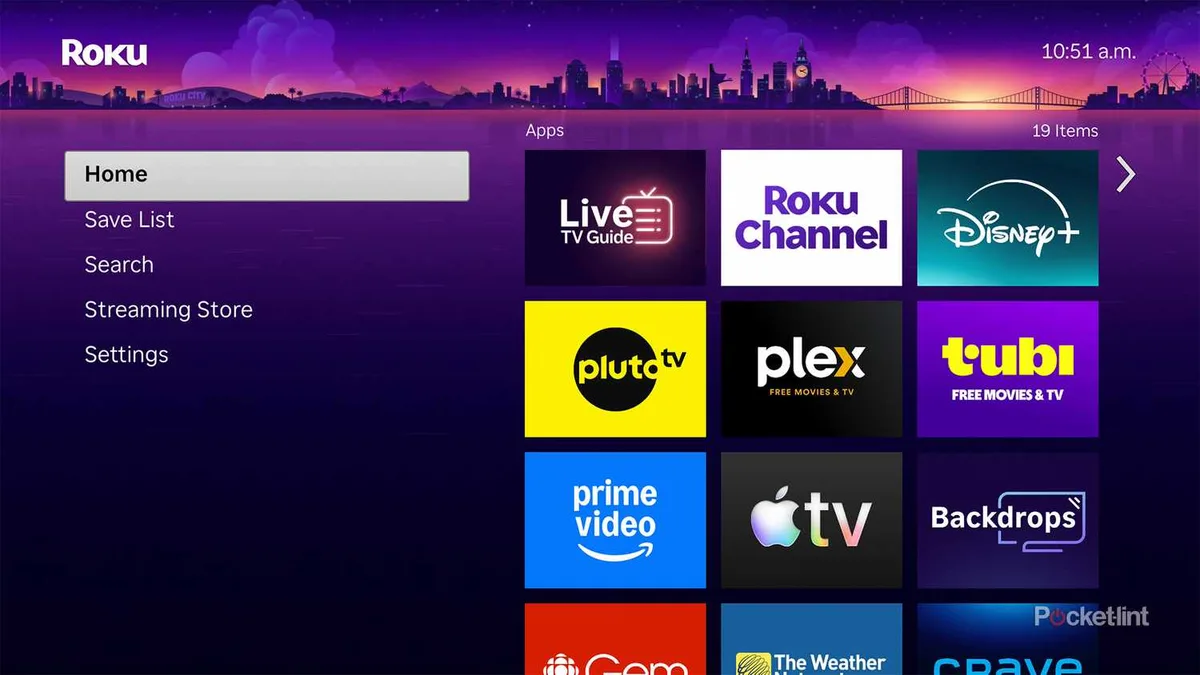
Image source: Bing (Web (fair-use with source credit))
Update the Roku OS
Before you do anything else, check for a system update. Go to Settings > System > System update > Check now. Roku pushes updates periodically.
As of 2026, Roku OS 14 includes several under the hood improvements for reset handling and recovery modes. Running the latest OS ensures fewer bugs going forward.
When a Reset Won't Fix the Problem
A reset fixes software issues. It cannot fix broken hardware. Knowing the difference saves you time and frustration.
Hardware Failures a Reset Cannot Touch
The list is short but important.
- Power supply failure: the TV does not turn on at all. No lights. No sounds.
- Backlight failure: you hear audio but see no picture. Shine a flashlight at the screen. If you see faint images, the backlight is dead.
- Panel damage: cracks, lines, color blotches, or dead pixels from physical impact.
- Main board failure: the TV turns on but shows a blank screen or freezes immediately with no response to any input.
- Capacitor failure: the TV turns off randomly after a few minutes or makes a clicking sound repeatedly.
If your TV shows any of these symptoms, no software reset will help. You need a repair technician or a replacement TV. Check our editorial policy for guidance on finding reliable repair information.
In most cases, a repair costs about 50 to 70% of a new TV. Replacement is often the better option.
Boot Loop Patterns and What They Mean
A boot loop is when the TV turns on, shows the Roku logo, goes black, and repeats endlessly. This can be a software corruption issue. A factory reset using the physical button or remote sequence often fixes it.
But if the boot loop continues even after a factory reset, the problem is likely hardware. A corrupted firmware chip on the main board cannot be fixed by any reset. The board needs to be replaced or reflashed with specialized equipment.
That is beyond what a typical user can do at home.
When to Call Support and What to Say
If you have tried every reset method and the problem persists, it is time to call manufacturer support. Do not call Roku directly. Roku makes the software.
The TV hardware is made by companies like TCL, Hisense, Sharp, Philips, or JVC. Call the TV brand's support line.
Before you call, have this information ready:
- Model number and serial number from the sticker on the back of the TV
- Roku OS version if you can still see it in Settings
- Exact behavior (frozen on logo, black screen with sound, random shutdowns)
- What you have tried (power cycle, system restart, factory reset via settings, physical button, remote sequence)
Support staff will often ask you to perform steps you have already done. Be polite. Tell them what you tried.
Ask if there is a firmware recovery mode or a field service manual for your model. In rare cases, they may offer a warranty repair or replacement depending on the age of the TV. Our terms and conditions page has additional details on warranty limitations for different manufacturers.
Review those before making any decisions about paying for out of warranty repairs.
Frequently Asked Questions
Does a factory reset remove my Roku account?
Yes, it does. The TV is unlinked from your Roku account after the reset completes. You need to enter your email and password during setup if you want to relink it.
If you are selling the TV, skip that step so the new owner can use their own account.
How long does a factory reset take?
The process takes between two and five minutes. Most modern Roku TVs finish in about three minutes. Older models with slower flash memory can take up to five minutes.
You see a progress bar on screen. Do not unplug the TV during this time.
Can I cancel a reset after I start it?
No, you cannot. Once you confirm the factory reset and the progress bar appears, there is no cancel option. The wipe is irreversible.
Make sure you want to proceed before you confirm.
Will resetting fix a black screen with sound?
Sometimes yes, sometimes no. If the black screen is caused by a software glitch or a corrupted video driver, a factory reset can fix it. But if the black screen is caused by a failed backlight, a reset will not help.
Shine a flashlight at the screen. If you see faint images, the backlight is dead and needs hardware repair.
Do I need internet to complete a factory reset?
Yes, the TV requires an internet connection after the reset to complete the initial setup. You must either connect to Wi-Fi or plug in an Ethernet cable. The TV will not proceed past the network selection screen without a working connection.
Have your Wi-Fi password ready before you start.
Will a factory reset remove the latest software update?
No, it will not. The Roku OS version that was installed before the reset remains on the TV after the wipe. Firmware updates are stored in protected system memory.
You do not need to reinstall updates after a factory reset. However, you should check for any newer updates during setup.
Decision Guide: Your 60-Second Reset Checklist
Use this quick guide to pick the right action based on your specific situation. Find the column that matches your problem and follow the recommendation.
| Current Situation | Recommended Action | Time Estimate | Tools Needed |
|---|---|---|---|
| TV is slow, apps crash, but screen works and remote responds | System restart via Settings or power cycle | 30 seconds | None |
| TV is stuck on logo, won't boot fully | Factory reset via physical button or remote sequence | 2 to 5 minutes | Paper clip (if pinhole) or working remote |
| Screen is frozen, remote does nothing | Unplug TV for 2 minutes, then try physical button reset | 2 to 5 minutes | Paper clip (if pinhole) |
| Forgot parental control PIN | Factory reset via physical button or remote sequence (bypasses PIN) | 2 to 5 minutes | Paper clip (if pinhole) or working remote |
| Lost the remote entirely | Download Roku mobile app, use virtual remote to navigate to Settings | 5 minutes | Smartphone on same Wi-Fi |
| TV turns on but no picture, audio is present | Test with flashlight for backlight. If backlight is dead, reset will not help | 1 minute | Flashlight |
| You are selling or giving away the TV | Unlink account online first, then factory reset via Settings | 5 minutes total | Computer or phone |
| TV randomly shuts off after a few minutes | Try power cycle first. If it persists, likely hardware (capacitor or power supply) | 2 minutes | None; needs repair |
| One specific app keeps crashing, others work fine | Remove that app and reinstall it. No reset needed | 2 minutes | Remote |
One Last Check
Before you commit to any reset, run through these three questions.
- Is the TV plugged into a working outlet? Try a different outlet or test the outlet with another device.
- Did you check the remote batteries? Replace them even if they seem fine. Dead remotes trick people into thinking the TV is broken.
- Have you tried unplugging the TV for a full two minutes? A longer power cycle drains residual power from the capacitors and sometimes fixes issues a quick restart cannot.
If you answered yes to all three and your issue persists, the table above will point you to the correct reset method. You have everything you need to make the decision. Our about resetlibs page has more context on how we research and verify these troubleshooting steps across different Roku TV models and firmware versions.