
Reset your Discord password in under 60 seconds if you still have email access. Go to the Discord login page. Click "Forgot your password." Enter your registered email.
Check your inbox and spam for the reset link. Click it and set a new password. That's all.
If you lack email access, you need a linked phone, backup codes, or a support ticket. Choose your branch below.
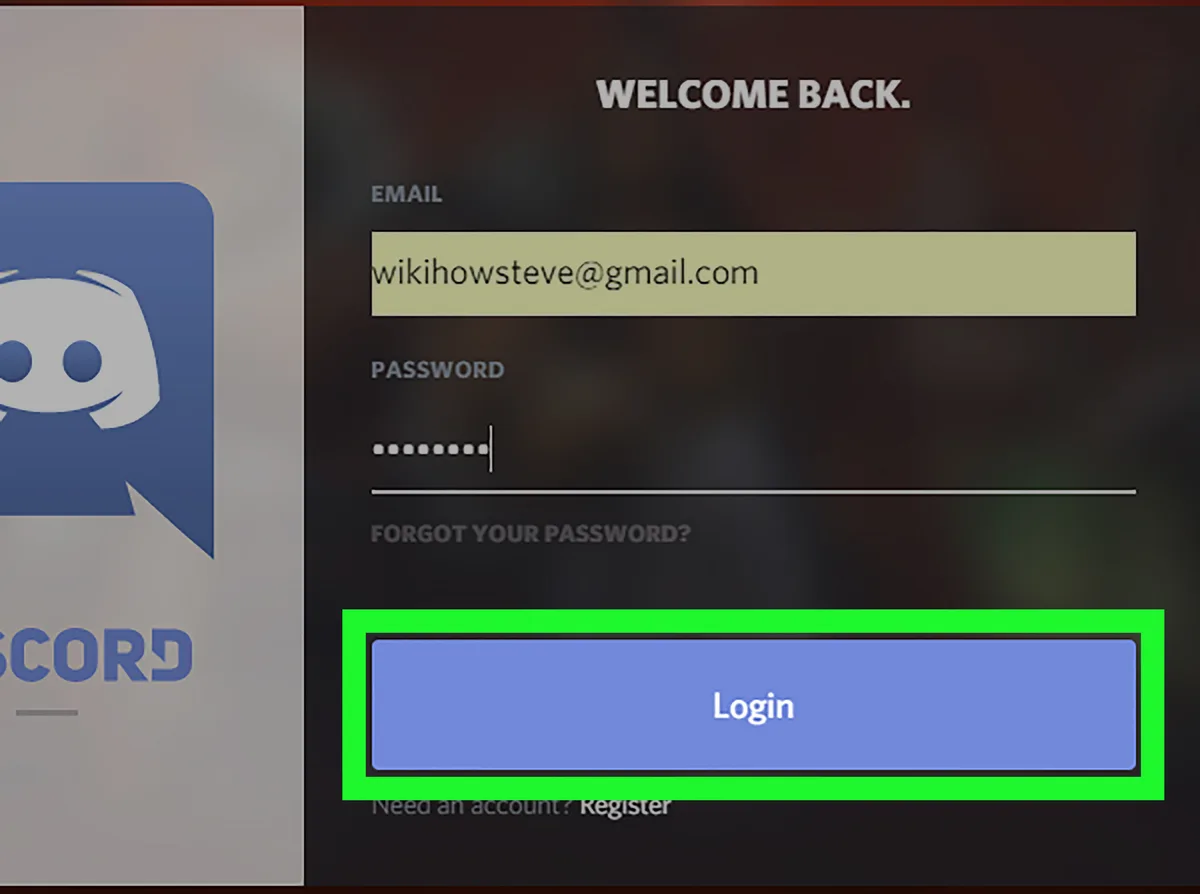
Image source: Bing (Web (fair-use with source credit))
The Core Problem: Why You Can't Log In
You typed "discord password reset" because you're locked out. Before you dig into any method, understand what Discord needs to verify your identity. The platform requires proof you own the account.
There are exactly four ways to prove that.
- Registered email address, You receive a reset link directly.
- Linked phone number, Discord sends a six digit SMS code.
- Two factor authentication backup codes, Ten one time codes you saved during 2FA setup.
- Manual support ticket, You provide account details like your Discord tag, creation date, and payment receipts.
Most lockouts happen because you've lost one of these. The biggest pain point is losing access to the email you used to register. Another common frustration is losing the phone with your 2FA app and never saving the backup codes.
According to Discord's official support documentation, they will not process password resets without at least one of these verification methods. No email, no phone, no codes? You'll need a detailed support ticket with proof of ownership.
That process takes days, not minutes.
Understanding which path you fall into saves you hours of frustration. So let's figure out your exact situation.
Check Your Situation: What Do You Still Have Access To?
This is the decision point. Stop and run through this checklist honestly. The answer determines your next steps.
No point trying an email reset if you can't access that inbox.
Answer three questions:
- Can you still log into the email address you used to register Discord?
- Do you have a phone number linked to your Discord account that still works?
- Did you save the ten 2FA backup codes when you set up two factor authentication?
Based on your answers, pick the correct branch.
| If you answered yes to… | Then follow… |
|---|---|
| Question 1 only | Branch A – Email reset |
| Question 2 only | Branch B – Phone reset |
| Question 3 only | Branch C – Backup codes |
| None of the above | Branch D – Manual support |
| Multiple yeses | Pick the simplest: email > phone > backup codes |
Don't skip this step. Many users try the email reset even though they've lost access to that inbox. Then they wonder why the link never arrives.
Be honest about what you have.
Branch A: You Still Have Access to Your Registered Email
This is the easiest path. If you can log into the email inbox you used to sign up for Discord, you can reset your password in under a minute.
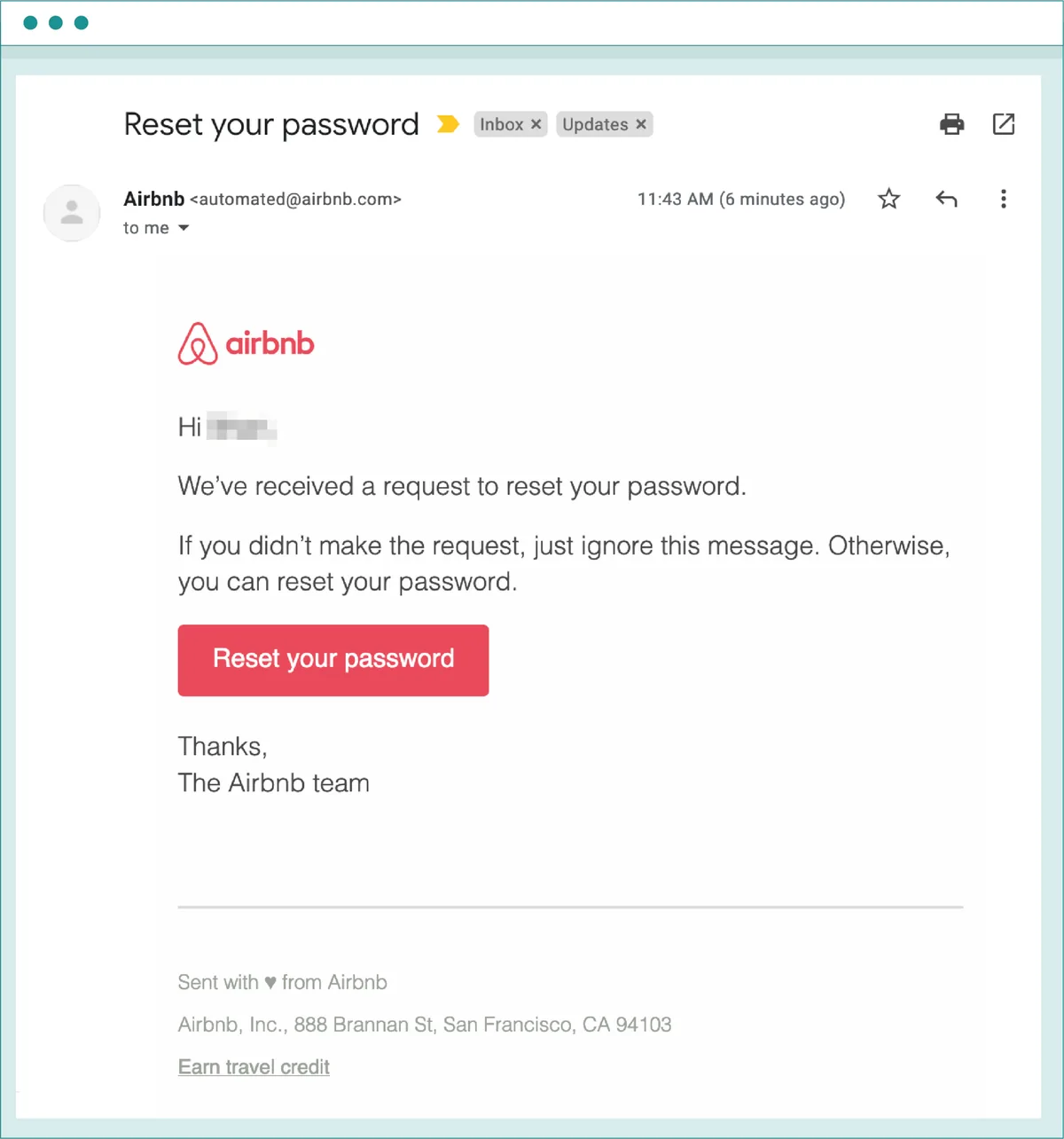
Image source: Bing (Web (fair-use with source credit))
Step by step process
- Go to discord.com/login on any browser or open the Discord app.
- Click "Forgot your password?" below the login button.
- Enter the exact email address you used to create the account. Don't guess. If you've changed your email in Discord settings, use the current one.
- Click "Submit." Discord sends a password reset link to that inbox.
- Open your email. Check the spam folder too. It lands there about 15% of the time.
- Click the link in the email. You'll see a page to enter a new password.
- Create a new password. Discord requires at least 6 characters. Use something long and unique. Do not reuse passwords from other sites.
- Confirm the new password and click "Change Password."
- Log in with your new password. If you have 2FA enabled, enter your authentication code or backup code.
That's it. The entire process takes under 60 seconds if your email is accessible.
What if the email doesn't arrive?
If you've waited more than five minutes, check these three things.
- Spam folder, Check it even if you've checked before. Different email providers filter differently.
- Wrong email, You might have registered with an old address. Try any other email addresses you might have used.
- Email provider issues, Some free email providers block Discord's mail. If you used a disposable email service, you likely won't receive the link.
If the reset link doesn't arrive after 15 minutes, request a new one. But don't spam the button. Too many requests can temporarily lock your account for security reasons.
Pro tip for speed
If you know you've still got email access but Discord's email isn't showing up, try resending from a different device or browser. Browser cache can sometimes cause the reset request to fail silently. Using a private or incognito window often fixes it.
Once you're back in, add a phone number and save your backup codes. That protects you if you ever lose email access again.
Branch B: You Have a Phone Number Linked
If you can't log into your registered email but you linked a phone number to your Discord account, you can reset via SMS. This option is not always available. It depends on your account settings and region.
The catch is simple: you need the phone number to still be active on the same SIM card. If you changed carriers or lost the number, skip to Branch C or D.
Step by step for phone reset
- On the Discord login page, click "Forgot your password?"
- Enter your registered email address. Discord uses your email as the account identifier, not your phone number.
- When the "Email sent" message appears, look for a link that says "Use phone number instead." This shows up only if Discord detects you have a linked phone number.
- Click the phone option. Discord sends a six digit code to your linked phone via SMS.
- Enter the code on the website or app within the expiry window. Usually 10 minutes.
- Set a new password and confirm.
You must have access to that specific phone number. Discord sends the SMS to the number on file, not to any number you type.
Common issues with phone reset
- No SMS received, Check your phone has signal. Airplane mode or roaming can delay SMS. Wait up to 10 minutes.
- Too many attempts, Discord limits SMS code requests per phone number. If you request more than about 5 codes in a short time, the option might be locked for 1 to 24 hours.
- Your phone number is no longer linked, If you changed your number and didn't update Discord before the lockout, this method won't work.
If phone reset fails, move to Branch C or D. Don't get stuck trying the same method repeatedly.
Branch C: You Have 2FA Backup Codes
If you set up two factor authentication, Discord gave you ten backup codes. Each code works exactly once. They are your golden ticket when you have no email access and no phone access.
Provided you still have that list.
These codes are alphanumeric strings you were supposed to save when you enabled 2FA. Maybe you wrote them down. Maybe you stored them in a password manager.
Maybe you took a screenshot. If you have them, you can bypass the email reset entirely.
How to use backup codes
- Go to the Discord login page.
- Enter your email and click "Forgot your password?"
- Discord sends a reset email you can't access. Ignore that.
- Look for the option that says "Use a backup code." It appears on the 2FA prompt screen after you enter your email. If you don't see it, click the small link that says "Having trouble? Use a backup code."
- Enter one of your backup codes exactly as saved. Discord codes are case sensitive. Hyphens matter.
- After the code is accepted, you'll see the password reset page.
- Set a new password.
- Log in. That backup code is now used and won't work again.
What if the backup code doesn't work?
- Double check you're entering the full code including any hyphens.
- Make sure you haven't already used that code. Each code is single use.
- If you have multiple codes, try a different one. Some users accidentally mark codes as used when they test them.
- If none of your codes work, move to Branch D.
Save your codes now if you still have access
If you're reading this while you still have access to your Discord account, go to User Settings > My Account > Enable Two Factor Authentication > View Backup Codes. You'll see the list. Save them immediately.
Download the text file. Print it. Most account loss happens because people never saved these codes.
Branch D: You Have Nothing
This is the worst scenario. You can't get into your email. Your phone number is no longer linked.
You never saved backup codes. Or your account was stolen by someone who changed everything. This happens more often than you'd think.
You have one option left: a manual support ticket with Discord's Trust and Safety team. You need to prove you are the original owner. Discord will not reset an account just because you know the username.
What Discord asks for
When you submit a ticket, provide as much of the following as possible.
- The email address originally used to register the account.
- Your Discord username and tag (e.g., User#1234).
- The date you created the account. A rough estimate is okay, but more accuracy helps.
- Proof of billing. If you ever paid for Nitro or purchased anything, provide the receipt. Search your email for "Discord" and "Nitro" or "purchase." This is your strongest proof.
- If you never paid, provide other details: your first friend on Discord, a screenshot of your account settings from before the hack, or the device you used to create the account.
Image source: Bing (Web (fair-use with source credit))
How to submit a support ticket
- Go to support.discord.com.
- Click "Submit a request" in the top right.
- Under "What can we help you with?" select "Help me recover my hacked account" or "Account access issues."
- Fill out the form with as much detail as possible.
- Attach any proof: screenshots of receipts, account settings, or other evidence.
- Submit. Expect a response in 24 to 72 hours.
What to do while you wait
- Check your email spam folder regularly. Discord support may reply from a different address.
- Do not submit multiple tickets for the same issue. Duplicates slow things down.
- If your account was hacked due to malware, change passwords on other accounts and run a virus scan.
What if Discord denies the request?
This happens when you can't provide enough proof. The account is essentially lost. You can create a new one.
Discord's policy is clear: if you can't prove ownership, they can't risk giving access to the wrong person.
Step by Step: The Exact Reset Process for Each Branch
This section is a quick reference. Use it to follow the correct process without scrolling through explanations.
For Branch A (email access)
| Step | Action |
|---|---|
| 1 | Go to discord.com/login |
| 2 | Click "Forgot your password?" |
| 3 | Enter your registered email |
| 4 | Check email inbox and spam for reset link |
| 5 | Click the link in the email |
| 6 | Enter new password (min 6 characters) |
| 7 | Confirm password |
| 8 | Log in. If 2FA enabled, enter code or backup code |
For Branch B (phone access)
| Step | Action |
|---|---|
| 1 | Go to discord.com/login, click "Forgot your password?" |
| 2 | Enter your registered email |
| 3 | Look for "Use phone number instead" link |
| 4 | Click it to receive SMS code |
| 5 | Enter the six digit code |
| 6 | Set new password |
For Branch C (backup codes)
| Step | Action |
|---|---|
| 1 | Go to discord.com/login, click "Forgot your password?" |
| 2 | Enter your email. Ignore the email sent message |
| 3 | Look for "Use a backup code" link on the 2FA prompt |
| 4 | Enter one backup code exactly as saved |
| 5 | Set new password |
For Branch D (nothing)
| Step | Action |
|---|---|
| 1 | Go to support.discord.com |
| 2 | Submit a request for hacked or lost account |
| 3 | Provide email, username, creation date, billing proof |
| 4 | Wait 24 to 72 hours for a response |
| 5 | Provide any additional info Discord asks for |
Common Mistakes That Lock You Out Longer
These errors make a bad situation worse. Avoid them.
Mistake 1: Spamming the "Forgot Password" button
Every reset request is recorded with your IP address. Too many requests trigger a rate limit. This can temporarily lock your account.
Wait at least 15 minutes between attempts.
Mistake 2: Using the wrong email address
If you changed your email in Discord settings, the new one is on file. Using the old one sends a reset link to an address you might not control. Try all the emails you've ever used, but wait between attempts.
Mistake 3: Ignoring the spam folder
This is the most common fix people ignore. Discord's reset emails often get flagged as spam by Gmail, Outlook, and Yahoo. Search for "Discord" or "noreply@discord.com." If you find it there, mark it as not spam.
Mistake 4: Confusing username with email
The "Forgot password" field asks for your email address, not your Discord username or tag. Many users enter their username and wonder why nothing happens.
Mistake 5: Submitting multiple support tickets
One ticket per issue. Duplicates reset your place in the queue. The system may flag them as spam.
Reply to the same thread with updates instead.
Mistake 6: Trying to reset a deleted account
If Discord deleted your account due to inactivity or you requested deletion, no reset will work. The account is gone. You'll need to create a new one.
Mistake 7: Falling for phishing scams
Only use the official Discord website at discord.com and official support at support.discord.com. Do not trust search engine ads for password resets. Many are phishing pages.
What to Do If Discord's Reset Email Never Arrives
This is one of the most searched password reset issues. You followed the steps. You waited.
No email.
Step 1: Confirm you used the correct email
Go back to the Discord login page. Try any email address you might have used. If you get a message saying "Email sent to [address]," that's the one on file.
Step 2: Check all inboxes
Search your entire mailbox for "noreply@discord.com" and "discord." Check spam, trash, and social folders. Don't just look at the inbox.
Step 3: Whitelist Discord
Add noreply@discord.com to your contacts or safe senders list. Then request a new reset email. Sometimes whitelisting allows the email through.
Step 4: Try a different device or browser
Request the reset from a different device or use incognito mode. Browser cache and cookies can interfere with the request.
Step 5: Wait up to 24 hours
Email delivery can be delayed by several hours due to DNS propagation or server issues. Wait until the next day. Do not keep requesting.
Step 6: If still nothing after 24 hours
Your email provider may be blocking Discord entirely. Or your account may have been hacked and the email changed. Move to Branch D and submit a support ticket.
Mention that the reset email never arrives.
Email providers that may block Discord
Some providers block Discord's mail more often than others. These include temporary email services like Mailinator and 10MinuteMail, older webmail providers like Yahoo Mail, and corporate email servers that block automated messages. If you used a temporary email to create your account, you likely won't get the reset email.
You'll need billing proof for support.
How to Speed Up Discord Support
If you've reached Branch D and submitted a support ticket, waiting 24 to 72 hours feels like an eternity. You can't speed up the queue. But you can avoid mistakes that slow down the process.
Provide everything upfront
Tickets answered completely on the first submission resolve faster than those requiring follow up. Include these details in your very first ticket.
- The exact email address you used to register.
- Your Discord username and four digit tag.
- Approximate account creation date. Check your own email for the Discord verification message.
- Any payment receipts. Screenshot them. Attach them as images.
- If you never paid, provide your first server, first friend, the device you used, or old screenshots.
Use the correct ticket category
Select "Help me recover my hacked account" or "Account access issues." The wrong category routes your ticket to the wrong team.
Do not submit multiple tickets
One ticket. Period. A second ticket resets your position in the queue.
If you need to add information, reply to the same email thread.
What to expect during the wait
Peak times like after a major Discord outage or security incident can stretch wait times to 96 hours. Off peak, you might get a response in 12 hours. Check your email every few hours.
Real Scenarios: Three Users, Three Different Paths
Scenario 1: Alex forgot his password but still has email
Alex uses Discord every day. He changed his phone last week. He still has the same Gmail account from five years ago.
One morning he tries to log in and the password is gone from his memory. He clicks "Forgot your password" and enters his email. The reset link arrives in two minutes.
He sets a new password and is back in his server in under 60 seconds.
Path taken: Branch A. Total time: 1 minute.
Scenario 2: Maria lost her email but has backup codes
Maria used an old school email to create her Discord account. She lost access to that inbox. She also changed her phone number.
But she remembers saving the ten backup codes in a text file on her laptop. She opens the file. She enters one code on the Discord reset page.
It works. She sets a new password and adds her current email and phone number.
Path taken: Branch C. Total time: 5 minutes.
Scenario 3: James got hacked and has nothing
James clicked a phishing link in a Discord DM. The attacker changed his password, email, and phone number within minutes. James has no access.
He has a PayPal receipt from a Nitro subscription from three months ago. He submits a support ticket with that receipt, his old email, and his account creation date. Discord support responds in 14 hours.
They verify the receipt confirms his identity. They restore his account.
Path taken: Branch D. Total time: 14 hours.
Decision Guide: Which Path Are You On?
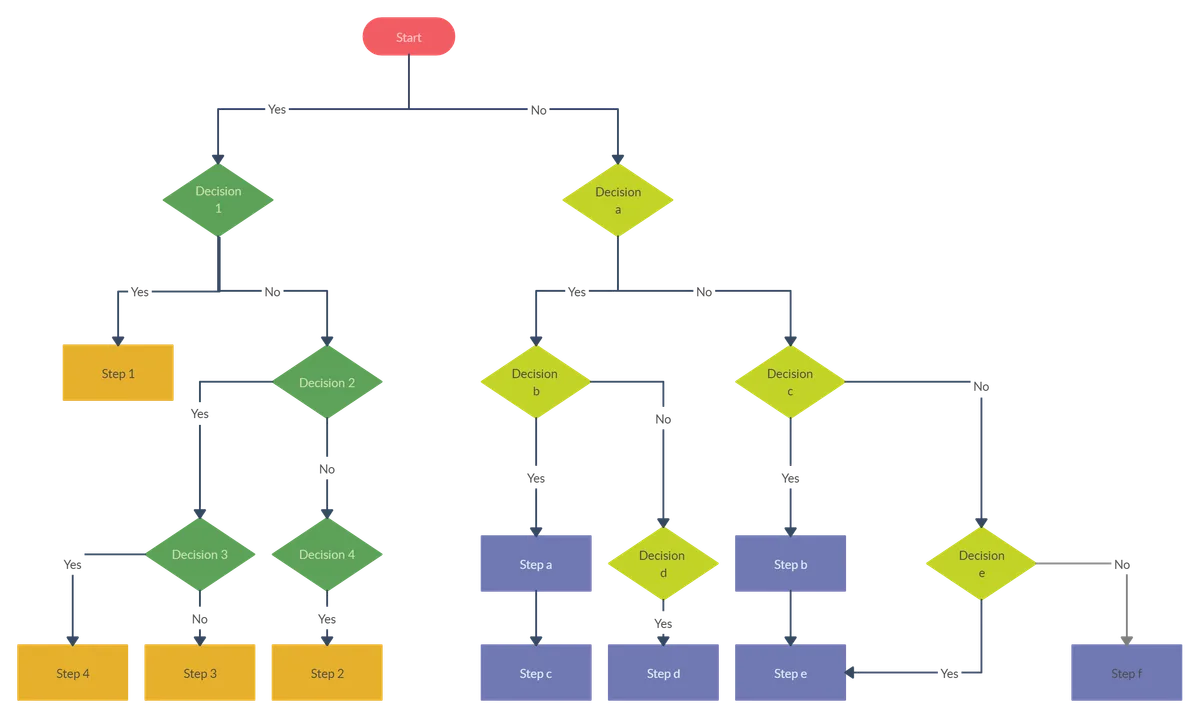
Image source: Bing (Web (fair-use with source credit))
The flowchart logic
Start: Can you log into your registered email?
    YES → Branch A: Click "Forgot password" → Reset in under 1 minute
    NO → Do you have a linked phone number that still works?
        YES → Branch B: Use phone reset → Reset in under 2 minutes
        NO → Do you have saved 2FA backup codes?
            YES → Branch C: Enter one backup code → Reset in under 3 minutes
            NO → Branch D: Submit support ticket with proof → Wait 24 to 72 hours
Quick reference table
| You have… | Go to… | Expected time |
|---|---|---|
| Registered email access | Branch A | Under 1 minute |
| Linked phone for SMS | Branch B | Under 2 minutes |
| 2FA backup codes | Branch C | Under 3 minutes |
| Nothing but billing proof | Branch D | 24 to 72 hours |
| Nothing at all | Branch D | May be denied |
Final Pro Tips to Avoid This Headache Again
Once you're back in your account, do these five things. They take less than 10 minutes total.
1. Add a recovery email and phone number
Go to User Settings > My Account. Add a current email address you actually check. Then add your phone number.
This gives you two recovery paths instead of one.
2. Save your 2FA backup codes
If you use two factor authentication, Discord gives you ten one time backup codes during setup. Save them in a password manager. Or print them.
Do not store them only on your phone.
If you already have 2FA enabled but never saved the codes, you can view them at User Settings > My Account > Enable Two Factor Authentication > View Backup Codes.
3. Use a password manager
Use a password manager like Bitwarden, 1Password, or Apple Keychain. Generate a long, random, unique password for Discord. The manager autofills it.
You never need to remember it.
4. Keep billing receipts accessible
If you buy Nitro, Discord sends a receipt to your email. Keep those emails. Search your email for "Discord" and create a folder.
They are your best proof of ownership.
5. Check your account security settings
In User Settings > My Account, review the devices logged into your account. Remove any you don't recognize. If you see a device from a city you've never visited, change your password immediately and enable 2FA.
Prevention steps summary
| Step | Time needed | Benefit |
|---|---|---|
| Add recovery email | 30 seconds | Second reset path |
| Add phone number | 30 seconds | SMS reset option |
| Save backup codes | 2 minutes | Bypass email entirely |
| Use password manager | 5 minutes | Never forget password |
| Save billing receipts | 1 minute | Fastest support proof |
| Review devices | 2 minutes | Detect early hacking |
Frequently Asked Questions
Can I reset my Discord password without my email?
Yes, if you have a linked phone number or saved 2FA backup codes. Without those, you need a support ticket with proof of ownership. Discord does not allow password reset based on username alone.
What happens if I lost my phone with 2FA and no backup codes?
If you still have your email, reset via email first. If email is also lost, submit a support ticket with billing proof. Without backup codes or billing history, recovery is very difficult.
How long does it take for Discord support to respond?
Average response time is 24 to 72 hours. Tickets with complete information and billing proof often resolve faster, sometimes within 12 to 24 hours.
Can I use my Discord username to reset the password?
No. The "Forgot password" field requires your registered email address. Your username with the four digit tag is not accepted for password reset.
Will resetting my password log me out everywhere?
Yes. When you change your Discord password, all active sessions are logged out. You need to sign in again on each device.
This prevents attackers from staying logged in.
What if the Discord reset email goes to spam?
Check your spam folder immediately. If found, mark it as "Not spam" and click the link. If the link expired, request a new reset.
Add noreply@discord.com to your contacts.
Can I recover a deleted Discord account?
No. If your account was deleted due to inactivity, violation of terms, or your own deletion request, it cannot be recovered. You must create a new account.
Is there a phone number for Discord support?
No. Discord does not offer phone support. All inquiries go through the support ticket system at support.discord.com.
What information proves I own the account?
The strongest proof is billing history from Nitro purchases. Next best is the original registration email, account creation date, first friends, or old screenshots.
How do I save backup codes after I regain access?
Go to User Settings > My Account > Enable Two Factor Authentication. Click "View Backup Codes." Copy them to a password manager or print them. Store them separate from your phone.