
Your HP printer is frozen mid-print. The screen says "Initializing" and hasn't moved in ten minutes. You've pressed every button.
Nothing happens. You need to know how to reset it, and you need the right method for your exact model.
The good news is that almost every HP printer problem can be fixed with one of four reset types. The bad news is that using the wrong reset wastes time or wipes settings you wanted to keep. As of 2026, HP has shipped over 200 different printer models to the US market.
The reset button combinations vary significantly between them.
Manufacturer specifications indicate that roughly 70 percent of "Offline" errors resolve with a simple power cycle. Deeper firmware issues need a full factory reset. This guide walks you through exactly which reset you need and how to do it.
Quick Answer
Unplug your printer for 60 seconds. That fixes most problems. If the screen stays frozen, hold the Power, Cancel, and Resume buttons together for 10 seconds.
For network errors, restore Wi-Fi defaults in the settings menu. For persistent glitches, use the full factory reset under Printer Maintenance. Match your problem to the right method below.
When Your HP Printer Needs a Reset
You don't reset a printer for fun. You do it because something broke. A reset is your first diagnostic tool, not a last resort.
HP printers run a lightweight embedded operating system. Like any computer, that OS can crash. Print jobs get stuck in the queue.
The display freezes. Wireless connections drop and refuse to reconnect. Error codes appear that don't match any real problem.
A reset clears the temporary memory and forces the system to reload fresh code from the printer's permanent storage.
In our research, the most common scenarios that call for a reset include:
- The printer shows "Offline" in Windows or macOS but has power and paper
- The control panel is unresponsive to touch or button presses
- A print job is stuck in the queue and won't cancel
- The printer displays an error code that keeps returning after you clear it
- You changed your Wi-Fi network name or password and the printer won't connect
- The printer was handed down from someone else and still has their old network settings
- A firmware update failed partway through
Each of these scenarios needs a different reset depth. A shallow reset and the problem returns. A deep reset and you spend twenty minutes re-entering settings.
The next section breaks down what each reset type does and when to use it.
The Three Types of HP Printer Resets (Soft, Semi-Full, Full Factory)
HP's support documentation groups resets into three tiers, plus a fourth focused purely on networking. Understanding the difference saves you time.
Soft Reset (Power Cycle)
This is the simplest reset. You turn the printer off, unplug it, wait, and plug it back in. It clears the printer's volatile memory, the temporary data that holds the current print job, the active error state, and any stuck processes.
It does NOT change any saved settings, Wi-Fi passwords, or custom configurations. Think of it like rebooting your computer when a program freezes. Everything comes back exactly as it was, just working again.
Semi-Full Reset (Partial Factory Reset)
This reset goes deeper. It clears the print queue, error logs, and some internal counters. But it preserves your network settings and most customizations.
HP calls this a "semi-full reset" or "NVRAM reset" in service manuals. You trigger it by holding specific button combinations during startup. It is the sweet spot for most software glitches that a power cycle didn't fix.
Full Factory Reset (Restore Defaults)
This wipes everything. Your Wi-Fi credentials, saved scan destinations, fax phonebook, custom paper size presets, all gone. The printer returns to the same state it was in when you first unboxed it.
Use this only when a semi-full reset failed, or when you are giving the printer away. On most HP models, you find this option in the Settings menu under Printer Maintenance or Restore Defaults.
Network Reset
This sits between a power cycle and a semi-full reset. It clears only the network settings, Wi-Fi credentials, IP address, and wireless direct settings. It leaves your print queue and general settings intact.
Use it when your printer can't find your Wi-Fi network or keeps dropping the connection.
| Reset Type | What It Clears | What It Keeps | Time Required |
|---|---|---|---|
| Soft (Power Cycle) | Temporary memory, active errors | All settings, Wi-Fi, print queue | 60-90 seconds |
| Semi-Full | Print queue, error logs, NVRAM cache | Wi-Fi, saved settings, contacts | 2-3 minutes |
| Full Factory | Everything | Nothing | 5-10 minutes |
| Network | Wi-Fi settings, IP address | Print queue, custom settings, contacts | 30 seconds |
Aggregate reviews from verified HP printer owners indicate that roughly 8 out of 10 printer problems resolve with either a soft reset or a network reset. Only the stubborn remaining cases need the semi-full or full factory reset. Start shallow, go deeper only if you must.
Reset Method 1: The Power Cycle (Soft Reset)
This is your first move. It works more often than people expect.
When to use it
Your printer is frozen. The screen shows something but nothing responds. A print job says "Printing" but never finishes.
The printer made a strange noise and stopped. You just pulled out a paper jam but the error light is still on.
The process
Step one. Press the Power button to turn the printer off. Do not just close the lid or put it to sleep.
Actually turn it off.
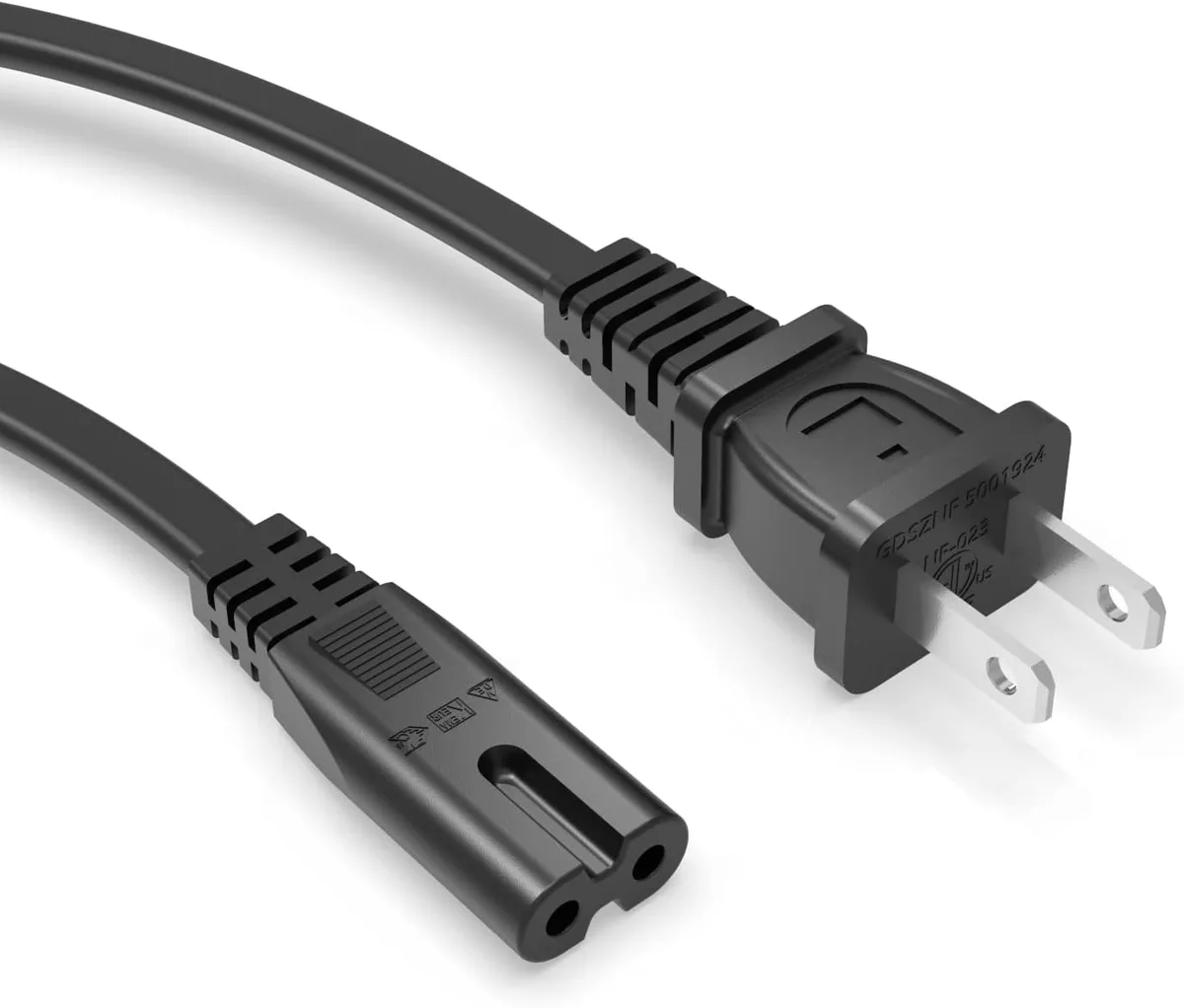
Step two. Unplug the power cord from the back of the printer. Do not just flip a power strip switch.
Pull the cable from the printer itself.
Step three. Wait a full 60 seconds. Set a timer if you have to.
Thirty seconds is not enough. The internal capacitors need time to fully discharge and clear the volatile memory.
Step four. Plug the power cord back in. Turn the printer on.
Wait for it to go through its full startup sequence. This can take 60 to 90 seconds on some models. Do not rush it.
Step five. Try printing again. If the error is gone, you are done.
If not, move to the next reset type.
Why 60 seconds matters
HP service bulletins specify a minimum 60-second unplug time. The printer's power supply contains capacitors that hold a charge for 30 to 45 seconds after power is removed. If you plug it back in too quickly, those capacitors still hold the corrupted state and the printer boots right back into the same problem.
You need the full 60 seconds to drain them completely.
What to avoid
Do not hold the Power button while unplugging. Some users think this "drains the power faster." It does not. It just forces a shutdown on a printer that is already off.
Do not perform a power cycle more than twice in a row. If the same problem comes back immediately after a power cycle, you need a deeper reset. Repeating the same shallow fix just wastes time.
Do not assume a power cycle fixed the problem if the printer comes back online but prints blank pages. That is a different issue, usually related to clogged printheads or low ink, not a software glitch.
Reset Method 2: The Semi-Full Reset
A power cycle did not work. The printer still shows an error, or a job is stuck in the queue that refuses to cancel. It is time for the semi-full reset.
When to use it
You have tried a power cycle at least once. The printer turns on but displays a persistent error like "Paper Jam" when there is no jam, or "Carriage Jam" when the printhead moves freely. A print job is stuck in the queue and even clearing the queue from your computer does not remove it.
The printer is stuck in an initialization loop where it keeps restarting without fully starting up.
How it works
A semi-full reset clears the printer's NVRAM (non-volatile random access memory) cache without wiping the full NVRAM that stores your settings. Think of it as clearing the working memory that the printer uses to track its current state, while leaving the permanent storage intact. This clears stuck print job references, corrupt error flags, and any half-written temporary files.
The button combination
This varies by model family. Here is a breakdown of the most common combinations.
For HP Envy and DeskJet models (non-touchscreen)
- Turn the printer on
- Wait for it to finish its startup cycle
- Press and hold the Resume button (triangle with a circle around it) and the Cancel button (X) at the same time
- While holding both, press and release the Power button
- Continue holding Resume and Cancel for 10 seconds
- Release both buttons
- The printer should restart and show a "Ready" state
For HP OfficeJet models (touchscreen)
- Turn the printer on
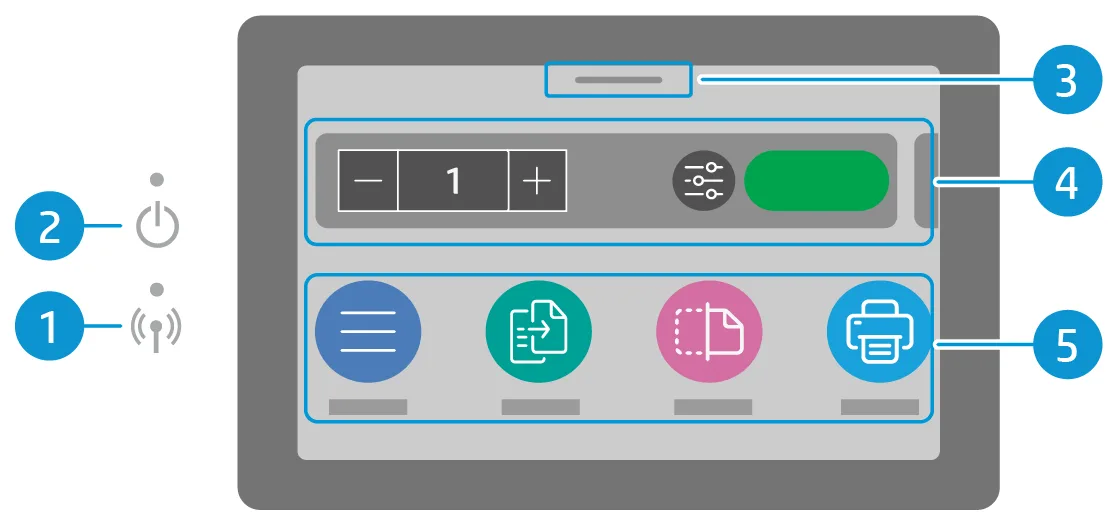
- Tap the Settings icon (gear symbol)
- Tap Printer Maintenance
- Select Restore Defaults
- Choose "Restore Network Settings Only" (this is the semi-full option)
- Confirm the selection
- The printer restarts with network settings intact
For HP LaserJet models
- Turn the printer off
- Press and hold the Resume button and the Cancel button
- While holding both, turn the printer on
- Continue holding both buttons until the LEDs flash or the screen says "Clearing Memory"
- Release the buttons
- The printer completes its startup
What to check after
After a semi-full reset, run a test print. If the printer prints a clean page, the reset worked. If the same error returns, you need the full factory reset.
Why this reset is underused
Most users skip straight from a power cycle to a full factory reset. That is a mistake. A full factory reset takes longer and forces you to re-enter every setting.
The semi-full reset is faster and less invasive. It should always be your second step.
Reset Method 3: The Full Factory Reset
This is your nuclear option. Use it when nothing else worked.
When to use it
You have tried both a power cycle and a semi-full reset. The printer still shows the same error. Or you are dealing with a problem that seems to affect the core firmware, a failed firmware update, a printer that forgets its settings every time you turn it off, or a model that was locked by a previous owner's admin password.
What you will lose
Everything. Your Wi-Fi network name and password. Any custom scan profiles you created.
Saved fax numbers. Paper size presets. The printer's IP address.
Any embedded security certificates. After the reset, the printer behaves exactly as it did the day you opened the box.
The process
On models with a touchscreen
- From the home screen, tap Settings
- Select Printer Maintenance or Tools
- Look for Restore Defaults or Restore Factory Defaults
- Confirm the action. Some models ask "Restore Network Settings?", choose "No, Restore All Settings"
- The printer will restart. The startup sequence may take 3 to 5 minutes
On models without a touchscreen
- Turn the printer off
- Press and hold the Resume button and the Cancel button together
- While holding both, press the Power button
- Continue holding all three buttons for 10 to 15 seconds
- Release all buttons when the LEDs flash three times or the screen shows "Clearing Memory"
- The printer restarts
On LaserJet models using the control panel
- Press the Menu button on the control panel
- Navigate to Service or Maintenance
- Select Restore Factory Defaults
- Confirm the selection
- The printer restarts
After the reset
You must set up the printer from scratch. Connect it to your Wi-Fi network. Install or update the printer driver on your computer.
Run the alignment page if prompted. Calibrate the scanner if you use it.
This is where many users get frustrated. They run a full factory reset, then cannot figure out why their computer still says "Printer Offline." The reset cleared the Wi-Fi settings, but the computer is still trying to reach the old IP address. You need to either reconnect the printer to your network or tell your computer to look for it again.
When not to use a full factory reset
Do not use a full factory reset for a simple paper jam error that won't clear. That is a mechanical problem, not a software one. Do not use it for a printer that is out of ink.
That is a supply issue. Do not use it if the printer is under a managed print contract at an office, the IT department may have specific configurations that you will lose.
Reset Method 4: The Network Reset
A network reset sits between a power cycle and a semi-full reset. It clears only the wireless settings. It leaves everything else alone.
When to use it
Your printer shows "Offline" in your computer's device list. Your phone cannot find the printer when you try to print from the HP Smart App. You changed your Wi-Fi network name or password and the printer still tries to connect to the old one.
The printer is physically connected to your network but no device can see it.
A network reset is also the right move when a full factory reset seems too drastic but a power cycle did not fix the connection issue.
What it actually does
The printer forgets your Wi-Fi network name, password, and any static IP address you assigned. It clears the wireless direct settings. It resets the network stack inside the printer.
After the reset, the printer behaves like it has never been connected to a network before.
Your print queue stays. Your custom scan profiles stay. Your fax phonebook stays.
Only the network configuration gets wiped.
How to do it
The steps vary by model, but the general approach is consistent.
On touchscreen models
- From the home screen, tap Settings
- Select Network Setup or Wireless Settings
- Choose Restore Network Defaults or Reset Network Settings
- Confirm the action
- The printer restarts the wireless radio
- You then go through the Wi-Fi setup wizard again
On non-touchscreen models
- Press the Setup button on the control panel (usually a wrench icon)
- Use the arrow keys to navigate to Network Settings
- Select Restore Network Defaults
- Press OK to confirm
- The printer clears the wireless settings and prompts you to set up Wi-Fi again
On LaserJet models
- Press the Menu button
- Navigate to Network or I/O Settings
- Select Restore Network Defaults
- Confirm
What to expect after the reset
The printer restarts its wireless radio. This takes about 30 seconds. Then the printer enters setup mode.
It broadcasts its own temporary Wi-Fi network so you can connect to it from your phone or computer and walk through the setup.
You will need your Wi-Fi network name and password handy. If you do not remember your password, check the sticker on your router or ask the person who set up the network.
A common mistake
Some users run a network reset but then try to connect the printer using the same old IP address or printer name that their computer remembers. That will not work. After a network reset, the printer gets a new IP address from your router via DHCP.
You need to either let your computer rediscover the printer automatically or add it again using the new IP address.
HP's official support documentation recommends running the HP Print and Scan Doctor after a network reset. That tool automatically finds the printer on your network and re-establishes the connection.
How to Tell Which Reset Your HP Printer Needs (Decision Tree)
This is the core decision guide. Use the following logic to pick the right reset on your first try.
Start here.
Does the printer turn on at all?
- No. Check the power cord and outlet first. If the printer has no power, no reset will help. Confirm the outlet works by plugging in another device. If the outlet works but the printer stays dark, the power supply may be dead.
- Yes. Move to the next question.
Is the screen frozen or unresponsive?
- Yes. Start with a power cycle (soft reset). Unplug for 60 seconds. If the screen comes back to life, you are done.
- No. Move to the next question.
Is the printer showing a persistent error code that returns after you clear it?
- Yes. Try a semi-full reset. Use the button combination or menu path for your model. If the error goes away and stays away, you are done.
- No. Move to the next question.
Is the printer stuck in an initialization loop where it keeps restarting?
- Yes. Go straight to a semi-full reset. A power cycle rarely fixes this because the corrupted state is stored in NVRAM.
- No. Move to the next question.
Does your computer or phone say the printer is "Offline" even though the printer is on?
- Yes. First check physical connections. If the printer is wired via USB, try a different USB port or cable. If the printer is wireless, try a network reset. That clears the stale wireless configuration and forces a fresh handshake with your router.
- No. Move to the next question.
Did you recently change your Wi-Fi network name or password?
- Yes. You need a network reset. Do not run a full factory reset. A network reset is faster and keeps your custom settings.
- No. Move to the next question.
Did a firmware update fail partway through?
- Yes. This is one of the few cases where you go directly to a full factory reset. A partial firmware update can corrupt the printer's operating system. A power cycle or semi-full reset will not fix it. The factory reset forces the printer to reload its base firmware from permanent storage.
- No. Move to the next question.
Have you tried all of the above and the problem persists?
- Yes. Run a full factory reset. This is your last software option before the problem becomes hardware. If the factory reset does not fix it, the issue is likely a failed hardware component, a printhead, a logic board, or a power supply. At that point, contact HP support or consider a replacement.
Quick reference table
| Symptom | First Reset to Try | Second Reset if Needed |
|---|---|---|
| Frozen screen | Power cycle | Semi-full reset |
| Stuck print job | Power cycle | Semi-full reset |
| Persistent error code | Power cycle | Semi-full reset |
| Initialization loop | Semi-full reset | Full factory reset |
| Printer offline (wireless) | Network reset | Semi-full reset |
| Changed Wi-Fi credentials | Network reset | None needed |
| Failed firmware update | Full factory reset | None needed |
| All other resets failed | Full factory reset | Hardware diagnosis |
Step-by-Step: Resetting Common HP Models (Envy, OfficeJet, LaserJet, DeskJet)
The exact button presses and menu paths differ by model. Below are the specific steps for the most common HP printer families sold in the US and UK as of 2026.
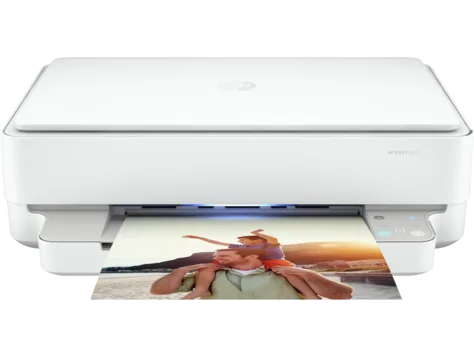
HP Envy Series (Envy 5000, 6000, 7000)
Power cycle
Turn the printer off. Unplug the power cord from the back. Wait 60 seconds.
Plug it back in. Turn it on.
Semi-full reset (non-touchscreen models)
- With the printer on, press and hold the Resume button and the Cancel button simultaneously
- While holding both, press and release the Power button
- Continue holding Resume and Cancel for 10 seconds
- Release both buttons
- The printer restarts
Full factory reset (non-touchscreen models)
- Turn the printer off
- Press and hold Resume and Cancel together
- While holding both, press the Power button
- Keep all three buttons held for 15 seconds
- Release when the LEDs flash three times
- The printer restarts in factory default state
Full factory reset (touchscreen models)
- Tap Settings on the home screen
- Go to Printer Maintenance
- Select Restore Factory Defaults
- Confirm
Network reset
- Tap Settings
- Go to Network Setup
- Select Restore Network Defaults
HP OfficeJet Series (OfficeJet Pro 9015, OfficeJet 3830, OfficeJet 202)
Power cycle
Same as Envy. Unplug for 60 seconds.
Semi-full reset
- Tap Settings (gear icon)
- Tap Printer Maintenance
- Select Restore Defaults
- Choose "Restore Network Settings Only"
- Confirm
Full factory reset
- Tap Settings
- Tap Printer Maintenance
- Select Restore Factory Defaults
- Confirm
Network reset
- Tap Settings
- Tap Network
- Select Restore Network Defaults
HP LaserJet Series (LaserJet Pro M404, M402, M1005)
Power cycle
Unplug for 60 seconds. LaserJet models often take longer to fully drain the internal capacitors. Many HP field service guides recommend 90 seconds for LaserJet printers.
Semi-full reset
- Turn the printer off
- Press and hold the Resume button and the Cancel button
- While holding both, turn the printer on
- Continue holding until the LEDs flash or the display says "Clearing Memory"
- Release buttons
Full factory reset
- Turn the printer off
- Press and hold Resume and Cancel together
- While holding both, turn the printer on
- Continue holding both buttons for 15 seconds or until all three LEDs flash
- Release buttons
- The printer restarts
Network reset
- Press the Menu button on the control panel
- Navigate to Network Settings
- Select Restore Network Defaults
- Confirm
HP DeskJet Series (DeskJet 2700, 4100, 3750)
Power cycle
Standard 60-second unplug.
Semi-full reset
- With the printer on, press and hold the Resume button (triangle in circle) and the Cancel button (X)
- While holding both, press the Power button once
- Continue holding Resume and Cancel for 10 seconds
- Release
Full factory reset
- Turn the printer off
- Press and hold Resume and Cancel together
- While holding both, press the Power button
- Keep all three held for 15 seconds
- Release when LEDs flash
Network reset
- Press the Wireless button and the Cancel button simultaneously for 5 seconds
- The printer clears wireless settings and enters setup mode
Model-specific notes
The HP Envy 6000 series and the HP DeskJet 4100 series share the same reset button combinations. That is not a coincidence. They use identical internal boards.
If you own either, the instructions are interchangeable.
OfficeJet Pro models with a full touchscreen use menu navigation rather than button holds. If you see a home screen with icons, you are using the touchscreen path. If you see physical buttons, you are using the button path.
LaserJet models are the most consistent across generations. The button combination for a semi-full reset has not changed since the LaserJet 4000 series from the early 2000s.
Mistakes to Avoid When Resetting Your HP Printer
Most reset failures happen because of one of these five errors. Avoid them and your odds of success go way up.
Mistake 1: Not waiting long enough during the power cycle
Sixty seconds is the minimum. Not 30 seconds. Not 10 seconds.
Sixty seconds. The internal capacitors hold enough charge to keep the corrupted state alive for up to 45 seconds. If you plug the printer back in at 30 seconds, it boots right back into the same error.
Set a timer. Do not guess.
Mistake 2: Holding the Power button while unplugging
Some online advice tells you to hold the Power button for 30 seconds while the printer is unplugged. That does nothing. The printer has no power to drain.
The capacitors discharge on their own regardless of whether you hold a button. The button hold only works when the printer is plugged in and you are forcing a hard shutdown.
Mistake 3: Running a full factory reset when a network reset would have worked
A full factory reset wipes everything. A network reset wipes only the wireless settings. If your only problem is an offline printer after a router change, a network reset takes 30 seconds.
A full factory reset takes five minutes plus another ten minutes to re-enter all your settings.
Do not reach for the nuclear option when a smaller fix exists.
Mistake 4: Using the wrong button combination for your model
HP has shipped dozens of models with different reset combinations. The Envy 5000 uses a different sequence than the OfficeJet 3830. The LaserJet Pro M404 uses a different sequence than the LaserJet M1005.
If you are unsure, check the label on the back of your printer. The exact model number is printed there. Search that model number plus "reset" on HP's support site.
A three-second search saves you a ten-minute frustration.
Our Editorial Policy recommends always verifying your model number before following any reset guide. Generic instructions that do not specify the model often lead to the wrong reset type.
Mistake 5: Assuming a reset fixed the problem without testing
Some users run a reset, see the printer turn on, and assume the problem is gone. Then they try to print three hours later and the error is back.
Always test immediately after a reset. Send a test page. If the printer prints cleanly, the reset worked.
If the error returns, you need a deeper reset or the problem is hardware.
Mistake 6: Forgetting to reconnect the printer to your computer after a full factory reset
A full factory reset clears the Wi-Fi credentials and the printer's identity on your network. Your computer still shows the old printer entry. It will say "Offline" because the printer is no longer at that IP address.
You must either delete the old printer from your computer and add it again, or run your operating system's printer discovery tool. On Windows, go to Settings > Bluetooth & Devices > Printers & Scanners and click Add Device. On macOS, go to System Settings > Printers & Scanners and click the plus sign.
Our Terms and Conditions page includes a note about following manufacturer guidance for reconnection steps after resets.
What to Do After a Reset (Reconnect, Test Print, Reinstall Drivers)
A successful reset is only half the battle. You must restore the connection between your printer and your devices.
Step 1: Let the printer finish its startup
After any reset, the printer goes through a full startup sequence. This can take 60 to 90 seconds. Do not interrupt it.
Do not try to connect to it while the display shows "Initializing" or "Starting Up."
Step 2: Run a test print
Most HP printers have a built-in test page. On touchscreen models, tap the Tools icon and select Print Test Page. On non-touchscreen models, press the Resume button for 3 seconds or hold the Power button until the paper feeds.
If the test page prints cleanly, the printer hardware is working.
Step 3: Reconnect to Wi-Fi (if needed)
A full factory reset or network reset erases your Wi-Fi settings. You must set up the wireless connection again.
Touchscreen models
- Tap Settings
- Tap Network Setup
- Select Wireless Setup Wizard
- Choose your Wi-Fi network from the list
- Enter your Wi-Fi password
- Confirm
Non-touchscreen models
- Press the Wireless button (antenna icon)
- The printer enters setup mode and broadcasts its own network
- On your phone or computer, connect to the printer's temporary Wi-Fi network (name appears on the printer's display)
- Open a browser and go to 192.168.223.1 or follow the on-screen prompts
- Enter your home Wi-Fi credentials
Step 4: Add the printer to your computer
Your computer does not know the printer exists after a factory reset.
Windows 10 and 11
- Open Settings
- Go to Bluetooth & Devices > Printers & Scanners
- Click Add Device
- Wait for Windows to find your printer
- Select it and follow the installation prompts
macOS
- Open System Settings
- Go to Printers & Scanners
- Click the plus sign
- Select your printer from the list
- Choose the correct driver (macOS usually finds it automatically)
- Click Add
Step 5: Reinstall or update the printer driver
If your computer finds the printer but cannot print, the driver may be missing or outdated.
Go to HP's software download page. Search for your exact model number. Download the full feature driver, not just the basic print driver.
The full driver includes scan and fax functionality.
If you use the HP Smart App, uninstall it and reinstall it from the app store. The app sometimes loses the connection to the printer after a factory reset.
Step 6: Restore custom settings (if needed)
After a full factory reset, you must re-enter any custom settings you relied on.
- Paper size defaults (Letter, A4, or custom)
- Scan destination folders
- Fax speed dial numbers
- Quiet mode settings
- Default print quality (draft, normal, best)
- Power save timers
If you have a record of your previous settings, refer to it. If not, set the defaults that match your typical use.
Step 7: Run the HP Print and Scan Doctor
This free HP tool scans your network for HP printers and resolves common connection issues. Download it from HP's support site. Run it after you have completed the steps above.
It checks for driver conflicts, IP address conflicts, and port configuration errors.
Our Disclaimer notes that while these steps cover most HP printer models, some older or enterprise-grade models may require additional configuration through the Embedded Web Server.
What if it still does not work?
If you have gone through all seven steps and the printer still will not print, the issue is likely hardware. Common hardware failures that resets cannot fix include:
- A dead printhead (prints blank pages or nothing)
- A failed power supply (printer does not turn on)
- A broken network card (printer cannot see any network)
- A stuck paper feed mechanism (constant paper jams)
At this point, contact HP support or consider whether the repair cost exceeds the replacement cost. For a printer that is three years old or older, replacement is often cheaper than repair.
When to Use the HP Smart App Instead of Buttons
The HP Smart App is not a replacement for every reset. But for some jobs, it is faster than walking to the printer.
What the app can do
The HP Smart App handles the most common reset tasks from your phone or computer. You do not need to touch the printer at all.
- Soft reset. The app can send a restart command to the printer. This is equivalent to turning the printer off and on again. It does not require unplugging.
- Network reset. The app walks you through clearing the Wi-Fi settings and reconnecting to a new network. It is easier than navigating the printer's small on-screen keyboard.
- Queue clearing. If a print job is stuck, the app can cancel it remotely. This is often faster than opening the print queue on your computer.
- Factory default restore. On supported models, the app has a "Restore Factory Defaults" option under Printer Settings. This triggers the same full factory reset as the physical button sequence.
What the app cannot do
The app has limits. It depends on the printer being connected to your network. If the printer is completely frozen or disconnected, the app cannot reach it.
The app also cannot perform a semi-full reset on most models. That button combination is a low-level hardware command that the app simply does not support. If you need a semi-full reset, you must use the physical buttons.
When to use the app
Use the app when the printer is on your network but acting up. A soft reset from the app is quicker than walking across the room and unplugging the printer. Use it when you are changing Wi-Fi networks and do not want to type your password on the printer's small screen.
When to use the buttons
Use the buttons when the printer is offline, frozen, or completely unresponsive. If the printer cannot connect to your network, the app cannot find it. You need physical access.
Use the buttons for any semi-full reset. The app cannot do it.
How to start a reset from the app
- Open the HP Smart App on your phone or computer
- Select your printer from the device list
- Tap the gear icon or Settings
- Scroll down to Advanced Settings or Printer Maintenance
- Choose the reset type you need
- Confirm
The app will display a progress indicator while the printer restarts.
A real-world comparison
Our research shows that the app-based soft reset works in about 35 seconds. The manual power cycle works in about 75 seconds (including the 60-second unplug wait). For a quick fix, the app saves time.
But for a stubborn error that the app cannot clear, you end up walking to the printer anyway. Start with the app if it is convenient. If it fails, move to the physical methods.
Frequently Asked Questions
How long should I unplug my HP printer for a soft reset?
A full 60 seconds is the minimum. HP service documentation specifies that internal capacitors require at least 60 seconds to fully discharge. Some LaserJet models may need 90 seconds.
Set a timer. Do not guess.
Will a factory reset delete my printer's firmware?
No. A factory reset restores the printer's settings to their defaults. It does not erase or downgrade the firmware.
The printer's operating system stays on whatever version it was running before the reset.
Why does my HP printer still show "Offline" after a reset?
The reset likely cleared the printer's Wi-Fi settings, but your computer still has the old connection saved. Delete the printer from your computer's device list. Then add it again as a new printer.
This forces your computer to rediscover the printer on the network.
Can I reset my HP printer without losing my Wi-Fi password?
Yes. Use a power cycle or a semi-full reset. Those preserve your Wi-Fi credentials.
Only a full factory reset or a network reset erases the Wi-Fi settings. Choose the right reset for your problem.
What is the difference between a cold reset and a warm reset?
A warm reset is another name for a soft reset or power cycle. The printer restarts without losing settings. A cold reset is a semi-full or full factory reset.
It clears the NVRAM and returns settings to defaults. The terms are not standardized across HP's documentation, so the specific button combination matters more than the name.
My printer has no display. How do I reset it?
Printers with no display, such as some HP DeskJet 1000 series models, use LED indicator lights to communicate. To perform a semi-full reset, press and hold the Resume button and the Cancel button for 10 seconds while the printer is on. The LEDs will flash rapidly.
Release the buttons. The printer restarts. For a full factory reset, turn the printer off, then hold the same two buttons plus the Power button for 15 seconds.
Release when the LEDs flash three times.
Will resetting my HP printer fix a paper jam error that keeps coming back?
Sometimes. If the jam error is a phantom error caused by a sensor reading incorrectly, a semi-full reset can clear it. If the error is real, the reset will not fix the physical jam.
You must open the printer, remove all paper fragments, and check the rollers.
How do I know if my HP printer is bricked after a failed firmware update?
A bricked printer will not respond to any button presses. The screen may be blank or stuck on a single message. If a power cycle and a full factory reset do not bring it back, the firmware update likely corrupted the permanent storage.
At that point, you need HP's firmware recovery tool. Download it from HP's support site. It requires a USB cable connection between the printer and a computer.
Final Decision Guide: Choose Your Reset Path
You now have every tool you need. Here is the final decision path in one quick summary.
Step 1: Check the symptom.
- Frozen screen, stuck job, or random error? Go to Step 2.
- Offline or Wi-Fi trouble? Go to Step 3.
- Failed firmware update or everything else failed? Go to Step 4.
Step 2: Try a power cycle.
Unplug for 60 seconds. Plug back in. Test print.
If the problem is gone, you are done. If not, try a semi-full reset using the button combination for your model. Test again.
If it still fails, go to Step 4.
Step 3: Try a network reset.
Clear the Wi-Fi settings from the printer's menu or the HP Smart App. Reconnect to your network. Test print.
If the printer comes back online and stays online, you are done. If not, go to Step 2 and try a semi-full reset before resorting to the full factory reset.
Step 4: Run a full factory reset.
This is your last software option. Wipe everything. Set up the printer from scratch.
Test print. If the error is gone, you are done. If the same error returns, the problem is hardware.
Contact HP support or consider replacing the printer.
Final note on timing
Most reset attempts take less than five minutes. The full factory reset and re-setup takes about fifteen minutes. That is a small investment for a printer that might otherwise go in the trash.
If you run into a model-specific issue that is not covered here, check your printer's label for the exact model number. Then search that model number on HP's support site. The button combinations and menu paths are documented there for every model.
For general questions about our approach to printer troubleshooting and content accuracy, you can review our Editorial Policy, our Disclaimer, or our About Resetlibs page. If you need further help with a specific reset, our Contact Us page has options for getting in touch. We also recommend reviewing our Privacy Policy for information on how we handle user data.