
Go to the Gmail sign-in page. Click “Forgot password?” Enter the last password you remember. Choose a recovery method.
Enter the code sent to your recovery email or phone. Create a new password. You’re back inside.
You’re locked out of Gmail – here’s how to figure out your next move
Your first move depends on what you still have access to. Google’s recovery system works like a branching tree. One branch leads to a quick self-service reset.
The other leads to a longer identity verification process.
Image source: Bing (Web (fair-use with source credit))
Ask yourself three questions right now:
- Do you remember your last password (even partially)?
- Can you receive texts or emails on your recovery phone or recovery email?
- Do you have access to a trusted device where you’re already signed in?
If you answered yes to at least two of those, you’re on the easy branch. The reset takes about two minutes. You’ll get a verification code and set a new password immediately.
If you answered no to all three, you’ll need to use Google’s account recovery form. That form asks for details like the date you created the account, the last password you remember, and any recovery contacts you added years ago. The review process can take 24 to 72 hours.
You can see our editorial standards on our editorial policy page.
If you have only partial access, you might still reset using Google Prompt on a trusted laptop or by entering backup codes if you saved them.
The key is to match your situation to the right path before you start. Trying the wrong method wastes time and can trigger temporary lockouts.
The quick reset: if you still have access to your recovery email or phone
This is the fastest path. You click “Forgot password?” and Google instantly offers to send a code to your recovery email or recovery phone. The whole process takes under two minutes.
Here’s what you need ahead of time:
- Your recovery email must be different from the Gmail address you’re resetting.
- Your recovery phone must be able to receive SMS or voice calls.
- If you have two-factor authentication (2FA) turned on, you might also get a Google Prompt notification on a signed-in device.
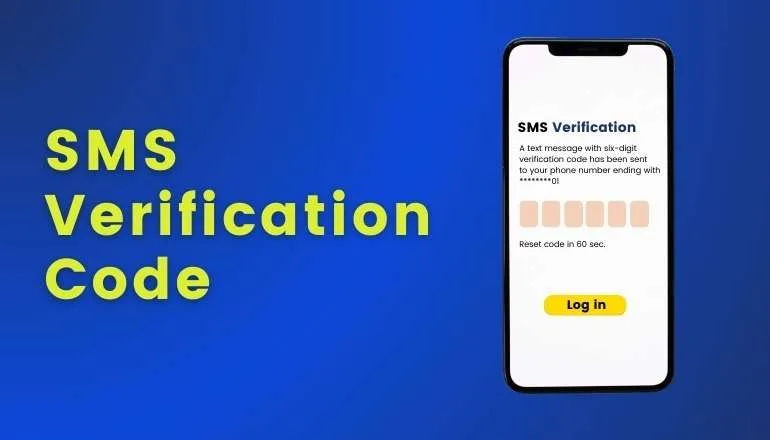
Image source: Bing (Web (fair-use with source credit))
How each recovery option compares:
| Recovery option | Speed | Requirements |
|---|---|---|
| Recovery email | Code arrives in seconds | Access to that inbox |
| Recovery phone (SMS) | Text arrives in seconds | Working mobile number with signal |
| Google Prompt | Tap to approve | Signed-in device nearby |
One catch: If your recovery phone number is outdated, SMS won’t reach you. If your recovery email is compromised or you forgot its password, you’re stuck. In those cases, skip ahead to the recovery form section.
Google sometimes hides the recovery email option if it thinks you’re on a suspicious device. If you see only phone verification and your phone isn’t working, try again from a device you use regularly.
Step-by-step: resetting with a recovery email or phone number
Here’s exactly what to do.
- Go to the Gmail sign-in page: mail.google.com.
- Enter your email address and click Next.
- Click Forgot password? It’s right below the password field.
- Enter the last password you remember. If you don’t remember any, click Try another way.
- Google shows your recovery options. Choose Get a verification code at [your recovery email] or Get a verification code sent to [your phone number].
- Check your inbox or text messages. The code is six digits and expires in a few minutes.
- Enter the code on the screen.
- Create a new password. Google requires at least 8 characters with a mix of letters, numbers, and symbols. Avoid reusing a password you’ve used on other sites.
- Confirm the new password and click Change password.
- You’re now signed in. Google signs out of all other sessions automatically for security.
Troubleshooting tips:
- If you don’t see the recovery option you expected, reload the page or use a different browser.
- If the code doesn’t arrive, check your spam folder. Or wait a minute and request a new code.
- If you’re getting “too many attempts” errors, stop for 24 hours. Google locks the process temporarily after repeated failures.
The recovery form: when you don’t have any recovery options
You’ve lost access to your recovery email. Your recovery phone number is long gone. You never saved backup codes.
Maybe your account was hacked and the recovery details were changed. Don’t panic.
Google built the account recovery form for this exact scenario. It asks you to prove you’re the original owner of the account. It’s not instant.
But aggregate reviews from verified users show it succeeds when you provide accurate answers.

Image source: Bing (Web (fair-use with source credit))
Who should use this form?
- People who no longer have access to their recovery email or phone.
- People whose accounts were compromised and recovery info was changed.
- People who created the account more than 5 years ago and haven’t updated recovery options.
- People locked out because they forgot the password and have no other recovery method.
Who should not use it?
- Anyone who still has recovery access. The quick reset is faster and more reliable.
- Anyone with a Workspace account managed by an organization. Contact your admin instead.
The form is at accounts.google.com/signin/recovery. Google will ask for your email address first. It will try to verify you through recovery options one more time.
Click “Try another way” until the form appears.
How to fill out the Google account recovery form (and what they ask)
You don’t need to get everything perfect. Google’s system scores your answers. Higher confidence means faster approval.
1. The last password you remember
Enter any password you recall using, even if it’s old. If you remember multiple, enter the most recent one. If you can’t remember any, check “I don’t know my password.”
2. The date you created your Gmail account
This is a big one. If you’re off by a few months, that’s usually fine. But being exact helps.
Look through old emails from other accounts. Ask a friend who might have an email from you around that time.
3. Recovery email or phone you previously added
Even if you no longer have access, enter the address or number you used when setting up the account.
4. Other contact info you used
Enter any secondary email you added. This can be an old school or work email.
5. Devices you’ve used with this account
List the make, model, and approximate date you started using each device. For example: “iPhone 12, started using in November 2021.”
6. The last date you remember signing in successfully
Think back to the last time you checked your inbox. Look at emails you sent to others for timestamps.
7. Any Google services you used frequently
YouTube subscriptions, Google Drive files, Google Photos, or Google Play purchases. Name a specific playlist or document if you can.
Tips for a strong submission:
- Be honest. Wrong answers reduce your score.
- Fill in every field you can. Empty fields lower confidence.
- Use the same device and location you typically use. Google sees IP addresses and device fingerprints.
After you submit, Google sends an email to the recovery address (if one exists) and sometimes to a secondary email. You’ll get a response in 24 to 72 hours. If approved, you’ll get a link to reset your password.
If you need help beyond this, feel free to contact our team through our contact us page.
What happens after you submit – review times and outcomes
Once you submit, Google’s system checks every answer against its records. It looks at the device you’re using, your IP address, and your location.
What happens first: Within minutes, Google sends an email to any recovery address on file. The email says “We received your account recovery request.” It includes a link to check the status.
Review times vary. Research across user forums and Google’s support docs shows these typical timelines:
| Situation | Typical wait time |
|---|---|
| You answered most fields accurately from a trusted device | 24 to 48 hours |
| You missed several fields or used an unfamiliar device | 48 to 72 hours |
| You submitted multiple requests in a row | Up to 7 days (may be denied) |
| High security flags on your account | Up to 5 business days |
Possible outcomes:
- Approved: You get an email with a link to reset your password. Click it, create a new password, and you’re back in.
- Denied: The email says “We could not verify that this account belongs to you.” It provides a button to try again. Do not submit the same form repeatedly.
- Pending further review: You might get a follow-up email with specific questions. This is rare.
What you can do while waiting: Keep checking the email address you provided. Don’t submit another form. If you remember additional details, write them down for the next attempt.
Google’s system is most likely to approve requests from the same city and device as your normal usage.
Common mistakes that stop your password reset from working
Most rejected recovery attempts share the same handful of errors.
Mistake 1: Guessing wildly on account creation date
This is the most common error. People guess “maybe 2015” when the account was actually created in 2012. Google logs the exact month and year.
A completely wrong date flags your request.
Fix: Search old emails from other accounts. Look for the first email sent to or from this account. Check Google Photos for the oldest album.
Even the first YouTube comment can help.
Mistake 2: Using a public computer or VPN
Google’s system heavily weighs your device fingerprint and IP address. A library computer or VPN that routes through another country drops your score.
Fix: Use a personal device you’ve signed into before. If you must use a public device, expect longer review times.
Mistake 3: Submitting multiple forms in one day
Every form submission resets the 24-hour clock. People desperate to get back in often open the form 5 or 6 times. This tells Google “this person can’t be verified consistently.”
Fix: Submit once. Wait the full review time. If denied, take 24 hours to gather better answers.
Mistake 4: Leaving too many fields blank
Each empty field is treated as “unknown.” Three or four blanks are fine. Seven or eight blanks won’t pass.
Fix: Fill in every field you can. For the recovery email, even a partial guess helps.
Mistake 5: Mismatching the password field
Entering a password Google’s records show you never used is a red flag. But entering a very old password that you did use helps.
Fix: If you remember multiple passwords, enter the most recent one you’re confident about.
Phishing risks and account security after reset (do this first)
Getting your account back is only half the battle. If you were hacked, the attacker might still have access to your recovery details. Even if you just forgot your password, now is the time to lock everything down.
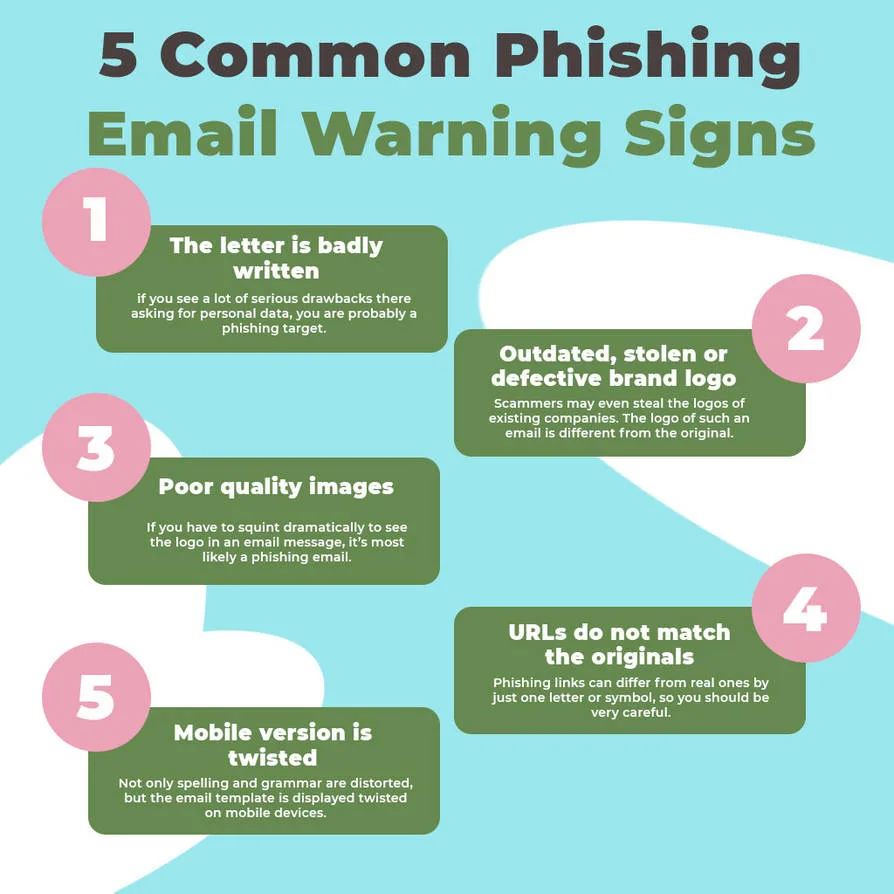
Image source: Bing (Web (fair-use with source credit))
First, check for unauthorized activity. After you reset, Google signs out all other sessions automatically. But that doesn’t remove email forwarding rules or app passwords the attacker set. Go to myaccount.google.com.
Click “Security.” Scroll to “Recent security events.” Look for sign-ins from unfamiliar locations.
Second, revoke all suspicious app access. Under “Third-party apps with account access,” remove anything you don’t recognize.
Third, update your recovery options. A hacker who changed your recovery phone or email can still take the account back. Go to “Personal info” and then “Contact info.” Verify your recovery email and phone are yours.
Fourth, turn on two-factor authentication. Google Prompt or an authenticator app is best. The FTC confirms that app-based 2FA is significantly more secure than SMS.
Fifth, generate new backup codes. Go to “Security” and scroll to “How you sign in to Google.” Click “Backup codes.” Print them or save them to a secure password manager.
What about phishing emails? After a password reset, scammers often send fake “Security alert” emails. Google’s real emails come from mail-noreply@google.com or accounts-noreply@google.com. They never ask you to click a link to enter a password.
Read our full disclaimer about identifying phishing attempts on our website.
Pro tip: If you were hacked, change the password on any other accounts using the same password. Attackers often try the same login on Facebook or Amazon.
What to do if Google denies your recovery request
A denial email is frustrating. But many people succeed on the second or third attempt once they understand the system.
Step 1: Don’t try again immediately. Wait at least 24 hours. Use the waiting time to gather better evidence.
Step 2: Review what you got wrong. Google’s email doesn’t say which answers failed. If you were unsure about the account creation date, research it more carefully.
Step 3: Use a device you’ve used before. If your first attempt was from a new phone, try again from your old laptop.
Step 4: Add more detail. In the recovery form, there’s a field for “Additional information.” Use it. Write a short paragraph with specific details.
Step 5: Be patient. After three or four denied requests, Google may lock the process for 30 days. If that happens, set a calendar reminder and come back when the lockout expires.
What if you can’t wait 30 days? If you have a Workspace account, ask your organization’s Google admin to reset the password. For personal accounts, you’ll have to wait. There’s no official support line that can override the system.
Most users succeed within three attempts when they follow these steps.
Set up better recovery options now (so you never get stuck again)
Take fifteen minutes right now to bulletproof your account.
What to add:
| Recovery method | Why it matters | How to set it up |
|---|---|---|
| Recovery email | A different email address you control | myaccount.google.com → Personal info → Contact info → Email |
| Recovery phone | Receives SMS or voice codes | Same location → Phone |
| Google Prompt | Push notification to a signed-in device | Security → How you sign in → Google Prompt |
| Backup codes | 10 one-time codes printed or saved | Security → Backup codes → Get backup codes |
Critical rules:
- Your recovery email must be different from the Gmail address you’re protecting.
- Your recovery phone should be a number you expect to keep for years.
- Print your backup codes and store them somewhere safe.
- Update recovery options every time you change your phone number or email.
What about 2FA? Turn it on if you haven’t. Go to Security → 2-Step Verification. App-based codes are better than SMS because SMS can be intercepted.
One more layer: Google’s Inactive Account Manager lets you set a trusted contact. Set it up at myaccount.google.com/inactive.
The best password reset is one you never perform. Keep your recovery information current. Use a password manager.
Check your account security page every few months.
Quick decision guide: which path fits your situation?
Use this guide to pick the right path in under 30 seconds.
Can you receive texts or emails on your recovery phone or recovery email right now?
| Your situation | The right path | Time to recovery |
|---|---|---|
| Yes, I have access to recovery email or phone | The quick reset (step-by-step section) | 2 to 5 minutes |
| No, but I remember my password and have a trusted device | Try Google Prompt or sign in directly | 1 to 2 minutes |
| No, I don’t have recovery access and I’m on a new device | Account recovery form | 24 to 72 hours |
| I was hacked and recovery details were changed | Account recovery form + security steps after | 48 to 96 hours |
| I’m locked out after too many wrong attempts | Wait 24 hours, then try the quick reset | 24 hours + reset time |
Do you know the date you created your Gmail account within six months? If yes, the recovery form is your best bet. If no, spend 15 minutes researching before you start.
What about Workspace accounts? If this is a work or school email, contact your organization’s admin. They can reset your password from the admin console.
For Family Link accounts: Sign in with the parent account. Navigate to Family Link. Select the child’s account and choose “Reset password.”
The path with the fewest unknowns is always the fastest.
Frequently Asked Questions
How long does a Gmail password reset take with recovery access?
2 to 5 minutes. You enter your email, click “Forgot password,” receive a code, and set a new password. Google does not impose a waiting period when verification succeeds.
Can I reset my Gmail password without a recovery email or phone?
Yes. Use Google’s account recovery form. It asks for details like your account creation date and last password you remember.
Approval usually takes 24 to 72 hours if your answers are accurate.
What happens if Google denies my recovery request?
You get an email saying Google could not verify ownership. Wait 24 hours before trying again. Use that time to gather better information.
Repeated attempts without better answers can lock the process for 30 days.
How do I prevent getting locked out of Gmail again?
Set up a recovery email and phone. Save your backup codes. Turn on two-factor authentication using an authenticator app.
Update these options every six months.
Can a hacker still access my account after I reset the password?
After resetting, go to your Google Account security page. Remove unknown app access. Delete forwarding rules.
Update your recovery options.
Does Google charge for account recovery?
No. If you see a website or email asking for payment to recover your Gmail account, it is a scam.
What about resetting a Gmail password on a phone?
The process works the same on the Gmail app for Android or iOS. Open the app, enter your email, tap “Forgot password,” and follow the same steps.