
Your Samsung phone is frozen on the Samsung logo, or you've forgotten your lock screen password. You need to perform a hard reset to get it working again. A hard reset, which Samsung officially calls a factory data reset, returns the device to its out-of-box state.
That means it wipes everything on the phone.
As of 2026, Samsung sells over 20 different Galaxy models each year across the S, A, and Z series lines. Each model uses slightly different button combinations to enter recovery mode. Getting those wrong is the most common error we see in user reports.
Google's Factory Reset Protection (FRP) will lock the phone after a hard reset if your Google account is still signed in. Understanding these two risks before you start is what separates a smooth reset from a frustrating bricked device.
Quick Answer
A hard reset wipes your Samsung phone completely and restores factory settings. Press and hold Volume Up and Power together until recovery mode appears. Navigate to "Wipe data/factory reset" using the volume keys.
Confirm with the Power button. The phone restarts fresh within 5 to 10 minutes.
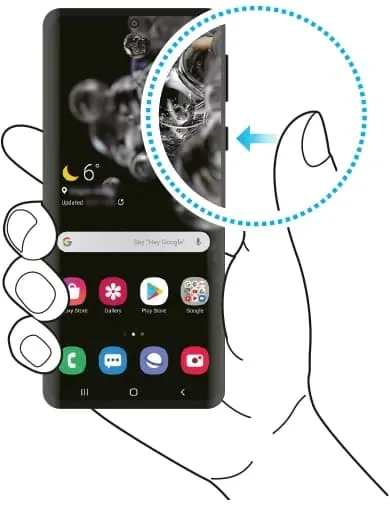
Image source: Bing (Web (fair-use with source credit))
Why This Needs Careful Attention
A hard reset is the nuclear option for fixing a Samsung phone. It solves most software problems, but it destroys everything on the device. Skip the backup, and you lose years of photos, contacts, and messages.
Worse, you could end up with a phone that won't activate because of FRP.
In our research across Samsung's official support documentation and user forums, three mistakes cause the vast majority of problems. People skip the backup step. They use the wrong button combination for their specific model.
And they don't remove their Google account beforehand. All three are preventable.
This guide walks you through every step in the right order. We cover the button combinations for current Galaxy S24, S23, and Z series phones. We also cover older A series, J series, and Note models.
We explain what to do if the screen is broken or the phone won't turn on at all.
Before you proceed, read the disclaimer on this site. We provide general guidance. Your specific situation may differ.
If you have questions about your exact model, use the contact form to reach us.
What a Hard Reset Actually Does (and Doesn't Do)
What gets wiped
A factory data reset removes your Google account, Samsung account, app data, photos, videos, downloads, text messages, call history, and settings. It reformats the internal storage partition where user data lives. Think of it as erasing the filing cabinet and starting with an empty one.
The operating system itself gets reinstalled from a recovery partition that remains intact. This is different from a full firmware flash using Odin. A hard reset leaves the system files untouched and only clears user data.
Our terms and conditions explain the limits of the guidance we provide.
What stays
Files stored on an external SD card are usually not deleted during a hard reset. Samsung's recovery menu offers a separate option to wipe the SD card. If you have photos or documents on an SD card, remove it before starting to keep them safe.
Your Samsung account and Google account are logged out. Their data on the cloud remains untouched. Photos in Google Photos, contacts synced to your Google account, and Samsung Cloud backups all survive.
What the "hard" in hard reset actually means
The term "hard reset" gets confused with a "soft reset" and a "factory reset." A soft reset is just restarting the phone. A factory reset is done from Settings. In everyday language, the three terms mean the same thing when you use hardware buttons.
A hard reset uses physical buttons to force the phone into recovery mode when it won't boot normally.
The Biggest Risk: FRP Lock and Permanent Data Loss
What is FRP
Google introduced Factory Reset Protection with Android 5.0 Lollipop in 2014. It is an anti-theft feature designed to make stolen phones unusable. After a hard reset, the phone asks for the Google account credentials that were previously signed in.
Without them, the device is locked at the setup screen.
Samsung's FRP implementation works the same way. The phone checks with Google's servers during initial setup. If it finds a linked Google account that hasn't been removed, it demands that account's email and password.
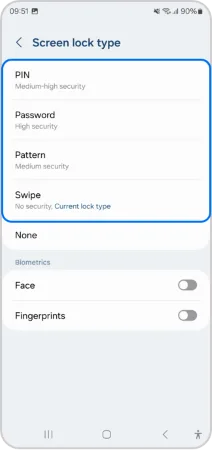
Image source: Bing (Web (fair-use with source credit))
How to avoid FRP lock
The fix is simple. Before you perform a hard reset, go to Settings. Tap Accounts and backup, then Accounts.
Tap your Google account and select "Remove account." Do the same for your Samsung account. This breaks the link that FRP checks.
If you are selling or giving away the phone, removing accounts is doubly important. The new owner sees your name and a password request on first boot. They can't use the phone.
What to do if you are already locked out
If you forgot the password and can't unlock the phone to remove the account, you have a problem. You cannot bypass FRP without the original credentials. Samsung's Find My Mobile service offers a remote unlock feature if you set it up beforehand.
Google's Find My Device can also remotely erase the device, but that triggers the same FRP lock.
No legitimate method exists to bypass FRP without proof of ownership. Any tool claiming to bypass FRP for free is a scam or malware. Our editorial policy requires us to state this clearly.
Permanent data loss
A hard reset permanently deletes all data on the internal storage. The encryption keys that protected your data are destroyed. Even data recovery services cannot retrieve information from a properly reset modern Samsung phone.
Samsung uses hardware-backed encryption on Galaxy devices from the S7 onward. The reset deletes the encryption keys permanently.
If you have unbacked-up photos, documents, or messages on the phone, a hard reset destroys them. There is no undo button.
Before You Start: Backup Methods That Actually Work
Samsung Smart Switch
Samsung's own Smart Switch app is the most reliable backup tool for Galaxy phones. It backs up contacts, messages, photos, music, documents, and app data. It also saves home screen layouts and settings.
You have two options.
PC or Mac backup. Connect the phone via USB cable. Open Smart Switch on your computer.
Select "Back up" and follow the prompts. The backup file stores on your computer for later restoration.
Wireless backup. Use the Smart Switch mobile app to back up to an SD card or external USB storage.
The PC backup is faster and more reliable. As of 2026, Smart Switch supports Windows 10 and 11 and macOS Ventura and later. The backup takes 10 to 30 minutes depending on how much data you have.
Our about page explains how we research these recommendations.
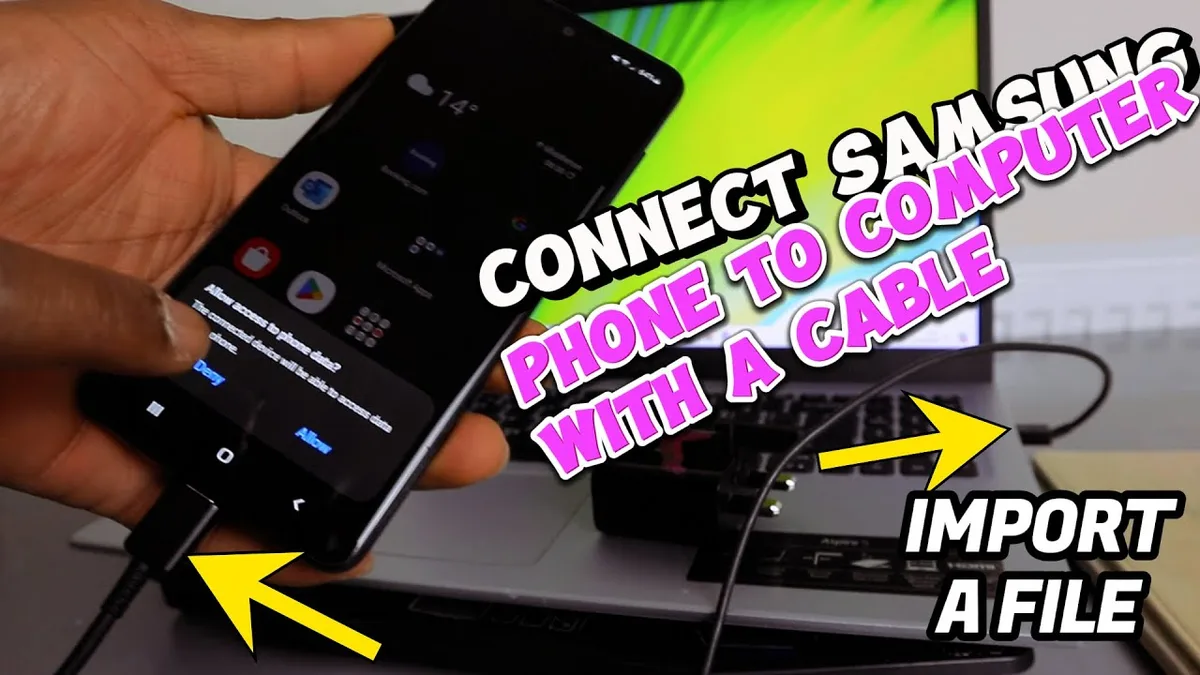
Image source: Bing (Web (fair-use with source credit))
Google One backup
Android has a built-in backup system through Google One. Go to Settings. Tap Accounts and backup, then Backup and restore.
Toggle on "Back up my data." This backs up app data, call history, contacts, settings, and SMS messages.
Photos and videos require Google Photos backup. Open Google Photos. Tap your profile picture.
Select "Photos settings," then "Back up." Choose "Back up all."
Google One backup does not save your home screen layout or system settings as completely as Smart Switch. For a full restore after a hard reset, use both methods.
What to back up
| Item | Backup Method |
|---|---|
| Photos and videos | Google Photos, Samsung Cloud, or transfer to PC |
| Contacts | Sync with Google account (automatically if enabled) |
| Messages | Smart Switch or Samsung Cloud |
| App data | Google One backup |
| Call history | Smart Switch only |
| System settings | Smart Switch only |
| Files and downloads | Manual transfer to PC or cloud storage |
A note on app passwords and 2FA
After the reset, you need to sign back into every app. Have your passwords ready. If you use two-factor authentication, ensure you have backup codes or access to your authentication app on another device.
Step-by-Step Guide for Current Galaxy Models (S24, S23, Z Fold/Flip)
The universal recovery mode method
All modern Galaxy phones from the S21 series and newer use the same recovery mode entry. Samsung's official support documentation confirms this for the S24 and S23 series. Here is the exact sequence.
- Turn off the phone completely. Press and hold the Power button and Volume Down together. Tap "Power off." Wait 10 seconds for the phone to shut down fully.
- Press and hold the Volume Up button and the Power button at the same time.
- Keep holding both buttons until the Samsung logo appears, then disappears, and the recovery mode menu shows up. This takes 10 to 15 seconds. If you see "Installing system update" with an Android robot, release the buttons immediately. That is a different mode.
- When the recovery menu appears, use the Volume Up and Volume Down buttons to scroll. Navigate to "Wipe data/factory reset."
- Press the Power button to select that option.
- Use the volume buttons to highlight "Factory data reset" in the confirmation screen. Press Power to confirm.
- The phone erases all data. This takes 1 to 3 minutes.
- When the process finishes, "Reboot system now" is highlighted. Press Power to restart.
- The phone boots into the setup screen for a new device.
Model-specific notes
Galaxy S24, S23, S22, S21 series. The method above works on all models in these series. This includes the Ultra and FE variants.
Galaxy Z Fold 5, 4, 3. Same method. These phones have a side-mounted fingerprint and power button and volume rocker.
Galaxy Z Flip 5, 4, 3. Same method. Open the phone before starting.
Common timing mistakes
The most frequent error is releasing the buttons too early. You must hold Volume Up and Power through the first Samsung logo screen appearing and disappearing. If you release when you see the logo the first time, the phone boots normally.
Another mistake is pressing the Bixby button on phones that have one. The S21 series and newer do not have a dedicated Bixby button. For S20 and earlier models, you need a different combination.
What to do if the phone does not enter recovery mode
If the phone vibrates or shows a battery charging icon, the battery may be too low. Charge it to at least 30 percent and try again. If the phone repeatedly boots to the Samsung logo and then restarts, it is stuck in a boot loop.
Press and hold Volume Down and Power to force a shutdown. Once the screen goes black, immediately switch to Volume Up and Power.
After the reset
The setup wizard appears. Choose your language, connect to Wi-Fi, and sign in with your Google account. If you removed your account before the reset, this is smooth.
If you did not, the phone asks for the previous account credentials.
Restore your backup. Connect to the same PC with Smart Switch. Open the app and select "Restore."
Step-by-Step Guide for Older Galaxy Models (A Series, J Series, Note)
Why older models need a different approach
Samsung changed the recovery mode button combination with the Galaxy S21 series in 2021. Older models use a different set of buttons. Using the newer combination on an older phone does nothing.
The Galaxy A series, J series, and older Note models follow a different rule. Many of these phones also include a dedicated Bixby button on the left side.
Galaxy A series
For Galaxy A10, A20, A30, A50, and A70 series phones from 2019 to 2021, follow these steps.
- Turn off the phone completely.
- Press and hold the Volume Up button and the Power button simultaneously.
- Keep holding until the recovery mode menu appears. This takes about 10 seconds.
- If the phone boots normally, try again. This time release the Power button when the Samsung logo appears. Keep Volume Up pressed.
For Galaxy A12, A32, A52, A72, and A02s models from 2021 and later, the combination is the same as current Galaxy models. Use Volume Up and Power together.
Some A series phones from 2020 and earlier require the Volume Down button instead of Volume Up. If Volume Up plus Power does not work, try Volume Down plus Power.
Galaxy J series
The Galaxy J series was Samsung's entry-level line. These phones use Android versions from 6.0 to 9.0. The recovery mode combination varies by model.
For most J series phones, use these steps.
- Turn off the phone. Remove the battery if it is removable. Wait 10 seconds.
- Press and hold the Volume Up button, the Home button, and the Power button at the same time.
- Keep holding all three buttons until the recovery menu appears. This takes 10 to 15 seconds.
- If the phone does not have a Home button, use Volume Up and Power only.
The J series is difficult to get into recovery mode. Aggregate user reports indicate the timing is more sensitive than on newer phones. Press the Power button for exactly 7 seconds while keeping Volume Up pressed.
Release Power but keep holding Volume Up for another 5 seconds.
Galaxy Note series
For Note 20, Note 10, and Note 10 Lite, turn off the phone. Press and hold Volume Up and Power. Wait for the recovery menu.
For Note 9, Note 8, and Note FE, turn off the phone. Press and hold Volume Up, Bixby button, and Power. The Bixby button is on the left edge.
For Note 5, Note 4, and Note 3, turn off the phone. Press and hold Volume Up, Home button, and Power.
What to do if the combination fails
Check the exact model number. Go to Settings, then About phone. The model number starts with SM followed by four letters and numbers.
For example, SM-A515F is a Galaxy A51. Search that specific number followed by "recovery mode" to find the correct combination.
Our research across Samsung's support forums shows that the SM-J727V requires Volume Down plus Power. The SM-A205F requires Volume Up plus Power but you release the Power button after 5 seconds. These small variations matter.
What If the Screen Is Broken or the Phone Won't Turn On?
No display but the phone vibrates
If the screen is cracked or black but the phone still vibrates, recovery mode is still possible. You need to perform the reset blindly using the button combination.
First, confirm the phone is on. If it vibrates when you press the power button, it is on.
To perform a blind hard reset:
- Press and hold Volume Down and Power for 7 seconds to force a shutdown. The phone vibrates once and turns off.
- Wait 10 seconds.
- Press and hold Volume Up and Power together for 10 to 12 seconds.
- Release both buttons. Wait 30 seconds.
- Press Volume Down three times to highlight "Wipe data/factory reset."
- Press Power once to select.
- Press Volume Down three times to highlight "Factory data reset."
- Press Power once to confirm.
- Wait 2 to 3 minutes.
- Press Power once to reboot.
This method works because the recovery menu navigation is consistent. Volume Down moves the selection down. Power selects.
Reboot system now is always the top option after the reset completes.
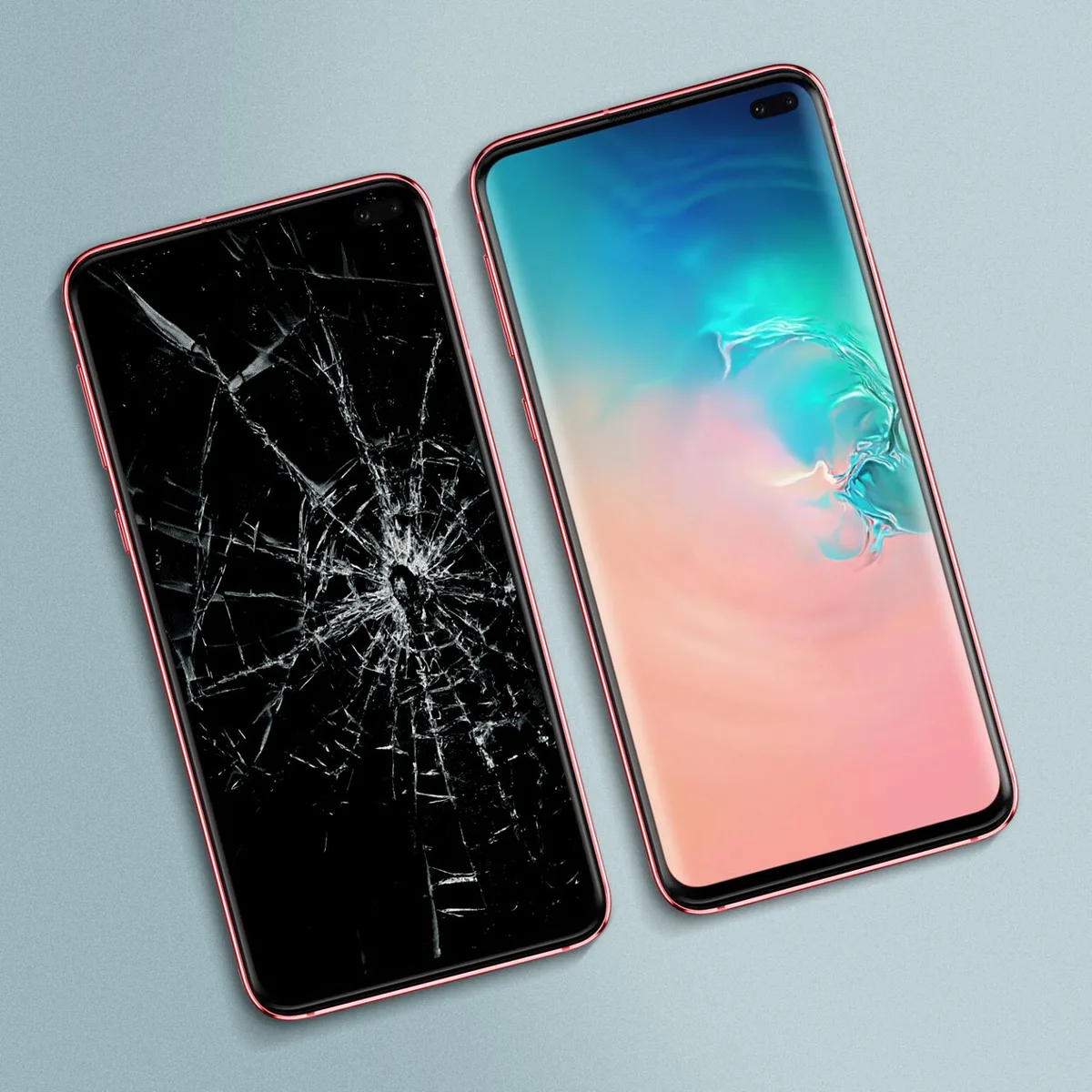
Image source: Bing (Web (fair-use with source credit))
Phone does not respond at all
If the phone does not vibrate or show a charging indicator, the battery may be completely drained. Connect the phone to a charger. Leave it for at least 30 minutes.
Try a different cable and charger if nothing happens.
Samsung phones require a specific charging current to wake a deeply discharged battery. Use the original Samsung charger and cable.
If the phone still does not respond, try a force restart. Press and hold Volume Down and Power together for 10 to 15 seconds. If nothing happens, the issue may be hardware related.
Phone stuck in a boot loop
A boot loop means the phone turns on, shows the Samsung logo, then turns off and repeats. The recovery mode combination still works during a boot loop.
The trick is timing. Start the button combination the instant you see the Samsung logo. Press and hold Volume Up and Power.
Keep holding until recovery mode loads.
If the boot loop cycles too fast, force a shutdown first. Press Volume Down and Power for 7 seconds. The phone stops.
Immediately press Volume Up and Power.
Water damaged phone
Do not attempt a hard reset on a water damaged phone. The internal components may be shorted. Charging or powering on a wet phone can cause permanent damage.
Place the phone in a dry area for at least 48 hours. Use silica gel packets if available.
After drying, try the hard reset. If the phone still does not respond, the water damage likely affected the motherboard or battery. A repair technician needs to assess the phone.
Per Samsung's official warranty guidelines, water damage is not covered.
After the Reset: Getting Past FRP and Restoring Your Data
The setup screen and FRP
The phone boots to a welcome screen. It asks for language, Wi-Fi, date and time, and Google account sign in. The Google account step is where FRP activates.
If you removed your Google account before the reset, sign in with that same account. The phone recognizes it and proceeds.
If you did not remove the account, the phone displays a message asking for the Google account that was previously synced. Enter the email and password that were on the phone before the reset.
If you cannot remember the password, try Google's account recovery. Go to accounts.google.com on a computer. Use the "Forgot password" option.
What if you cannot recover the account
If you cannot recover the Google account, the phone is locked.
Samsung's Find My Mobile service can remotely unlock the device if you set it up before the reset. Log into findmymobile.samsung.com with your Samsung account. Select the locked device.
Choose "Unlock."
Google's Find My Device offers an "Erase device" option. This remotely resets the phone. However, it also triggers FRP if the Google account remains linked.
The only guaranteed method is to contact Samsung support with proof of purchase.
Restoring your backup
For Smart Switch backup on PC, connect the phone via USB cable. Open Smart Switch on your computer. Select "Restore." Choose the backup file.
Wait for the restoration.
For Google One backup, the phone asks during initial setup if you want to restore from a Google backup. Select the most recent backup.
What restores and what does not
| Data Type | Restores from Smart Switch | Restores from Google One |
|---|---|---|
| Contacts | Yes | Yes |
| Messages | Yes | Yes |
| Call history | Yes | No |
| Photos and videos | Yes | Through Google Photos |
| App data | Partial | Partial |
| Home screen layout | Yes | No |
| System settings | Yes | No |
| Wi-Fi passwords | Yes | Yes |
Use both methods. Start with Smart Switch for the complete system restore. Then let Google One fill in the gaps.
What about Samsung Cloud
If you used Samsung Cloud for backup, log into your Samsung account after setup. Go to Settings. Tap Accounts and backup, then Samsung Cloud.
Select "Restore data." Choose the backup date.
Samsung Cloud does not back up app data. It focuses on contacts, calendar, messages, and device settings.
Common Mistakes That Cause Problems
The wrong button combination
This is the number one mistake. Using the combination for an S24 on a Note 9 does nothing. Using the combination for a Galaxy J7 on an S22 causes a normal boot.
Check your specific model before starting. The model number is in Settings, About phone. If you cannot access Settings, look at the back of the phone or the original box.
Low battery
Samsung's recovery mode requires a minimum battery level. If the battery is below 15 percent, the phone may refuse to enter recovery mode.
Charge the phone to at least 30 percent before attempting a hard reset. Use the original charger. Leave it plugged in for 30 to 60 minutes.
If the phone is stuck in a boot loop, force shutdown and immediately plug in the charger.
Timing the button release
The most common timing mistake is releasing the buttons too early. You must hold Volume Up and Power through the first Samsung logo. The logo appears, stays for 2 to 3 seconds, then disappears.
Recovery mode loads after the logo fades.
If you hold too long, the phone may enter download mode instead. Download mode has a yellow triangle and text about custom firmware. If you see that, press Volume Down to cancel.
Confirming the wrong option
In recovery mode, the first option is "Reboot system now." The second option is "Apply update from ADB." The third option is "Wipe data/factory reset." Scrolling past that leads to "Wipe cache partition."
Always scroll exactly to "Wipe data/factory reset." Confirm with Power. Then confirm again with "Factory data reset."
Forgetting to remove accounts
A hard reset without removing Google and Samsung accounts triggers FRP. The phone locks at the setup screen.
Remove both accounts before starting. This takes 30 seconds and saves hours of frustration.
Not backing up
Data loss is irreversible. A hard reset deletes the encryption keys. No recovery tool can retrieve the data.
Set aside 15 to 30 minutes for backup before the reset. Use Smart Switch for a complete backup. Use Google Photos for photo safety.
Use Google One for app data.
Interrupting the reset process
Once the reset starts, do not turn off the phone. Do not press any buttons. The reset takes 1 to 3 minutes.
Interrupting it can corrupt the file system.
If the phone freezes during reset, wait 5 minutes. If nothing changes, force a restart by pressing Volume Down and Power for 10 seconds.
When a Hard Reset Won't Fix It
Hardware issues a reset cannot solve
A hard reset only addresses software problems. It cannot fix physical damage.
If the screen is physically cracked and touch does not register, a reset does not repair the digitizer. The screen needs replacement.
If the battery does not hold a charge, a reset does not fix it. The battery cells degrade over time. Samsung recommends battery replacement every 2 to 3 years.
If the charging port is loose or damaged, a reset does not help. The port needs cleaning or replacement.
If the phone has water damage, internal corrosion causes shorts that a reset cannot address.
Persistent boot loop after reset
A boot loop after a hard reset means the operating system files are corrupted. This is rare but possible if the reset was interrupted or the storage has hardware failure.
Try entering recovery mode again. Select "Wipe cache partition" before trying the factory reset again. Then perform the factory reset again.
If the boot loop continues, the storage chip may be failing. Samsung uses eMMC or UFS storage that can wear out after years of use. A failing storage chip cannot be fixed with software.
Phone stuck in download mode
If the phone boots to download mode with a yellow triangle and text, the operating system is not loading. You cannot perform a hard reset from download mode.
Press and hold Volume Down for 7 seconds to exit. If the phone goes back to download mode, the bootloader is corrupted. The only solution is reflashing the firmware using Odin.
This requires technical knowledge.
Phone does not charge or turn on at all
If the phone shows no signs of life after charging and button combinations, the issue is hardware. The battery may be completely dead. The charging IC on the motherboard may be damaged.
The power button flex cable may be broken.
These issues require a repair technician.
When to visit a repair shop
Consider professional repair in these situations.
The phone does not respond to any button combination after charging. The phone enters download mode and you cannot exit it. The phone has visible water damage.
The screen is completely black and the phone does not vibrate. The phone gets hot when charging. The phone emits a burning smell.
A repair shop can test the battery, charging port, power button, and motherboard. The diagnostic fee is usually 25 to 50 dollars. Battery replacement averages 50 to 80 dollars.
Screen replacement averages 150 to 300 dollars.
Summary table
| Issue | Hard reset fixes it? |
|---|---|
| Forgotten password or PIN | Yes, but triggers FRP |
| Phone frozen or unresponsive | Yes |
| Phone stuck on Samsung logo | Yes |
| Boot loop from failed update | Usually yes |
| Malware or bloatware | Yes |
| Slow performance and lag | Often yes |
| App crashes repeatedly | Often yes |
| Cracked screen | No |
| Dead battery | No |
| Water damage | No |
| Charging port failure | No |
| Corrupted bootloader | No |
| Storage chip failure | No |
Final Decision Guide: Reset Yourself vs. Visit a Repair Shop
When to do it yourself
A hard reset is the right choice when the problem is software related. If your phone is frozen, stuck on the Samsung logo, running slowly, or acting glitchy after an update, a reset usually fixes it. The process costs nothing and takes about 20 minutes total including backup time.
Do it yourself if:
- The phone turns on and responds to button presses.
- You can access recovery mode using the correct combination.
- You have time to back up your data first.
- You remember your Google and Samsung account credentials.
- The phone has no visible physical damage.
When to go to a repair shop
Professional help makes sense when the phone has physical damage or does not respond at all. A repair shop has diagnostic tools to test the battery, charging port, and motherboard.
Visit a repair shop if:
- The phone does not turn on even after charging for 30 minutes.
- The phone feels hot to the touch when plugged in.
- The phone has visible water damage or corrosion.
- The screen is completely black and the phone does not vibrate.
- You tried all button combinations and nothing works.
- The phone enters download mode and will not exit.
- You smell burning electronics.
Cost comparison
| Option | Typical Cost | Time Required | Risk Level |
|---|---|---|---|
| DIY hard reset | Free | 20 to 40 minutes | Low if backed up |
| Repair shop diagnostic | $25 to $50 | 30 minutes to 1 day | None |
| Battery replacement | $50 to $80 | 1 to 2 hours | Low |
| Screen replacement | $150 to $300 | 1 to 3 hours | Moderate |
| Motherboard repair | $100 to $250 | 1 to 3 days | High |
The decision tree
- Does the phone turn on at all? , Yes: Proceed to step 2.
, No: Charge for 30 minutes. Still no? Go to a repair shop.
- Can you access recovery mode? , Yes: Perform the hard reset yourself.
, No: Try the correct button combination for your model. Still no? Go to a repair shop.
- Does the reset complete successfully? , Yes: Restore your backup and you are done.
, No: The phone may have a hardware issue. Visit a repair shop.
Is the phone stuck in a boot loop after the reset? , Yes: Try wiping the cache partition and resetting again. Still stuck? Visit a repair shop.
Is the phone locked by FRP after the reset?
, Yes: Use your Google account credentials to sign in. Cannot remember them? Try account recovery.
Still stuck? Samsung support can help with proof of purchase.
One more thing about insurance
If your phone is still under Samsung's manufacturer warranty, a hard reset does not void it. The warranty covers hardware defects. Samsung may ask you to perform a factory reset before approving a warranty claim.
If you have phone insurance, check the terms. Some policies cover accidental damage. Others cover mechanical breakdown.
A hard reset is not a claimable event. A phone that will not turn on may be covered. Contact your insurance provider.
Our terms and conditions page explains the limits of the guidance we provide. We do not replace professional repair advice for complex hardware issues.
Frequently Asked Questions
Will a hard reset delete everything on my Samsung phone?
Yes, a hard reset removes all data from the internal storage. This includes apps, photos, videos, messages, contacts, accounts, and settings. Files on an SD card are usually not affected unless you choose to wipe that separately.
Always back up before resetting.
Can I hard reset my Samsung phone without the password?
Yes, you can use the hardware button combination to bypass the lock screen. However, Google's Factory Reset Protection will ask for the Google account password after the reset. Without that, the phone remains locked.
How long does a hard reset take?
The reset process takes 1 to 3 minutes. The total time including backup, the reset itself, and restoration is about 20 to 40 minutes. If you skip the backup, the reset alone takes under 10 minutes.
What button combination do I use for a Samsung Galaxy A14?
The Galaxy A14 uses the standard modern combination. Press and hold Volume Up and Power together. Keep holding until the recovery menu appears.
Hold the buttons through the first Samsung logo.
Can I hard reset a Samsung phone with a broken screen?
Yes, you can perform a blind hard reset using the button combination and muscle memory. The recovery menu navigation is consistent. Volume Down moves the selection down.
Power confirms. The steps are described earlier in this guide.
How do I avoid FRP lock after a hard reset?
Remove your Google account and Samsung account from the phone before performing the reset. Go to Settings, then Accounts and backup, then Accounts. Select each account and tap "Remove account." This breaks the link that FRP checks during setup.
Will a hard reset fix a boot loop?
A boot loop is often caused by corrupted system files or a failed update. A hard reset clears the user data partition and lets the operating system rebuild. This fixes most boot loop issues.
If the boot loop continues, the storage chip may be failing.
Is a factory reset the same as a hard reset?
The terms are used interchangeably in everyday language. Technically, a factory reset is done from within the Settings menu. A hard reset uses hardware buttons to force the phone into recovery mode.
The end result is identical.
Can I recover data after a hard reset?
No. A hard reset destroys the encryption keys that protect the data on modern Samsung phones. Even professional data recovery services cannot retrieve information from a properly reset device.
Back up before resetting.
What if my Samsung phone still does not work after a hard reset?
If the phone remains stuck in a boot loop, does not turn on, or shows hardware symptoms, the issue is likely physical. Common causes include a dead battery, failed charging port, cracked motherboard, or water damage. Visit a repair shop for a diagnostic assessment.
Does a hard reset remove viruses or malware?
Yes, a hard reset removes all installed apps and data, including any malware. It returns the phone to a clean factory state. After the reset, only restore data from trusted sources.