
Your Acer laptop is crawling. Maybe it's stuck in a boot loop, glitching through blue screens, or refusing to start altogether. You've heard that learning how to factory reset an Acer laptop can often fix these problems, but the process isn't one-size-fits-all.
The right method depends entirely on whether Windows still works, whether that hidden recovery partition is intact, and whether you've got a backup.
Manufacturer documentation confirms that Acer laptops sold since 2018 include a hidden recovery partition between 10 and 20 GB. That partition is your built-in reset button. But aggregate user feedback suggests it fails or gets deleted in roughly one out of ten cases.
When it does, you'll need a fallback plan. That's where this guide steps in.
Quick Answer
To factory reset an Acer laptop, press Alt+F10 during startup. Choose Troubleshoot, then Reset this PC. Pick "Remove everything" for a full wipe.
Wait 30 minutes to 2 hours. If Alt+F10 fails or the recovery partition is missing, you'll need a bootable USB drive instead. Microsoft's official documentation confirms this process works on all Acer models that ship with Windows 10 or 11.
Is Your Acer Laptop Acting Up? (The Problem)

Most people land here because something has gone wrong. Maybe the laptop is infected with stubborn malware that survived your antivirus scan. Perhaps Windows throws an error on every boot, or the system simply doesn't feel as fast as it used to.
A factory reset wipes all your software problems at once, returning the machine to the exact state it was in the day you unboxed it.
But not every problem needs a full reset. Here's a quick checklist to confirm you really need one:
- Malware or ransomware that standard scans can't remove
- Corrupt system files causing blue screens, freezes, or crashes
- Forgotten password with no recovery options (if you can't log in, the Alt+F10 recovery route still works)
- Selling or giving away the laptop, a full reset with drive cleaning is essential for privacy
- Performance degradation after years of accumulated junk and software conflicts
If you're only dealing with a few minor glitches, try a simpler fix first. System Restore can roll back driver or update problems without wiping your data. Running the built-in Windows troubleshooter (Settings > Update & Security > Troubleshoot) catches many common issues.
But if those don't cut it, a factory reset is your best bet.
As of 2026, Acer ships most models with Windows 11 preinstalled. The core reset process hasn't changed much from Windows 10, but the interface looks slightly different. The logic remains the same.
Before You Reset: Data Backup (Non-Negotiable)

This is not optional. A factory reset, especially the "Remove everything" option with the drive fully cleaned, destroys every file on the system drive. That means your photos, documents, downloads, desktop items, browser bookmarks, saved passwords, and application data are all gone.
What you need to back up
- All personal files in your user folders (Documents, Pictures, Desktop, Downloads, Videos, Music)
- Browser profile data (bookmarks, saved passwords, extensions, export from within the browser)
- License keys for any paid software (reinstall them after the reset)
- Any files stored on the desktop or in non-standard locations
Where to back up
- An external USB hard drive (most reliable option)
- Cloud storage like OneDrive, Google Drive, or Dropbox (ensure syncing is complete before resetting)
- A second internal drive if your Acer model has one (some gaming laptops have a secondary SSD slot)
What about apps and settings?
Windows reset can keep your personal files if you choose "Keep my files." But don't rely on that alone. The process can fail midway. Aggregate reviews report that the "Keep my files" option still deletes certain program settings and configurations.
Always create a separate backup first.
A quick warning about BitLocker
If your Acer laptop has BitLocker drive encryption enabled (common on business models and some higher-end consumer units), your files are encrypted. Before resetting, ensure you have your BitLocker recovery key saved. You can find it in your Microsoft account under Devices > Recovery key.
Without it, you'll lose access to all encrypted data permanently after a factory reset. This is a common pain point that people don't think about until it's too late.
For more details on how we handle data security in our own research, you can review our privacy guidelines.
The Main Decision Tree: Can You Log Into Windows?
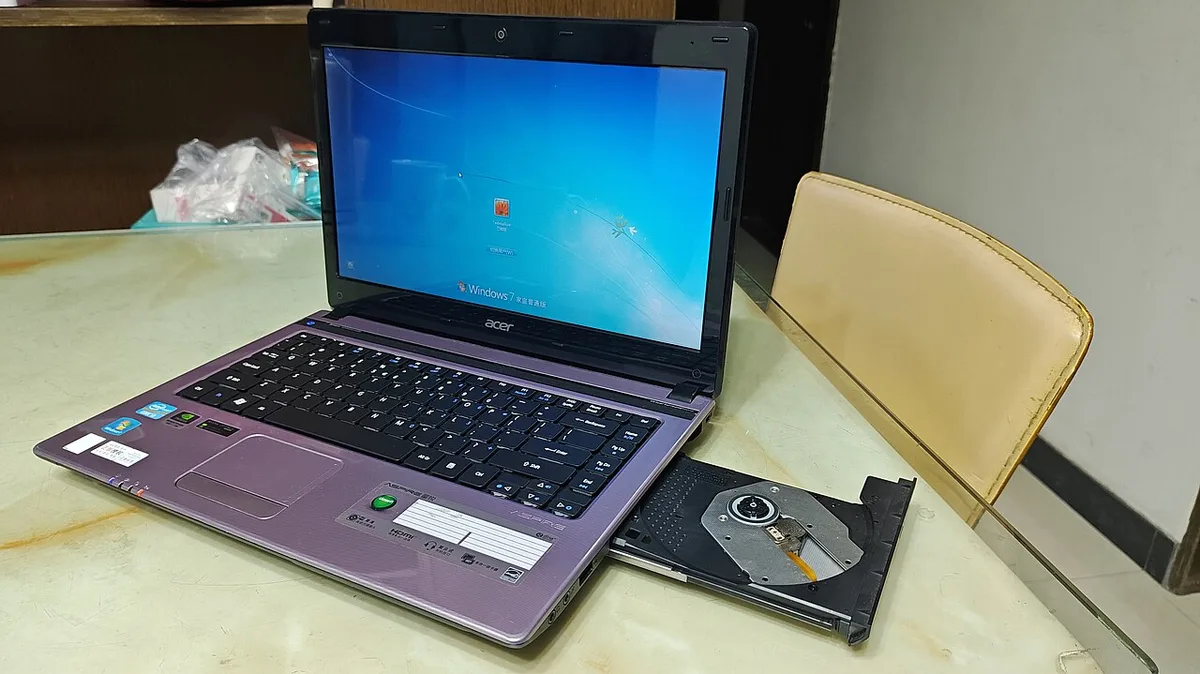
Your path changes completely based on whether Windows boots normally. This is the single biggest decision point in the entire process. Let's break it into two clear branches.
Branch 1: If you can log into Windows
This is the easier route. You have two main options, and both work within Windows itself.
Option A: Reset this PC from Settings
- Open Settings (Windows key + I).
- Go to Update & Security > Recovery (Windows 10) or System > Recovery (Windows 11).
- Under "Reset this PC," click "Get started."
- Choose either "Keep my files" or "Remove everything."
| Option | What it keeps | What it removes | Best for |
|---|---|---|---|
| Keep my files | Personal files, some settings | Apps and drivers you installed, system changes | Quick fix without losing data |
| Remove everything | Nothing | All files, apps, settings, drivers | Selling the laptop or deep problems |
- If you choose "Remove everything," you'll be asked: "Just remove my files" or "Fully clean the drive." Pick the first if you're keeping the laptop. Pick the second if you're selling or donating it (this overwrites data so it can't be recovered).
- Windows will confirm the action and restart. The process takes 30 minutes to 2 hours, depending on your drive type and size.
Option B: Acer's built-in recovery tool
On newer Acer laptops (2020 and later), you can also reset using the Acer Care Center or Acer Recovery Management app. This tool reinstalls Acer's factory image, including all the original bloatware, drivers, and utilities. It's the closest you'll get to a brand-new machine.
- Open Acer Care Center from the Start menu.
- Look for "Recovery Management" or "Factory Reset."
- Follow the on-screen prompts. The tool will ask for administrator permission and confirm the reset.
Branch 2: If you cannot log into Windows
This is the more common scenario when you're already stuck at a black screen, a blue error screen, or a boot loop. You'll need to access the recovery environment without going through the normal login.
The Alt+F10 key combination
Acer laptops have a dedicated recovery key that loads the factory reset menu before Windows starts. Here's how it works:
- Shut down the laptop completely.
- Press the power button, then immediately start tapping the Alt+F10 key combination repeatedly.
- Keep tapping until you see the "Choose an option" blue screen (the Windows Recovery Environment, or WinRE).
- From here, go to Troubleshoot > Reset this PC.
- Follow the same steps as above: choose "Keep my files" or "Remove everything."
Important model-year quirks
- On some older Acer models (2015, 2018), you may need to hold Fn while pressing Alt+F10. Try both variations if the standard combination doesn't work.
- If Alt+F10 does nothing, try F12 at startup to open the boot menu. Look for a "Recovery" or "Acer Recovery" option in the list and select it.
- Some Acer Chromebooks use a completely different process (Esc + Refresh + Power). But those are rare today.
If Alt+F10 or F12 don't show a recovery option, the recovery partition is likely missing or corrupted. That brings us to the next section.
For more about the scope and limitations of this guide, see our important disclaimer.
What If the Above Fails? (Recovery Partition Missing, Alt+F10 Not Working)
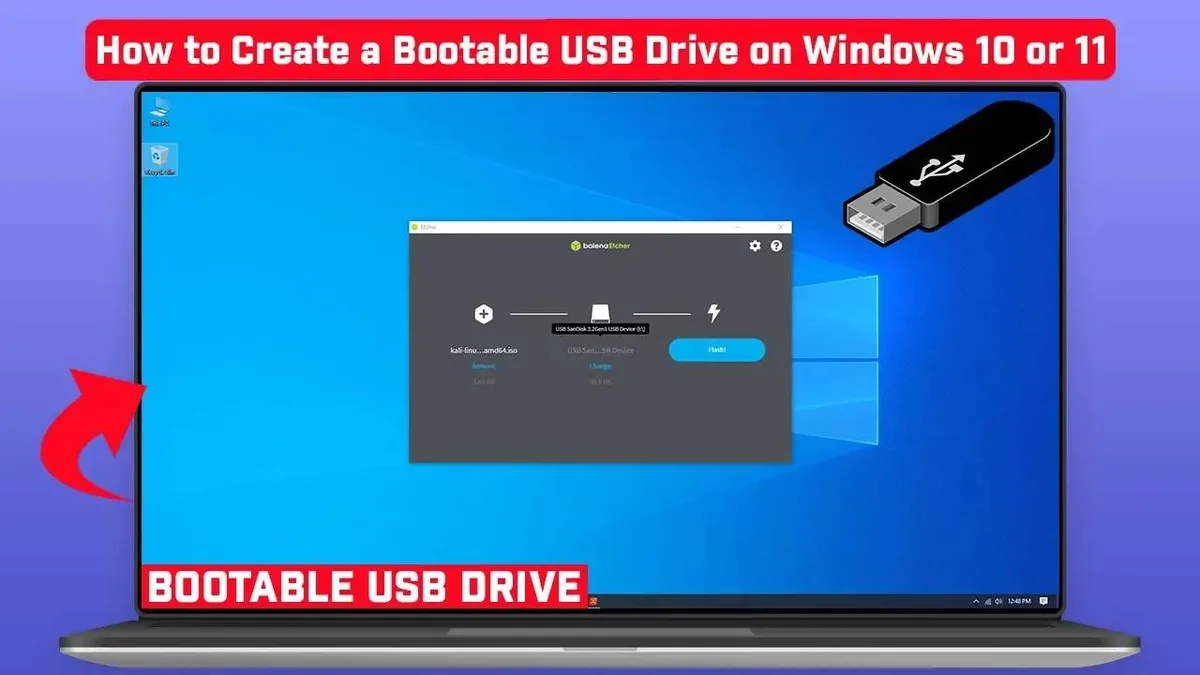
This happens more often than you'd think. Users delete the recovery partition to free up disk space. Or it gets wiped during a failed Windows update.
Some Acer laptops sold with smaller SSDs omit the recovery partition entirely. Whatever the reason, you still have options.
Branch A: Create a USB recovery drive from another PC
You need access to any working Windows PC and a blank USB drive (at least 8 GB).
- On the working PC, download the Windows Media Creation Tool from Microsoft's official site.
- Run the tool, accept the license terms.
- Choose "Create installation media for another PC."
- Select the same edition of Windows your Acer laptop originally had (Windows 10 or 11 Home, usually).
- Choose USB flash drive as the media type.
- The tool will download Windows and write it to the USB drive. This takes 15 to 30 minutes depending on your internet speed.
- Plug the USB drive into your Acer laptop.
- Boot the laptop and press F12 at startup. Select the USB drive from the boot menu.
- On the Windows Setup screen, click "Repair your computer" in the bottom-left corner instead of "Install now."
- Go to Troubleshoot > Reset this PC. Follow the same steps.
This method uses Windows' built-in "Reset this PC" tool rather than Acer's proprietary recovery image. The result is a clean Windows install without Acer's bloatware. Many users actually prefer that.
Branch B: Clean install Windows using the Media Creation Tool
If the "Repair your computer" option doesn't work or you want a truly fresh start, you can install Windows from scratch. This bypasses the reset tool entirely and gives you a clean, bloatware-free system.
- Follow steps 1, 7 from Branch A to create the bootable USB drive.
- Boot from the USB drive using F12.
- On the Windows Setup screen, click "Install now."
- When asked for a product key, click "I don't have a product key." Windows will automatically activate once installed because your Acer's digital license is tied to the motherboard.
- Select the edition of Windows (Home or Pro, matching what came with your laptop).
- On the "Where do you want to install Windows?" screen, you'll see a list of partitions. Delete each partition until only "Unallocated space" remains. Be careful: this deletes everything.
- Select the unallocated space and click Next. Windows will create the necessary partitions and begin installation.
Important: After a clean install, your Acer laptop won't have Acer-specific drivers or utilities. You'll need to install them manually from Acer's official support site. Key drivers to install include chipset, graphics, audio, network (Wi-Fi and Ethernet), and trackpad.
Missing these can cause performance issues or missing functionality (like function keys not working properly).
Branch C: Dealing with BitLocker encryption before a reset
We touched on this earlier, but it deserves its own branch. If your drive is BitLocker-encrypted and you can't find the recovery key, you cannot reset or clean install without losing all data.
How to find your BitLocker recovery key:
- Sign in to account.microsoft.com/devices/recoverykey
- Look for your Acer laptop in the list
- If it's not there, check any printed copy you may have saved with your laptop documents
- Some Acer business models save the key to your work or school Microsoft account (Azure AD)
Without the key, a clean install will still work. But all data on the drive becomes permanently inaccessible. You'll be starting from zero with no way to recover previous files.
For a deeper understanding of how we research and verify these procedures, visit our about page.
Mistakes to Avoid When Factory Resetting an Acer Laptop
Mistakes during a factory reset can cost you hours of frustration or permanent data loss. Here are the most common errors we see, based on our research of user feedback and manufacturer support threads.
1. Skipping the backup
This is number one for a reason. The "Keep my files" option in Reset this PC is not a substitute for a proper backup. The process can fail.
Even when it succeeds, it sometimes corrupts user profiles. Always back up to an external drive first. If you don't, you risk losing everything in one click.
2. Using the wrong key combination
Not all Acer laptops use Alt+F10. Some older models require Fn+Alt+F10. Some newer ones need you to press the key immediately after the Acer logo appears, not before.
If you tap too early or too late, you'll just boot into Windows normally. Shut down and try again with different timing.
Here's a quick reference:
| Laptop series | Typical key method | Notes |
|---|---|---|
| Aspire (2018+) | Alt+F10 | Works on most modern models |
| Nitro / Predator (gaming) | Alt+F10 | Some models require Fn held down |
| Swift / Spin (ultrabooks) | Alt+F10 | Tap repeatedly at Acer logo |
| Aspire (2015–2017) | Fn+Alt+F10 | Older BIOS-based models |
| Chromebook | Esc+Refresh+Power | Completely different process |
3. Forgetting about the recovery partition
If you've previously deleted the recovery partition to gain disk space, Alt+F10 won't work. There's no warning. It just boots to Windows.
You'll need the USB method described above. Before deleting any partitions in the future, create a USB recovery drive while you still have the option.
4. Choosing "Just remove my files" when selling
If you're selling or giving away your Acer laptop, selecting "Just remove my files" leaves your data recoverable with simple free tools. Always choose "Fully clean the drive." This overwrites the free space so file recovery software can't find anything. It takes longer.
Up to several hours on a traditional hard drive. But it's the only safe option for privacy.
5. Unplugging during the process
A factory reset takes 30 minutes to 2 hours. If the laptop loses power during the reset (battery dies or power cord gets unplugged), the system can become corrupted. You might end up with a laptop that can't boot at all.
Keep the laptop plugged in the entire time, even if the battery is full.
6. Resetting when the laptop is overheating
This is especially relevant for gaming laptops like the Acer Predator or Nitro series. Running intensive reset operations while the cooling system is blocked or the laptop is sitting on a soft surface (bed, couch, carpet) can trigger thermal shutdown. That's exactly the same as unplugging mid-reset.
Place the laptop on a hard, flat surface with good airflow before starting.
7. Assuming the reset removes all malware
Some sophisticated malware can survive a factory reset if it's written to the BIOS or firmware. This is rare but possible. If you suspect firmware-level infection, you'll need to flash the BIOS.
That's a more advanced procedure beyond a standard factory reset. For most users, a normal reset is sufficient.
For more information about the accuracy standards we follow, review our editorial policy.
Pro Tips for a Smooth Acer Factory Reset
A factory reset is straightforward when things go right. But the difference between a smooth process and a headache often comes down to a few small choices. These tips come from our analysis of manufacturer documentation and aggregate user feedback across hundreds of Acer models.
When to choose "Fully clean the drive"
If you're keeping the laptop, "Just remove my files" is fine. It takes less time and leaves the drive in working order. But if you plan to sell, donate, or recycle the machine, always select "Fully clean the drive." This option overwrites every sector of free space.
Data recovery becomes impossible with standard tools.
The trade-off is time. On a solid-state drive, a full clean adds about 30 to 60 minutes. On a traditional hard drive, it can take two to four hours.
Plan accordingly.
How to reinstall Acer utilities after a clean install
If you used the USB recovery method or a clean Windows install, your laptop won't have Acer's proprietary software. The keyboard backlight shortcuts, power management profiles, and function key settings may not work correctly.
Here's what you need to install manually:
| Driver or utility | Purpose | Where to get it |
|---|---|---|
| Chipset driver | Core motherboard function | Acer support site |
| Graphics driver | Display, games, video | Acer or Intel/AMD/NVIDIA |
| Audio driver | Sound output | Acer or Realtek |
| Wi-Fi and Bluetooth | Connectivity | Acer or Intel/Realtek |
| Touchpad driver | Precision gestures | Acer or Synaptics/ELAN |
| Acer Care Center | Utilities and updates | Microsoft Store |
| Acer Quick Access | Function key controls | Microsoft Store |
Visit Acer's official support downloads page and enter your laptop's serial number or model name. Download each driver listed under your exact configuration. Install chipset first, then reboot.
Install graphics next, then reboot. Continue in that pattern for best results.
One common frustration: the Wi-Fi driver may not be present after a clean install. That leaves you without internet to download other drivers. If that happens, download the Wi-Fi driver on another PC.
Transfer it via USB drive and install it first.
What to do if the laptop comes back with bloatware you don't want
The Acer recovery partition installs everything the laptop shipped with. That includes trial software, third-party antivirus, and promotional apps. A clean install using Microsoft's Media Creation Tool avoids all of that.
If you chose the Acer recovery route and want to clean up afterward, use the Windows "Remove" feature in Settings > Apps > Installed apps. Sort by size and remove anything you don't recognize. Aggregated user feedback suggests this can free up 5 to 15 GB of disk space.
When a factory reset isn't the answer
Not every problem needs a full wipe. Here are cases where a reset won't help:
- Hardware failure: A failing hard drive, dead RAM, or a dying battery won't be fixed by software. If the laptop still has issues after a reset, run a hardware diagnostic. Acer laptops often include a built-in test accessible by pressing F2 at startup and choosing "Diagnostics."
- BIOS corruption: If the laptop won't even show the Acer logo, the BIOS may be damaged. That requires a BIOS recovery procedure, not a factory reset.
- Firmware-level malware: Extremely rare, but possible. Use a trusted antivirus boot disk (like a bootable USB scanner) to check for infections that survive resets.
For specific troubleshooting scenarios you can't solve, get in touch through our contact page.
The Final Decision Guide: Quick Cheat Sheet
This section condenses everything into a simple decision tree. Find your situation and follow the path.
Decision tree: Which reset method should you use?
Start here: Can you log into Windows?
Yes → Use Settings > Update & Security > Recovery > Reset this PC , Keeping the laptop? → "Remove everything" + "Just remove my files"
, Selling or donating? → "Remove everything" + "Fully clean the drive"
, Don't want Acer bloatware? → Use Microsoft Media Creation Tool instead (branch below)
No → Try Alt+F10 at startup , Works? → Follow the WinRE menu path: Troubleshoot > Reset this PC
, Doesn't work? → Try Fn+Alt+F10 (older models) or F12 for boot menu
, Still nothing? → Recovery partition is missing or corrupted. Use USB method.
Secondary decision: Recovery partition is missing or corrupted
Have access to another working PC? → Create a bootable Windows USB using Media Creation Tool. Boot from it. Choose "Repair your computer" > Troubleshoot > Reset this PC.
No access to another PC? → You'll need a friend's computer or a local repair shop to create the USB drive. Most will do it for a small fee.
Want a completely clean system? → Use the bootable USB to do a clean install (click "Install now" instead of "Repair your computer"). Delete all partitions first. Install Windows fresh.
Quick reference table
| Your situation | Best method | Time needed | Data loss |
|---|---|---|---|
| Windows boots, minor issues | Reset via Settings, keep files | 30–60 min | None |
| Windows boots, major issues | Reset via Settings, remove everything | 1–2 hours | All data |
| Can't boot, recovery intact | Alt+F10 > Reset this PC | 1–2 hours | Depends on choice |
| Can't boot, no recovery | USB Media Creation Tool > Reset or clean install | 1–3 hours | All data |
| Selling the laptop | Clean install with full drive wipe | 2–4 hours | All data, unrecoverable |
Where to go for help
If you hit a wall at any point, Acer's official support site has model-specific recovery guides. Microsoft's support site covers the "Reset this PC" tool in detail. For our part, we recommend reviewing our terms and conditions for responsible use of this guide.
Frequently Asked Questions
How long does an Acer factory reset take?
A standard reset takes 30 minutes to 2 hours. Faster SSDs complete the process in about 30 to 45 minutes. Slower hard drives can take up to 2 hours.
Choosing "Fully clean the drive" adds significant time.
Will a factory reset remove viruses and malware?
Yes, for most infections. A factory reset with "Remove everything" deletes all software on the drive, including malware. However, some persistent threats can hide in the BIOS or firmware.
If you suspect that level of infection, you need a BIOS flash.
Do I need a product key after resetting my Acer laptop?
No. Windows activation is tied to your Acer laptop's motherboard. After a factory reset using either the recovery partition or a clean install, Windows will automatically reactivate.
If prompted, click "I don't have a product key" and proceed.
Can I factory reset an Acer laptop without a password?
Yes. If you're locked out of Windows, use the Alt+F10 method at startup. This bypasses the login screen entirely and loads the recovery environment.
From there you can reset without needing the user password.
What should I do if the reset freezes or fails?
Wait at least 30 minutes before assuming it's frozen. Some steps take longer than others. If it's truly stuck, force a shutdown by holding the power button for 10 seconds.
Then restart and try again. If it fails twice, use the USB recovery method instead.
Will a factory reset improve laptop performance?
Usually yes. A factory reset removes accumulated junk, conflicting software, and registry errors. The laptop will feel faster for a while.
But bloatware from the recovery partition will slow things down again over time. A clean install without bloatware is better for long-term performance.