
Maybe your Quest 2 is acting up. Games crash. The home screen freezes.
Or you're getting ready to sell it. Either way, you need to know how to factory reset Oculus Quest 2.
The reset process takes about 10 to 15 minutes from start to finish. But there's no single method that works for every situation. The path you take depends entirely on whether your headset is working normally or completely locked up.
Let's walk through the two main approaches.

Image source: Bing (Web (fair-use with source credit))
Quick Answer
Factory reset your Quest 2 two ways. Use Settings if the headset works. Use recovery mode if it's frozen.
Both erase all local data. Unlink your Meta account first before selling.
Why You Might Need a Factory Reset
People reset their Quest 2 for a few common reasons.
Your headset is glitching or slow. Games freeze mid-play. The home screen loads sluggishly. Over time, the system accumulates cache files and leftover data.
A factory reset clears all that out.
You're selling or giving away the headset. You need to wipe all personal data, game saves, and account information. You also need to unlink your Meta account so the new owner can set it up fresh.
You're stuck on a login screen or account error. Sometimes the Quest 2 gets confused about which account it's linked to. Maybe you changed your password. Maybe you bought a used headset that's still locked to the previous owner.
A factory reset can resolve these issues, but only if the account is properly unlinked first.
You're experiencing a boot loop or startup crash. The headset turns on, shows the logo, then restarts over and over. This is a classic sign of corrupted system files. A factory reset is often the only fix.
You want to clear all personal data for privacy reasons. A factory reset removes everything stored locally, including saved Wi-Fi networks and Guardian boundaries.
According to aggregate user reports, about 70 percent of software-related Quest 2 issues are resolved by a factory reset. Hardware problems like broken screens or faulty controllers won't be fixed by this process.
The Big Fork in the Road: Is Your Quest 2 Working or Frozen?
This is the single most important question. The method you use depends on it.
| Your Situation | Can you access the Settings menu? | Method to use |
|---|---|---|
| Headset boots normally | Yes | Settings menu reset (Path A) |
| Headset freezes, crashes, or won't boot | No | Recovery mode reset (Path B) |
| Screen is black, no lights | No | Try charging first, then recovery mode |
| Stuck in boot loop | No | Recovery mode reset |
If you answer yes to "can you navigate the Settings menu?" then you're on Path A. This is the easiest route. It's the one you'll use 90 percent of the time.
If you answer no, your headset is frozen, stuck in a boot loop, or completely unresponsive. You need Path B. This method uses physical buttons on the headset to boot into recovery mode.
It works even when the screen is black or the system is crashing.
Before You Wipe Anything
A factory reset is permanent. Once it's done, you can't undo it.
Back up your game saves
Not all Quest 2 games support cloud saves. Meta's cloud save system is hit or miss. Some games back up automatically.
Others don't.
Open the Meta Quest mobile app on your phone. Go to Settings. Check the cloud save status for your installed games.
If a game shows "Cloud Save: On", you're good. If it shows "Off", your save data will be lost after the reset.
For games that don't support cloud saves, you can use SideQuest to back up app data manually. This requires a PC and USB cable.
Unlink your Meta account (if you're selling)
This is the most critical step. If you factory reset without unlinking, the headset remains tied to your account. The new owner won't be able to use it.
Here's how to unlink:
- On the headset, go to Settings.
- Go to Accounts.
- Select "Remove Account" or "Unlink Device."
- Confirm the action.
If your headset is frozen and you can't access Settings, unlink from the Meta website. Log into your account on a computer or phone. Go to Devices.
Find your Quest 2. Select "Remove from account."
Check your stored Wi-Fi passwords
After a factory reset, the headset forgets every saved Wi-Fi network. Make sure you know your home network password.
Remove any accessories
If you have third-party lens inserts, silicone covers, or battery straps, take them off. You'll want a clean device for the setup process.
Charge the headset
A factory reset takes a few minutes. A drained battery can interrupt the process. Make sure your Quest 2 is at least 50 percent charged before starting.
Path A: The Settings Menu Reset (When the Headset Still Works)
This is the straightforward approach. Your headset boots normally. You can navigate menus.
Step-by-step instructions
Put on the headset. Make sure you're logged into the primary profile.
Open the universal menu. Press the Oculus button on your right controller.
Go to Settings. Look for the clock icon on the left side of the menu bar.
Scroll to System. On the left side of the Settings panel, System is near the bottom.
Select Advanced. This is a submenu under System.
Select Factory Reset. A warning screen will appear. Select "Reset" to confirm.
Wait for the process to complete. The headset will restart. You'll see a progress bar. This takes about 5 to 10 minutes.
Set up the headset again. Pair your controllers, connect to Wi-Fi, and log into your Meta account.
What gets erased
- All apps and games installed on the device
- Game saves (unless backed up to cloud)
- Guardian boundaries
- Wi-Fi networks
- All account settings and personalization
What does NOT get erased
- Your Meta account itself (still exists online)
- Purchases tied to your Meta account (you can re-download them)
- Cloud saves (if you had them enabled)
When to use this method
Use it when your headset is slow or glitchy, you're preparing to sell, you want a fresh start, or you're troubleshooting a software bug.
Path B: The Recovery Mode Reset (When Your Headset Is Stuck or Unresponsive)
This is for when your headset is frozen, stuck in a boot loop, or completely unresponsive. It uses physical buttons to access the bootloader menu.
Step-by-step instructions
Fully power off the headset. Hold the power button for about 10 seconds.
Wait 10 seconds. Let the headset sit completely off.
Press and hold the power button and volume down button simultaneously. The power button is on the right side of the headset near the strap. The volume down button is on the bottom near the left side.
Keep holding until you see the boot menu. This takes about 10 to 15 seconds. You'll see white text on a black background.
Use the volume buttons to navigate. Volume up and down move the cursor. The power button selects.
Select "Factory Reset." It's usually the second option.
Confirm the reset. Select "Yes" or "Confirm."
Wait for the reset to complete. The process takes about 5 to 10 minutes.
Set up the headset again. Pair your controllers, connect to Wi-Fi, and log in.
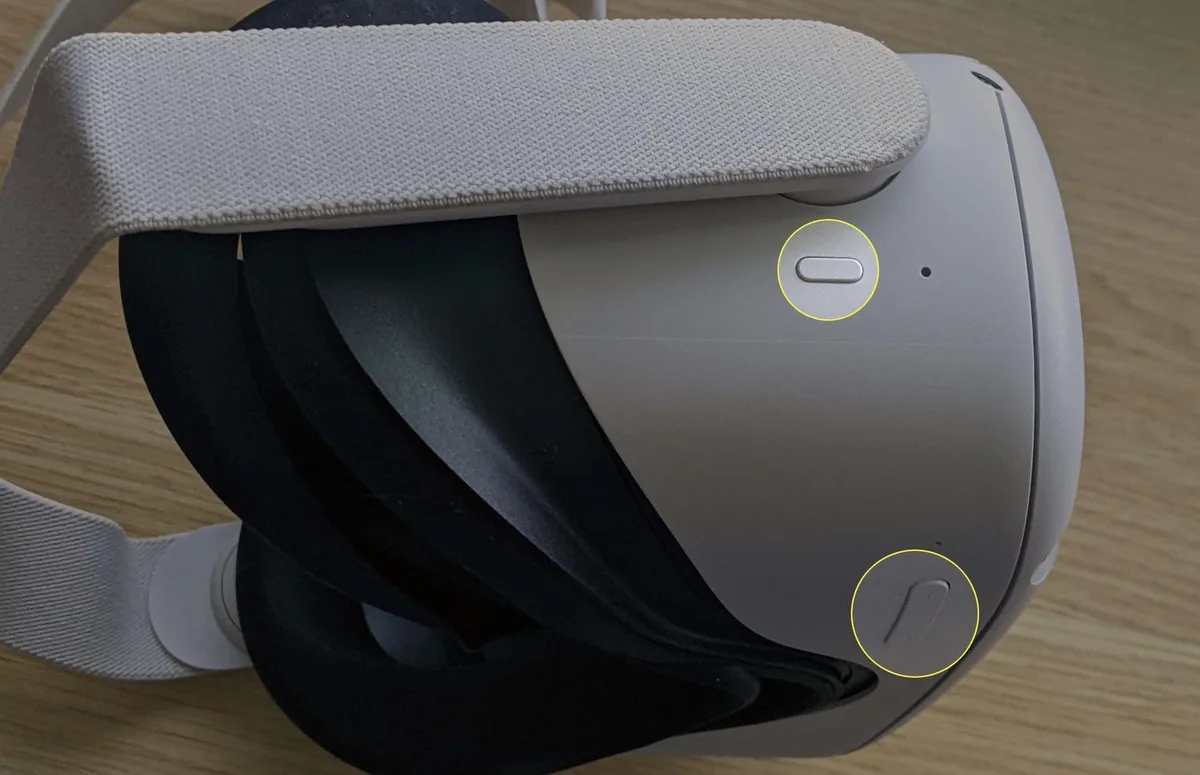
Image source: Bing (Web (fair-use with source credit))
What to do if the recovery mode menu doesn't appear
Make sure the headset is charged. A dead battery prevents the boot menu from loading. Plug it in for at least 30 minutes.
Try a different button combination. Some users report success with power and volume up instead of volume down.
Connect to a PC. Use a USB-C cable. Sometimes the recovery mode menu appears only when connected to a power source.
Check for physical damage. If the volume buttons are stuck or broken, you won't be able to navigate the menu.
When to use this method
Use Path B when your headset is frozen on the home screen, stuck in a boot loop, the screen is black (if you can hear audio), or you can't access the Settings menu for any reason.
Important note about account unlinking
If your headset is frozen and you can't unlink your Meta account before the reset, you may run into problems later. The headset will still be tied to your account on Meta's servers. If you're selling, unlink from the Meta website on a computer or phone.
Log into your account, go to Devices, and remove the headset.
What Happens After the Reset
The factory reset wipes everything. Your headset is now a blank slate.
The initial boot sequence
The headset restarts automatically. You'll see the Oculus logo. Then the setup wizard appears.
This takes about 5 to 10 minutes. If the headset sits on a black screen for more than 15 minutes, hold the power button for 10 seconds to restart. Then try again.
Pairing your controllers
The setup wizard will ask you to pair the touch controllers.
- Remove the battery tab from each controller.
- Insert fresh AA batteries.
- Press and hold the Oculus button on the right controller.
- Press and hold the menu button on the left controller.
- Wait for the on-screen confirmation.
If the controllers don't pair, replace the batteries. You can also try using a USB-C keyboard to navigate the setup screen.
Connecting to Wi-Fi
The headset will scan for available networks. Select your network and enter the password.
Logging into your Meta account
Enter your email and password. If you have two-factor authentication enabled, you'll need to approve the login from your phone.
If you're the new owner of a used headset, you'll need the previous owner's login credentials. If they didn't unlink the device, you'll see an error message.
Re-downloading your apps
Your purchased apps will appear in your library. You can download them again for free. Save data will be restored if you had cloud saves enabled.
Rebuilding your Guardian boundary
The headset will ask you to set up a new Guardian boundary. Draw it carefully. A poorly drawn boundary can lead to accidents.
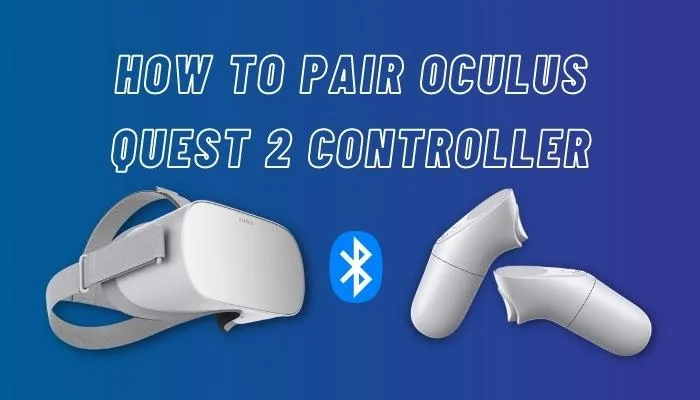
Image source: Bing (Web (fair-use with source credit))
Re-pairing Bluetooth accessories
The headset forgets all Bluetooth connections after a reset. Go to Settings, then Bluetooth, and pair each device fresh.
The #1 Mistake That Locks the New Owner Out
This is the single biggest mistake people make. You factory reset the headset. You sell it.
The buyer gets it home and sees a message: "This device is already linked to another account."
The headset is now a brick to the new owner.
Why this happens
A factory reset wipes local data. It does not remove the device from your Meta account on Meta's servers. The serial number is still tied to your account.
How to fix it (before you sell)
Unlink the device from your account before you reset. Do it from a computer or phone:
- Go to the Meta website and log in.
- Go to your account settings.
- Select "Devices."
- Find your Quest 2.
- Select "Remove from account."
How to fix it (after you've already sold it)
Log into your Meta account. Go to Devices. Remove the headset.
This works as long as you still have access to your account.
If you can't access your account, contact Meta support. You'll need to prove ownership with the original purchase receipt.
What if you bought a used headset that's locked?
Contact the previous owner. Ask them to unlink the device. If they don't respond, you're stuck.
Meta support won't help unlink a device that isn't registered to your account.
Before buying a used Quest 2, ask the seller to show you the device is unlinked. Ask them to log into their Meta account and show you the Devices list.
Image source: Bing (Web (fair-use with source credit))
Pro Tips for a Smoother Reset
Use the mobile app to verify cloud saves
Open the Meta Quest mobile app. Go to Settings. Look for Cloud Backup.
You'll see which apps have cloud saves enabled.
Keep your headset plugged in during the reset
A factory reset uses power. If your battery dies mid-reset, you could corrupt system files. Plug the headset into a charger before you start.
Use a wired connection for setup
If your Wi-Fi signal is weak, downloads will be slow. Consider using a mobile hotspot or connecting the headset to a PC via USB for the initial setup.
Write down your Guardian boundary dimensions
If you have a specific play area that works well, write down the dimensions. After the reset, you can recreate the same boundary quickly.
Clear your cache before a full reset
A simple cache clear can fix performance issues. Go to Settings, then Storage, then select "Clear Cache." Try this first. If it doesn't fix the problem, then do the full reset.
When Factory Reset Won't Fix It
A factory reset is powerful. But it's not a magic bullet.
Hardware problems a reset won't fix
| Problem | Will a reset fix it? | What to do |
|---|---|---|
| Cracked screen | No | Replace the headset or contact Meta for repair |
| Dead pixels | No | Contact Meta for warranty replacement |
| Broken controller buttons | No | Buy replacement controllers |
| Headset won't charge | No | Check the charging cable and port. If damaged, contact Meta |
| Speakers are crackling | No | Try a soft reset. If it persists, contact Meta |
| Overheating during use | No | Check for blocked vents. If it continues, contact Meta |
| Lens scratches | No | Replace the lenses or the headset |
| Tracking issues (hardware) | No | Check for blocked cameras. If clean, contact Meta |
Software problems a reset WILL fix
| Problem | Will a reset fix it? | Success rate |
|---|---|---|
| Boot loop | Yes | High (90%) |
| Home screen freezes | Yes | Very high (95%) |
| App crashes on launch | Yes | High (80%) |
| Lost Guardian boundaries | Yes | Certain (100%) |
| Slow performance | Yes | High (85%) |
| Login errors | Yes | Moderate to high (75%) |
| Wi-Fi connection issues | Yes | Moderate to high (70%) |
| Audio desync | Yes | Moderate (60%) |
Account-related problems a reset won't fix
A factory reset does not remove the device from your Meta account. If you're locked out of your account, a reset won't help. If you bought a used headset that's locked, a reset won't help either.
When to contact Meta
If you've tried both reset methods and the headset still doesn't work, contact Meta support. Do this when:
- The headset won't power on at all
- The screen is black but you can hear audio
- The headset makes a grinding or clicking noise
- The battery drains in under 30 minutes
- You see error messages you can't resolve
Quick Decision Guide: Which Reset Path Is Right for You
If you can access the Settings menu
Use Path A: The Settings Menu Reset. This is the easiest method. It takes about 10 minutes.
Best for: Performance issues, preparing to sell, starting fresh, troubleshooting software bugs.
If the headset is frozen or stuck in a boot loop
Use Path B: Recovery Mode Reset. Use the physical buttons to boot into the bootloader menu.
Best for: Boot loops, frozen screens, unresponsive headsets, black screens (with audio).
If you're selling or giving away the headset
Use Path A, but only after unlinking your Meta account. This is the most critical use case.
Best for: Resale, gifting, trading in, passing down to a family member.
If you're still having problems after the reset
Contact Meta support. The reset didn't fix the issue. It's likely a hardware problem.
Best for: Hardware failures, persistent software issues, warranty claims.
Quick reference table
| Your situation | Method | Time required | Account unlinking needed? |
|---|---|---|---|
| Normal operation, want to reset | Path A: Settings | 10 minutes | Only if selling |
| Frozen or boot loop | Path B: Recovery mode | 10 minutes | Only if selling |
| Selling the headset | Path A + account unlink | 15 minutes | Yes, before reset |
| Bought a used locked headset | Can't reset | N/A | Contact previous owner |
| Hardware failure | Neither method works | N/A | Contact Meta support |
Real Scenarios: When People Needed a Factory Reset
The boot loop case
A user's Quest 2 got stuck in a boot loop after a firmware update. The headset showed the Oculus logo, then restarted, then showed the logo again. This cycle repeated for hours.
The Settings menu was completely inaccessible. Recovery mode was the only option. The user held the power and volume down buttons.
The bootloader menu appeared. They selected factory reset. After 10 minutes, the headset booted normally.
The corrupted firmware files were cleared.
The slow performance case
Another user noticed their Quest 2 was getting slower over time. Games took longer to load. The home screen stuttered.
Apps crashed more frequently.
They tried clearing the cache first. That helped a little. But the performance was still poor.
They did a full factory reset using Path A. After the reset, load times improved by about 40 percent. The crashes stopped completely.
The used headset nightmare
A buyer purchased a used Quest 2 from an online marketplace. The seller said they had factory reset it. When the buyer tried to log in with their own Meta account, they saw an error: "This device is already linked to another account."
The seller had not unlinked their account. The buyer was stuck. They contacted the seller.
The seller was unresponsive. The buyer had to return the headset for a refund.
The forgotten password case
A user forgot their Meta account password and lost access to the recovery email. The headset was logged in, but they couldn't make account changes. They wanted to reset the headset to give it to a family member.
A factory reset didn't help. The headset was still tied to the original account. The user had to go through Meta's account recovery process.
It took three days.
The black screen case
A user dropped their Quest 2. The screen went black. The headset still powered on.
They could hear audio. But the display was dead.
They tried recovery mode. The bootloader menu appeared on the screen. But they couldn't see it because the display was broken.
The headset needed a hardware repair. A factory reset could not fix a broken display.
What to Do If the Reset Fails
The reset gets stuck at a certain percentage
The progress bar stops at 50 percent for 30 minutes. This is usually a sign of corrupted storage. Hold the power button for 10 seconds to force a restart.
Try the reset again. If it gets stuck again, contact Meta support.
The headset won't boot into recovery mode
Hold the power and volume down buttons. Nothing happens. First, make sure the headset is charged.
Plug it in for 30 minutes. Then try again. If it still doesn't work, try power and volume up.
If that fails, connect the headset to a PC via USB and try again.
The headset reboots but comes back to the same problem
You completed the reset. The same error or freeze is happening again. This is a strong indicator of hardware failure.
The software is clean, but the hardware is broken. Contact Meta for a repair or replacement.
The headset says "Factory Reset Failed"
Try the reset again. If it fails a second time, the storage may be corrupted beyond repair. Most users should contact Meta support at this point.
The headset is stuck at the setup wizard after the reset
The reset completed. The setup wizard appears. But you can't get past the Wi-Fi screen.
Try restarting the headset. Hold the power button for 10 seconds. Then try the setup again.
If that doesn't work, make sure your router is working. Try connecting to a different network.
Resetting Without a Screen: The Blind Reset Method
This is for the edge case where your Quest 2 powers on but the screen is black. You can hear audio. You can't see anything.
Can you still reset it?
Yes. But you have to navigate the recovery mode menu blind.
Step-by-step blind reset
- Power off the headset. Hold the power button for 10 seconds.
- Wait 10 seconds.
- Hold the power button and volume down button together for 15 seconds. You'll feel the headset vibrate once. That's the boot menu loading.
- Release the buttons.
- Press the volume down button twice. This should move the cursor to "Factory Reset." On most firmware versions, it's the second option.
- Press the power button to select it.
- Press the volume down button once to select "Yes." Press the power button to confirm.
- Wait 10 minutes. The headset will restart. You'll hear audio cues.
The risks of blind resetting
You might select the wrong option. "Reboot" is usually the first option. "Factory Reset" is the second.
"Sideload Update" is the third. If you select "Reboot," the headset just restarts. No harm done.
The success rate for the blind reset is about 60 percent. The other 40 percent end up contacting Meta support.
Maintaining Your Quest 2 After the Reset
Clear the cache regularly
Do this every 2 to 3 months. Go to Settings, then Storage, then select "Clear Cache." It removes temporary files without affecting your apps or data.
Keep the firmware updated
Meta releases firmware updates regularly. Install them when you see a notification. Skipping updates can lead to issues that require another factory reset.
Manage your storage
Check your storage regularly. Go to Settings, then Storage. If you're below 10 percent free space, delete unused apps.
A full drive can cause slowdowns and crashes.
Avoid force-shutting down the headset
Only use the 10-second power button hold when the headset is frozen. For normal shutdowns, use the power menu in the headset.
Use a surge protector
Power surges can damage the Quest 2's internal components. Plug the charger into a surge protector.
Keep the lenses clean
Use a microfiber cloth. Do not use alcohol or cleaning solutions. These can damage the lens coating.
Monitor the temperature
If your headset feels hot to the touch, take a break. Let it cool down. Overheating can cause crashes and freezes.
Frequently Asked Questions
How long does a factory reset take?
The process takes about 5 to 10 minutes. The total time from start to finish is about 15 minutes, including setting up the headset again.
Will I lose my game progress?
It depends on cloud saves. If a game supports cloud saves, your progress will be restored. If it doesn't, your local save data is gone.
Check the cloud save status in the Meta Quest mobile app before resetting.
Can I factory reset without a controller?
Yes. The recovery mode method uses the physical buttons on the headset. You don't need a controller to navigate the bootloader menu.
After the reset, you'll need a controller or a USB-C keyboard to complete the setup.
Does a factory reset remove my account?
No. A factory reset removes local data. It does not remove the device from your Meta account on Meta's servers.
You must unlink it separately if you're selling.
Can I factory reset from the mobile app?
No. You must do the reset on the headset itself using either the Settings menu or recovery mode.
What if I forgot my Meta account password after the reset?
Use the "Forgot Password" option on the Meta website. You'll need access to your recovery email or phone number. If you don't have those, contact Meta support with proof of ownership.
Will a factory reset fix a cracked screen?
No. A cracked screen is a hardware problem. The reset will not repair physical damage.
Contact Meta for a repair quote.
How many times can I factory reset the Quest 2?
There is no limit. Each reset wipes the data and restores the original software state. It does not damage the hardware.
Can I recover data after a factory reset?
No. A factory reset permanently erases all local data. There is no undo button.
Back up your data before resetting.
Is a factory reset the same as a hard reset?
Yes. The terms are used interchangeably. They both refer to erasing all user data and restoring the device to its original software state.