
Selling your PS4? Maybe it's been crashing nonstop and you've had enough. Whatever the reason, knowing how to factory reset PS4 is a skill every owner needs.
It's not complicated, but one wrong step can cost you years of saved data.
Sony gives you two initialization options: Quick and Full. A Quick Initialization takes roughly 15 to 30 minutes. A Full Initialization can run 2 to 8 hours depending on your hard drive size.
Before you choose, you need to understand the difference and what you're trying to accomplish.
Quick Answer
Go to Settings > Initialization > Initialize PS4. Choose Quick or Full. Quick takes 15 to 30 minutes.
Full takes 2 to 8 hours. Back up your saves first. You can also reset via Safe Mode if you're locked out.
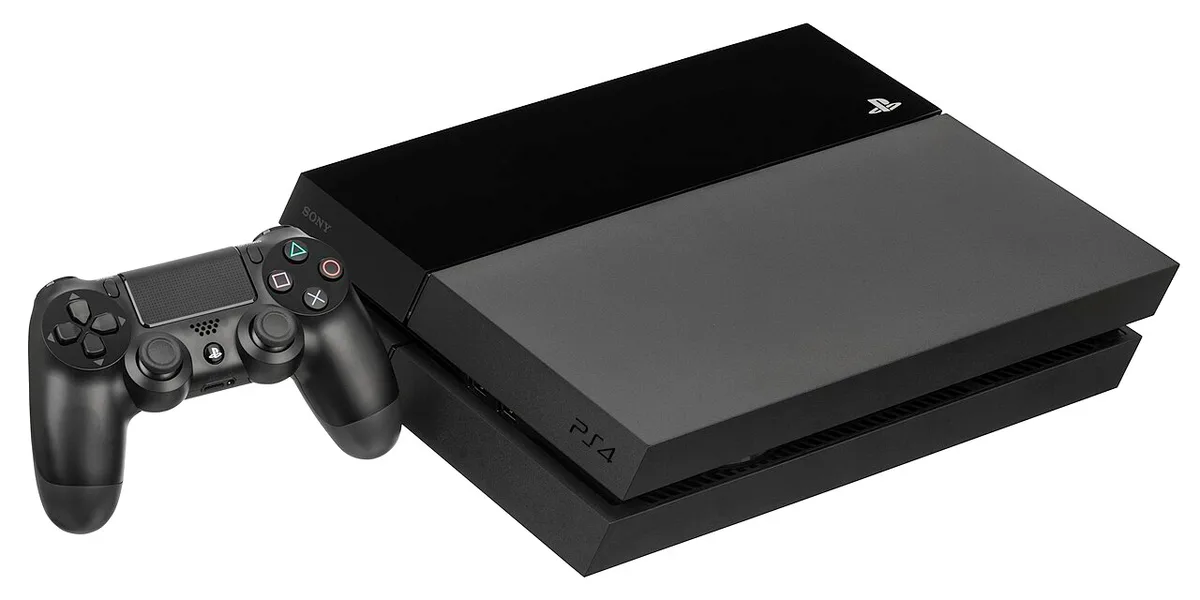
Image source: Wikimedia Commons / Evan-Amos
Diagnose Your Situation: Which Reset Path Do You Need?
Not every factory reset is the same. The right path depends on why you're doing it.
You're selling or giving away the console. You need a Full Initialization. This overwrites the entire hard drive so the next owner can't recover your personal data. A Quick wipe isn't enough for this scenario.
You're troubleshooting crashes or software errors. Start with a Quick Initialization. It wipes user data and settings but leaves the system software intact. If that doesn't fix the problem, you can escalate to a Full Initialization with a system software reinstall.
You're locked out of the console. You forgot your password or the console is stuck in a boot loop. You can't access the Settings menu. You need to boot into Safe Mode using the physical buttons on the console.
You want a completely clean slate. A Full Initialization with system software reinstall wipes everything and reinstalls the operating system from scratch.
| Your Situation | Recommended Method | Time Required |
|---|---|---|
| Selling or giving away | Full Initialization (Settings or Safe Mode) | 2 to 8 hours |
| Troubleshooting crashes | Quick Initialization first | 15 to 30 minutes |
| Locked out or boot loop | Safe Mode initialization | 15 minutes to 2 hours |
| Deep corruption or errors | Full Initialization + system software reinstall | 30 minutes to 2 hours |
| Just want to remove user accounts | Delete user profiles (faster, less thorough) | 5 minutes |
If you're unsure which path applies, start with the least destructive option. You can always go nuclear later.
Quick vs Full Initialization: What Actually Happens
Sony uses two different terms, and they mean very different things under the hood.
Quick Initialization wipes the file table and marks all user data as deleted. It doesn't actually overwrite the data on the drive. Think of it like taking a library card catalog and throwing it away.
The books are still on the shelves. Someone with the right tools could potentially recover them. This is fine for troubleshooting your own console.
It's not fine for selling it.
Full Initialization overwrites every sector of the hard drive with zeros. It's a secure erase. The data is gone and unrecoverable by any standard means.
This is what you want before selling. It's also what you want if you're dealing with deep software corruption that a Quick wipe can't fix.
| Factor | Quick Initialization | Full Initialization |
|---|---|---|
| Time | 15 to 30 minutes | 2 to 8 hours |
| Data security | Low (data recoverable) | High (data overwritten) |
| System software | Left intact | Can be reinstalled |
| Best for | Troubleshooting, quick wipe | Selling, deep corruption |
| Power interruption risk | Low to moderate | High (can brick console) |
The time difference is the biggest practical consideration. A Full Initialization on a 500GB hard drive might take two hours. On a 2TB drive, you're looking at eight hours or more.
Plan accordingly.
One thing many people don't realize: Full Initialization doesn't automatically reinstall the system software. If you choose "Initialize PS4" from the Settings menu, it performs a Full Initialization but leaves the operating system in place. If you want to completely reinstall the OS, you need to use Safe Mode and select the option to reinstall system software.
As of 2026, the PS4 is still a capable console for many players. But the hardware is aging. Full Initialization takes longer than it did when the console was new because of accumulated system cache and fragmentation.
Sony's official PlayStation support documentation recommends Full Initialization for any console changing ownership.
Safe Mode vs Settings Menu: When to Use Each
Your PS4 has two entirely different ways to start a factory reset. One is a normal menu option. The other is a recovery environment that works even when the console is broken.
The Settings Menu method is what you use when your PS4 is working normally. You can navigate to Settings > Initialization > Initialize PS4. This is straightforward.
You can see the screen, confirm your choice, and let the process run. It's the right choice if you can log in and the console is stable.
Safe Mode is a separate boot environment that loads before the main operating system. You access it by holding the power button until you hear two beeps. Safe Mode gives you several options:
- Rebuild Database (fixes corruption without wiping data)
- Reset PS4 (keeps system software, wipes user data)
- Initialize PS4 (Full Initialization)
- Initialize PS4 and Reinstall System Software (the nuclear option)
Use Safe Mode when:
- You can't access the Settings menu
- The console is stuck in a boot loop
- The system crashed during a previous update
- Your controller won't connect to the console
- You need to reinstall the system software from USB
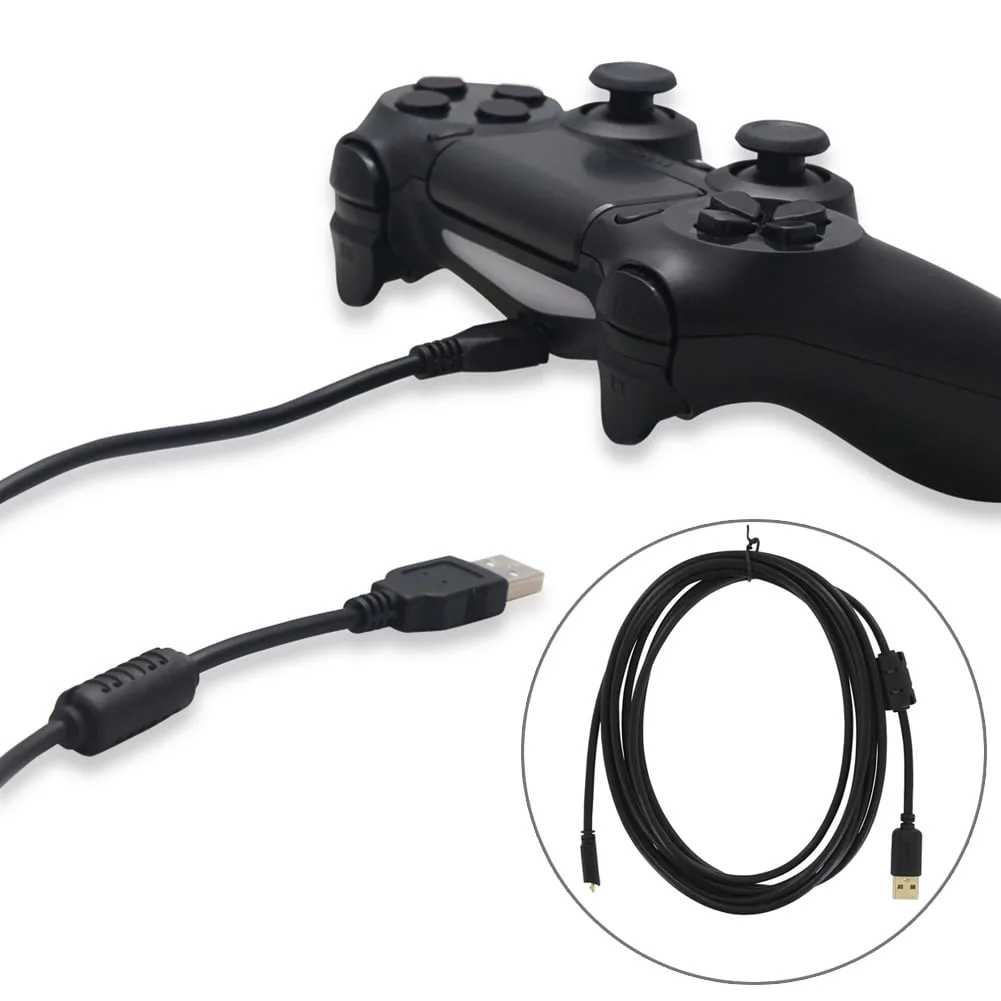
Image source: Bing (Web (fair-use with source credit))
Here's the critical difference: The Settings menu method requires a working operating system. If your PS4 is corrupted, you can't get there. Safe Mode bypasses the main OS entirely.
It's your lifeline when things go wrong.
Another difference: Safe Mode also lets you reinstall the system software from a USB drive. The Settings menu method doesn't. If your system software is damaged, you must use Safe Mode.
Safe Mode requires a wired controller. You must connect your DualShock 4 via USB cable. Bluetooth doesn't work in Safe Mode. This trips up a lot of people.
They boot into Safe Mode, their controller won't connect, and they think the console is broken. It's not. Plug in the cable.
The Critical Prep Work (You'll Regret Skipping This)
This is where most people make their biggest mistake. They jump straight into the reset without preparing. Then they lose everything.
Back Up Your Game Saves
Your game saves are stored on the PS4's internal hard drive. A factory reset wipes them completely. If you have PlayStation Plus, your saves might already be in the cloud.
But don't count on it. Check first.
To back up to the cloud (PS Plus required):
- Go to Settings > Application Saved Data Management
- Select Saved Data in System Storage
- Choose Upload to Online Storage
- Select the games you want to back up
- Hit Upload
To back up to a USB drive:
- Plug a USB drive into your PS4 (FAT32 or exFAT format)
- Go to Settings > Application Saved Data Management
- Select Saved Data in System Storage
- Choose Copy to USB Storage Device
- Select the games you want to back up
- Hit Copy
Back up everything. Not just the games you're currently playing. You might rediscover a game a year from now and want your old save file.
Deactivate Your Primary PS4 (If Selling)
This is a step most people forget. Your PS4 is set as your primary console. That ties your PSN account to it.
If you sell the console without deactivating, the new owner can't set it as their primary console. They also can't play your digital games.
To deactivate from the console:
- Go to Settings > Account Management
- Select Activate as Your Primary PS4
- Choose Deactivate
If you can't access the console, deactivate through the PlayStation website. Log into your account, go to Device Management, and deactivate all consoles. You can only do this once every six months, so use it carefully.
The legal side of reselling: When you sell a console, you're transferring ownership of the hardware. But your digital licenses remain yours. Deactivating your primary console ensures you don't accidentally transfer access to your game library.
The terms and conditions on digital rights apply here.
Download the Right System Software (Just in Case)
Even if you plan to do a Quick Initialization, download the system software file before you start. You might need it. A console that fails mid-reset can be bricked if you don't have the recovery file on hand.
What you need:
- A USB drive (at least 1GB, formatted to FAT32)
- The official PS4 system software file from Sony's support site
Steps:
- Create a folder on the USB drive called
PS4 - Inside that folder, create another folder called
UPDATE - Download the PS4 system software file from Sony's official support page
- The file should be named
PS4UPDATE.PUP - Copy it into the
UPDATEfolder
Important: Use the correct file for your region. The US, EU, and Japanese versions are different. Using the wrong one gives you an error.
Sony's website detects your region automatically, but double-check if you're using a VPN or ordering from a different country.
The file is about 1GB. Do this before you start the reset. Trying to download it after you've already wiped the console is a headache.
You'll need to use another computer.
The USB drive must be formatted correctly. FAT32 works with all PS4 models. exFAT works with newer system software versions. NTFS doesn't work.
If you're unsure, use FAT32.
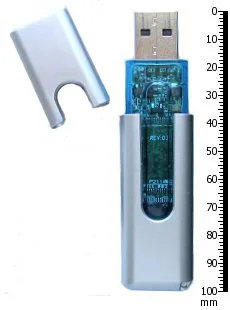
Image source: Wikimedia Commons / Dori
Step-by-Step: Reset from the Settings Menu (If You Can Log In)
This is the easiest path. Your PS4 boots normally. You can navigate the menus.
Your controller works. In about 15 minutes, you will have a clean console ready to go.
Before you start: Make sure you completed all the prep work from the previous section. Back up your saves. Deactivate your primary console if you are selling.
Have your USB drive ready with the system software file just in case.
Here are the exact steps:
Turn on your PS4 and log into your account.
Navigate to Settings from the main menu. It's the briefcase icon on the far right.
Scroll down to Initialization. It sits near the bottom of the Settings list.
Select Initialize PS4. Sony shows you a warning screen explaining what will happen.
Choose between Quick and Full. Refer back to the comparison table in section two. Quick takes 15 to 30 minutes. Full takes 2 to 8 hours.
Confirm your choice. The console will restart and begin the process.
Wait. Do not touch the console. Do not unplug it. Let it run.
When finished, the PS4 restarts into the initial setup screen. You will see language selection, network setup, and date/time configuration.
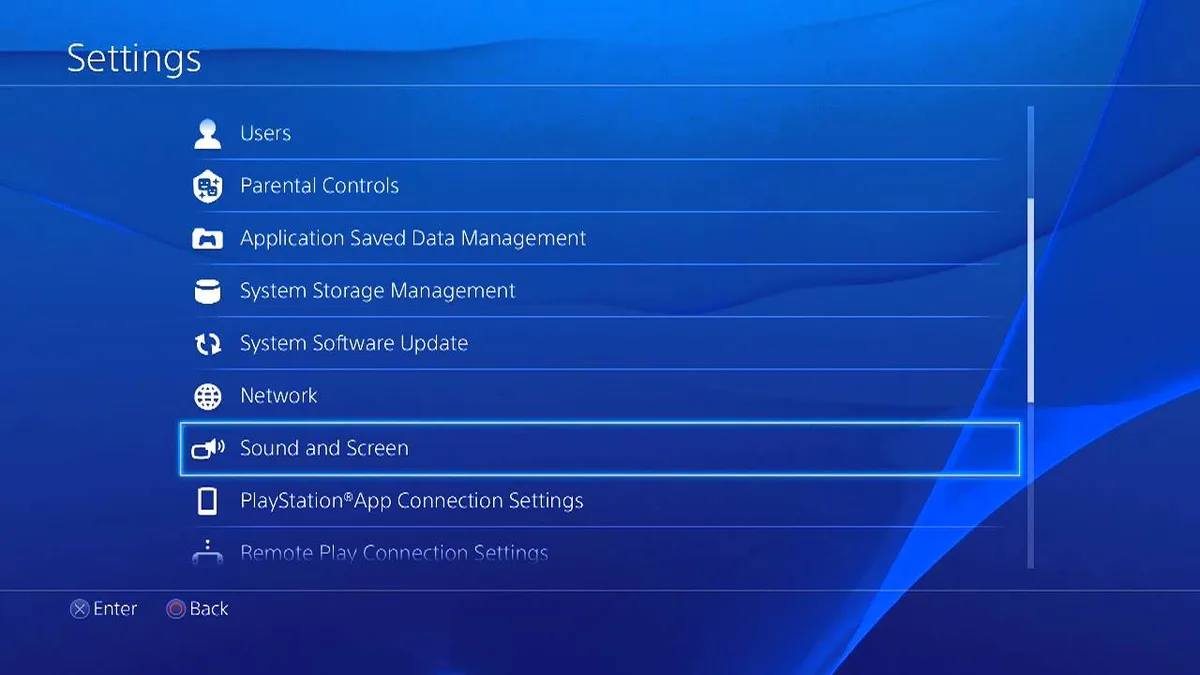
Image source: Bing (Web (fair-use with source credit))
A few things to watch for:
The screen may go black for several minutes during the process. This is normal. The console is working.
Do not panic and unplug it.
If the process freezes for longer than 30 minutes without any hard drive activity, you might have a hardware issue. Force a shutdown by holding the power button for 10 seconds. Then boot into Safe Mode and try again.
When is this method the right call?
Use it when your PS4 is stable and you can navigate normally. Use it when you want a quick wipe for troubleshooting. Use it when you don't need the extra data security of a Full wipe.
When should you avoid it?
Avoid it if you are selling the console and need secure data erasure. The Safe Mode method gives you more control. Also avoid it if your console is crashing or freezing regularly.
You might not make it through the menu navigation before it locks up.
Take a photo of the confirmation screen. It shows the time remaining and the initialization type. If something goes wrong, you have proof of what you selected. This helps if you need Sony support later.
Step-by-Step: Reset via Safe Mode (If You're Locked Out or Broken)
Safe Mode is your recovery environment. It loads before the main operating system. It works even when your PS4 is completely broken.
This is how you reset a console that won't boot or one you cannot log into.
How to enter Safe Mode:
Make sure the PS4 is completely powered off. Not in rest mode. Fully off.
Connect your DualShock 4 controller with a USB cable. Bluetooth does not work in Safe Mode.
Press and hold the power button on the console. You will hear one beep immediately. Keep holding.
After about 7 seconds, you will hear a second beep. Release the power button.
The console boots into Safe Mode. You will see a black screen with a menu. The menu has several numbered options.
What you will see in Safe Mode:
| Option Number | Option Name | What It Does |
|---|---|---|
| 1 | Restart PS4 | Exits Safe Mode and boots normally |
| 2 | Change Resolution | Resets display output to a lower resolution |
| 3 | Update System Software | Installs system software from disc or USB |
| 4 | Restore Default Settings | Resets settings but keeps user data |
| 5 | Rebuild Database | Defragments the hard drive and fixes corruption |
| 6 | Reset PS4 | Quick initialization (wipes users, keeps system software) |
| 7 | Initialize PS4 | Full initialization (overwrites the drive) |
| 7 (extended) | Initialize PS4 and Reinstall System Software | Full wipe plus fresh OS install |
For a standard factory reset in Safe Mode:
Select option 6 (Reset PS4) for a quick wipe. Select option 7 (Initialize PS4) for a full wipe. Navigate the menu using the D-pad on your controller.
Confirm selections with the X button.
The process looks like this:
Boot into Safe Mode using the two-beep method.
Connect your controller via USB. Wait for it to register. This can take 10 to 15 seconds.
Select option 6 or 7 depending on your needs.
Read the warning screen. It tells you exactly what will be deleted.
Confirm your choice. The console begins the initialization.
Wait. Safe Mode initialization takes longer than the Settings menu method. You might see a progress bar or just a black screen.
When finished, the console restarts. You will see the initial setup screen.
Common Safe Mode problems and fixes:
You can't get the second beep. You are not holding the power button long enough. Keep holding for a full 10 seconds. The second beep comes at about 7 seconds.
Your controller won't connect. Check the USB cable. Not all cables support data transfer. Some are charge-only.
Try a different cable. Also try a different USB port on the console.
The screen is black with no menu. This can happen if your display doesn't support the default Safe Mode resolution. Try option 2 (Change Resolution) if you can navigate blindly. Or connect to a different TV or monitor.
Safe Mode loops back to itself. The console keeps booting into Safe Mode instead of starting normally. This indicates corrupted system software. You likely need option 7 with a system software reinstall.
A note on timing: Safe Mode initialization can appear frozen. The screen might stay black for 45 minutes on a Full Initialization. This is normal for larger hard drives.
Give it time.
Step-by-Step: Full Reinstall of System Software (The Nuclear Option)
This is the most thorough reset available. It wipes the entire hard drive. Then it installs a fresh copy of the PS4 operating system.
This fixes almost every software problem. It also ensures no personal data remains on the drive.
When to use this:
- You are selling the console and want maximum data security
- The standard reset failed or got interrupted
- The console is stuck in a Safe Mode loop
- You are getting error codes that standard fixes cannot resolve
- The system software is corrupted beyond repair
What you need:
- A USB drive with at least 1GB of space
- The correct system software file from Sony's official support site
- A computer to download and transfer the file
- A wired controller
Preparing the USB drive:
Format your USB drive to FAT32. Some newer system software versions support exFAT. Use FAT32 to be safe.
Create a folder called
PS4on the root of the drive. The name must be all uppercase.Inside the
PS4folder, create another folder calledUPDATE. Again, all uppercase.Download the PS4 system software file from Sony's official support page. The filename is
PS4UPDATE.PUP.Copy the
PS4UPDATE.PUPfile into theUPDATEfolder.Your drive structure should look like this:
USB Drive > PS4 > UPDATE > PS4UPDATE.PUP
The exact file you need matters. Sony provides two different files on their support page. One is for updating a working console. The other is for a fresh installation in Safe Mode.
Make sure you download the one labeled for reinstallation. The file is roughly 1GB in size.
Running the reinstallation:
Insert the USB drive into your PS4. Use one of the front USB ports.
Boot into Safe Mode using the two-beep method.
Connect your controller via USB cable.
Select option 7. It will show as "Initialize PS4 (Reinstall System Software)" on most system versions.
The console detects the USB drive and the system software file. It verifies the file integrity.
Confirm the reinstallation. The process begins.
The console formats the hard drive. It installs the system software from the USB drive.
When finished, the console restarts into the initial setup screen.
What happens during the process:
The console first erases the entire hard drive. This takes 5 to 10 minutes. Then it copies the system software files from the USB drive.
This takes another 10 to 15 minutes. Then it installs and configures the operating system. This takes 15 to 20 minutes.
Total time: roughly 30 to 45 minutes for most consoles.
If the reinstallation fails:
Check your USB drive. Try a different one. Some USB drives have compatibility issues with the PS4.
Also check the file structure. One wrong folder name or file location causes the console to reject the update.
Common error code: SU-30638-4. This means the console cannot find the update file. Double check your folder names.
They must be PS4 and UPDATE in all caps with no spaces.
Another error: SU-30747-0. This means the system software file is corrupted or incorrect. Download the file again from Sony's official site.
Ensure you selected the reinstallation file, not the update file.
After the reinstallation:
The console is now factory fresh. No user data. No accounts.
No saved games. No settings. You must go through the initial setup process:
- Select your language
- Connect to Wi-Fi or Ethernet
- Set the date and time
- Sign into your PSN account
- Download any backed up saves
One important note: A full system software reinstall does not remove a console ban. If your PS4 was banned from PSN for violating terms of service, the ban remains. It is tied to the console's hardware ID, not the software.
What to Do If the Reset Fails or Gets Interrupted
Resets fail for three main reasons. Power loss. Corrupted files.
Hardware failure. Each requires a different response.
Power loss during reset.
If the power goes out or someone unplugs the console, stop everything. Do not try to restart immediately. Wait at least 30 seconds.
Then try to boot the console normally.
If it boots normally, check if the reset completed. Sometimes the console saves progress during the wipe. You might need to start over.
If the console does not boot normally, go directly to Safe Mode. Try a Quick Initialization first. If that fails, use the system software reinstallation method with a USB drive.
Warning: Repeated power loss during initialization can damage the hard drive. If your console fails to boot after three attempts, the hard drive might be failing. Consider replacing it before attempting another reset.
The reset freezes mid-process.
Look at the hard drive activity light. If it is blinking, the console is working. Give it more time.
Some resets pause for 10 to 15 minutes on certain steps.
If the hard drive light is solid (not blinking) and the screen has not changed for 30 minutes, the console has likely frozen. Hold the power button for 10 seconds to force a shutdown. Then boot into Safe Mode and try again.
Error codes during the reset.
| Error Code | Meaning | Solution |
|---|---|---|
| CE-34878-0 | General software error | Rebuild database in Safe Mode before retrying |
| CE-34788-0 | Corrupted data detected | Delete the corrupted file or use system software reinstall |
| SU-30638-4 | Update file not found | Check USB folder names and file location |
| SU-30747-0 | Update file corrupted | Redownload the system software file |
| NP-32004-0 | PSN account issue | Deactivate console and try again |
The USB drive isn't recognized.
Try a different USB port. The front ports are more reliable. Also try a different USB drive.
Some older drives have compatibility issues with the PS4. Format the drive again. Use FAT32.
Some Windows tools format drives as NTFS by default. That won't work.
The controller won't connect in Safe Mode.
Many phone charging cables only carry power. Try the cable that came with your PS4. If you lost it, buy a new one specifically labeled for data.
Also reset the controller itself. On the back of the DualShock 4, near the L2 button, there is a small hole. Insert a paperclip or SIM eject tool to press the reset button.
Then reconnect the controller via USB.
Hardware failure signs.
If the console makes clicking noises during the reset, the hard drive might be failing. If the console overheats and shuts down, check the vents for dust. If the console still does not work after a successful reset, the problem is hardware.
When to call it quits:
If you tried a full system software reinstallation and the console still has issues, the problem is likely hardware. The hard drive might need replacement. The power supply might be failing.
The HDMI port might be damaged. Contact Sony support or take the console to a repair shop. Attempting further resets will not fix hardware problems.
Expert Tips for a Smooth Reset
These tips come from aggregate user reports and manufacturer documentation. They save time and prevent frustration.
Use a wired internet connection during the reset setup. After the reset, the console needs to download updates and sync with PSN. Wireless connections can drop during large downloads. A wired Ethernet connection is more stable.
Write down your PSN account details before resetting. You will need to sign in after the reset. If you forgot your password, reset it before starting the wipe. You cannot reset a password on a wiped console without another device.
Remove any external storage before starting. External USB drives and external hard drives should be disconnected. The initialization process does not touch them, but they can interfere with Safe Mode boot sequences.
Have a second controller available. If your primary controller dies mid-process, you are stuck. A wired controller with a fresh battery or a second DualShock 4 gives you a backup.
Let the console sit for 10 minutes after the reset. The initial setup phase can be laggy. The console is indexing the hard drive and configuring system files. Give it a few minutes before trying to install games or sign into PSN.
Do not restore an old system backup. If you backed up your entire PS4 using the backup utility, restoring it after a reset defeats the purpose. You restore any corruption or instability along with your data. Only restore game saves and screenshots.
Set everything else up fresh.
Check for system software updates after reset. The system software file you downloaded might be outdated. After the reset, the console will check for updates. Let it install the latest version.
This fixes known bugs and security vulnerabilities.
Test the console before handing it off. If you are selling the PS4, test it after the reset. Make sure it boots normally. Make sure the controller pairs correctly.
Make sure the HDMI output works. A working console sells faster and for a better price.
Understand what the reset cannot fix. A factory reset cannot fix hardware problems. It cannot remove a console ban. It cannot repair physical damage to the disc drive, HDMI port, or power supply.
If your console has these issues, a reset will not help.
Use Full Initialization for peace of mind. If you are selling your console, always use Full Initialization. The extra time is worth the data security. Quick Initialization leaves data recoverable.
The disclaimer covers data security practices. Take it seriously.
Know when to rebuild the database instead. Rebuilding the database is less destructive than a full reset. It defragments the hard drive and reorganizes data. It fixes many performance issues without wiping your games and saves.
Try this before resorting to a full factory reset.
Prepare for the wait. A Full Initialization on a 500GB drive takes about 2 hours. On a 2TB drive, it takes 6 to 8 hours. Plan accordingly.
Start the reset before bed or before leaving for work. Let it run uninterrupted.
Mistakes That Wipe Out Your Data for Good
Some mistakes are recoverable. These are not. A single wrong move and your game saves, screenshots, and trophies vanish forever.
Skipping the backup. This is the number one mistake. You think you will remember your saves. You think cloud sync is automatic.
PS Plus cloud saves only work if you manually uploaded them. The automatic upload feature has a delay. If you reset immediately after finishing a game, the save might not be in the cloud yet.
Local saves on the hard drive are gone after any initialization. There is no recovery tool for PS4 hard drives. Sony does not offer a data recovery service for individual users.
Forgetting to deactivate your primary console. You sell the console. The new owner sets it up. They try to activate their account as primary.
They get an error. Your account is still attached. You can deactivate remotely through the PlayStation website.
But you can only do this once every six months. If you already used that option, you are stuck.
Using the wrong USB folder structure. You download the system software file. You copy it to a USB drive. You boot into Safe Mode.
The console says "Cannot find the update file." The correct folder structure is PS4 > UPDATE > PS4UPDATE.PUP. Any deviation causes the error.
Interrupting the reset process. Someone in your house sees the PS4 on and unplugs it. The reset was 80 percent complete. Now the console might not boot.
The system software is partially written. The file table is half erased. You need a full system software reinstallation from USB.
If that fails, the hard drive might be corrupted.
Choosing Quick when you needed Full. You are selling the console. You choose Quick Initialization because it is faster. The new owner runs a data recovery tool.
They find your old PSN login details, saved passwords, and personal information. Quick Initialization marks the data as deleted. It does not overwrite it.
Anyone with basic recovery software can pull files from the drive. Full Initialization is the only safe option for resale.
Not removing external storage. You have an external hard drive connected. You run the reset. The console does not touch the external drive.
But the system configuration that references it is gone. After the reset, the external drive shows as unrecognized. You have to reformat it.
Formatting wipes all games stored on it.
Ignoring the error codes. The reset fails with an error code. You try again. It fails again.
You try a third time without checking what the code means. Error codes are diagnostic tools. CE-34878-0 means corrupted data.
SU-30638-4 means the USB file structure is wrong. Each code points to a specific problem. Fixing the problem is faster than guessing.
Skipping the system software download. You plan to do a Quick Initialization. You do not download the system software file. The reset fails halfway through.
Now the console will not boot. You need the file to recover. You have to find another computer.
Download the file. Copy it to a USB drive. Then boot into Safe Mode.
This adds 30 minutes to what should have been a simple process.
Resetting a console with a failing hard drive. The console has been making clicking noises. Games take forever to load. The reset seems like a fix.
It is not. A factory reset puts maximum stress on the hard drive. The drive reads and writes every sector.
A failing drive can die completely during the process. Then you have a console that needs a new hard drive and a system software reinstallation.
Not testing the console after the reset. You reset the console. You pack it up. You ship it to the buyer.
The buyer says it does not work. The HDMI port is dead. The disc drive is stuck.
The console overheats after 10 minutes. The reset did not cause these issues. They were already there.
But now you have a return to deal with. Always test the console for at least 30 minutes after a reset.
Your Quick Decision Tree Cheat Sheet
This is the section to bookmark. When you are standing in front of your PS4 wondering what to do, this gives you the answer.
Start here.
Can you boot the console normally and access the Settings menu?
Yes. Go to the first branch.
No. Go to the second branch.
Branch 1: You can access Settings.
Are you selling or giving away the console?
Yes. Back up your saves. Deactivate your primary console. Download the system software file to USB.
Go to Settings > Initialization > Initialize PS4. Choose Full Initialization. Wait 2 to 8 hours.
Test the console.
No. Are you troubleshooting crashes or errors?
Yes. Back up your saves. Go to Settings > Initialization > Initialize PS4. Choose Quick Initialization.
Wait 15 to 30 minutes. Test the console. If problems persist, try Full Initialization.
No. Are you just clearing out old accounts?
Yes. Go to Settings > Users > Delete User. This removes the account without wiping the whole console. Faster and safer than a full reset.
Branch 2: You cannot access Settings.
Can you boot the console at all?
Yes, but it crashes or freezes. Boot into Safe Mode. Select option 5 (Rebuild Database). This fixes many corruption issues without wiping data.
If that does not work, select option 6 (Reset PS4) for a Quick Initialization.
No, the console does not boot. Boot into Safe Mode. If Safe Mode loads, select option 7 (Initialize PS4 and Reinstall System Software). You need a USB drive with the system software file.
No, Safe Mode does not load either. The console has a hardware problem. The hard drive might be dead. The power supply might be failing.
The motherboard might have damage. This is beyond a software reset. Contact Sony support or a repair shop.
Branch 3: Special situations.
You forgot your password and cannot log in.
Solution. Boot into Safe Mode. Select option 6 (Reset PS4) or option 7 (Initialize PS4). This wipes the user accounts.
You can set up a new account after the reset. You do not need the old password.
The console is stuck in a Safe Mode loop.
Solution. It keeps booting into Safe Mode no matter what you do. The system software is corrupted. Download the system software file to USB.
Boot into Safe Mode. Select option 7 with reinstallation. This gives you a fresh operating system.
You want to keep your games but fix performance issues.
Solution. Do not reset. Boot into Safe Mode. Select option 5 (Rebuild Database).
This defragments the hard drive and reorganizes data. It fixes many performance problems without deleting anything.
You are worried about data security.
Solution. Always use Full Initialization. If you are extremely security conscious, remove the hard drive and physically destroy it after the reset. Then install a new hard drive.
This is overkill for most people, but it is the only way to guarantee data is unrecoverable.
The one sentence summary for each situation:
| Situation | Action |
|---|---|
| Selling the console | Full Initialization from Settings |
| Troubleshooting crashes | Quick Initialization from Settings |
| Locked out of console | Safe Mode with option 6 or 7 |
| Console will not boot | Safe Mode with USB reinstallation |
| Just removing an account | Delete user from Settings |
| Slow performance | Rebuild Database in Safe Mode |
| Safe Mode loop | USB system software reinstallation |
Frequently Asked Questions
Will a factory reset remove my PSN account?
Yes. A factory reset deletes all user accounts from the console. Your PSN account still exists on Sony's servers.
You can sign into it again after the reset. You do not lose your digital game licenses or your PlayStation Plus subscription. Those are tied to your account, not the console.
How long does a PS4 factory reset take?
A Quick Initialization takes 15 to 30 minutes. A Full Initialization takes 2 to 8 hours depending on the hard drive size. A 500GB drive takes about 2 hours.
A 2TB drive can take 6 to 8 hours. The system software reinstallation adds another 30 to 45 minutes.
Can I factory reset a PS4 without a controller?
No. You need a controller to navigate the menus and confirm the reset. In Safe Mode, the controller must be connected via USB cable.
Bluetooth does not work in Safe Mode. If your controller is broken, you need a replacement before you can reset.
Will a factory reset fix a broken PS4?
It depends on the problem. A factory reset fixes software issues like corrupted system files, crashing games, and boot loops. It does not fix hardware issues like a broken HDMI port, a failing hard drive, a dead power supply, or a disc drive that will not read discs.
Do I need PlayStation Plus to back up my saves?
No. You can back up saves to a USB drive without PlayStation Plus. The PS Plus cloud backup feature requires an active subscription.
USB backup works for everyone. Use a USB drive formatted to FAT32 or exFAT with enough space for your save files.
Can I cancel a factory reset once it starts?
Do not try. Interrupting a factory reset can corrupt the system software and make the console unbootable. If you started the wrong type of reset, let it finish.
Then you can run the correct type afterward. A completed reset is always better than an interrupted one.
Will a factory reset remove a console ban?
No. A console ban is tied to the hardware ID of the PS4. It is stored in the system's firmware, not on the hard drive.
A factory reset does not change the hardware ID. If your console is banned from PSN, a reset will not lift the ban. You need to contact Sony support for ban appeals.
Can I recover data after a factory reset?
No. A Full Initialization overwrites the entire hard drive. The data is gone permanently.
A Quick Initialization marks the data as deleted but does not overwrite it. In theory, data recovery tools might recover some files. In practice, Sony does not provide recovery tools, and third party tools rarely work on PS4 drives.
Assume all data is lost after any reset.
Do I need to reconnect my controller after the reset?
Yes. After the reset, the console goes through the initial setup process. You need to pair your controller again.
Connect it via USB cable during setup. The console will detect it and pair wirelessly afterward. If you have multiple controllers, you need to pair each one separately.
Can I factory reset a PS4 to sell it without the original box?
Yes. The box is not required. You just need the console, a power cable, an HDMI cable, and one controller.
The buyer will need those to use it. The factory reset ensures the console is clean and ready for the new owner. Include a USB cable for the controller in case the buyer needs to boot into Safe Mode.