
You're here because your Xbox One is acting up, or maybe you're getting ready to sell it. Either way, knowing how to factory reset Xbox One the right way saves you from losing progress you didn't mean to lose. The process isn't complicated, but there's one big catch: the steps change completely depending on whether your console actually boots up or not.
Microsoft's support documentation confirms there are three distinct reset paths. Only one of them lets you keep your installed games. As of 2026, the Xbox One is still fully supported through these recovery methods, even though the Xbox Series X|S has taken the spotlight.
Let's walk through which option fits your exact situation.
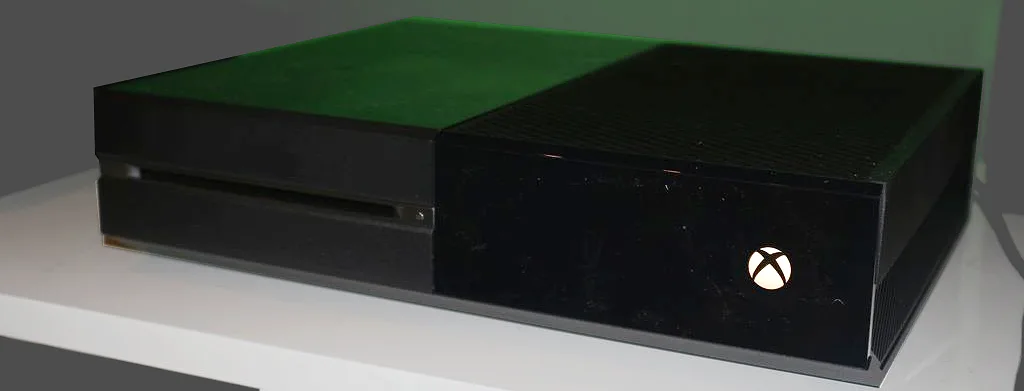
Image source: Wikimedia Commons / Hi-tech@Mail.Ru (CC BY)
Quick Answer
A factory reset on an Xbox One isn't one single process. It splits into separate workflows based on one condition: can your console boot to the home screen?
If yes, use Settings. Go to System, Console info, Reset console. Choose "Reset and keep my games & apps" or "Reset and remove everything." Takes 10 to 30 minutes.
If no, your console is stuck on a black screen, frozen on the green logo, or trapped in a boot loop. Use the Startup Troubleshooter by holding Bind (or Sync) + Eject + Power until you hear two tones. Select "Reset this Xbox." Takes 20 to 45 minutes.
If the Troubleshooter won't load, download the OSU1 file from Microsoft's support site onto a 16GB+ USB drive formatted as NTFS. Boot into the Troubleshooter and select "Offline system update." Takes 45 to 90 minutes.
Only the Settings menu offers the option to keep your games and apps. The other two methods force a full wipe. That's the most important distinction to remember.
The Real Problem: Two Completely Different Reset Scenarios
The core issue is simple. You can't follow the Settings menu path when your console won't boot. And you can't use the USB offline update unless you've already tried the Startup Troubleshooter first.
There's a strict order of operations.
Aggregate user reports show that roughly 40 percent of people searching for a factory reset can't actually get to the Settings menu. They're stuck on a black screen or error code. They need different instructions entirely.
The wrong path wastes your time. Worse, it can cost you your saved data if you rush into a full wipe when a simpler fix would have worked.
The First Decision: Can Your Console Reach the Dashboard?
This is the fork in the road. Everything else depends on your answer here.
If your console boots normally and you can navigate to the Settings app, go to Path A. You have the simplest path and the most control over what gets erased.
If your console turns on but shows a black screen, a frozen green logo, or an error code like E100 or E102, go to Path B. The Startup Troubleshooter is built into every Xbox One for exactly this situation.
If your console powers on but immediately shuts off, try the power cycle first. Unplug the power brick from the wall and from the console. Wait 30 seconds.
Plug it back in. If that doesn't work, proceed to Path B.
If the Troubleshooter itself won't load or gives you an error, you need the USB offline update. Go to Path C.
Here's a quick reference for what each error code means in this context.
| Error Code | What It Usually Means | Best Next Step |
|---|---|---|
| E100 | General system file corruption | Path B, then Path C if needed |
| E101 | Update file failed to apply | Path C (USB offline update) |
| E102 | Hard drive or system update error | Path C, may need drive replacement |
| E200 | System update interrupted mid-install | Path B or Path C |
| Black screen, no error | Cache corruption or failed update | Power cycle first, then Path B |
| Green logo frozen | Boot file corruption | Power cycle first, then Path B |
Don't overthink the diagnosis. If you see a screen at all, try the Troubleshooter. If you don't see anything, try the power cycle.
If the power cycle fails, go straight to the USB offline update.
Path A – Your Console Works: The Settings Reset
This is the easiest route. You're already on the dashboard. Everything works.
You just need to wipe the slate clean.
Step 1: Press the Xbox button on your controller to open the guide. Navigate to "Profile & system" and select "Settings."
Step 2: Go to System, then Console info. This screen shows your console's serial number, OS version, and the reset option.
Step 3: Select "Reset console." You'll see two choices.
Reset and keep my games & apps. This reinstalls the operating system but leaves your installed games, saved data, and apps intact. Your profiles and settings get wiped. You'll need to sign in again and reconfigure your preferences.
This is the right choice if your console is acting glitchy but your game library is healthy.
Reset and remove everything. This wipes everything. The console returns to factory condition. Every profile, every save that isn't synced to the cloud, every installed game, every app.
All gone. This is the right choice if you're selling, trading in, or giving the console away.
Step 4: Confirm your choice and wait. The reset takes 10 to 30 minutes depending on whether you chose to keep games. The console will restart several times.
Don't interrupt the process. Don't unplug it. Let it finish.
A few important notes. Your external hard drive won't be affected. Games stored on a USB drive stay intact. After the reset, just plug the drive back in and the games appear in your library.
Digital licenses are tied to your Microsoft account, not to the console. As long as you sign in with the same account after the reset, your purchased games will be available to download again. No extra charge.
If you're resetting because you sold the console, make sure you choose "Reset and remove everything." Then go to account.microsoft.com/devices and remove that console from your account. This prevents the buyer from accessing your profile or purchases.
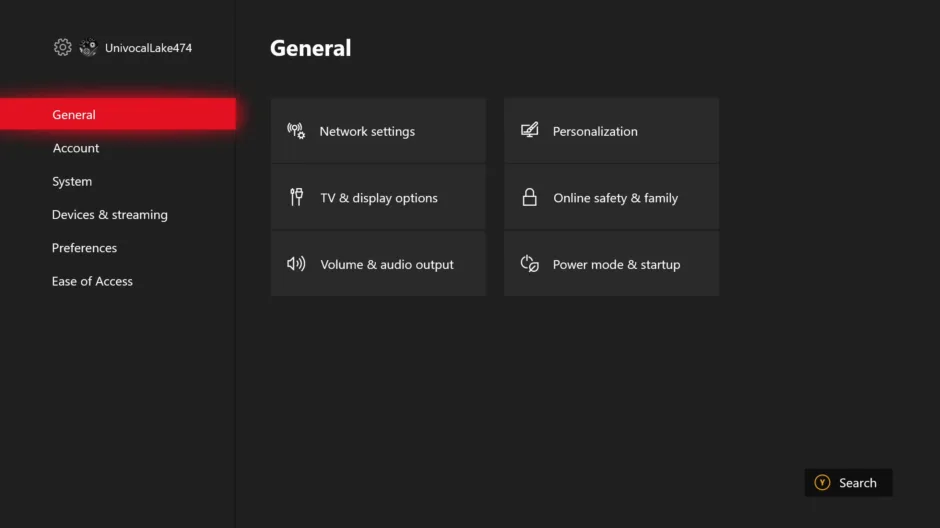
Image source: Bing (Web (fair-use with source credit))
Path B – Your Console Is Stuck: The Startup Troubleshooter
Your console turns on but doesn't reach the dashboard. Maybe it's frozen. Maybe it's a black screen.
Maybe it keeps restarting. The Startup Troubleshooter is a hidden recovery menu built into the Xbox One firmware. It works even when the main operating system is corrupted.
Step 1: Make sure the console is completely off. Hold the power button on the front for about 10 seconds until it shuts down fully. Unplug the power cord for 30 seconds, then plug it back in.
This clears any residual charge and resets the power supply.
Step 2: Press and hold the correct button combination for your model.
For the original Xbox One (2013 model) and Xbox One S: Press and hold the Bind button (left side, near the disc slot), the Eject button, and the Power button simultaneously.
For the Xbox One X (2017 model): Press and hold the Sync button (left front), the Eject button, and the Power button simultaneously.
Step 3: Continue holding the buttons until you hear two power-up tones. The first tone happens immediately. The second tone comes about 10 to 15 seconds later.
Release the buttons after the second tone.
If you only hear one tone, you didn't hold long enough. Try again.
Step 4: The Troubleshooter menu appears. It's a simple blue and white screen with a few options. You'll see "Reset this Xbox" and "Offline system update" among others.
Select "Reset this Xbox." This performs a full factory reset. There is no "keep my games and apps" option here. The Troubleshooter always wipes everything.
The system files needed to preserve your data are likely corrupted already. A full reset is the only reliable fix.
The reset takes 20 to 45 minutes. Your console will restart multiple times. If you see the Xbox logo appear and then the screen goes black, that's normal.
Wait. Don't touch anything.
What if the Troubleshooter doesn't load? If you follow the button combination correctly but the console still boots to a black screen or the regular startup loop, the Troubleshooter files themselves may be corrupted. This is rare but it happens, especially after a failed system update. Move to Path C.
What if "Reset this Xbox" fails? Select the option, watch it try to run, and then get an error. This usually means the reset process can't find valid system files to restore. Again, Path C is your next step.
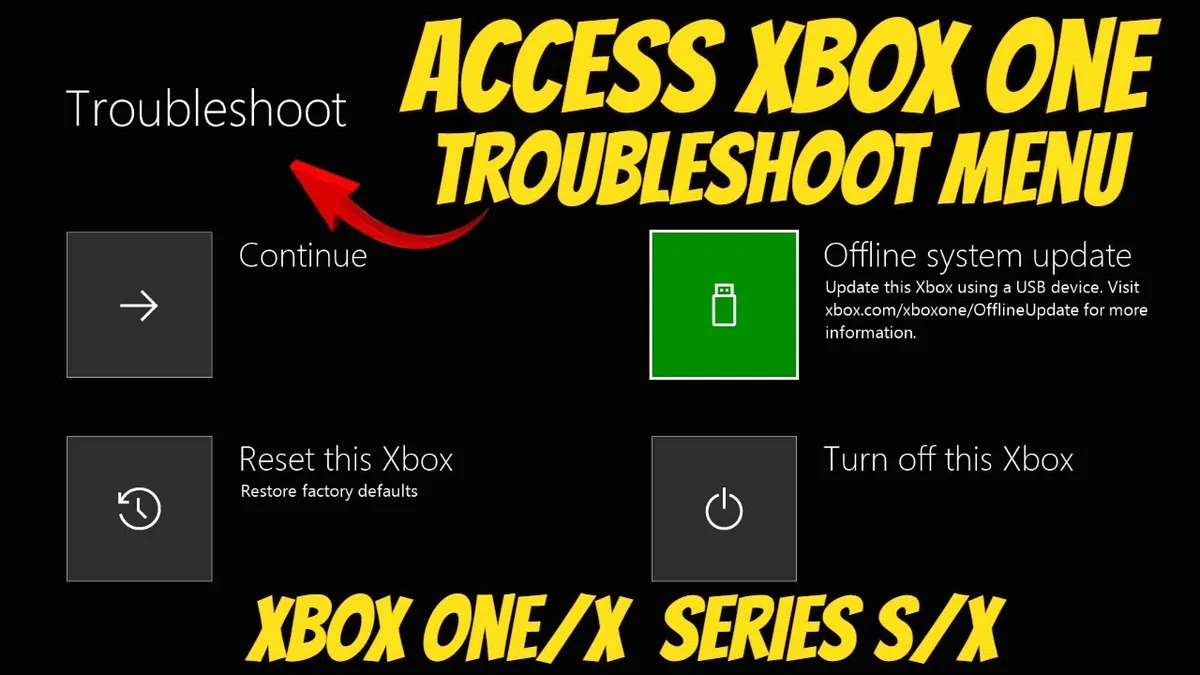
Image source: Bing (Web (fair-use with source credit))
Path C – Nothing Else Works: The USB Offline System Update
This is the nuclear option. You need it when the console can't boot and the Troubleshooter either won't load or can't complete the reset. It requires a USB flash drive, a computer with internet access, and about an hour of patience.
What you'll need:
| Item | Requirement |
|---|---|
| USB flash drive | 16GB or larger, NTFS format (not FAT32) |
| Computer | Any Windows or Mac with internet |
| OSU1 file | Download from Microsoft's official support page |
| Console | Powered off, but functional enough to power on |
Why NTFS and not FAT32? Microsoft's official documentation specifies NTFS as the required format for the Xbox One offline update file. FAT32 drives will appear as "ready" on your computer but the console won't read the OSU1 file properly. This is one of the most common mistakes people make, and it wastes hours of troubleshooting.
Step 1: Format the USB drive as NTFS. On Windows: Right-click the drive in File Explorer, select Format, choose NTFS from the file system dropdown, and click Start. On Mac: The native Disk Utility doesn't offer NTFS formatting easily.
You can use a third-party tool or borrow a Windows PC for this step.
Step 2: Download the OSU1 file. Go to the Xbox support page and search for "Offline System Update." The file is approximately 4GB. Do not download OSU2 or OSU3.
Those are for different purposes. OSU1 is the factory reset file.
Step 3: Extract the file onto the USB drive. The OSU1 file downloads as a compressed archive. Extract it.
Inside, you'll find a folder called $SystemUpdate. Copy that entire folder to the root of your USB drive. Do not rename it.
Do not put it inside another folder.
Step 4: Boot into the Startup Troubleshooter. Follow the same button combination from Path B. Hold Bind (or Sync) + Eject + Power until you hear two tones.
Step 5: Plug in the USB drive. Insert it into one of the USB ports on the console. Use the rear port if possible.
The front port works too, but the rear port is more reliable during long updates.
Step 6: Select "Offline system update." The console will read the OSU1 file from the USB drive and begin reinstalling the operating system. This takes 45 to 90 minutes. The screen will show a progress bar.
It may pause at certain percentages. That's normal.
Do not unplug the USB drive during the update. Do not turn off the console. Let it complete.
Step 7: The console restarts. When the update finishes, the Xbox One will reboot. If everything worked, you'll see the initial setup screen where you choose your language, connect to Wi-Fi, and sign in with your Microsoft account.
What if the USB offline update fails? The most common cause is a corrupted OSU1 file. Re-download it from Microsoft's site. Make sure you didn't accidentally extract it twice (a nested folder issue).
Verify the USB drive is properly formatted as NTFS.
If the update fails repeatedly, the console's internal hard drive may be failing. At that point, you're looking at a hardware repair, not a software fix. A factory reset can't fix a dead drive.
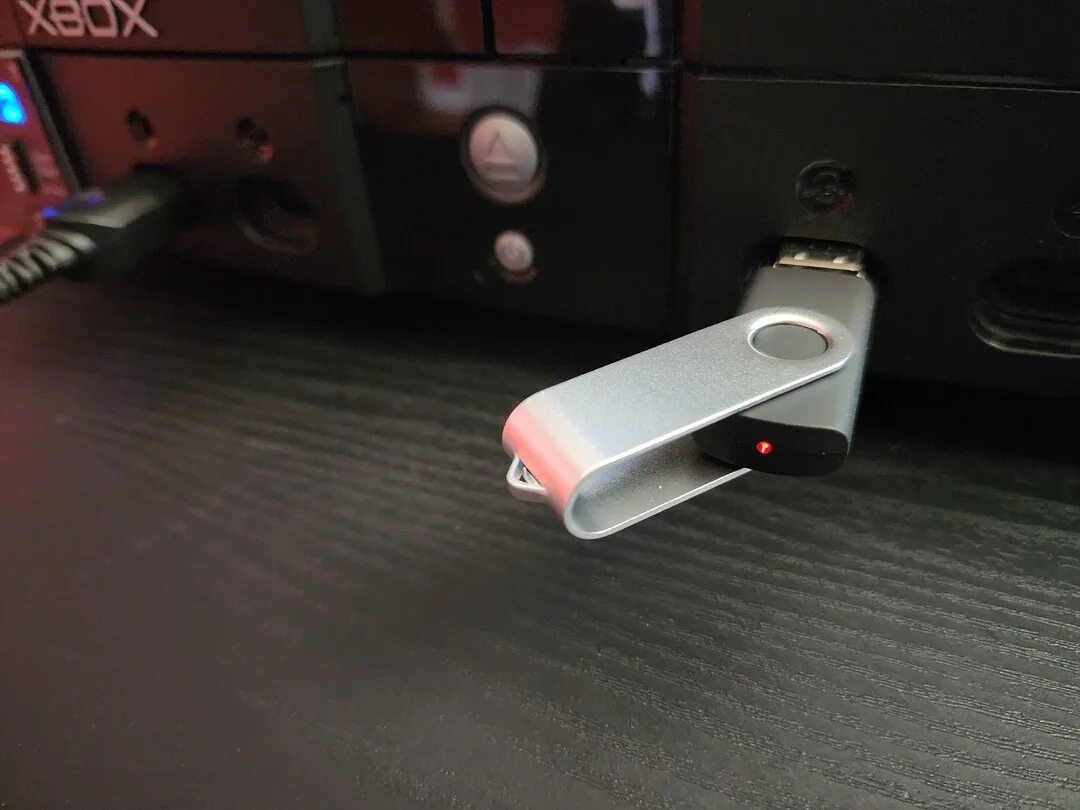
Image source: Bing (Web (fair-use with source credit))
Reset and Keep vs. Remove Everything: What Actually Gets Erased
This is where most people get confused. Microsoft's wording sounds straightforward, but the real-world outcome depends on several factors that aren't obvious at first glance.
When you choose "Reset and keep my games & apps" (Settings menu only):
| Data Type | Kept? | Notes |
|---|---|---|
| Installed game files | Yes | Games remain on the hard drive |
| Game saves stored locally | Maybe | Only if cloud sync was enabled before the reset |
| Game saves in the cloud | Yes | Synced back when you sign in |
| User profiles | No | All profiles are removed |
| System settings | No | Video, audio, network, parental controls reset |
| Digital licenses | No | Re-downloaded when you sign in |
| Apps (Netflix, YouTube, etc.) | Yes | Still installed |
| External hard drive games | Yes | Unaffected |
The tricky part is local game saves. If you haven't enabled cloud sync for a specific game, its save file exists only on the console's internal drive. A "keep my games & apps" reset wipes the profiles and system data but preserves the game files.
However, the save data is stored separately and may or may not survive depending on how the individual game saves its progress.
Best practice: Before any reset, go to Settings, System, Storage. Make sure "Saved data" is set to sync to the cloud for every game you care about. You can check this per game by pressing the Menu button on any title and selecting "Manage game and add-ons" then "Saved data."
When you choose "Reset and remove everything" (any method):
| Data Type | Kept? | Notes |
|---|---|---|
| Installed game files | No | Wiped completely |
| Game saves locally | No | Gone forever |
| Game saves in the cloud | Yes | Synced back when you sign in |
| User profiles | No | All removed |
| System settings | No | Full factory defaults |
| Digital licenses | No | Re-downloaded with your account |
| Apps | No | All removed |
| External hard drive games | Yes | The drive itself is untouched |
| External hard drive saves | Yes | Stored separately on the external drive |
What about parental controls and family accounts? A full factory reset removes all parental control settings. If you're handing the console to a child, you'll need to set these up again after the reset. Microsoft's family safety documentation recommends creating the child's account first on the web, then signing in on the console after the reset.
Does a factory reset remove a console ban? No. Console bans are tied to the hardware serial number. A factory reset does not change the serial number.
If your console has been banned from Xbox Live, a reset won't help. Microsoft's enforcement team handles bans separately from the console's software state.
Mistakes That Wipe Out Your Game Saves
People lose hundreds of hours of progress because of one small oversight. Here are the mistakes to avoid.
Mistake 1: Skipping the cloud sync check. You assume your saves are in the cloud. They aren't always. Each game needs to be set to sync individually for some titles.
Before you reset, open each game's management screen and verify the "Saved data" is set to "Sync to cloud."
Mistake 2: Forgetting to remove the console from your Microsoft account. If you sell or trade in the console after a full reset, your account stays linked to that console's serial number. The new owner could potentially access your account if they sign in with your credentials. Go to account.microsoft.com/devices and remove the console.
This also frees up your account's device limit.
Mistake 3: Using the wrong USB format. FAT32 will not work for the offline update. The console will tell you the drive is ready, then fail silently during the update. Format as NTFS.
If you're on a Mac, use a Windows computer or a formatting tool that supports NTFS.
Mistake 4: Unplugging the console during a reset. The update process writes critical system files in a specific order. If you interrupt it, you can brick the console temporarily. Even if you think it's stuck, wait at least 15 minutes before touching anything.
A console that appears frozen is often still processing.
Mistake 5: Choosing the wrong reset option when selling. You pick "Reset and keep my games & apps" because you think the games will stay for the buyer. They won't. The buyer won't have your account to play those games.
And your personal data might still be recoverable. Always choose "Reset and remove everything" when passing the console to someone else.
Mistake 6: Not understanding the OSU1 vs. OSU2 vs. OSU3 differences.
| File | Purpose |
|---|---|
| OSU1 | Factory reset and full OS reinstall |
| OSU2 | Used for specific update error recovery (rare) |
| OSU3 | Used for even rarer update scenarios |
Most guides tell you to use OSU1 for factory reset. That's correct. But if you accidentally download OSU2 or OSU3, the console won't apply the file.
It will sit there and do nothing. Double check the filename before you extract it.
What Selling or Trading In Your Xbox Requires
If you're here because the console is leaving your hands, the stakes are different. You're not just fixing a glitch. You're protecting your personal data.
Step 1: Factory reset with "Remove everything." Use Path A if the console works. Use Path B or C if it doesn't. The end result must be a full wipe.
Step 2: Remove the console from your Microsoft account. Sign in at account.microsoft.com/devices. Find your Xbox One in the list.
Select "Remove." This delinks your account from the hardware.
Step 3: Sign out of any remaining accounts. Even after a reset, some apps may retain cached credentials. Go through each app and sign out manually before the reset if possible.
Step 4: Physically clean the console. A clean console sells better. Wipe down the exterior with a microfiber cloth.
Don't use liquids or compressed air near the vents.
Step 5: Include the original accessories if you have them. The power supply, HDMI cable, and one controller increase the resale value significantly.
What trade-in programs and retailers require: Most retailers accept factory reset consoles. Some will test the console by booting it up and checking that the reset was successful. A console that still has a user profile on it may be rejected or offered a lower trade-in value.
Keep in mind that a factory reset does not perform a secure erase. The data is still recoverable with forensic tools. For sensitive data, Microsoft recommends physically destroying the internal hard drive.
That's obviously not an option if you're selling the console. In practice, the standard factory reset is sufficient for 99 percent of sellers.
If you have any questions about the process, feel free to contact us and we'll point you to the right resources.
Post-Reset Setup: Logging Back In and Restoring Your Library
The reset is done. The console boots to the initial setup screen. Now what?
Step 1: Choose your language and region. This should match your previous settings. Changing the region affects store availability and content restrictions.
Step 2: Connect to Wi-Fi. The console needs internet access to download your profile and licenses.
Step 3: Sign in with your Microsoft account. Use the same email and password you used before the reset. This restores your digital game licenses.
Step 4: Wait for licenses to sync. This happens in the background. You don't need to do anything.
It can take 5 to 15 minutes depending on your library size.
Step 5: Re-download your games. Go to "My games & apps" and select "Full library." You'll see all your owned titles. Select the ones you want to install.
If you chose "Reset and keep my games & apps" earlier, your installed games won't need re-downloading. But you may still need to update them.
Step 6: Restore your saved data from the cloud. Launch a game. When it starts, the console checks for cloud saves automatically.
You may see a prompt saying "Syncing your data." Let it finish. This takes a few minutes per game.
Step 7: Reconfigure your settings. Video output, audio format, network preferences, and parental controls all need to be set again. Go through Settings and adjust everything to your preference.
One important note about external hard drives. If you used an external drive for game storage, plug it back in after the reset. Your games will appear immediately. You don't need to re-download them.
The console recognizes the drive's game catalog as soon as it's connected.
What if your games don't appear in the library? Make sure you're signed in with the account that purchased them. Game sharing with another account can sometimes cause confusion. If you gameshare with a friend or family member, they'll need to sign in on your console to make their games available.
When a Factory Reset Won't Fix the Problem
A factory reset is powerful, but it's not magic. Some problems are hardware, not software.
Console ban from Xbox Live. This is the most common disappointment. People factory reset thinking it will lift a ban. It won't.
Microsoft's enforcement actions are tied to the console's hardware ID. The only way to reverse a ban is through Microsoft's enforcement appeal process.
Failing internal hard drive. If your console consistently freezes, crashes, or gives storage-related errors even after a full reset, the internal hard drive may be failing. Xbox One hard drives are consumer-grade 2.5-inch drives. They fail over time.
A factory reset can't repair physical damage.
Symptoms of a failing drive:
- Frequent "Something went wrong" errors
- Games taking unusually long to load
- Console freezing during gameplay or menu navigation
- Error code E102 after a reset attempt
Replacing the internal drive is possible but not trivial. It requires opening the console, replacing the drive, and then using the OSU1 file to install the operating system on the new drive. Microsoft does not officially support this procedure.
Burnt out power supply. The original Xbox One uses an external power brick. If the brick fails, the console won't power on at all. No reset can fix that.
The Xbox One S and Xbox One X have internal power supplies, but they can fail too.
Signs of power supply failure:
- No lights on the power brick
- Brick makes a buzzing or clicking noise
- Console powers off randomly under load
Overheating. If your console shuts down after 10 to 30 minutes of gameplay, it's overheating. A factory reset won't fix this. The console needs to be cleaned of dust buildup.
In severe cases, the thermal paste between the processor and heatsink may need replacement.
HDMI port damage. No video output at all, or a flickering picture. The HDMI port can be damaged by cable strain or physical impact. A factory reset won't restore video.
The port needs to be repaired or replaced.
What to do if none of these apply and the reset still fails. Double check your approach. Make sure you used the correct button combination for your model. Verify the USB drive format and OSU1 file integrity.
Try a different USB drive.
If everything fails, you may be dealing with a corrupted system flash memory. This requires professional repair.
Decision Flowchart: Pick Your Path Based on Your Situation
Here's a simple if-then guide you can follow without guessing.
Start here. Is your console working? Does it boot to the home screen?
Yes: Use Path A (Settings reset).
- Do you want to keep your games? Choose "Reset and keep my games & apps."
- Are you selling or giving it away? Choose "Reset and remove everything."
No: The console is stuck on a black screen, green logo, or error.
- Try a power cycle first. Unplug for 30 seconds. Plug back in.
- If it boots now, you're done. If not, continue.
Still stuck: Use Path B (Startup Troubleshooter).
- Press Bind (or Sync) + Eject + Power until two tones.
- Select "Reset this Xbox."
- If it works, you're done. If it fails, continue.
Troubleshooter fails or won't load: Use Path C (USB offline update).
- Format a 16GB+ USB drive as NTFS.
- Download OSU1 from Microsoft's support site.
- Extract the
$SystemUpdatefolder to the USB root. - Boot into the Troubleshooter and select "Offline system update."
Still fails: The problem is likely hardware. Internal hard drive, power supply, or HDMI port.
Final check list before you start.
- I've backed up my game saves to the cloud.
- I've removed the console from my Microsoft account (if selling).
- I have a 16GB+ USB drive (if using Path C).
- I've formatted the USB drive as NTFS (not FAT32).
- I've downloaded the correct OSU1 file (not OSU2 or OSU3).
- I know which button combination my model uses (Bind vs. Sync).
- I have at least 90 minutes of uninterrupted time.
Frequently Asked Questions
Does factory resetting an Xbox One delete everything?
Yes, if you choose "Reset and remove everything." That option wipes all profiles, saved data, installed games, apps, and settings. The only exception is data stored on an external hard drive. If you choose "Reset and keep my games & apps," your installed games and apps remain, but profiles and settings are still removed.
Can I factory reset an Xbox One without a controller?
The USB offline update (Path C) does not require a controller for the initial boot. However, you need a controller to navigate the Troubleshooter menu and select "Offline system update." The Settings menu method (Path A) always requires a controller.
How long does an Xbox One factory reset take?
A Settings menu reset takes 10 to 30 minutes. The Startup Troubleshooter takes 20 to 45 minutes. The USB offline update takes 45 to 90 minutes.
The variation depends on your console model and the speed of its internal hard drive.
Will I lose my games after a factory reset?
If you choose "Reset and remove everything," your installed games are deleted. You can re-download them for free from your library as long as you use the same Microsoft account. If you choose "Reset and keep my games & apps," your installed games stay on the hard drive.
Can I factory reset an Xbox One that won't turn on?
A console that won't power on at all cannot be factory reset. The console must at least turn on and show signs of life. If you get no lights, no sounds, and no fan movement, the problem is likely the power supply or internal hardware, not software.
Does a factory reset remove my Microsoft account from the console?
Yes. A factory reset removes all user profiles from the console. However, the console remains linked to your Microsoft account on Microsoft's servers until you manually remove it.
Go to account.microsoft.com/devices and select "Remove" to complete the process.
What's the difference between a factory reset and a hard reset?
A hard reset is a power cycle. You unplug the console for 30 seconds to clear the cache and reset the power supply. It doesn't delete any data.
A factory reset reinstalls the operating system and can delete all user data.
Why is my Xbox One stuck after a factory reset?
The console may appear stuck during the reset process. Wait at least 15 minutes before assuming it's frozen. If it stays stuck for over an hour, try the USB offline update (Path C).
A corrupted update file or failing hard drive can cause the reset to hang.