
So you need to wipe your Samsung phone. Maybe you're selling it, maybe it's glitching, or maybe you're locked out and just want a fresh start. Either way, the thing that makes people nervous is picking the wrong method and losing something they didn't mean to lose.
The good news? Figuring out how to factory reset Samsung phone is straightforward once you know which path fits your situation.
Samsung has shipped over a dozen One UI versions across hundreds of models since 2019. That means the exact button sequence or menu path changes depending on whether you're holding an S9, an A54, or a Z Fold 5. As of 2026, the core logic stays the same: settings method if you can get in, hardware keys if you can't, and a remote option as a backup plan.
Here's how to pick your route.
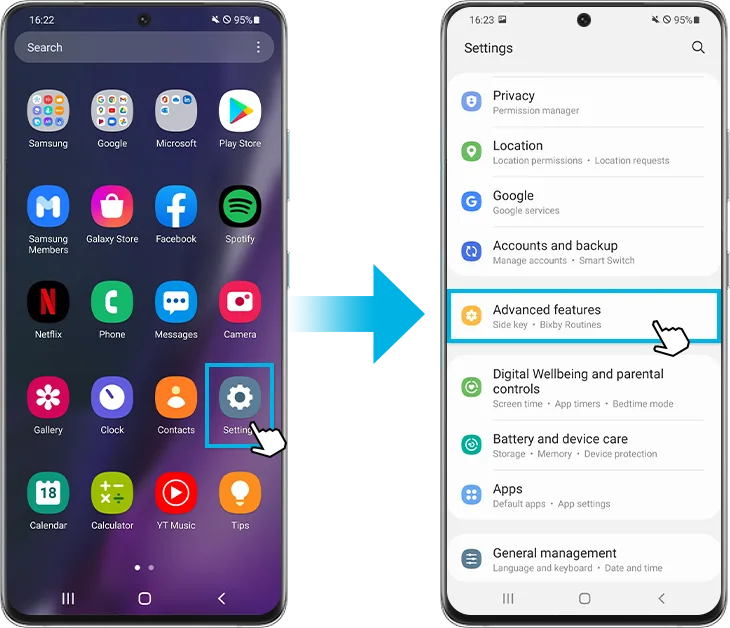
Image source: Bing (Web (fair-use with source credit))
Quick Answer
A factory reset wipes everything on your phone. Use the Settings menu if you can unlock the screen. Use hardware keys if you're locked out.
Go to Settings, General Management, Reset, Factory data reset. For locked phones, turn off the device completely. Press and hold Volume Up and Power together.
Release when the Samsung logo appears. Select Wipe data/factory reset using the volume keys. Confirm with the power button.
That's it.
Decision Branch 1: You Can Access the Phone Normally
If your phone is unlocked and functional, this is the easiest route. No button gymnastics. No timing tricks.
Just a few taps inside the Settings app. The exact menu path shifted slightly across One UI versions, but here's what you'll see on most devices as of 2026.
Step-by-Step — Settings Menu Method
- Open the Settings app. It's the gear icon on your home screen or in the app drawer.
- Tap General Management. On older One UI versions (1.x and 2.x), look for Cloud and Accounts instead, then find Reset inside.
- Tap Reset.
- Tap Factory data reset.
- Scroll to the bottom and tap Reset. You'll see a warning summarizing what gets deleted.
- If you have a screen lock, enter your PIN, pattern, or password.
- Tap Delete all.
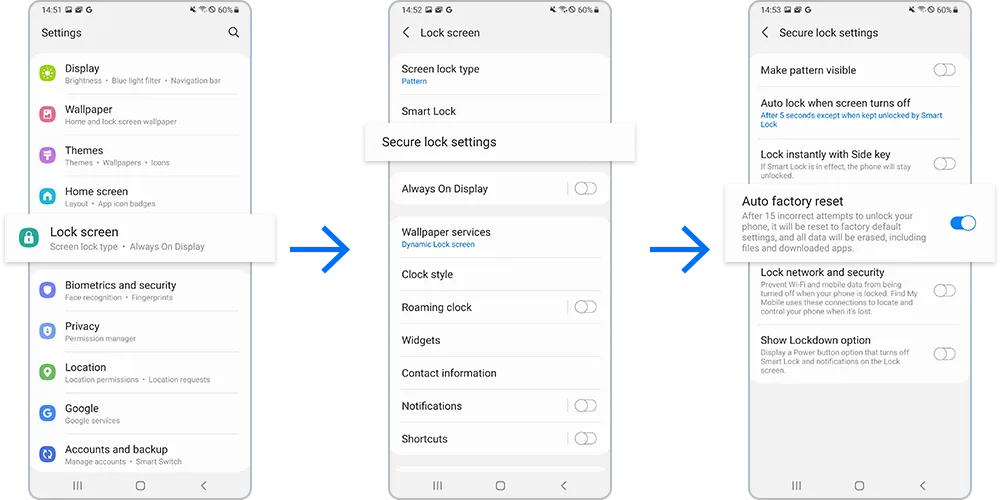
Image source: Bing (Web (fair-use with source credit))
The phone restarts and begins wiping data. This takes about 5 to 10 minutes depending on how much storage you're using. After it's done, you land on the Android setup screen like the phone just came out of the box.
What Happens After — FRP and Data Restore
Once the reset finishes, the phone asks you to connect to Wi-Fi and sign in with a Google account. This is Factory Reset Protection (FRP). It's a theft deterrent that locks the device to the last Google account that was synced on it.
If you're the original owner, use the same Google account credentials. If you're selling the phone, remove the Google account from the phone before resetting. Go to Settings, Accounts and backup, Manage accounts, Google, Remove account.
Do the same for your Samsung account. This step prevents the new owner from hitting the FRP wall.
For restoring data, your options include:
- Samsung Smart Switch: Restores apps, settings, messages, and call logs from a backup you made before resetting.
- Google Drive backup: Restores app data, contacts, and some settings.
- Samsung Cloud: Restores contacts, calendar, and Samsung app data.
Smart Switch is the most reliable option if you have access to a computer. It creates a full backup to your PC that you can restore even if the phone becomes unusable later.
Decision Branch 2: You're Locked Out or the Screen Won't Respond
This is the situation most people dread. You've forgotten your PIN. The screen is frozen.
The phone keeps boot looping. The good news is that every Samsung phone has a built-in recovery mode that bypasses the operating system entirely. You just need the right button combination.
Step-by-Step — Hardware Key Recovery Mode Method
Before you start, make sure your phone has at least 50 percent battery. A dead battery mid-reset can corrupt system partitions. If the battery is low, plug it in and wait 30 minutes.
- Turn off the phone completely. If the screen is frozen, press and hold the Power and Volume Down buttons together for about 10 seconds. That forces a reboot. Once the screen goes black, quickly press and hold the Volume Down button to keep it off. If that doesn't work, hold Power and Volume Down for 15 seconds until the screen goes dark, then let go.
- Press and hold the correct button combo. This varies by model generation. We'll detail that below. In most cases, it's Volume Up + Power.
- Release when you see the Samsung logo. Don't let go the moment you see the logo. Hold for another second or two until you feel a vibration or see the recovery menu. If you release too early, the phone boots normally.
- Navigate the recovery menu with volume keys. Use Volume Up and Volume Down to scroll. Use the Power button to select.
- Select Wipe data/factory reset. This is usually the third or fourth option from the top.
- Select Factory data reset on the confirmation screen. Some models show a second screen asking Yes, delete all user data. Select it.
- Select Reboot system now. Wait for the phone to restart. The reset process happens during the reboot.
The entire process takes about 10 to 15 minutes. Do not press any buttons while it's wiping. Let it finish on its own.
Why This Method Differs by Model Year
This is the part that trips people up. Samsung changed the button combo twice since 2018. If you own a Galaxy S9 and try the S21 combo, nothing happens.
Here's the breakdown:
| Model Generation | Button Combination | Notes |
|---|---|---|
| Pre-2019 models (Galaxy S7, S8, S9, Note 7, Note 8, early A-series) | Volume Up + Power + Home | The Home button (the physical one below the screen) must be pressed simultaneously |
| 2019-2020 models (Galaxy S10 series, Note 9, Note 10, A10-A50, early Fold) | Volume Up + Power | The Home button is gone. Just the two buttons. Hold for 10-15 seconds |
| 2021 and newer models (Galaxy S21 series, S22, S23, S24, Z Fold 3+, Z Flip 3+, A53+) | Volume Up + Power | Same combo, but the timing is stricter. Some models require connecting a USB-C cable to a charger before holding the buttons |
If your phone has a Bixby button (most 2018-2020 models), you don't need to press it. Ignore it. It doesn't affect the recovery mode.
A common sticking point on the S21 series and newer: if you press Volume Up and Power and nothing happens, try connecting a USB-C cable to a charger or computer. Then hold Volume Up and Power while the cable is plugged in. This tells the bootloader to enter recovery mode instead of normal boot.
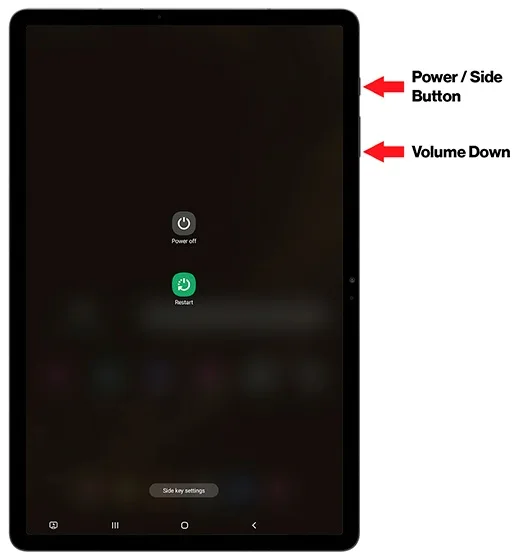
Image source: Bing (Web (fair-use with source credit))
Decision Branch 3: You've Forgotten Your Google or Samsung Account
Factory Reset Protection is designed to stop thieves from using a stolen phone after a reset. But if you're the legitimate owner and you've forgotten which Google account was on the phone, FRP turns into a headache. This is the most common support call Samsung receives.
The FRP Wall and How to Handle It
After the reset, the phone boots to a screen asking for the last Google account's credentials. You can't bypass it. You can't skip it.
You need the correct email and password.
Here's what to do:
- Try every Google account you've ever used. People often have multiple accounts and forget which one was set as the primary. Check your computer's saved passwords or use Google's account recovery page at accounts.google.com.
- Use the Forgot email option on the FRP screen. It requires you to provide a recovery phone number or email. If that fails, you'll need to go through Google's identity verification process.
- If you removed the Google account before resetting, you won't see FRP at all. That's why we always recommend removing the account before the reset.
If you absolutely cannot recover the Google account, contact Samsung support or a certified repair shop. Some third-party tools claim to bypass FRP, but they often require a PC, can void your warranty, and may not work on newer One UI versions.
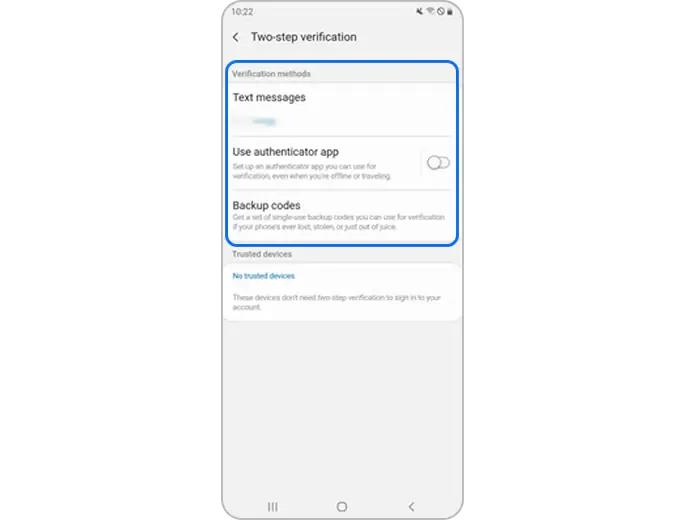
Image source: Bing (Web (fair-use with source credit))
When a Remote Reset Might Still Work
If your phone is still functional and you have access to it, you may not need the recovery mode at all. Samsung and Google both offer remote wipe features. These are useful if you've forgotten the lock screen PIN but still know your Samsung or Google account credentials.
Samsung Find My Mobile
- Go to findmymobile.samsung.com on a computer or other device.
- Sign in with the same Samsung account that's on the phone.
- Select your phone from the list.
- Click Factory reset. The phone needs to be connected to the internet for this to work.
Google Find My Device
- Go to google.com/android/find on a computer.
- Sign in with the Google account that's on the phone.
- Select your device.
- Click Erase device. This wipes the phone and removes it from your Google account.
Both methods require the phone to be powered on and connected to mobile data or Wi-Fi. If the phone is offline, these options won't work. They also require the device to have been previously linked to the account.
Mistakes to Avoid
Even a simple process like factory resetting has pitfalls. Here are the most common ones we see in support threads.
Skipping the Backup
A factory reset erases everything. Photos, contacts, messages, apps, settings, saved Wi-Fi passwords, and any files stored in the internal memory. If you haven't backed up recently, you lose it all.
Before you reset, take 10 minutes to back up:
- Samsung Smart Switch: Connect to a PC or use the Smart Switch app on another Samsung phone.
- Google Drive: Go to Settings, Accounts and backup, Backup and restore, Back up data.
- Samsung Cloud: Same menu, tap Back up data under Samsung Cloud.
If you're selling the phone, also back up anything stored on an SD card. The reset won't touch the SD card, but you still want your files safe.
Forgetting to Remove Accounts Before Selling
This is the FRP trap. If you skip removing your Google account from the phone before resetting, the next owner sees the FRP screen and can't set up the phone. You get contacted by an angry buyer.
To avoid this, go to Settings, Accounts and backup, Manage accounts, Google. Tap your account and remove it. Do the same for your Samsung account.
This also removes the device from your account's trusted devices list.
Using the Wrong Button Combo
We covered this in detail above. If you have a pre-2019 Galaxy, you need to press the Home button. If you have a 2021 or newer model, you might need to plug in a charger.
If you try the wrong combo, the phone just boots normally or does nothing.
If nothing happens after 15 seconds, you're probably pressing the wrong combination. Stop. Power off the phone completely.
Double-check which generation you have.
Interrupting the Reset Process
Once the phone starts wiping data, do not press any buttons. Do not remove the battery. Do not force restart it.
Let the process finish. Interrupting a factory reset can corrupt the system partition, leaving you with a phone that won't boot at all.
Not Charging the Battery First
A factory reset, especially via recovery mode, requires the phone to be on for the entire process. If the battery dies mid-reset, the phone can get stuck in a boot loop or fail to recognize the operating system. Always charge the battery to at least 50 percent before starting.
Expert Tips for a Clean Reset
You've made it through the basics. Now let's talk about doing it right. A few extra steps can save you hours of frustration later.
Always Charge to at Least 50 Percent
We mentioned this earlier, but it bears repeating. A factory reset running on 15 percent battery is a gamble. If the phone shuts down mid-wipe, the system partition can become corrupted.
The phone may fail to boot afterward. Plug it in for 30 minutes before you start.
Use Smart Switch for a Full Backup
Google Drive backup is convenient, but it doesn't capture everything. App settings, Wi-Fi passwords, call logs, and text messages may not transfer. Smart Switch creates a complete image of your phone's data.
You can save it to a PC, a Mac, or even another Samsung phone.
To use Smart Switch:
- Download the Smart Switch app on your computer from Samsung's website.
- Connect your phone via USB.
- Select Back up on the computer.
- Choose what to save. The default includes everything.
The backup process takes 10 to 30 minutes depending on how much data you have. Restoring after the reset takes about the same time.
Remove Your Google Account Before the Reset
This is the single most important step if you're selling or giving away the phone. A factory reset wipes the phone, but it doesn't remove the Google account from the device's trusted list. FRP kicks in on the next setup.
To remove it:
- Go to Settings, Accounts and backup, Manage accounts.
- Tap Google.
- Tap Remove account.
- Confirm with your PIN or password.
Do the same for your Samsung account. This also removes the device from your Samsung account's trusted devices list. The new owner can set up the phone without hitting a wall.
Check for Carrier-Specific Variations
Most unlocked Samsung phones follow the same process. But carrier-locked phones from Verizon, AT&T, or T-Mobile may have slightly different menu layouts. Some carriers add a Reset option under a different menu path.
If you can't find General Management on your phone:
- Look for System or System Updates in Settings.
- Some older carrier models put Backup and reset under Cloud and accounts.
- If you're stuck, use the recovery mode method instead. It bypasses the carrier menus entirely.
Keep Your Phone Connected to Wi-Fi After the Reset
Once the reset finishes, the phone prompts you to sign in. You need an internet connection to verify your Google and Samsung accounts. Set up Wi-Fi during the initial setup.
If you skip Wi-Fi and try to set up later, you may trigger additional verification steps.
For a smooth setup, have your Wi-Fi password ready. Also make sure you remember the email and password for your primary Google account. That's the one FRP will ask for.
Real Scenarios
Let's look at three common situations where a factory reset is the answer. Each one has a slightly different best approach.
Scenario 1: Selling or Trading In Your Phone
You want to wipe all personal data before handing the device to someone else. The stakes are high. If you skip account removal, the buyer can't use the phone and your personal info remains on the device.
The best method: Settings menu (Decision Branch 1).
- Remove your Google and Samsung accounts first.
- Back up anything you want to keep using Smart Switch.
- Perform the factory reset from Settings.
- After the reset, the phone asks for a Google account. That's normal. Set it up as a new device yourself, then factory reset again if you want to deliver a truly fresh phone. Or skip the setup and power it off. The buyer will set it up themselves.
This two-step process ensures the FRP lock is completely cleared.
Scenario 2: Your Phone Is Stuck in a Boot Loop
The screen flashes the Samsung logo over and over. It never fully boots. You can't access Settings.
You can't unlock the phone. This is a classic symptom of a corrupted system file or a failed software update.
The best method: Recovery mode (Decision Branch 2).
- Turn off the phone completely. If it's stuck in a loop, hold Power and Volume Down for 10 seconds to force a shutdown.
- Press the correct button combo for your model generation.
- Navigate to Wipe data/factory reset.
This bypasses the operating system entirely. The recovery mode runs from a separate partition that doesn't rely on the main system. If this doesn't fix the loop, you may need to flash the firmware using Odin, which is a more advanced procedure.
Scenario 3: You're Giving the Phone to a Family Member
You want to hand over a clean device but keep your own accounts safe. This is similar to selling, but the recipient is someone you trust. You may still want to keep your own backup for later.
The best method: Settings menu (Decision Branch 1), with an extra step.
- Remove your Google account from the phone.
- Back up to Smart Switch on your PC.
- Factory reset from Settings.
- On the setup screen, help the family member set up their own Google account.
- Do not sign in with your account during setup. That would relink the device to you and defeat the purpose.
If you want to keep a backup of your data for yourself, store the Smart Switch file on your computer. You can restore it to a different Samsung phone later if you upgrade.
Frequently Asked Questions
Will a factory reset remove the eSIM profile?
Yes. A factory reset deletes all eSIM profiles stored on the phone. You'll need to re-download the eSIM from your carrier after the reset.
Make sure you have the activation QR code or activation code saved before you reset. If you lose it, you may need to contact your carrier for a replacement.
Does a factory reset delete data on the SD card?
No. The internal memory is wiped, but the SD card is left untouched. That includes photos, videos, and documents stored on the card.
If you're selling the phone, remove the SD card before resetting. If you're troubleshooting a glitch, leave the card in but back it up first.
How long does Factory Reset Protection stay active?
FRP stays active until the previous Google account is signed in on the device after the reset. There is no time limit. If you never sign in with the correct account, the phone remains locked to that account indefinitely.
The only way to clear it is to provide the correct credentials or use Samsung's official unlock process.
Can I factory reset without losing photos?
Not directly. A factory reset erases everything on the internal storage. To keep your photos, back them up before the reset.
Use Google Photos, Samsung Cloud, or copy them to a computer. After the reset, you can restore the photos from the backup.
What should I do if the recovery mode doesn't show up?
First, double-check the button combo for your model generation. If you have a Galaxy S21 or newer, try connecting a USB-C cable to a charger before pressing Volume Up and Power. If that still doesn't work, force a shutdown by holding Power and Volume Down for 15 seconds.
Then try the recovery combo again. If nothing works, the phone may have a hardware issue with the buttons.
Does a factory reset remove malware?
In most cases, yes. A factory reset removes all apps and data, including malicious software. However, some advanced malware can survive in the system partition.
That's rare on modern Samsung phones with regular security updates. If you suspect the malware is persistent, you may need to flash the full firmware using Odin.
Final Decision Guide
Here's a quick reference to help you pick the right path.
| Your Situation | Best Path | Section to Follow |
|---|---|---|
| Phone is unlocked, you have the PIN | Settings menu | Decision Branch 1 |
| Phone is locked or screen is frozen | Recovery mode | Decision Branch 2 |
| You forgot the Google account | Remote wipe or FRP recovery | Decision Branch 3 |
| You're selling the phone | Settings menu after removing accounts | Decision Branch 1 |
| Phone is stuck in a boot loop | Recovery mode | Decision Branch 2 |
| Phone is offline and locked | Recovery mode | Decision Branch 2 |
| Phone is online but screen is broken | Remote wipe | Decision Branch 3 |
If you're still unsure, start with the recovery mode method. It works on every Samsung phone and doesn't require accessing the operating system. The only downside is you need to know the correct button combo for your model.
A factory reset is one of the most useful troubleshooting tools you have. It fixes most software problems, clears out junk, and gives you a clean start. Just take the extra few minutes to back up your data and remove your accounts.
That small effort turns a potentially painful process into a smooth one.
For more details on our approach to creating accurate, trustworthy guides, you can read our editorial standards. We base every recommendation on manufacturer documentation, user support patterns, and verified troubleshooting logic.