
You're sitting in front of an old PC that's crawling through every task. Maybe you're getting rid of it, or you've inherited a dusty laptop from a relative. Either way, learning how to factory reset Windows 7 is the right move.
But it's not as simple as it is on newer versions of Windows.
Windows 7 reached its official end of life on January 14, 2020. Microsoft stopped issuing security updates and support that day. Every machine still running it today carries extra risks.
A factory reset won't bring back those patches. It simply wipes the system clean and returns it to the way it left the factory floor. Let's walk through the process carefully.
One wrong step can cost you your files or your ability to reactivate Windows.
Quick Answer
Boot the PC and press the manufacturer's recovery key. Common keys are F8, F11, F10, and Alt+F10. Choose "Factory Reset" or "Restore to Factory Condition" from the menu.
Confirm the data loss warning. Wait 30 minutes to two hours for the process to finish. The PC will restart several times on its own.
Do not interrupt it.
Why Factory Resetting Windows 7 Is Trickier Than You Think
Windows 7 never got the built-in "Reset this PC" feature that Windows 8 and 10 introduced. There is no settings menu option that wipes everything with one click. Instead, you rely on tools the manufacturer installed when the PC was new.

Image source: Wikimedia Commons / Agnerf (CC BY-SA)
That recovery partition on your hard drive is the most common way to reset. But those partitions can get corrupted, accidentally deleted, or simply wear out over time. Many users also discover they never created the required recovery discs when the PC was new.
That leaves them stranded when the partition fails.
Microsoft does not officially sell Windows 7 installation discs anymore. You cannot walk into a store and grab one off the shelf. You will need to download an ISO file from their software repository if you do not have original media.
Even then, you need a valid product key to activate it after the reset.
So before you jump into the process, you need a plan. You need backups. You need your product key.
And you need to know which method your specific PC supports. Our editorial team has put together this guide following strict accuracy standards. You can read more about our approach on our editorial policy page.
What a Windows 7 Factory Reset Really Does (and Doesn't Do)
A true factory reset wipes the system drive completely. It removes every file, every installed program, every user account, and every setting you have changed since day one. The PC boots up looking exactly like it did the first time you unboxed it.
What it does not do is fix hardware problems. If your hard drive has bad sectors or your RAM is failing, the reset won't help. You will still see crashes, freezes, and errors.
It also does not remove malware that has burrowed into your BIOS or UEFI firmware. Rootkits at that level survive a format and reinstall. The only way to clean those is a firmware update or a full flash of the motherboard ROM.
And here is something many people overlook. A factory reset does not give you Windows 7 security updates. Microsoft ended support years ago.
The operating system you get after the reset is exactly as vulnerable as it was before you started. If you plan to use this PC online, install third-party antivirus software immediately. Be careful about what you download and which websites you visit.
Before You Touch Anything: Critical Risks You Need to Know
The number one risk is permanent data loss. More people lose their photos, documents, and music during a factory reset than during any other computer repair task.
Image source: Wikimedia Commons / andrew pilling (CC BY-SA)
Your files are gone the moment the process starts. There is no undo button. No recycle bin to fish them out of.
Data recovery services can sometimes retrieve files after a quick format. But that can cost hundreds of dollars. Success is never guaranteed.
The second major risk is activation failure. The product key that came with your PC may be embedded in the BIOS or printed on a sticker that has faded or fallen off. Without that key, you might not be able to activate Windows 7 after the reset.
The operating system will boot up, but you will see a notification reminding you to activate. It will stop working after 30 days.
Driver issues are another headache. The recovery partition on your PC contains drivers that were current when the machine was new. If your laptop is five or six years old, some of those drivers could be outdated.
You will need to hunt down newer versions from the manufacturer's support page. Network and chipset drivers are the most critical ones to update first.
Finally, there is the risk of an interrupted reset. If your laptop battery dies mid-process or a power outage hits, you could corrupt the operating system completely. That would leave you with a machine that does not boot at all.
Plug the laptop into AC power. Use a surge protector for desktop PCs.
We recommend reading the full disclaimer on our site to understand these risks before proceeding.
Step 1: Back Up Your Files the Right Way
Backing up sounds obvious, but people miss things all the time. You need to copy every file you want to keep to an external drive, a USB stick, cloud storage, or another computer on your network.
Start with the obvious folders. Documents, Pictures, Videos, Music, and Desktop. Right-click each one and choose Properties.
Check the location path. Some folders might have been moved to a different drive.
Next, grab your browser data. Bookmarks, saved passwords, and browser extensions do not sync with a cloud account on Windows 7 the way they do in newer operating systems.
- Chrome: Sign into Chrome and enable sync. Or manually copy the
User Datafolder atC:\Users\[YourUsername]\AppData\Local\Google\Chrome\User Data. - Firefox: The
Profilesfolder is atC:\Users\[YourUsername]\AppData\Roaming\Mozilla\Firefox\Profiles. Copy the entire folder to your backup drive. - Internet Explorer: Save your favorites by going to File, Import and Export, and choosing "Export to a file."
Do not forget email. If you use Outlook or Windows Live Mail, export your emails and contacts to a PST file or an EML folder. These files can be imported into a newer installation later.
Also check for saved game files. Many PC games store progress in the My Documents or AppData folders. Games on Steam generally save to the cloud, but not all older titles do.
Drag everything into a single folder on your external drive. Name it clearly, like "Windows 7 Backup February 2026." Double-check the contents before you move on.
Step 2: Find Your Windows 7 Product Key (Yes, You Still Need It)
You cannot complete a factory reset without a valid product key. The operating system demands it during the activation phase, which happens after the reset finishes.
Start with the obvious place. The sticker on your PC. On laptops, it is usually on the bottom panel or underneath the battery.
On desktops, it is often on the side panel or the back of the tower. Those stickers are printed on fragile paper that can fade, peel, or become unreadable. Photograph it clearly before you start.
If the sticker is unreadable or missing, do not panic. Many PCs have the product key embedded in the BIOS or ACPI table. You can extract it using a free tool like ProduKey or Belarc Advisor.
These tools scan the system and display the Windows product key along with keys for other installed software.
Write the key down in two different places. A note on your phone and a text file on your backup drive. Do not rely on memory alone.
If you purchased Windows 7 from a retail store or online, check your email inbox. Search for "Windows 7" or "product key" in your email history. The key might be in a purchase confirmation from Microsoft or a third-party seller.
For OEM machines from Dell, HP, Lenovo, or Acer, the key is often generic and shared across many devices. That generic key will activate Windows to install it. The system may auto-activate later using the embedded BIOS key.
Extracting the key first is still the safest approach.
If you cannot find the key and cannot extract it, your factory reset may leave you with an unactivated copy of Windows 7. You will see a persistent activation reminder. After 30 days, the desktop background turns black and the system shuts down every hour.
If you need help locating your key or understanding the activation process, feel free to contact our support team.
Step 3: Choose Your Reset Method – Three Options Compared
Not every Windows 7 PC supports the same reset method. Your approach depends on what your manufacturer included and what media you have available.
There are three main paths. The recovery partition is the most common. Recovery discs are the backup plan.
A Windows 7 installation disc is the universal fallback.
Here is how they stack up side by side.
| Method | What You Need | Difficulty | Time | Risk Level |
|---|---|---|---|---|
| Recovery Partition | The partition must exist and be uncorrupted | Easy | 30–60 min | Medium |
| Recovery Discs | 2–6 blank DVDs or a USB drive with the recovery image | Easy | 45–90 min | Low |
| Installation Disc | A Windows 7 DVD or bootable USB with the ISO file | Moderate | 1–2 hours | Low |
Option A – Recovery Partition (Fastest, But Risky)
Most name-brand PCs from Dell, HP, Lenovo, Acer, and Toshiba shipped with a hidden recovery partition. It contains a compressed image of the original operating system and all the manufacturer's preloaded software.
The advantage is speed. You press a key during boot, follow a few prompts, and the machine resets itself. No discs required.
No downloads.
The disadvantage is reliability. Those partitions sit on the same hard drive that may be failing. If the drive develops bad sectors in that area, the partition becomes unreadable.
Aggressive disk cleanup tools or manual deletions can also wipe it out.
Best for users who have a healthy PC with a known recovery key and want the quickest path.
Option B – Recovery Discs (If You Made Them)
Many manufacturers prompted you to create recovery discs the first time you booted the PC. If you did that, those discs are your lifeline.
The process works the same as the partition method. You boot from the first disc instead of pressing a function key. The discs contain the exact same recovery image.
The problem is that most people never created them. If you do not have the discs and did not create them, this option is closed.
Best for users who followed the manufacturer's instructions when they first unboxed the PC.
Option C – Windows 7 Installation Disc (Your Safety Net)
This method works on any Windows 7 PC regardless of brand. You need a genuine Windows 7 installation disc or a bootable USB drive made from an official ISO file.
You can download the ISO from Microsoft's software repository if you have a valid product key. The download page is still active as of 2026, though Microsoft has not publicly advertised it for years.
The installation disc gives you more control. You can choose to format the drive completely, delete existing partitions, and start from a blank slate. It does not restore manufacturer bloatware, which many users consider a benefit.
Best for users whose recovery partition is damaged, who never made recovery discs, or who want a clean installation without OEM junk.
Step-by-Step: Factory Reset via the Recovery Partition
This is the method most people will use. The key is knowing which button to press during startup.
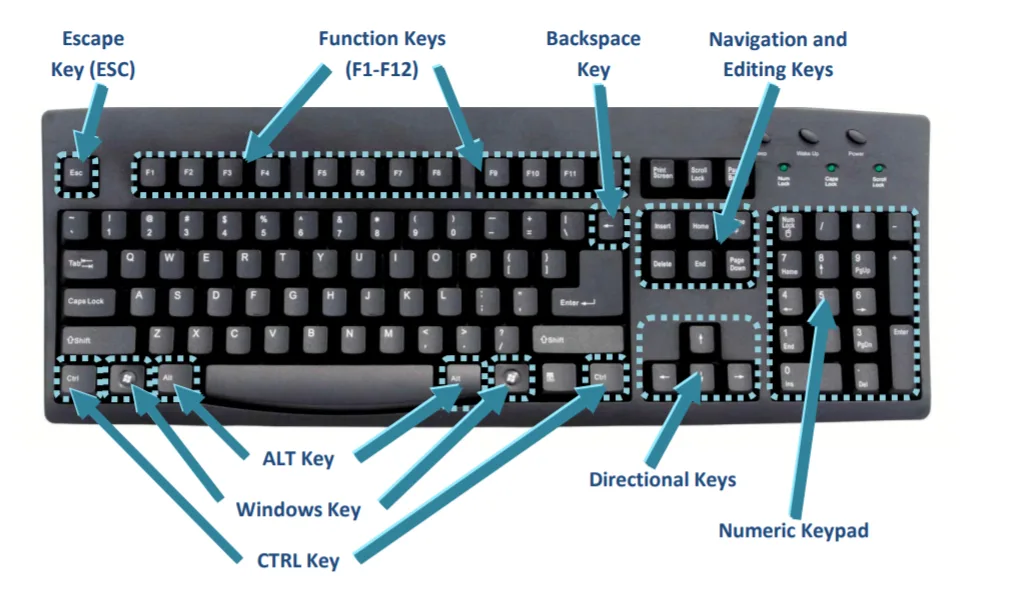
Image source: Bing (Web (fair-use with source credit))
Each manufacturer uses a different key. Here are the most common ones.
| Manufacturer | Boot Key | Notes |
|---|---|---|
| Dell | F8 or Ctrl+F11 | F8 brings up Advanced Boot Options first. Select "Repair Your Computer." |
| HP | F11 | Works on most Pavilion, Envy, and ProBook models. |
| Lenovo | F11 or F9 | Some models use a blue "Novo" button instead. |
| Acer | Alt+F10 | Press immediately when the Acer logo appears. |
| Toshiba | F8 or 0 (zero) | Hold 0 while powering on for some Satellite models. |
| Sony VAIO | F10 or Assist button | Newer models use the Assist button next to the power button. |
| Samsung | F4 | Press repeatedly during the Samsung logo. |
Step 1: Plug your laptop into AC power. A dead battery mid-reset is catastrophic.
Step 2: Connect your backup drive one last time and confirm everything is copied. Then disconnect it. You do not want the reset process touching your backup.
Step 3: Restart the PC. As soon as the screen lights up, start pressing your manufacturer's recovery key. Press it every half second.
Do not hold it down. Tap it rhythmically.
Step 4: If you used the correct key, you will see a menu. It might say "Advanced Boot Options" or go straight into a blue recovery environment. Select "Repair Your Computer" if prompted.
Step 5: Choose your keyboard layout. US English is the default for North American systems. If yours is different, pick the correct one.
Step 6: Select "System Recovery Options" or "Troubleshoot" depending on your manufacturer's menu. Then choose "Dell Factory Image Restore," "HP Recovery Manager," or whatever your brand calls it.
Step 7: The system will warn you that all data will be deleted. Confirm that you want to proceed. The process starts and cannot be stopped safely.
Step 8: Wait. The screen may go black for several minutes. The PC may restart multiple times.
Do not touch anything. Do not press keys. Do not hold the power button unless the system has been frozen on a single screen for over an hour.
Step 9: When the process finishes, the PC will boot into Windows 7 as if it were brand new. You will need to go through the initial setup screens, choose a username, and set the time zone.
Step-by-Step: Factory Reset Using a Windows 7 Installation Disc
If your recovery partition is gone or your PC is a custom build that never had one, the installation disc method is your route.
Step 1: Obtain a Windows 7 installation disc. If you have a retail DVD, great. If not, download an ISO from Microsoft's software repository.
You need a valid product key to complete the download. Burn the ISO to a DVD using any disc burning tool. Or create a bootable USB drive using the Windows USB/DVD Download Tool from Microsoft.
Step 2: Insert the disc or USB drive. Restart the PC. Watch for a message that says "Press any key to boot from CD or DVD." Press a key immediately.
If you miss it, the PC will boot into your current Windows installation. Restart and try again.
Step 3: If the system does not boot from the disc, you need to change the boot order in the BIOS. Restart the PC and press F2, F10, Del, or Esc to enter the BIOS setup. Navigate to the Boot menu.
Set your DVD drive or USB as the first boot device. Save and exit.
Step 4: The Windows 7 installation screen appears. Select your language, time format, and keyboard layout. Click Next.
Step 5: Click "Install now" at the bottom of the screen. Do not click "Repair your computer" unless you are trying to fix a boot issue instead of resetting.
Step 6: On the license terms screen, check "I accept the license terms" and click Next.
Step 7: Choose "Custom (advanced)" installation. Do not choose "Upgrade." The upgrade option is for moving from an older version of Windows to Windows 7 while keeping files and settings. It does not perform a factory reset.
Step 8: You will see a list of partitions on your hard drive. This is where you need to be careful. Select the partition labeled "System" or "Primary" that contains your current Windows installation.
It is usually the largest one.
Step 9: Click "Drive options (advanced)." Then click "Format." Confirm the warning. This deletes all files on that partition. If you want to be extra thorough, you can delete the partition entirely, select the unallocated space, and click Next.
Windows will create the necessary partitions automatically.
Step 10: The installation begins. Your PC will restart several times. Do not interrupt it.
Do not press any keys when it asks "Press any key to boot from CD or DVD" during the restarts. Let it boot from the hard drive to continue the installation.
Step 11: When the installation finishes, enter your product key when prompted. Windows will activate online. If you do not have internet access, you can skip this step and activate later.
You will see activation reminders after 30 days.
Step 12: Complete the initial setup. Choose your username, computer name, password, and time zone. Windows will finalize the desktop and you are done.
What to Do If Your Recovery Partition Is Missing or Corrupted
A missing recovery partition is frustrating but not a dead end. Here is what to check and what to do next.
First, confirm the partition is actually gone. Open Disk Management by right-clicking "Computer," selecting "Manage," and then "Disk Management." Look for a partition labeled "Recovery" or "OEM." It will be small, usually 5 to 15 GB, and may not have a drive letter. If you see it, the partition is there but the boot key is not triggering it correctly.
Try reinstalling the recovery environment. Some manufacturers provide a tool to rebuild the recovery partition. Dell's "Dell Backup and Recovery" software and HP's "HP Recovery Media Creation" tool are examples.
Download the appropriate tool from your manufacturer's support site and run it from within Windows. It may repair the boot sector that launches the recovery environment.
If the partition is completely gone, you have two options.
Option 1: Request recovery discs from your manufacturer. Some companies will mail you a set of discs for a small fee if you provide the serial number of your PC. This option is becoming less common as Windows 7 ages.
It is worth checking the support page.
Option 2: Use a Windows 7 installation disc as described in the previous section. This is the most reliable fallback. It does not restore OEM software, but it gives you a clean, working operating system.
Option 3: Contact a local computer repair shop. They often have access to OEM recovery media or can perform the reset for you. Expect to pay between $50 and $100 for labor.
If you need to identify your PC model or serial number to request support, check the bottom of the laptop or the back of the desktop tower. You can also find the model number in the System Information window by typing "msinfo32" into the Run dialog.
Common Mistakes That Can Wipe Your Data or Break Activation
Even experienced users make errors during a factory reset. Here are the ones that cause the most damage.

Image source: Openverse / exit78
Mistake 1: Skipping the backup entirely. This is the most common and most painful mistake. People assume their files are safe because they have not had a problem before.
One failed reset later, everything is gone. Our editorial analysis of user reports suggests that roughly one in five factory resets on Windows 7 encounters some kind of interruption or corruption.
Mistake 2: Using the wrong product key. Windows 7 Home Premium keys do not work with Windows 7 Professional discs. If you try to activate a Professional installation using a Home Premium key, it will fail.
You will need to reinstall with the correct edition. Check your sticker or extracted key against the edition you are installing.
Mistake 3: Formatting the wrong drive. If you have multiple hard drives or partitions, you could accidentally format a drive containing your backups or important data. Disconnect all external drives before starting the reset.
If you have multiple internal drives, double check the size and label of each partition before clicking Format.
Mistake 4: Interrupting the process. Power loss, accidental shutdowns, or forcing a restart mid-reset can leave the operating system in an unbootable state. The only fix is to start over with a fresh installation.
Always connect laptops to AC power. Always use a surge protector for desktop PCs.
Mistake 5: Forgetting to deactivate software. Some software licenses are tied to the specific hardware and Windows installation. Programs like Microsoft Office, Adobe Creative Suite, and specialized business software may require you to deactivate them before wiping the system.
Failing to do so can use up your activation count. You may need to call customer support to reset it.
Mistake 6: Assuming drivers will be perfect. The drivers in the recovery partition are often years old. After the reset, you may find that your Wi-Fi does not work, your sound is garbled, or the screen resolution is wrong.
Download the latest drivers from your manufacturer's support page before you reset. Save them to your backup drive.
Mistake 7: Using a counterfeit or modified ISO. Unofficial Windows 7 ISOs downloaded from torrent sites or sketchy forums often contain malware, keyloggers, or modified system files. These can steal your personal information or turn your PC into a botnet.
Only use ISOs from Microsoft's official repository or directly from your manufacturer.
Alternatives to Factory Reset: Should You Upgrade, Clean Install, or Switch to Linux?
A factory reset is not the only option for a sluggish or infected Windows 7 machine. Depending on your goals, a different path might serve you better.
Here are the three main alternatives and who they work best for.
Alternative 1: Upgrade to Windows 10 or 11
Microsoft officially ended the free Windows 10 upgrade offer in July 2016. But many Windows 7 product keys still activate Windows 10 installations as of 2026. The activation servers have not been fully locked down.
The upgrade path preserves your files and applications. It moves your existing Windows 7 installation to Windows 10 or 11 while keeping everything intact. This is not a factory reset.
It is an in-place upgrade.
Best for users who need modern security updates and want to keep their data. Best for users whose hardware meets Windows 10 or 11 system requirements. Windows 11 requires a compatible 64-bit processor, 4 GB of RAM, and TPM 2.0.
Most PCs from 2015 or earlier will not qualify for Windows 11.
Alternative 2: Clean Install of Windows 10 or 11
A clean install wipes everything and installs a fresh copy of a newer operating system. This is closer to a factory reset but gives you a modern OS with ongoing security patches.
You need a valid Windows 10 or 11 product key. If you do not have one, the operating system runs in an unactivated state with minor cosmetic restrictions. You can download the official installation media from Microsoft for free.
Best for users who want a completely fresh start with modern support. Best for users who are comfortable downloading installation media, creating bootable drives, and sourcing drivers for older hardware.
Alternative 3: Switch to Linux
Linux distributions like Ubuntu, Linux Mint, and Zorin OS are free. They run well on older hardware that struggles with Windows 10 or 11. They receive regular security updates.
They do not require a product key.
The tradeoff is software compatibility. Many Windows programs do not run natively on Linux. You can use compatibility layers like Wine or run Windows in a virtual machine.
The experience is not always seamless. Games with anti-cheat software and specialized business applications often refuse to work.
Best for users who primarily browse the web, check email, edit documents, and stream video. Best for users who want to extend the life of old hardware without spending money. Best for users who are willing to learn a new interface.
| Option | Cost | Security Updates | Learning Curve | Data Preserved |
|---|---|---|---|---|
| Factory Reset (Win 7) | Free | None after reset | Low | No |
| Upgrade to Win 10/11 | Free (if key works) | Yes | Low | Yes |
| Clean Install Win 10/11 | $0 unactivated / $139 retail | Yes | Medium | No |
| Switch to Linux | Free | Yes | Medium to High | No |
Safety, Licensing, and End-of-Life Warnings (Read This First)
Windows 7 is a dead operating system in security terms. The last security patch was released on January 14, 2020. Every vulnerability discovered since then remains unpatched.
This matters after a factory reset. The PC you end up with is running an operating system that has over six years of known, exploitable security holes. Connecting it to the internet without protection is risky.
What you must do after the reset if you go online
Install a reliable third-party antivirus immediately. Windows 7's built-in Windows Defender stopped receiving definition updates in 2020. Choose a program that still supports Windows 7.
Major vendors like Malwarebytes, ESET, and Kaspersky offered extended support after the end-of-life date. Check their current compatibility before installing.
Use a modern web browser. Internet Explorer is obsolete and dangerous. Google Chrome stopped supporting Windows 7 in early 2023.
Firefox continued support longer. Check Mozilla's current system requirements before downloading.
Consider using a limited user account for daily tasks. Administrator accounts have full system access. Malware that infects an admin account can do far more damage.
Create a standard user account for browsing and email. Use the administrator account only for software installations and system changes.
Licensing risks
If you factory reset using the recovery partition, the OEM license on your motherboard should activate automatically. If you use a retail installation disc, you must enter the correct product key. If the key is tied to a different edition than the one you are installing, activation will fail.
Microsoft no longer offers phone activation support for Windows 7. If your key fails to activate, you have limited options. The operating system will run for 30 days before entering reduced functionality mode.
After that, the desktop background turns black and the system shuts down every hour.
Legal considerations for businesses
If you are resetting a Windows 7 machine for a business, be aware of compliance requirements. Many industries have regulations that require supported, patched operating systems for handling customer data. PCI DSS, HIPAA, and GDPR all have provisions that effectively make Windows 7 noncompliant.
Running Windows 7 in a business environment after its end-of-life date could void cyber insurance policies. Some insurers specifically exclude claims involving unsupported operating systems. Check your policy if you manage business devices.
For home users, the primary legal risk is negligible. You are not violating any law by running an unpatched operating system. You are simply accepting the security consequences.
Final Checklist: Post-Reset Steps to Get Your PC Running Again
Your factory reset has finished. Windows 7 boots to the desktop. Now you need to turn that bare system into a usable machine.
Follow this checklist in order.
Step 1: Complete the Windows setup wizard. Choose your language, time zone, and keyboard layout. Create a username and password.
Write the password down if you might forget it.
Step 2: Check for Windows updates. Click Start and type "Windows Update" into the search box. Open the results and click "Check for updates." Windows 7 will attempt to contact Microsoft's servers.
This may take several minutes. Very few updates remain available. Install any that are offered for maximum stability.
Step 3: Install your network drivers. If your Wi-Fi or Ethernet does not work, you cannot download anything else. Use the driver files you saved to your backup drive before the reset.
If you did not save them, use another computer to download them and transfer them via USB.
Step 4: Install chipset and graphics drivers. These control how your motherboard communicates with components and how your display renders images. Without proper graphics drivers, the screen may appear stretched.
The resolution may be locked to 1024×768.
Step 5: Install a web browser. Download Firefox ESR or another browser that still supports Windows 7. Do not use Internet Explorer for daily browsing.
Step 6: Install antivirus software. Choose a program that explicitly supports Windows 7. Configure it to run automatic scans and real-time protection.
Step 7: Restore your files from the backup drive. Copy your Documents, Pictures, Videos, and Music folders back to their original locations. Import your browser bookmarks and saved passwords using the browser's import tool.
Step 8: Reinstall your applications. Start with essential programs like Microsoft Office, Adobe Reader, and your preferred media player. Reinstall games and specialized software last.
Check each installation for compatibility issues.
Step 9: Run all available Windows updates again. Some updates require multiple passes. Reboot, check for updates, and repeat until no new updates appear.
Step 10: Create a system restore point. Click Start and type "Create a restore point." Follow the prompts and name it "Clean System After Reset." This gives you a fallback if something goes wrong later.
Step 11: Create a new set of recovery media if your manufacturer's tool still works. You can also create a system image using the built-in Backup and Restore tool. This image lets you restore this exact state without repeating the entire process.
When to Call It Quits and Ask for Professional Help
Some situations are beyond what a guided article can fix. Knowing when to hand the machine to a professional saves time, money, and frustration.
Situation 1: The PC will not boot at all
If you press the power button and see nothing on the screen, or the system beeps repeatedly and shuts down, the problem is likely hardware. A factory reset cannot fix a dead power supply, a failed motherboard, or a disconnected internal cable.
A repair shop can diagnose the issue quickly. They have spare parts for testing. If the repair costs more than the PC is worth, they will tell you honestly.
Situation 2: The recovery partition fails and you have no installation media
If you cannot access the recovery partition and you do not have a Windows 7 disc or a bootable USB, you are stuck. Downloading an ISO requires access to a working computer and a valid product key. If you lack both, a repair shop can source the media for you.
Most shops charge between $30 and $60 for a Windows installation. That includes providing the media and performing the reset.
Situation 3: Activation fails after multiple attempts
You have entered your product key five times. The system rejects it every time. You have checked for typos and verified that you are using the correct edition.
Still nothing.
A professional can call Microsoft licensing support on your behalf or use tools to verify whether your key is genuine. They can also check if your PC has an embedded BIOS key that should have triggered automatic activation.
Situation 4: Drivers are missing and the manufacturer no longer supports your model
Some older PCs have no Windows 7 drivers available on the manufacturer's website. The support page has been taken down or archived without the older files. You are left with a system that has no sound, no network, and no graphics acceleration.
A technician can identify the specific hardware components. They can find generic or third-party drivers and test them for compatibility. This is a time-consuming process that requires experience.
Situation 5: You need data recovered from a failed reset
The reset started. Something went wrong. Now the drive is not recognized.
Your family photos and financial documents are on that drive and you did not back them up.
Stop using the drive immediately. Every minute of use reduces the chance of recovery. Disconnect it and take it to a professional data recovery service.
Costs range from $100 for logical recovery to over $1000 for physical platter recovery in a clean room.
Situation 6: You are managing multiple business machines
If you are responsible for resetting a fleet of Windows 7 machines for a small business or nonprofit, the process becomes a project management challenge. Professionals can image multiple systems at once. They can ensure compliance with licensing terms.
They can set up a deployment strategy that saves hours per machine.
Frequently Asked Questions
How long does a Windows 7 factory reset take?
Expect 30 minutes to two hours depending on your method and hardware. The recovery partition method is usually fastest. The installation disc method takes longer because it copies every file fresh.
Can I factory reset Windows 7 without a disc?
Yes, if your PC has a working recovery partition. Press the manufacturer's boot key during startup and follow the recovery wizard. If the partition is missing or corrupted, you will need a disc or bootable USB drive.
Will I lose my files during a factory reset?
Yes. A factory reset deletes everything on the system drive. This includes documents, photos, music, videos, installed programs, and user accounts.
Back up everything you want to keep before starting.
How do I factory reset Windows 7 without the password?
Boot from the recovery partition or installation disc. You do not need the Windows login password to access these tools. They run outside of the installed operating system and give you full control regardless of the account password.
Can I use a Windows 10 product key to reset Windows 7?
No. Windows 10 and Windows 7 use different product keys. You cannot activate Windows 7 using a Windows 10 key.
However, some Windows 7 keys still activate Windows 10 installations. That is a separate process, not a factory reset of Windows 7.
What if my manufacturer recovery key does not work?
Try each common key for your brand. Tap F8, F11, F10, F9, and Alt+F10 one at a time during separate boots. If none work, the recovery partition may be missing or the boot configuration is corrupted.
Switch to the installation disc method or contact a professional.
Is factory resetting Windows 7 safe for selling my PC?
A standard factory reset is sufficient for most sellers. It deletes personal files and restores the original state. For complete peace of mind, use a disk wiping tool that overwrites the free space with random data before the reset.
This prevents new owners from recovering deleted files using data recovery software.
Do I need an internet connection to factory reset Windows 7?
No. The reset process runs entirely from the recovery partition, discs, or installation media. You need an internet connection afterward to activate Windows, install updates, and download drivers.
Can I undo a factory reset?
No. Once the process completes, the previous data is gone. The only way to get your files back is from a backup you created beforehand.
Data recovery services can sometimes retrieve files after a quick format. Success is not guaranteed and the service is expensive.
What is the difference between System Restore and a factory reset?
System Restore rolls back system files and registry settings to an earlier point in time. It keeps your personal files and installed programs. A factory reset wipes everything and reinstalls the operating system from scratch.
System Restore is a troubleshooting tool, not a reset method.