
Your Roku remote just stopped working. You press buttons and nothing happens. The screen stays frozen.
Before you toss it in the trash, there's a straightforward answer: you need to reset roku remote. It's almost always fixable without buying anything.
Roku ships two main remote types as of 2026 across its streaming players and Roku TVs. Infrared (IR) remotes use direct line of sight to work. Enhanced WiFi remotes include voice control and private listening.
Each type needs a completely different reset procedure. Let's figure out which one you're holding right now.
The Quick Answer: Two Ways to Reset (Pick Your Path)
Remove the batteries and wait 30 seconds. Press and hold any button for 30 seconds. Reinsert the batteries and test the remote.
If it still fails, identify your remote type and follow the correct pairing steps. Most remotes only need a simple power drain.
Your remote is either an infrared (IR) model or a WiFi enhanced model. IR remotes have no pairing button. Enhanced remotes have a small button inside the battery compartment.
Look for it before you proceed.
Is Your Roku Remote Actually Broken? Let's Find Out
Image source: Openverse / Ceasar Jamandre
Most remote issues are temporary. The most common problem is dead or loose batteries. Next up is a lost wireless connection between the remote and your Roku device.
If your remote does nothing at all, start with a reset. If it works sometimes but not others, start with a reset. If buttons are delayed or double pressing, try a reset before anything else.
So what qualifies as truly broken? Look for cracks in the plastic casing. Check for battery corrosion in the compartment.
If the remote got wet or dropped on a hard floor, internal components could be damaged. Also feel for stuck buttons that make a crunchy or squeaky sound. That means the internal membrane is worn.
Physical damage means you need a replacement remote, not a reset. Corrosion and cracks won't be fixed by any reset procedure. But for the vast majority of users, the remote is fine.
It just needs to wake up and reconnect to your Roku.
Step 1: Find Your Remote Type First
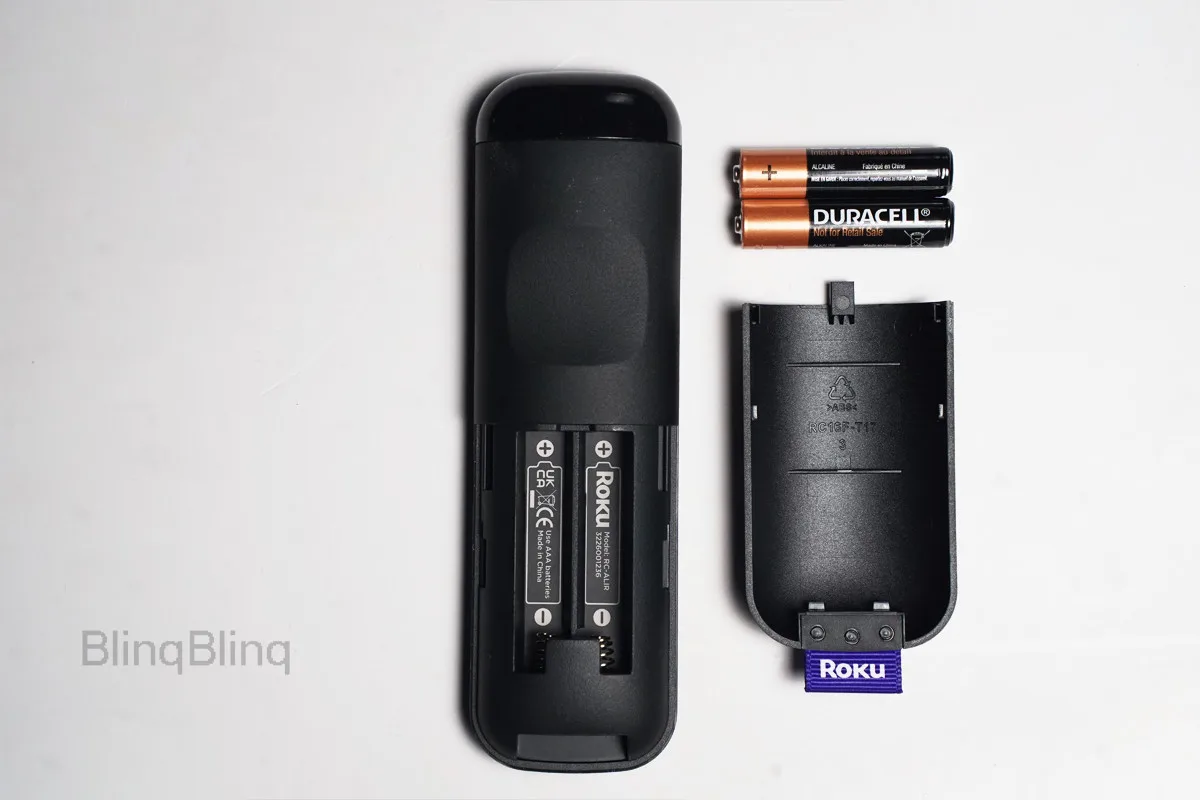
Image source: Bing (Web (fair-use with source credit))
Open the battery compartment on the back of your remote. Look for a small button. It's usually a tiny round button near the batteries or on the back panel.
If you see one, you have an enhanced WiFi remote. If you don't see any button, you have a standard IR remote.
Here's a quick comparison:
| Remote Type | Pairing Button | Range | Features |
|---|---|---|---|
| IR (Standard) | No button | Up to 30 ft, line-of-sight | Basic navigation |
| WiFi Enhanced | Small button inside | Up to 40 ft, through walls | Voice control, private listening |
IR remotes are the simplest. They require direct line of sight to your Roku box or Roku TV. Point them directly at the device for them to work.
They never need pairing because they use infrared light rather than wireless signals.
WiFi enhanced remotes use a direct wireless connection. They work from anywhere in the room, even behind furniture. They include voice search, private listening via headphones, and often TV control buttons for power and volume.
These remotes need occasional re-pairing, especially after battery changes or system updates.
The Roku Voice Remote Pro is a special case. It has a rechargeable battery and a built-in remote finder. It also uses WiFi direct and has a pairing button.
You'll find it inside the battery compartment near the bottom.
If you're still unsure which type you have, check your Roku device model. Most Roku Express models come with IR remotes. Most Roku Streaming Stick and Roku Ultra models come with enhanced WiFi remotes.
Roku TVs can come with either type depending on the manufacturer.
Branch A: How to Reset an IR Remote (No Pairing Button)
IR remotes are the simplest to fix. They don't pair with your Roku box at all. They just send infrared light signals, like a TV remote from the 90s.
If one stops working, the cause is almost always batteries or a blocked sensor.
Follow these steps:
- Remove the batteries from the remote.
- Wait a full 60 seconds. This discharges internal capacitors.
- Press and hold any button for 30 seconds to drain residual power.
- Insert fresh batteries. Make sure the plus and minus symbols match the diagram inside the compartment.
- Point the remote directly at your Roku device from about 6 feet away. Press a button.
Now check the response. If you see a small red LED blinking on the front of the remote but nothing happens on screen, the remote is sending a signal. The issue is with the Roku device.
Move closer. Remove anything blocking the line of sight. Check the Roku's front panel for dust covering its IR receiver.
If you see no blinking LED at all, the remote has a hardware problem. Try different batteries. Check for battery corrosion.
If you see white or green crust, clean it gently with a cotton swab and white vinegar. Let it dry completely before adding batteries.
If none of this works, your IR remote is likely dead. Replacement IR remotes are inexpensive and widely available. IR remote batteries typically last 6 to 12 months with normal use, so a fresh set often solves the issue.
Branch B: How to Reset a WiFi / Voice Remote (With Pairing Button)
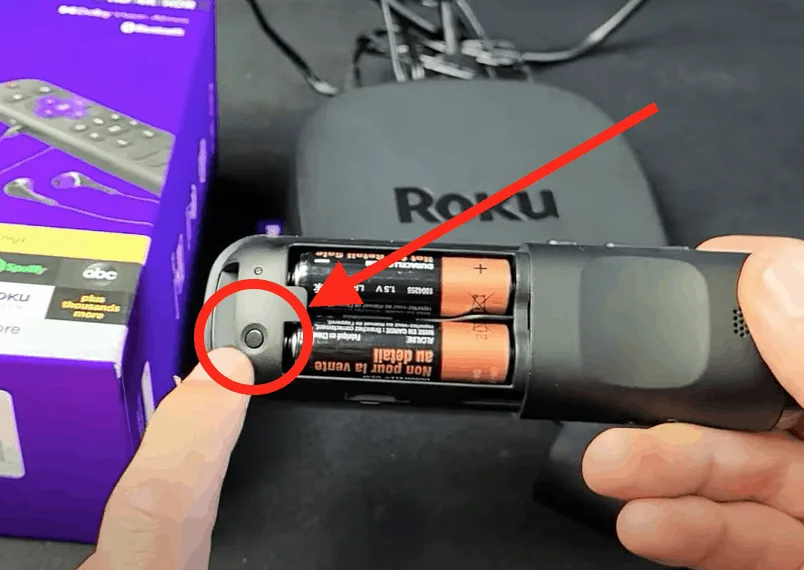
Image source: Bing (Web (fair-use with source credit))
This is the remote type that most often needs a real reset. WiFi enhanced remotes connect wirelessly. That connection can break or become confused.
The good news is the fix is simple once you know the right steps.
Start with the quick power drain. Remove the batteries. Press and hold any button for 30 seconds.
Reinsert the batteries. Test the remote. This works about half the time.
If that doesn't help, you need to fully re-pair the remote:
- Remove the batteries. Press and hold any button for 30 seconds.
- Reinsert the batteries with correct polarity.
- Open the battery compartment and locate the small pairing button.
- Press and hold that button for 5 full seconds.
- Watch for a blinking green LED on the remote. It means the remote is broadcasting.
- On your Roku device, a pairing screen appears automatically.
- When pairing finishes, the LED stops blinking.
Roku's official support documentation confirms the pairing button must be held for at least 5 seconds. Less time may not trigger the pairing mode at all.
If the pairing screen never appears, your Roku device needs a restart. Unplug your Roku box or Roku TV from power. Wait 30 seconds.
Plug it back in. Wait for the home screen to load completely. Then press the pairing button on the remote again.
The screen should appear within 30 seconds.
If the remote has a blue or white LED instead of green, you have a newer model. The Roku Voice Remote Pro uses a blue LED during pairing. The process is identical, just the light color is different.
Does the remote work now? Test it by pressing the home button and navigating a few menus. If everything works, you are done.
If the remote still doesn't respond, try one more thing: repeat the entire process but use the Roku mobile app to navigate to Settings, Remotes and Devices, and pair the remote manually from there.
That's it. The remote is now reset and paired.
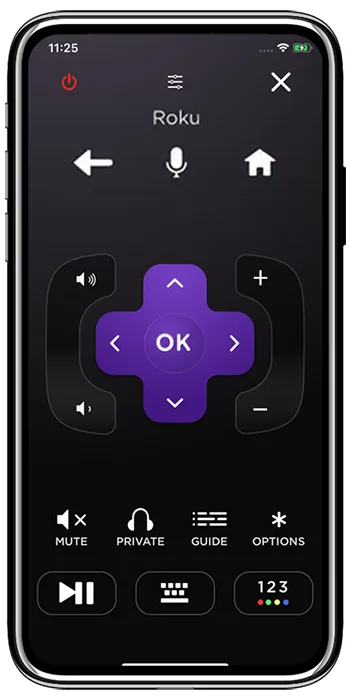
Image source: Bing (Web (fair-use with source credit))