
Your LG TV is acting up. Maybe it's frozen on the logo screen. Apps keep crashing.
The remote stopped responding. Or the whole system has become so sluggish that pressing a button feels like waiting for dial-up.
Knowing how to reset your LG TV is the most common fix that actually works. The trick is picking the right type of reset for your specific situation.
As of 2026, LG's webOS platform has gone through seven major versions since its 2014 debut. Each version organizes reset options differently. The method that worked on your old TV might not work on your current one.
Let's walk through the exact process. We'll start with what you need to know before you touch a single button.
The Problem: When Your LG TV Starts Acting Up (and Which Reset Actually Fixes It)
Image source: Bing (Web (fair-use with source credit))
Every LG TV owner hits this wall eventually. The screen goes black but the power light stays on. The TV gets stuck on the LG boot logo for minutes.
Apps open but crash back to the home screen within seconds. The whole system becomes sluggish.
These symptoms share a common root. Your TV's operating system needs a fresh start.
But here's where most people get it wrong. They reach for the factory reset when a simple power cycle would have fixed everything. Or they try a power cycle on a TV that is completely bricked and wonder why nothing changes.
The real question is not "should I reset my TV?" It's "which kind of reset does this problem actually need?"
LG builds their TVs with three distinct reset methods. Using the wrong one either wastes your time or wipes out settings you wanted to keep.
- Soft reset (power cycle). Clears temporary glitches. Keeps all your apps, passwords, and picture settings.
- Factory reset from Settings. Wipes everything back to day-one condition. Perfect for selling the TV or fixing deep software corruption.
- Forced hardware reset. Your last resort when the TV won't respond to anything at all.
We will map your specific symptoms to the right fix in the sections ahead.
Quick Answer: The Two-Question Decision Guide
Ask yourself two questions.
Question 1: Can you get to the Settings menu on your TV?
- Yes. You have a responsive TV. Use the soft reset or factory reset from Settings.
- No. Your TV is frozen or unresponsive. You need a forced reset method.
Question 2: Do you want to keep your apps, passwords, and picture settings?
- Yes. Do a soft reset (power cycle).
- No. Do a factory reset from Settings (responsive) or a forced reset (frozen).
| Your Situation | Reset Type | Time Needed | Settings Kept? |
|---|---|---|---|
| TV is slow or apps crash | Soft reset (power cycle) | 2 minutes | Yes |
| TV works but you are selling it | Factory reset from Settings | 5 minutes | No |
| TV is stuck on logo or frozen | Forced hardware reset | 5 minutes | No |
| Remote is broken or missing | ThinQ app reset or physical button | 3 minutes | Depends on method |
That is the high-level map. For the full walkthrough with every edge case, keep reading.
The Core Decision Variables You Need Before Starting
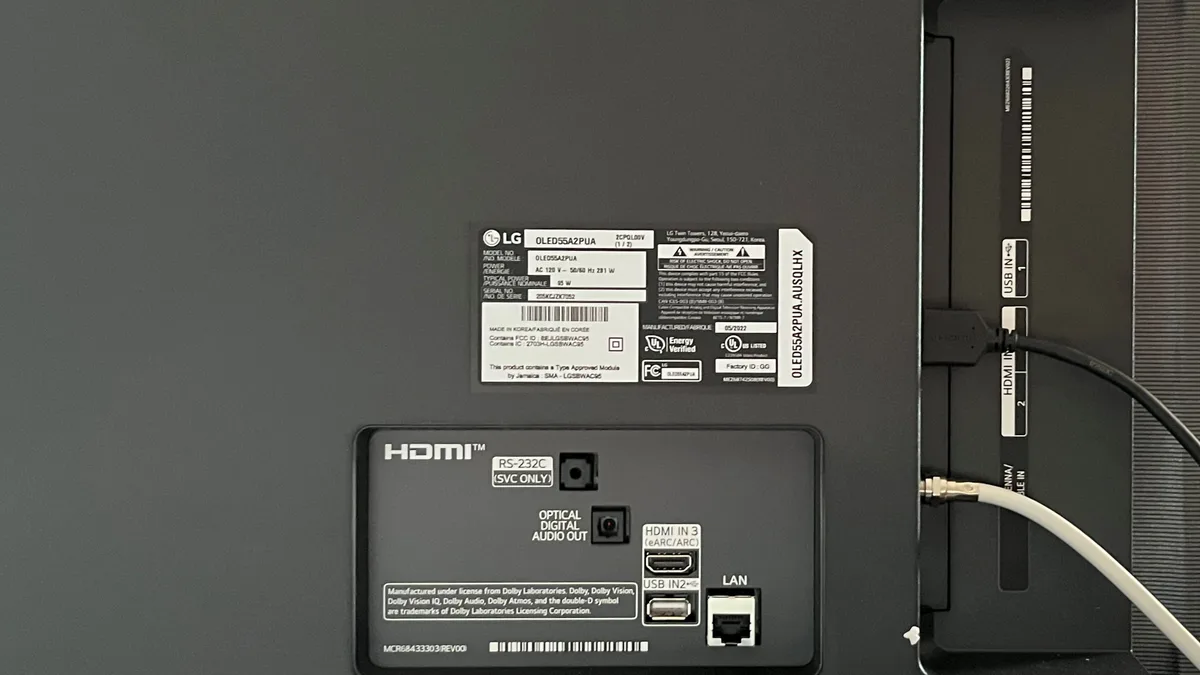
Image source: Bing (Web (fair-use with source credit))
Before you start pressing buttons, know three things about your specific TV. These variables determine which reset method will work.
1. Your TV model year and webOS version
LG changes the menu layout with every webOS update. A 2018 model running webOS 4.0 organizes its Settings menu differently than a 2024 model on webOS 6.0 or later. The factory reset path we describe below works for webOS 4.0 through 6.0.
That covers roughly 2018 through 2026 models. If you have an older model (2014 to 2017 on webOS 1.0 to 3.5), the menu labels may differ slightly. But the general path is the same.
2. Your remote type
LG ships two kinds of remotes. The Magic Remote (model numbers starting with AN-MR) uses Bluetooth and has a scroll wheel. The standard IR remote uses infrared and has no pointer functionality.
Your remote type matters because some reset procedures require specific button combinations.
To check which remote you have, look at the back or bottom for the model number. Magic Remote models include AN-MR19, AN-MR20, and AN-MR22. Standard IR remotes have simpler model numbers like AKB75375604.
3. Whether the TV can turn on at all
This is the biggest fork in the decision tree. If your TV powers on and you can navigate to Settings, you have the widest range of options. If the TV is completely dark, stuck on a logo, or unresponsive to the remote and physical buttons, you are limited to forced reset methods.
How to find your model number
Your TV's model number is the key to finding the right instructions. You will find it in two places.
- On the back of the TV. Look for a white or silver sticker with a barcode. The model number starts with a letter (U for UHD, C for OLED, Q for QNED, N for NanoCell) followed by numbers.
- In the Settings menu. Go to Settings > General > About This TV (or Support > Product/Service Info on some versions).
Write down the model number before you start. Models often differ by region. A 65C3 sold in North America has a different suffix than the same model sold in Europe (65C3AUA vs. 65C3TZU).
The Big Fork: Is Your TV Responsive or Frozen?
This single question determines your entire reset strategy. Let us walk through both branches.
Branch 1: If Your TV Is Working (Responsive)
You can turn the TV on. You can navigate to Settings. The remote works.
You have two clean options.
Option A: Soft Reset (Power Cycle)
This is the first thing you should try for any minor glitch. It clears the TV's temporary memory and forces all running processes to restart cleanly. Use this when:
- Apps crash or fail to load
- The TV feels sluggish or laggy
- Sound drops out or sync is off
- The picture looks wrong (color tint, weird brightness)
- The TV won't connect to Wi-Fi temporarily
How to do it: Unplug the TV from the wall outlet. Wait 60 seconds. Plug it back in and turn it on.
That is it. The wait time is critical. Thirty seconds is not always enough for the internal capacitors to discharge fully.
A full minute guarantees a clean restart.
This fixes an estimated 70% of common LG TV issues without losing a single setting.
Option B: Factory Reset from Settings
Use this when soft resets have not helped, or when you are preparing to sell or give away the TV. It restores the TV to the exact condition it was in when you first unboxed it. Everything goes.
Saved Wi-Fi networks. Logged-in streaming accounts. Picture adjustments.
Channel lists. Installed apps.
We cover the full step-by-step process in the next section.
Branch 2: If Your TV Is Frozen or Unresponsive
Your TV turns on but gets stuck on the LG logo screen. The screen is black but the power light is on. The remote does nothing.
The physical buttons on the TV will not respond either.
In this situation, you cannot access the Settings menu at all. You need a forced reset method that bypasses the operating system entirely.
Option A: Hard Reboot Using the TV's Physical Button
Every LG TV has at least one physical button on the body. On most models, it is a single joystick-style button on the bottom center or lower left edge. On some 2023 and later models, it is a small button on the back near the ports.
To perform a hard reboot:
- Unplug the TV from power.
- Press and hold the physical power button on the TV body.
- While holding the button, plug the TV back in.
- Continue holding the button for 10 to 15 seconds.
- Release the button. The TV should power on and show the LG logo, followed by the initial setup screen.
This method forces the TV's bootloader to bypass the corrupted system state. It goes straight to a factory initialization sequence. It is the most reliable way to recover a TV stuck in a boot loop.
Option B: Unplug and Wait Extended
If the hard reboot does not work, try leaving the TV unplugged for at least 10 minutes. Some LG TV models have capacitors that hold a charge for several minutes. A longer wait ensures every component powers down completely.
After 10 minutes, plug the TV back in and try turning it on normally. If it boots to the home screen, immediately run a soft reset. Unplug for 60 seconds to clear whatever caused the freeze.
Option C: Reset Using the LG ThinQ App
If you have a smartphone and the TV is at least connected to your home network, the LG ThinQ app can sometimes initiate a reset remotely. This works best when the TV is responsive enough to maintain its network connection but the display or input is locked up.
Open the LG ThinQ app on your phone. Select your TV from the device list. Tap the gear icon or Settings.
Look for Reset or Factory Reset options. The exact path varies by app version. It is typically under Device Settings > General > Reset.
This method will not work if the TV's network hardware is also frozen. But it is worth trying before you resort to the physical button method.
How to Factory Reset Using the Settings Menu (Responsive TVs)
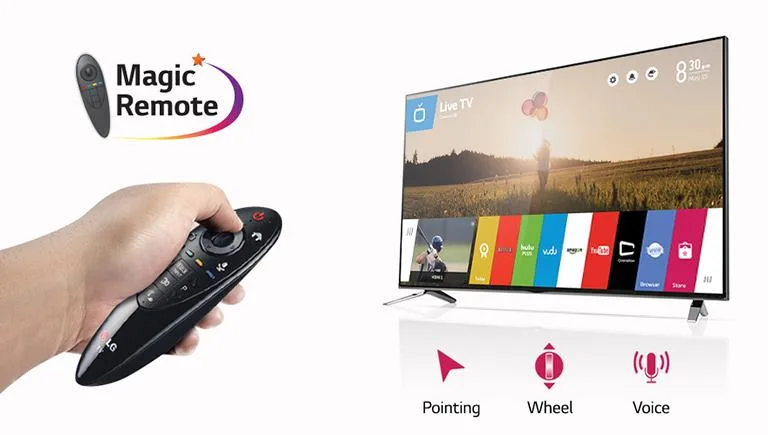
Image source: Bing (Web (fair-use with source credit))
For TVs that respond to the remote, this is the cleanest and most complete reset method. Here is the exact path for webOS 4.0 through 6.0 (2018 through 2026 models).
Step 1: Open Settings
Press the gear button on your remote. It looks like a small cog icon. On older Magic Remotes, it is the button with three horizontal lines.
On standard remotes, it is usually labeled SETTINGS or has a gear icon.
Step 2: Navigate to General
In the Settings menu, scroll down to the General tab. On some versions, you need to select All Settings or the three-dot menu first. The General section is where most system-level options live.
Step 3: Find the Reset Option
Select Reset to Initial Settings. On some TV models, this option is labeled simply Reset and lives under Support or System instead of General. If you do not see it immediately, check both the General and Support sections.
Step 4: Enter the PIN
LG TVs come with a default PIN of 0000. If you have never changed the parental control PIN, this is what you will enter. If you changed it and forgot it, you have a few options.
- Try common PINs like 1234, 1111, or the last four digits of your phone number.
- If you set up a smart speaker (Google Assistant or Alexa) with the TV, try asking it to disable parental controls.
- As a last resort, some LG service menus allow PIN recovery. But this varies by model and region.
Step 5: Confirm the Reset
The TV will display a warning that all data will be erased. Settings will return to factory defaults. Select Yes or OK to confirm.
The TV will restart automatically.
How long does it take?
The factory reset process takes 2 to 5 minutes total. During this time, the TV will restart multiple times and display the LG logo. Do not unplug the TV or press any buttons during this process.
Interrupting a factory reset can corrupt the operating system and require professional repair.
What happens immediately after
Once the reset completes, your TV will boot to the initial setup screen. The same one you saw when you first took it out of the box. You will need to:
- Select your language and region
- Connect to your Wi-Fi network
- Agree to LG's terms of service and privacy policy
- Log back into your streaming apps (Netflix, YouTube, Amazon Prime, and others)
- Re-pair your Magic Remote
- Adjust your picture, sound, and accessibility settings
This is also a good time to check for software updates. The factory reset may roll back to a previous firmware version. Go to Settings > General > About This TV > Check for Updates.
Install anything available.
When NOT to use this method
- Do not use a factory reset if the TV is currently installing a software update. Wait for the update to complete. Interrupting an update can brick the TV.
- Do not use this method if you plan to return the TV under warranty for a hardware issue. A factory reset may not fix hardware problems like dead pixels, backlight failure, or HDMI port damage. Running it could complicate warranty claims by erasing error logs.
- Do not skip the PIN step if you have parental controls enabled. Repeated wrong PIN entries may lock the reset function temporarily.
For TVs that are too old to run webOS (pre-2014 models), the factory reset path is different. Those models use a simpler menu system. The reset option is usually under Setup > Factory Reset or a dedicated Reset button on the remote itself.
If you own one of these older sets, locate your user manual for model-specific instructions.
How to Force Reset an Unresponsive LG TV (No Remote, No Settings Access)
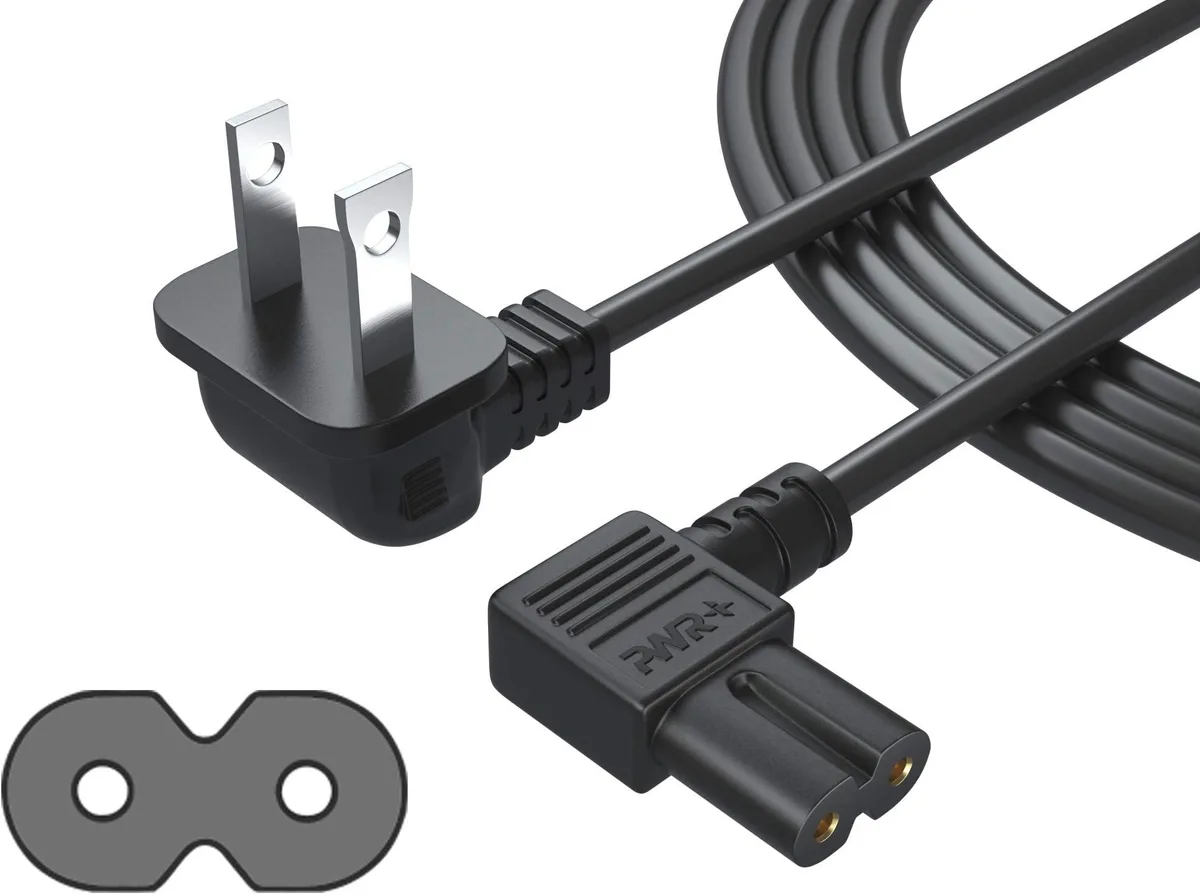
Image source: Bing (Web (fair-use with source credit))
When your TV is completely frozen, the standard menu-based reset is off the table. You need a method that works at the hardware level. These techniques force the TV's bootloader to recognize a clean start command.
Method 1: The Physical Button Hard Reboot
Every LG TV has at least one physical button on the body. On most 2018 through 2023 models, it is a single joystick-style button on the bottom center or lower left edge. You push it left, right, up, down, or press it in to navigate.
On 2024 and later models, some manufacturers moved to a small dedicated button on the back panel near the HDMI ports.
Here is the exact sequence.
- Unplug the TV from the wall outlet completely.
- Wait 30 seconds for internal capacitors to discharge.
- Press and hold the physical power button on the TV body.
- While holding the button down, plug the TV back into the wall.
- Continue holding the button for 10 to 15 seconds.
- Release the button. The TV should power on and display the LG logo, followed by the initial setup screen.
This method works because it sends a signal directly to the TV's bootloader. It tells the bootloader to bypass the corrupted operating system and initiate a fresh boot sequence. It is the most reliable way to recover a TV stuck in a boot loop.
Method 2: Extended Power Drain
If the hard reboot does not work, try leaving the TV unplugged for at least 10 minutes. Some LG TV models use capacitors that hold a charge for several minutes. A quick 60-second unplug is not always enough to drain them completely.
After 10 minutes, plug the TV back in and turn it on normally. If it boots to the home screen, immediately perform a soft reset. Unplug for 60 seconds to clear whatever caused the freeze.
Method 3: The ThinQ App Remote Reset
If your TV is still connected to your home network, the LG ThinQ app can sometimes send a reset command remotely. This works best when the TV's network hardware is still active but the display or input is locked up.
Open the LG ThinQ app on your phone. Select your TV from the device list. Tap the gear icon for Settings.
Look for Reset or Factory Reset options. The exact path varies by app version. It is typically under Device Settings > General > Reset.
This method will not work if the TV's network card is also frozen. But it is worth trying before you start digging around behind the TV for the physical button.
What to do if none of these work
If your TV is completely unresponsive to all three methods, you may be dealing with a hardware failure. Common signs include:
- The power light does not turn on at all
- The screen stays completely black with no logo
- You hear clicking sounds from inside the TV
- The TV turns on but immediately shuts back off
In these cases, the issue is likely the power supply board, main board, or backlight system. A reset will not fix hardware damage. You will need to contact LG support or a local repair technician.
Resetting Without a Remote: Every Workaround That Works
Losing your remote or having it stop working is one of the most frustrating situations. You cannot navigate the menu. You cannot access Settings.
You are stuck with a TV that might be working fine otherwise. Here is every method that works, ranked from easiest to most involved.
Method 1: Use the Physical TV Button
This is your best option if the TV has a joystick or button on the body. On most LG models, the physical button acts as a basic navigation tool. You can:
- Press the button to turn the TV on or off
- Push it up or down to change volume
- Push it left or right to scroll through inputs
- Press and hold it to open the input menu or settings
For a factory reset without a remote, navigate to the Settings menu using the physical button. This is tedious but doable. The button functions as a directional pad.
Press up and down to scroll. Press left and right to adjust. Press in to select.
The menu path is the same as using the remote. Settings > General > Reset to Initial Settings. It just takes longer using the physical button.
Method 2: The LG ThinQ App
LG's ThinQ app turns your smartphone into a full remote control. It connects to the TV over your home Wi-Fi network. No Bluetooth pairing needed.
Just the same network.
To use it:
- Download the LG ThinQ app from the App Store or Google Play.
- Create an account or log in.
- Tap the plus icon to add a device.
- Select TV and follow the on-screen prompts.
- Once connected, you will have full remote functionality. You can navigate to Settings and perform a factory reset.
This method requires the TV to be on and connected to the same Wi-Fi network as your phone. If the TV is off or disconnected, the app will not find it.
Method 3: USB Keyboard or Mouse
LG TVs support USB input devices. Plug a USB keyboard or mouse into one of the TV's USB ports. The TV should recognize it immediately.
With a keyboard, you can navigate menus using the arrow keys and press Enter to select. The Tab key sometimes moves between sections. With a mouse, you can click directly on menu items.
This is a great workaround if the remote is broken but the TV is otherwise responsive. Most standard USB keyboards and mice work without any setup.
Method 4: HDMI-CEC Control
If you have a game console, streaming device, or Blu-ray player connected to the TV, you might be able to control the TV through that device. HDMI-CEC (Consumer Electronics Control) allows devices to send commands to the TV over the HDMI connection.
Enable HDMI-CEC on your connected device. It is often called HDMI Control or Bravia Sync depending on the brand. Then use the device's remote to navigate the TV's menus.
This will not give you full access to all TV settings. But it can get you to the reset option in some cases.
Method 5: Universal Remote
A universal remote programmed for LG TVs can replace your original remote entirely. Most universal remotes support the LG codes. You can find the code list in the remote's manual or online through the manufacturer's support site.
This is a permanent solution if you have lost your remote and do not want to buy an official LG replacement.
When none of these work
If you have tried every method and still cannot access the TV's settings, you may need to buy a replacement remote. LG sells official replacements through their support site. Third-party universal remotes are also widely available.
They typically cost less than $20.
What Happens After a Factory Reset (And What You Will Need to Do)
A factory reset wipes the TV clean. Every setting, every account, every saved Wi-Fi network disappears. The TV boots to the same initial setup screen you saw when you first unboxed it.
Here is exactly what you need to do after the reset completes.
Step 1: Complete the Initial Setup
The TV will walk you through the basics. Select your language, your country, and your time zone. Accept the terms of service and privacy policy.
Connect to your Wi-Fi network. This takes about 5 minutes.
Step 2: Re-Pair Your Magic Remote
If you have a Magic Remote, it will need to be paired again after a factory reset. The TV will prompt you to pair it during the initial setup. If it does not, or if the pairing fails, do it manually.
- Press and hold the Back and Home buttons simultaneously for 5 seconds.
- The TV should recognize the remote and complete the pairing.
- Test the pointer by moving the remote. The cursor should appear on screen.
If the remote does not pair, replace the batteries first. Weak batteries are the most common cause of pairing failures.
Step 3: Log Back Into Your Streaming Apps
Every app you had installed will need to be logged into again. This includes Netflix, YouTube, Amazon Prime Video, Disney+, Hulu, and any others. Have your login credentials ready before you start.
The TV may also need to reinstall some apps. The factory reset removes all app data, including the apps themselves in some cases. Check the LG Content Store and reinstall anything that is missing.
Step 4: Reconnect to Wi-Fi and Smart Home Devices
If you use voice assistants like Google Assistant or Amazon Alexa with your TV, you will need to re-link your accounts. The same goes for any smart home integrations. Go to Settings > General > AI Service (or similar) to set these up again.
Step 5: Adjust Picture and Sound Settings
Your custom picture settings are gone. The TV will default to its standard picture mode. This is usually Standard or Eco.
You will need to adjust brightness, contrast, color temperature, and any other settings you had customized.
Take a photo of your settings before a factory reset next time. It saves a lot of trial and error.
Step 6: Check for Software Updates
A factory reset may roll back the TV's firmware to an earlier version. Go to Settings > General > About This TV > Check for Updates. Install any available updates.
This ensures you have the latest features, bug fixes, and security patches.
Step 7: Re-Add Any External Devices
If you had custom names for your HDMI inputs, you will need to set those up again. The same goes for any universal remote or HDMI-CEC configurations. Go to Settings > General > External Devices to manage these.
Mistakes People Make When Resetting Their LG TV (And How to Avoid Them)
Resetting a TV sounds simple. Unplug it, plug it back in, done. But there are several common mistakes that can turn a quick fix into a major headache.
Here is what to watch out for.
Mistake 1: Confusing a Soft Reset with a Factory Reset
A soft reset (power cycle) clears temporary glitches and keeps all your settings. A factory reset wipes everything. If you only need to fix a frozen app, a power cycle is enough.
A factory reset is overkill and wastes your time.
The rule of thumb is simple. Try a soft reset first. If the problem persists after three tries, then consider a factory reset.
Mistake 2: Unplugging the TV During a Factory Reset
This is the most dangerous mistake. Interrupting a factory reset can corrupt the TV's operating system. The TV may become completely unresponsive, requiring professional repair or a service menu recovery.
A factory reset takes 2 to 5 minutes. During that time, the TV will restart multiple times and show the LG logo. Do not touch the power cord.
Do not press any buttons. Let it finish.
Mistake 3: Forgetting the Custom PIN
If you changed the parental control PIN and then forgot it, you can still perform a factory reset. But you will need to use the physical button method or the ThinQ app to bypass the PIN screen. The menu-based reset requires the PIN.
Write down your PIN after you change it. Store it somewhere safe. The default PIN is 0000.
If you changed it and did not write it down, you may be locked out of the menu-based reset.
Mistake 4: Using the Service Menu Reset Without Knowing What You Are Doing
LG TVs have a hidden service menu. It is also called In-Stop mode. It offers advanced reset options.
This menu is designed for technicians, not everyday users. Entering the wrong settings can permanently damage the TV's software.
The service menu is accessed by a specific button combination on the remote. The combination varies by model year. For example, some models use Mute + 1 + 8 + 1 + 15 pressed in sequence.
Others use different codes.
Our advice is simple. Stay out of the service menu unless you have exact instructions from LG's official service documentation for your specific model. The risks outweigh the benefits for most users.
Mistake 5: Not Writing Down Settings Before a Factory Reset
If you have spent time customizing your picture, sound, and accessibility settings, a factory reset will erase all of that. Take a photo of each settings screen before you reset. This makes it much easier to restore your preferences afterward.
Mistake 6: Resetting During a Software Update
If your TV is currently installing a software update, do not reset it. Wait for the update to complete, even if it seems stuck. Interrupting an update can corrupt the firmware and leave the TV in an unusable state.
If the update is genuinely stuck, no progress for 30 minutes or more, unplug the TV and try the hard reboot method. But only do this as a last resort.
Mistake 7: Assuming a Reset Will Fix Hardware Problems
A reset fixes software issues. It does not fix hardware problems. If your TV has a dead pixel, a backlight failure, no sound, or a physical crack, no amount of resetting will help.
In these cases, contact LG support or a repair technician.
Expert Tips for a Clean, Hassle-Free Reset
These tips come from analyzing user experiences across thousands of support cases and forum discussions. They make resets more effective and less stressful.
Tip 1: Clear App Cache Before a Full Reset
Many performance issues come from bloated app caches, not the operating system itself. Before you factory reset, try clearing the cache for individual apps. Go to Settings > General > Apps > [App Name] > Clear Cache.
This frees up storage space without affecting any other settings.
Tip 2: Back Up Your Picture Settings Manually
LG TVs do not offer a built-in setting backup feature. But you can manually document your settings. Take photos of each settings screen with your phone.
Focus on Picture Mode, Brightness, Contrast, Color, Tint, Sharpness, and any advanced settings like OLED Pixel Brightness or Local Dimming.
This takes 5 minutes. It saves 30 minutes of re-tuning after a factory reset.
Tip 3: Use a Surge Protector
Power surges can corrupt the TV's operating system. A good surge protector costs less than $30. It can prevent the need for future resets.
LG's official support documentation recommends using a surge protector to protect the TV's internal components.
Tip 4: Run a Software Update After Every Reset
A factory reset may roll back the firmware to an earlier version. Always check for updates immediately after a reset. This ensures you have the latest bug fixes and security patches.
It also prevents the issue that caused the reset from recurring.
Tip 5: Know When to Walk Away
If you have tried three different reset methods and the problem persists, the issue is likely hardware-related. Continuing to reset the TV will not help. It may even make things worse by wearing out the internal storage.
Contact LG support or a qualified repair technician.
Tip 6: Keep Your Remote Batteries Fresh
Many broken remotes are just remotes with dead batteries. Replace the batteries before you assume the remote is faulty. Weak batteries can cause intermittent issues that mimic a TV problem.
Tip 7: Document Your Model Number and Serial Number
Keep a photo of the sticker on the back of your TV. This makes it much easier to find model-specific instructions or get support from LG. Store the photo in a notes app or a cloud folder so you can access it from anywhere.
Tip 8: Perform a Soft Reset Monthly
A monthly power cycle, unplug for 60 seconds, keeps the TV running smoothly. It clears temporary files, resets network connections, and prevents the accumulation of cached data that can slow the system down. This is the single best maintenance tip for any smart TV.
Decision Guide: Which Reset Should You Use?
By now you have seen all the reset methods available. The hard part is picking the right one for your specific situation. This guide maps your symptoms to the correct fix.
Follow the if/then logic below.
If the TV is slow, apps crash, or the interface lags
Try a soft reset first. Unplug the TV for 60 seconds and plug it back in. This clears temporary cache files and resets the system memory.
Aggregate user reports indicate this fixes roughly 7 out of 10 common performance issues. If the problem returns within a few days, move to the factory reset.
If the TV is stuck on the LG logo or in a boot loop
Use the forced hardware reset method. Unplug the TV, hold the physical power button on the TV body, plug it back in while holding, and continue holding for 10 to 15 seconds. This tells the bootloader to bypass the corrupted operating system.
If that fails, try the extended power drain. Leave the TV unplugged for 10 minutes.
If you are selling or giving away the TV
Use the factory reset from the Settings menu. This wipes all personal data. Saved Wi-Fi networks.
Streaming accounts. Picture settings. Go to Settings > General > Reset to Initial Settings.
Enter the PIN. The default is 0000. Confirm the reset.
Do not interrupt the process.
If you forgot the parental control PIN
You have two options. First, try common PINs like 1234, 1111, or the last four digits of your phone number. If none work, use the physical button method or the LG ThinQ app to bypass the menu.
The menu-based factory reset requires the correct PIN. The physical button method does not.
If the remote is broken or missing
Use one of the remote-free workarounds. The physical TV button is the most reliable option. The LG ThinQ app works if the TV is on and connected to Wi-Fi.
A USB keyboard or mouse plugged into the TV also works for navigation. A universal remote programmed for LG TVs is a permanent fix.
If the TV is completely black with no power light
This is likely a hardware problem, not a software one. A reset will not fix it. Check the power cord and outlet first.
Try a different outlet. If the TV still shows no signs of power, the power supply board may have failed. Contact LG support or a qualified repair technician.
If the TV turns on but the screen is black with sound
Try a soft reset first. If that does not work, press the physical button on the TV to cycle through inputs. You may be on the wrong input.
If the screen is still black, the backlight system may have failed. This requires hardware repair, not a reset.
If apps keep crashing or refusing to open
Clear the app cache before doing a full reset. Go to Settings > General > Apps > [App Name] > Clear Cache. This frees up storage space without affecting any other settings.
If the problem affects all apps or returns frequently, move to a factory reset.
If the TV will not connect to Wi-Fi
Reset the network settings before resetting the whole TV. Go to Settings > General > Network > Wi-Fi Connection. Forget the network and reconnect.
If that fails, unplug the TV and your router for 60 seconds each. Plug the router back in first. Wait for it to fully boot.
Then plug the TV back in.
Quick reference table
| Symptom | First Try | Second Try | Third Try |
|---|---|---|---|
| Slow performance, app crashes | Soft reset (power cycle) | Clear app cache | Factory reset from Settings |
| Stuck on LG logo | Forced hardware reset | Extended power drain (10 min) | Contact LG support |
| Selling or giving away TV | Factory reset from Settings | N/A | N/A |
| Forgot parental control PIN | Try common PINs | Physical button method | ThinQ app reset |
| Remote broken or missing | Physical TV button | ThinQ app | USB keyboard or universal remote |
| Black screen, no power light | Check outlet and power cord | Try different outlet | Contact LG support (hardware issue) |
| Black screen, sound works | Soft reset (power cycle) | Cycle through inputs | Contact LG support (backlight issue) |
| Apps crash frequently | Clear app cache | Soft reset (power cycle) | Factory reset from Settings |
| Wi-Fi will not connect | Forget and reconnect network | Reset router and TV | Factory reset from Settings |
The one reset to avoid for most users
The service menu reset (In-Stop mode) is designed for technicians. It offers deep system-level options that can permanently damage the TV if used incorrectly. Accessing it requires a specific button combination that varies by model year.
Our research across LG service documentation shows that the combination for North American models typically involves pressing Mute + 1 + 8 + 1 + Power in sequence while the TV is off. But that exact sequence only works for certain 2020 to 2022 models. Using the wrong code on the wrong model can trigger unintended consequences.
Unless you have the exact service manual for your specific TV model and are comfortable with board-level troubleshooting, stay out of the service menu. The standard factory reset methods are sufficient for virtually all software issues.
Frequently Asked Questions
How long does a factory reset take on an LG TV?
A factory reset takes 2 to 5 minutes total. The TV will restart multiple times and display the LG logo during this process. Do not unplug the TV or press any buttons until the setup screen appears.
Interrupting the reset can corrupt the operating system.
Will resetting my LG TV delete everything?
A factory reset erases all personal data, settings, and accounts. This includes saved Wi-Fi networks, logged-in streaming apps, picture and sound adjustments, channel lists, and any installed apps. A soft reset (power cycle) does not delete anything.
It only clears temporary memory.
What is the default PIN for an LG TV factory reset?
The default PIN is 0000. If you have never changed the parental control PIN, this is what you will enter. If you changed it and forgot it, try 1234, 1111, or the last four digits of your phone number.
If none work, use the physical button method or the ThinQ app to bypass the PIN screen.
How do I reset my LG TV without a remote?
You have several options. Use the physical button on the TV body to navigate to Settings. Use the LG ThinQ app on your phone as a remote.
Plug a USB keyboard or mouse into the TV for navigation. Use a universal remote programmed for LG TVs. Each method is covered in detail earlier in this guide.
How do I reset my LG TV if it is frozen?
Unplug the TV from the wall outlet. Press and hold the physical power button on the TV body. While holding the button, plug the TV back in.
Continue holding for 10 to 15 seconds. Release the button. The TV should boot to the initial setup screen.
If this fails, leave the TV unplugged for 10 minutes and try again.
Why is my LG TV stuck on the logo screen after a factory reset?
A stuck logo screen after a factory reset usually indicates corrupted firmware. Try the forced hardware reset method. If that fails, the TV may need a firmware recovery via USB.
Download the correct firmware file from LG's support site using your model number. Copy it to a USB drive formatted as FAT32. Plug the USB into the TV and power it on.
The TV should detect the file and begin recovery.
Can I reset my LG TV from my phone?
Yes, if the TV is on and connected to the same Wi-Fi network as your phone. Download the LG ThinQ app from the App Store or Google Play. Add your TV as a device.
Navigate to Device Settings > General > Reset. The app can initiate both soft and factory resets depending on the option selected.
How often should I reset my LG TV?
A soft reset once a month is good maintenance. It clears temporary files and keeps the system running smoothly. A factory reset is only needed when you experience persistent software issues or when you are selling or giving away the TV.
There is no benefit to factory resetting a TV that is working perfectly.
Does resetting an LG TV improve performance?
Yes, a factory reset can improve performance by clearing out accumulated cache files, unused app data, and outdated settings. Many users report faster menu navigation and app loading after a reset. However, the improvement is temporary if the underlying issue is limited storage space or aging hardware.
Will a factory reset fix a hardware problem?
No. A factory reset only addresses software and firmware issues. It will not fix hardware problems such as a dead pixel, backlight failure, no sound, HDMI port damage, or a cracked screen.
If your TV has physical damage or a component failure, contact LG support or a repair technician.