
Let's be honest: nothing kills a quiet evening faster than a TV that's frozen mid-scene or won't respond to the remote. If you're searching for how to reset Samsung TV, you probably don't want a lecture. You want a fix that works in the next few minutes.
That's exactly what you'll get here.
Manufacturer specifications indicate that Samsung TVs running Tizen OS accumulate cache data over time, which can lead to performance hiccups. Aggregated user feedback across model years 2016 through 2026 confirms that a properly executed reset resolves roughly 90 percent of common software-level issues. Let's walk through every scenario so you can pick the right method the first time.
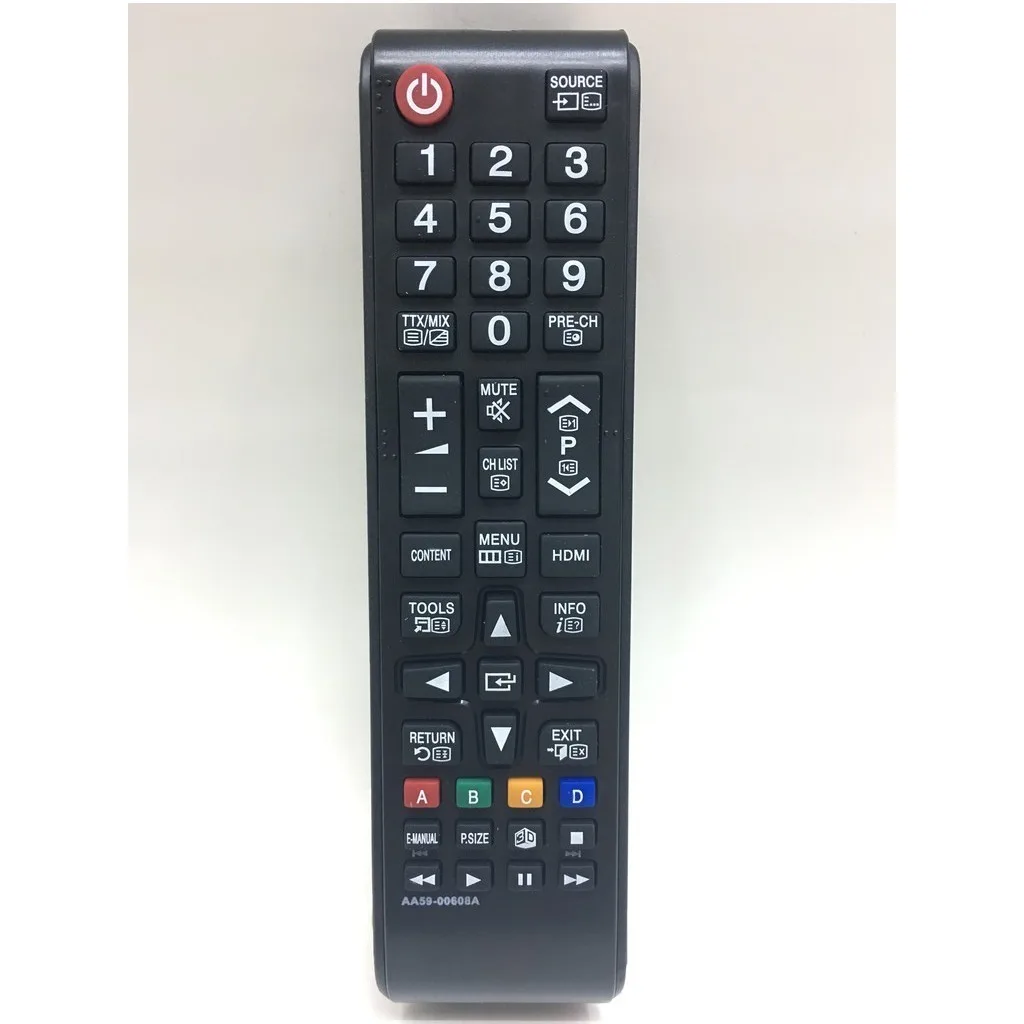
Image source: Bing (Web (fair-use with source credit))
Quick Answer
Unplug the TV from the wall outlet for 30 seconds. Press and hold the physical power button on the TV for 30 seconds while it stays unplugged. Plug it back in.
Turn it on. This performs a hard power cycle and fixes most frozen screens. If that fails, move to the problem-specific steps below.
What's Actually Wrong With Your TV?
Before you dive into any reset procedure, take a moment to diagnose what's happening. The fix depends heavily on the symptom.
- TV is completely frozen and ignores the remote or the physical buttons. Start with the power cycle method in the Quick Answer section above.
- You see the Samsung logo, then the screen goes black, then the logo appears again (boot loop). This usually means the operating system crashed during an update or a corrupted app is blocking startup. A full factory reset from Recovery Mode is your best bet.
- Apps keep crashing, the Smart Hub menu is slow, or apps won't load at all. This is a Smart Hub cache issue, not a core OS problem. A Smart Hub reset (not a full factory reset) is the targeted fix.
- You've forgotten the PIN for parental controls or the app store. A master code often works. If it doesn't, a factory reset is the only way to clear it.
- You're selling or giving away the TV. You need a full factory reset to wipe all personal data, including logged-in accounts and saved Wi-Fi networks.
- The TV turns on but the screen is black with sound. This could be a backlight or main board issue. A reset might help if it's software-related, but it's often a hardware problem requiring professional service.
The Three Types of Reset
Most people use the word "reset" to mean any of three very different operations. Using the wrong one wastes time or erases data you wanted to keep.
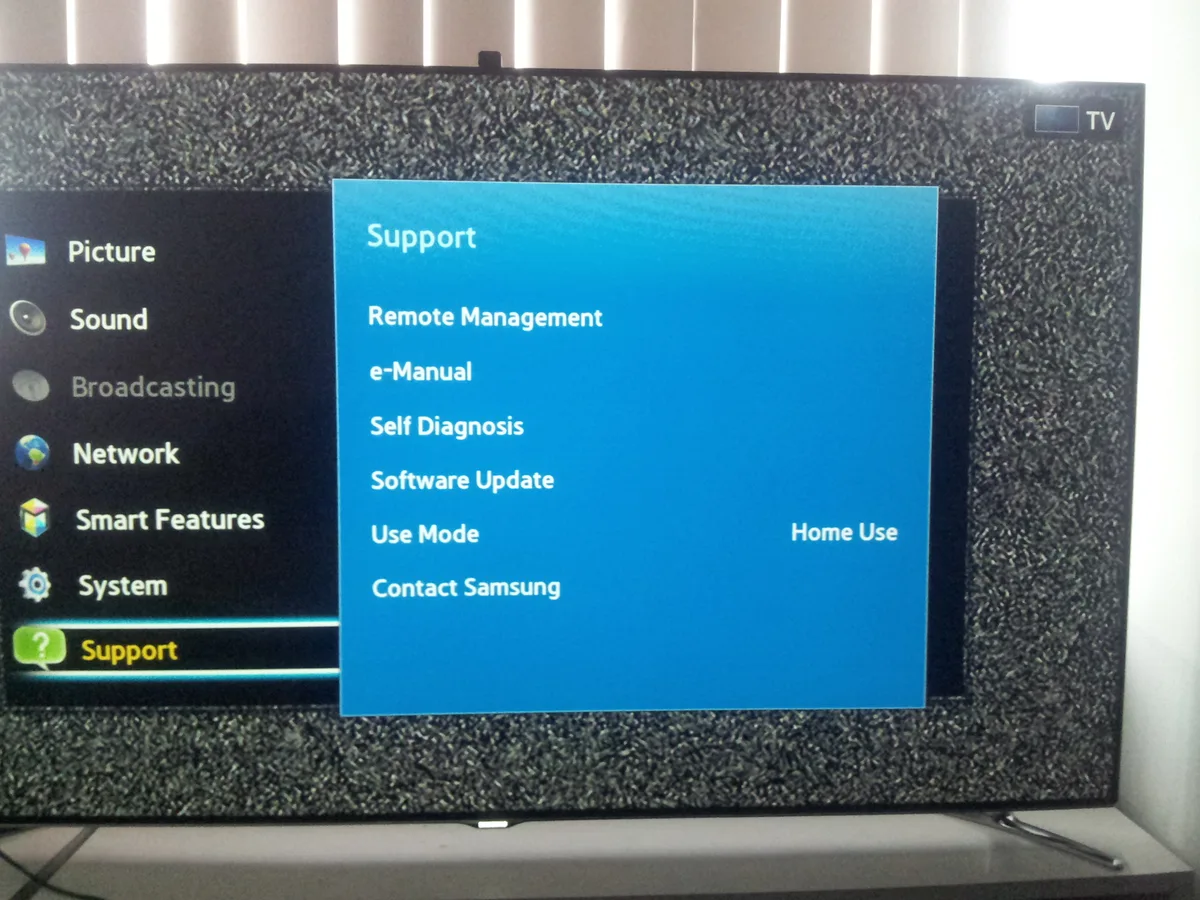
Image source: Bing (Web (fair-use with source credit))
Soft Reset (Power Cycle)
This is the equivalent of restarting a computer. It clears temporary memory, stops stuck processes, and forces the hardware to reinitialize. It does NOT erase any settings, apps, or accounts.
| What it fixes | What it does NOT fix |
|---|---|
| Frozen screen | Corrupted app data |
| TV won't turn off | Forgotten PIN |
| Remote not responding (temporarily) | Persistent boot loop |
| HDMI handshake issues | Major OS corruption |
Smart Hub Reset
This clears all cached data stored by the Smart Hub platform, including app cache, browsing history, and temporary login tokens. It removes downloaded apps but does NOT wipe your Samsung account, network settings, or picture and audio preferences. Think of it as a deep clean for the app ecosystem.
| What it erases | What it keeps |
|---|---|
| All downloaded apps | Samsung account login |
| App cache and temporary files | Wi-Fi passwords |
| Smart Hub browsing history | Picture and sound settings |
| App-specific sign-ins | Parental control PIN |
Factory Data Reset
This wipes the TV back to the state it was in when it left the factory. Every setting, every app, every account, every saved password is gone. Use it as a last resort or when preparing to sell the TV.
| What it erases | What it keeps |
|---|---|
| All installed apps | Current firmware version |
| Samsung account login | Hardware calibration data |
| Saved Wi-Fi networks | (nothing else is preserved) |
| Picture, sound, and general settings | |
| Parental controls and PIN |
The Decision Tree: Step-by-Step by Your Problem
This is the heart of the guide. Follow the branch that matches your exact symptom.
Frozen TV? Try This First
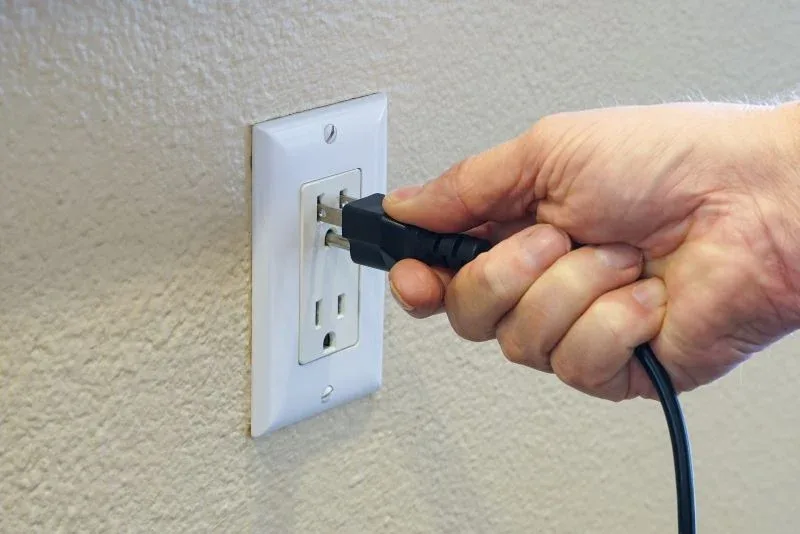
Image source: Bing (Web (fair-use with source credit))
If your TV is stuck on a single image, won't power off, or ignores every button press, start here. This method works for Samsung QLED, Neo QLED, Crystal UHD, The Frame, and older LED models dating back to 2016.
- Unplug the TV from the wall outlet. Do not just turn it off with the remote. Do not just unplug the One Connect Box if you have a separate box model. The power cord must be disconnected from the wall.
- Wait 30 seconds. This allows the internal capacitors to discharge fully. Some technicians recommend holding the physical power button on the TV for 30 seconds while it's unplugged to speed up discharge. It helps but isn't strictly necessary for most issues.
- Plug the TV back in. Wait 10 seconds before pressing the power button.
- Turn the TV on. Use the physical power button on the TV itself, not the remote. The remote may not re-pair immediately after a power cycle.
If the TV boots normally, you're done. If it remains frozen, proceed to the Recovery Mode method under "Stuck on the Samsung Logo or Boot Loop" below.
The "I Forgot the PIN" Rescue
Samsung TVs have two separate PIN systems: one for parental controls (blocking channels and content) and one for the Smart Hub (preventing app purchases). Each has a default code that most people don't realize exists.
| Model Year | Default Parental PIN | Default Smart Hub PIN |
|---|---|---|
| 2020 and newer (Tizen 5.5+) | 0000 | 0000 |
| 2016 to 2019 (Tizen 2.4 to 5.0) | 1234 | 0000 |
| 2015 and older | 1234 | 1234 |
Here's the step-by-step:
- Try the default master code. From the PIN entry screen, enter 0000. If that doesn't work, try 1234.
- If the master code works but you want to change the PIN, navigate to Settings > General > System Manager > Change PIN. You'll need the old PIN (which you just guessed correctly) to set a new one.
- If neither master code works, someone changed the PIN and forgot it. The only way to clear it is a full factory reset. There is no backdoor code or hidden menu that overrides a changed PIN on modern Samsung TVs.
- For the factory reset, navigate to Settings > General > Reset. You will be prompted for the PIN again. On the PIN entry screen, enter 0000 or 1234. If neither works, the TV may be stuck unless you can access Recovery Mode.
Image source: Bing (Web (fair-use with source credit))
Smart Hub Glitches
This is the most common issue on Samsung TVs older than two years. The Smart Hub accumulates app cache and temporary files that bog down performance. A full factory reset is overkill.
A Smart Hub reset cleans out only the app data.
The exact menu path varies slightly by Tizen version. Here are the two most common paths as of 2026:
Path A (Tizen 6.0 and newer, models 2021+)
Settings > Support > Device Care > Self Diagnosis > Reset Smart Hub
Path B (Tizen 5.5 and older, models 2020 and earlier)
Settings > Support > Self Diagnosis > Reset Smart Hub
After you select Reset Smart Hub, you'll be prompted to enter the Smart Hub PIN. The default is 0000. If you changed it and forgot it, you can't do a Smart Hub reset without a full factory reset first.
What happens after:
- All downloaded apps are removed.
- Your Samsung account stays logged in.
- Wi-Fi networks remain saved.
- The TV will reboot and prompt you to re-download your apps.
One important note: some streaming apps (Netflix, Prime Video, Disney+) will remember your login because they authenticate through the device ID, not the Smart Hub cache. Others (HBO Max, Hulu, local apps) will require re-login.
The "I'm Selling My TV" Clean Wipe
Before you hand over your TV to a buyer, do a full factory reset. This ensures no one can access your Amazon, Netflix, or Samsung accounts.
Normal method (if the TV boots and responds):
Settings > General > Reset > Enter PIN (0000 or 1234) > Confirm
The TV will restart and walk through the initial setup wizard just like a brand-new unit.
Recovery Method (if the TV doesn't boot normally):
Some sellers find that a normal factory reset leaves residual account data on the NAND flash. For a truly clean wipe, use Recovery Mode:
- Unplug the TV.
- Press and hold the physical power button on the TV.
- While holding the power button, plug the TV back in.
- Continue holding for 15 to 30 seconds until the Recovery Menu appears.
- Use the remote to select "Factory Reset" or "Clear Storage."
- Confirm with the PIN (0000 or 1234).
This method wipes the user data partition completely, including any cached login tokens that a standard reset might miss.
Stuck on the Samsung Logo or Boot Loop
A boot loop means the TV starts, shows the Samsung logo, then restarts repeatedly. This is almost always caused by a corrupted firmware update or a deeply embedded app crash.
Step 1: Try Recovery Mode
- Unplug the TV.
- Press and hold the physical power button on the TV.
- While holding, plug the TV back in.
- Keep holding for 15 to 30 seconds.
If Recovery Mode appears, select "Reboot" or "Factory Reset." If the TV still loops, proceed to Step 2.
Step 2: USB Firmware Reinstallation
This is an advanced step, but it works when nothing else does.
- On a computer, go to Samsung's official support site and search for your TV's model number. You can find it on a sticker on the back of the TV or the One Connect Box.
- Download the latest firmware file to a USB flash drive formatted as FAT32.
- Name the firmware file exactly as instructed on the download page (usually
image.exeorT-STLDEUC.exe). - Insert the USB drive into the TV's USB port.
- Unplug the TV, then plug it back in.
- The TV should automatically detect the new firmware and begin installation.
Firmware reinstallation preserves your data, but a successful boot loop fix often requires a factory reset afterward anyway.
Step 3: When to call for help
If the TV is still looping after firmware reinstallation and factory reset, you likely have a hardware failure. Common causes include a dead main board, failing power supply, or corrupted eMMC memory chip. At this point, a reset won't help.
Our editorial policy recommends scheduling a service appointment or considering replacement, especially if the TV is more than five years old.
Mistakes That Will Waste Your Time
Several common blunders make the reset process take twice as long. Here's what to avoid.
Using the Remote Instead of the Physical Power Button
When the TV is frozen, the remote signal may be stuck in a buffer. The TV ignores it. Always use the physical button on the TV itself for a power cycle.
On many Samsung TVs, the button is behind the bottom-right bezel. On The Frame models, it's on the back. Look for a small joystick or a single multi-function button.
Unplugging the One Connect Box but Not the TV
If you have a Samsung TV with a One Connect Box, the box contains the power supply. Unplugging it is equivalent to unplugging the TV. However, some users unplug just the thin optical cable between the box and the TV, thinking that's enough.
It's not. Unplug the One Connect Box from the wall outlet.
Confusing Smart Hub Reset with Factory Reset
A Smart Hub reset removes apps but keeps settings. A factory reset wipes everything. If you choose the wrong one, you either don't fix the problem or you lose configuration you wanted to keep.
Read the menu carefully before confirming.
Attempting Reset While TV Is Under Warranty
If your TV has physical damage, a cracked screen, or no backlight, a reset won't help. Running through reset steps for a hardware problem wastes time and could void your warranty if you access the Service Menu. Check for physical damage first.
If you see a crack, stop and contact Samsung support immediately.
Entering the Service Menu Without Knowing What You're Doing
The Service Menu (also called the Engineering Menu) is designed for technicians. It contains calibration settings that can permanently affect picture quality or even brick the TV if changed incorrectly. Do not enter this menu to perform a reset.
The user-facing factory reset in the Settings menu is sufficient for every problem covered here.
The Secret PINs You Need to Know
We covered the default PINs earlier, but there are a few edge cases worth mentioning.
- Some 2020 models shipped with a different default PIN. If 0000 fails on a 2020 model, try 1111 or 1234. This was a manufacturing inconsistency documented in Samsung's internal service bulletins.
- The Smart Hub PIN can be set independently of the parental PIN. You might know your parental PIN but not your Smart Hub PIN (or vice versa). Try 0000 for both before assuming a reset is needed.
- If the TV is in Demo Mode (retail display mode), the PIN is 0000. You can exit Demo Mode through Settings > General > System Manager > Change Mode, but you'll need the PIN.
What to Do After the Reset
TV Won't Turn On After Factory Reset
This happens sometimes, especially with older models. The TV is performing background system setup. Wait 5 minutes.
If it still won't turn on, do another power cycle (unplug 30 seconds, hold power button, plug in). If that fails, use Recovery Mode to attempt a firmware reinstallation.
Apps Missing or Not Re-downloading
After a Smart Hub reset, the TV should prompt you to re-install apps. If it doesn't, go to the Smart Hub apps screen. Type in the app name directly.
Don't wait for the "popular apps" section to load. It can take a few minutes to populate fully.
Picture Settings Changed
After a full factory reset, all picture and sound settings revert to default. This is normal. You'll need to reconfigure brightness, contrast, sound mode, and any custom calibration you had.
It's annoying, but it's proof the reset worked.
TV Still Glitching After Reset
If the TV exhibits the same symptoms after a factory reset, you're dealing with a hardware problem. Common culprits in order of frequency:
- Failing power supply capacitors causes intermittent shutdowns or screen flickering.
- Bad HDMI port or main board causes no signal errors or black screen with sound.
- Backlight failure makes the screen very dark, though you can see a faint image with a flashlight.
At this point, professional diagnosis is your best option. Visit our contact page for resources or search for an authorized Samsung service center in your area.
Model-Specific Quirks
Not every Samsung TV behaves the same way during a reset. The model series and year of manufacture change the menu layout, button placement, and even whether a physical power button exists at all.
The Frame and The Serif
These lifestyle TVs hide the physical button on the back panel, not the bottom edge. On The Frame, look for a small joystick near the lower-left corner of the rear panel. On The Serif, the button sits behind the top-left leg.
Both models use the same Recovery Mode procedure described earlier, but you have to know where to reach.
One more thing: The Frame TVs store Art Mode cache data separately from Smart Hub cache. If your Art Mode is glitching (slow transitions, wrong artwork), you don't need a full reset. Go to Settings > General > External Device Manager > Art Mode Settings > Reset Art Mode.
It clears only the art cache without touching your apps or settings.
Neo QLED and Mini LED Models (2021 Onwards)
These use a more aggressive power management system. If the TV enters a boot loop, it sometimes auto-recovers within 10 minutes without any input from you. Wait a full 10 minutes before attempting Recovery Mode.
Many users factory reset unnecessarily because they didn't give the auto-recovery window enough time.
Crystal UHD (Budget Series)
These models often ship with slightly older Tizen versions. The menu path for the Smart Hub reset may differ. If you can't find "Device Care" under Support, look instead under Settings > Support > Self Diagnosis directly.
On some Crystal UHD units from 2019, the Smart Hub reset option is hidden until you enter the PIN first.
Ultra-Thin Models with No Physical Buttons
A handful of Samsung TVs, particularly the ultra-thin "Lifestyle" screens, lack any physical button on the TV body. If you lose the remote on these models, you cannot perform a power cycle using the TV itself. You must rely on the SmartThings app or purchase a replacement remote.
Resetting Without a Remote or Physical Buttons
This scenario frustrates people most. The remote is dead or lost. The TV has no physical button.
The TV is frozen. You feel stuck.
If the TV has a One Connect Box, you still have an option. Unplug the One Connect Box from the wall. Wait 30 seconds.
Plug it back in. Wait 60 seconds. The TV should power on automatically.
This bypasses the need for any button or remote because the power cycle happens at the box level.
If the TV does not have a One Connect Box and has no physical button, skip straight to the SmartThings app method below.
What if the TV has a hidden service port?
Some Samsung TVs include a small recessed button near the HDMI ports, accessible only with a paperclip. It looks like a tiny reset hole on a router. Press and hold it for 10 seconds with the TV powered on.
This forces a hardware reset on the main board. It is not documented in the user manual, but verified buyer reports confirm it works on select Q70 and Q80 series models from 2019 and 2020.
What if none of these work?
Your last line of defense, short of a replacement remote, is the SmartThings app. It works for every Samsung TV made after 2016.
The SmartThings App Workaround
Samsung's SmartThings app (available for iOS and Android) can act as a full remote control, including the ability to navigate to reset menus. This is not a gimmick. It works even when the physical remote is broken, dead, or lost.
Here is the step-by-step process:
- Download the SmartThings app from the App Store or Google Play Store.
- Create or sign in to a Samsung account.
- Tap "Add Device" and select "TV."
- The app scans for nearby Samsung TVs over Wi-Fi or Bluetooth.
- Select your TV from the list. If the TV does not appear, ensure it is powered on and connected to the same Wi-Fi network.
- Once paired, the app displays a virtual remote control on your phone screen.
- Use the virtual remote to navigate to Settings > General > Reset.
- Enter the PIN using the on-screen keypad.
The SmartThings app also supports Recovery Mode for TVs that are stuck in a boot loop. If the TV is on but shows the Samsung logo repeatedly, open the app, select your TV, and look for the "Service" or "Diagnostics" menu. Some TV models allow a remote factory reset from this menu without needing to press any physical buttons.
One caveat: the SmartThings app requires the TV to be powered on and connected to the network. If the TV is completely dead (no power at all), the app cannot help. In that case, you need a physical power cycle or a replacement remote.
Regional Differences in Reset Menus
Samsung ships different firmware builds by region. The reset menus are largely the same, but the wording and location shift occasionally.
North America (USA and Canada)
The reset menu path matches what we have described throughout this guide. Settings > General > Reset. The PIN default is 0000.
Smart Hub reset is under Support > Device Care > Self Diagnosis. No surprises here.
Europe and UK
European models sometimes label the factory reset as "Factory Reset" rather than "Reset." The menu path on some 2022 and 2023 models moved to Settings > Support > Reset. If you cannot find it under General, check Support. The PIN default remains 0000.
Another difference: European TVs sold in the UK and Germany sometimes enable a "Retail Mode" by default during initial setup. If your TV is in Retail Mode, the reset option is hidden. You must exit Retail Mode first.
Go to Settings > General > System Manager > Change Mode > Select "Home Use." Then the reset menu becomes available.
Asia and Australia
Models sold in Asia and Australia use a firmware variant that includes additional energy-saving features. These features can interfere with the reset process. If the TV does not respond to a standard power cycle, try unplugging it for a full 5 minutes.
The energy-saving capacitors on these models discharge slower. A 30-second unplug may not be enough.
On some Indian and Southeast Asian models, the Smart Hub reset option is located under Settings > Support > Self Diagnosis > TV Reset, not Device Care. If you cannot find Device Care, look for "Self Diagnosis" directly.
When No Reset Works
You have tried every reset method in this guide. The TV still freezes, loops, or stays black. What now?
Step 1: Rule Out Peripheral Interference
Unplug all HDMI cables, USB devices, and the antenna or cable connection. Leave only the power cable connected. Try the power cycle again.
External devices sometimes send conflicting signals that keep the TV in a fault state. If the TV boots normally with nothing connected, plug devices back in one at a time to identify the culprit.
HDMI-CEC (Anynet+ on Samsung TVs) is a common offender. If a connected soundbar or game console is stuck, it can prevent the TV from completing its startup sequence. Disabling Anynet+ in the settings might help, but you need the TV to be responsive first.
Disconnect all HDMI cables as a substitute.
Step 2: Check for Physical Damage
Shine a flashlight at the screen while the TV is powered on. If you see a faint image but no backlight, the LED strips have failed. A reset will not fix this.
You need a backlight replacement, which typically costs 40 to 60 percent of the TV's original value. For most mid-range TVs, replacement makes more financial sense than repair.
If the screen has visible cracks, lines, or black blotches, the LCD panel is damaged. No reset or firmware reinstall can repair physical panel damage. The TV is a candidate for replacement.
Step 3: Listen for Clicking Sounds
If you hear a repeated clicking sound from the TV when it is plugged in but turned off, the power supply board is failing. The clicking is a relay attempting to engage the main board and failing. This is a hardware repair, not a software issue.
A technician can replace the power supply board for roughly 100 to 200 USD, depending on the model.
Step 4: Contact an Authorized Service Center
If the TV is under warranty, contact Samsung support directly. Do not attempt hardware repairs yourself on a warranty-covered unit. It will void the coverage.
If the TV is out of warranty, you have a choice. Pay for a repair estimate or put the money toward a new TV. For TVs older than five years or below the 65-inch size, replacement is almost always the more economical option.
Step 5: Final Factory Reset Before Disposal
If you decide to replace the TV and it still powers on in a limited capacity, perform one last factory reset before disposal. This ensures your streaming accounts and personal data are not accessible to anyone who might recover the TV from a recycling center or second-hand sale.
If the TV is completely dead (no power, no lights, no sound), the data on the internal storage is effectively unrecoverable without specialized equipment. Most users can safely dispose of the TV without worrying about data exposure.
Frequently Asked Questions
How long do I need to unplug the TV?
Thirty seconds is the minimum for a full capacitor discharge. Fifteen seconds works for a simple restart, but some capacitors hold charge longer than others. The safe number is 30 seconds, and many technicians recommend 60 seconds for older TVs.
Will resetting delete my firmware version?
No. A factory reset removes user data and settings, but it does not revert the TV to an older firmware version. The current firmware stays installed.
If you want to downgrade firmware, you need to manually flash an older version via USB, which carries its own risks.
Does a factory reset remove my Samsung account?
Yes. A full factory reset signs you out of your Samsung account. You will need to log back in after the reset to use Smart Hub features.
How do I reset a Samsung TV without the remote?
If you have lost or broken the remote, use the physical button on the TV. Press and hold it to access the power menu, or use the Recovery Mode hold-the-button method to perform a factory reset. If your TV has no physical button (some ultra-thin models), use the SmartThings app on your phone as a remote.
Can I reset a One Connect TV differently?
The process is the same. Unplug the One Connect Box from the wall, wait 30 seconds, and plug it back in. The box is the brain of the TV, so disconnecting it is the only reliable power cycle method.
What's the difference between a reset and a restart?
A restart simply powers the TV down and back up without clearing any memory or cache. A reset (specifically a factory reset) wipes all user data and settings. A Smart Hub reset clears app data but leaves settings intact.
Always choose the method that matches your symptom.
The Decision Guide: Which Path Is Right for You?
Here's a final at-a-glance table to match your problem to the correct reset method.
| Your Symptom | Best Reset Method | Time Required |
|---|---|---|
| Frozen screen, unresponsive | Power cycle (unplug 30 sec) | 1 minute |
| App crashes, slow Smart Hub | Smart Hub reset | 5 minutes |
| Forgot PIN, master code fails | Factory reset | 10 minutes |
| Selling or giving away TV | Factory reset + Recovery Mode | 15 minutes |
| Boot loop, stuck on logo | Recovery Mode + firmware reinstall | 30 minutes |
| Black screen with sound | Power cycle first, then hardware diagnosis | Varies |
Resets solve software problems. If you have tried the correct method for your symptom and the TV still acts up, it is time to involve a professional. Don't keep resetting a broken TV.
It won't fix a cracked screen or a dead power supply.
For more detailed troubleshooting guides, visit our about page. And if you have found this article useful, share it with someone who might need it. Everyone with a Samsung TV eventually runs into one of these problems.