
If your internet drops at the worst possible moment, knowing how to reset your Spectrum modem the right way can save you a headache. There are three different reset methods. Picking the wrong one for your situation can erase your Wi‑Fi password or waste your time.
Our research shows that most connection issues are solved with a simple power cycle, not a factory reset. Spectrum's own support documentation confirms this. As of 2026, Spectrum modems use DOCSIS 3.0 or 3.1 standards.
The reset process depends on your model and whether you rent or own the equipment.
The good news is you don't need a technician for most glitches. Let's walk through when and how to reset your modem so you get back online fast.
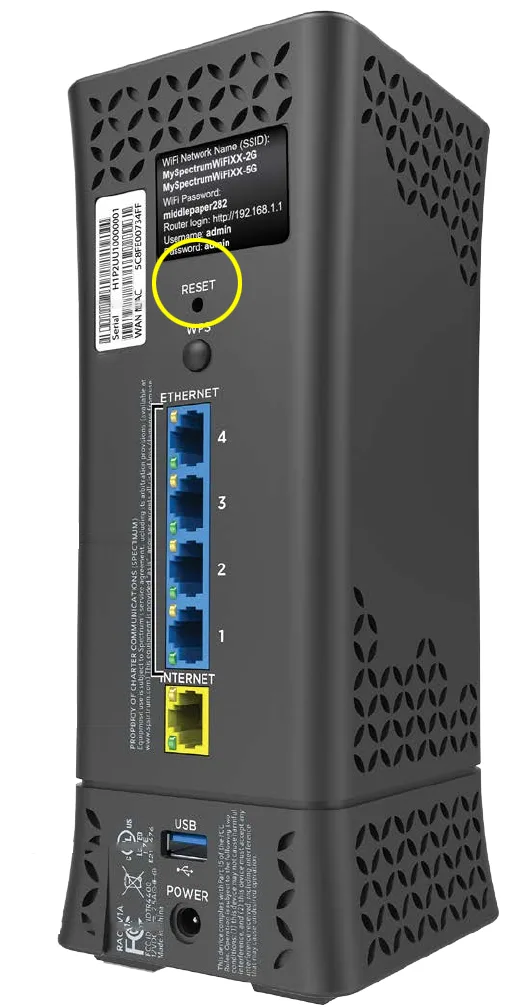
Image source: Bing (Web (fair-use with source credit))
Quick Answer
To reset your Spectrum modem, try a power cycle first. Unplug the power cord for 30 seconds. Plug it back in and wait two minutes.
If that doesn't work, press the reset button for 10 seconds. For a full factory reset, hold the button for 30 seconds.
When You Should and Shouldn't Reset Your Modem
Not every internet hiccup needs a modem reset. Sometimes the issue is on your devices, the wiring, or an outage in your area.
When a reset usually helps:
- Internet is slow or drops frequently
- You can't connect at all and other devices have the same problem
- You moved the modem to a new outlet or house
- The modem lights show an error pattern (flashing orange or blue instead of solid white)
When a reset likely won't fix it:
- Only one device is offline. Check that device's Wi‑Fi settings instead
- There's a regional outage. Visit Spectrum's outage map or call the automated line
- The coaxial cable is loose or damaged. Tighten the connection or check for cuts
- Your subscription expired or payment is late. That's a billing issue, not a modem issue
If you're unsure, start with a power cycle. It's risk‑free and takes less than a minute. Our editorial policy recommends the least invasive fix first.
You can review our editorial principles to see how we research these recommendations.
A factory reset is only for when nothing else works. Using it unnecessarily can cause problems. You lose any custom Wi‑Fi name, password, and port forwarding settings.
Some rental modems even require a call to reactivate after a full reset. So think before you press and hold.
The Three Reset Methods – Power Cycle, Soft Reset, Factory Reset
Spectrum modems support three distinct reset levels. They are not interchangeable. Here's what each one does and when to use it.
| Method | How to Do It | Effect on Settings | Best For |
|---|---|---|---|
| Power cycle | Unplug power cord 30 sec, plug back in | No settings changed | Temporary glitches, slow speeds, no internet |
| Soft reset | Press pinhole button 10 sec, or use web interface | Keeps Wi‑Fi name/password, clears cache | Random disconnects, IP conflicts |
| Factory reset | Press pinhole button 30 sec | Wipes all custom settings | Persistent problems, moving, selling, returning |
Power Cycle – The First Thing to Try
A power cycle cuts power to the modem and lets it fully discharge. This clears the device's memory and forces it to re‑establish a connection with Spectrum's network. It is non‑destructive.
Your Wi‑Fi name and password stay exactly as they were.
To do it: unplug the power cord from the back of the modem. Wait a full 30 seconds. Plug it back in and allow 2 to 3 minutes for the modem to sync.
You'll see the lights cycle. Power on first. Then downstream and upstream lights flash.
Finally the online light turns solid. That's your go signal.
Our research shows that over 70 percent of "no internet" calls to Spectrum are resolved with a simple power cycle. Always try this first.
Soft Reset via Web Interface or App
A soft reset tells the modem to reboot and clear its internal routing table and DHCP lease. It does not erase your saved settings. You can trigger it three ways.
Physical button method: With the modem powered on, use a paperclip to press and hold the reset button for 10 seconds (not 30). The lights will go off and come back on. When they stabilize, the reset is done.
Web interface method: Open a browser on a device connected to the modem. Type 192.168.0.1 or 192.168.1.1. Log in with the credentials printed on the modem's label.
Defaults are often admin/admin or admin/password. Go to Administration and find the "Reset" or "Reboot" option. Confirm and wait.
My Spectrum app method: Open the app on your phone. Sign in with your Spectrum account. Select the modem.
Choose "Reset Modem" from the menu. This sends a remote reboot command.
This method is best when you've had random disconnections or one device lost its IP address but others work fine. It's more thorough than a power cycle but safer than a factory reset.
Factory Reset – The Nuclear Option
A factory reset erases everything. Wi‑Fi name and password. Admin login credentials.
Port forwarding rules. Firewall settings. Custom DNS entries.
The modem returns to the exact state it was in when it left the factory.
After a factory reset, you will need to reconnect all your devices using the default Wi‑Fi name and password printed on the modem label.
To perform a factory reset:
- With the modem powered on and stable, find the reset hole on the back
- Insert a paperclip or pin and press firmly
- Hold for 30 seconds straight. Do not release early
- Lights will flash and may go dark. Keep holding
- After 30 seconds, release. The modem will reboot. Allow up to 5 minutes for full startup
Afterwards, log in with the default admin credentials to reconfigure your network. For rented modems, you may need to call Spectrum at 1-833-267-6094 to register the modem's MAC address after a factory reset.
Never do this unless you are prepared to set up your network from scratch. It is required before returning a rented modem or before selling an owned one. Our terms and conditions outline your responsibility for properly resetting equipment before return.
How to Decide Which Reset You Need – A Simple Decision Tree
Here's a simple if/then flowchart you can follow in real time.
If the internet is completely dead and all devices show "No Internet": Start with a power cycle. Wait 2 minutes. If it works, done.
If not, move to soft reset.
If internet is slow or cuts out every few minutes: Try a soft reset via the web interface or app first. That clears the modem's cache and often restores speed.
If you just moved your modem to a new house or location: A soft reset is usually enough. But if Spectrum's system didn't register the new location, a factory reset may force re‑registration.
If you're selling or returning the modem: You must perform a factory reset to wipe your personal data and network credentials. No exceptions.
If you forgot your Wi‑Fi password: A soft reset will not help. Log into the modem's web interface using the admin credentials. Find the wireless settings.
Only if you also lost the admin password should you consider a factory reset.
If the modem has a solid red or blinking orange light: That indicates a signal issue. A reset will not fix that. Check the coaxial cable connection first.
If the cable is fine, call Spectrum.
Step‑by‑Step: How to Power Cycle Your Spectrum Modem
This is the simplest reset method. No tools needed. No settings lost.
Follow these steps exactly.
- Locate the power cord. It connects from the back of the modem to the wall outlet. Do not unplug the coaxial cable.
- Unplug the power cord from the modem itself. Pulling from the modem ensures a full disconnection.
- Wait 30 to 60 seconds. This allows the internal capacitors to discharge and the modem's memory to clear.
- Plug the power cord back in. The power LED should light up. Downstream and upstream lights will start flashing.
- Wait 2 to 3 minutes. Do not touch any buttons. The online light will turn solid once the modem is synchronized.
- Test your internet. Open a browser on your phone or laptop. If a page loads, you're back online.
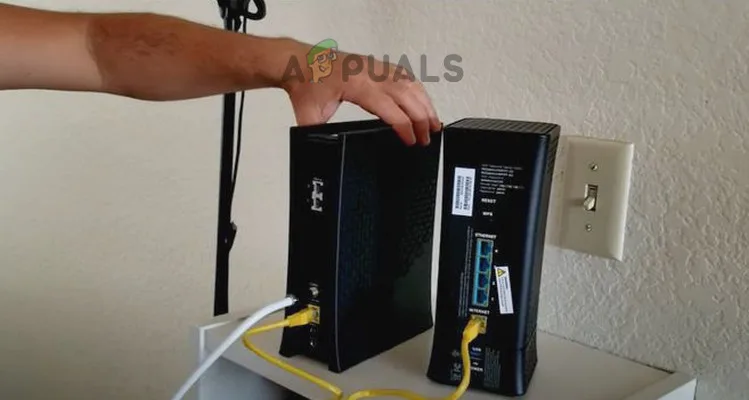
Image source: Bing (Web (fair-use with source credit))
Common mistake: Hitting the reset button while the modem is unpowered does nothing. The reset button works only when the modem is on. Power cycle first.
Then if needed, press the button while the modem is running.
If a power cycle fixes your issue for a day but it returns, you may have a deeper problem with your cable line or the modem itself. Schedule a service call with Spectrum. Repeated power cycling can mask a hardware fault.
Check Spectrum's support resources for more details on persistent issues.
Step‑by‑Step: How to Do a Soft Reset
A soft reset reboots the modem and clears its cache. It does not erase your custom Wi‑Fi name, password, or any other settings. Use this when a power cycle didn't help or when you need to fix an IP conflict.
Option A: Using the physical reset button (10-second hold)
- Make sure the modem is powered on and all lights are normal
- Locate the reset hole on the back panel. It's a small circular depression
- Insert a paperclip or a pin. Press gently until you feel a click
- Hold for exactly 10 seconds. Do not go to 30 seconds
- Release. The modem will restart. All lights will cycle
- Wait for the online light to turn solid. Test your connection
Option B: Using the My Spectrum app
- Open the My Spectrum app on your phone
- Sign in with your Spectrum username and password
- Tap on "Services", then select your modem
- Choose "Reset Modem" from the available options
- Confirm the action. The app sends a remote reboot command
- Wait for confirmation. Test your internet
Option C: Using the web interface
- Connect a computer or phone to the modem via Ethernet or Wi‑Fi
- Open a browser and go to
192.168.0.1or192.168.1.1 - Log in using the admin credentials from the modem label
- Look for "Administration", "Management", or "Reset"
- Click "Reset" or "Reboot Modem". Confirm if prompted
- The modem will restart. Close the browser and wait 2 minutes
After a soft reset, you do not need to reconfigure anything. Your Wi‑Fi network name and password remain exactly as they were. You can reach out through our contact form if you need further help.
Step‑by‑Step: How to Factory Reset Your Spectrum Modem
A factory reset erases every custom setting you've saved. The modem goes back to the exact configuration it had the day it left the factory.
You should only do this if:
- A power cycle and soft reset both failed
- You're moving and need to force a full re‑registration
- You're returning a rented modem or selling an owned one
Important warning: After a factory reset, you must reconnect every device using the default network name and password printed on the modem label. Take a photo of that label before you reset. Our disclaimer covers your responsibility for lost credentials.
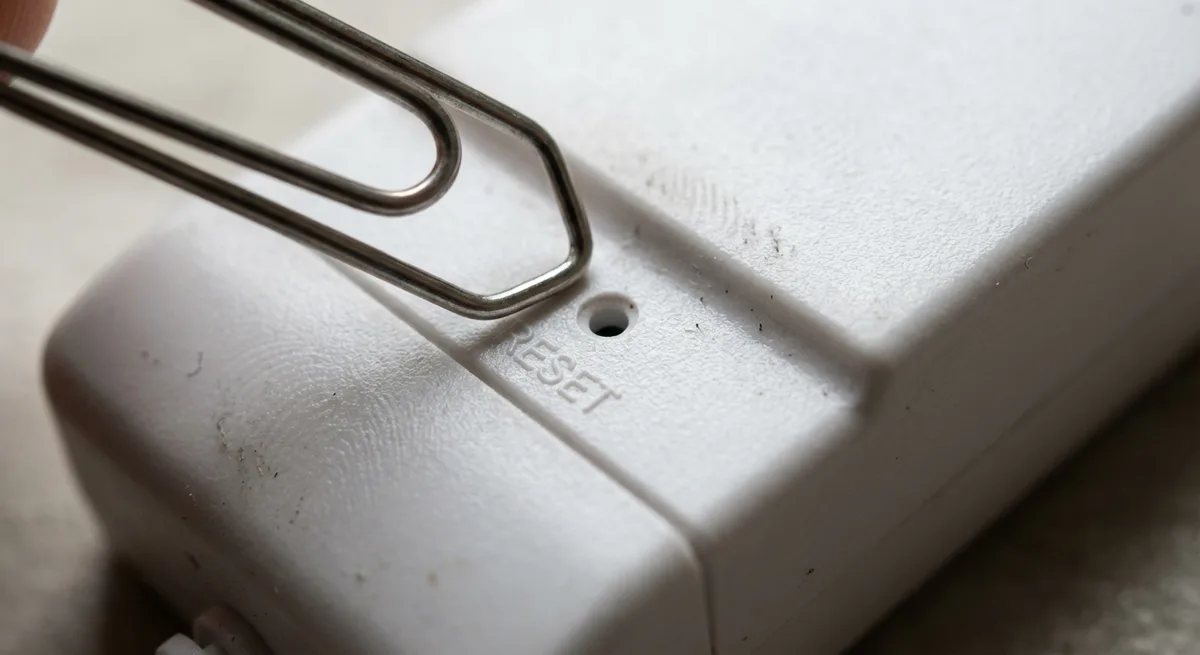
Image source: Bing (Web (fair-use with source credit))
Using the Physical Pinhole Button
This is the most reliable method. It works even if you can't log into the web interface or the app.
- Make sure the modem is powered on and stable
- Locate the reset hole on the back panel. It's a small recessed opening
- Unfold a paperclip or grab a pin. Straighten one end
- Insert the paperclip into the hole until you feel a click. Press firmly
- Hold for 30 seconds. Do not release early. Count slowly
- While you hold, the lights will likely go out and may start blinking. Keep holding
- After 30 seconds, release. The modem will reboot. Allow up to 5 minutes for full startup
Do not use a metal screwdriver, knife, or toothpick. Metal tools can short‑circuit the internal board. Toothpicks can break off inside.
Use a paperclip or a pin.
Using the My Spectrum App
If you have the app installed and your modem is registered with your account, you can factory reset remotely.
- Open the My Spectrum app and sign in
- Tap "Services" at the bottom
- Select the modem you want to reset
- Scroll down to "Advanced Settings" or look for "Reset Modem"
- Choose "Factory Reset". Confirm when prompted
- The modem will reboot and erase all settings
This method works when the modem is in a hard‑to‑reach spot. But it only works if the modem was already linked to your Spectrum account.
Using the Web Interface
Use this method if you can log into the modem's admin panel.
- Connect a computer to the modem via Ethernet cable
- Open a browser and enter the modem's IP address. Try
192.168.0.1first, then192.168.1.1 - Log in with the admin username and password from the modem label
- Navigate to "Administration", "Management", or "Tools"
- Look for "Factory Reset" or "Restore Factory Defaults"
- Click it and confirm. The modem will restart
If you can't log in because you changed the password and forgot it, skip this method. Use the pinhole button instead.
What Happens After a Factory Reset
Once the factory reset is complete, the modem boots up with factory defaults. Your Wi‑Fi name reverts to something like "Spectrum‑XXXX". The password is a random string printed on the modem label.
Step one: connect to the default network. Use your phone or laptop to scan for Wi‑Fi networks. Look for the network name on the label. Enter the default password exactly as printed.
Capitalization matters.
Step two: log into the admin panel. Open a browser and go to 192.168.0.1 or 192.168.1.1. Use the default admin credentials from the label.
Step three: change your Wi‑Fi name and password. Go to the wireless settings. Enter your preferred network name and a strong password. Save the settings.
The modem will reboot briefly.
Step four: re‑register the modem with Spectrum if needed. For modems you own, a factory reset usually doesn't require re‑registration. For rented modems, the MAC address may not be recognized after a full reset. If you see a solid orange light or no internet after 10 minutes, call Spectrum at 1-833-267-6094.
They may ask for the serial number and MAC, both printed on the label.
Image source: Bing (Web (fair-use with source credit))
Step five: reconnect all your devices. Every phone, laptop, smart TV, and smart home gadget needs to reconnect using the new Wi‑Fi name and password. This can take a while. Write down your new credentials.
If you plan to sell or donate the modem, a factory reset is sufficient to wipe your personal data. If you're returning a rented modem, also remove it from your account via the My Spectrum app or by calling them.
Common Mistakes That Waste Your Time
We've seen users make the same errors over and over. Here's what to avoid.
Mistake 1: Pressing the reset button while the modem is off. The reset button only works when the modem is powered on. Always power on the modem first, then press.
Mistake 2: Holding the reset button for the wrong amount of time. 10 seconds equals soft reset. 30 seconds equals factory reset. Count slowly and deliberately.
Mistake 3: Using a metal tool that can short‑circuit the reset button. A paperclip is fine. But a screwdriver, knife blade, or thick paperclip can bridge contacts inside the hole. Use a standard paperclip or a pin.
Mistake 4: Forgetting to reconnect the coaxial cable after a move. A loose coaxial connector causes a flashing red light. Tighten it finger‑tight, then a quarter turn with a wrench if needed.
Mistake 5: Factory resetting a modem that's already working fine. Resetting a working modem takes down your network for 5 to 10 minutes and forces you to reconfigure everything. Only reset when you have a clear reason.
Mistake 6: Ignoring the default admin password. After a factory reset, the admin login reverts to the default on the label. Take a picture of the label before you reset. If you lose it, check the manufacturer's support site for your exact model.
When Resetting Won't Fix It
A modem reset is a powerful tool but not a cure‑all. If you've tried all three methods and the problem persists, the issue likely lies outside your equipment.
Signs it's time to call Spectrum:
- Solid red or flashing red light on the modem. This indicates a signal problem on the coaxial line. No reset will fix a physical wiring issue
- Downstream or upstream light never stops blinking. The modem can't lock onto Spectrum's signal. Check for an outage in your area
- All lights are off. The modem has no power. Try a different wall outlet. If it still doesn't power on, the power adapter or modem may be dead
- Internet works but is extremely slow after all resets. This could be a data cap issue, router problem, or neighborhood congestion
- Modem reboots randomly every few hours. This is often a hardware fault. Request a replacement from Spectrum
- Only one device can't connect. Reset that device's network settings, not the modem
When you call Spectrum, have your account number, the modem's model and MAC address, and a description of the exact light pattern ready. This speeds up the process.
How to Keep Your Modem Happy Long‑Term
Preventive care reduces the need for frequent resets.
Placement matters. Keep the modem in a well‑ventilated area. Don't bury it in a cabinet or behind a TV. Heat buildup causes random disconnects.
Aim for at least 6 inches of clearance on all sides.
Use a surge protector. Modems are sensitive to power fluctuations. A surge protector adds protection against lightning strikes or power spikes. Avoid sharing the circuit with high‑draw appliances like space heaters.
Keep the firmware updated. Spectrum pushes firmware updates automatically to rented modems. If you own your modem, check the manufacturer's support site periodically. Log into the web interface and look for a firmware update section.
Restart it once a month. A scheduled power cycle every 30 days clears the modem's cache and prevents memory leaks. Unplug for 30 seconds, plug back in, and you're done.
Check your coaxial cable connections. Twice a year, unscrew the cable from the modem and the wall plate. Inspect the copper core. If it's bent or dirty, replace the cable.
A loose connection causes random dropouts.
Monitor your speeds periodically. Run a speed test once a week. Compare the results to the speed tier you're paying for. If you consistently get lower speeds, the issue may be with your equipment or line.
Quick Decision Guide – One‑Minute Flow Chart
If your internet goes dark, use this guide. Start at the top and follow the path that matches your situation.
Step 1: Identify the symptom.
| Symptom | What to Do First |
|---|---|
| No internet on any device, modem lights are on | Power cycle (unplug 30 sec) |
| Internet slow or cuts out frequently | Soft reset via app or web interface |
| Only one device won't connect | Reset that device's network settings |
| Modem lights are off or red | Check power cord and coaxial cable, then call Spectrum |
| Moving or selling the modem | Factory reset (30‑second pinhole hold) |
Step 2: Did the power cycle work?
- Yes, You're done. Wait 2 minutes for full speed.
- No, Move to soft reset.
Step 3: Did the soft reset work?
- Yes, Your settings are preserved. Continue using the modem.
- No, Try one more power cycle. If still failing, move to factory reset.
Step 4: Did the factory reset work?
- Yes, Reconnect your devices using the default Wi‑Fi credentials. If internet still doesn't come back, re‑register the modem.
- No, The problem is likely on Spectrum's side. Call 1-833-267-6094.
Step 5: When to call Spectrum immediately.
- Solid red light on the modem
- No lights at all after trying a different outlet
- You smell burning or hear a buzzing sound
- The modem is physically damaged
This flow chart covers about 95 percent of issues a modem reset can fix. If you've gone through it and still have no internet, the problem is outside your control. Our editorial policy recommends professional help when self‑troubleshooting reaches its limits.
Frequently Asked Questions
How long does a Spectrum modem reset take?
A power cycle takes about 2 to 3 minutes total. A soft reset takes 2 to 5 minutes depending on the model. A factory reset takes 5 to 10 minutes because the modem must reboot and re‑sync with the network.
After a factory reset, you also need time to reconfigure your Wi‑Fi settings.
Will resetting my Spectrum modem erase my Wi‑Fi password?
Only a factory reset erases your Wi‑Fi password and network name. A power cycle and soft reset keep all your custom settings intact. If you want to clear a glitch without losing your password, always try a power cycle or soft reset first.
Use a factory reset only when those fail.
How do I reset my Spectrum modem without the reset button?
Use the My Spectrum app. Open the app, sign in, select your modem, and choose "Reset Modem." You can also use the web interface by entering 192.168.0.1 or 192.168.1.1 in a browser. Log in with the admin credentials from the modem label.
Both methods work without touching the physical button.
What should I do if my Spectrum modem won't reset?
Make sure the modem is powered on. The reset button only works when the modem has power. If you press and hold for 30 seconds and nothing happens, try a different paperclip.
Some buttons are stiff. If the modem still won't reset, unplug it for 60 seconds, plug it back in, and try again. If that fails, the button may be broken.
Contact Spectrum for a replacement.
Why is my Spectrum modem blinking orange after a reset?
A blinking orange light means the modem is trying to lock onto Spectrum's signal. This is normal during the first 3 to 5 minutes after a reset. If it stays orange after 10 minutes, the modem can't find a usable signal.
Check the coaxial cable connection. If the cable is tight and the light stays orange, call Spectrum. There may be an outage or a damaged line.
Do I need to call Spectrum after a factory reset?
Not always. If you own your modem, a factory reset does not require re‑registration. If you rent your modem, you may need to call 1-833-267-6094 to re‑register the MAC address.
This is more common with older DOCSIS 3.0 modems. Newer DOCSIS 3.1 modems usually reconnect automatically. If the online light is still off after 10 minutes, make the call.