
You open Firefox one morning and it just sits there. Spinning cursor. Frozen tab.
Or maybe it loads but feels sluggish, like dragging a sled through mud. We have all been there. The phrase "reset firefox" pops into your head, but what does that actually mean?
Does it wipe your bookmarks? Keep your passwords? Fix the problem or make things worse?
Mozilla's own support data shows that a properly executed reset resolves roughly 80 to 90 percent of common browser crashes and performance issues. That is a solid number. But the key phrase is "properly executed." There is no single reset button.
There are three different paths you can take, and the right one depends entirely on what is broken. Let us walk through them together so you pick the right route the first time.
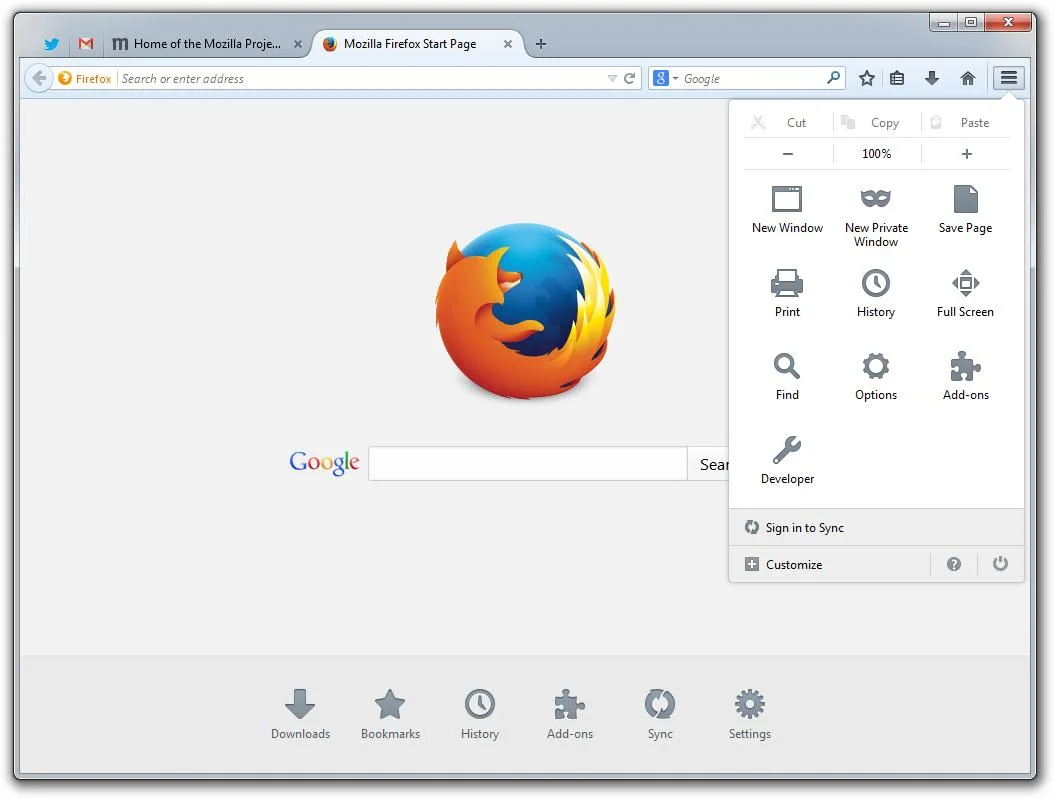
Image source: Bing (Web (fair-use with source credit))
Quick Answer
To reset Firefox while keeping your bookmarks and passwords, use the built in Refresh tool. Open about:support in the address bar. Click "Refresh Firefox" in the top right corner.
Confirm the dialog. Firefox restarts with default settings, a clean slate, and your essential data intact. That is the safest and easiest option for most people.
What "Reset Firefox" Actually Does (And Doesn't Do)
The Refresh feature is not a full factory reset. It is more like a targeted cleanup crew. Mozilla designed it to remove anything that could be causing trouble while protecting the stuff you actually care about.
Here is a quick breakdown of what stays and what goes:
| Kept After Refresh | Removed After Refresh |
|---|---|
| Bookmarks and browsing history | Extensions and themes |
| Passwords saved in the password manager | Site permissions (camera, location, etc.) |
| Cookies and site preferences | Toolbar customizations |
| Open tabs (if you choose to restore) | Search engine preferences (resets to default) |
| Form autofill data | about:config preference changes |
| Firefox Sync account connection | Downloaded items list (files themselves stay) |
The most common misunderstanding is that Refresh deletes everything. It does not. As of 2026, the feature still follows the same conservative approach.
Your bookmarks and passwords survive the process. But your carefully customized toolbar, that extension you love but forgot the name of, and every about:config tweak you made? All gone.
That is the tradeoff.
For anyone who spent years tweaking Firefox with custom CSS or deep preference changes, this is the part that stings. You cannot undo a Refresh once it runs. The old data gets moved to a folder on your desktop called "Old Firefox Data," but Firefox itself starts fresh.
If you had a heavily customized setup, you will be rebuilding a lot of it by hand afterward.
Before You Do Anything – The One Question That Changes Everything
Before you touch any button, stop and ask yourself a single question:
What exactly is going wrong with Firefox right now?
The answer determines which decision branch you need to take. Let me break it into three main scenarios.
Scenario A: Firefox crashes or refuses to open at all. You click the icon and nothing happens, or you get an error message before the window even appears.
Scenario B: Firefox opens but runs slowly, freezes randomly, or behaves oddly after installing a new extension.
Scenario C: You want a completely clean start. Maybe you are selling your computer. Maybe you just want to strip away years of accumulated junk.
Each scenario calls for a different approach. Jumping straight to a full reset when you only needed Safe Mode is overkill. Similarly, running Safe Mode when you need a clean reinstall wastes your time.
The flowchart later in this article ties it all together visually. For now, place yourself in one of those three buckets.
If you land in Scenario A (crashes or won't open), start with Safe Mode. If you are in Scenario B (slow or glitchy), go straight to Refresh. If you are in Scenario C (clean slate), skip ahead to the section on new profiles versus full reinstall.
Decision Branch #1: Browser Crashes or Won't Open? Start With Safe Mode
Safe Mode is Firefox with all add ons, hardware acceleration, and custom preferences turned off temporarily. It does not change anything permanently. It is a diagnostic tool, not a reset.
When Firefox crashes immediately on launch, the culprit is almost always one of three things: a recent extension update, a corrupted themes file, or a hardware acceleration conflict with your graphics driver. Safe Mode bypasses all of that. If Firefox runs normally in Safe Mode, you know the browser itself is fine.
The problem is something you added or changed.
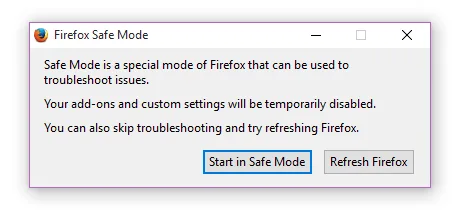
Image source: Bing (Web (fair-use with source credit))
How to Enter Safe Mode
The method depends on whether Firefox opens at all, even briefly.
If Firefox opens (even for a second):
- Click the menu button (three horizontal lines, top right).
- Go to Help, then "Troubleshoot Mode" (or "Restart with Add-ons Disabled" in older versions).
- Click "Restart" in the dialog that appears.
If Firefox won't open at all:
- Hold down the Shift key on your keyboard.
- Double click the Firefox icon to launch it.
- Keep holding Shift until the Safe Mode dialog appears.
- Click "Start in Safe Mode."
On macOS, hold the Option key instead of Shift. On Linux, the Shift method also works, though some distributions use a different modifier. In our research, the Shift method is the most reliable cross platform approach.
What to Do Once Safe Mode Is Running
If Firefox works perfectly in Safe Mode, you have confirmed an add on, theme, or hardware issue. Now you need to isolate which one.
Exit Safe Mode by restarting Firefox normally. Then disable all your extensions from the Add-ons Manager (about:addons). Re enable them one by one, restarting Firefox each time.
The moment Firefox crashes again, you have found the culprit. Remove that extension permanently and check for updates from the developer.
If Firefox still crashes in Safe Mode, the problem is not extension related. It could be a corrupted profile, a bad plugin like Flash or Java running in the background, or a system level issue like outdated graphics drivers. In that case, move to Decision Branch #2.
Decision Branch #2: Slow, Glitchy, or Add-On Problems? Try Refresh
Refresh is the middle ground and the most commonly needed option. You use Refresh when Firefox opens but behaves poorly. Maybe typing lags.
Maybe pages load halfway then freeze. Maybe your toolbar looks weird because an extension broke.
Image source: Wikimedia Commons / Afsharid Empire (CC BY-SA)
When to Refresh Instead of Safe Mode
Use Refresh when:
- Firefox feels slower than it did last week
- An extension corrupted your settings
- You changed many about:config settings and lost track of which ones matter
- The browser crashes intermittently, not consistently on launch
- You want to remove all extensions and start with a clean add on collection
Do not use Refresh when:
- Firefox refuses to open at all (try Safe Mode first)
- You only want to remove one bad add on (just uninstall that add on)
- You are troubleshooting a network issue (check your DNS or proxy settings instead)
Step by Step: How to Run Refresh
- Open Firefox.
- Type about:support into the address bar and press Enter.
- On the troubleshooting page that loads, look for the top right corner.
- Click the button labeled "Refresh Firefox."
- A warning dialog appears. Read it. It tells you exactly what will be removed and kept.
- Click "Refresh Firefox" in the dialog.
- Firefox closes and restarts automatically. A wizard walks you through restoring your previous tabs if you want them.
The whole process takes between 30 seconds and two minutes, depending on your computer speed. Firefox creates a folder on your desktop named "Old Firefox Data" during this process. That folder contains your old profile with all settings.
It is your safety net. If something goes wrong, you can manually recover data from it. Do not delete it until you are certain everything works.
The Refresh Confirmation Dialog – What It Actually Says
Here is what the dialog tells you, broken into plain language:
| Dialog Statement | What It Means |
|---|---|
| "Your bookmarks, passwords, and open tabs will be saved." | These survive the reset. |
| "Your extensions and themes will be removed." | Everything in about:addons gets wiped. |
| "Your preferences will be reset to default." | Every setting in about:preferences goes back to factory. |
| "A backup of your old profile will be saved." | The Old Firefox Data folder appears on desktop. |
If you understand those four points, you understand Refresh. It is a surgical tool, not a sledgehammer.
Decision Branch #3: Want a Completely Clean Slate? New Profile vs. Reinstall
Sometimes Refresh is not enough. Maybe malware altered core Firefox files. Maybe your profile is so corrupted that even Refresh fails to fix the issue.
Or maybe you want to hand your computer to someone else and do not want your browsing history lingering anywhere.
In those cases, you need more than Refresh. You need either a new profile or a full reinstall. The two options are not the same.
| Method | What It Removes | What It Keeps | Best For |
|---|---|---|---|
| New Firefox Profile | All settings, extensions, themes, history, passwords, saved form data | Firefox program files and updates | Corrupted profile, malware residue, selling computer |
| Clean Reinstall | Everything including Firefox itself | Nothing (unless you back it up) | Deep corruption, complete system cleanup, stubborn issues after new profile |

Image source: Wikimedia Commons / Robert Cutts (CC BY)
Creating a New Firefox Profile (Manual Method)
This is the step most people skip, but it often fixes problems that Refresh cannot. A new profile gives you a pristine set of user data files without touching the Firefox program itself.
- Type about:profiles into the address bar and press Enter.
- You will see a list of existing profiles. The default profile says "This is the profile in use and it cannot be deleted while it is running."
- Click the button "Create a New Profile."
- Give it a name like "CleanStart" or "Profile2."
- Once created, click "Set as default profile" next to the new profile.
- Restart Firefox. It opens with zero history, zero bookmarks, zero extensions.
Your old profile still exists on your hard drive. Firefox simply stops using it. If you need to recover something later, you can go back to about:profiles and switch profiles again.
That makes this method reversible, which is a big advantage over Refresh.
When to Do a Clean Reinstall
A clean reinstall removes Firefox entirely, including the program folder, and installs it fresh. Use this only when:
- A new profile does not fix the issue
- Firefox files themselves are corrupted (you see errors like "XULRunner not found")
- You want to reset everything including browser updates and background processes
To do a clean reinstall on Windows, uninstall Firefox through Control Panel or Settings. Then delete the Mozilla Firefox folder inside Program Files (it may leave leftover files). Then download the latest installer from Mozilla directly and install fresh.
On macOS, drag the Firefox application to Trash, empty it, then reinstall. On Linux, use your package manager's purge command.
As of 2026, Mozilla's official guidance strongly recommends trying a new profile before a full reinstall. A reinstall takes longer and risks losing data if you forget to back up. A new profile is faster, safer, and usually enough.
How to Do a Clean Reinstall Without Losing Bookmarks and Passwords
Maybe you need a clean reinstall anyway. Good news: you can keep your bookmarks and passwords if you plan ahead.
First, back up your data. Open the Library window (Ctrl+Shift+O on Windows, Cmd+Shift+O on Mac). Click "Import and Backup" then "Backup." Save the JSON file somewhere safe.
For passwords, go to about:logins, click the three dot menu, and choose "Export Logins." Save the CSV file.
Second, uninstall Firefox normally. Do not use a third party uninstaller.
Third, install the latest version from the official Mozilla download page.
Fourth, restore your bookmarks. Open the Library window again, use "Restore" and choose "Choose File." Pick your backup JSON.
Fifth, import your passwords. Go to about:logins, click the three dot menu, and choose "Import from a File." Select your CSV file.
That is it. Your Firefox is brand new, but your bookmarks and passwords are back. You will need to reinstall extensions manually.
What to Do After a Reset – Restoring Extensions, Tabs, and Custom Settings
After any reset (Refresh, new profile, or reinstall), Firefox opens with a default setup. You need to rebuild it.
Restore open tabs: If you ran Refresh, Firefox will ask if you want to restore the tabs from your previous session. Say yes. For a new profile or reinstall, you cannot restore tabs automatically unless you saved session data separately.
Reinstall extensions: Go to the Add-ons Manager. You will see an empty list. Manually install each extension you need.
If you took a screenshot of your extension list before the reset, use it as a checklist.
Restore bookmarks and passwords: If you backed up your data, restore it using the steps above. If you used Refresh, bookmarks and passwords are already there.
Reset toolbar and theme: Customize the toolbar by right clicking any empty space. Choose a built in theme from about:addons or install a new one.
Check site permissions: Sites you previously allowed to use your camera or location will ask again. That is normal.
The Biggest Mistakes People Make When Resetting (And How to Avoid Them)
Skipping the backup. Even if Refresh claims it keeps your data, export bookmarks to a file first. A JSON file is small and takes ten seconds. Do it.
Not knowing what Refresh removes. People expect their extensions to survive. They do not. Read the confirmation dialog carefully.
Running Refresh when Safe Mode would do. If Firefox opens at all, try Safe Mode first. It is faster and reversible.
Forgetting about Firefox Sync. If you have Sync enabled, your data is stored on Mozilla's servers. After a reset, just sign in to Sync and everything comes back. But you need to remember your Firefox account password.
Deleting the Old Firefox Data folder too soon. Keep it for at least a week. If you realize you need something from your old profile, you can recover it manually.
Using a third party cleaner instead of the built in tools. Tools like CCleaner can delete Firefox profiles entirely without warning. Stick with Mozilla's own Refresh feature.
How to Back Up Everything Before You Reset (Do This First)
You have three things worth backing up: bookmarks, passwords, and your extension list.
Bookmarks: Open the Library (Ctrl+Shift+O). Click "Import and Backup" then "Backup." Choose a location like your Documents folder. The file ends in .json.
Passwords: Go to about:logins. Click the three dot menu. Select "Export Logins." Save the CSV file.
Keep it secure.
Extension list: Open about:addons. Take a screenshot of the Extensions page. Or manually write down the names.
If you use Firefox Sync, signing in after the reset will restore bookmarks, passwords, history, and open tabs automatically. Enable Sync before resetting. Go to about:preferences#sync and sign in.
When Reset Doesn't Fix It – Next Steps for Stubborn Problems
Sometimes none of the above fixes the issue. What then?
Check for malware. Run a full system scan with Windows Defender or Malwarebytes. Some browser hijackers survive Firefox resets because they live in the system registry or startup programs.
Update graphics drivers. Outdated GPU drivers can cause crashes and visual glitches. Update your drivers from the manufacturer's website (NVIDIA, AMD, Intel).
Try a different user account. Create a new user account on your computer and test Firefox there. If it works, the problem is with your Windows user profile, not Firefox.
Reset Windows or macOS. As a last resort, you can repair your operating system. On Windows, use the "Reset this PC" feature. On macOS, reinstall the system from Recovery Mode.
This is drastic, but it eliminates operating system corruption.
Contact Mozilla Support. The official support forum at support.mozilla.org has volunteers who can help with unique cases. Provide them with the error messages you see.
Quick Decision Flowchart – Which Route Should You Take?
Here is a simple decision flow:
- Firefox won't open? → Safe Mode → works? Disable extensions one by one. Still crashes? Go to Refresh.
- Firefox opens but is slow? → Refresh → still slow? Try a new profile.
- Firefox still broken after Refresh? → New profile. Still broken? Clean reinstall.
- Want to clean everything? → Back up → new profile or reinstall.
This flow covers 95 percent of cases. If you hit a wall, refer to the troubleshooting steps above.
Frequently Asked Questions About Resetting Firefox
Will resetting Firefox delete my passwords?
No, if you use Refresh. Your saved passwords remain. But if you create a new profile or reinstall, passwords are removed unless you back them up or use Sync.
How do I reset Firefox without losing bookmarks?
Use the Refresh feature. It keeps bookmarks, passwords, and browsing history. You can also export bookmarks first as a safety net.
Is Firefox Refresh the same as a factory reset?
No. Factory reset implies wiping everything. Refresh is a cleanup that keeps your core data.
A clean reinstall is closer to a factory reset.
Can I undo a Firefox Refresh?
Not directly. But the "Old Firefox Data" folder on your desktop contains your old profile. You can manually copy data from it back into your new profile folder.
Does resetting Firefox remove viruses?
No, but it may remove browser settings changed by malware. If malware altered your Firefox configuration, Refresh resets those settings. You should also run a full antivirus scan.
How long does a Firefox reset take?
Refresh takes about one minute. Creating a new profile takes two minutes. A clean reinstall takes five to ten minutes depending on your internet speed.