
You're staring at a login screen that won't let you in. You've tried every password you can think of. None of them work.
A windows password reset disk could get you back into your computer in under two minutes. But only if you planned ahead. Most people don't learn about this feature until it's too late.
Per Microsoft's technical documentation, a password reset disk works exclusively with local accounts. It stores a single encrypted key file around 10 KB in size. The wizard has existed since Windows 7 and remains available in Windows 10 and 11 as of 2026.
Once you have one, you can bypass a forgotten password without losing any files or settings. Let's walk through exactly what this tool can do, what it can't, and how to use it depending on where you are right now.
Quick Answer
A Windows password reset disk is a USB drive that bypasses a forgotten local account password. You must create it before you get locked out. It works offline and takes about two minutes.
It only works for local accounts, not Microsoft accounts. The feature is built into Windows and completely free.
Image source: Bing (Web (fair-use with source credit))
How the Password Reset Disk Actually Works Under the Hood
The password reset disk isn't a magic key that unlocks any Windows machine. It's a small encrypted file tied to one specific user account on one specific computer. When you create the disk, Windows generates a public-private key pair.
The public key stays in your account's security profile on the local machine. The private key gets written to the USB drive as a hidden file.
When you use the disk at the login screen, Windows reads the private key from the USB drive. It compares it against the stored public key. If they match, the system lets you set a new password for that account.
The process bypasses the old password completely. You don't need to know the old one. You don't need admin privileges to run the wizard.
Here's the catch: the reset disk doesn't crack or recover your old password. It replaces it. Any data encrypted with your old password, like files using Windows Encrypted File System (EFS), will become inaccessible after the reset.
Browser passwords saved with your old credentials may also be lost. Microsoft's support articles confirm this limitation clearly.
What the Reset Disk File Actually Contains
The file on the USB drive is named userkey.psw. It's a hidden system file. You won't see it unless you enable "Show hidden files" in File Explorer.
The file contains the encrypted private key specific to your account. Here's what you need to know:
- Size: Roughly 10 KB. Any USB drive works, even an old 256 MB one.
- Format: Binary and proprietary to Windows. Not readable in a text editor.
- Portability: Tied to the machine and account that created it. A disk from Computer A won't work on Computer B, even with the same username.
- Reusability: You can use the same disk multiple times, as long as the account password hasn't changed. If you change your password, the old reset disk becomes invalid. You must create a new one.
Why Only Local Accounts
This trips up a lot of people. Microsoft accounts (the ones linked to an email address like @outlook.com) don't use the local Security Account Manager (SAM) database for authentication. They authenticate through Microsoft's servers.
A local reset disk has nothing to talk to on the server side. If you're using a Microsoft account, the "Reset password" link at the login screen won't appear at all. Your only recovery options involve the web-based Microsoft account recovery system.
The First Decision: Are You Locked Out Right Now or Planning Ahead?
This is where the decision tree splits. Your current situation determines everything that follows. Answer one question honestly: are you reading this because you're stuck at a login screen, or are you trying to prepare before trouble hits?
The answer changes your available options dramatically. Here's a quick comparison:
| Your Situation | Can You Use a Reset Disk? | What You Need | Time Required |
|---|---|---|---|
| Locked out, no reset disk | No | Recovery tools, admin access, or Microsoft account recovery | 30 minutes to hours |
| Locked out, have a reset disk | Yes | The USB drive you prepared earlier | 2–3 minutes |
| Not locked out, want to prepare | Yes | Any USB drive (FAT32 works best) | Under 1 minute |
| Using a Microsoft account | No | Internet access for online recovery | 10–15 minutes |
If you're already locked out without a reset disk, skip ahead to the section on alternative recovery methods. If you're preparing ahead, the creation process takes less than a minute. It could save you a factory reset down the road.
Decision Tree: Follow the Branch That Fits Your Situation
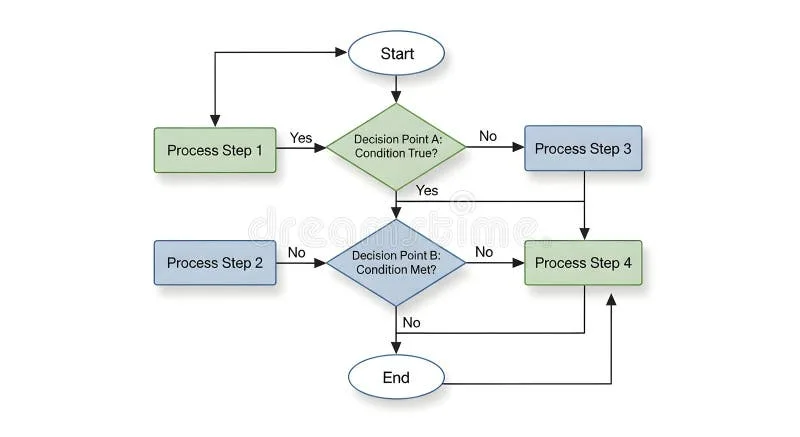
Image source: Bing (Web (fair-use with source credit))
Here's the decision tree in plain language. Read through each condition. Follow the branch that matches your scenario.
Condition 1: Are you currently locked out of Windows?
- Yes → Go to Condition 2.
- No → Go to Branch B. Create a reset disk now.
Condition 2: Do you have a password reset disk?
- Yes → Go to Condition 3.
- No → You need alternative recovery methods. Those are covered later.
Condition 3: Is your account a local account or a Microsoft account?
- Local account → Go to Branch A. Your reset disk will work.
- Microsoft account → The reset disk won't help. You need online recovery.
Condition 4: Does the reset disk match your Windows version?
- Same version (Windows 10 to Windows 10) → Proceed with the reset wizard. Should work smoothly.
- Different major versions (Windows 7 disk on Windows 10) → May still work but has a higher failure chance. Try it first.
Follow the branch that fits your exact situation. Each one below walks you through the specific steps.
Branch A: You're Locked Out Right Now – Can You Use a Reset Disk?
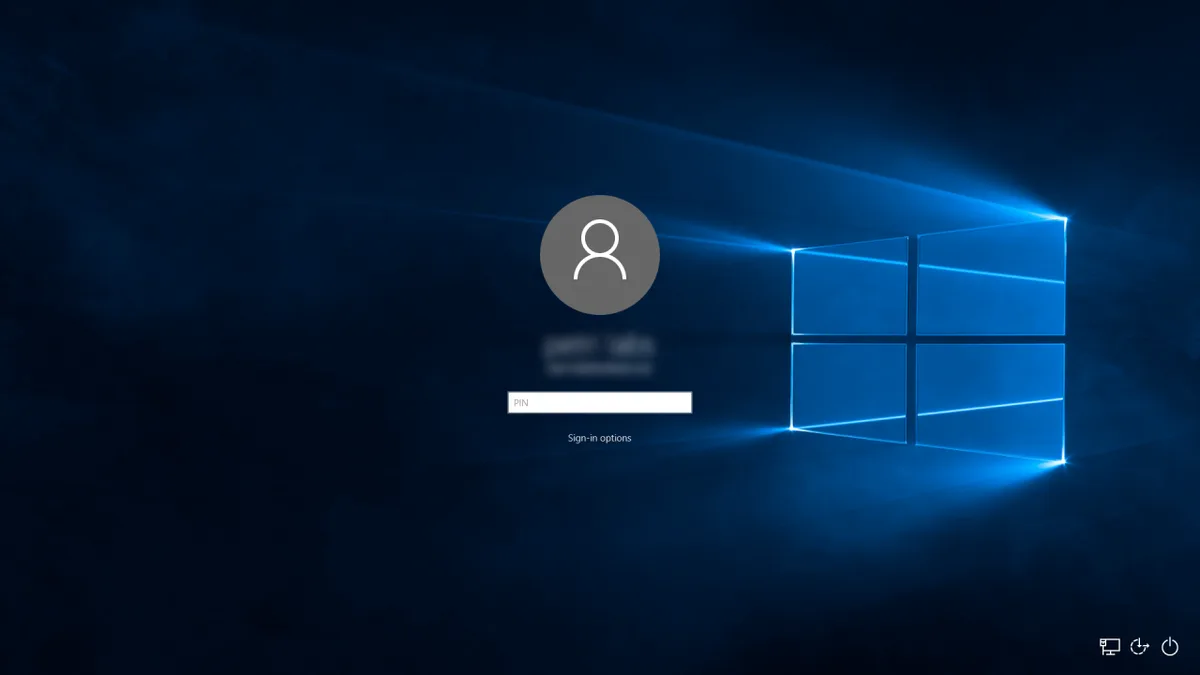
Image source: Bing (Web (fair-use with source credit))
You're at the login screen. You've typed your password a few times. Windows keeps rejecting it.
Now you're looking at that tiny "Reset password" link under the password box. Here's the honest answer: that link only appears if you already created a password reset disk before you got locked out. If you didn't, it won't show up.
If you see the link, Windows detected a valid reset disk profile on the system. Here's exactly what to do next.
Step-by-Step: Using Your Reset Disk
1. Click the "Reset password" link. It's usually below the password entry field after you enter a wrong password once. If you don't see it, Windows isn't detecting the reset profile on your system.
2. Insert your USB drive. Plug it into any available port. The Password Reset Wizard should detect it automatically.
If it doesn't, try a different USB port or check that the drive isn't damaged.
3. Follow the wizard. Select your USB drive when prompted. Then enter a new password and a password hint.
Make sure the new password is something you'll remember, but still reasonably secure.
4. Confirm and finish. Click "Finish". The wizard replaces your old password with the new one.
Remove the USB drive. Log in with your new credentials.
5. Create a new reset disk. This step is crucial. Changing your password invalidated the old reset disk.
Plug the USB drive back in and create a fresh one right away. Don't wait until you're locked out again.
The whole process takes two to three minutes. You won't lose any files, settings, or installed programs. It's the cleanest recovery path Windows offers.
What If You Don't See the "Reset Password" Link?
No link means no reset disk profile is stored on the system. This happens for three common reasons:
- You never created a reset disk. This is the most common reason. You can't create one from the login screen. You're stuck with alternative methods.
- You created a reset disk but changed your password afterward. Changing your password invalidates the old reset disk. The system no longer recognizes it.
- You're using a Microsoft account. Local reset disks don't apply here. The link simply won't appear.
If you fall into any of these categories, don't panic. The password reset disk path is closed to you unless you have a valid disk that matches your current password. But other options exist.
A Warning About Data Loss
Resetting your password with the disk doesn't delete your files. Your documents, photos, and installed software stay exactly where they are. What you will lose access to:
- Files encrypted with Windows Encrypted File System (EFS). These are tied to your old password. After a reset, they become permanently unreadable unless you have the EFS recovery certificate.
- Stored website passwords saved in your browser. Chrome, Firefox, and Edge tie their password managers to your Windows login. After a password change, those saved passwords may not sync or decrypt properly.
- Wi-Fi network keys. Windows stores Wi-Fi passwords in your user profile. You may need to re-enter them for your home and work networks.
- Personal certificates and credentials stored in Windows Credential Manager. These include VPN credentials and mapped network drive passwords.
None of this is a dealbreaker for most people. But it's good to know going in. If you absolutely need to recover encrypted files or credentials, consider professional data recovery or restoring from a backup before you reset.
How to Confirm Your Account Type Before You Reset
If you're not sure about your account type, there's a quick way to check. At the login screen, look at the email address displayed under your username. If you see a full email address like user@outlook.com, you're almost certainly using a Microsoft account.
If you see just a username with no email address, you're on a local account. This distinction matters because the reset disk only works for local accounts. Our editorial policy and about page go deeper into why Microsoft made this design choice.
Branch B: You Want to Create a Reset Disk Before You Get Locked Out
Image source: Bing (Web (fair-use with source credit))
You're in the perfect position. You're reading this before you're locked out. Taking two minutes now could save you hours of frustration later.
Creating a password reset disk is the single best thing you can do for your Windows account security.
What You Need
The requirements are minimal:
- A USB flash drive. Any size works. Even a 256 MB drive from a decade ago is fine. The file is only 10 KB. Format it as FAT32 for best compatibility, though NTFS also works.
- Access to your Windows user account. You need to be logged in with the account you want to protect. You cannot create a reset disk for another user.
- Administrator privileges. The account you're using needs admin rights. Standard user accounts cannot create reset disks.
Step-by-Step: Creating the Disk
1. Insert your USB drive. Make sure it's empty or that you don't mind the files on it. The wizard won't delete existing files, but it's cleaner to use a blank drive.
2. Open the Control Panel. Click the Start menu, type "Control Panel", and press Enter.
3. Navigate to User Accounts. In Control Panel, click "User Accounts". Then click "User Accounts" again on the next screen.
4. Find the "Create a password reset disk" link. It's on the left side of the window under "Related Tasks". If you don't see it, make sure you're viewing by "Category" or switch to "Large icons" view.
5. Launch the Forgotten Password Wizard. Click the link. The wizard opens.
6. Select your USB drive. The wizard asks which drive to use. Pick your USB drive from the dropdown.
Click "Next".
7. Enter your current password. Type your current Windows password. This confirms you're the account owner.
Click "Next".
8. Complete the wizard. The wizard creates the key file. This takes about 5 seconds.
Click "Finish" when done.
9. Label and store the drive. Write "Windows Password Reset, My Computer" on the drive with a permanent marker. Store it in a safe place.
Not next to your computer where an intruder could find it.
Where to Keep the Disk
Store the USB drive somewhere secure but accessible. A locked drawer in your desk works well. A home safe is even better.
Do not leave it plugged into your computer. Anyone with physical access to the drive can reset your password and gain full access to your account.
Consider making two copies. Keep one at home and one in a secure offsite location like a safe deposit box. If you lose the primary drive, you have a backup.
Just remember that each drive must be created separately for the same account. You cannot copy the file to a second drive and expect it to work.
When to Recreate the Disk
Reset disks don't last forever. You need to create a new one in these situations:
- You change your password. Any password change invalidates the old reset disk. Create a new one immediately after changing your password.
- You upgrade Windows to a new major version. A disk from Windows 7 may not work on Windows 10. Create a fresh one after each major upgrade.
- You replace your computer. Reset disks are tied to the machine they were created on. A new computer needs its own disk.
- You suspect the drive is damaged or corrupted. If the drive has been dropped, exposed to moisture, or shows errors in File Explorer, create a new one.
Branch C: You Have a Microsoft Account – Your Only Recovery Options
If you're using a Microsoft account, the password reset disk is simply not an option. Microsoft's authentication happens online, and local reset tools have no way to interface with it. Here are your actual recovery paths.
Option 1: Online Password Reset (Fastest)
Go to Microsoft's account recovery page on another device. Enter your email address. Microsoft sends a verification code to your recovery email or phone number.
Enter the code, reset your password, and use the new password to log into Windows.
This works as long as you have access to your recovery email or phone. If you've lost both, this path closes. Microsoft's account recovery process is designed to verify your identity through multiple channels, and our privacy policy addresses how your data is handled during this process.
Option 2: Windows Hello PIN Reset
If you set up a PIN for Windows Hello, you have a separate option. On the login screen, click "I forgot my PIN". Windows walks you through recovery using your Microsoft account credentials.
This only works if you previously set up Windows Hello.
Option 3: Reinstall Windows (Last Resort)
If none of the above work, you're looking at a full reinstall. You'll need a Windows installation USB drive or recovery media. Boot from the media and choose "Reset this PC".
You can choose to keep your files or remove everything. This is the nuclear option. Use it only when nothing else works.
Common Mistakes That Waste Time or Lock You Out Further
Even experienced users make these errors. Avoid them.
Mistake 1: Trying to Create a Disk While Locked Out
The most common mistake. You cannot create a password reset disk from the login screen. You must be logged into the account.
If you're locked out, you're stuck with alternative methods. Create the disk now if you're reading this while still logged in.
Mistake 2: Using the Wrong USB Port
Some USB ports, especially on desktop computers, may not work during the boot or login sequence. Use a port directly on the motherboard (rear ports on desktops). Front panel ports sometimes don't initialize until after login.
Mistake 3: Forgetting to Recreate After a Password Change
You change your password for security reasons. Then you get locked out months later. The old reset disk doesn't work.
You have no backup. Create a new disk every time you change your password. Put a reminder on your calendar.
Mistake 4: Using the Disk on the Wrong Computer
Each disk is tied to one specific computer. You cannot use a disk from your laptop on your desktop, even if both use the same Microsoft account (for local accounts on each machine). The key pair is machine-specific.
Mistake 5: Confusing Reset Disk with System Repair Disk
These are completely different tools. A password reset disk specifically resets the password for one user account. A system repair disk boots your computer and gives you access to recovery tools, including command prompt.
The repair disk cannot reset your password without manual command-line work.
Mistake 6: Assuming It Works for Microsoft Accounts
This mistake wastes the most time. Users spend hours trying to get the "Reset password" link to appear. It never will for a Microsoft account.
Check your account type first. If you're using a Microsoft account, skip the reset disk entirely.
What to Do If You Don't Have a Reset Disk and Can't Get In
This is the situation nobody wants. You're locked out, you have no reset disk, and you need back into your computer. Here's your realistic path forward.
Option 1: Try Another Admin Account
If your computer has another user account with administrator privileges, use that account to log in. From there, you can reset the password on your locked account. Go to Control Panel, User Accounts, Manage another account.
Select your locked account and change the password.
This only works if the other account exists and you know its password. Many home users only have one account.
Option 2: Use the Hidden Administrator Account
Windows has a built-in Administrator account that is disabled by default. Some power users enable it. If it's enabled and you know the password, you can log in with it.
If it's disabled, this option won't help.
Option 3: Boot into Safe Mode
Safe Mode sometimes lets you access the built-in Administrator account without a password. To enter Safe Mode:
- Restart your computer.
- During boot, press F8 repeatedly (Windows 7) or hold Shift while clicking Restart (Windows 10/11).
- Choose Safe Mode with Networking.
- Log in as Administrator (if available).
- Reset your password from there.
This works inconsistently across Windows versions. It's worth trying but don't bet on it.
Option 4: Use a Third-Party Password Recovery Tool
Several free and paid tools can reset Windows passwords from a bootable USB or CD. Tools like Ophcrack (free) and NT Password Reset (free) are widely used. They boot your computer from external media and directly modify the SAM database.
Important safety warnings apply here. These tools modify system files. Incorrect usage can corrupt your Windows installation.
Always back up your data first if possible. Only download tools from official sources. Many third-party sites host malware disguised as password recovery software.
Option 5: Reset This PC
This is Microsoft's official fallback option. Boot from Windows installation media. Choose "Repair your computer" instead of "Install now".
Select "Troubleshoot". Then choose "Reset this PC". You can choose to keep your files or remove everything.
Keeping your files preserves documents, photos, and downloads. It removes installed applications and drivers. You'll need to reinstall your software afterward.
This takes 30 minutes to an hour.
Option 6: Clean Install Windows
The nuclear option. Boot from installation media. Delete all partitions.
Install Windows fresh. You lose everything on the drive unless you have backups. Use this only when nothing else works and you have backups of important data.
Our terms of service provide more details on legal considerations around data recovery methods.
Pro Tips for Maintaining and Reusing Your Reset Disk Long-Term
A reset disk is a tool. Like any tool, it needs proper care.
Test Your Disk Annually
Once a year, test that your reset disk still works. Log out of Windows. Enter the wrong password on purpose.
Click the "Reset password" link. Insert the disk and follow the wizard. Set a temporary password, then change it back.
This confirms the disk functions correctly.
Keep Multiple Copies
Create two identical reset disks for the same account. Keep one in your desk drawer. Keep another in a safe or offsite location.
If one fails or gets lost, you have a backup.
Update After Major Windows Updates
Major Windows updates, like version 22H2 to 23H2, can change how the reset disk functions. Create a new disk after each feature update. Minor cumulative updates don't require recreation.
Label Clearly But Securely
Write "Windows Recovery, [Computer Name]" on the drive. Avoid writing "Password Reset" in plain view. If someone finds the drive, they know exactly what it does.
Store it where only you can access it.
Don't Use the Drive for Anything Else
Dedicate the USB drive solely to the reset disk. Using it for other files increases the chance of corruption. If you must use the drive for other purposes, copy the userkey.psw file to a safe location first.
But recreating the disk is safer.
When to Start Over vs. When to Keep Trying Other Methods
Sometimes the best option is to cut your losses. Here's how to decide.
Keep Trying When:
- You have access to another admin account on the same machine.
- You can boot from external media and use a recovery tool.
- Your data is not backed up and you need to save it.
- You have time to troubleshoot.
Start Over When:
- You've tried three different recovery methods and none worked.
- Your data is backed up or not important.
- You need access immediately and can't afford more troubleshooting time.
- The computer is old and a clean install would improve performance anyway.
The Cost of Each Option
| Method | Time Required | Data Loss Risk | Skill Level |
|---|---|---|---|
| Password reset disk (have one) | 2–3 minutes | None | Beginner |
| Another admin account | 5–10 minutes | None | Beginner |
| Safe Mode | 15–30 minutes | None | Intermediate |
| Third-party tool | 30–60 minutes | Low | Intermediate |
| Reset this PC (keep files) | 30–60 minutes | Apps removed | Intermediate |
| Clean install | 1–2 hours | Full wipe | Intermediate |
Consider your time, your data, and your comfort level before choosing a path.
Decision Guide: Your Best Next Step Based on Your Exact Scenario
Here's your final decision guide. Find your scenario and take the recommended action.
Scenario 1: I'm locked out. I have a reset disk. My account is local.
Action: Use the disk to reset your password. Follow Branch A steps. Then create a new disk immediately.
Scenario 2: I'm locked out. I have a reset disk. My account is a Microsoft account.
Action: The disk won't help. Use Microsoft's online password reset page. If you can't access your recovery email or phone, you'll need to contact Microsoft support.
Scenario 3: I'm locked out. I don't have a reset disk. I have another admin account.
Action: Log into the other admin account. Reset your locked account's password from Control Panel. Create a reset disk afterward.
Scenario 4: I'm locked out. I don't have a reset disk. I have no other admin account.
Action: Try Safe Mode with the built-in Administrator account. If that fails, use a third-party recovery tool. If you're not comfortable with that, use Reset this PC or do a clean install.
Scenario 5: I'm not locked out. I want to prepare.
Action: Create a reset disk now. Follow Branch B steps. Test it once.
Store it safely. Recreate it after every password change.
Scenario 6: I'm not locked out. I use a Microsoft account.
Action: Password reset disks don't apply to you. Set up a Windows Hello PIN as a backup. Ensure your recovery email and phone number are up to date on your Microsoft account.
Frequently Asked Questions
Can I create a password reset disk from the login screen?
No. You must be logged into your account to create a reset disk. If you're locked out, you cannot create one.
You need to use alternative recovery methods. That's why it's critical to create the disk while you still have access.
Does a password reset disk work on Windows 11?
Yes. The feature is available in Windows 11, just as it was in Windows 10, 8, and 7. The wizard is in the same location: Control Panel > User Accounts > Create a password reset disk.
The process is identical across all supported versions.
Can I use the same reset disk for multiple computers?
No. Each reset disk is tied to one specific computer and one specific user account on that computer. You cannot share a disk between computers.
If you have multiple computers, you need a separate disk for each one.
What happens to my files when I reset my password with the disk?
Your personal files remain untouched. Documents, photos, music, and videos stay where they are. Installed software also remains.
The only things affected are password-protected items like encrypted files, browser-saved passwords, and Wi-Fi keys.
How do I know if I'm using a local account or a Microsoft account?
Check the login screen. If you see a full email address under your username (like user@outlook.com), you're using a Microsoft account. If you see just a username with no email, you're using a local account.
You can also check in Settings > Accounts > Your Info.
Can I copy the reset disk file to another USB drive?
You can physically copy the userkey.psw file, but Windows will only recognize the drive that originally created the file. The wizard writes additional metadata to the drive that identifies it as a valid reset disk. Copying the file alone won't work.
What if my USB drive fails after I create the reset disk?
If the drive becomes corrupted or stops working, the reset disk is useless. Create a backup disk as soon as you create the primary one. Store the backup in a different location.
Test both drives annually to confirm they still work.