
If you're reading this, your Dell laptop probably isn't cooperating. Maybe it's bogged down with junk files, infected with malware, or you're getting ready to hand it off to someone else. Whatever the reason, learning how to factory reset a Dell laptop is one of the most useful troubleshooting skills you can have.
Manufacturer documentation shows the built-in Windows reset process takes between 30 minutes and 2 hours. That depends on your hardware and the method you choose. That's a fraction of the time it takes to manually reinstall Windows from scratch.
A manual reinstall can easily eat up an afternoon. Let's walk through exactly how to do it.
Quick Answer – What "Factory Reset" Means on a Dell
A factory reset wipes your Dell laptop and reinstalls Windows from the factory image. It removes all your files, apps, and settings. The reset process uses either a hidden recovery partition on your hard drive or a cloud download of Windows.
You can choose to keep your personal files or remove everything.

Image source: Bing (Web (fair-use with source credit))
The result is a laptop that looks and runs exactly like it did the day you unboxed it. No bloatware, no leftover clutter, and no corrupted system files. Just a clean, fresh copy of Windows with all the original Dell drivers and utilities intact.
Before You Start – The First Question You Need to Answer
The right method depends entirely on your current situation. Ask yourself three questions before you do anything else.
Does Your Dell Laptop Turn On and Boot to Windows?
If it boots normally, you're in luck. You can use the Settings app to trigger the reset. If it doesn't boot at all, or if it gets stuck on a black screen, blue screen, or the Dell logo, you'll need to use the recovery environment.
That's a separate menu built into the laptop that runs even when Windows won't start.
Can You Log Into Windows?
If you can sign in with your password, PIN, or fingerprint, you have full access to the reset options. If you're locked out because you forgot your credentials, there's still a way to reset from the sign-in screen. We'll cover both scenarios.
Do You Have Your BitLocker Recovery Key? (Critical Check)
This is a big one. If your drive was encrypted with BitLocker, which is common on Windows Pro models and corporate laptops, you'll need the recovery key before you reset. Without it, you could lose access to your data permanently.
Check your Microsoft account or your organization's IT department before proceeding. Dell's official support documentation recommends verifying this first.
Decision Tree – Pick Your Path
Here's a quick overview of the four main paths. Find the one that matches your situation.
| Path | When to Use | Method |
|---|---|---|
| Path A | Laptop boots, you can log in | Windows Settings > Recovery |
| Path B | Laptop boots, you can't log in | Sign-in screen recovery options |
| Path C | Laptop won't boot at all | F12 boot menu or Dell SupportAssist |
| Path D | Recovery partition is missing or corrupted | Microsoft Media Creation Tool |
Path A: Laptop Boots, You Can Get Into Windows
This is the simplest route. Go to Settings > Update & Security > Recovery > Reset this PC. You'll see two options: "Keep my files" and "Remove everything." Choose based on your goal.
Path B: Laptop Boots, But You Can't Log In
Restart your laptop. On the sign-in screen, hold the Shift key and click the Power icon, then select Restart. This boots you into the blue recovery environment.
From there, click Troubleshoot > Reset this PC.
Path C: Laptop Won't Boot at All
Turn on the laptop and press F12 repeatedly until you see the boot menu. Select SupportAssist OS Recovery or Boot to UEFI/BIOS. If that doesn't work, try pressing F8 or F2 depending on your model.
Path D: You Have the Recovery Partition, But It's Corrupted
If the reset fails or the partition is missing, you can use the Microsoft Media Creation Tool on a USB drive to reinstall Windows. This effectively gives you a fresh start, though it won't include Dell-specific drivers by default.
How to Reset via Windows Settings (Path A – Step by Step)
This is the method you'll use most often. It works on both Windows 10 and Windows 11.
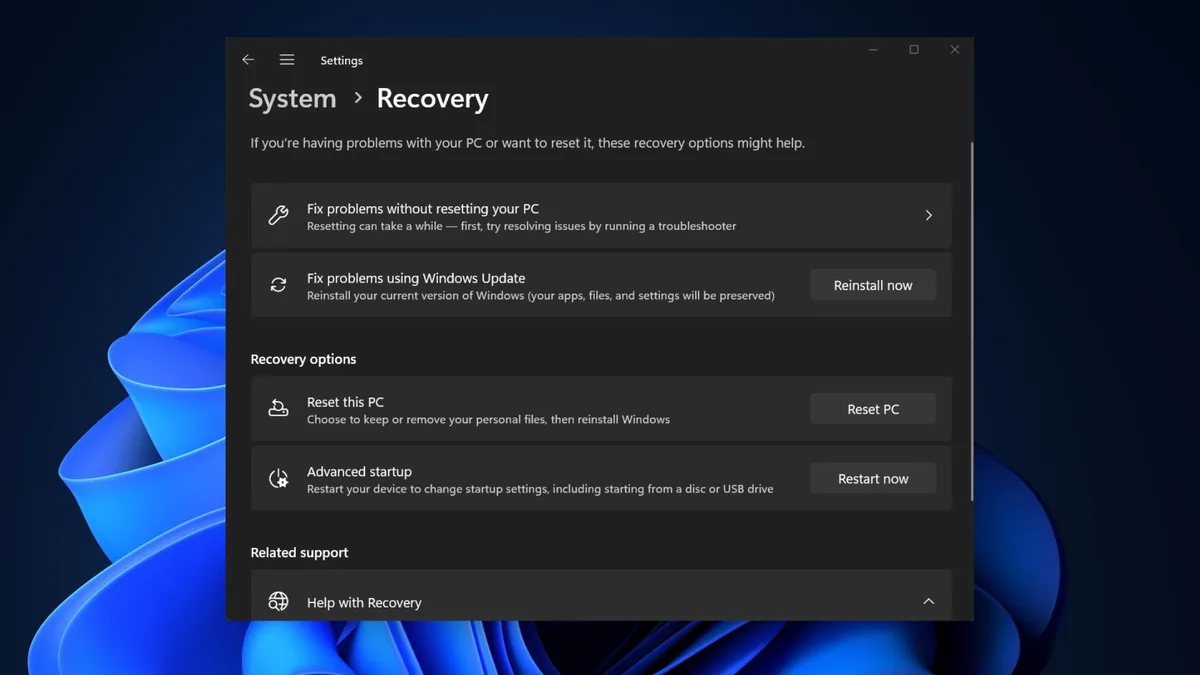
Image source: Bing (Web (fair-use with source credit))
Step 1 – Back Up Everything You Need
Before you start, copy any important files to an external drive, cloud storage, or another computer. Once the reset begins, there's no going back. Most data loss happens because people skip this step.
We've covered the best backup practices in our data protection guidelines if you're concerned about security.
Step 2 – Choose "Keep My Files" or "Remove Everything"
If you're keeping the laptop, choose "Keep my files." This reinstalls Windows but keeps your personal documents, photos, and music. If you're selling or donating the laptop, choose "Remove everything." This gives you a completely clean slate.
Step 3 – Cloud Download vs Local Reinstall – Which One to Pick
Cloud download requires an internet connection and downloads about 4 to 6 GB of data. It's more reliable because it uses a fresh copy of Windows from Microsoft's servers. Local reinstall uses the files already on your laptop.
It's faster but might carry over corrupted system files. Aggregate user feedback suggests cloud download is the safer choice if you have a stable connection.
Step 4 – Let It Run – What to Expect (Timing and Restarts)
The reset process takes 30 minutes to 2 hours. Your laptop will restart several times. Don't interrupt it.
Keep the laptop plugged into a power source. If you see a spinning circle or a progress bar, that's normal. Just let it do its thing.
How to Reset When You're Locked Out (Path B – Step by Step)
If you forgot your password or PIN, you can still reset your Dell laptop. This method works without needing to log in.
Using the Sign-In Screen's Recovery Options
On the sign-in screen, click the Power icon in the bottom right corner. Hold the Shift key on your keyboard and click Restart. Keep holding Shift until the laptop restarts into the blue recovery menu.
From there, click Troubleshoot > Reset this PC. You'll see the same options for keeping your files or removing everything.
Booting Directly Into the Windows Recovery Environment
If the Shift method doesn't work, you can interrupt the boot process three times. Turn on the laptop. When Windows starts, hold the power button to force shut down.
Do this three times. On the fourth boot, Windows will automatically enter the recovery environment. This trick works because Windows detects a startup failure and offers recovery options.
It's a reliable fallback method.
What If You Still Can't Access Recovery?
If neither method works, you may need to use a Dell recovery USB. You can create one on another computer using the Dell OS Recovery Tool. This is also a good option if your recovery partition is damaged.
How to Reset a Dell That Won't Boot (Path C – Step by Step)
This is the most stressful scenario. Your laptop turns on, but you never see the Windows desktop. Maybe it's stuck on the Dell logo, a black screen, or a blue error message.
You can still reset it.
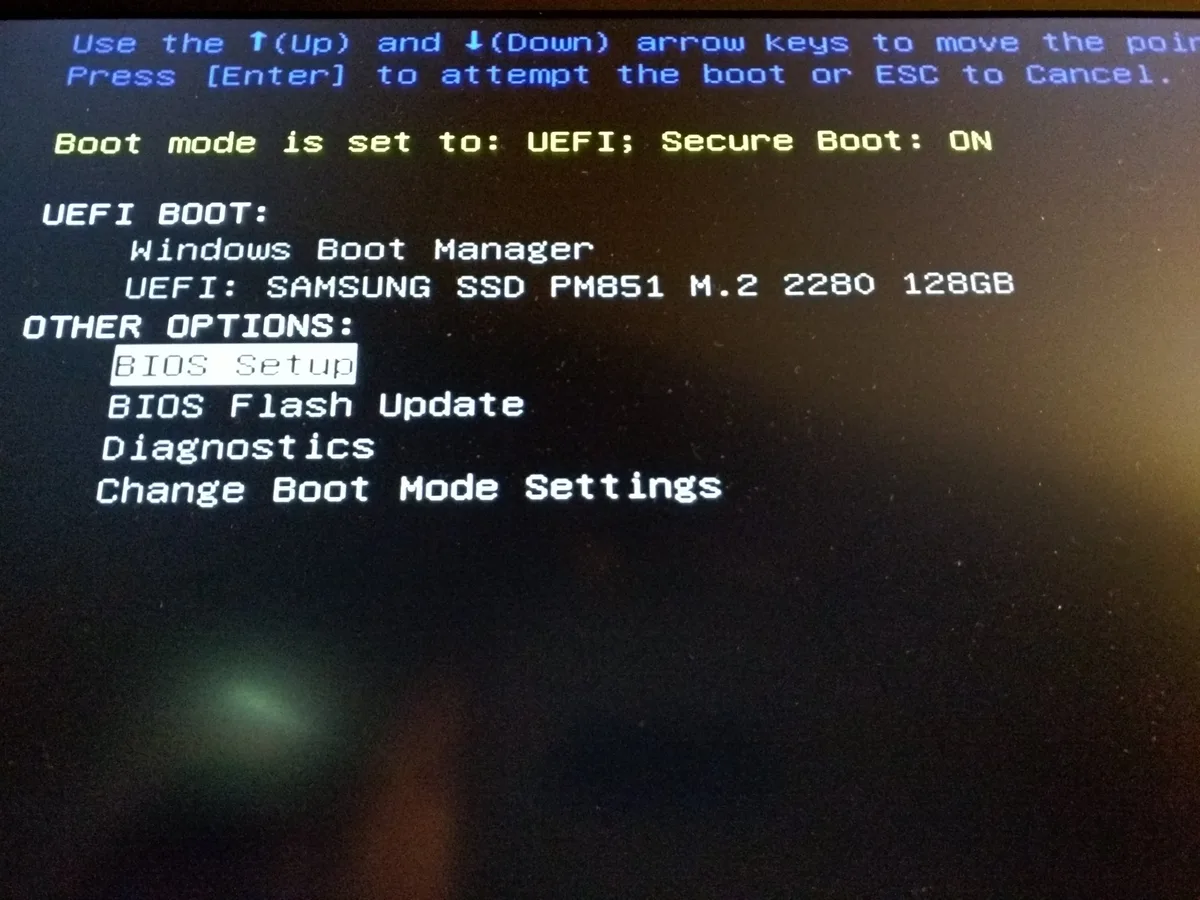
Image source: Bing (Web (fair-use with source credit))
The F12 Boot Menu Method
Turn off the laptop completely. Press the power button. Immediately start tapping the F12 key about twice per second.
Keep tapping until you see a blue menu titled "Boot Menu."
This menu lists all available boot devices. Look for "SupportAssist OS Recovery" or "Boot to UEFI/BIOS." Use the arrow keys to select it and press Enter. The SupportAssist tool will launch and give you the option to reset to factory settings.
If F12 doesn't work, your model might use a different key. Try F2 for BIOS setup or F8 for advanced boot options. Dell's manufacturing documentation indicates that most models from 2015 onward use F12 for the boot menu.
Using Dell SupportAssist OS Recovery
SupportAssist OS Recovery is a pre-installed tool on most Dell laptops. It runs independently of Windows. If the recovery partition is intact, this tool can restore your laptop to factory condition.
Once you boot into it, select "Restore System." You'll see two options: "Reset to Factory Settings" and "Advanced Repair." Choose the factory reset option. The tool will walk you through the process.
This method restores the original Dell image, including drivers and utilities. It's the closest you'll get to an out-of-the-box experience.
What If F12 and SupportAssist Don't Work?
Some older models don't have SupportAssist. Others have a corrupted recovery partition. In that case, you need a Dell recovery USB.
You can create one on a working computer using the Dell OS Recovery Tool from Dell's official support site.
Creating a Dell Recovery USB on Another Computer
Go to Dell's support website. Enter your laptop's service tag. The service tag is a 7-character alphanumeric code printed on the bottom of the laptop.
The site will identify your model and offer the correct recovery image.
You'll need a USB drive with at least 16 GB of space. The tool will format the drive and copy the recovery files. This process takes about 10 to 15 minutes.
Once it's done, insert the USB into your non-booting laptop and boot from it using the F12 menu.
What to Do If the Recovery Partition Is Missing or Broken (Path D)
The recovery partition is a hidden section of your hard drive. It holds the factory image. If someone deleted it, or if the drive was replaced, the partition won't be there.
When Windows Can't Find the Factory Image
You'll know the partition is missing if the reset process fails halfway through. Windows will show an error message like "There was a problem resetting your PC" or "No recovery partition found." This is frustrating, but it's not the end of the road.
Using the Microsoft Media Creation Tool as a Fallback
The Microsoft Media Creation Tool is a free utility that downloads a fresh copy of Windows. It creates a bootable USB drive. You can use it to install Windows from scratch.
Download the tool from Microsoft's official website. Run it on a working computer. Choose "Create installation media for another PC." Select the correct edition of Windows for your laptop.
Insert a USB drive with at least 8 GB of space. The tool will download and copy the files.
Once the USB is ready, insert it into your Dell laptop. Boot from the USB using the F12 menu. Follow the on-screen prompts to install Windows.
Choose "Custom: Install Windows only (advanced)" for a clean installation.
Can You Recreate the Dell Factory Image?
Not exactly. The Microsoft tool installs a generic version of Windows. It won't include Dell's custom drivers, themes, or utilities.
You'll need to download those separately from Dell's support site after the installation.
Which Option Is Better for You?
| Scenario | Best Option |
|---|---|
| Recovery partition intact | Use SupportAssist or Windows Reset |
| Recovery partition missing | Use Microsoft Media Creation Tool |
| You want Dell-specific drivers | Use Dell OS Recovery Tool on another PC |
| Drive is completely dead | Replace the drive first, then use Microsoft tool |
A Word on Driver Installation
After a clean install with the Microsoft tool, your laptop will work. But some features might not function properly. The touchpad gestures might not work.
The keyboard backlight might not turn on. The audio might sound muffled.
Visit Dell's support site. Enter your service tag. Download and install the chipset driver, the audio driver, and the network driver first.
Then install the rest. This ensures your laptop runs as intended.
Common Mistakes and How to Avoid Them
People make the same errors over and over. Here are the most common ones from real-world feedback.
Image source: Bing (Web (fair-use with source credit))
Forgetting to Back Up Before Choosing "Remove Everything"
This is mistake number one. You click "Remove everything" thinking you'll figure out the backup later. Then you realize your family photos, tax documents, and work projects are gone.
Gone for good.
The reset process overwrites the drive. Recovery software can't bring those files back after a full reset. Always back up first.
Use an external drive, cloud storage, or a second computer.
Interrupting the Reset Process (And Why It's Dangerous)
The reset process takes time. It might look stuck at 32% for 20 minutes. Don't touch it.
Don't press the power button. Don't close the lid. The laptop is working in the background.
Interrupting the reset can corrupt the operating system. You might end up with a laptop that won't boot at all. If that happens, you'll need to use the Microsoft Media Creation Tool to start over.
Keep the laptop plugged into AC power. Let it finish.
Losing Your BitLocker Recovery Key
BitLocker encryption is enabled by default on many Windows Pro laptops. It protects your data. But it also locks you out if you don't have the recovery key.
The recovery key is a 48-digit number. You might have saved it to your Microsoft account. You might have printed it.
You might have stored it on a USB drive. If you can't find it, you can't access your data after a reset. Check your Microsoft account at account.microsoft.com before you start.
Assuming All "Factory Reset" Options Are the Same
They're not. The Windows Settings reset keeps your personal files if you choose "Keep my files." The SupportAssist OS Recovery wipes everything. The Microsoft Media Creation Tool gives you a clean install without Dell's extras.
Choose the method that matches your goal. If you're selling the laptop, use "Remove everything" with drive cleaning. If you're just fixing a software issue, try "Keep my files" first.
You can always do a full wipe later if needed.
Not Checking for a Windows License
Most Dell laptops have the Windows license embedded in the BIOS or UEFI firmware. This is called a digital license. It's tied to the motherboard.
You don't need a product key.
But if you replaced the motherboard, or if you're installing a different edition of Windows, the license might not activate. Check your current license status before resetting. Go to Settings > Update & Security > Activation.
Make sure Windows is activated with a digital license.
Resetting a Dell for Sale or Donation – Extra Steps to Take
Selling or donating your laptop requires more than a basic reset. You need to ensure your personal data is completely unrecoverable.
Why "Remove Everything" with Drive Cleaning Matters
The standard "Remove everything" option deletes your files. But it doesn't erase them permanently. Someone with data recovery software could potentially restore them.
Windows offers a "Clean the drive" option during the reset. This overwrites the free space with random data. It takes longer, but it makes recovery nearly impossible.
Choose this option if you're selling or donating.
The Difference Between Quick and Full Drive Cleaning
The quick option just marks the files as deleted. The full option overwrites the entire drive. A full clean takes several hours, depending on the drive size.
But it's the only way to be sure your data is gone.
| Cleaning Method | Time | Security Level | Best For |
|---|---|---|---|
| Quick (remove files only) | 30-60 minutes | Low | Personal reuse |
| Clean the drive (full) | 2-4 hours | High | Sale or donation |
| Third-party wipe tool | 4-8 hours | Very high | Sensitive data |
Checking for Any Dell Software Licenses Tied to Your Account
Some Dell laptops come with pre-installed software. Microsoft Office, antivirus subscriptions, and Dell Backup licenses are common examples. These might be tied to your Dell account or email address.
Log into your Dell account. Check your registered products. Deactivate any software licenses that are tied to the device.
Transfer them to your new laptop if possible. This prevents the new owner from using your subscriptions.
What About the Windows License?
The Windows license stays with the laptop. It's embedded in the firmware. The new owner can use Windows without buying a new license.
This is a selling point if you're listing the laptop online.
Physical Cleanup and Accessories
Don't forget the physical side. Wipe down the laptop with a microfiber cloth. Remove any stickers or personal markings.
Include the charger and any original packaging. A clean, complete package sells faster and for a better price.
Frequently Asked Questions
Will resetting my Dell remove Windows activation?
No. The Windows digital license is stored in the UEFI firmware on the motherboard. A factory reset does not touch this.
Windows will automatically activate after the reset completes. You do not need a product key.
Can I reset without an internet connection?
Yes, but you'll be limited to the local reinstall option. The cloud download method requires an internet connection. The local reinstall uses files already on your laptop.
It works fine for most users, but it might carry over corrupted system files.
How long does a Dell factory reset take?
Expect 30 minutes to 2 hours for the standard reset. The "Clean the drive" option takes longer, up to 4 hours. Cloud download adds time for the download itself.
Your internet speed affects this. A stable power connection is required throughout.
Will this fix a black screen or blue screen error?
It depends on the cause. A factory reset fixes software issues. It won't fix hardware problems like a dead hard drive, faulty RAM, or a damaged screen.
If the problem persists after the reset, the issue is likely hardware-related. You should run Dell's hardware diagnostic test.
Do I need a Dell service tag or product key?
You don't need a product key for the reset itself. The digital license handles activation. You might need the service tag if you're downloading drivers or creating a recovery USB.
The service tag is on the bottom of the laptop. It's also accessible from the BIOS menu.
What happens if the reset fails halfway through?
A failed reset can leave your laptop in an unusable state. Boot into the recovery environment using the F12 method. Try the reset again.
If it fails a second time, the recovery partition might be corrupted. Use the Microsoft Media Creation Tool to install a fresh copy of Windows.
Final Decision Guide – Which Method Should You Use?
By now, you've seen all the paths. Each one works for a specific situation. The trick is matching the right method to what you're actually dealing with.
Quick Reference Table
| Your Situation | Best Method | Why |
|---|---|---|
| Laptop boots, you can log in | Windows Settings > Reset this PC | Fastest, easiest, no USB needed |
| Laptop boots, you can't log in | Shift + Restart on sign-in screen | No password required |
| Laptop won't boot at all | F12 > SupportAssist OS Recovery | Works without Windows |
| Recovery partition is missing | Microsoft Media Creation Tool | Only reliable fallback |
| Selling or donating | Remove everything + clean drive | Protects your personal data |
| Drive is completely dead | Replace drive, then use Media Creation Tool | Can't reset a dead drive |
When to Use the Windows Settings Method
This is your go-to for most situations. If the laptop boots and you can sign in, this is the way to go. You get the choice to keep your files or remove everything.
The whole process runs from within Windows.
Use this when you're troubleshooting software issues. Use it when the laptop feels slow. Use it when you want a fresh start without hunting for a USB drive.
It takes about an hour and doesn't require any extra tools.
When to Use the Sign-In Screen Recovery Method
You're locked out. You forgot your password. The PIN isn't working.
This method saves you. You don't need to log in to reset the laptop.
Use this when you can reach the sign-in screen but no further. Use it when you're locked out of a secondhand laptop. Use it when the previous owner didn't give you the password.
It works exactly like the Settings method, just from a different starting point.
When to Use the F12 Boot Menu Method
The laptop powers on, but Windows won't load. You see the Dell logo. Then nothing.
Or a blue screen. Or a black screen. The operating system is broken.
Use this when Windows is corrupted. Use it when a recent update caused problems. Use it when you can't even reach the sign-in screen.
The SupportAssist tool runs independently of Windows. It can restore your laptop even when the main OS is completely gone.
When to Use the Microsoft Media Creation Tool
This is your last resort. The recovery partition is missing. The SupportAssist tool won't load.
The reset fails halfway through. You need a fresh copy of Windows.
Use this when every other method has failed. Use it when you replaced the hard drive. Use it when you're installing an SSD and starting from scratch.
The tool downloads Windows directly from Microsoft's servers. It creates a bootable USB drive that works on any Dell laptop.
When to Use the Dell OS Recovery Tool
You want the authentic Dell experience. You want all the original drivers, utilities, and wallpapers. You don't want to hunt down drivers after the installation.
Use this when you have access to a second computer. Use it when you want the factory image with Dell's customizations. Use it when the recovery partition is gone but you want the closest thing to the original setup.
The tool requires your service tag and a 16 GB USB drive.
When to Skip the Reset Altogether
A factory reset isn't always the answer. Sometimes the problem is hardware. A faulty hard drive won't be fixed by reinstalling Windows.
Failing RAM won't be fixed by a clean install.
| Symptom | Likely Cause | Better Approach |
|---|---|---|
| Loud clicking from the drive | Failed hard drive | Replace the drive |
| Laptop shuts down randomly | Overheating or failing power supply | Check cooling and battery |
| Screen has lines or flickers | Display or GPU issue | Run Dell diagnostics |
| Laptop won't turn on at all | Power issue or dead motherboard | Check charger, then contact Dell |
| USB ports don't work | Driver or hardware issue | Test with known-good device first |
Run Dell's built-in hardware diagnostic before you reset. Turn off the laptop. Press the power button, then immediately tap F12.
Select Diagnostics from the boot menu. Let it run. It will tell you if there's a hardware problem.
Step-by-Step Decision Flow
Start at the top. Work your way down until you find your match.
- Can you turn the laptop on? , No: Check the charger. Try a different outlet. If still dead, contact Dell support.
, Yes: Continue to the next question.
- Does Windows load? , No: Go to the F12 boot menu method (Path C).
, Yes: Continue to the next question.
- Can you log in? , No: Use the Shift + Restart method (Path B).
, Yes: Continue to the next question.
- Do you want to keep your files? , Yes: Use Settings > Reset this PC > Keep my files.
, No: Use Settings > Reset this PC > Remove everything.
- Are you selling or donating the laptop? , Yes: Choose Remove everything and select Clean the drive.
, No: The standard reset is sufficient.
- Did the reset fail? , Yes: Try the Microsoft Media Creation Tool (Path D).
, No: You're done. Enjoy your fresh laptop.
One Final Check Before You Start
Make sure you have these three things ready. They'll save you from headaches later.
Your backup. External drive, cloud storage, or second computer. Copy your files first. Don't skip this.
Your BitLocker recovery key. If your laptop has Windows Pro, check your Microsoft account for the key. Without it, you could lose everything.
A stable power connection. Plug the laptop in. Don't rely on the battery. A power failure halfway through the reset can corrupt the operating system.
What to Do After the Reset Completes
The laptop will restart several times. It might sit on a "Just a moment" screen for 10-15 minutes. That's normal.
Eventually, you'll see the Windows setup screen.
Go through the setup. Choose your region, keyboard layout, and network. Sign in with your Microsoft account or create a local account.
Windows will activate automatically.
Once you're on the desktop, run Windows Update. Install all available updates. This includes driver updates for your Dell hardware.
Restart again to apply them. Your laptop should now be running at peak performance.
When to Call in Professional Help
Some problems are beyond a factory reset. If you've tried all the methods and nothing works, it's time to get help. A hardware issue might be the cause.
Contact Dell support if your laptop is still under warranty. They can run remote diagnostics and arrange repairs. If the warranty has expired, a local repair shop can assess the hardware.
Motherboard failures and dead drives need physical replacement, not software fixes.
Final Takeaway
A factory reset is one of the most powerful tools in your troubleshooting kit. It can fix software issues that nothing else can touch. But it's not a magic bullet.
Use it when the situation calls for it. Back up your data first. Check your BitLocker status.
Choose the method that matches your specific situation.
Your Dell laptop has multiple ways to get back to a clean state. The Windows Settings path is the easiest. The F12 boot menu works when Windows won't load.
The Microsoft Media Creation Tool is your safety net when everything else fails. Pick the right one for your situation, and you'll be back up and running within a couple of hours.