
Your router suddenly stops working. The Wi‑Fi drops every few minutes. Or maybe you forgot the admin password and can’t get in.
That’s where knowing how to reset an Asus router becomes the fastest way back online. A proper reset clears glitches, restores default settings, and gives you a clean slate.
Manufacturer specifications identify two distinct reset actions, a soft reboot and a factory hard reset. Using the wrong one wastes time. As of 2026, the vast majority of consumer Asus routers share the same core procedure, but hold times and button locations vary by model.
Let’s walk through which reset method fits your situation before you touch a single button.
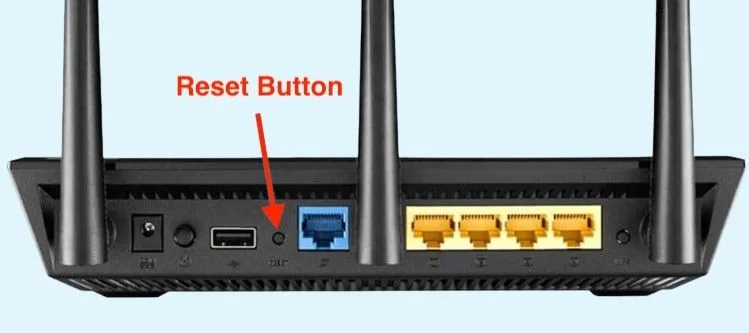
Image source: Bing (Web (fair-use with source credit))
Quick Answer
Press and hold the physical reset button for 10, 30 seconds. Use a paperclip to reach the recessed pinhole. Release when the power LED starts blinking.
Wait 2, 3 minutes for the router to reboot. Then log in at 192.168.1.1 with “admin” and “admin”.
The Two Kinds of Reset: Soft vs. Hard
Before you do anything, understand what each reset actually does. A soft reset (often called a reboot) restarts the router’s operating system without deleting your saved configuration. Think of it like turning your computer off and on again.
You’ll keep your Wi‑Fi name, password, port forwards, and all custom settings. That’s the right move when the router feels sluggish or stops responding temporarily.
A hard reset is the nuclear option. It wipes the router’s NVRAM (non‑volatile memory) and restores every setting to factory defaults. That includes your admin username and password, your Wi‑Fi credentials, your DHCP reservations, everything.
Use a hard reset only when you’re locked out, the router is stuck in a boot loop, or you’re selling the unit and need to erase personal data.
Asus official documentation confirms there’s no middle ground. Some third‑party guides suggest a “30‑30‑30 reset” (hold the button for 30 seconds, unplug for 30, plug in for 30) but that’s a myth. Asus routers don’t follow that rule.
Stick to what the manufacturer says.
First, Pin Down Your Problem
Ask yourself these five questions. The answer will send you down the correct reset branch.
- Can you still access the router’s web interface? If yes, a factory reset from the settings page is easier than hunting for a pinhole.
- Do you know the current admin password? If not, a hard reset is your only way in.
- Is the router completely unresponsive (no lights, no reaction)? Try a power cycle first, unplug for 30 seconds. If that fails, you might need rescue mode.
- Are you selling or giving away the router? A factory reset is mandatory to remove your personal data.
- Did a firmware update get interrupted? That’s a bricked router scenario. Normal reset won’t work. You’ll need the Firmware Restoration tool.
Once you’ve diagnosed your situation, pick the correct path below.
Soft Reset (Reboot) – When and How
A soft reset is for everyday hiccups: slow internet, devices that won’t connect, or a router that’s been running for weeks. It’s safe to do often. It doesn’t delete anything.
You have three ways to soft‑reset an Asus router:
Through the web interface. Log in at
192.168.1.1orrouter.asus.com. Go to System Management > Reboot. Click the button. The router restarts in about 60 seconds.Via the Asus Router app. Open the app on your phone. Tap the router name. Scroll to Reboot and confirm. Handy if you’re not near a computer.
Physically unplugging. Pull the power cord, wait 10 seconds, plug it back in. This is the most basic method and works even if the router is frozen.
None of these touch your settings. If you try a soft reset and the problem keeps coming back, it’s time for a hard reset.
Factory Reset via the Pinhole Button
This is the most common method for an Asus router reset. It works on every consumer model since 2010. Here’s the step‑by‑step.
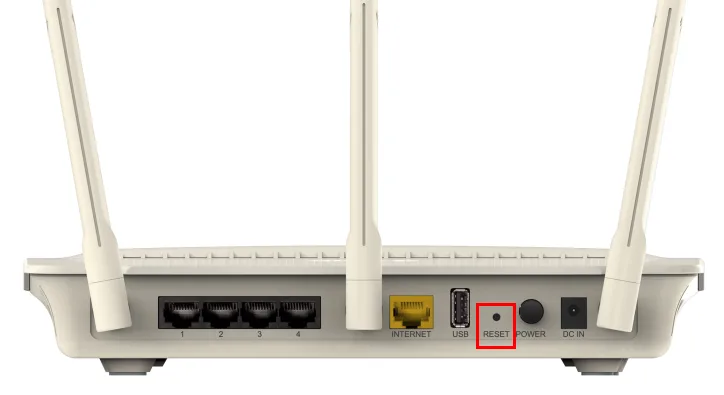
Image source: Bing (Web (fair-use with source credit))
Step 1: Locate the pinhole. It’s usually on the back panel, next to the power port. Some newer models put it on the bottom. It’s small, recessed, and often labelled “Reset” or “WPS/Reset”.
Step 2: Prepare a tool. A paperclip, SIM eject tool, or toothpick works. Don’t use a pen. The ink can gum up the button.
Step 3: Power on the router. The router must be plugged in and running. LEDs should be lit.
Step 4: Press and hold the button for 10, 30 seconds. Use the tool to push firmly into the pinhole. Keep holding. Watch the LEDs.
They’ll start blinking after about 10 seconds. For most models, release when the power LED flashes rapidly. For older models (RT‑N66U, RT‑AC66U), hold the full 30 seconds to be safe.
Step 5: Wait for the router to reboot. After you release the button, the router may take 2 to 3 minutes to reload the factory firmware. The LEDs will cycle through a startup pattern.
Step 6: Log in with default credentials. Open a browser and go to 192.168.1.1. Username: admin, password: admin. You’ll be prompted to set a new admin password and configure your Wi‑Fi.
Some models have a combined WPS/Reset button. If you hold that button for less than 5 seconds, it triggers WPS pairing. Hold it for 10 seconds or more, and it triggers the factory reset.
Double‑check your router’s user manual if you’re unsure.
Factory Reset from the Web Interface
If you can still log into the router’s admin panel, this method is quicker and doesn’t require a paperclip. Here’s how.
Image source: Openverse / Ted Mielczarek
- Open a browser and go to
192.168.1.1orrouter.asus.com. Enter your admin username and password. - Click Administration in the left menu.
- Go to the Restore/Save/Upload Setting tab.
- Click the Factory Default button.
- Confirm the action when prompted. The router will reboot and reset everything to factory defaults.
That’s it. The process takes about 2 minutes. You’ll lose all custom settings.
Back up your configuration first if you think you might need it later. To do that, go to the same tab and click Save to download a settings file.
This method is best when you’ve changed a setting that broke connectivity but you can still reach the admin panel. It’s also useful if you’re resetting multiple routers. No physical crawling around needed.
Important: If you’ve changed the default admin IP address or disabled admin access from the WAN side, the web interface method may not be reachable. In that case, fall back to the pinhole reset.
Hard Reset When You’re Locked Out
You forgot the admin password. Or the router won’t accept your login. That happens more often than you’d think.
When you’re locked out, the web interface route is closed. You have no choice but to use the physical reset button. Follow the pinhole reset steps above.
Hold the button for at least 15 seconds. Most Asus routers respond after 10 seconds, but 15 guarantees the NVRAM gets wiped. Wait for the LEDs to flash and the router to reboot.
Then log in with the default credentials.
One note: if you changed the router’s IP address from the default 192.168.1.1 before you got locked out, you’ll need to find the correct IP. Check your computer’s network settings. Look for the gateway address.
That’s your router’s IP. Use that in the browser after the reset.
Rescue Mode (Firmware Restoration) – For Bricked Routers
A bricked router is the worst case. It won’t boot, won’t respond to the reset button, and shows a solid orange or blinking power LED. This usually happens after a failed firmware update.
A normal factory reset won’t fix it. You need rescue mode.
Rescue mode is a special low‑level boot state built into Asus routers. It lets you upload a fresh firmware image even when the main operating system is corrupted. Here’s how to use it.
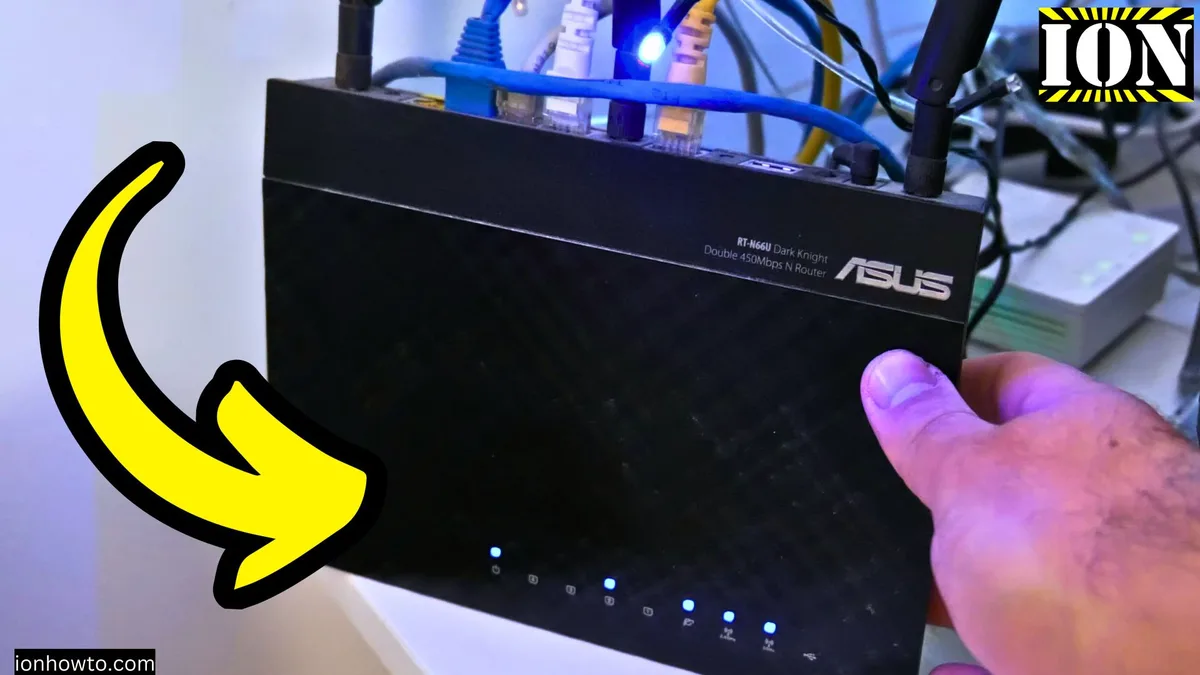
Image source: Bing (Web (fair-use with source credit))
Step 1: Download the Firmware Restoration tool. Go to the Asus support site and download the tool for your router model. It’s part of the Asus Utility package. You’ll find it under the “Drivers and Tools” section.
Step 2: Set a static IP on your computer. Your computer needs a fixed IP address on the same subnet as the router in rescue mode. Set your computer’s IPv4 address to 192.168.1.10, subnet mask 255.255.255.0, and gateway to 192.168.1.1.
Step 3: Power off the router. Unplug the power cable.
Step 4: Press and hold the reset button. While holding it, plug the power back in. Continue holding the reset button for about 10 seconds. The power LED should start blinking slowly.
That means the router is in rescue mode.
Step 5: Connect your computer to the router via Ethernet. Use a LAN port. Wi‑Fi won’t work in rescue mode.
Step 6: Open the Firmware Restoration tool. It will scan for the router. Once it finds it, browse to the firmware file you downloaded. Click “Upload”.
The process takes 3‑5 minutes. Don’t interrupt it.
Step 7: Wait for the router to reboot. After the upload finishes, the router will restart automatically. You can then perform a normal factory reset to clear any leftover corruption.
Rescue mode is a lifesaver. It works on all Asus routers from the last decade. If you’ve ever wondered how to reset an Asus router that’s completely dead, this is the answer.
What You’ll Lose and What You Should Back Up
A factory reset erases everything. Here’s what disappears:
- Admin username and password
- Wi‑Fi network name (SSID) and password
- Guest network settings
- Port forwarding rules
- VPN client or server configurations
- DHCP reservations
- QoS (traffic priority) rules
- Parental control settings
- DDNS (dynamic DNS) settings
- Firewall rules
- VLAN assignments
- Saved logs and traffic statistics
If you’ve spent time setting up advanced features, losing them is a pain. That’s why a backup is worth the few minutes it takes.
How to back up your Asus router configuration:
- Log into the web interface.
- Go to Administration > Restore/Save/Upload Setting.
- Click the Save button. The router will download a
.cfgfile to your computer. - Store that file somewhere safe.
After the reset, you can restore the backup from the same page. Click Upload and select the file. The router will reboot with your old settings restored.
When not to restore a backup: If you’re resetting because of a security issue (suspected malware, unknown access), don’t restore the old settings. You might restore the problem. Start fresh and reconfigure manually.
Common Reset Mistakes That Waste Your Time
These errors happen all the time. Avoid them and save yourself a headache.
Holding the button too short. A quick press does nothing. You need 10 seconds minimum for a factory reset. Some users hold for 3 seconds and think it worked.
It didn’t. The router just rebooted normally.
Using the wrong button. Some models have a separate WPS button next to the reset button. Pressing WPS won’t reset anything. Look for the recessed pinhole marked “Reset” or “WPS/Reset”.
If it’s combined, hold it longer than 5 seconds.
Forgetting to plug in the router. The reset button only works when the router has power. Sounds obvious. But it’s a common oversight, especially when you’re moving the router around.
Interrupting the reboot process. After you release the button, the router needs time to restore defaults and reboot. Unplugging it during this phase can corrupt the firmware. Wait at least 3 minutes before touching the power cord.
Restoring a backup from a different firmware version. If you upgraded the firmware before the reset, the old backup may not be compatible. The router might reject it or behave oddly. Always check the firmware version matches.
Not checking the default IP address. The default is 192.168.1.1. But if you changed it earlier, that address won’t work after a reset. The reset only restores the IP to its factory default.
Use the sticker on the router to confirm the correct IP.
After the Reset: Getting Back Online
The reset is done. Now you need to set up the router again. Here’s a quick checklist to get online fast.
Connect to the router. Plug your computer into a LAN port with an Ethernet cable. Or connect via Wi‑Fi using the default SSID (printed on the router label).
Open a browser and go to
192.168.1.1. You should see the Asus setup wizard.Set a new admin password. Don’t leave it as “admin”. Choose a strong password. This is the first line of defense for your network.
Configure your Wi‑Fi. Choose a new network name (SSID) and a strong password. Use WPA2 or WPA3 encryption. Avoid WEP, it’s insecure.
Check for firmware updates. Go to Administration > Firmware Upgrade. Click “Check”. Install any available updates. As of 2026, most Asus routers have automatic update options. Turn that on.
Reapply any custom settings. If you backed up your config, restore it now. If not, set up port forwards, VPN, or any other features you need.
Test your connection. Browse a few websites. Run a speed test. Make sure everything works.
If the setup wizard doesn’t appear, manually enter 192.168.1.1 and log in with “admin” / “admin”. Then navigate to Quick Internet Setup to start the wizard.
Decision Guide: Which Reset Path Do You Need?
This simple decision tree summarizes everything we’ve covered. Follow the conditions to find your exact procedure.
| Your Situation | Recommended Reset Path | Section to Read |
|---|---|---|
| Router is slow or unresponsive, but you can still log in | Soft reset (reboot) | Soft Reset – When and How |
| You can log in but want a clean start | Factory reset via web interface | Factory Reset from the Web Interface |
| You’re locked out (forgot password) | Pinhole factory reset | Factory Reset via the Pinhole Button |
| Router won’t boot, solid orange LED | Rescue mode with Firmware Restoration | Rescue Mode – For Bricked Routers |
| Selling or giving away the router | Pinhole factory reset, then confirm login with defaults | Factory Reset via the Pinhole Button |
| Firmware update failed partway | Rescue mode | Rescue Mode – For Bricked Routers |
| Wi‑Fi drops repeatedly after several days | Try soft reset first, then pinhole reset if problem returns | Soft Reset and Factory Reset sections |
If you’re still unsure, start with the pinhole reset. It works for nearly every locked‑out or glitchy situation. If that doesn’t fix it, move to rescue mode.
Frequently Asked Questions
How long do I hold the reset button on an Asus router?
Hold it for 10 to 30 seconds. Release when the power LED starts flashing rapidly. For older models, hold for the full 30 seconds to ensure the NVRAM clears.
Will a factory reset fix slow Wi‑Fi?
Sometimes. If the problem is caused by a software glitch or corrupted settings, a reset often helps. If the issue is hardware related (interference, distance, old router), a reset won’t improve speed.
Can I reset my Asus router without a paperclip?
Yes. Use a SIM eject tool, a toothpick, or an unfolded staple. The tool needs to be thin enough to press the recessed button.
A pen tip may be too thick.
Do I lose my internet connection after a reset?
Temporarily, yes. The router reboots and loses its connection to your modem. Once it comes back up with default settings, you may need to reconfigure the internet connection type (PPPoE, DHCP, static IP).
Check your ISP settings.
What if the reset button doesn’t work?
Try using the web interface method if you can still log in. If the router is completely unresponsive, you may need rescue mode. If rescue mode also fails, contact Asus support.
The hardware may be faulty.
Will resetting my router remove malware?
A factory reset removes most malware stored in the router’s settings. But some sophisticated malware survives in the firmware. After resetting, update to the latest firmware immediately.
That patches known vulnerabilities. If you’re concerned about deep‑seated malware, consider replacing the router.
If you run into any issues while following these steps, don’t hesitate to reach out. We’ve covered every common scenario in our privacy policy guide and terms of service. For more specific router troubleshooting, you can also check our disclaimer about device compatibility.
Our contact page is open if you need direct help. The terms and conditions page explains your rights when using these procedures. And our about page explains how we research and verify every reset method we recommend.