
If your internet drops mid-call or your Starlink router starts acting flaky, you need to know the right way to reset it. There isn't just one method. There are three, and picking the wrong one can erase settings you'd rather keep.
As of 2026, Starlink has shipped over 5 million terminals. The Gen 2 router is the most common in homes. A factory reset takes about five minutes.
A simple power cycle takes two. The trick is knowing which situation you're in.
Image source: Bing (Web (fair-use with source credit))
Quick Answer
A factory reset wipes all custom settings. A reboot keeps them. If you can reach the Starlink app, use the app.
If you're locked out, press the reset button on the power brick. If the router won't respond, unplug for 30 seconds, then try a hard reset.
When to Reset vs. Reboot
Rebooting clears temporary glitches without losing your Wi‑Fi name, password, or custom DNS. A factory reset is for when rebooting doesn't fix things.
| Action | Settings Lost | Time Needed | Best For |
|---|---|---|---|
| Soft reset (power cycle) | None | ~2 minutes | Temporary slowness, dropped connection |
| App‑based factory reset | All | ~5 minutes | Persistent problems, app still works |
| Button‑based factory reset | All | ~5 minutes | Locked out, no app access |
Try a reboot first. Most connectivity issues resolve with a simple power cycle. If you're unsure whether you need a full reset, check our Contact Us page for personalized guidance.
The Three Ways to Reset
You have three options. Each fits a different scenario.
Soft Reset (Power Cycle) – When It's Enough
Unplug the power cable from the router or power brick. Wait 30 seconds. Plug it back in.
Wait 2, 3 minutes for the light to turn solid white. No settings change. Use this for slow speeds or occasional drops.
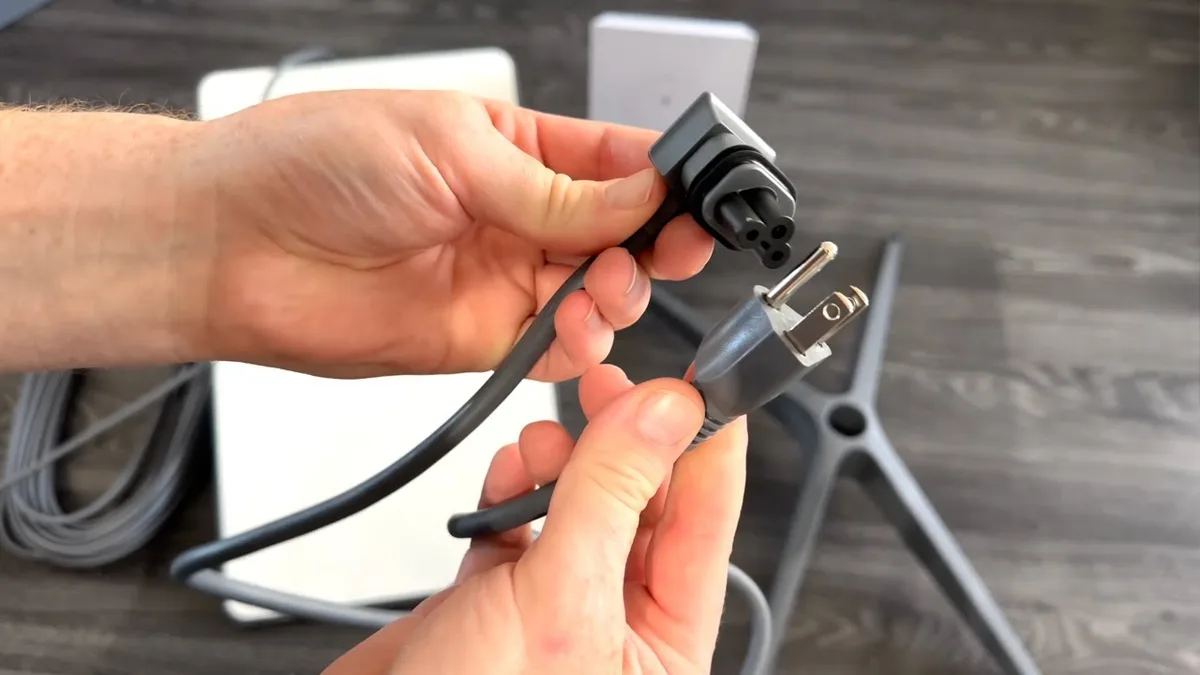
Image source: Bing (Web (fair-use with source credit))
Factory Reset via the Starlink App – When You Have Access
Open the app. Go to Settings > Advanced > Factory Reset. Confirm.
The router reboots and wipes everything. Default Wi‑Fi name and password are printed on the bottom of the router. This is the safest method because the app gives clear prompts.
Factory Reset via the Physical Button – When You're Stuck
If you forgot your Wi‑Fi password or the app won't connect, use the physical button. On Gen 2 and Gen 3, the button is on the power brick. On Gen 1, it's on the router itself.
You'll need a paperclip.
Condition A: You Can Still Connect to the App
This is the easiest scenario. The app provides a clean reset path.
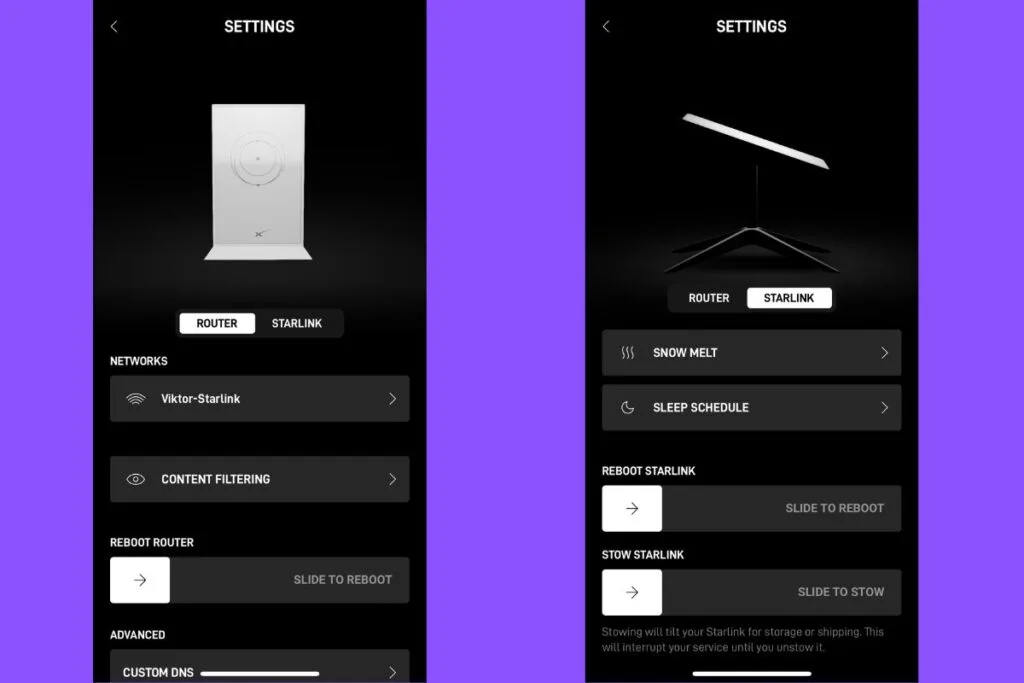
Image source: Bing (Web (fair-use with source credit)
Step‑by‑Step: App‑Based Factory Reset
- Launch the Starlink app on your phone or tablet.
- Ensure your phone is connected to the Starlink Wi‑Fi.
- Tap Settings (gear icon).
- Scroll to Advanced.
- Tap Factory Reset.
- Read the warning, it erases Wi‑Fi name, password, and custom DNS.
- Tap Confirm.
- Wait for the router to reboot (light flickers, then solid white in about 5 minutes).
After the reset, reconnect devices using the default SSID and password from the router label. If the app doesn't show your router immediately, force-close and reopen it.
Condition B: You're Locked Out (Forgot Password or No App Access)
You changed the Wi‑Fi password and now you can't remember it. Or the app is stuck on "not connected." The physical button is your only way in.
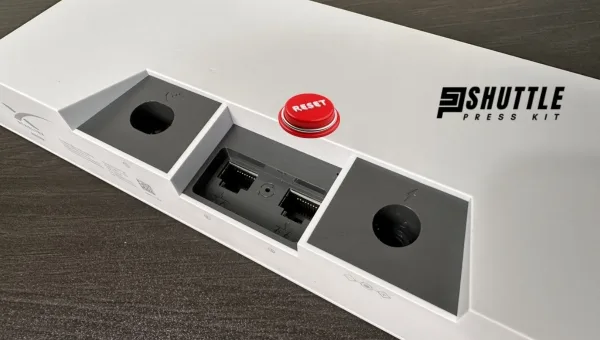
Image source: Bing (Web (fair-use with source credit))
Step‑by‑Step: Physical Button Reset by Router Generation
Gen 2 and Gen 3 (most common):
- Locate the power brick (white box between dish cable and power outlet).
- Find the small recessed button near the Ethernet port. Use a paperclip or pen tip.
- With the router powered on, press and hold the button for 6 seconds.
- The LED will flash white. Release the button.
- Wait 5 minutes for the router to finish resetting.
Gen 1 (older):
- The button is on the bottom edge of the router unit.
- Press and hold for 10 seconds (some early firmware required this).
- Wait for the light to flash and then stabilize.
After the reset, reconnect using the printed label. Set a new password and write it down. Our Terms and Conditions page reminds you that lost passwords are your responsibility.
Condition C: Router Is Unresponsive or Won't Boot
Sometimes the router goes completely dark, no lights, no Wi‑Fi. Before assuming it's dead, try these steps.
Troubleshooting Before the Hard Reset
- Check the power outlet. Plug a lamp or phone charger into the same outlet.
- Inspect the cable connection. Unplug and reseat both ends of the cable between the dish and router.
- Try a different power brick if you have a spare (common in RV setups).
- Let it sit for 15 minutes. The router may be doing a firmware update. Unplug, wait 30 seconds, plug back in, and walk away.
If none of these work, attempt a physical button reset. If still nothing, the router may need replacement. Contact Starlink support through their official help center.
Our Disclaimer page notes that physical damage requires hardware replacement.
Common Mistakes
Mistake #1: Confusing a Reboot with a Full Reset
A reboot clears temporary memory. A factory reset wipes everything. If you factory reset when a reboot would fix it, you waste time reconfiguring your network.
Quick guide:
| Symptom | Try First |
|---|---|
| Slow speeds, intermittent drops | Reboot (power cycle) |
| Can't connect to Wi‑Fi at all | Reboot; if still broken, reset |
| Starlink app says "offline" | Reboot router |
| After firmware update, everything breaks | Reboot; then reset if needed |
Mistake #2: Not Waiting Long Enough After a Reset
After a power cycle, wait 2, 3 minutes. After a factory reset, wait 5 minutes. The LED will blink white, then turn solid.
If you interrupt the process, the firmware may become partially loaded. Set a timer. Walk away.
Mistake #3: Resetting the Dish Instead of the Router
Unplugging the dish cable reboots the dish but doesn't touch router settings. If your problem is a bad Wi‑Fi setting, the dish reboot does nothing. For router‑only resets, keep the dish powered.
For system‑wide resets, power cycle the entire brick.
Expert Tips: Preserving Settings Before a Factory Reset
A factory reset wipes everything. Save your configuration first.
- Screenshot your current settings. Open the Starlink app, go to Settings, and capture every page. Save to a cloud folder.
- Write down static IP reservations. The app doesn't export them.
- Note custom DNS addresses. They disappear after a reset.
- Use the Debug section. Before resetting, tap Settings > Advanced > Debug Data. Copy and paste that text. It contains firmware versions and signal stats support may ask for.
For a full list of configurable fields that survive a reset, check Starlink's official support documentation.
Comparison Table: Soft Reset vs. App Reset vs. Button Reset
| Feature | Soft Reset | App Reset | Button Reset |
|---|---|---|---|
| Time | ~2 minutes | ~5 minutes | ~5 minutes |
| Settings lost | None | All | All |
| Access needed | Power cable | App on connected device | Paperclip, physical access |
| Works if unresponsive? | Yes (if it can boot) | No | Yes |
| Works if forgot password? | No | No | Yes |
| Risk of interrupting | Low | Medium | Medium |
| Best for | Temporary glitches | Persistent problems | Locked out |
Decision Guide: Which Reset Method Should You Use?
Start here:
- If you can still connect to the Starlink app, use app-based factory reset.
- If you can't connect, use physical button reset.
- If router is unresponsive, start with power cycle.
- If you're just seeing slow speeds, try power cycle first.
Decision Table
| Your Situation | What to Do First | Fallback |
|---|---|---|
| App connects, router works but slow | Power cycle | App reset |
| Forgot Wi‑Fi password | Physical button reset | Support |
| Router has no lights | Check power, reseat cables | Button reset, then support |
| Router lights flashing but no internet | Power cycle dish and router | App reset |
| After firmware update, everything breaks | Power cycle | App reset |
Frequently Asked Questions
Will a factory reset delete my Starlink account?
No. A factory reset wipes only the router's local configuration. Your Starlink account, service plan, billing, and location data stay on Starlink's servers.
After the reset, reconnect to the default network and log into the app with your usual credentials.
My router is blinking white after reset – what now?
A blinking white LED means the router is booting. This is normal for 4 to 6 minutes. If it blinks for more than 10 minutes, power cycle the entire system.
Check the dish cable connection and ensure the dish has a clear view of the sky.
Can I reset Starlink without the app or a button?
Only a power cycle is possible without the app or button. A power cycle is not a factory reset. The only two paths to a full factory reset are the app and the physical button.
Keep a paperclip handy as your failsafe.
Final Verdict: One Approach for Most Problems
- Power cycle the router (unplug, wait 30 seconds, plug back in).
- Wait 3 minutes. Check for solid white light.
- If problem persists, use the app for factory reset (Settings > Advanced > Factory Reset).
- If you can't access the app, press the reset button on the power brick for 6 seconds.
- Wait 5 minutes for reboot.
- Reconnect to default Wi‑Fi and reconfigure settings.
This covers 95% of situations. The other 5% involve hardware damage, account issues, or line‑of‑sight problems that a reset can't fix. Remember: use the least destructive option first.
Save your settings. And if you get stuck, Starlink support is reachable through the app or their official support site.