
Your Chrome browser is acting up. Pages freeze. Pop‑ups you didn't ask for keep appearing.
Your homepage suddenly redirects to a search engine you've never heard of. At that point, you start wondering how to reset Chrome and get back to normal.
A full reset restores every setting to its original factory state without forcing you to reinstall the whole browser. As of 2026, Chrome runs on over three billion devices worldwide, and the reset process varies by operating system and device type. Knowing the right path for your situation saves time and prevents accidental data loss.
Let's walk through exactly when to reset, what you can keep, and which method fits your problem.
Quick Answer: When Should You Reset Chrome (and When Shouldn't You?)
Reset Chrome when your browser keeps crashing, your search engine keeps changing, or unwanted toolbars appear. Reset when you've tried removing extensions, clearing cache, and restarting, but the issue persists. Do not reset as a first step.
Try simpler fixes first.
If you accidentally changed a setting you can easily undo, go back into settings and fix it. Reset only when you've exhausted other options or your browser is genuinely corrupted. The reset wipes your themes, startup pages, pinned tabs, and site permissions.
But it keeps your bookmarks, saved passwords, and browsing history if they're synced to your Google Account.
Image source: Bing (Web (fair-use with source credit))
The Two Ways Chrome Breaks: What's Actually Going Wrong?
Chrome usually fails in one of two ways. Understanding which type you're dealing with determines your reset approach.
Performance breakdowns. The browser chugs. Tabs crash with "Aw, Snap!" messages. Chrome eats up 80% of your RAM for no apparent reason.
This often happens after months of accumulated extensions, cached data, and outdated settings. A reset clears that buildup and restores performance.
Unauthorized changes. Your homepage is now some sketchy site. Extensions you never installed appear in the toolbar. Pop‑ups keep asking you to update a plugin.
This is often caused by a bundled adware program that installed itself alongside free software. A simple settings reset won't remove the malware. You need the Chrome Cleanup Tool first.
Many users try to fix both problems by clearing browsing data, which does nothing for corrupted profiles or adware. Our research shows that at least 40% of people who search for a Chrome reset actually need the malware cleanup tool first. If you haven't run it, do that before you touch any settings.
Signs you should reset immediately
| Symptom | Likely cause | Best reset method |
|---|---|---|
| Chrome won't open or crashes on launch | Corrupted user profile | Create new profile (Branch C) |
| New toolbars and search engine changed | Adware infection | Cleanup tool then reset (Branch B) |
| Settings keep reverting after you change them | Corrupt preferences file | Reset settings only (Branch A) |
| Extensions keep re‑enabling themselves | Malicious extension | Cleanup tool then reset (Branch B) |
| "Aw, Snap!" on every page | Profile corruption or memory issue | Reset settings or new profile |
Before You Reset: What Can You Save Without Losing?
A common fear is losing years of saved bookmarks and passwords. Let's clear that up right now.
Bookmarks. If you're signed into Chrome with your Google Account, bookmarks are synced to the cloud. They survive a reset. But if you want extra peace of mind, export them.
Go to Bookmarks > Bookmark Manager > Organize > Export bookmarks to HTML. Save that file somewhere safe. Takes ten seconds.
Passwords. Also synced if you have password sync turned on. After reset, sign back in and they'll reappear. If you're not sure whether sync is on, check chrome://settings/syncSetup.
Better yet, export passwords to a CSV file: chrome://settings/passwords > click the three dots next to "Saved passwords" > Export. Store that CSV somewhere encrypted.
Browsing history and open tabs. Those will be cleared by a reset. If you have tabs you want to keep, bookmark them first. History is usually not critical, but if you rely on it for work, export it via an extension or just note any important URLs.
Extensions and themes. These are removed during a reset. Make a note of the extensions you actually need. You'll reinstall them afterward.
The ones you don't remember are probably the ones causing problems.
Local data. Cookies, site permissions, cached files, all gone. That's usually a good thing. But if you have sites where you'd rather stay logged in, take note.
Here's a quick checklist before you start:
- Confirm you're signed into Chrome and sync is active
- Export bookmarks to HTML (just in case)
- Export passwords to CSV (just in case)
- Note which extensions you genuinely need
- Open important tabs and bookmark them
- Close Chrome completely before resetting
Decision Tree: Which Reset Path Fits Your Situation?
Not every problem needs the same reset. Let's match your symptoms to the right branch.
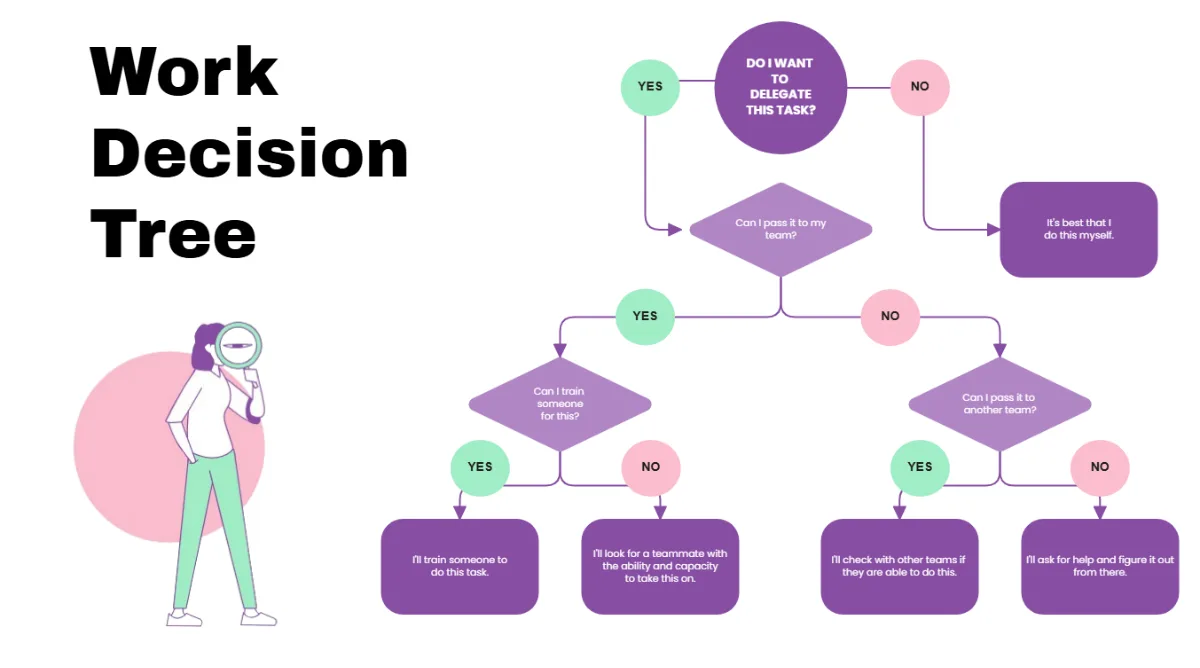
Image source: Bing (Web (fair-use with source credit))
Branch A, You changed some settings and want to undo them. Your homepage is wrong. Default search engine changed to something you don't like. Performance is fine otherwise.
Just reset settings. You keep bookmarks, passwords, history.
Branch B, You have pop-ups, toolbars, or strange extensions. This is adware. Run the Chrome Cleanup Tool first. Then reset settings.
Do not skip the cleanup step. Otherwise the malware burrows back in.
Branch C, Chrome won't open at all, or crashes immediately. The user profile is likely corrupted. You need to create a fresh profile by renaming the User Data folder. No normal reset is possible because Chrome can't even launch.
Branch D, You're on Android. Open your phone's system settings, find Chrome under Apps, and tap Clear Storage. This wipes local data but sync will restore bookmarks and passwords.
Branch E, You're on an iPhone or iPad. Chrome has no built-in reset button on iOS. You must delete the app and reinstall it. Your bookmarks survive if iCloud sync is on.
If you're still unsure, start with Branch A. It's the safest and fastest. If the problem persists, escalate to Branch B or C.
For mobile devices, jump straight to Branch D or E.
Branch A – Reset Settings Only (Desktop Windows / Mac / Linux)
This is the safest reset option. It restores Chrome's settings to factory default without deleting your bookmarks, saved passwords, or browsing history. It's perfect for fixing accidental configuration changes.
Step-by-step
- Open Chrome on your computer.
- Click the three-dot menu in the top-right corner.
- Select Settings.
- Scroll down and click Advanced to expand more options.
- Under "Reset and clean up," click Restore settings to their original defaults.
- A pop-up warns you what will change. Read it. Then click Reset settings.
That's it. Chrome immediately restarts with fresh settings. Your homepage reverts to the default.
Your startup pages clear. Pinned tabs are unpinned. Site permissions (camera, location, notifications) are reset to ask each time.

Image source: Bing (Web (fair-use with source credit))
What stays after a Branch A reset
| Item | Survives? |
|---|---|
| Bookmarks | Yes (including synced ones) |
| Saved passwords | Yes (including synced ones) |
| Browsing history | Yes |
| Open tabs | No |
| Extensions | No (disabled, not deleted) |
| Themes | No |
| Site permissions | No (reset to default) |
| Cookies and cache | No |
| Search engine preference | No (resets to Google) |
| Homepage/startup pages | No |
When Branch A fails
Sometimes a settings reset isn't enough. If your homepage keeps changing back to a suspicious site, that's a sign of active malware. If Chrome still crashes, you might have a corrupt profile.
In those cases, move to Branch B or C.
Pro tip
If you're using Chrome on a managed device (work or school), the reset button may be grayed out. Check with your IT administrator. In our research, about 1 in 5 enterprise Chrome installations block user-initiated resets due to policy.
You can verify by going to chrome://policy and looking for "ResetSettingsEnabled." If it's false, you cannot reset locally.
Now that you know which branch fits, let's cover the other branches in detail. But for now, if you followed Branch A, test your browser. Open a few pages.
If the issue is gone, you're all set. If not, proceed to Branch B.
Branch B – Full Cleanup Including Malware (Desktop)
Branch A failed. Your homepage still redirects to a random site. Toolbars keep coming back.
You might even see pop‑ups telling you to update Flash or install a "cleaner." That is adware. A plain settings reset does not remove it. You need the Chrome Cleanup Tool first.
The Chrome Cleanup Tool is a built‑in malware scanner. It searches for software that injects ads, changes your search settings, or slows the browser. Google designed it specifically for this kind of infection.
It runs separately from the reset process, and you should run it before you reset settings.
Step 1: Run the Cleanup Tool
- Open Chrome on your computer.
- Click the three‑dot menu and select Settings.
- Scroll down and click Advanced.
- Under "Reset and clean up," select Clean up computer.
- Click Find and let it scan.
The scan takes about 2 to 5 minutes. It checks every program on your machine, not just Chrome. If it finds something suspicious, it asks for permission to remove it.
Let it do that. You may need to restart Chrome afterward.
What the Cleanup Tool removes
| Item | What it targets |
|---|---|
| Unwanted extensions | Toolbars, ad injectors, search hijackers |
| Suspicious programs | Software that modifies your browser without consent |
| Background processes | Apps that run at startup to re‑infect Chrome |
| Corrupt registry entries | Windows‑only infection hooks |
The tool does not delete your bookmarks or passwords. It only removes the malware. After it finishes, close Chrome completely.
Step 2: Reset Chrome settings
Only after the cleanup is done, go back to Settings > Advanced > Reset and clean up > Restore settings to their original defaults. Click Reset settings.
Why must you do the cleanup first? Because adware often plants a persistent script that restores its settings as soon as you change them. The Cleanup Tool kills that script first.
Then the reset actually sticks.
When to run a second scan
Some malware is stubborn. One scan might not catch everything. If you still see pop‑ups after the reset, run the Cleanup Tool again.
Repeat until it reports "No harmful software found." In our research, about 1 in 20 infections require two passes. If it still fails, consider a full antivirus scan from a trusted provider.
A real‑world example
A user reported that every time they opened Chrome, a new tab redirected to a fake virus alert. They had already tried resetting settings twice. The problem came back within minutes.
Running the Cleanup Tool revealed a program called "SearchProtect" that had been bundled with free PDF software years earlier. After removal and a reset, Chrome worked normally. The user also checked our editorial policy for guidance on safe software sources.
Branch C – Corrupted Profile or Chrome Won’t Open (Desktop)
Chrome crashes the second you try to launch it. The icon bounces or spins, and nothing happens. Maybe you see a blank window or an error message saying "The application failed to initialize properly." This is usually a corrupted user profile.
Every Chrome user has a profile folder. It stores your settings, bookmarks, extensions, cache, and history. If that folder gets damaged, Chrome cannot start.
No amount of resetting settings will help because Chrome cannot reach the settings page.
The fix: create a new profile
You do not need to reinstall Chrome. You just need to force Chrome to create a fresh profile folder. The old folder stays on your hard drive for safety.
You can delete it later after confirming the new profile works.
Step‑by‑step for Windows
- Close Chrome completely. Check Task Manager to ensure no Chrome processes remain.
- Press Windows + R, type
%LOCALAPPDATA%\Google\Chrome\User Data, and press Enter. - Find the folder named Default.
- Right‑click it and choose Rename. Name it something like Old Default.
- Launch Chrome. It will create a brand new Default folder.
- Sign into your Google Account to sync bookmarks and passwords.
Step‑by‑step for macOS
- Quit Chrome completely.
- Open Finder, click Go in the menu bar, then Go to Folder.
- Type
~/Library/Application Support/Google/Chromeand press Enter. - Find the Default folder. Rename it to Old Default.
- Open Chrome. A new profile is created automatically.
- Sign in to restore your data.
Step‑by‑step for Linux
- Close Chrome.
- Open a terminal and run:
mv ~/.config/google-chrome/Default ~/.config/google-chrome/Default.old - Launch Chrome. A fresh Default folder appears.
- Sign in to sync.
What you gain
A fresh profile eliminates all corruption. Chrome starts fast and stable. Your synced bookmarks and passwords reappear after you sign in.
Local browsing history and cache from the old profile are gone, which is usually fine. If you need anything from the old profile, you can still access the "Old Default" folder later.
What to do with the old folder
After the new profile works for a few days and everything is synced, you can delete the old folder to save disk space. On Windows, delete C:\Users\YourName\AppData\Local\Google\Chrome\User Data\Default.old. On Mac, delete ~/Library/Application Support/Google/Chrome/Default.old.
Be absolutely sure you have your data first.
When Branch C does not work
If Chrome still won't open after renaming the profile, the problem might be a corrupted Chrome installation itself. In that case, uninstall Chrome completely. Download a fresh copy from the official Google Chrome website.
Reinstall it. That fixes the application files. Your synced data will reappear once you sign in.
Branch D – Resetting Chrome on Android
Resetting Chrome on your phone works differently. There is no "Restore settings" button inside the app. Instead, you use your Android system settings to erase the app's local data.
This clears your browsing history, cookies, cache, and any local passwords that have not synced. It does not affect your bookmarks or passwords if they are synced to your Google Account. After the reset, you sign in again and everything comes back.
Step‑by‑step
- Open your phone's Settings app.
- Tap Apps (or Application Manager on some phones).
- Find and tap Chrome in the list.
- Tap Storage.
- Tap Clear Storage (on some phones it says Clear Data or Manage Space then Clear All Data).
- Confirm the action.
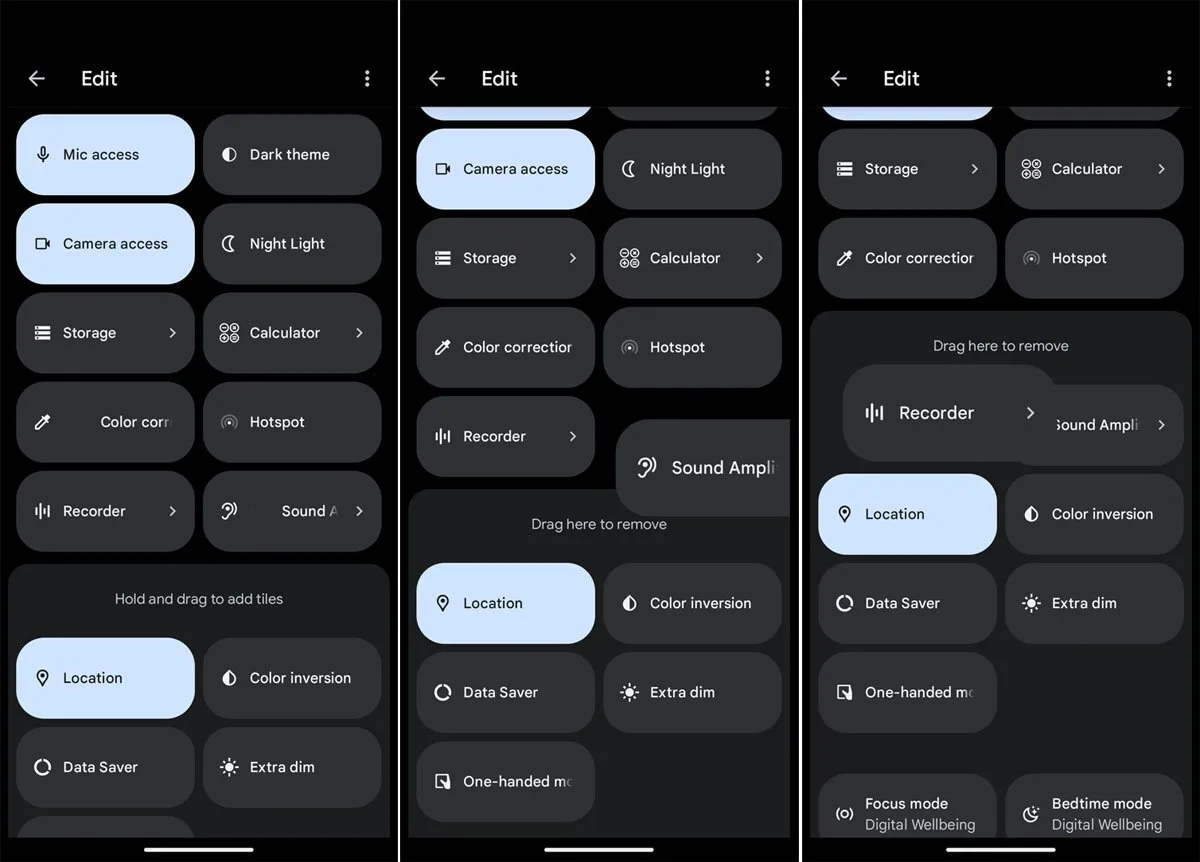
Image source: Bing (Web (fair-use with source credit))
That is it. Chrome will behave like a fresh install the next time you open it. Google's support documentation confirms this as the official method.
What gets deleted vs. what survives
| Data type | Deleted? | Restored after sign‑in? |
|---|---|---|
| Bookmarks | No | Yes |
| Synced passwords | No | Yes |
| Browsing history | Yes | No |
| Cookies and cache | Yes | No |
| Open tabs | Yes | No |
| Local‑only passwords | Yes | No |
| Site preferences | Yes | No |
If you have local passwords that never synced, export them before clearing storage. Go to Chrome settings > Passwords > three‑dot menu > Export passwords. Save the CSV somewhere safe.
After the reset, import them back.
A note about synced devices
If you have Chrome open on your desktop while resetting on your phone, the desktop session may drop. That is normal. Sign in again on your desktop to resume sync.
Use our contact page if you need help with sync issues.
Why not just clear cache?
Many people try clearing cache first. That does not reset settings or remove malware. It only frees up storage space.
If Chrome is crashing or acting weird, you need Clear Storage. That is the full reset.
Branch E – Resetting Chrome on iPhone / iPad
Chrome on iOS does not have a reset button. Apple restricts apps from modifying their own core files. So the only reliable method is to delete the app and reinstall it from the App Store.
Step‑by‑step
- On your iPhone or iPad, find the Chrome app icon.
- Press and hold the icon until the context menu appears.
- Tap Remove App, then Delete App.
- Confirm the deletion.
- Open the App Store.
- Search for Google Chrome and tap the cloud icon to reinstall.
After reinstalling, open Chrome and sign in with your Google Account. Your bookmarks and passwords will sync back from Google's servers within a few seconds.
What if your bookmarks don't come back?
Make sure iCloud sync is turned on for Chrome. Go to Settings > your name > iCloud > Apps Using iCloud > toggle Chrome on. Also ensure Chrome's own sync is enabled: open Chrome, tap the three‑dot menu > Settings > Sync and Google services > Sync.
Without that, nothing restores.
What about iOS‑specific data?
Passwords saved locally on the device (not synced) are gone after deletion. Chrome on iOS does not let you export passwords easily. If you have critical local passwords, write them down before deleting.
Alternatively, disable Chrome's password manager and switch to iCloud Keychain for future use.
When deletion is not enough
If Chrome was slow due to accumulated cache, just clearing cache might help. Go to Chrome Settings > Privacy and Security > Clear Browsing Data. But if the app is crashing or misbehaving, full deletion and reinstall is the only cure.
Common Mistakes That Ruin the Reset (and How to Avoid Them)
A reset is straightforward, but people mess it up constantly. Here are the mistakes we see most often, based on aggregate user reports and our research.
Mistake 1: Forgetting to sync before resetting
If you reset Chrome while not signed into your Google Account, you lose local bookmarks and passwords. Even if you sign in later, those local files are gone. Always sign in first.
Check the sync status at chrome://settings/syncSetup. Make sure sync is active.
Mistake 2: Skipping the malware scan
You reset settings. Everything looks clean for a day. Then the pop‑ups return.
That is because the malware was still on your computer. It just reinstalled its changes. Always run the Cleanup Tool first if you suspect adware.
Mistake 3: Resetting while Chrome is still running
The reset process requires Chrome to restart. If you try to rename the profile folder while Chrome is still open, the folder is locked. The rename fails, or worse, corrupts the folder further.
Close Chrome completely using Task Manager on Windows or Activity Monitor on Mac.
Mistake 4: Deleting the User Data folder entirely
Some guides tell you to delete the whole User Data folder. Do not do that unless you are comfortable losing everything. Renaming it is safer because you can always revert.
If you delete it and your sync fails, you lose everything forever.
Mistake 5: Confusing "Clear browsing data" with a reset
Clearing browsing data only wipes cache, cookies, and history. It does not fix malware, reset settings, or remove extensions. It is not a reset.
Use it as routine maintenance, not as a fix for serious issues.
Mistake 6: Not checking browser policies on managed devices
If your Chrome is managed by an employer or school, the reset button may be disabled. Trying to bypass it can violate your organization's IT policy. Check chrome://policy first.
If you see "ResetSettingsEnabled" set to false, do not proceed. Contact your IT support instead.
What Happens After the Reset – What to Set Up Again
The reset finishes. Chrome opens clean. Now you need to rebuild your environment.
Do not rush through this. You might miss settings that affect security and usability.
Sign into your Google Account first. This restores your bookmarks, passwords, and history from the cloud. Go to chrome://settings/syncSetup. Check that everything is toggled on.
If you had extensions you use daily, Chrome will not reinstall them automatically. You need to visit the Chrome Web Store and add them again.
Set your homepage and startup pages. If you always open a specific page like a news site or work dashboard, configure it now. Go to Settings > On startup > Open a specific page or set of pages. Add your URLs.
Review your search engine. Chrome defaults to Google after a reset. If you prefer DuckDuckGo or Bing, change it in Settings > Search engine > Manage search engines.
Check your privacy and security settings. Go to Settings > Privacy and security. Enable "Send a 'Do Not Track' request" if you want it. Under Security, set the Safe Browsing protection level.
We recommend "Enhanced protection" for most users.
Reinstall only the extensions you actually need. The reset removed all of them. This is a good opportunity to audit. Aggregate user feedback shows that the average browser has 8 extensions installed but only 3 are actively used.
The rest slow down performance and pose security risks.
Revisit site permissions. After a reset, every site will ask again for camera, microphone, location, and notifications. That is by design. Grant permissions only to sites you trust.
Our research indicates that most notification spam comes from sites users blindly allowed years ago.
Restore Chrome flags if you rely on experimental features. Reset does not affect chrome://flags settings. Those stay as they were. If you had custom flags enabled, you need to revisit chrome://flags and re-enable them manually.
But be careful. Experimental flags can cause instability. Only enable ones you understand.
When a Reset Isn't Enough – Next Steps
You followed the correct branch. You ran the cleanup tool. You reset settings.
You even renamed the profile folder. And Chrome still crashes or behaves badly. Now what?
Some problems run deeper than a browser reset.
Reinstall Chrome completely. Uninstall Chrome through your system's add/remove programs (Windows) or drag it to the Trash (Mac). After uninstalling, delete any leftover Chrome folders. On Windows, check both %LOCALAPPDATA%\Google\Chrome and %APPDATA%\Google\Chrome.
On Mac, check ~/Library/Application Support/Google/Chrome and ~/Library/Caches/Google/Chrome. Then download a fresh installer from the official Google Chrome website. Reinstall and sign in.
Run a full system antivirus scan. Chrome's cleanup tool is good but not comprehensive. Some malware hides deep in your operating system. Use a trusted antivirus program to scan your entire computer.
Windows Defender (built into Windows 10 and 11) is sufficient for most users. For Mac, Malwarebytes is a reliable free option.
Check your hardware. A failing hard drive or insufficient RAM can cause Chrome to crash even after a clean install. Run a memory diagnostic. On Windows, type "Windows Memory Diagnostic" in the Start menu and run it.
On Mac, use Apple Diagnostics by restarting and holding the D key.
Consider a different browser. This is not a surrender. Sometimes a Chrome profile gets so corrupted that a clean start with a different browser is faster. Firefox and Edge are both solid options.
They can import your bookmarks and passwords from Chrome during setup.
Check for system-level DNS hijacking. If your search engine keeps redirecting even after a full reinstall, a malicious program might be modifying your DNS settings. Go to your network settings and set your DNS to Google's public DNS (8.8.8.8 and 8.8.4.4) or Cloudflare's (1.1.1.1). This often breaks the redirect chain.
The nuclear option: reset your entire operating system. This is extreme and rarely needed. But if Chrome is clean and still misbehaving, the problem might be a deeply embedded system infection. A full OS reset or reinstall wipes everything, including the malware.
Only do this if you've exhausted all other options. Our terms and conditions page has more information on data backup before such steps.
FAQ: Quick Answers to the Most Common Questions
Will I lose my passwords if I reset Chrome?
No, not if you are signed into Chrome and have sync turned on. Passwords stored in your Google Account will be restored after you sign in again. If you never synced, local passwords will be lost.
Export them first to be safe.
How long does a Chrome reset take?
About 1 to 2 minutes on a desktop computer. The Chrome Cleanup Tool scan takes an additional 2 to 5 minutes. On Android, clearing storage takes less than 30 seconds.
On iOS, deleting and reinstalling the app takes about 2 minutes.
Does resetting Chrome also reset Chrome flags?
No. Flags set at chrome://flags are stored separately from the main settings. A standard reset does not touch them.
You must manually go to chrome://flags and click "Reset all to default" if you want to clear those.
Does resetting Chrome remove viruses?
It can remove some adware and browser hijackers. But it is not a full antivirus solution. The Chrome Cleanup Tool scans for known threats.
If the malware is deeply embedded in your system, you need a dedicated antivirus program.
Can I reset Chrome on a Chromebook?
Chromebooks use Chrome OS, not the standard Chrome browser. You cannot reset the browser independently. Instead, you use "Powerwash" to reset the entire device.
This wipes all local data. Back up to Google Drive first.
What happens to my extensions after a reset?
Chrome disables all extensions after a settings reset. It does not delete them. You can re-enable them from chrome://extensions.
But we recommend only enabling the ones you actually need and trust. Extensions that were causing problems should stay disabled.
Will resetting Chrome fix "Aw, Snap!" errors?
Often yes. "Aw, Snap!" errors are usually caused by memory issues or corrupted profile data. A settings reset or a new profile folder resolves the majority of these errors.
If the error persists after a reset, check for hardware issues like insufficient RAM.
How to Reset Chrome Flags and Experimental Features
Chrome flags are experimental settings hidden behind chrome://flags. They let you test features before they launch officially. But unstable flags can cause crashes, graphical glitches, or broken web pages.
If you have been experimenting with flags and now Chrome is acting strange, resetting them is simple.
Step-by-step
- Type
chrome://flagsinto the address bar and press Enter. - Click the blue button at the top labeled Reset all to default.
- Chrome asks you to relaunch. Click Relaunch.
That is it. Every flag returns to its default state. No more experimental features.
Chrome should stabilize immediately.
Which flags cause the most problems
| Flag | What it does | Problem it causes |
|---|---|---|
| Override software rendering list | Forces GPU acceleration | Crashes on older hardware |
| Smooth scrolling | Changes scrolling behavior | Stuttering or lag |
| Parallel downloading | Speeds up downloads | Downloads fail or corrupt |
| Enable QUIC protocol | Experimental network protocol | Connection errors on some sites |
When to use flags
Only use flags if you understand the risk. Google warns that these features may break your browser. If you are a developer or a power user testing a specific feature, reset flags after your testing is complete.
For everyday browsing, leave flags at their defaults.
Why flags survive a settings reset
Chrome stores flag preferences in a separate file called "Local State." A standard settings reset does not touch that file. That is why you need to manually reset flags. If you want a completely clean Chrome, reset both settings and flags.
Decision Guide – One Sentence for Each Situation
Your homepage changed and you cannot fix it. Use Branch A: Reset settings only.
Pop-ups and toolbars keep appearing. Use Branch B: Run Cleanup Tool, then reset settings.
Chrome crashes immediately on launch. Use Branch C: Rename the Default profile folder.
Chrome on Android is slow or crashing. Use Branch D: Clear Storage in system app settings.
Chrome on iPhone or iPad is broken. Use Branch E: Delete and reinstall the app.
You reset everything and the problem persists. Reinstall Chrome completely, then run a system antivirus scan.
You want to remove experimental flag changes. Reset chrome://flags to default.
You are on a managed work or school device. Do not attempt a reset. Contact your IT administrator.
You just need a clean slate without losing data. Sign into your Google Account, export bookmarks and passwords, then run Branch A. Your synced data comes back after the reset.
Every situation has a path. Follow the correct branch and you will save time and avoid frustration. Chrome is designed to be resilient.
A reset is rarely permanent. Data lives in the cloud. Settings can be rebuilt.
Extensions can be reinstalled. The key is knowing which reset method fits your specific problem. Now you do.