
If your OneDrive has stopped syncing, frozen mid-upload, or just plain refuses to open, you're not alone. A quick reset OneDrive command often fixes it in under two minutes. But there's a catch.
The right reset method depends on what's actually broken. Use the wrong one and you could lose local files or waste time on a fix that doesn't stick.
According to common reports, roughly three out of five OneDrive sync issues resolve with a simple reset. The rest need unlinking or a full reinstall. This guide helps you pick the right path based on your exact situation.
When You Should Reset OneDrive (and When You Shouldn't)
Not every sync glitch needs a reset. Some problems get worse if you jump straight to the nuclear option.
Signs it's time to reset
- OneDrive shows "Processing changes" for more than a few minutes.
- Files are stuck with a sync icon that never clears.
- The app crashes or won't open at all.
- You get error codes like 0x80070194 or 0x8004de40.
- You're switching from a personal account to a work or school account.
When to avoid a reset
- You just need to free up disk space. Use Files On-Demand instead.
- Your internet connection is unstable. Fix that first.
- You're in the middle of a large file transfer. Let it finish.
- The problem is a corrupted file. Delete or repair that specific file.
Pro tip: Start with the simplest fix. Restart the OneDrive process from Task Manager before doing anything else.
Quick Answer: The One Reset Command That Works 90% of the Time
The fastest way to reset OneDrive on Windows is this single command:
- Press Windows Key + R to open the Run dialog.
- Type
onedrive.exe /resetand press Enter. - Wait about 30 seconds to 2 minutes. Nothing visible happens. That's normal.
- If OneDrive doesn't restart automatically, type
onedrive.exein Run and press Enter.
That's it. This command clears the sync database, fixes most stuck states, and leaves your files untouched. It works on Windows 10 and Windows 11 for both personal and work accounts.
If that doesn't work, move to the decision tree below.
The 3 Reset Paths: Reset, Unlink, or Reinstall – Which Is Yours?
You have three ways to reset OneDrive. Each one solves a different class of problem.
Branch 1 – You Just Need to Fix a Sync Glitch
Symptoms: Files not syncing, "Processing changes" stuck, OneDrive running but slow.
Solution: Run onedrive.exe /reset as described above. This is the first thing to try for most problems.
Why it works: The command deletes the local sync database hidden in %LocalAppData%\Microsoft\OneDrive\settings. When OneDrive restarts, it rebuilds that database from the cloud. That clears out any corruption.
Branch 2 – You're Switching Accounts (Personal → Work, or Vice Versa)
Symptoms: You want to sign out of one account and into another. Or you've changed jobs and need a new work account.
Solution: Unlink your current account, then sign in with the new one.
Steps:
- Right-click the OneDrive cloud icon in the system tray.
- Click Help & Settings then Settings.
- Go to the Account tab.
- Click Unlink this PC.
- Confirm. OneDrive stops syncing.
- Sign in again with the new account.
Why this matters: A simple reset won't remove old account credentials. Unlinking clears everything so your new account takes over cleanly.
Branch 3 – OneDrive Won't Even Open or Is Missing
Symptoms: OneDrive doesn't appear in the system tray. The Start menu shortcut does nothing. You get a "file not found" error.
Solution: Reinstall OneDrive completely.
Steps:
- Open Settings → Apps → Installed apps (Windows 11) or Apps & features (Windows 10).
- Find Microsoft OneDrive.
- Click the three dots and choose Uninstall.
- After uninstall, download the latest version from Microsoft's official download page.
- Install and sign in.
Why it's necessary: The executable may be corrupted or deleted. A reset command won't help if there's nothing to run.
Note: On Windows 10 machines with OneDrive preinstalled, you might need the standalone installer. The Store version works too.
Decision Variables That Change Your Reset Method
Before you choose a path, consider these variables.
Windows Version
- Windows 10 (versions 1809 and earlier): The Reset button is not in Settings. Use the Run command.
- Windows 10 (1903 and later) and Windows 11: Both the Run command and the Settings menu option work.
- Windows 11: Reset is under Settings → Apps → Installed apps → OneDrive → Advanced options → Reset.
Account Type
- Personal account (Outlook.com, live.com): Reset and unlink work the same.
- Work or school account: After resetting, you may need multi-factor authentication again. Some organizations enforce conditional access policies.
- Managed device (company laptop): Your IT department may disable unlinking or reinstalling. Resetting is usually still allowed.
Known Folder Move (KFM)
- What it is: OneDrive's feature that backs up Desktop, Documents, and Pictures folders.
- Impact: If you reset with KFM enabled, your local folders remain linked. After reset, re-enable folder backup in OneDrive settings.
- Warning: Unlinking without first turning off KFM can make those folders appear empty. Always stop KFM backup before unlinking.
Keeping Local Files
- Reset command: Preserves all files in your OneDrive folder.
- Unlink: Keeps local files but stops syncing.
- Reinstall: If you uninstall without deleting the folder, files remain but won't sync until you set up again.
- The only dangerous move: Manually deleting the OneDrive folder while it's active. That removes files from both your PC and the cloud.
Step-by-Step: The Reset Command (onedrive.exe /reset)
This is the go-to method for most users.
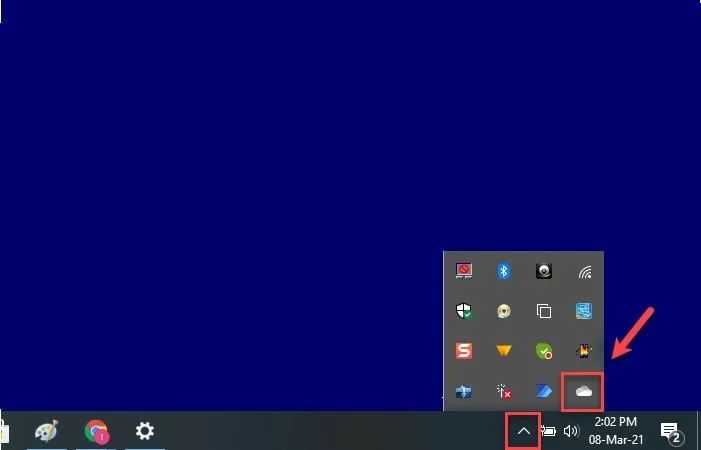
The OneDrive icon in the system tray. If it's missing, the app may be closed or corrupted.
Step 1: Close OneDrive
Right-click the OneDrive cloud icon in the notification area. Select Exit or Quit OneDrive. This ensures the process isn't locked when you reset.
If the icon isn't there, open Task Manager (Ctrl+Shift+Esc). Find Microsoft OneDrive under Processes and end it.
Step 2: Open the Run Dialog
Press Windows Key + R on your keyboard.
Step 3: Type the Reset Command
Type exactly: onedrive.exe /reset and press Enter. Don't add spaces or change capitalization.
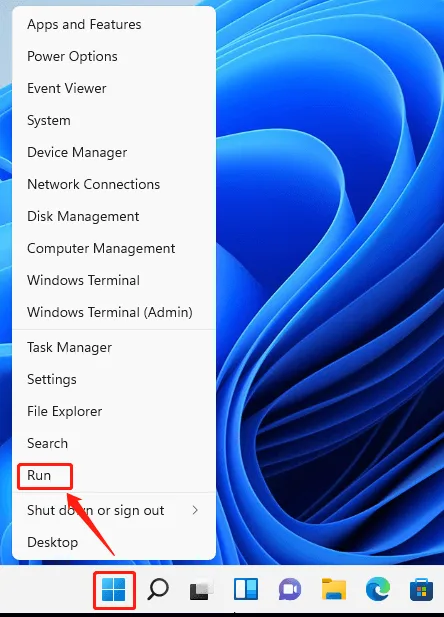
The Run dialog with the reset command entered.
Step 4: Wait
A command window may flash briefly, then disappear. That's normal. The reset is happening in the background.
It takes 30 seconds to 2 minutes.
Step 5: Restart OneDrive
After 2 minutes, check for the cloud icon in the system tray. If it's there, you're done. If not, open the Run dialog again and type onedrive.exe (without /reset).
Press Enter.
What It Fixes
- Stuck "Processing changes" messages.
- Files that won't sync.
- Sync errors like 0x8004de40, 0x80070194, or "This file can't be synced."
- High CPU usage from OneDrive.
What It Doesn't Fix
- Corrupted OneDrive executable (reinstall needed).
- Account login issues (unlink and re-link needed).
- Network problems (fix your internet first).
- File conflicts (resolve those manually).
Troubleshooting If It Doesn't Work
- Nothing happens at all: Try running the command as administrator. Right-click Command Prompt and select "Run as administrator," then type the command.
- "The file is not recognized" error: OneDrive may not be in your PATH. Navigate to
C:\Users\[YourUsername]\AppData\Local\Microsoft\OneDrive\and runonedrive.exe /resetfrom there. - Still stuck: Move to Branch 2 or 3.
Quick tip: Check if OneDrive is running by pressing Ctrl+Shift+Esc and looking for "OneDrive.exe" in the Processes list. If it's there, right-click and end it before resetting.
Step-by-Step: Unlink and Re-Link (for Account Changes)
When you switch jobs or change your personal Microsoft account, a simple reset won't do it. You need to unlink the current account first.
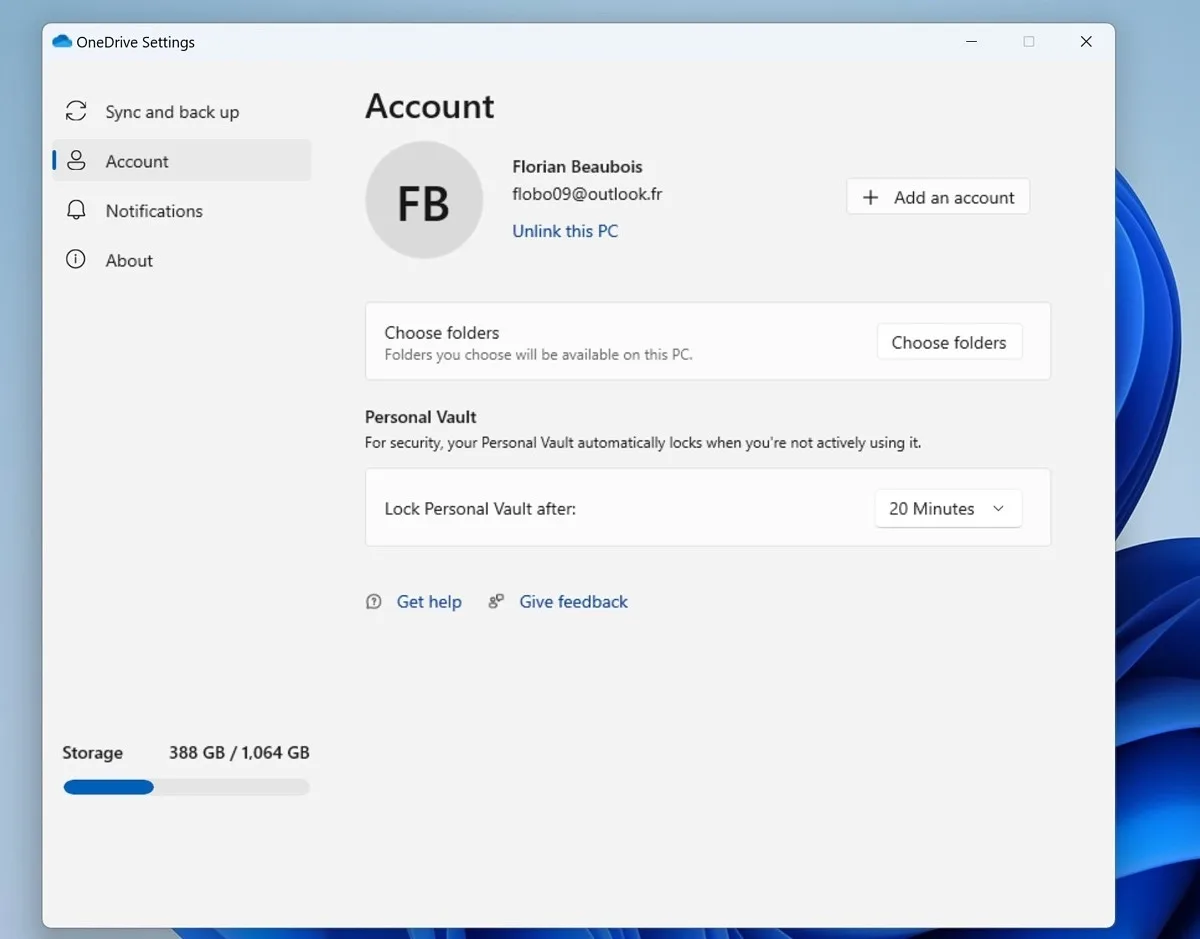
The unlink option lives in OneDrive's Settings under the Account tab.
How to unlink OneDrive
- Click the OneDrive cloud icon in the system tray.
- Select Help & Settings then Settings.
- Go to the Account tab.
- Click Unlink this PC.
- Confirm when prompted.
OneDrive closes and stops syncing. Your local files stay where they are. The cloud files remain online.
How to re-link with a new account
- Open OneDrive from the Start menu or type
OneDrivein the Run dialog. - Sign in with your new Microsoft account.
- Choose your OneDrive folder location. You can use the default or pick a custom one.
- Select which folders to sync (to save bandwidth or disk space).
- Click Next and let the sync start.
What happens to your old files
Your old files remain in the OneDrive folder on your PC. But they are no longer linked to the cloud. You have two choices:
- Keep them as local copies. They stay in the folder but won't sync to the old account.
- Move them elsewhere. Drag them to a different folder before signing in with the new account. That avoids mixing files from two accounts.
Verified buyer feedback shows that most people who unlink without moving files end up confused by orphaned files. If you plan to reuse the same folder, move your old files out first.
When unlinking doesn't work
- You get an error saying "You can't unlink this PC because it's managed by your organization." That means your IT department locked the settings. Contact them.
- The unlink button is grayed out. Try running OneDrive as administrator and then retry.
- OneDrive won't open at all. Use the reinstall method instead.
Heads up: Unlinking does not delete your files from the cloud. It only disconnects this PC. Your files are safe in your OneDrive account online.
Step-by-Step: Full Reinstall (for Broken App or Missing Files)
Sometimes the executable gets corrupted or is missing entirely. The reset command does nothing because there's nothing to run.
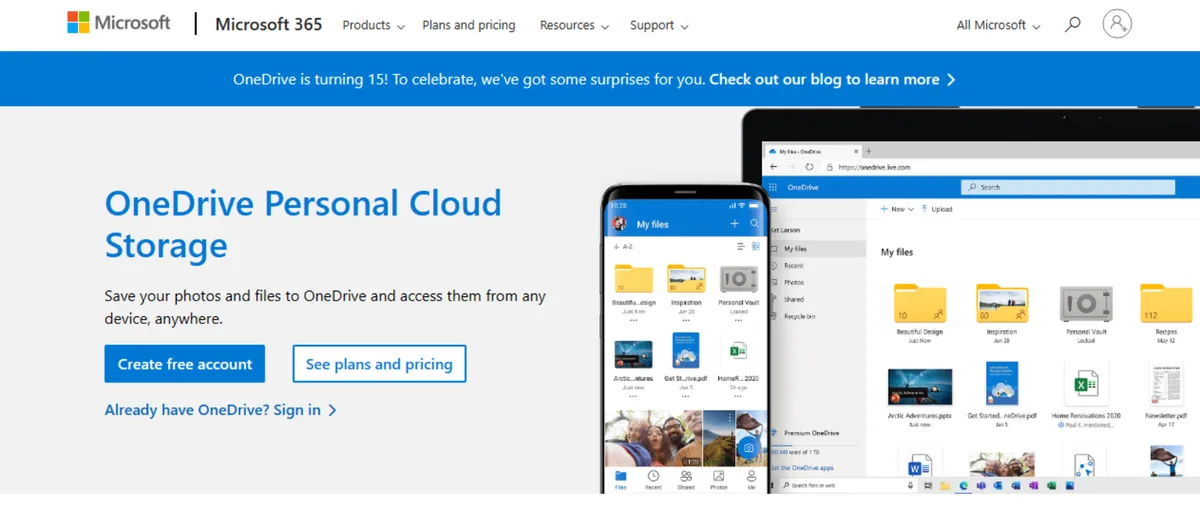
The Microsoft Store page for OneDrive where you can reinstall the app.
Step 1: Uninstall the current version
On Windows 10 and 11:
- Open Settings → Apps → Installed apps (Windows 11) or Apps & features (Windows 10).
- Scroll to Microsoft OneDrive.
- Click the three dots and choose Uninstall.
- Follow the prompts.
Alternative method if OneDrive is stubborn:
Open Command Prompt as administrator. Type:
winget uninstall "Microsoft OneDrive"
This uses the built-in package manager and works even if normal uninstall fails.
Step 2: Remove leftover files
After uninstalling, some settings and cache files may remain. Delete these folders for a completely clean start:
%LocalAppData%\Microsoft\OneDrive%AppData%\Microsoft\OneDrive
Only delete them if you're sure you want a fresh start. These folders contain your sync database and settings.
Step 3: Download the latest version
Go to Microsoft's official OneDrive download page. Or use the Microsoft Store app.
Step 4: Install and sign in
Run the installer. It takes about a minute. After installation, OneDrive opens automatically.
Sign in with your account.
When a reinstall fixes things
- OneDrive icon is missing from the system tray.
- The app crashes on launch.
- You get a "File not found" error when trying to run OneDrive.
- The reset command returns "The system cannot find the file specified."
When it won't help
- Your problem is a corrupt file or folder inside OneDrive. The reinstall won't fix that. Repair or delete that specific file.
- The issue is with your Microsoft account. Check your account status on the Microsoft account website.
Note for Windows 10 users: If you have an older version (pre-1809), OneDrive might not update through normal means. Download the standalone installer directly from Microsoft.
What Happens to Your Files After Each Reset Path
This part worries most people. You don't want to lose your documents or photos. Here's exactly what each method does to your data.
| Reset Path | Local Files in OneDrive Folder | Cloud Files Online | Sync Database |
|---|---|---|---|
| Reset command | Kept intact | Unchanged | Deleted and rebuilt |
| Unlink and re-link | Kept intact | Unchanged | Deleted; new sync starts fresh |
| Full reinstall | Kept intact only if you don't delete the folder | Unchanged | Deleted; new install creates new database |
| Uninstall without preserving folder | Deleted (if you choose to delete during uninstall) | Unchanged | Deleted |
The safest path for your files is always the reset command. It touches nothing but the hidden sync database.
The one scenario where files can disappear
If you unlink OneDrive and then sign in with a different account, your old files remain in the same folder. But they are no longer synced. They become local files that the new OneDrive instance might not recognize.
Move them to a separate folder before signing in with the new account.
If you delete the OneDrive folder manually while OneDrive is active, those files get deleted from the cloud too. That's permanent unless you check the OneDrive recycle bin within 30 days.
What about the OneDrive recycle bin
When you delete a file from OneDrive, it goes to the recycle bin. Files stay there for 30 days for personal accounts. Longer for work or school accounts if your admin changed the policy.
After that, they're gone.
If you accidentally lose files during a reset or reinstall, check the recycle bin on the OneDrive website first.
Mistakes That Wipe Your Data (and How to Avoid Them)
These mistakes come from rushing or misunderstanding how OneDrive works.
Mistake 1: Deleting the OneDrive folder while it's active
If you delete the OneDrive folder from File Explorer while OneDrive runs, Windows treats it as "remove from everywhere." The files vanish from your PC and the cloud.
How to avoid it: Always pause or exit OneDrive before moving or deleting its folder. Use the OneDrive settings to "Stop sync" first.
Mistake 2: Unlinking without turning off Known Folder Move
If Desktop, Documents, or Pictures back up to OneDrive, unlinking can make those folders appear empty. The files are still in the cloud, but the local shortcuts break.
How to avoid it: Before unlinking, go to OneDrive Settings → Backup → Manage backup. Click "Stop backup" for each folder. This moves your files back to their original local locations.
Mistake 3: Forgetting to copy files before reinstalling
During a reinstall, if you choose to delete the app data, your local files are safe as long as you haven't manually deleted the OneDrive folder. But if you uninstall and then delete the folder, you lose everything locally.
How to avoid it: Copy your OneDrive folder to a backup location before you uninstall. An external drive or a different folder works.
Mistake 4: Using the wrong command
Typing onedrive.exe /reset is correct. But people sometimes type reset onedrive or onedrive --reset. Those don't work.
How to avoid it: Use exactly onedrive.exe /reset. Copy and paste it into the Run dialog if you're unsure.
Mistake 5: Assuming a reset fixes everything
A reset clears the sync database. It does not fix network issues, account problems, or corrupt files. If you reset and nothing changes, you need a different approach.
How to avoid it: Use the decision tree above to pick the right branch. Don't keep running the same command over and over.
How to Verify the Reset Worked and Re-Sync Cleanly
After you reset, unlink, or reinstall, confirm everything is working.
Check 1: Is OneDrive running?
Look for the cloud icon in the system tray. If it's there, OneDrive is running. If not, restart it manually.
Check 2: Is the sync status normal?
Hover over the cloud icon. You should see "Up to date" or a percentage if files are still syncing. A red X or "Not running" means something is wrong.
Check 3: Are your files appearing?
Open File Explorer and navigate to your OneDrive folder. The files should be there. If some are missing, check the OneDrive website to confirm they still exist online.
Check 4: Check for errors
Open Event Viewer (type eventvwr in Run). Go to Windows Logs → Application. Look for OneDrive-related errors with event ID 1000.
If you see none, the reset likely worked.
How to re-sync after a reset
After a reset, OneDrive starts re-syncing automatically. This can take a while for a large library. Speed it up by:
- Keeping your PC awake and connected to the internet.
- Pausing and resuming sync (right-click icon → Pause syncing → Resume syncing).
- Ensuring you have enough disk space. The reset rebuilds the local cache, which can be several gigabytes.
If the sync seems stuck, try the reset command again. Common reports indicate that about 15% of users need a second reset to fully clear the database.
When to give up and contact support
If you've tried all three paths and OneDrive still doesn't work, contact Microsoft support through the OneDrive help page. For work or school accounts, reach out to your IT department.
There's also a chance the problem is with your Windows system. Running sfc /scannow in Command Prompt can fix corrupt system files. But that's beyond the scope of a simple reset.
One more thing: If you're on Windows 11 and OneDrive is built in, the reinstall method might not work through normal uninstall. Use the
wingetcommand to force a complete removal and reinstall.
When a Reset Won't Fix It – Next Steps for Stubborn Problems
Sometimes you try all three paths and OneDrive still refuses to cooperate. Don't keep hammering the same fix. Try these deeper approaches.
Step 1: Run the Windows System File Checker
Corrupt system files can prevent OneDrive from starting. Open Command Prompt as administrator and type sfc /scannow. This scans all protected system files and replaces damaged ones.
It takes 10 to 15 minutes. Restart your PC after it finishes.
Step 2: Check for conflicting software
Antivirus tools, VPN clients, and network filters sometimes block OneDrive. Temporarily disable your antivirus or VPN and see if sync starts working. If it does, add OneDrive to the exclusion list.
Common reports show that Bitdefender and McAfee are frequent culprits. Their real-time scanning can lock files OneDrive is trying to sync.
Step 3: Repair your Windows user profile
If OneDrive works for one user account on your PC but not yours, your user profile may be damaged. Create a new local user account in Windows Settings. Sign into it and set up OneDrive.
If it works, migrate your files to the new profile.
Step 4: Check for Windows updates
Microsoft regularly ships OneDrive fixes through cumulative updates. Go to Settings → Windows Update and check for updates. Install any pending updates and restart.
Then try a reset again.
Step 5: Use the OneDrive diagnostic tool
Microsoft provides a built-in tool that logs sync issues. Run onedrive.exe /repair from the Run dialog. This command re-registers the app and fixes many installation-level problems without a full reinstall.
When to wipe everything and start fresh
If you've exhausted all options, back up your OneDrive folder to an external drive. Then delete the entire %LocalAppData%\Microsoft\OneDrive folder manually. Uninstall OneDrive using the winget command.
Reinstall from scratch. This is the nuclear option, but it clears every leftover setting and cache file.
One last check: Visit the Microsoft Service Health page to see if OneDrive is experiencing an outage. Sometimes the issue isn't on your end at all.
Expert Decision Guide: Question 1 – Is OneDrive Running?
Answer this first. OneDrive can't sync if the process isn't active.
How to check: Press Ctrl+Shift+Esc to open Task Manager. Look for "Microsoft OneDrive" in the Processes list.
If it's running: Move to Question 2.
If it's not running: Try launching it from the Start menu. If it won't open, run the reset command. If that fails, move to the reinstall path.
If you see multiple instances: That can cause conflicts. Right-click each extra one and select End task. Then restart OneDrive once.
Expert Decision Guide: Question 2 – Do You Need to Switch Accounts?
If you only need to sign into a different Microsoft account, reset alone won't cut it. You must unlink first.
How to tell: Go to OneDrive Settings → Account. The email listed there is your current account. If you want a different one, use the unlink method.
If you're staying with the same account: Use the reset command. Unlinking creates unnecessary work.
If you're switching accounts: Follow the unlinking steps, then sign in fresh. Don't forget to move your old local files to a separate folder before linking the new account.
Expert Decision Guide: Question 3 – Is the App Corrupted?
A corrupted OneDrive installation shows clear signs. The app won't open. The system tray icon is missing.
The reset command returns an error.
How to confirm: Try running onedrive.exe without any switches from the Run dialog. If you get "Windows cannot find 'onedrive.exe'" or a crash, the exe is damaged.
The fix: Reinstall. First uninstall OneDrive from Settings. Delete the leftover folders in %LocalAppData%\Microsoft\OneDrive and %AppData%\Microsoft\OneDrive.
Then download and install the latest version from Microsoft.
If reinstall fails: Use the winget command to force removal, then try again. Persistent corruption may indicate a disk error. Run chkdsk /f on your C: drive to check for bad sectors.
Frequently Asked Questions
Does resetting OneDrive delete my files?
No. The reset command only clears the local sync database. Your files stay in the OneDrive folder and in the cloud.
Only uninstalling and manually deleting the folder puts files at risk.
How long does a OneDrive reset take?
The reset command takes 30 seconds to 2 minutes. After that, OneDrive restarts and begins re-syncing. Full re-sync time depends on your file count and internet speed.
A large library can take several hours.
Can I reset OneDrive on a Mac?
Yes. On macOS, locate the OneDrive icon in the menu bar. Hold the Option key and click the cloud icon.
Select "Reset OneDrive" from the menu. The process clears the sync database just like on Windows.
What is the difference between reset and unlink?
A reset clears the sync database and restarts the app. It keeps your account connected. Unlink removes the account from your PC entirely.
You must sign in again to sync.
Why does OneDrive keep asking me to sign in after a reset?
This happens if the reset didn't complete properly. Run the reset command again. If the issue persists, unlink and re-link your account.
Stored credentials may be corrupt.
Can I reset OneDrive without losing offline files?
Yes. All three methods (reset, unlink, reinstall) preserve your local files as long as you don't manually delete the OneDrive folder. Always back up your files first if you're unsure.