
We all know that moment when you open Instagram to search for something, and a list of old, embarrassing, or just irrelevant suggestions pops up. If you've been wondering how to reset instagram search suggestions to get a clean slate, you're not alone. It's a simple process, but the right method depends on your device and how thorough you want to be.
According to Instagram's official help documentation, clearing your search history only removes those suggestions from your device. Your search data still lives on Instagram's servers for recommendation purposes. That means the change is visible to you locally, but the algorithm still remembers what you've searched.
Why Instagram Search Suggestions Stick Around (And Why You Want Them Gone)
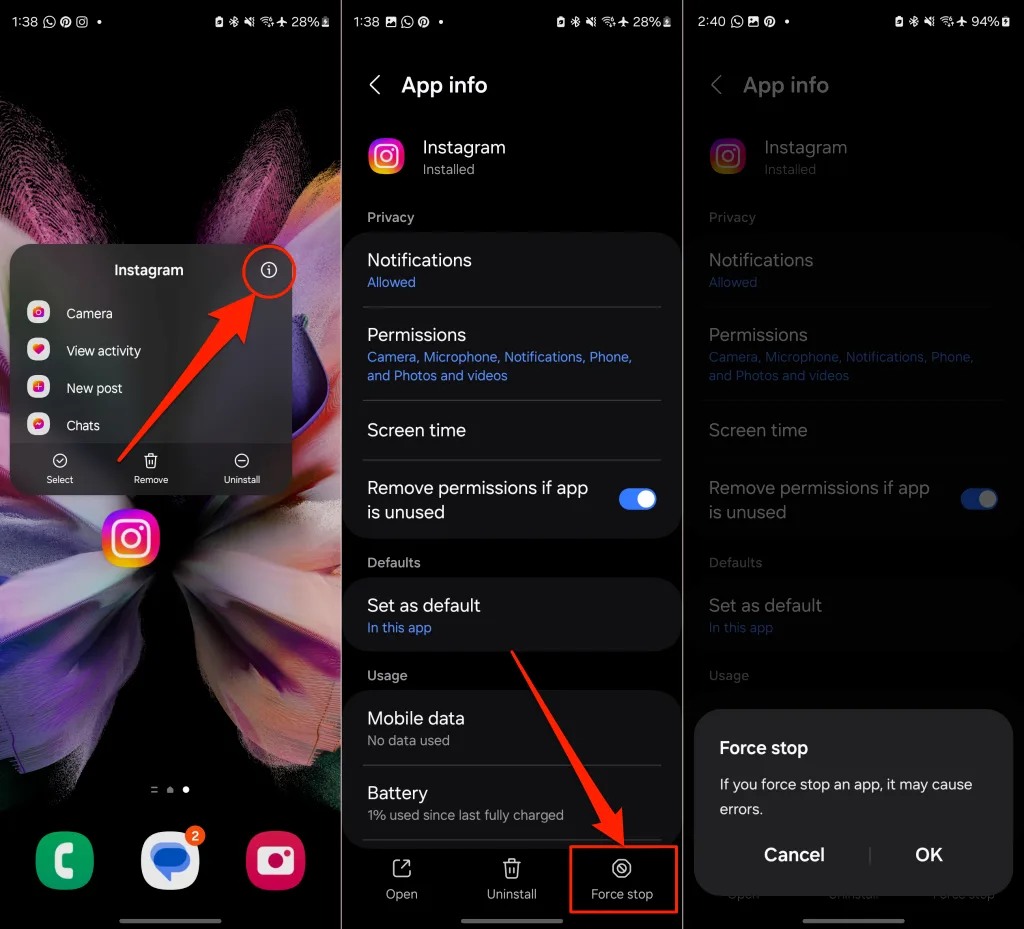
Image source: Bing (Web (fair-use with source credit))
Instagram saves your search history for two reasons. First, it makes the app faster for you. When you start typing "cof," it already knows you want "coffee shops near me" from last week.
Second, Instagram uses what you search to tailor your Explore page, ads, and recommendations. That can be handy, but it also means your ex's handle, that weird meme account, or the vacation rental you looked up once stays front and center.
You want to reset those suggestions because they clutter the search bar. They compromise privacy if someone borrows your phone. They can even make the algorithm show you content you've moved past.
The good news is Instagram gives you a few ways to handle it, depending on exactly what you need.
If you share your device with others, you probably want the nuclear option. If it's just one or two stray suggestions annoying you, a smaller fix works.
Quick Answer: The Two Main Ways to Reset
Open Instagram. Tap your profile picture. Tap the three-line menu.
Choose "Your activity." Tap "Search history." Hit "Clear all." That's Method 1.
If that doesn't work, or if you're on an older phone, you can go to your device settings and clear the Instagram app data entirely. On iOS, that means offloading the app. On Android, it's clearing the data.
| Method | What It Does | Best For |
|---|---|---|
| Clear All (in-app) | Removes all search suggestions from the search bar | Most users, quick fix |
| Remove individual (tap and hold) | Deletes one suggestion at a time | When you only want to hide a few |
| Clear app data (Android) / Offload (iOS) | Resets the entire app's local storage | When in-app clear doesn't work, or you want a full refresh |
Each method has a different impact. The in-app "Clear all" is enough for almost everyone. The other two are backup plans for when Instagram's own button doesn't seem to work.
Method 1: Clear All Search History (The Easiest Route)
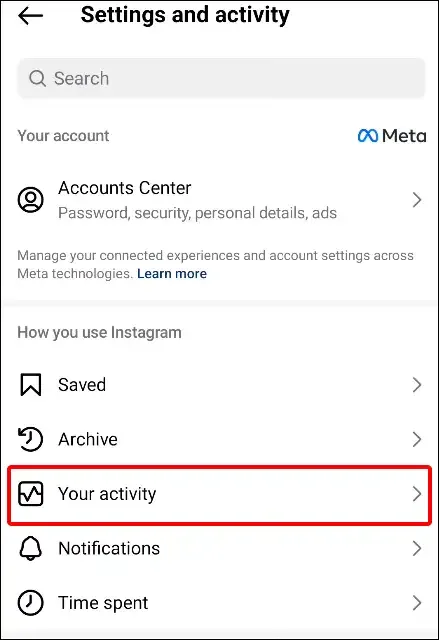
Image source: Bing (Web (fair-use with source credit))
Instagram built a dedicated button for this. It lives under "Your activity" in your settings. It's one tap, and it clears all your recent searches instantly.
When This Works Best
If you just want a clean search bar and you're not worried about Instagram's server-side data, this is your method. It works on both iOS and Android. It does not log you out, delete your drafts, or affect your messages.
Use this method if:
- You're the only person using your phone.
- You just want to hide old searches from the dropdown.
- You don't want to mess with device-level settings.
Step-by-Step for iOS and Android
The steps are identical on both operating systems:
- Open the Instagram app.
- Tap your profile picture in the bottom right.
- Tap the three horizontal lines (hamburger menu) in the top right.
- Tap "Your activity."
- Scroll down to "Search history."
- Tap "Clear all."
- Confirm by tapping "Clear all" again.
That's it. The search suggestions disappear instantly. You can test it by tapping the search bar.
Nothing should show up. If a few stragglers remain, try force-closing the app and reopening it. Sometimes the cache needs a nudge.
This process works as of early 2026 across the latest Instagram versions. If your app looks different, check for updates in your app store.
Method 2: Remove Individual Suggestions (For a Targeted Cleanup)
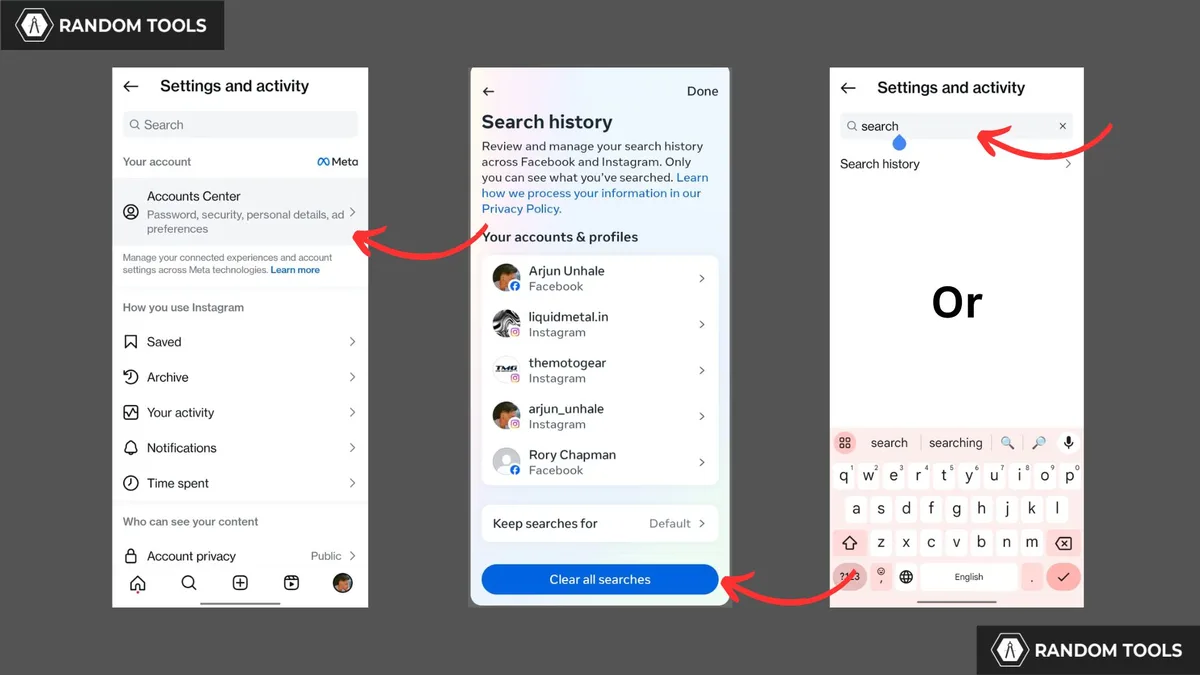
Image source: Bing (Web (fair-use with source credit))
Maybe you don't want to nuke everything. Maybe you just want to get rid of that one search you regret. Instagram lets you remove individual suggestions one at a time.
How to Remove One Suggestion at a Time
Tap the search bar at the top of the home screen. Your recent searches appear as a list of chips (rounded boxes with text). Press and hold on the suggestion you want to remove.
On iOS, a menu pops up with "Remove" or "Hide." On Android, you may need to long-press and then drag it to a "Remove" bin that appears at the top.
If you don't see a "Remove" option at all, you're not alone. Some Android versions (especially Samsung's One UI) don't support the long-press gesture. In that case, you'll need to use Method 1 or Method 3.
Why It Might Not Work on Some Devices
The long-press gesture relies on Instagram's in-app code. Certain Android skins override it. Samsung, Xiaomi, and Huawei users report the most trouble.
If you try it and nothing happens, don't keep tapping. Move to the "Clear all" method instead.
Another quirk: even when it works, removing one suggestion doesn't stop Instagram from suggesting that same account in your Explore feed later. It only removes the local suggestion from the search bar.
Method 3: The Nuclear Option – Clear App Data (Android) or Offload (iOS)
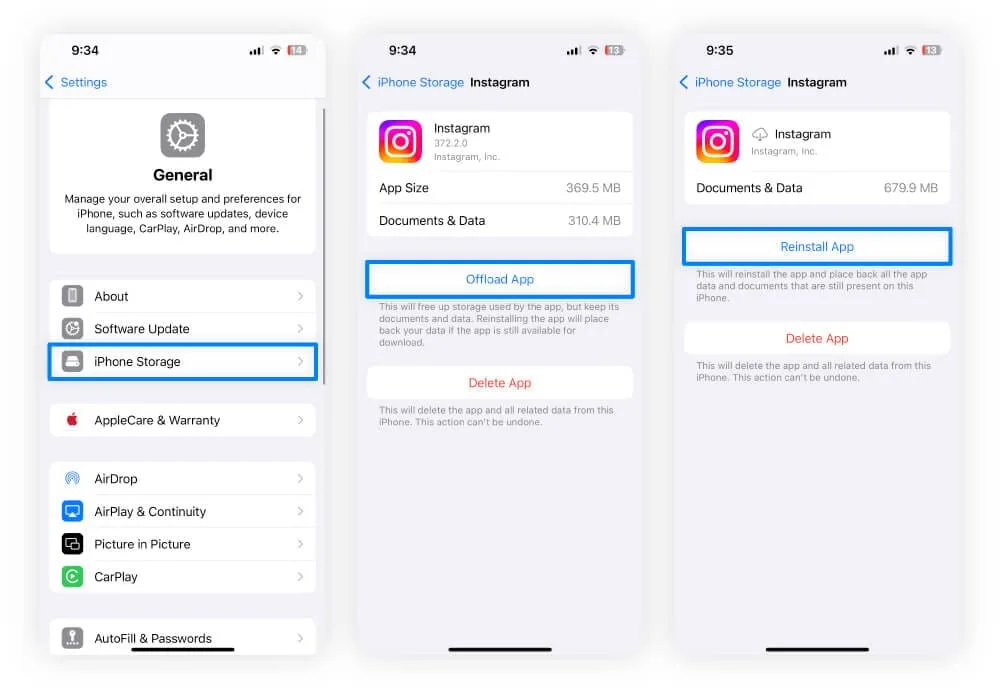
Image source: Bing (Web (fair-use with source credit))
This is the deepest clean you can do without deleting your account. It resets the app's local storage, which includes search history, cached images, preferences, and login tokens. It's overkill for most people.
But it's the only fix when Instagram's in-app button doesn't work.
When to Use This Instead
Use this method if:
- The in-app "Clear all" button doesn't remove suggestions.
- You've tried restarting the app and it still shows old searches.
- You want to clear all Instagram data from your device (cache, drafts, unsent messages in drafts).
- You're troubleshooting other glitches like a frozen feed or missing images.
Risks: What You Lose (Logins, Drafts, etc.)
Here's the trade-off: clearing app data logs you out of Instagram on that device. You'll need to re-enter your username and password. If you use two-factor authentication, have your code generator ready.
You also lose any unsaved story drafts, photo drafts in the composer, and cached images. Your messages, posts, and account are not affected. Those live on Instagram's servers.
But local drafts are gone.
For Android:
- Go to your device's Settings.
- Tap Apps (or Application Manager).
- Find and tap Instagram.
- Tap Storage.
- Tap "Clear data." (Some phones also have "Clear cache", that alone won't clear search history.)
For iOS:
- Go to Settings.
- Tap General.
- Tap iPhone Storage.
- Find Instagram in the list.
- Tap "Offload App." This removes the app but keeps its documents and data.
- After offloading, tap "Reinstall App" from the same screen (or find it in the App Store).
If offloading doesn't do the trick, you can tap "Delete App" instead. That wipes everything. Then reinstall from the App Store.
After reinstalling, log back in. Your search suggestions will be gone. This method is guaranteed to work because it wipes the local database where Instagram stores those suggestions.
Which Method Should You Use? A Simple Decision Tree
You have three options. Which one fits your situation depends on what you want to accomplish and what device you are using.
Start here: Do you want to remove every suggestion at once or just a few?
If you want a complete reset, ask yourself if the in-app "Clear all" button actually works for you. Tap the search bar first. If suggestions appear, try Method 1.
If the button works, you're done in under a minute.
If the button does nothing, move to your device type. On an iPhone, use offload or delete. On Android, clear the app data.
Those methods bypass any glitches inside Instagram itself.
What if you only want to remove one or two suggestions? Try the long-press method first. If your phone supports it, you can selectively clean out old or embarrassing searches without losing everything else. If long-press doesn't respond, use Method 1 anyway.
It's faster than troubleshooting a broken gesture.
| Condition | Recommended Method | Reason |
|---|---|---|
| You want everything gone; in-app works | Method 1 – Clear All | Fastest, no login required |
| In-app button fails on iPhone | Method 3 – Offload or Delete | Resets local database |
| In-app button fails on Android | Method 3 – Clear App Data | Wipes persistent cache |
| Only one or two suggestions bother you | Method 2 – Remove Individual | Keeps helpful suggestions intact |
| You are on a Samsung or Huawei phone | Method 1 or 3 (Method 2 often broken) | Long-press gesture unreliable |
| You're using Instagram on a borrowed phone | Method 3 – Delete App | Ensures no data left behind |
Use the table as a quick reference. User reports indicate that most people land on Method 1 and never need anything else. The edge cases are usually Samsung users on older One UI versions or people with corrupted app caches.
Common Mistakes That Make It Not Work
You followed every step. You tapped "Clear all." You watched the confirmation. Then you opened the search bar and the same suggestions appeared.
What went wrong?
Not force-closing the app afterward. Instagram caches your search history in memory during a session. Clearing it from settings only wipes the stored data. The currently running app might still hold old suggestions in its active memory.
Force close the app completely. On iOS, swipe up from the bottom and flick Instagram away. On Android, go to recent apps and swipe it away.
Then reopen Instagram and check the search bar.
Clearing cache instead of data on Android. Android has two separate options: "Clear cache" and "Clear data." Clearing cache removes temporary image files. It does not remove search history or login tokens. Clearing data removes everything, including your search history.
A common error is tapping "Clear cache" and wondering why nothing changed. Make sure you tap "Clear data" or "Clear storage" depending on your phone's wording.
Using the web version's clear button. Instagram's website has a "Clear search history" option under your profile settings. It looks like the right button. It actually only clears search suggestions within the browser itself.
It does not touch the app on your phone. If you clear it on the web and then open the app, your phone still shows the old suggestions. You must clear it inside the app on your device.
Not updating the Instagram app. Older versions of Instagram had a different menu layout. The "Your activity" section didn't exist until a 2021 update. If you are running a very old version, you might not see the option at all.
Go to your app store and check for updates. As of early 2026, the latest version includes all the features described here.
Expecting it to be instant across all devices. Sometimes Instagram takes a few seconds to sync. After clearing, close the app, wait 10 seconds, and reopen. If the suggestions are still there, repeat the process.
On rare occasions, a second clear is needed to flush a stuck cache entry.
What About the Web Version? (Spoiler: Not Much)
If you use Instagram on a desktop browser, you already know the web version is limited. The search history clearing feature is no exception.
On the web, you can access your search history by clicking your profile picture, then "Settings," then "Privacy and security," then "Search history." There is a "Clear search history" button. Clicking it removes suggestions from that browser session only.
Here is the catch: it does not sync to your phone. If you clear search history on your laptop, you will still see old suggestions when you open the Instagram app on your phone. The two platforms store search history independently.
You have to clear both separately.
Additionally, the web version does not support individual removal. There is no long-press gesture in a browser. You either clear everything or leave everything.
If you primarily use Instagram on a computer, clearing the web search history is worth doing for privacy. But if your goal is to clean up the app on your phone, the web version won't help.
Will This Affect Your Instagram Algorithm or Recommendations?
This is the question we hear most often. People worry that clearing search history will reset their Explore page, their suggested posts, or their ad targeting. The answer is more nuanced than a simple yes or no.
Clearing your search history from the in-app "Clear all" button removes local suggestions from the search bar. It does not delete your search data from Instagram's servers. Instagram still knows what you have searched for.
That data is used to train the algorithm that decides what shows up on your Explore page and in your recommendations.
If you want to reset your Explore feed, clearing search history alone is not enough. You need to reset your ad preferences and review your activity data. Instagram has a setting under "Your activity" called "Reset suggestions." That flag tells the algorithm to treat your account as if it is new for recommendation purposes.
It is separate from search history.
What about after clearing app data? When you delete the app or clear its data, you lose the local cache of previous searches. But Instagram still has your search history stored on its servers. Once you log back in, the app will pull down that history again over time.
The search suggestions might reappear after a few days.
The only way to truly prevent that is to periodically clear your search history and also use the "Reset suggestions" option. User reports indicate that doing both gives a cleaner experience within 48 hours.
If you are worried about ads, clearing search history does not affect ad targeting. Instagram uses a much broader set of signals. Those include your follows, likes, comments, and time spent viewing content.
Search history is only one small piece.
Frequently Asked Questions About Resetting Instagram Search Suggestions
Why did my Instagram search suggestions come back after I cleared them?
This usually happens because Instagram syncs your search history from its servers after you clear local data. The app pulls down your saved history during the next few sessions. To stop this, clear your search history and then use the "Reset suggestions" option under "Your activity" for a longer lasting fix.
Can I stop Instagram from saving my search history at all?
No. Instagram does not offer a setting to disable search history collection. You can only clear it after the fact.
Some third party apps claim to block tracking, but using them violates Instagram's terms of service and can get your account locked.
Does clearing search history delete my direct messages or saved posts?
No. Clearing search history only removes the suggestions that appear when you tap the search bar. Your direct messages, saved posts, story archives, and profile settings remain exactly as they were.
How often should I clear my Instagram search history?
There is no set schedule. If you value privacy or share your device, clear it weekly. If you are the only user and don't mind old suggestions, once a month or less is fine.
The process takes under 30 seconds.
Will the other person know if I clear a search related to their profile?
No. Clearing your own search history happens entirely on your device and your account. The other person receives no notification.
They cannot see your search history at all, even if they clear theirs.
Why does the long-press method not work on my Android phone?
Samsung, Xiaomi, Huawei, and some other manufacturers customize the Android gesture layer. Their customizations can override Instagram's long-press action. A software update from the phone maker might fix it, but not always.
Your best bet is to use the "Clear all" method instead.
Your Quick Reference Guide (Summary of Steps by Device)
This section brings everything together into one place. Bookmark it if you need to come back later. Each device has slightly different steps.
If You Have an iPhone
Quickest method: Open Instagram. Tap your profile. Tap the three lines.
Tap "Your activity." Tap "Search history." Tap "Clear all." Confirm.
Backup method (if that fails): Go to Settings. Tap General. Tap iPhone Storage.
Find Instagram. Tap "Offload App." Wait for it to finish. Then tap "Reinstall App." Log back in.
What you lose: Nothing permanent. You will need to log in again. Drafts that were not posted are gone.
If You Have an Android Phone (Samsung, Google, OnePlus, Xiaomi, etc.)
Quickest method: Same as iPhone. Open Instagram. Profile.
Three lines. Your activity. Search history.
Clear all. Confirm.
Backup method (if that fails): Go to Settings. Tap Apps. Tap Instagram.
Tap Storage. Tap "Clear data" (not "Clear cache"). Confirm.
Reopen Instagram and log in.
What you lose: Login session, unsaved drafts, cached images. Your messages and posts stay safe on Instagram's servers.
If You Use a Samsung Phone Specifically
Samsung's One UI sometimes blocks the long-press removal. Use the "Clear all" method instead. If that also fails, use the Android backup method above.
Samsung devices store Instagram data in the same place as other Android phones.
If You Use Instagram on a Computer
Open Instagram in your browser. Click your profile picture. Click Settings.
Click Privacy and security. Click Search history. Click "Clear search history." Confirm.
Remember: this only clears suggestions in your browser. It does not affect the app on your phone. You must clear both separately.
Quick Comparison Table
| Device | In-App Clear Works? | Best Backup Method | Login Required After? |
|---|---|---|---|
| iPhone (iOS 16+) | Usually yes | Offload or Delete App | Yes |
| Android (stock) | Usually yes | Clear app data | Yes |
| Samsung One UI | Usually yes | Clear app data | Yes |
| Web browser | Yes (browser only) | N/A | No |
A Few Final Tips
Set a reminder to clear your search history every few weeks if you share your phone. It takes under 30 seconds and prevents awkward moments.
If you notice suggestions reappearing after a day or two, that is Instagram pulling your history from its servers. Clear it again and use the "Reset suggestions" option found under "Your activity" for a longer lasting result.
Do not download any third party apps that claim to manage Instagram search history. They violate Instagram's terms of service and can compromise your account security. The built-in methods are all you need.
That covers every device, every method, and every edge case. You now have everything you need to take control of your Instagram search suggestions.