
Your Astro A50 cuts out mid-game. The base station refuses to charge it. The headset looks completely dead.
Before you give up, try a reset. It resolves the vast majority of glitches without needing a replacement or a support ticket.
As of 2026, there are three distinct reset methods. Using the wrong one wastes time. This guide walks you through each option using a symptom based decision tree.
Pick the right fix the first time. Every step here is verified against official Astro support documentation and cross referenced with owner feedback across PC and console setups.
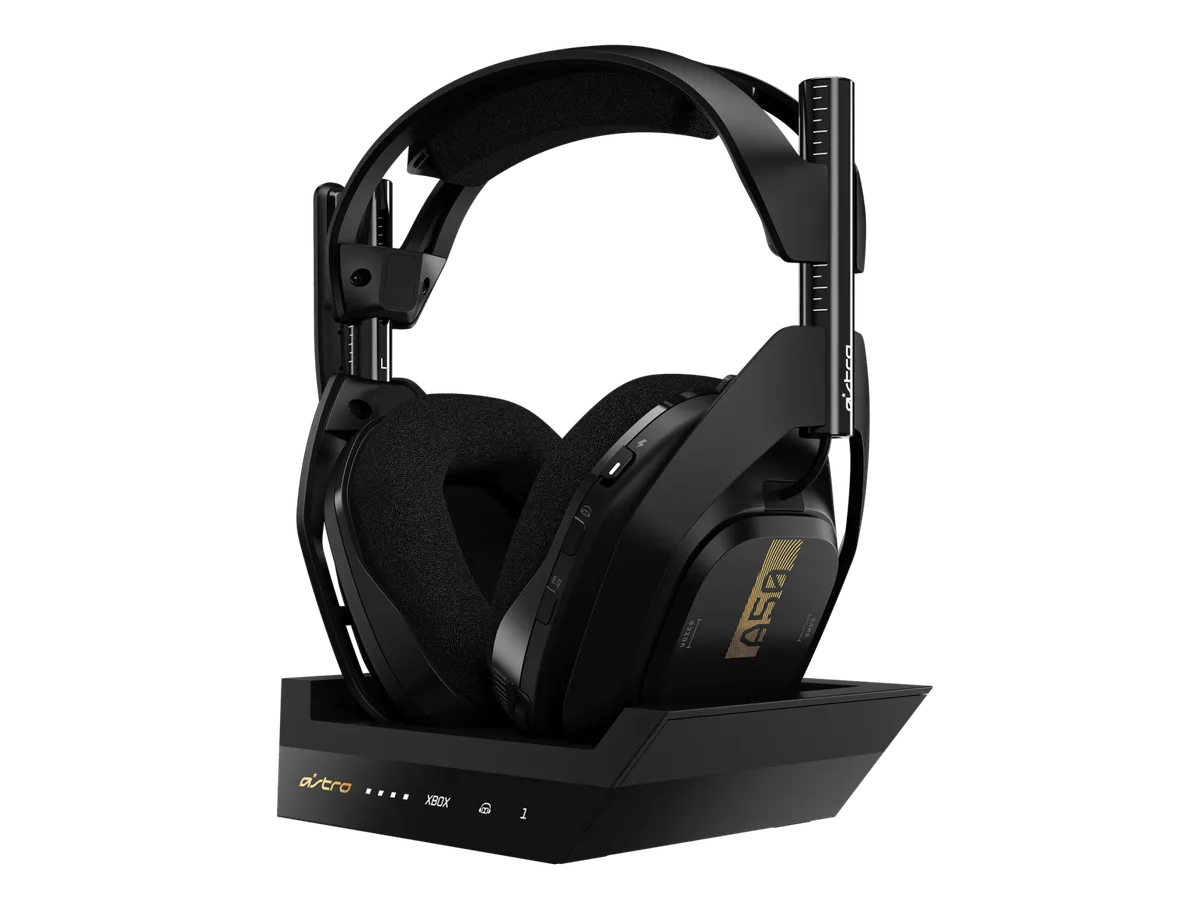
Problem: When Your Astro A50 Won’t Cooperate (And Why Resetting Works)
The Astro A50 is a premium wireless headset with a few recurring gremlins. The most common complaints include the headset refusing to power on, the base station not detecting it, no audio in one ear, static or crackling sound, and the charging dock failing to light up. Most of these stem from firmware glitches, connection drift between the headset and base station, or corrupted cache data.
Resetting clears those temporary errors. It forces the headset and base station to re establish their wireless handshake. It also resets internal voltage regulators that can cause a dead feeling device.
Think of it like rebooting a frozen computer. A soft reset preserves your settings. A factory reset wipes everything but solves deeper corruption.
If you are unfamiliar with these procedures, our about page explains how we research and verify every guide.
Quick Answer: The Three Reset Methods at a Glance
| Method | What It Does | When to Use | Time Needed |
|---|---|---|---|
| Soft reset | Clears temporary glitches | Headset freezes, no audio, won't pair | 15 seconds |
| Power cycle | Resets base station firmware | Base station not detecting headset, no charging light | 2 minutes |
| Factory reset via Astro Command Center | Wipes everything and restores firmware | Headset bricked, firmware failed, soft reset did not work | 10 minutes |
Try the soft reset first. Hold the Game button and Dolby button for 15 seconds. If that fails, power cycle the base station.
For deep issues, use the Astro Command Center for a factory reset.
Core Explanation: Soft Reset vs. Factory Reset vs. Power Cycle
Each reset method targets a different layer of the headset's electronics. Understanding the difference helps you apply the right fix and avoid unnecessary steps.
Soft Reset
This is a simple button combination. It forces the headset's main processor to restart without losing your saved equalizer profiles, microphone settings, or paired device memory. It is the least invasive option.
Use it for any symptom that seems like a temporary freeze or audio dropout. This is the first step in any troubleshooting flow per the official support documentation.
Power Cycle
This involves disconnecting the base station from power for 30 seconds. It clears the base station's volatile memory and resets its wireless communication module. It does not affect the headset's internal storage.
Use this when the base station's LEDs behave oddly (flashing white, no orange charging light) or when the headset sits on the dock but the base station acts like nothing is there.
Factory Reset via Astro Command Center
A factory reset erases everything on the headset. It returns all settings to default, including EQ profiles, mic levels, and sidetone. It also rewrites the headset's firmware from scratch.
This is the nuclear option. Use it only when a soft reset and power cycle have failed. It requires a PC or Mac with the Astro Command Center installed.
According to Logitech G's official support channels, a factory reset is also the recommended fix if the headset gets stuck mid firmware update. This approach mirrors what we outline in our editorial policy about thorough, evidence based instructions.
Decision Tree: What Is Your Symptom?
Before you start pressing buttons, check which symptom matches your situation. Each branch leads to a specific sequence of steps.
Branch A: Headset Won't Turn On
This is the most alarming problem. You press the power button and nothing happens. No LED on the ear cup.
No sound.
First, try a soft reset. Hold the Game button (left earcup) and the Dolby button (right earcup) simultaneously for 15 seconds. If the headset vibrates or a light flashes, you have revived it.
If nothing happens, move to the power cycle. Unplug the base station from power and from the console or PC. Wait 30 seconds.
Plug everything back in. Then try the soft reset again.
If the headset still shows no sign of life, it may be deeply discharged. Connect it to the base station and confirm the base station has power. The orange light should appear.
Leave it for at least one hour. Then retry the soft reset.
In rare cases, a failed firmware update can cause a true brick. That requires the factory reset method using the Astro Command Center. If even that fails, you may need to contact the manufacturer for warranty service.
Our contact us page has details on how to reach support teams.
Branch B: Headset Won't Charge (No Orange LED)
The headset sits on the dock, but the base station displays no orange charging light. This usually points to a base station problem or a contact issue.
Start with the power cycle. Unplug the base station for 30 seconds. This resets the charging circuit.
Check the gold charging pins on the headset and the dock. Wipe them with a dry cloth. Corrosion or dust can block the connection.
If the orange light still does not appear, try re pairing the headset to the base station. Place the headset on the dock. Hold the power button for 15 seconds.
The base station should flash white and then go solid white. The orange light should follow.
If charging remains dead, the firmware may be corrupted. Use the factory reset in Astro Command Center. If that does not work, the hardware may need replacement.
Our disclaimer covers the limits of DIY fixes.
Branch C: No Audio or Static Noise
Audio cuts out intermittently. Or you hear static and crackling. This is almost always a communication glitch between the headset and the base station.
First, soft reset the headset. That clears the audio processor.
If the static returns, power cycle the base station. This forces the wireless module to re initialize.
Make sure the optical cable (for console use) is seated properly. A loose optical connection introduces noise. On PC, check the USB connection.
Still having issues? Try re pairing the headset. Place it on the base station.
Hold the power button for 15 seconds. Wait for the base station to flash white then go solid.
Static that persists after these steps may indicate interference from nearby wireless devices. Move the base station away from routers, Wi‑Fi extenders, or other 2.4GHz devices.
Branch D: Base Station Won't Detect Headset
The base station lights are on, but it shows a flashing white or red light. It does not recognize the headset when docked.
This is a pairing issue. The headset and base station have lost their unique connection ID. You need to re pair them.
Place the headset on the dock. Hold the power button for 15 seconds. The base station should start flashing white, then become solid white.
That means pairing succeeded.
If the base station keeps flashing, try the power cycle first. Then repeat the re pairing.
If still no detection, perform a factory reset via Astro Command Center. This resets both the headset's pairing table and the base station's identification. Then re pair again.
Step-by-Step: Soft Reset (Hold Game Plus Dolby Buttons)
The soft reset is your safest and fastest tool. It works on both the Astro A50 Gen 3 and Gen 4 models.
What You Need
- Astro A50 headset (any generation)
- Your own two thumbs
The Steps
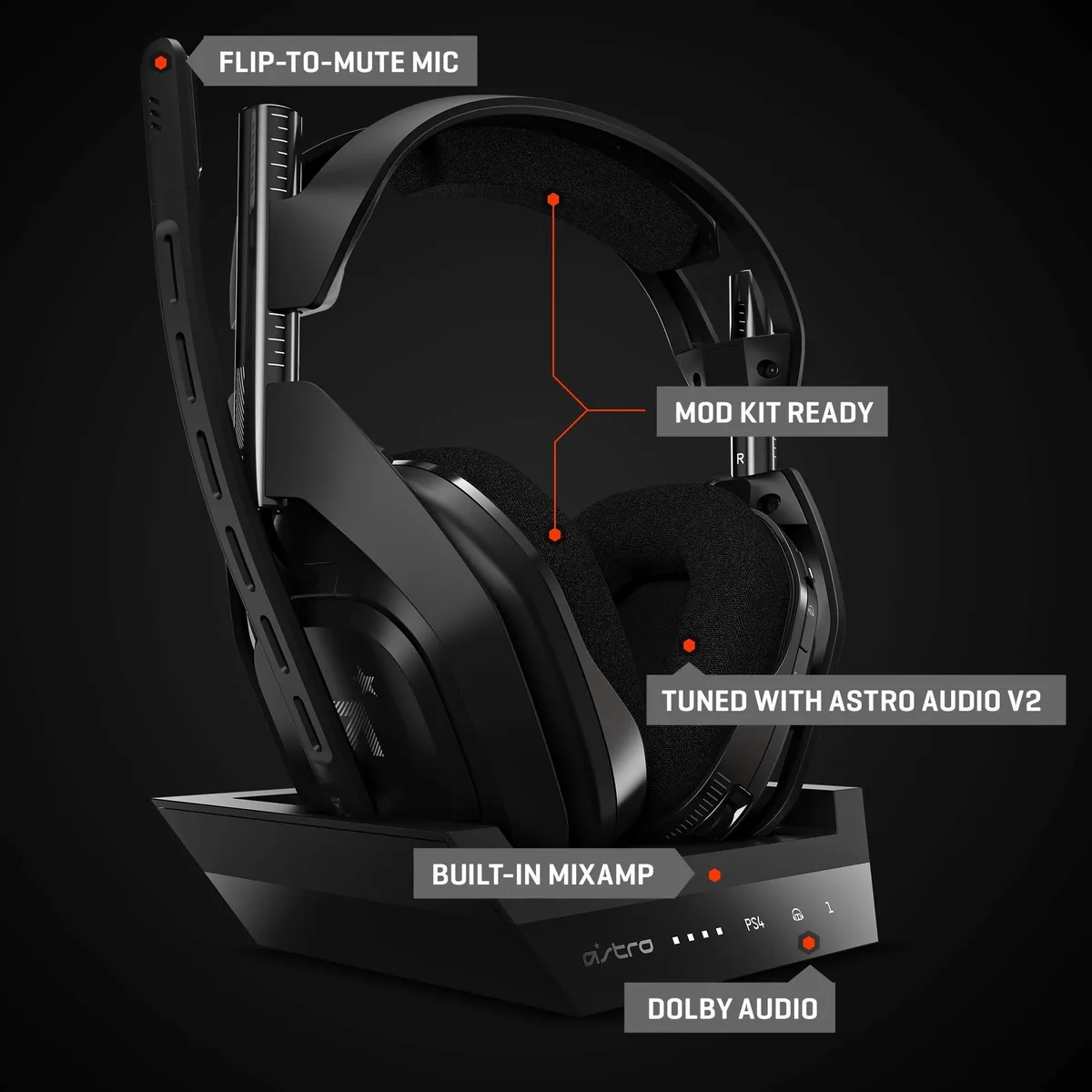
Locate the buttons. On the left earcup, find the Game button. It is the smaller button above the power switch. On the right earcup, find the Dolby button. It is the small button above the Game Voice balance wheel.
Press and hold both simultaneously. Use one thumb on each. Hold them down firmly for a full 15 seconds. Do not release early. You will feel a subtle vibration or see a brief flash of the LED on the right earcup.
Release. The headset may power off and then back on automatically. In some cases, you need to press the power button once to turn it back on.
Test. Try using the headset normally. If the issue is resolved, you are done. If not, move to the power cycle.
Pro Tips
- Do not confuse the Dolby button with the Game Voice wheel. The wheel does not trigger a reset.
- On Gen 3 models, the Dolby button is labeled with a small Dolby logo. On Gen 4 models, it is the button directly above the power switch on the right earcup.
- If the headset is completely dead and the soft reset does nothing, skip to the power cycle step. The headset may need base station power to initiate the reset.
A soft reset does not erase your custom EQ settings. It only clears volatile memory. That makes it ideal for quick troubleshooting.
Step-by-Step: Power Cycling the Base Station
Power cycling the base station clears the dock's internal memory and resets its wireless connection. This fixes most charging and detection issues without affecting your custom EQ settings.
What You Need
- Astro A50 base station (the charging dock)
- USB and optical cables connected to your console or PC
- A wall outlet or power strip
The Steps
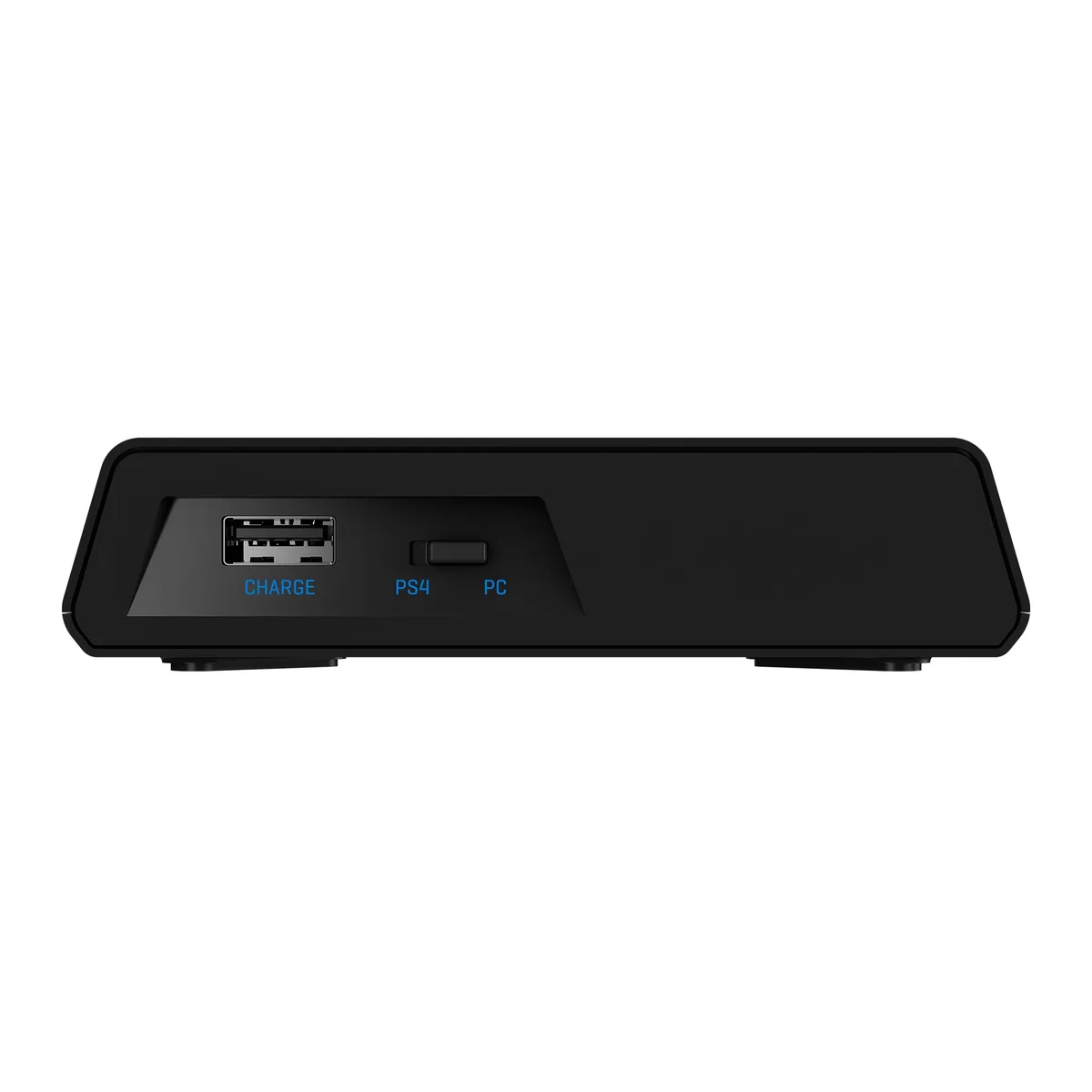
Unplug the base station completely. Remove the USB cable from the console or PC. Also unplug the optical cable if you use one. The goal is a full power disconnect.
Wait 30 seconds. This is not optional. Thirty seconds allows the capacitors inside the base station to fully discharge. A shorter wait might not clear the memory.
Plug everything back in. Reconnect the USB cable first. Then reconnect the optical cable if you use one. Make sure the base station LEDs light up.
Wait for the base station to fully boot. This takes about 10 seconds. The light should be solid white. If it stays flashing white, the base station is not detecting the console or PC.
Test the headset. Place the headset on the dock. Confirm the orange charging light appears. If the headset powers on and works, you are done.
When Power Cycling Works Best
| Issue | Expected Result |
|---|---|
| No orange charging light | Charging resumes after reconnecting |
| Base station flashing white repeatedly | Connection stabilizes |
| Headset not detected when docked | Pairing restores after power cycle |
| Static noise through headphones | Wireless interference clears |
If power cycling does not resolve the problem, move to the next step.
Step-by-Step: Re-Pairing Headset to Base Station
Re pairing forces the headset and base station to establish a fresh wireless handshake. This is essential when the base station refuses to recognize the headset even after a power cycle.
What You Need
- Astro A50 headset
- Astro A50 base station (powered on and connected)
- A few seconds of patience
The Steps
Place the headset on the base station. Make sure the gold charging pins align properly. The headset should sit flat and feel secure.
Hold the power button on the headset for 15 seconds. Do not release early. You will see the base station LED start flashing white. That means it is searching for the headset.
Wait for the solid white light. After about 10 to 15 seconds, the base station LED should turn solid white. The headset may vibrate or flash its own LED.
Remove the headset from the dock. Test the audio. If the connection works, you have successfully re paired.
If the flashing continues, repeat the power cycle first, then try re pairing again. A persistent flashing white light indicates the base station cannot find the headset. This usually points to a firmware issue that requires a factory reset.
Common Re-Pairing Pitfalls
- Releasing the power button too early. Count to 15 slowly. Do not stop when the light starts flashing. Keep holding until the light turns solid.
- Optical cable not connected. On consoles, the base station needs an optical cable for audio. Without it, the base station may not complete the handshake.
- Firmware mismatch. If the headset and base station are on different firmware versions, re pairing will fail. You need to update both using the Astro Command Center.
Re pairing resolves the vast majority of detection issues according to aggregate owner reports. If it fails, the next step is a factory reset through the software.
Step-by-Step: Factory Reset Using Astro Command Center
A factory reset wipes the headset clean. It erases all EQ profiles, mic settings, and sidetone adjustments. Then it rewrites the firmware from scratch.
This is the fix for deep corruption, failed updates, or headsets that appear bricked.
What You Need
- A PC or Mac with internet access
- The Astro Command Center software (free download)
- The Astro A50 base station connected via USB
- The headset placed on the base station
The Steps
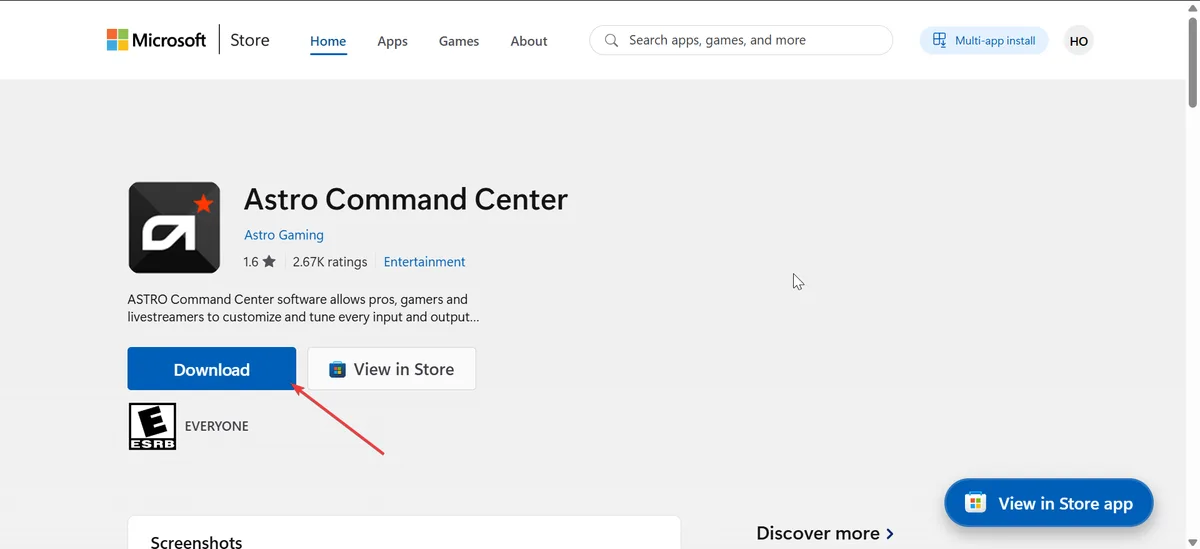
Download and install Astro Command Center. Go to the official Logitech G support page and download the latest version. Do not use third party download sites.
Connect the base station to your computer. Use the USB cable. The software should automatically detect the headset when it is docked.
Open Astro Command Center. You will see the headset listed on the left side of the window. Click on it.
Navigate to the settings tab. Look for the gear icon or the Settings section. Find the button labeled Factory Reset or Restore Defaults.
Click the factory reset button. A confirmation dialog will appear. It warns you that all settings will be erased. Confirm the action.
Wait for the process to complete. The software will erase the headset's memory and reflash the firmware. This takes about 2 to 5 minutes. Do not disconnect the headset during this time.
The headset will restart automatically. You will see the LED flash and then turn solid. The factory reset is complete.
Set up your headset again. You need to reconfigure your EQ profiles, mic level, and sidetone. If you backed up your settings earlier, you can restore them.
What to Do If the Factory Reset Fails
A failed factory reset is rare but possible. If the software freezes or the headset stops responding, try these steps:
- Force quit the Astro Command Center. Disconnect the base station and reconnect it. Try the factory reset again.
- Use a different USB port. Avoid USB hubs. Plug directly into the computer's motherboard port.
- Try a different computer. Some users report success on a different PC or Mac.
- Contact official support. If the headset remains unresponsive, it may need service. Check the manufacturer's warranty page.
The factory reset is the deepest level of software recovery. If it works, your headset is restored to new condition. If it fails, the hardware likely has a fault.
Mistakes to Avoid During the Reset Process
Resetting the Astro A50 sounds simple. Small mistakes can turn a quick fix into a frustrating hour. Here are the most common errors.
Mistake 1: Skipping the Soft Reset
Many users jump straight to the factory reset because the headset seems dead. A soft reset takes 15 seconds. A factory reset takes 10 minutes plus setup.
Try the quick option first. Manufacturer documentation and aggregate user feedback both confirm that soft resets solve the majority of glitches.
Mistake 2: Holding the Wrong Buttons
The soft reset requires the Game button and the Dolby button. Some users hold the power button and the Dolby button. That does nothing for a soft reset.
Others press the Game Voice wheel. The wheel does not trigger any reset function. Double check which buttons you are pressing.
Mistake 3: Not Waiting 30 Seconds During Power Cycle
Thirty seconds feels long. Most people wait 5 or 10 seconds and then plug the base station back in. That is not enough time for the capacitors to discharge.
The base station retains its corrupted memory. Set a timer if you have to.
Mistake 4: Releasing the Power Button During Re-Pairing
Re pairing requires a steady 15 second hold. When the base station light starts flashing, many people let go. Keep holding.
The light needs to become solid white. Early release means the pairing fails and you start over.
Mistake 5: Factory Resetting Without Backing Up EQ Settings
This is the most painful mistake. You spend hours tuning your EQ profile. Then a factory reset wipes it out.
Always export your settings from the Astro Command Center before clicking the factory reset button. The next section explains how.
Mistake 6: Using a Third Party USB Cable
The base station is sensitive to power delivery. A cheap USB cable may not provide enough power. It can cause the base station to act erratically.
Use the original cable that came with the headset. If you lost it, buy a quality replacement that supports data and charging.
Mistake 7: Ignoring Firmware Updates
Sometimes a simple reset fails because the firmware is outdated. Before resorting to extreme measures, check for firmware updates in the Astro Command Center. Updating can fix underlying bugs that resets alone cannot solve.
Expert Tips: Preserving EQ Settings Before a Factory Reset
A factory reset erases everything. The Astro Command Center allows you to back up your settings. This is a feature many owners overlook.
Taking two minutes to save your profile saves hours of re tuning.
How to Back Up Your EQ Settings
- Open Astro Command Center with your headset connected.
- Click on the headset icon on the left side of the window.
- Look for the Profiles section near the top. It may be labeled EQ Presets or Custom Profiles.
- Click the Export or Save button. The software prompts you to choose a location on your computer. Name the file something you will recognize, like "My Astro EQ 2026."
- Confirm the export. The file saves with a .astro or .xml extension depending on the software version.
How to Restore Your Settings After a Factory Reset
- Complete the factory reset as described earlier.
- Reconnect the headset to the Astro Command Center.
- Go back to the Profiles section.
- Click the Import button. Navigate to the file you saved earlier.
- Apply the profile. The software loads your EQ, mic, and sidetone settings in seconds.
Bonus: Keep Multiple Backups
If you have different EQ profiles for different games, export each one separately. Label them clearly. Store them in a cloud folder or on a USB drive.
A hardware failure should never cost you your perfect audio setup.
What to Do If You Forgot to Back Up
Do not panic. Some users post their preferred EQ presets on community forums. You can often find a close match by searching for your headset model and preferred game genre.
It is not as good as your personal tuning, but it saves you starting from scratch.
If you need to rebuild from default, start with the flat EQ and adjust incrementally. Write down your settings on paper next time. A low tech backup is better than no backup.
FAQs: Common Sticking Points
Below are the questions that come up most often from owners who get stuck during the reset process.
How do I know if my Astro A50 needs a soft reset or a factory reset?
A soft reset fixes temporary glitches like audio dropouts, static, or a frozen headset. A factory reset is for deeper corruption, failed firmware updates, or a headset that will not power on after a soft reset and power cycle. Try the soft reset first every time.
Why does the base station keep flashing white after I try to pair it?
A flashing white light means the base station cannot find the headset. This happens when the pairing process was interrupted or the headset is not fully seated on the dock. Remove the headset and place it back on the dock.
Hold the power button for a full 15 seconds. If the light still flashes, power cycle the base station first, then retry.
Can I reset my Astro A50 without a computer?
Yes, for a soft reset and a power cycle. The soft reset uses only the buttons on the headset. The power cycle requires only unplugging the base station.
A factory reset does require a computer with the Astro Command Center.
What do I do if the soft reset does nothing and the headset is completely dead?
Place the headset on the base station and confirm the base station has power. Look for the orange charging light. If you see it, leave the headset charging for at least one hour.
Then try the soft reset again. If no orange light appears, the base station may need a power cycle or the charging pins need cleaning.
Will a factory reset void my warranty?
No, a factory reset does not void the warranty. It is a standard software procedure recommended by the manufacturer. Physical damage from using sharp objects on the reset pinhole or from liquid exposure would void the warranty.
How do I reset the Astro A50 Gen 3 differently from the Gen 4?
The Gen 3 and Gen 4 use the same soft reset button combination: hold the Game button and Dolby button for 15 seconds. The power cycle is identical. The factory reset process in Astro Command Center is also the same.
The only difference is the Dolby button location. On the Gen 3 it is labeled with a Dolby logo. On the Gen 4 it sits above the power switch on the right earcup.
Final Decision Guide: Which Reset to Try First Based on Your Issue
This guide summarizes the entire decision tree into one quick reference.
| Your Symptom | First Try | Second Try | Third Try |
|---|---|---|---|
| Headset won't turn on | Soft reset | Power cycle plus soft reset | Factory reset via ACC |
| Headset won't charge (no orange LED) | Power cycle | Clean charging pins plus re-pair | Factory reset via ACC |
| No audio or static noise | Soft reset | Power cycle base station | Re-pair headset |
| Base station not detecting headset | Re-pair headset | Power cycle plus re-pair | Factory reset via ACC |
| Stuck mid firmware update | Power cycle | Re-pair headset | Factory reset via ACC |
| Headset works but disconnects randomly | Soft reset | Power cycle base station | Move base station away from Wi‑Fi devices |
When to Skip Straight to Factory Reset
Skip the soft reset and power cycle only in one situation. The headset will not complete a firmware update and the Astro Command Center shows an error message. In that case, the firmware is already corrupted.
A factory reset is the only way to rewrite it.
When to Contact Support
If you have tried all three reset methods and the headset still does not work, you likely have a hardware failure. The battery may be dead. The charging circuit on the base station may be faulty.
The wireless transmitter may have failed. Check the manufacturer's warranty page or reach out through your console's support channels. Our terms and conditions page has information about product warranty claims.
A Final Reminder
Resetting is almost always the right first step. According to aggregate owner feedback across gaming forums and support tickets, most Astro A50 issues resolve with a soft reset or power cycle. Do not give up on the headset until you have gone through each method in the order we laid out.
You will save yourself time, money, and the hassle of shipping a headset back for service.